
Описание
Файлы1
Комментарии140
Данный плагин исправляет ошибки движка игры Fallout 4 и добавляет в игру «аварийный журнал» (регистратор вылетов). Не стесняйтесь размещать свои журналы сбоев в разделе комментариев на Нексусе, я (автор) смогу или не смогу посмотреть и проверить их.
Обновление:1.26.2
* Исправлен сбой, вызванный исправлением TESObjectREFRGetEncounterZone.
Обновление:1.26.1
* Microsoft Visual C++ Redistributable как обязательное требование больше не требуется (хотя эта штучка и так у всех установлена в Windows’е).
* TBB Redistributables (файл tbbmalloc.dll) как обязательное требование больше не требуется, поэтому удалите у себя из папки игры этот файл tbbmalloc.dll, если у вас ранее был установлен этот плагин предыдущих версий.
* В файл настроек Buffout4.toml добавлено исправление TESObjectREFRGetEncounterZone (Исправляет сбой, при поиске зоны столкновения по ссылочным данным, которые еще не инициализированы).
* В файл настроек Buffout4.toml добавлено исправление CreateD3DAndSwapChain (Исправляет сбой при запуске игры, при перечислении определенных режимов отображения монитора).
Журнал изменений:
* Полный список изменений всех предыдущих версий читайте в файле Changelogs.txt в архиве.
Что исправляет данный плагин:
* файл с настройками Buffout4.toml будет находится по пути Data/F4SE/Plugins/ после установки, в нем можете сами изменить данные
* значение true — включено, значение false — отключено
* в самом архиве я не стал переводить данный файл, так как многие игроки редактируют файл в неверной кодировке и потом грешат что я (локализатор) не правильно сохраняю кодировку после перевода, в общем открывать данный файл Buffout4.toml нужно через Notepad++, и редактирорвать, если хотите внести изменения, изначально кодировка файла UTF-8 и пересохранять файл так же в данной кодировке, в Notepad++ кодировка применяется автоматом та, которая нужна, после редактирования, то есть оригинальная.
[Fixes]
ActorIsHostileToActor = true # Исправляет сбой при вызове Actor.IsHostileToActor с формой none
CellInit = true # Исправляет сбой когда форма не преобразуется в указатель формы на выгруженных ячейках
CreateD3DAndSwapChain = true # Исправляет сбой при запуске игры, при перечислении определенных режимов отображения монитора
EncounterZoneReset = true # Исправляет ошибку, из-за которой зоны встреч сбрасывались сразу после того, как вы покидаете их пешком
GreyMovies = true # Исправляет ошибку, из-за которой фильмы, которые не определяют «BackgroundAlpha» в корневом каталоге, могли загружаться с серым фоном
MagicEffectApplyEvent = true # Исправляет ошибку, когда события применения магического эффекта отправляются по нулевым ссылкам (обращение к данным)
MovementPlanner = true # Исправляет ошибку, из-за которой планировщик движения выходил из строя вместе с другими участниками (не НПС)
PackageAllocateLocation = true # Исправляет ошибку при выделении местоположения для пакета
SafeExit = true # Исправляет сбои, связанные с выходом из игры, которые могут быть ошибочно вызваны хуками плагина F4SE
TESObjectREFRGetEncounterZone = true # Исправляет сбой, при поиске зоны столкновения по ссылочным данным, которые еще не инициализированы
UnalignedLoad = true # Исправляет сбой, связанный с внутренними функциями SIMD, с выровненным перемещением в невыровненной памяти
UtilityShader = true # Исправляет сбой, когда шейдер не может быть найден для данного технического идентификатора id
[Patches]
Achievements = true # Позволяет получать достижения (ачивки) в сохранениях с модами (данный мод Achievements если вы им пользуетесь не нужен)
BSMTAManager = true # Общее улучшение производительности рендеринга (отрисовки объектов)
BSPreCulledObjects = true # Общее улучшение производительности рендеринга (отрисовки объектов)
BSTextureStreamerLocalHeap = true # Заменяет локальную кучу текстурного стримера распределителями ОС
HavokMemorySystem = true # Заменяет систему памяти havok распределителями ОС
INISettingCollection = true # Значительно сокращает время запуска при большом кол-ве установленных модов, за счет оптимизации загрузки настроек в .ini файле
InputSwitch = false # Автоматическое переключение входов между клавиатура+мышь/контроллером
MaxStdIO = -1 # Заменяет максимальное количество дескрипторов stdio
MemoryManager = true # Заменяет глобальный менеджер памяти распределителями ОС
MemoryManagerDebug = false # Включает трассировку отладки для определения неисправных модулей
ScaleformAllocator = true # Заменяет распределитель памяти scaleform на распределители ОС
SmallBlockAllocator = true # Заменяет небольшие блочные распределители памяти на распределители памяти ОС
WorkshopMenu = true # Устраняет (уменьшает) задержки при открытии меню мастерской. Судя по всему эта опция является заменой моду «Faster Workshop (Workshop Lag Fix)», поэтому выбирать наверное нужно что то одно или данный мод Faster Workshop (Workshop Lag Fix) или оставить эту опцию включенной или отключить, если у вас установлен мод Faster Workshop (Workshop Lag Fix).
[Warnings]
CreateTexture2D = true # Предупреждает при сбое вызова CreateTexture2D
ImageSpaceAdapter = true # Предупреждает о неверных определениях IMAD, которые могут испортить вашу память и привести к сбою в игре
[Compatibility]
F4EE = false # 1.6.20 — Исправляет различные ошибки в LooksMenu версии 1.6.20
Где находится файл журнала сбоев?
* Журналы сбоев находятся в папке «Documents My Games Fallout4 F4SE»
Требования:
Fallout 4 последней версии 1.10.163.0
F4SE 0.6.21 и выше
Address Library for F4SE Plugins 1.10.163.0 и выше
xSE PluginPreloader F4 0.2.5.1 и выше
Установка:
1. Скачать архив «Buffout 4» и установить в игру через менеджеры модов или вручную папку F4SE в папку Data в игре.
2. Играть.
ВАЖНО ЗНАТЬ:
Патч диспетчера памяти (опция MemoryManager) может вызывать сбои с некоторыми модами, которые непреднамеренно повреждают активы. Это проблема не с данным модом «Buffout 4», а с ними. Некоторые из этих модов включают:
* True Nights: этот мод имеет поврежденную запись адаптера пространства изображений, которая повреждает память с момента его выпуска.
Если вы не можете жить без этого мода, вы можете отключить патч диспетчера памяти (опция MemoryManager = true переключить на false) в файле Buffout4.toml
Если у вас происходит сбой при загрузке, вы можете попробовать включить опцию MemoryManagerDebug, чтобы найти неисправный модуль.
FAQ:
Смотрите на странице мода от автора здесь (на английском, в браузере если установлен транслейт, то включите русский перевод, все очень понятно)
Архив «Buffout 4» v1.26.2 (588 kb)Сервер №1
Fallout 4 Fixes
Description:
This mod is intended to be a bug fix and consistency focused unofficial update for Fallout 4 and its DLC. My goal with this is to fix up what bugs and inconsistencies remain in an otherwise fairly stable game. What I do not plan on doing are things like completely overhauling perks, weapon or armor mods, or actor statistics. I also do not plan on restoring cut content like the Chinese Assault Rifle.
My priorities are mechanical and technical fixes, as well as gameplay consistency. Although things like minor object placement fixes and making dialogue grammatically correct is not my priority, I will likely fix them as I come across them.
Also, yes, I am aware Arthmoor has a similar mod already for Fallout 4, however when I started working on this mod, it had been over a year since it was updated. I had the wrong assumption that it was no longer being maintained. However I will keep my mod up and continue to maintain it with gameplay fixes and consistency tweaks.
List of Fixes:
List of Consistency Changes:
Recommended Mods:
• Unofficial Fallout 4 Patch: Our mods cover mostly different ground, but there likely will be some overlap as time goes on as I try to fix more gameplay bugs and wackyness. Load this mod after the Unofficial Patch.
• Previsibines Repair Pack: Fixes and regenerates precombine across Boston and beyond.
Это перевод на русский язык мода Unofficial Fallout 4 Patch от Djezendopus.
Выражаю благодарность авторам оригинального мода: Unofficial Patch Project Team.
Для работы
ТРЕБУЕТСЯ ОРИГИНАЛЬНЫЙ МОД! Если перевод вам понравился, не забудьте нажать «Endorse»!
Мной был выполнен только
перевод текстовой части, если у вас проблемы с работой мода — обращайтесь к автору на странице оригинала.
Далее приведен перевод описания мода со страницы оригинала.
============================================================================================================================

Требуется Fallout 4 версии 1.10.163 или выше!
Необходимы *ВСЕ 6* официальных DLC.
Комплексный мод, исправляющий ошибки в Fallout 4. Цель Unofficial Fallout 4 Patch (также известного как UFO4P) — в конечном итоге исправить каждую ошибку Fallout 4, не исправленную разработчиками официально, используя возможности Creation Kit и инструментов, разработанных сообществом, и предоставить все исправления в одном пакете для простоты установки.
Особенности:
— Сотни исправленных багов в геймплее, квестах, NPC, объектах, вещах, тексте и расположении.
— Создано той же группой авторов, которая создала серию «Unofficial Oblivion and Skyrim Patch».
— Нет небезопасных изменений (таких как, например, удаление стоковых объектов).
— Создан так, чтобы быть совместимым с максимально возможным количеством модов.
Для получения дополнительной информации (список изменений, моды, которые заменяет UFO4P) зайдите на страницу UFO4P на форуме AFK Mods.
Полный список изменений можно посмотреть здесь.
Если вы столкнулись с ошибкой в Fallout 4, пожалуйста, сообщите нам об этом как можно более подробно на багтрекере UFO4P. Пожалуйста, используйте поиск, чтобы убедиться, что об этой ошибке еще не писали.
Часто задаваемые вопросы — БАГИ
Часто задаваемые вопросы — о проекте

Требования к установке
Fallout 4 версии 1.10.130 или выше.
Официальное DLC Automatron.
Официальное DLC Wasteland Workshop.
Официальное DLC Far Harbor.
Официальное DLC Contraptions Workshop.
Официальное DLC Vault-Tec.
Официальное DLC Nuka-World.
НЕ извлекайте содержимое файлов BA2 в папку Data и не позволяйте вашему менеджеру модов выполнять аналогичные действия над содержимым файлов. Это приведет к тому, что файлы будут загружены в неправильном порядке и приведут к ошибкам в игре. Моды для Fallout 4 загружаются в виде файлов BA2 в комплекте с файлами ESM/ESP. Обход этой рекомендации вызывает проблемы, которые не поддерживаются разработчиками. Если вы не будете следовать этому совету, вы не получите никакой поддержки по поводу проблем, которые это вызовет.
После установки мода порядок загрузки должен быть следующим:
Fallout4.esm
DLCRobot.esm
DLCworkshop01.esm
DLCCoast.esm
DLCWorkshop02.esm
DLCWorkshop03.esm
DLCNukaWorld.esm
DLCUltraHighResolution.esm (НЕОБЯЗАТЕЛЬНЫЙ)
Unofficial Fallout 4 Patch.esp
[Все остальные моды, которые вы установили]
Для управления порядком загрузки модов, используйте LOOT. Это обеспечит надежный способ настройки порядка загрузки.
Внимание
Этот мод не производится, не получает гарантий и не поддерживается компаниями Zenimax, Bethesda Game Studios или их филиалами.
К сожалению, в играх бывают изъяны: тормоза, низкий FPS, вылеты, зависания, баги и другие мелкие и не очень ошибки. Нередко проблемы начинаются еще до начала игры, когда она не устанавливается, не загружается или даже не скачивается. Да и сам компьютер иногда чудит, и тогда в Fallout 4: Game of the Year Edition вместо картинки черный экран, не работает управление, не слышно звук или что-нибудь еще.
Что сделать в первую очередь
- Скачайте и запустите всемирно известный CCleaner (скачать по прямой ссылке) — это программа, которая очистит ваш компьютер от ненужного мусора, в результате чего система станет работать быстрее после первой же перезагрузки;
- Обновите все драйверы в системе с помощью программы Driver Updater (скачать по прямой ссылке) — она просканирует ваш компьютер и обновит все драйверы до актуальной версии за 5 минут;
- Установите Advanced System Optimizer (скачать по прямой ссылке) и включите в ней игровой режим, который завершит бесполезные фоновые процессы во время запуска игр и повысит производительность в игре.
Системные требования Fallout 4: Game of the Year Edition
Второе, что стоит сделать при возникновении каких-либо проблем с Fallout 4: Game of the Year Edition, это свериться с системными требованиями. По-хорошему делать это нужно еще до покупки, чтобы не пожалеть о потраченных деньгах.
Минимальные системные требования Fallout 4: Game of the Year Edition:
Windows 7, Процессор: Intel Core i5 2300 2,8 ГГц | AMD Phenom II X4 945 3,0 ГГц, 8 ГБ ОЗУ, 30 ГБ HDD, Nvidia GeForce GTX 550 Ti | AMD Radeon HD 7870 2 ГБ Видеопамять: 2 ГБ, Клавиатура, мышь
Посмотреть рекомендуемые требования
Каждому геймеру следует хотя бы немного разбираться в комплектующих, знать, зачем нужна видеокарта, процессор и другие штуки в системном блоке.
Файлы, драйверы и библиотеки
Практически каждое устройство в компьютере требует набор специального программного обеспечения. Это драйверы, библиотеки и прочие файлы, которые обеспечивают правильную работу компьютера.
Начать стоит с драйверов для видеокарты. Современные графические карты производятся только двумя крупными компаниями — Nvidia и AMD. Выяснив, продукт какой из них крутит кулерами в системном блоке, отправляемся на официальный сайт и загружаем пакет свежих драйверов:
- Скачать драйвер для видеокарты Nvidia GeForce
- Скачать драйвер для видеокарты AMD Radeon

Обязательным условием для успешного функционирования Fallout 4: Game of the Year Edition является наличие самых свежих драйверов для всех устройств в системе. Скачайте утилиту Driver Updater, чтобы легко и быстро загрузить последние версии драйверов и установить их одним щелчком мыши:
- загрузите Driver Updater и запустите программу;
- произведите сканирование системы (обычно оно занимает не более пяти минут);
- обновите устаревшие драйверы одним щелчком мыши.

Фоновые процессы всегда влияют на производительность. Вы можете существенно увеличить FPS, очистив ваш ПК от мусорных файлов и включив специальный игровой режим с помощью программы Advanced System Optimizer
- загрузите Advanced System Optimizer и запустите программу;
- произведите сканирование системы (обычно оно занимает не более пяти минут);
- выполните все требуемые действия. Ваша система работает как новая!
Когда с драйверами закончено, можно заняться установкой актуальных библиотек — DirectX и .NET Framework. Они так или иначе используются практически во всех современных играх:
- Скачать DirectX
- Скачать Microsoft .NET Framework 3.5
- Скачать Microsoft .NET Framework 4
Еще одна важная штука — это библиотеки расширения Visual C++, которые также требуются для работы Fallout 4: Game of the Year Edition. Ссылок много, так что мы решили сделать отдельный список для них:
- Скачать Microsoft Visual C++ 2005 Service Pack 1
- Скачать Microsoft Visual C++ 2008 (32-бит) (Скачать Service Pack 1)
- Скачать Microsoft Visual C++ 2008 (64-бит) (Скачать Service Pack 1)
- Скачать Microsoft Visual C++ 2010 (32-бит) (Скачать Service Pack 1)
- Скачать Microsoft Visual C++ 2010 (64-бит) (Скачать Service Pack 1)
- Скачать Microsoft Visual C++ 2012 Update 4
- Скачать Microsoft Visual C++ 2013
Если вы дошли до этого места — поздравляем! Наиболее скучная и рутинная часть подготовки компьютера к геймингу завершена. Дальше мы рассмотрим типовые проблемы, возникающие в играх, а также кратко наметим пути их решения.
Fallout 4: Game of the Year Edition не скачивается. Долгое скачивание. Решение
Скорость лично вашего интернет-канала не является единственно определяющей скорость загрузки. Если раздающий сервер работает на скорости, скажем, 5 Мб в секунду, то ваши 100 Мб делу не помогут.
Если Fallout 4: Game of the Year Edition совсем не скачивается, то это может происходить сразу по куче причин: неправильно настроен роутер, проблемы на стороне провайдера, кот погрыз кабель или, в конце-концов, упавший сервер на стороне сервиса, откуда скачивается игра.
Fallout 4: Game of the Year Edition не устанавливается. Прекращена установка. Решение
Перед тем, как начать установку Fallout 4: Game of the Year Edition, нужно еще раз обязательно проверить, какой объем она занимает на диске. Если же проблема с наличием свободного места на диске исключена, то следует провести диагностику диска. Возможно, в нем уже накопилось много «битых» секторов, и он банально неисправен?
В Windows есть стандартные средства проверки состояния HDD- и SSD-накопителей, но лучше всего воспользоваться специализированными программами.
Но нельзя также исключать и вероятность того, что из-за обрыва соединения загрузка прошла неудачно, такое тоже бывает. А если устанавливаете Fallout 4: Game of the Year Edition с диска, то стоит поглядеть, нет ли на носителе царапин и чужеродных веществ!
Fallout 4: Game of the Year Edition не запускается. Ошибка при запуске. Решение
Fallout 4: Game of the Year Edition установилась, но попросту отказывается работать. Как быть?
Выдает ли Fallout 4: Game of the Year Edition какую-нибудь ошибку после вылета? Если да, то какой у нее текст? Возможно, она не поддерживает вашу видеокарту или какое-то другое оборудование? Или ей не хватает оперативной памяти?
Помните, что разработчики сами заинтересованы в том, чтобы встроить в игры систему описания ошибки при сбое. Им это нужно, чтобы понять, почему их проект не запускается при тестировании.
Обязательно запишите текст ошибки. Если вы не владеете иностранным языком, то обратитесь на официальный форум разработчиков Fallout 4: Game of the Year Edition. Также будет полезно заглянуть в крупные игровые сообщества и, конечно, в наш FAQ.
Если Fallout 4: Game of the Year Edition не запускается, мы рекомендуем вам попробовать отключить ваш антивирус или поставить игру в исключения антивируса, а также еще раз проверить соответствие системным требованиям и если что-то из вашей сборки не соответствует, то по возможности улучшить свой ПК, докупив более мощные комплектующие.
В Fallout 4: Game of the Year Edition черный экран, белый экран, цветной экран. Решение
Проблемы с экранами разных цветов можно условно разделить на 2 категории.
Во-первых, они часто связаны с использованием сразу двух видеокарт. Например, если ваша материнская плата имеет встроенную видеокарту, но играете вы на дискретной, то Fallout 4: Game of the Year Edition может в первый раз запускаться на встроенной, при этом самой игры вы не увидите, ведь монитор подключен к дискретной видеокарте.
Во-вторых, цветные экраны бывают при проблемах с выводом изображения на экран. Это может происходить по разным причинам. Например, Fallout 4: Game of the Year Edition не может наладить работу через устаревший драйвер или не поддерживает видеокарту. Также черный/белый экран может выводиться при работе на разрешениях, которые не поддерживаются игрой.
Fallout 4: Game of the Year Edition вылетает. В определенный или случайный момент. Решение
Играете вы себе, играете и тут — бац! — все гаснет, и вот уже перед вами рабочий стол без какого-либо намека на игру. Почему так происходит? Для решения проблемы стоит попробовать разобраться, какой характер имеет проблема.
Если вылет происходит в случайный момент времени без какой-то закономерности, то с вероятностью в 99% можно сказать, что это ошибка самой игры. В таком случае исправить что-то очень трудно, и лучше всего просто отложить Fallout 4: Game of the Year Edition в сторону и дождаться патча.
Однако если вы точно знаете, в какие моменты происходит вылет, то можно и продолжить игру, избегая ситуаций, которые провоцируют сбой.
Однако если вы точно знаете, в какие моменты происходит вылет, то можно и продолжить игру, избегая ситуаций, которые провоцируют сбой. Кроме того, можно скачать сохранение Fallout 4: Game of the Year Edition в нашем файловом архиве и обойти место вылета.
Fallout 4: Game of the Year Edition зависает. Картинка застывает. Решение
Ситуация примерно такая же, как и с вылетами: многие зависания напрямую связаны с самой игрой, а вернее с ошибкой разработчика при ее создании. Впрочем, нередко застывшая картинка может стать отправной точкой для расследования плачевного состояния видеокарты или процессора.Так что если картинка в Fallout 4: Game of the Year Edition застывает, то воспользуйтесь программами для вывода статистики по загрузке комплектующих. Быть может, ваша видеокарта уже давно исчерпала свой рабочий ресурс или процессор греется до опасных температур?Проверить загрузку и температуры для видеокарты и процессоров проще всего в программе MSI Afterburner. При желании можно даже выводить эти и многие другие параметры поверх картинки Fallout 4: Game of the Year Edition.Какие температуры опасны? Процессоры и видеокарты имеют разные рабочие температуры. У видеокарт они обычно составляют 60-80 градусов по Цельсию. У процессоров немного ниже — 40-70 градусов. Если температура процессора выше, то следует проверить состояние термопасты. Возможно, она уже высохла и требует замены.Если греется видеокарта, то стоит воспользоваться драйвером или официальной утилитой от производителя. Нужно увеличить количество оборотов кулеров и проверить, снизится ли рабочая температура.
Fallout 4: Game of the Year Edition тормозит. Низкий FPS. Просадки частоты кадров. Решение
При тормозах и низкой частоте кадров в Fallout 4: Game of the Year Edition первым делом стоит снизить настройки графики. Разумеется, их много, поэтому прежде чем снижать все подряд, стоит узнать, как именно те или иные настройки влияют на производительность.Разрешение экрана. Если кратко, то это количество точек, из которого складывается картинка игры. Чем больше разрешение, тем выше нагрузка на видеокарту. Впрочем, повышение нагрузки незначительное, поэтому снижать разрешение экрана следует только в самую последнюю очередь, когда все остальное уже не помогает.Качество текстур. Как правило, этот параметр определяет разрешение файлов текстур. Снизить качество текстур следует в случае если видеокарта обладает небольшим запасом видеопамяти (меньше 4 ГБ) или если используется очень старый жесткий диск, скорость оборотов шпинделя у которого меньше 7200.Качество моделей (иногда просто детализация). Эта настройка определяет, какой набор 3D-моделей будет использоваться в игре. Чем выше качество, тем больше полигонов. Соответственно, высокополигональные модели требуют большей вычислительной мощности видекарты (не путать с объемом видеопамяти!), а значит снижать этот параметр следует на видеокартах с низкой частотой ядра или памяти.Тени. Бывают реализованы по-разному. В одних играх тени создаются динамически, то есть они просчитываются в реальном времени в каждую секунду игры. Такие динамические тени загружают и процессор, и видеокарту. В целях оптимизации разработчики часто отказываются от полноценного рендера и добавляют в игру пре-рендер теней. Они статичные, потому как по сути это просто текстуры, накладывающиеся поверх основных текстур, а значит загружают они память, а не ядро видеокарты.Нередко разработчики добавляют дополнительные настройки, связанные с тенями:
- Разрешение теней — определяет, насколько детальной будет тень, отбрасываемая объектом. Если в игре динамические тени, то загружает ядро видеокарты, а если используется заранее созданный рендер, то «ест» видеопамять.
- Мягкие тени — сглаживание неровностей на самих тенях, обычно эта опция дается вместе с динамическими тенями. Вне зависимости от типа теней нагружает видеокарту в реальном времени.
Сглаживание. Позволяет избавиться от некрасивых углов на краях объектов за счет использования специального алгоритма, суть которого обычно сводится к тому, чтобы генерировать сразу несколько изображений и сопоставлять их, высчитывая наиболее «гладкую» картинку. Существует много разных алгоритмов сглаживания, которые отличаются по уровню влияния на быстродействие Fallout 4: Game of the Year Edition.Например, MSAA работает «в лоб», создавая сразу 2, 4 или 8 рендеров, поэтому частота кадров снижается соответственно в 2, 4 или 8 раз. Такие алгоритмы как FXAA и TAA действуют немного иначе, добиваясь сглаженной картинки путем высчитывания исключительно краев и с помощью некоторых других ухищрений. Благодаря этому они не так сильно снижают производительность.Освещение. Как и в случае со сглаживанием, существуют разные алгоритмы эффектов освещения: SSAO, HBAO, HDAO. Все они используют ресурсы видеокарты, но делают это по-разному в зависимости от самой видеокарты. Дело в том, что алгоритм HBAO продвигался в основном на видеокартах от Nvidia (линейка GeForce), поэтому лучше всего работает именно на «зеленых». HDAO же, наоборот, оптимизирован под видеокарты от AMD. SSAO — это наиболее простой тип освещения, он потребляет меньше всего ресурсов, поэтому в случае тормозов в Fallout 4: Game of the Year Edition стоит переключиться него.Что снижать в первую очередь? Как правило, наибольшую нагрузку вызывают тени, сглаживание и эффекты освещения, так что лучше начать именно с них.Часто геймерам самим приходится заниматься оптимизацией Fallout 4: Game of the Year Edition. Практически по всем крупным релизам есть различные соответствующие и форумы, где пользователи делятся своими способами повышения производительности.
Один из них — специальная программа под названием Advanced System Optimizer. Она сделана специально для тех, кто не хочет вручную вычищать компьютер от разных временных файлов, удалять ненужные записи реестра и редактировать список автозагрузки. Advanced System Optimizer сама сделает это, а также проанализирует компьютер, чтобы выявить, как можно улучшить производительность в приложениях и играх.
Скачать Advanced System Optimizer
Fallout 4: Game of the Year Edition лагает. Большая задержка при игре. Решение
Многие путают «тормоза» с «лагами», но эти проблемы имеют совершенно разные причины. Fallout 4: Game of the Year Edition тормозит, когда снижается частота кадров, с которой картинка выводится на монитор, и лагает, когда задержка при обращении к серверу или любому другому хосту слишком высокая.
Именно поэтому «лаги» могут быть только в сетевых играх. Причины разные: плохой сетевой код, физическая удаленность от серверов, загруженность сети, неправильно настроенный роутер, низкая скорость интернет-соединения.
Впрочем, последнее бывает реже всего. В онлайн-играх общение клиента и сервера происходит путем обмена относительно короткими сообщениями, поэтому даже 10 Мб в секунду должно хватить за глаза.
В Fallout 4: Game of the Year Edition нет звука. Ничего не слышно. Решение
Fallout 4: Game of the Year Edition работает, но почему-то не звучит — это еще одна проблема, с которой сталкиваются геймеры. Конечно, можно играть и так, но все-таки лучше разобраться, в чем дело.
Сначала нужно определить масштаб проблемы. Где именно нет звука — только в игре или вообще на компьютере? Если только в игре, то, возможно, это обусловлено тем, что звуковая карта очень старая и не поддерживает DirectX.
Если же звука нет вообще, то дело однозначно в настройке компьютера. Возможно, неправильно установлены драйвера звуковой карты, а может быть звука нет из-за какой-то специфической ошибки нашей любимой ОС Windows.
В Fallout 4: Game of the Year Edition не работает управление. Fallout 4: Game of the Year Edition не видит мышь, клавиатуру или геймпад. Решение
Как играть, если невозможно управлять процессом? Проблемы поддержки специфических устройств тут неуместны, ведь речь идет о привычных девайсах — клавиатуре, мыши и контроллере.Таким образом, ошибки в самой игре практически исключены, почти всегда проблема на стороне пользователя. Решить ее можно по-разному, но, так или иначе, придется обращаться к драйверу. Обычно при подключении нового устройства операционная система сразу же пытается задействовать один из стандартных драйверов, но некоторые модели клавиатур, мышей и геймпадов несовместимы с ними.Таким образом, нужно узнать точную модель устройства и постараться найти именно ее драйвер. Часто с устройствами от известных геймерских брендов идут собственные комплекты ПО, так как стандартный драйвер Windows банально не может обеспечить правильную работу всех функций того или иного устройства.Если искать драйверы для всех устройств по отдельности не хочется, то можно воспользоваться программой Driver Updater. Она предназначена для автоматического поиска драйверов, так что нужно будет только дождаться результатов сканирования и загрузить нужные драйвера в интерфейсе программы.Нередко тормоза в Fallout 4: Game of the Year Edition могут быть вызваны вирусами. В таком случае нет разницы, насколько мощная видеокарта стоит в системном блоке. Проверить компьютер и отчистить его от вирусов и другого нежелательного ПО можно с помощью специальных программ. Например NOD32. Антивирус зарекомендовал себя с наилучшей стороны и получили одобрение миллионов пользователей по всему миру. ZoneAlarm подходит как для личного использования, так и для малого бизнеса, способен защитить компьютер с операционной системой Windows 10, Windows 8, Windows 7, Windows Vista и Windows XP от любых атак: фишинговых, вирусов, вредоносных программ, шпионских программ и других кибер угроз. Новым пользователям предоставляется 30-дневный бесплатный период.Nod32 — анитивирус от компании ESET, которая была удостоена многих наград за вклад в развитие безопасности. На сайте разработчика доступны версии анивирусных программ как для ПК, так и для мобильных устройств, предоставляется 30-дневная пробная версия. Есть специальные условия для бизнеса.
Fallout 4: Game of the Year Edition, скачанная с торрента не работает. Решение
Если дистрибутив игры был загружен через торрент, то никаких гарантий работы быть в принципе не может. Торренты и репаки практически никогда не обновляются через официальные приложения и не работают по сети, потому что по ходу взлома хакеры вырезают из игр все сетевые функции, которые часто используются для проверки лицензии.
Такие версии игр использовать не просто неудобно, а даже опасно, ведь очень часто в них изменены многие файлы. Например, для обхода защиты пираты модифицируют EXE-файл. При этом никто не знает, что они еще с ним делают. Быть может, они встраивают само-исполняющееся программное обеспечение. Например, майнер, который при первом запуске игры встроится в систему и будет использовать ее ресурсы для обеспечения благосостояния хакеров. Или вирус, дающий доступ к компьютеру третьим лицам. Тут никаких гарантий нет и быть не может.К тому же использование пиратских версий — это, по мнению нашего издания, воровство. Разработчики потратили много времени на создание игры, вкладывали свои собственные средства в надежде на то, что их детище окупится. А каждый труд должен быть оплачен.Поэтому при возникновении каких-либо проблем с играми, скачанными с торрентов или же взломанных с помощью тех или иных средств, следует сразу же удалить «пиратку», почистить компьютер при помощи антивируса и приобрести лицензионную копию игры. Это не только убережет от сомнительного ПО, но и позволит скачивать обновления для игры и получать официальную поддержку от ее создателей.
Fallout 4: Game of the Year Edition выдает ошибку об отсутствии DLL-файла. Решение
Как правило, проблемы, связанные с отсутствием DLL-библиотек, возникают при запуске Fallout 4: Game of the Year Edition, однако иногда игра может обращаться к определенным DLL в процессе и, не найдя их, вылетать самым наглым образом.
Чтобы исправить эту ошибку, нужно найти необходимую библиотеку DLL и установить ее в систему. Проще всего сделать это с помощью программы DLL-fixer, которая сканирует систему и помогает быстро найти недостающие библиотеки.
Если ваша проблема оказалась более специфической или же способ, изложенный в данной статье, не помог, то вы можете спросить у других пользователей в нашей рубрике «Вопросы и ответы». Они оперативно помогут вам!
Благодарим за внимание!
While we wait for the next Fallout 4 update to arrive, we want to help you fix your Fallout 4 problems on the Xbox One, PS4 or PC.
Bethesda’s rolled out numerous bug fix updates in the years since the game’s release in 2015, but it’s still far from perfect. Those still playing the game continue to complain about outstanding bugs and performance issues on all three platforms.
It took awhile, but Bethesda’s pushed out another free Fallout 4 update. The Fallout 4 1.10.100 update brings new Creation Club content, but it doesn’t appear to come with any bug fixes.
The update went through testing, but we expect complaints about it, and the various Fallout 4 DLC add-ons, to pick up in the days ahead.
While we wait for Bethesda to cook up another update, and it could be weeks before we see the next patch as the company shifts its focus to Fallout 76, we want to try and help you fix the problem(s) plaguing your game.
This looks at the most common Fallout 4 problems including issues plaguing Automatron, Wasteland Workshop, Far Harbor, Contraptions Workshop, Vault-Tec Workshop, and Nuka World.
It also includes fixes for performance issues, fixes for Fallout 4 crashes, and more.
What to Do if Fallout 4 Gets Stuck Loading the Main Menu (Xbox One)
If you’re playing Fallout 4 on Xbox One and it suddenly gets stuck loading the main menu, here are a few things you can try to get it unstuck.
First, try restarting the game. Close the game down and load it up again and see if the main menu loads properly. This has worked for us numerous times.
If that doesn’t work, you’ll want to power cycle your Xbox One. Hold down the power button on the front of the console for 10 seconds. Now unplug the power cord for 10-15 seconds. Plug the cord back in and start the game.
What to Do If Fallout 4 DLC Isn’t Showing Up
Some PC, PS4 and Xbox One users are saying that the DLC isn’t showing up for them when they try and play it. If your add-on isn’t show up, please follow these instructions from Bethesda itself:
Xbox One
First make sure you’re signed into the correct Gamertag. If you are, follow these steps.
If your add-ons are not showing up on your Xbox One, check to ensure you are signed in to the correct Xbox Live gamertag and profile. If you are correctly logged in, you can try the troubleshooting steps below:
Power cycle the console:
- Press and hold the [Xbox] button on the front of the console for 10 seconds.
- Unplug the console’s power cable and wait for 10 seconds.
- Plug the power cable back in and turn the console back on by pressing the [Xbox] button again.
Check downloads queue:
- From the Home screen, hold [RT] and press [A] to navigate to the My games and apps menu.
- Navigate to Queue to see if the download and install is complete.
Try to reinstall the add-on:
- From the Home screen, hold [RT] and press [A] to navigate to the My games and apps menu.
- Navigate to Fallout 4 and press [Menu].
- Select Manage game.
- From the Ready to install column, select the DLC add-on to begin the download.
- You can also instruct your console to manually download the DLC from the Xbox Store itself.
For further assistance, you can contact Xbox Support here: https://support.xbox.com.
PlayStation 4
First, make sure you’re signed into the correct PlayStation Network ID. If you are, follow these steps to recover your DLC:
Check licensing:
- Navigate to Settings.
- Select PlayStation™Network/Account Management.
- Select Restore Licenses.
Power cycle the console:
To power cycle a PlayStation 4, there are three options:
- From the Home screen, press [D-pad up] to bring up the Function screen. Then select Power and choose Turn Off PS4.
- Press and hold the [PS] button for at least one second. Then select Turn Off PS4.
- Hold down the Power button on the front of the console for at least 10 seconds until the system beeps twice.
Manually download the add-on:
- From the PS4 menu, navigate to your Library.
- Navigate to Fallout 4 and press [X].
- From the product page, select Related items.
- Select My add-ons.
- Select the DLC add-on download icon on the left to begin the download.
You can also instruct your console to manually download the DLC from the PlayStation Store itself.
PC
First, try disabling your mods and trying again. Once you’ve disabled your mods, try the following steps:
Close and restart Steam:
- Click Steam on the top-right of the Steam client and select Exit.
- Re-open Steam and check to see if the DLC is now listed.
Ensure that the DLC is active on your Steam account:
- Log in to your Steam account.
- Navigate to Library.
- Right-click on Fallout 4.
- Select View Downloadable Content.
- Ensure the Install checkbox is enabled for the DLC to begin the download.
- Note: you may need to uncheck and the re-check the box to ensure the download begins.
Check the status of the download:
- Log in to your Steam account.
- Click on Library, then select Downloads at the bottom.
- Any completed on ongoing downloads will be listed here.
- If complete, Fallout 4 will be listed as “Ready to Play.”
Verify integrity of game cache:
- Log in to your Steam account.
- Navigate to Library.
- Right-click on Fallout 4.
- Select Properties.
- Select the Local files tab and click the Verify integrity of game cache… button.
- Steam will verify the game’s files – this process may take several minutes.
- When complete, open Fallout 4 and see if the issue is resolved.
These steps will work for all six DLC add-ons.
Why Was I Kicked Out of Nuka World?
Bethesda notes that if you kill a settler you recently intimidated it will count as a crime toward Nuka World’s Raider factions.
To avoid getting kicked out you’ll want to load an earlier save and wait awhile longer before killing the person. You might also choose to spare them.
Why Is My Outpost or Vassal Still Under Raider Control?
If you recently killed a Raider Leader and the Outpost or Vassal is still under Raider control, you’ll need to slaughter everyone at the settlement.
Once you take care of this, the settlers should respawn and return them to their original control settings so that you can officially take over.
How to Fix Nuka-Galaxy Ride Problems
When you restore power to Nuka World and get on the Nuka-Galaxy ride, you might get stuck in the cart. It’s a common issue. If this happens, you’ll need to reload from a previous save.
How to Fix a Logic Gate Problem
If you’re using the Fallout 4 Contraptions Workshop DLC, you’re probably familiar with logic gates. Sometimes, these logic gates will remain powered on after you turn them off. If this happens, you have a few way to fix the issue.
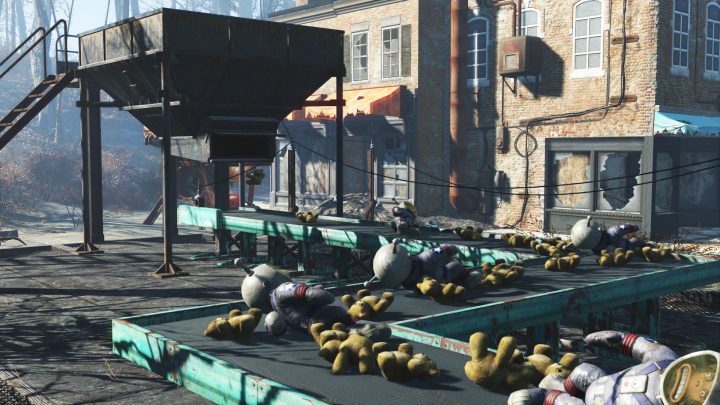
We’ve had success storing the logic gate. You can also try replacing it completely. Others report that they’ve simply turned the broken gate on and off again to get it to stay off.
What If Overseer Barstow is Dead? Can I build Vault-Tec Prototypes?
If you’re playing the Vault-Tec Workshop DLC and Overseer Barstow dies, you can still build Vault-Tec Prototypes.
All you need to do is loot her corpse and you’ll be on your way. It’s as simple as that.
How to Find Old Longfellow
If you get to Far Harbor and can’t find Old Longfellow, there’s a simple fix that Bethesda itself recommends.
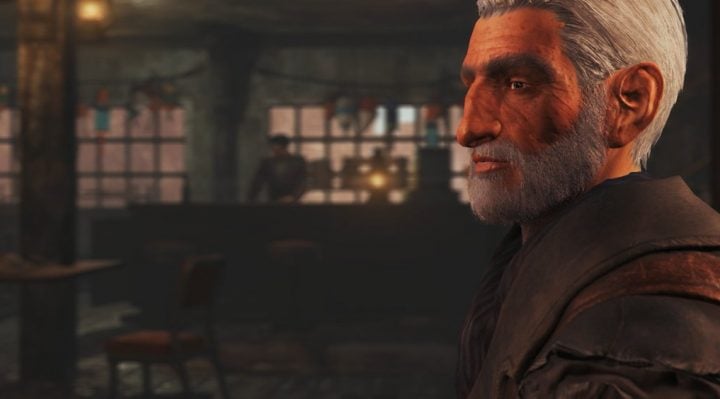
If you can’t find him the developer says that “you should return to the Far Harbor docks and speak with Captain Avery. Longfellow may either be in the town or at his cabin to the north.”
Do that and you should find your elderly companion.
How to Fix Far Harbor Settlement Item Problems
If you’re unable to use unlocked settlement items at Far Harbor settlements, here’s what the developer recommends.
Bethesda says that you should “exit Workshop mode, move around so that you are facing the Workshop from a different angle, and try again.”
How to Fix Fallout 4 Error CE-34878-0
This issue is exclusive to the PlayStation 4 version of Fallout 4 and there are a few ways to go about fixing it.
First, you should make sure you have the latest system updates and Fallout 4 game updates installed. Quit out of the game and check for updates.
If you’re running the latest versions and you’re still getting the error, you can head here for more information.
How to Fix Invisible Character Problems
If your character turns invisible, you’ll want to exit out of your game and restart. If you’re using a PS4 or Xbox One you’ll also want to reboot your console to see if that helps.
How to Fix Acadian Ideals Quest Problem (Far Harbor)
If you run into trouble when trying to complete the Acadian Ideals and optional objective “Help Chase” you might need to reload a prior save.
Bethesda says that killing an NPC called Brooks before you arrived in Acadia could make completing this quest difficult.
It notes that there is still a way through the quest but the best solution might just be to reload a game where Brooks is still alive.
How to Fix Best Left Forgotten Quest Problem (Far Harbor)
If you run into trouble trying to complete the Best Left Forgotten quest in Far Harbor, know that you’re not alone.
Bethesda is looking into the problem which means a permanent fix could be on the way. In the meantime, the developer is telling gamers to restart the console/PC to see if that fixes the issue.
How to Recover a Fallout 4 Season Pass Code
If your Fallout 4 Season Pass didn’t come with a key or a code to input, you’ll need to get in contact with the retailer, not Bethesda. Bethesda says that it cannot help Fallout 4 owners with Season Pass replacement codes.
How to Fix Fallout 4 Input Problems
One of the more common Fallout 4 problems is also one of the easiest to fix.
Some PC Fallout 4 users are saying that they’re unable to use their mouse once the main menu pops up. There is no apparent way to click to enter the game and the keyboard won’t do anything to help get past the menu screen.
To fix this problem, unplug any controllers you have plugged in. This should fix this Fallout 4 issue immediately. If it doesn’t try restarting your computer.
If you don’t want to have to unplug your controller every time you fire up Fallout 4, you can make some changes. Fallout 4 users have come up with an easy fix and it’s as follows:
- Go to Fallout4Prefs.ini (located in C:Users[name]DocumentsMy GamesFallout4), then scroll down to bGamepadEnable=1.
- Change it to bGamepadEnable=0
How to Fix Fallout 4 Launch Issues
PC users have been reporting an issue where the game fails to launch after clicking start. Many users are seeing a black screen. Fortunately, there are a number of fixes that could help alleviate these launch problems.
If you see a black screen, the first thing you’ll want to do is ensure that your PC graphics drivers are up to date. Head here for NVIDIA and here for AMD
Computers running two graphics cards have been known to cause this problem so if a driver update doesn’t help, try forcing your computer to recognize a primary GPU.
For instructions on how to do that for an NVIDIA driver, head here. For AMD drivers, head here. (We aren’t listing detailed instructions here because they can change based on card and version.)
Anti-virus software has also been known to cause launch issues and black screen problems so we recommend adding Fallout 4 as an exception or disabling your anti-virus software when you’re playing the game.
A user on Bethesda’s Fallout 4 forums found another potential workaround. Here are the instructions that fixed this launch issue:
I added these 2 .dll into the Fallout 4 and system32 folder and now it launches with no problem!!
x3daudio1_7.dll
xinput1_3.dll
xinput1_3.dll was running in x86 and I replaced it with the x64 (64 bit) and now it works.
Try using Dependency Walker64bit (google it and download it from download.cnet) and open Fallout4.exe, check all the .dll and make sure they are all running x64.
This worked for them, and several others, so it’s worth a shot if your game fails to launch up when you click play.
How to Fix Failed to Start Game Error (Steam)
If Steam spits out an “Failed to start game (unknown error)” there are a few fixes to try before throwing your computer out a window.
One fix that’s worked for a lot of people is running Fallout 4 as an admin. Here is how to run the game as an administrator:
- First, right click the game in your Steam Library.
- Next head to Properties and locate the Local Files tab.
- Click Browse Local Files.
- Locate the Fallout 4 application on your computer.
- Right click it and head into Properties.
- Select the Compatibility tab and check off the Run this program as an administrator box.
- Click Apply and try running the game.
If this doesn’t work, try running Steam as an Admin:
- Go to your Steam install folder which should be located in: C:Program Files (x86)Steam).
- Right click on the Steam application.
- Use the steps above to set it to Run as Administrator.
- Restart Steam and play the game.
We’ve also heard that Verifying the Integrity of the GameCache is a potential fix for this issue. Here’s how to do that in Steam:
- Right click the game in your Steam Library.
- Head into Properties and go to the Local Files tab.
- Click the Verify Integrity of Game Cache option.
How to Fix Fallout 4 Mods After A Patch
Bethesda’s Fallout 4 patches apparently break some PC mods. Fortunately, there is an easy way to fix your mods after the patch.
Reddit users have found a way to get around the Fallout 4 mod problems and it requires just a little bit of work.
1) First, Open Nexus Mod Manager.
2) Next, launch the game and wait in the launcher before starting the game.
3) Renable the mods using Nexus Mod Manager.
4) Click play.
You can enable your mods then set C:UsersUserNameAppDataLocalFallout4plugins.txt to readonly.
How to Fix Your Game After Using Console Commands
If you decide to use console commands to manipulate your game and your game starts exhibiting problems after using said commands, you’ll want to revert back to a save you made before you started using them.
How to Fix Fallout 4 Blurred Vision Problem
Some gamers are running into a blurred vision problem. The bug tends to happen when the screen blurs after the character receives a concussion after taking head damage. We haven’t run into this issue ourselves but it’s evidently pretty prevalent.
Bethesda hasn’t confirmed a permanent fix for the problem but there are a few manual fixes to try if your game suddenly becomes blurry.
One remedy that we’ve come across involves taking head damage and using a stimpack to heal yourself up. To get this to work, you’ll need to position yourself in a way that you’ll take head damage and thus, a concussion. Once this happens use a stim and the bug might resolve itself.
If you’re on PC, you can use console commands. Hit the ~ (tilde) button and type in rimod 00094636 (this gets rid of the green blur) and rimod 002041B6 (to get rid of the white blur).
If none of those work, you can try a number of other methods. You can try resting in a bed or waiting in a chair, you can try using RadAway, or you can try going to the doctor. You can also try reverting back to an old save.
How to Get Unstuck from a Terminal
One of the more annoying Fallout 4 problems on PC is an issue where users are getting stuck in terminals. A fix arrived in Bethesda’s first Fallout 4 patch but gamers continue to complain about the issue. Here’s what to do if the patch doesn’t help.
First, we recommend saving before you hack a terminal. That way, if you do get stuck, you can just revert back to the old save.
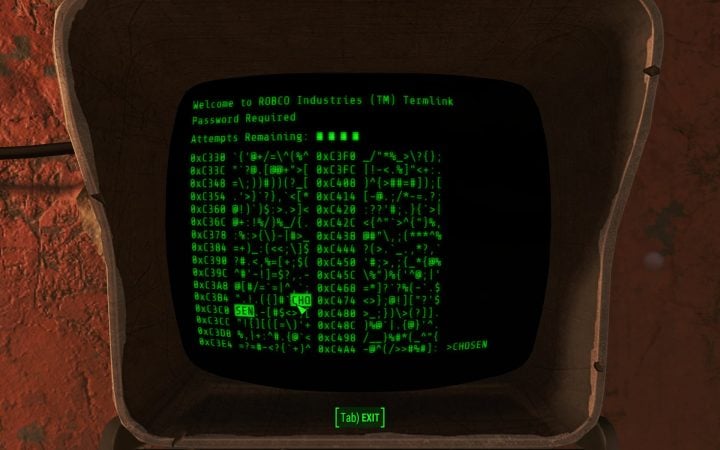
If you do get stuck, there are several things to try. Some users are saying that the SetPlayerAIDriven 0 console command helps. To use that, press ~ (tilde) on the keyboard and type in that command.
If you are using a monitor with a higher refresh rate than 60Hz, you’ll want to take a look at this list of fixes for the issue on Reddit and Bethesda. It features a couple of different solutions for monitors with high refresh rates including a remedy for monitors with G-SYNC enabled.
These fixes will also work if you get stuck on furniture.
How to Fix Settlement Attack Problem
We’ve started running into a settlement attack bug that’s extremely annoying and causes you to lose your entire population due to a quest failure. Here’s how it breaks down.
You receive a prompt that a settlement is under attack. In our case, Red Rocket Gas Station. You fast travel there, take out all of the enemies (in this case, synths) and the settlers thank you for showing up. Only, the miscellaneous quest doesn’t complete.
You wait a few hours or fast travel somewhere else and a prompt appears telling you that you failed to protect the settlement. Your population drops to zero and you’re now forced to rebuild. Sound familiar?
If you notice that your settlement attack quest fails to complete, there are a couple of solutions to try. We spent over an hour trying everything from sleeping to waiting in a chair. Those don’t work.
On console, you’ll want to travel to a nearby settlement after you see the prompt appear. In our case, we reverted back to a save before the Red Rocket attack prompt and fast traveled to Sanctuary when the prompt popped up. Once we arrived, the quest completed.
When we got over to Red Rocket, instead of an army of synths, we found a single synth infiltrator. Dead, killed by her fellow settlers. This isn’t guaranteed to work for you but it’s worth a shot if your quest refuses to budge.
If you’re on PC, there’s a fix that should work almost 100% of the time. PC gamers report that the following console command fixes the issue:
- Open up the game’s console (use the ~ key).
- Find the dead synth posing as a settler and click on him or her.
- Type “resurrect” (without the quotes).
- Exit the console mode and it should be alive again. Kill it and the quest should complete.
The 1.3 patch should’ve fixed this issue but in case it didn’t, that’s how you fix it.
How to Fix Fallout 4 Sound Problems
If your sound suddenly cuts out (this has happened to us on numerous occasions, particularly when accessing terminals in the game), there are a few things to try.
One simple fix that’s worked for us is to minimize to the dash board. If you’re on a PC, try Alt-Tabbing to the desktop. If you’re on an Xbox One or PS4, minimize to the dashboard using the guide button.
On the PS4, that’s the button with the PlayStation symbol. On the Xbox, that’s the big glowing button in the center of the controller.
If that doesn’t work, try restarting the game. And if that still doesn’t work, PC users will want to try updating audio drivers to see if that irons out the issue.
How to Fix Missing Pip-Boy Problem
Some users are reporting a missing Pip-Boy problem. The issue can be seen in the screen shot from our game below. We’re running 1.02 on the Xbox One.
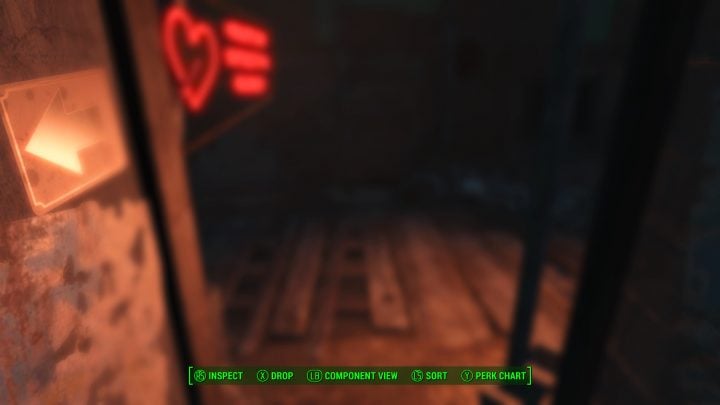
Users that’ve run into the problem are saying that a quick reload of the most recent save will fix the problem though there’s a chance that it could return in the future.
Another fix to try is putting the character into third person before going back into first person. This fix occasionally works for us.
How to Fix Pip Boy App Problems
If your Pip Boy app isn’t syncing up with your game, you’ll want to make sure that app is enabled in-game.
To do that, head into your game’s settings and select the Gameplay tab. Flip the “Pip-Boy App Enabled” option to On.
If your Pip Boy app displays a “Connection Status: Game Busy” error, note that this message occurs when connect your Pip-Boy app to a game that already has an app connected. Bethesda says that you “need to ensure the first app and device is disconnected before connecting your own.”
If your app is crashing or locking up on a regular basis, we recommend reinstalling the app to see if that helps dislodge the problem.
How to Recover Lost Fallout 4 Saves (Xbox One)
Some Xbox One owners are reporting lost Fallout 4 save files. This problem is still a problem after the 1.5 patch.
To recover a lost Fallout 4 save file, you’ll want to try a power cycle. Here is how to power cycle your Xbox One:
- Press and hold the Xbox button on the front of the console for 10 seconds.
- Unplug the console’s power cable and wait for 10 seconds.
- Plug the power cable back in and turn the console back on by pressing the Xbox button again.
Once you complete this you’ll want to log into your Xbox Live account, open up Fallout 4 and allow it sync with the cloud. The saves should appear.
If they don’t:
- Xbox One Cloud Game Saves FAQ – https://support.gtm.x…-game-saves-faq
- Xbox One Cloud Save Sync Issues – https://support.gtm.x…-error-messages
- Report the issue to Microsoft – https://support.xbox.com/
How to Stop Fallout 4 Save Corruptions (Xbox One)
If you’ve played a ton of Fallout 4 on Xbox One there’s a chance you’ve encountered a corrupted save file. (We’ve had this happen several times.) Here, we want to show you how to prevent save corruption from happening again.
Bethesda recommends that you “wait a minute or two before closing the game, turning off the console, or attempting another save.”
It also recommends turning the Instant On feature on. To do that, head to this full length guide from Microsoft.
We recommend deleting some saves if you have a ton built up. This has helped us cut down on the number of corrupt save files.
How to Fix Fallout 4 Performance Problems
PC Fallout 4 users are complaining about various Fallout 4 graphic and resolution problems. These problems can be extremely difficult to fix because there are a ton of different hardware and software combinations out there.
If you aren’t getting the kind of graphical performance you’re expecting from your setup, there are a number of fixes and tweaks you’ll want to look into.
This thread on Bethesda’s Fallout 4 forum outlines a number of changes and tweaks to make if you want to improve your performance. Fixes range from disabling NVIDIA Streamer Service to tweaking your GPU via the control panel. There’s a lot there and it will help you fix and improve your Fallout 4 graphics.
If you’re dealing with resolution issues or if you want to add 21:9 (ultrawide) or 4:3 support for your game/monitor, you’ll want to head to this thread on Steam’s Fallout 4 forum. There are also a number of potential fixes in this Reddit thread. NVIDIA has also posted its own thoughts on GPU and PC performance.
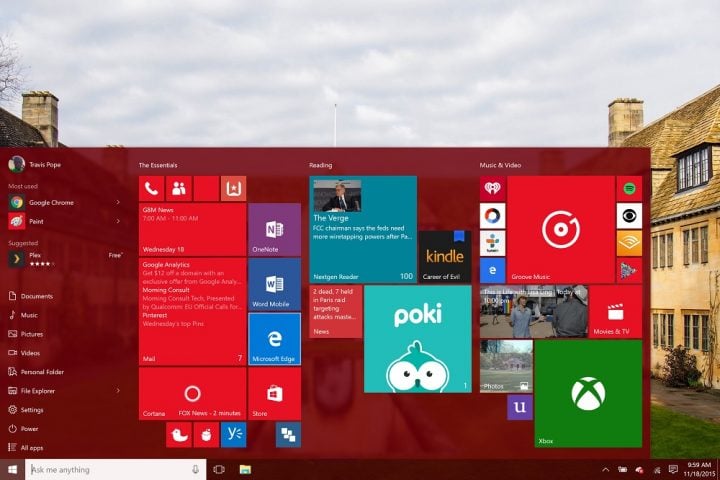
If you’re dealing with issues after installing a new Windows 10 update, take a look at this fix outlined by a user on Reddit. They appear to work.
You can also try going back to an earlier build. This has apparently worked for a number of people running Windows 10.
How to Fix Vanishing Weapon Problem
People that are playing Fallout 4 in first person claim that their weapon will, at times, turn invisible for no apparent reason. Luckily, there is a really quick fix for this problem on Xbox One, PC and PS4.
If your weapon disappears, you’ll want to switch to another weapon and then switch back. The weapon that vanished should reappear. If it doesn’t, you’ll want to revert back to an older save. If that doesn’t work, restart your game or system.
How to Fix Fallout 4 FOV
Fallout 4’s field of view is locked at 70/80 which isn’t going to be ideal for many PC gamers. Fortunately, there’s a quick way to solve this problem.
- First, you’ll want to open both Fallout4.ini and Fallout4Prefs.ini
- In the [Display] section of both of these files, you’ll want to add the following lines:
fDefaultWorldFOV=90
fDefault1stPersonFOV=90 - 90 is the the default for most first person shooters but adjust accordingly.
If you need more background, take a look at this in depth solution to the problem.
How to Fix Fallout 4 Crashes & Freezes
Crashes and random lockups are among the most common Fallout 4 problems plaguing PC, Xbox One and PS4 users. There are a number of potential fixes for crashes and freezes, some more involved than others.
If your game is frequently crashing, the first thing you’ll want to do is restart the game and/or system to see if that helps. If restarting your game or your system doesn’t help, you’ll need to take more desperate measures to get the problem ironed out.
First, you’ll want to ensure that you have the latest graphics drivers installed on your Windows PC. Head here for NVIDIA and here for AMD. AMD recently just released a new hotfix that tackles several Fallout 4 problems including a flickering compass.
If that doesn’t work, and you’re using an NVIDIA video card, try disabling NVIDIA’s Streamer Service. You’ll need your administrator password but if you’re playing on your computer, this shouldn’t be a problem.
You’ll also want to test out various graphics settings to make sure that you’re not burdening your resources. If your settings are too high, the game will crash more frequently. Head here to see if your PC meets the requirements.
If you are seeing a “Problem Event Name: BEX64” message every time your game crashes you’ll want to download the latest Visual C++ Distribution from Microsoft.
If you’re noticing an uptick in crashes and you’re playing Fallout 4 on Xbox One, you can try this list of official fixes from Bethesda itself:
First, try restarting the game. If that doesn’t help, perform a power cycle:
- Press and hold the Xbox button on the front of the console for 10 seconds.
- Unplug the console’s power cable and wait for 10 seconds.
- Plug the power cable back in and turn the console back on by pressing the Xbox button again.
If that doesn’t help, try reinstalling the game. If crashing continues, Bethesda recommends getting in touch with Microsoft.
If you are running into crashes on the PS4, Bethesda recommends restarting the game, power cycling the system or reinstalling.
How to Improve Frame Rate
If you’re suffering from frame rate issues, you can unlock the frame rate on the PC. To do this, head to this thread and follow the instructions.
If you’re suffering from frame rate issues on the PS4 or Xbox One, you’ll need to wait for a patch or try restarting your game.
If you’re willing to use Fallout 4 mods, you might want to try out this unofficial mod that supposedly helps cut down on frame rate issues.
How to Get Your Character Unstuck
If your character gets stuck or if your character starts moving slowly when he or she isn’t overburdened with loot, there are a couple of things to try.
The first thing to try is a restart of your game and/or system. One user claims that his character started moving extremely slow and that movement speed returned to normal after a quick restart.
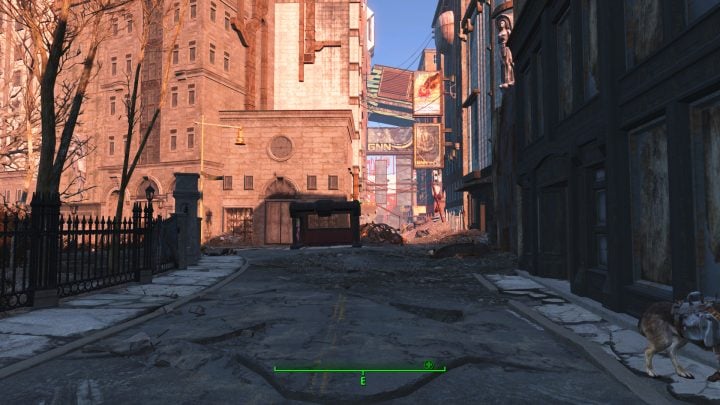
If your character gets stuck in an elevator (or another object), like this guy’s character did, make sure you have the latest patch installed on your PS4, Xbox One or PC. There are also some other elaborate fixes including one for this issue that includes a spoiler.
Restarting the game seems to fix most of these speed/getting stuck problems but we’ll be on the lookout for more fixes in the future.
How to Get NPCs Unstuck
If you discover that an NPC is stuck or missing and you can’t (console owners) or don’t want to use console commands, here’s how to go about getting that fixed.
You’ll want to go explore another part of the wasteland, fast travel if you must, and then come back to where that NPC is located. We recommend waiting a day or two as this has worked for us.
How to Fix Fallout 4 Settings Not Saving
Some users are reporting an issue wherein their settings don’t save after saving them. This is an annoying problem but it looks like there’s a simple fix.
To fix this issue, go into the launcher from Steam and set the graphics how you want to them to be set. Exit that menu and go into GeForce Experience and change the resolution to whatever you want as a borderless window and then go back into Steam and fire up the game.
How to Fix Invisible Lockpicking Bug
Some users are running into an invisible lock pick bug where they cannot see the lock pick at all. Lock picking is key to Fallout 4 so this is a major problem.
Some users are reporting success with this fix:
- Open Fallout4Prefs.ini in your documents (C:Users[name]DocumentsMy GamesFallout4) and under [Display] change: Size W=XXXX iSize H=YYYY to iSize W=XXXX-1 iSize H=YYYY-
- Their example: iSize W=1920 iSize H=1080 would be changed to iSize W=1919 iSize H= 1079.
After that, you’ll want to do the same with the Fallout4Prefs.ini that’s located where you installed Steam. You’ll find it in steamappscommonFallout 4Fallout 4.
How to Fix Fallout 4 Installation Problems
We’re also hearing about Fallout 4 installation problems. Some users are reporting bugs while others are reporting slow downloads.
If you are running into slow download times, know that the speed depends on your internet connection. If you don’t have a fast Wi-Fi connection, it’s going to take awhile. This is a big game, over 25GB for PC, Xbox One and PC.
If you do have a fast connection and the download isn’t being agreeable, pause the installation and then start it again. This is a known fix on PC, Xbox One and PS4.
Some Fallout 4 buyers are running into installation problems that are preventing them from installing the game. If this happens, update your console’s firmware and then try installing again.
How to Fix Fallout 4 Patch Installation Problems
Some users have been unable to download and install the latest Fallout 4 patch. This is a common problem on console and PC and it should be an easy one to fix.
First, try pausing the installation/download for a few seconds and then trying again to see if that jumpstarts it.
If it doesn’t, you’ll want to check your router/modem and make sure everything is working properly. If everything appears normal, try one of three things or all three if needed. Pause your download before taking these steps
First, restart your router. Unplug it for a good minute then plug it back in to see if that helps get the installation moving again.
If that doesn’t help, try plugging an ethernet cable directly into your PC or console. Wireless connections can be finicky.
You can also try power cycling your console. Unplug your Xbox One or PS4, wait 30 seconds or so, and then plug it back.
How to Recover Your Copy of Fallout 3 for Xbox One
If you are having issues getting your free copy of Fallout 3 for Xbox One, there are a few fixes you can try.
First, you’ll want to head to Microsoft’s Xbox Live Payment & Billing and sign in. Click on Billing info and make sure that your billing country is correct and that it matches your physical location.
If it does and you still can’t redeem it, get in contact with Microsoft directly.
How to Fix Fallout 4 Mouse Lag Problems
A number of PC Fallout 4 users are complaining about in-game mouse lag problems. This is a common issue with PC games and there are a number of fixes that should help you improve your mouse’s response time.
Fallout 4 users have discovered several fixes for Fallout 4 mouse lag. First, according to one fix, you’ll want to make this change:
- Go to C:UsersyourusernameDocumentsMy GamesFallout4. Open Fallout4Prefs.ini and then change the following parameters: iPresentInterval=1 to iPresentInterval=0
You’ll also want to change:
- bForceIgnoreSmoothness=0 to bForceIgnoreSmoothness=1
This user also says that to be absolutely sure, you’ll want to change iPresentInterval in Fallout4.ini.
If you are using an NVIDIA graphics card and you’re noticing mouse lag in-game, here’s a quick fix that could fix your mouse lag:
- Go to your Desktop, right click the Nvidia Logo at the lower Right of your Desktop. Choose “System Settings” or whatever it is in your Language. Now go to “3D Settings” and Add Fallout.exe to your Programs.
- There change “Triple Buffer” to ON.”Max frames render ahead” to 1.And finally “V-Sync” on.
If you want to remove Mouse Acceleration, and some of you might, you’ll want to take a look at this guide. It will take you step-by-step through the process. Mouse Acceleration is on by default in all Bethesda games including Fallout 4.
If you can’t find your fix here, we’ve put together a list of resources that will help you find what you’re looking for. Bethesda’s Fallout 4 forums and this Reddit link are the first two places to go.
Fallout 4 is filled with tons of smaller, more isolated issues that are impacting Xbox One, PC and PS4 users and fixes for those are sometimes harder to find.
Remember to save your game as often as possible. Reverting back to an older save is a way to avert disaster.
189 PS4 & Xbox One Fallout 4 Mods You Should Try Right Now

4 окт. 2021 г.
Fallout 4 «Исправление FPS 0.8.4»
Мод будет полезен при любом FPS. Вы можете настроить мод, отредактировав файл HighFPSPhysicsFix.ini, который находится в папке с игрой DataF4SEPlugins или в папке мода: значение…
оптимизация




9 апр. 2021 г.
Fallout 4 «Исправление FPS 0.8.3»
Мод будет полезен при любом FPS. Вы можете настроить мод, отредактировав файл HighFPSPhysicsFix.ini, который находится в папке с игрой DataF4SEPlugins или в папке мода: значение…
оптимизация


23 апр. 2020 г.
Fallout 4 «HORIZON v1.8.0»
Это крупномасштабный МОД по капитальному ремонту Fallout 4 МОД который восстанавливает баланс и расширяет игровой процесс с нуля.Он содержит тысячи изменений, переработанные системы и новые…
геймплей
квесты и миссии

22 апр. 2020 г.
Fallout 4 «Update 1.10.163.0»
Игра: Fallout 4Платформа: PCПатч: 1.10.163.0 Обновление: 1.10.163.0 (релиз)- патч не кумулятивный, требуется игра пропатченная до 1.10.162.0.- обновлены файлы Fallout4 — Interface.ba2, Fallout4 — Misc.ba2, Fallout4.esm,…
официальные патчи

22 апр. 2020 г.
Fallout 4 «Update 1.10.162.0»
Игра: Fallout 4Платформа: PCПатч: 1.10.162.0 Обновление:1.10.162.0 (релиз)- Патч не кумулятивный, обновлены файлы Fallout4 — Interface.ba2, Fallout4 — Materials.ba2, Fallout4 — Meshes.ba2, Fallout4 — Misc.ba2, Fallout4…
официальные патчи


20 авг. 2019 г.
Fallout 4 «Рюкзаки для силовой брони»
Плагин для Fallout 4 добавляет рюкзаки для силовой брони, которые также можно использовать как стандартные рюкзаки. — Рюкзаки с хип-пакетом дают +100 к переноске грузов. …
геймплей

21 июн. 2019 г.
Fallout 4 «Update 1.10.138.0»
Игра: Fallout 4Платформа: PCПатч: 1.10.138.0 Обновление: 1.10.138.0 (релиз)- Патч не кумулятивный, обновлен только Fallout4 — Interface.ba2, файл Fallout4.esm и Fallout4.exe, поэтому требуется игра уже пропатченная…
официальные патчи

28 окт. 2018 г.
Fallout 4 «Update 1.10.114.0»
Игра: Fallout 4Платформа: PCПатч: 1.10.114.0 Обновление: 1.10.114.0 (релиз)- Патч не кумулятивный, обновлены только исполняемый файл игры Fallout4.exe, Fallout4.ccc, Fallout4.esm, Fallout4 — Interface.ba2, поэтому требуется игра…
официальные патчи

28 июл. 2018 г.
Fallout 4 «Enhanced 1.0»
Fallout 4 Enhanced 1.0 для Fallout 4 Название: Fallout 4 Enhanced Автор: Bdogs Описание: Данный мод делает следующие вещи: 1. Исправление мелких багов. -Гладкий Спринт…
геймплей

16 апр. 2018 г.
Fallout 4 «Фикс ржавых лиц»
Этот мод для Fallout 4 исправляет надоедливый баг, который делает лицо игрока и НПС коричневого цвета. Ранее нужно было перезагружать игру, что бы баг исчез….


18 авг. 2017 г.
Fallout 4 «Фикс высоты камеры от 1-го лица»
Фикс высоты камеры от 1-го лица, теперь она станет выше. Уровень камеры теперь будет на уровне с глазами других НПС, что является правильным, смотрим скриншоты….
10 июл. 2017 г.
Fallout 4 «Fallout Who 1-0-6»
мод исправляет множество багов в моде FALLOUT WHO такие как зависание при выходе выходе с компаньонами добавлено несколько новых рецептов исправлен ремонт и заправка чтоб…
геймплей
24 мая 2017 г.
Настройка .ini файла для Fallout 4
C:Usersимя пользователяDocumentsMy GamesFallout4, Просто закинуть файл ini в папку с настройками. Сей чудесный файл разрешит все проблемы с модами связанные с текстурами и подобными проблемами….
21 нояб. 2016 г.
Fallout 4 «Фикс для CigaretteInMouth»
Данный мод не несет цели популяризации контента. Курение убивает и т.д. На первом скрине вся суть проблемы. Соответственно, мод адресован тем, у кого проблема есть,…
геймплей


13 нояб. 2016 г.
Fallout 4 «Фикс моста Сэнкчуари-Хиллз от TTek»
Данный мод починит мост в Fallout 4 возле Сэнкчуари-Хиллз без изменения файлов meshes. Требования: Fallout 4 Установка: через установщик модов или NMM (инструкция по автоматической…

7 сент. 2016 г.
Fallout 4 «Фикс шеи тел НПС для CBBE»
Автор: Alan Фикс шеи тел НПС для CBBE в Fallout 4. Если вы используете не стандартные текстуры CBBE: Замените вот эти текстуры texturesactorscharacterbasehumanfemaleFemaleBody_d.dds texturesactorscharacterbasehumanfemaleFemaleBody_n.dds texturesactorscharacterbasehumanfemaleFemaleBody_s.dds…
геймплей
