
ERR_HTTP2_PROTOCOL_ERROR — довольно популярная ошибка, которая может возникнуть в любом браузере, включая Chrome, Edge, Opera, Firefox и т. д. — в основном в системах Windows 10/11. HTTP2 — это новый протокол, который заменил своего предшественника HTTP более быстрым откликом за счет объединения файлов в один пакет и их передачи на сервер. Одна из причин возникновения ERR_HTTP2_PROTOCOL_ERROR заключается в том, что веб-сайт, который вы пытаетесь посетить, не поддерживает протокол HTTP/2 — часто из-за дешевого хостинга или из-за того, что администратор веб-сайта не включил этот протокол на сервере. Эта причина актуальна, если вы не можете посетить одну конкретную веб-страницу. В противном случае, если проблема с посещением множества страниц, то это может быть связано с более общими причинами, такими как устаревшие версии браузера, неправильные настройки даты и времени, конфликтующие расширения браузера, переполненный кеш или даже включенные экспериментальные функции. Ниже мы составили руководство с решениями, которые потенциально решат проблему и вернут ваш браузер к нормальной работе. Обратите внимание, что приведенные ниже инструкции в основном ориентированы на решение проблемы в Google Chrome, однако вы также можете использовать их для выполнения аналогичных действий и в других браузерах.

Скачать Advanced System Repair Pro

Чтобы исправить ошибку «ERR_HTTP2_PROTOCOL_ERROR» в Windows, мы рекомендуем вам использовать Advanced System Repair Pro. Он содержит инструменты для очистки данных браузера, исправления ошибок реестра, удаления нежелательных программ и вредоносных расширений.
Скачать Fix Tool для Mac
Скачать CleanMyMac
Чтобы исправить ошибку «ERR_HTTP2_PROTOCOL_ERROR» в MacOS, мы рекомендуем использовать CleanMyMac. Он содержит инструменты для очистки данных браузера, исправления ошибок реестра, удаления нежелательных программ и вредоносных расширений, а также сканирования вашего Mac на наличие вирусов.
1. Убедитесь, что ваш браузер обновлен
Если ваш браузер все еще работает на более старой версии, это может быть причиной того, что новые протоколы HTTP2 не будут поддерживаться. Таким образом, убедитесь, что у вас установлена последняя версия браузера, выполнив следующие действия:
- Щелкните левой кнопкой мыши на меню в виде трех точек в правом верхнем углу.
- Выберите Настройки , а затем перейдите в О Chrome на левой панели.
- Chrome начнет автоматически искать новые обновления и сообщит, если браузер уже обновлен.
- Если новое обновление все же будет найдено и установлено, вам нужно будет нажать на кнопку Перезапустить , чтобы перезагрузить браузер.
После этого проверьте, стало ли возможным использовать проблемные страницы снова.
2. Установите дату и время для автоматического обновления
Если у вас в системе установлены неправильные дата и время, это может привести к возникновению ошибки, поскольку пакеты данных могут откланяться сервером из-за неправильной отметки времени. Мы рекомендуем проверить это, выполнив следующие действия:
- Нажмите Windows Key + I кнопки и перейдите в Время и язык.
- Затем перейдите в Дата и время и разрешите Установить время автоматически опцию.
3. Отключите сторонний антивирус
Если на вашем ПК установлен сторонний антивирус, попробуйте отключить его и проверить, сможете ли вы снова посещать проблемные страницы. Брандмауэры для защиты от вредоносных программ иногда могут создавать конфликты при подключении к определенным или многим веб-сайтам. Если после отключения вашего антивируса все стало нормально работать без проблем с подключением, то причиной тому был именно ваш антивирус. Если вы продолжаете получать сообщение об ошибке после повторного запуска антивируса, можете попробовать другое менее конфликтующее ПО. Наш совет — MalwareBytes — надежная и талантливая команда экспертов, постоянно поддерживающая свое программное обеспечение для борьбы как с незначительными, так и глобальными угрозами. Теперь он доступен и для Windows 11. Вы можете загрузить его прямо сейчас, используя ссылку ниже, и попробовать 14-дневную пробную версию совершенной защиты от вредоносных программ бесплатно.

Главное окно Malwarebytes

Настройки Malwarebytes

Результаты сканирования Malwarebytes
Скачать Malwarebytes
4. Отключите расширения в Chrome
Некоторые установленные расширения, которые работают в вашем браузере, могут быть причиной ограниченного доступа к определенным страница. Если это непопулярное и плохо разработанное расширение для браузера, оно может конфликтовать с открытием некоторых страниц браузера. Поэтому мы советуем вам отключить его / их и проверить, помогло ли это. Если ничего не изменится, можете включить их обратно.
- Откройте Chrome и нажмите на значок с тремя точками в правом верхнем углу.
- Наведите указатель мыши на Дополнительные инструменты и Расширения.
- Отключите все сторонние расширения, нажав на синий переключатель.
После выполнения этих шагов откройте тот же домен, с которым у вас возникли проблемы.
5. Очистите данные браузера
Еще одно быстрое решение, которое может эффективно справиться с некоторыми ошибками, — очистить браузер от перегруженных файлов, таких как кеш. Некоторые элементы браузера, запоминаемые Chrome и другими браузерами, через некоторое время использования могут создавать проблемы несовместимости при открытии определенных страниц. Очистка данных вашего браузера может не только решить проблему, но также повысить производительность браузера и освободить немного место. Обратите внимание, что очистка данных браузера может привести к выходу из аккаунтов на веб-сайтах, которые вы посещали ранее. Таким образом, убедитесь, что вы помните все свои учетные данные для входа в аккаунты позже.
- Нажмите на значок с тремя точками в правом верхнем углу, как мы делали выше.
- Перейдите в Дополнительные инструменты , а затем выбрать Удаление данных о просмотренных страницах….
- Вверху выберите временной диапазон. Чтобы удалить все, выберите Все время.
- Установите флажки рядом с Файлы cookie и другие данные сайтов и Кэшированные изображения и файлы.
- Затем нажмите Удалить данные.
Перезапустите браузер и попробуйте снова открыть страницу.
6. Обновите драйверы
Довольно часто устаревшие сетевые драйверы могут стать причиной невозможности правильного подключения. Это могут быть устаревшие или поврежденные драйверы, которые больше не поддерживаются или несовместимы. Поэтому рекомендуется просканировать сетевые и беспроводные адаптеры на наличие драйверов и при необходимости установить их. Вы можете сделать это вручную или воспользоваться специальной утилитой для более быстрого решения. Оба варианта обсуждаются ниже:
- Щелкните левой кнопкой мыши на Меню Пуск и выберите Диспетчер устройств.
- В идеале вам следует обновить все доступные сетевые устройства. Если есть что-то, отмеченное желтым треугольником, то это следует обновить в первую очередь.
- Для этого щелкните на драйвер правой кнопкой мыши, выберите Обновление ПОи следуйте инструкциям на экране.
- Позвольте Windows найти новые драйверы и загрузить их.
Драйверы являются ключом к правильной конфигурации вашей системы. Именно они обеспечивают стабильное соединение между оборудованием и вашей операционной системой. Обновление ряда драйверов вручную может занять много времени. Здесь вы можете скачать лучшую утилиту для обновления драйверов, которая ускорит этот процесс, справясь с этой задачей самостоятельно — Driver Booster от IObit:

Стартовый экран Driver Booster

Результаты сканирования Driver Booster

Раздел инструментов Driver Booster
Скачать Driver Booster
7. Отключите протокол QUIC
Может возникнуть конфликт с HTTP2 и привести к ошибке ERR_HTTP2_PROTOCOL_ERROR, если сервер, на котором размещен веб-сайт, неправильно настроен для обработки трафика из QUIC — экспериментальной сети транспортного уровня. Ниже мы собираемся отключить ее, если она все же работает.
- Откройте браузер и скопируйте-вставьте это
chrome://flags/#enable-quicв строку поиска. - Затем убедитесь, что Экспериментальный протокол QUIC стоит на Отключена.
8. Сбросьте флаги Chrome
Вот что следует делать в том случае, если вы экспериментировали с включением различных функций «бета-тестирования». Они являются экспериментальными и могут быть не полностью оптимизированы для работы с другими настройками в браузере Google Chrome. Поэтому мы рекомендуем вам сбросить их всех, перейдя в раздел «Флаги Chrome». Для этого выполните короткий список шагов, приведенный ниже:
- Откройте браузер и введите
chrome://flagsв строку поиска. - Нажмите на Сбросить все в правом верхнем углу и Перезапустить Chrome.
- После перезапуска браузера попробуйте снова открыть ту же проблемную страницу.
Итоги
Этих восьми способов должно быть достаточно, чтобы справиться с проблемой и успешно войти на страницы. Вы также можете попробовать перезагрузить свой роутер — так, на всякий случай. Если что-то еще ухудшает вашу работу, не стесняйтесь зайти на наш сайт, чтобы найти статьи, касающиеся других проблем. Каждый день мы публикуем новые руководства как по устранению ошибок ПК, так и по удалению различных угроз, вроде нежелательных программ или вредоносного ПО.
Как устранить ошибку ERR HTTP2 PROTOCOL ERROR?
Речь об ошибке протокола HTTP2, который не позволяет загрузить сайт, несколько веб-ресурсов или значительную их часть. Основной ключ – ERR_HTTP2_PROTOCOL_ERROR, именно по нему можно идентифицировать данную проблему. На самом деле ошибка затрагивает практически все браузеры: Opera, Chrome, Edge, Firefox и т. п., а также разные устройства, поэтому принципиальной разницы нет. Все, что нам известно о данной ошибке, смотрите в нашем полном гайде.
Причины
Начать стоит с того, что это значит. Просто говоря, это неполадка протокола HTTP2, но появляться она может по самым разным причинам. Если кратко, то в основном ее провоцирует одна из следующих проблем:
- поврежденные данные кеша;
- неполадки в самом браузере;
- ограничение доступа от системы безопасности;
- конфликт расширений браузера.
Что нужно сделать в первую очередь?
Самый первый этап – диагностика. Она поможет понять, проблема с нашей стороны или дело вовсе не в этом. Если неполадка находится со стороны сервера, а вы – обычный пользователь, то ничего делать не нужно, так как решение ложится на плечи разработчиков. Чтобы лучше понять природу происхождения ошибки ERR HTTP2 PROTOCOL ERROR, нужно сделать пару простых действий:
- Проверить другие сайты. Мы рекомендуем попробовать запустить разные сайты и посмотреть, проблема затрагивает что-то конкретное или сразу все. Лучше запустить несколько совершенно разных, популярных веб-ресурсов. Если хоть несколько из них недоступны, проблема клиентская. Если дело только в одном сайте, с большой вероятностью речь о серверной неполадке.
- Запустить другие браузеры. Проверка в других веб-обозревателях поможет подтвердить или исключить наличие сбоя в конкретном браузере. Таким образом будет понимание, это что-то глобальное или локальное.
Здесь мы перечислим список основных действий, которые помогут устранить ошибку. Вам вовсе не обязательно пробовать их все, так как в результате предыдущей проверки уже должны сформироваться догадки, в каком направлении разумнее всего копать.
Рабочие способы решения проблемы:
- Очистка кэша. Следует выполнять тем, у кого не грузится один или ряд сайтов только в одном браузере. Запустить инструмент очистки проще всего комбинацией Ctrl + Shift + Del. Работает практически во всех веб-обозревателях.
- Отключить расширения. Если неполадка наблюдается в конкретном браузере, высока вероятность конфликта дополнений. Переходим во вкладку «Расширения» и отключаем все, особенно VPN и блокировщики рекламы. Еще проще – включить режим Инкогнито. По умолчанию в нем не работают дополнения. Помогло? По одному запускаем аддоны, пока не найдем тот, который работает неправильно.
- Проверить время и дату. Практически все сайты и браузеры работают некорректно? Если точнее, те, которые используют SSL-сертификаты. Скорее всего дело в том, что у вас дата и время выставлены неверно. Их нужно установить вручную или сделать автообновление по сети.
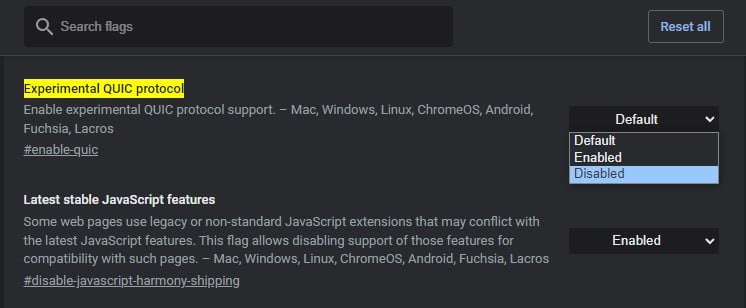
- Отключить QUIC. Если неполадка сводится к конкретному сайту в определенном браузере, стоит выключить экспериментальный стандарт QUIC. Он может обрабатываться неправильно. Для этого нужно перейти по ссылке chrome://flags/#enable-quic и деактивировать параметр, что будет подсвечен желтым цветом.
- Отключить средства защиты. Сюда относится антивирус и брандмауэр.
- Включить VPN. Актуально для тех сайтов, которые заблокированы для определенных регионов.
Если ничего не сработало, остается только ждать. Можно еще написать в техническую поддержку, возможно, это ускорит восстановление веб-ресурса. Скорее всего проблема со стороны сервера, куда обычный пользователь не сможет попасть при любом раскладе.
Using the HTTP/2 Network Protocol, you can reach websites faster than ever before. However, you may stumble across an err_http2_protocol_error. This can prevent you from accessing certain web pages.
Fortunately, there are many solutions for the HTTP/2 protocol error. Whether you fix the problem within your browser or operating system, you can easily remove this troublesome message. Then, you can continue with your normal online browsing.
In this post, we’ll introduce you to the err_http2_protocol_error and its causes. Then, we’ll show you how to fix this problem on both a browser and a personal device. Let’s get started!
Check Out Our Video Guide To Fixing the ERR_HTTP2_PROTOCOL_ERROR
What Does the err_http2_protocol_error Mean?
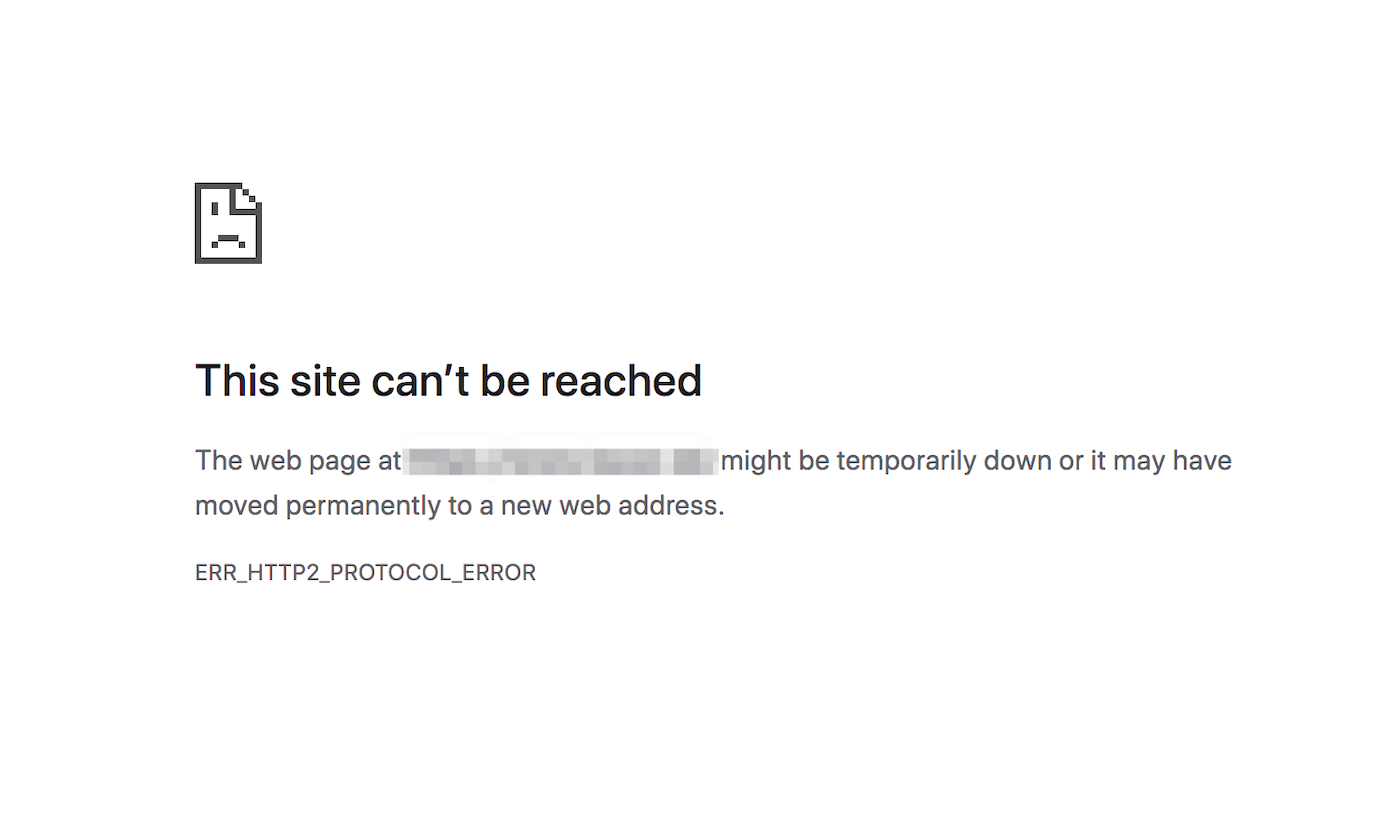
When you perform a search, you may receive an “err_http2_protocol_error” message. This can prevent you from accessing a web page, stating that it is currently down or was permanently moved to another address:
To understand the err_http2_protocol_error, let’s first discuss the Hypertext Transfer Protocol (HTTP). This is the application protocol that allows the retrieval of online resources.
A protocol is a set of rules that controls how data is transferred between clients. In this case, it can govern the HTTP requests between users and web browsers.
Currently, most browsers, applications, and systems run on the HTTP/2 network protocol. This updated protocol comes with enhanced efficiency for virtual data communication.
Although this update has many benefits, you still may experience errors when accessing online content. Sometimes, the err_http2_protocol_error will display as an HTTP error message and prevent you from accessing the online resource you’re looking for.
Get back to your normal browsing experience in no time with this handy guide 🛠Click to Tweet
What Causes the err_http2_protocol_error?
In general, the err_http2_protocol_error can appear because of issues with the browser, network, or conflicts with third-party software. Usually, this happens when HTTP/2 is outdated or not supported at all.
For an HTTP/2 protocol error, something interrupts the communication between the HTTP application layer and a user’s device. Unfortunately, this can happen to a wide variety of applications or systems. However, it is most common in web browsers like Google Chrome.
If you’re seeing this error, here are some common causes:
- Outdated software. When your device’s operating system or web browser is outdated, it can be incompatible with a certain website. This will cause the err_http2_protocol_error if the site fails to parse your device’s data packets.
- Corrupted browser cache. If your browser’s cache, cookies, or history is corrupted, then the requested site may be unable to authenticate your device’s legitimacy. As a result, the web server can refuse to make the connection and return this error.
- Conflicting browser extensions. In some cases, third-party browser extensions can interrupt communication with the website’s server. This can prevent the site from rendering.
- Third-party antivirus or firewall software. If you’re using antivirus or firewall software to secure your connections, it can prevent you from accessing certain websites.
As you can see, there are multiple reasons why you might see the HTTP/2 protocol error. Luckily, there are also many methods you can use to fix this problem.
How To Fix the err_http2_protocol_error In a Browser
Once you receive the err_http2_protocol_error, you can start troubleshooting to find the source of the issue. Although we’ll fully discuss some methods you can use, there are some simpler fixes you can start with.
First, try refreshing the web page. Hitting F5 on your keyboard will send a request with an If-Modified-Since header. If the site was temporarily down, this may solve the problem.
Alternatively, you can visit the site using a different browser. You may also want to close some tabs if there are too many open. If the error persists, continue with the following methods.
1. Update Your Browser
If you’re making searches with an outdated browser, this can easily lead to an HTTP/2 protocol error. This is because your browser’s data packets are incompatible with the site you’re trying to load.
To fix this problem, you can update your browser. Using Google Chrome, you can simply click on the three-dot icon in the upper right-hand corner and select Update Google Chrome.
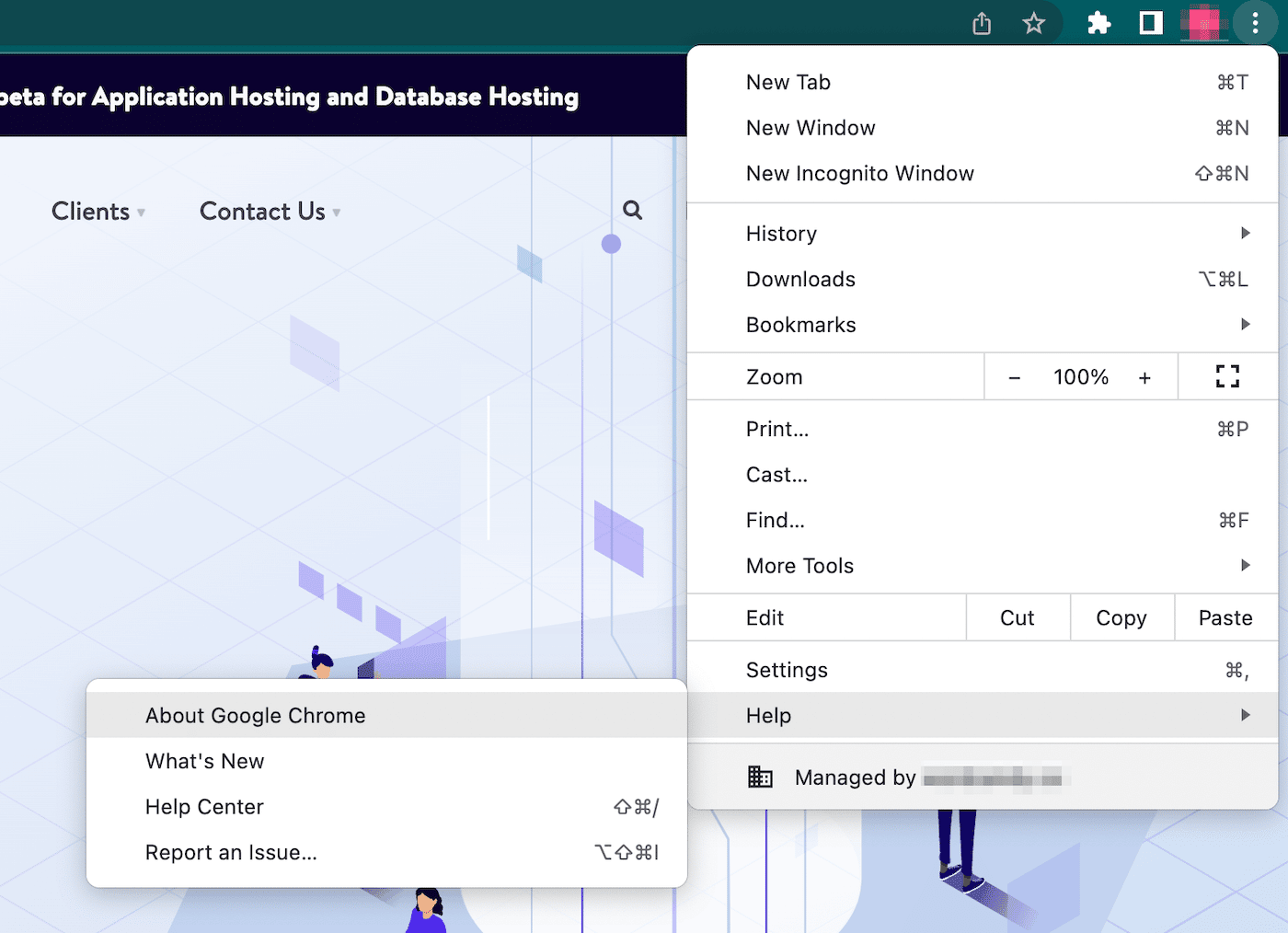
If you don’t see this button, your browser is likely already up-to-date. To check if this is the case, go to Help > About Google Chrome:
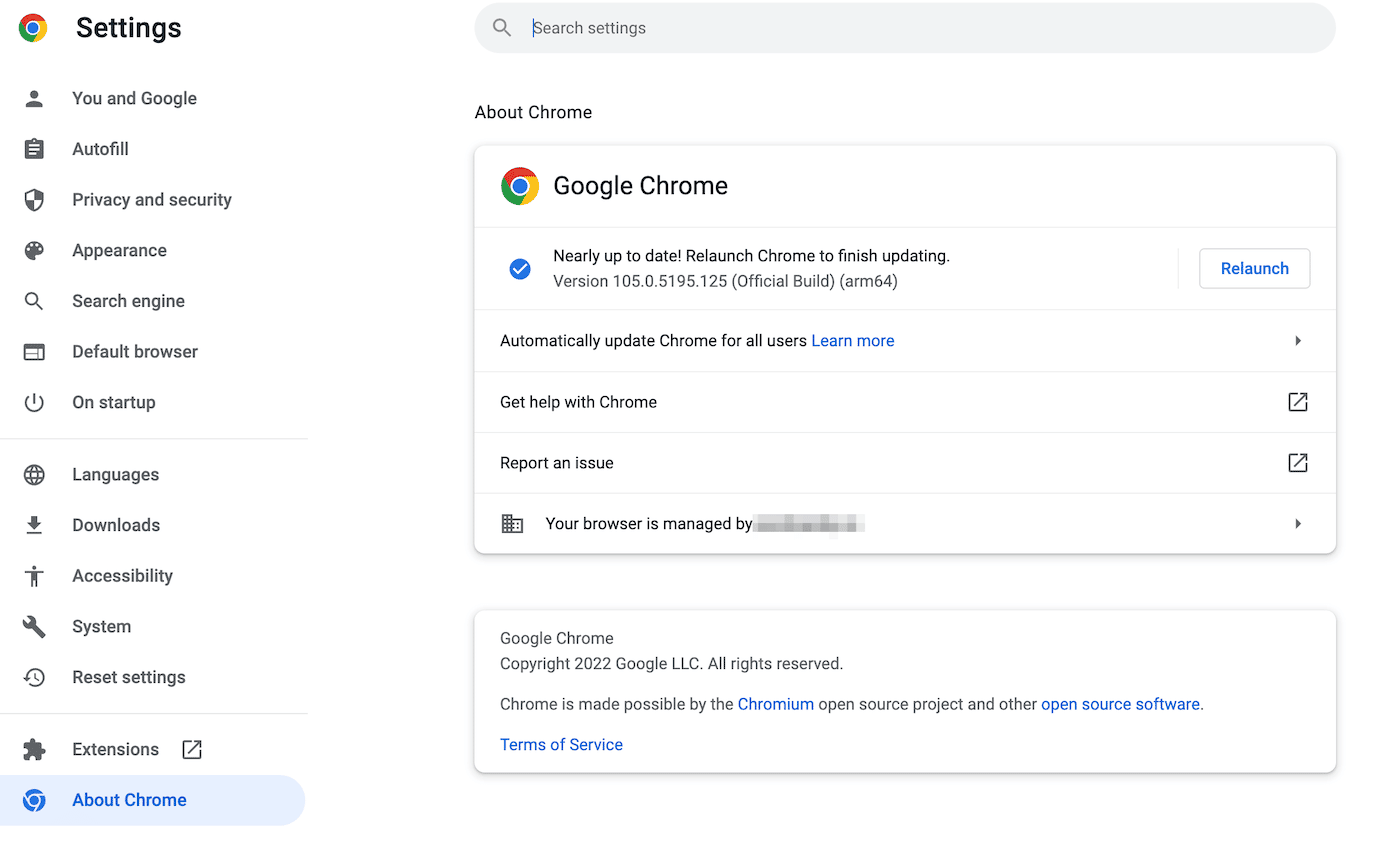
This will prompt Google Chrome to check for a new update. If there is one, it will automatically install it. To finish updating, you’ll need to relaunch the browser:
If you’re using the Google Chrome mobile app, you can simply open the App Store or Play Store, depending on your device type. Then, check for any app updates and install them!
2. Clear Your Browser Data
Whenever you experience issues during the rendering process, it’s a good idea to clear your browser data. By clearing your cache, cookies, and history, you can enable visited websites to authenticate your device and fulfill the request.
Depending on your browser, there are a few different ways to clear the cache. For Google Chrome, you can select More Tools > Clear Browsing Data:
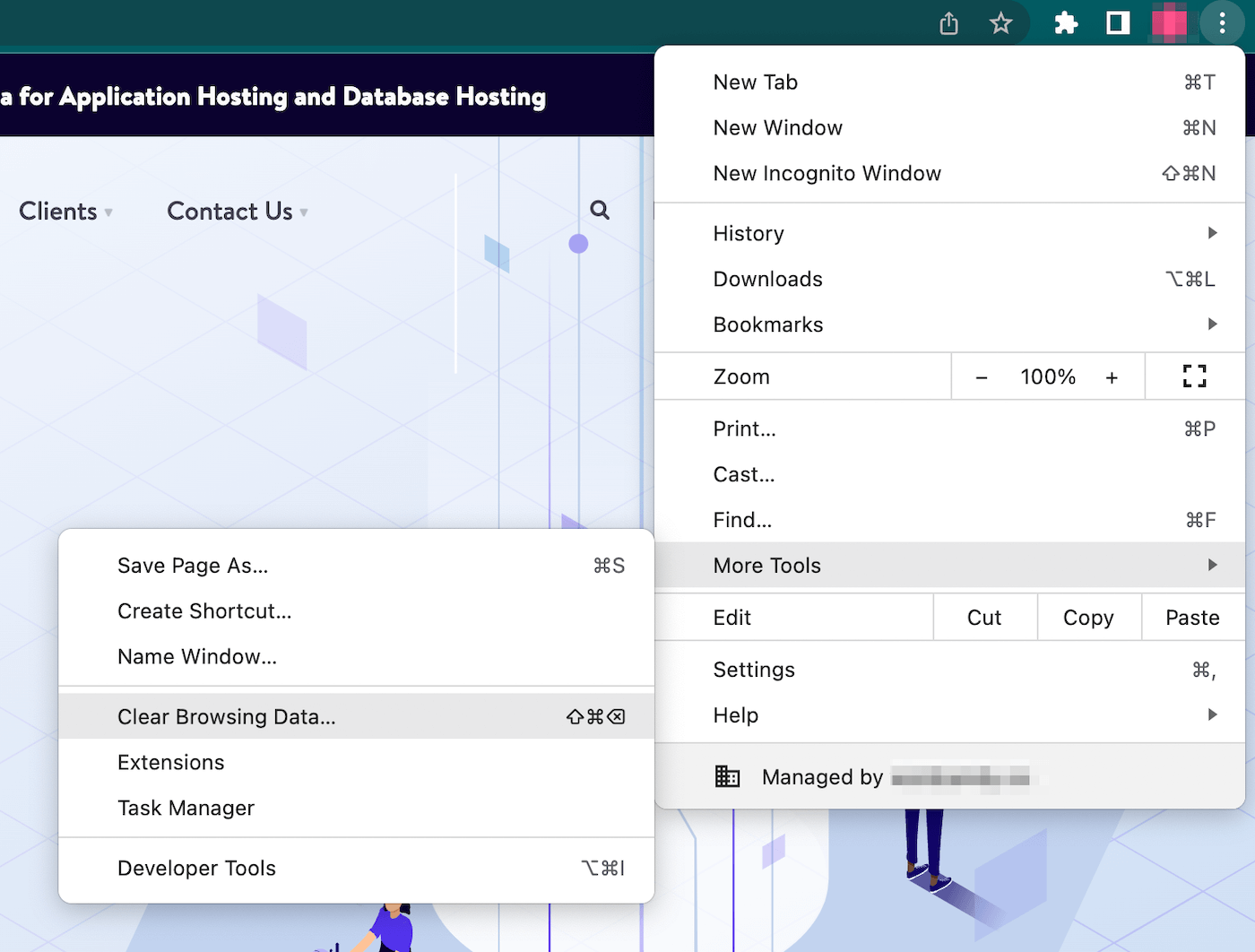
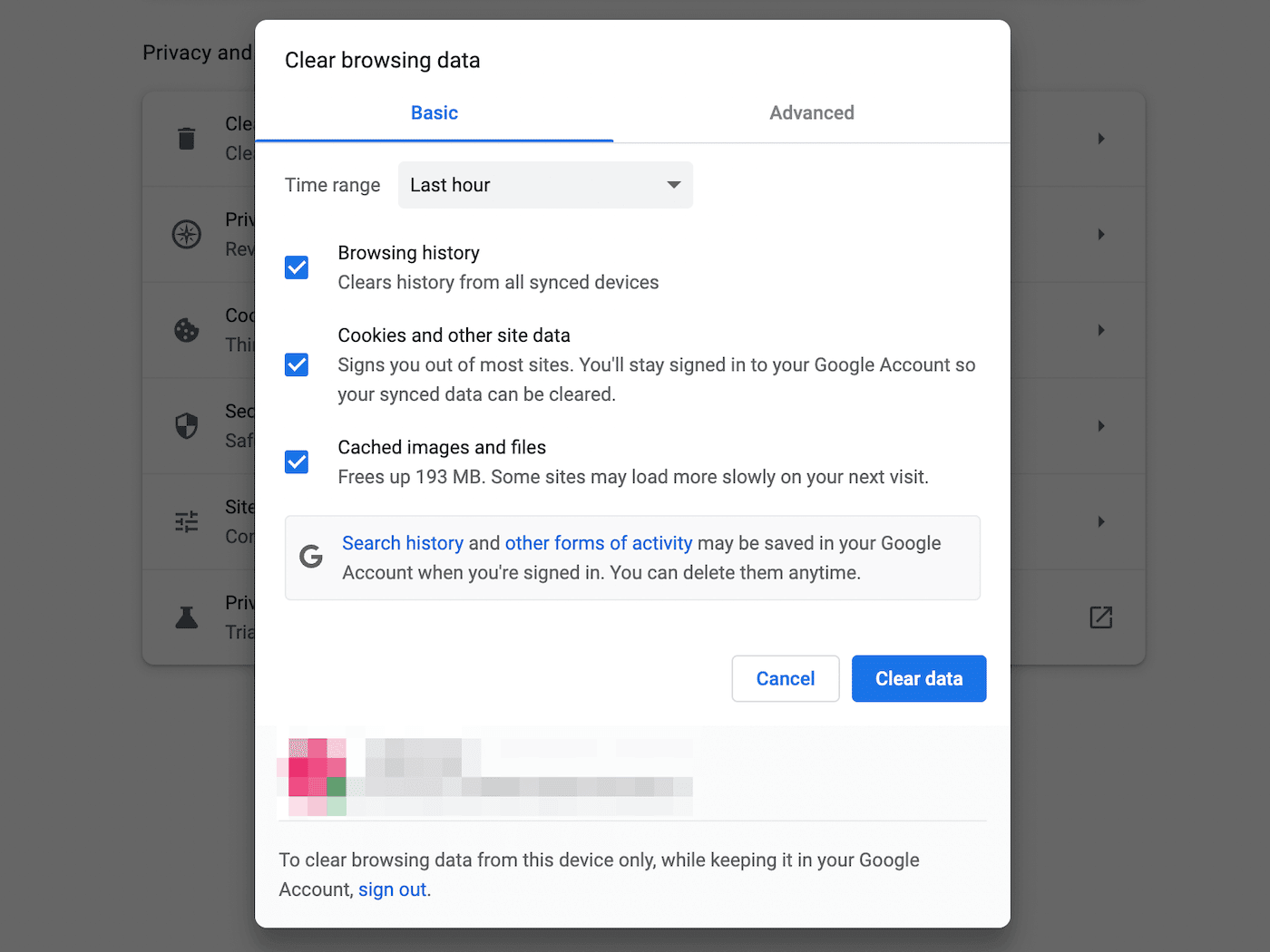
Using the pop-up window, you can specify the information you want to clear. You’ll want to be sure to select Cached images and files, but you can also get rid of your browsing history, cookies, and other data:
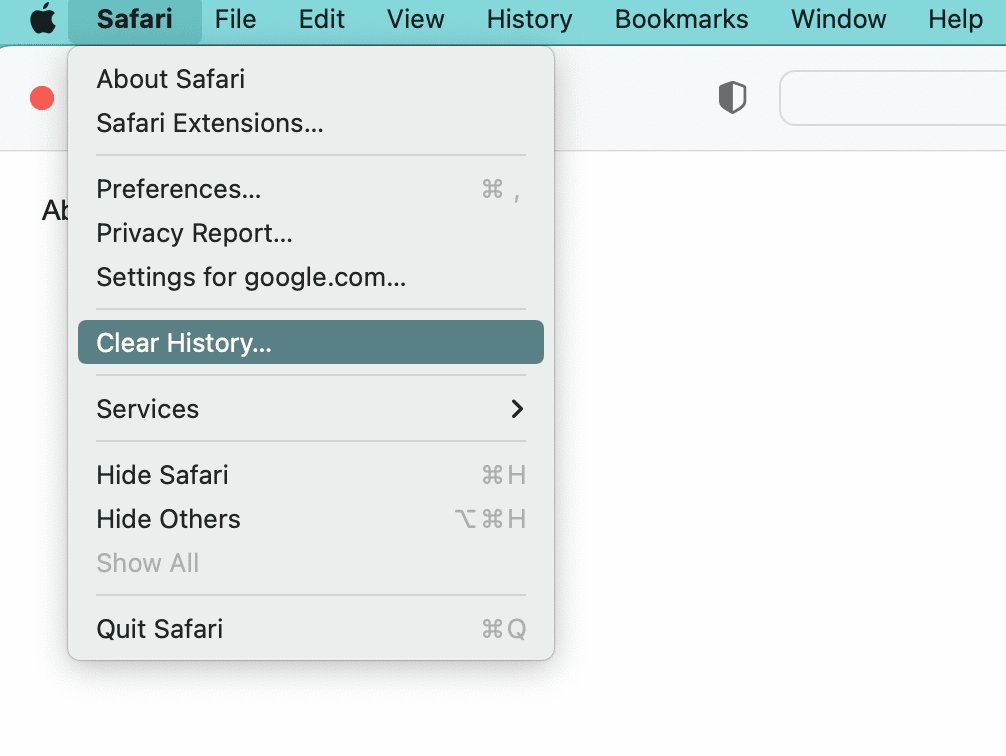
If you’re using Safari, it will be a similar process. To do this, go to Safari > Clear History:
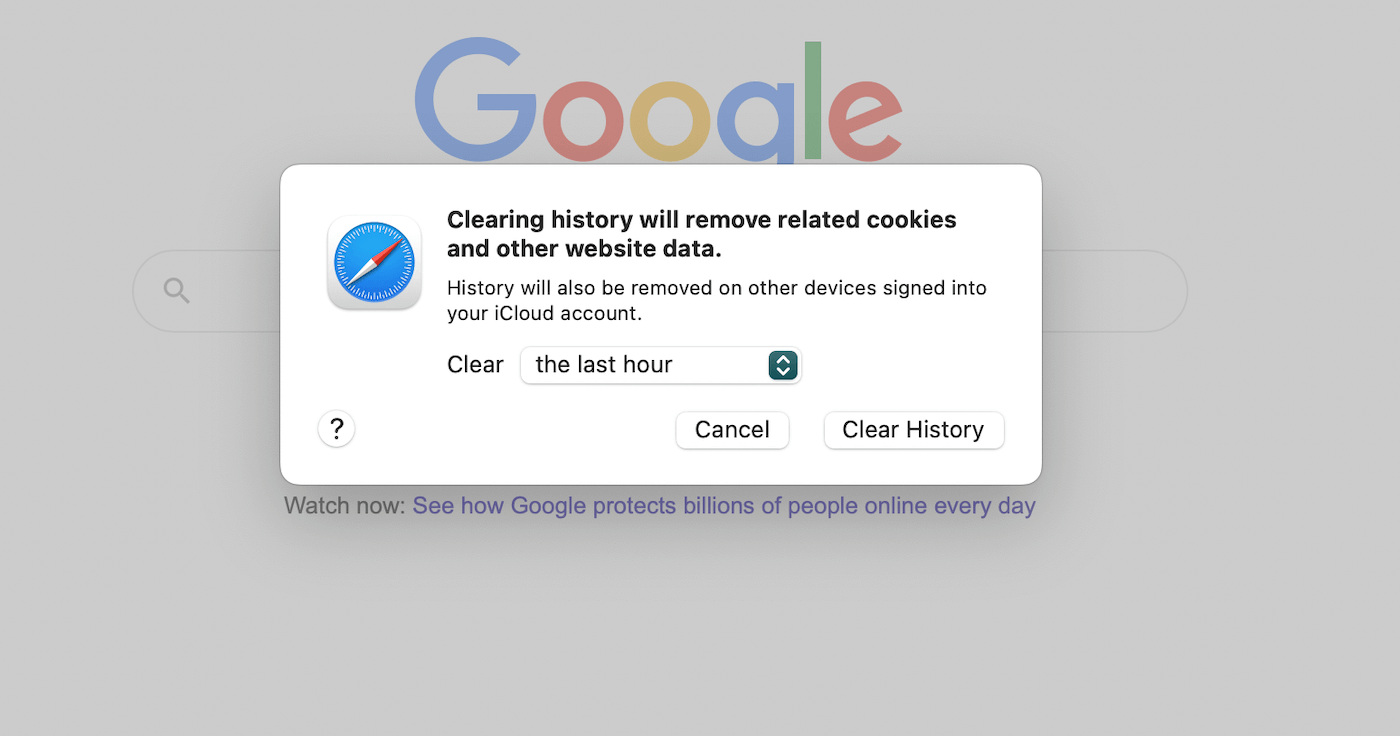
Then, you can choose to clear your cache, cookies, and site data from a specific time range. When you’re done, click on Clear History:
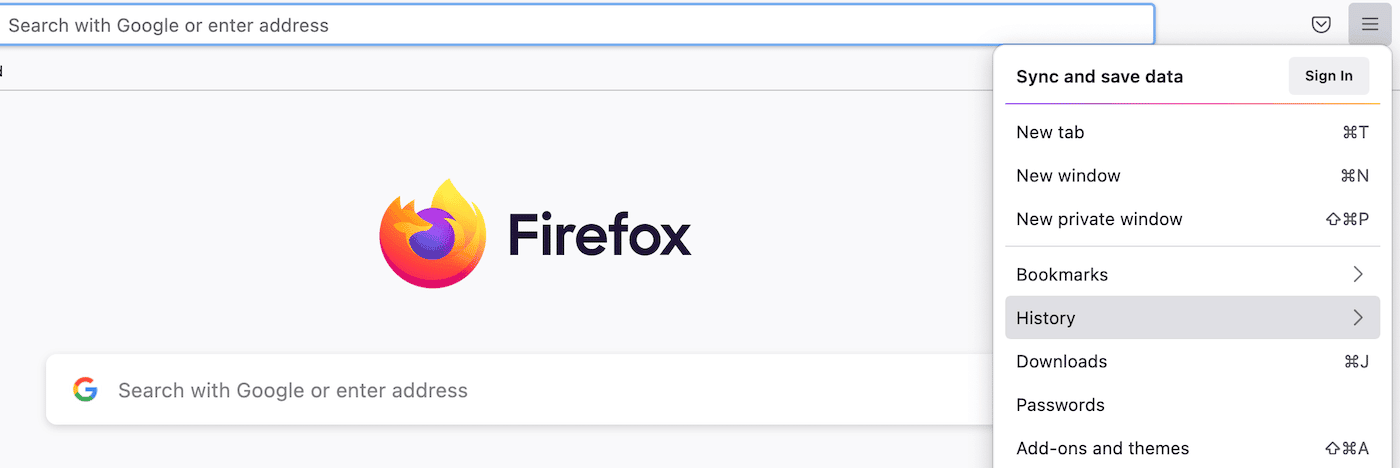
To clear your browser data on Mozilla Firefox, you’ll need to find the hamburger icon in the upper right-hand corner. Next, select History:
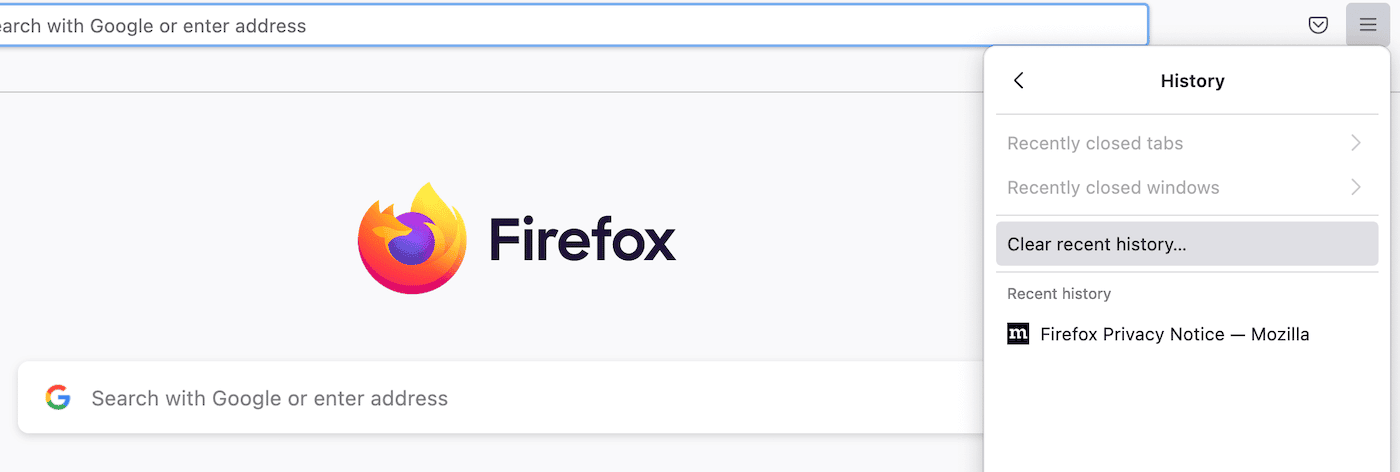
In the new tab, click on Clear recent history:
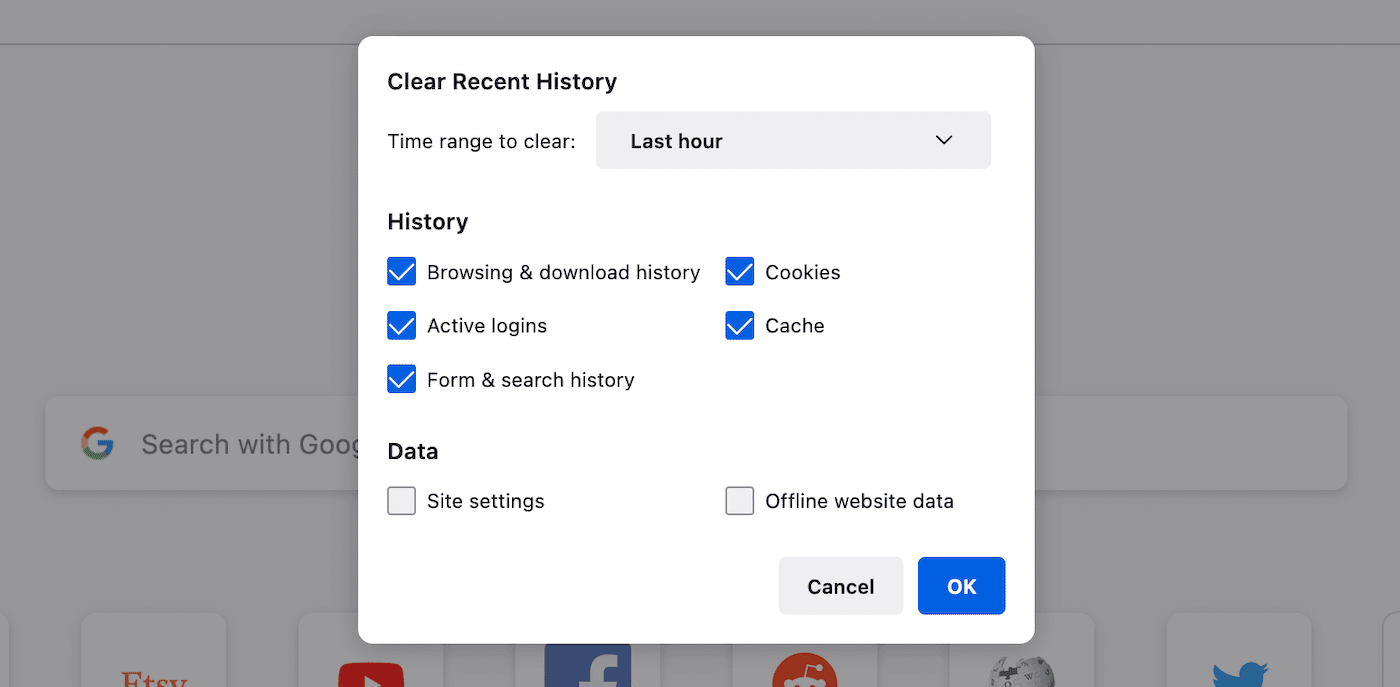
Like other browsers, you can choose only to clear certain data. However, it’s important to remember to select the Cache option:
Now that you’ve cleared your browser cache try to visit the website where the error occurred. If you still see the err_http2_protocol_error message, you’ll need to try some alternative solutions.
3. Open a Private or Incognito Browser Window
Whenever you visit a new website, your browser will save information about that site in a cache. Once you visit the page again, your browser will pull the cached data rather than requesting the server all over again. Often, this can make the site load faster on repeat visits.
For this reason, you may want to avoid clearing your browser cache when trying to bypass the HTTP/2 protocol error. In this case, you can launch the browser in private or incognito mode.
This can be an effective one-time solution to avoid permanently deleting the cache or disabling third-party extensions. To do this in Google Chrome, extend the menu and click on New Incognito Window. This will open a private browser:
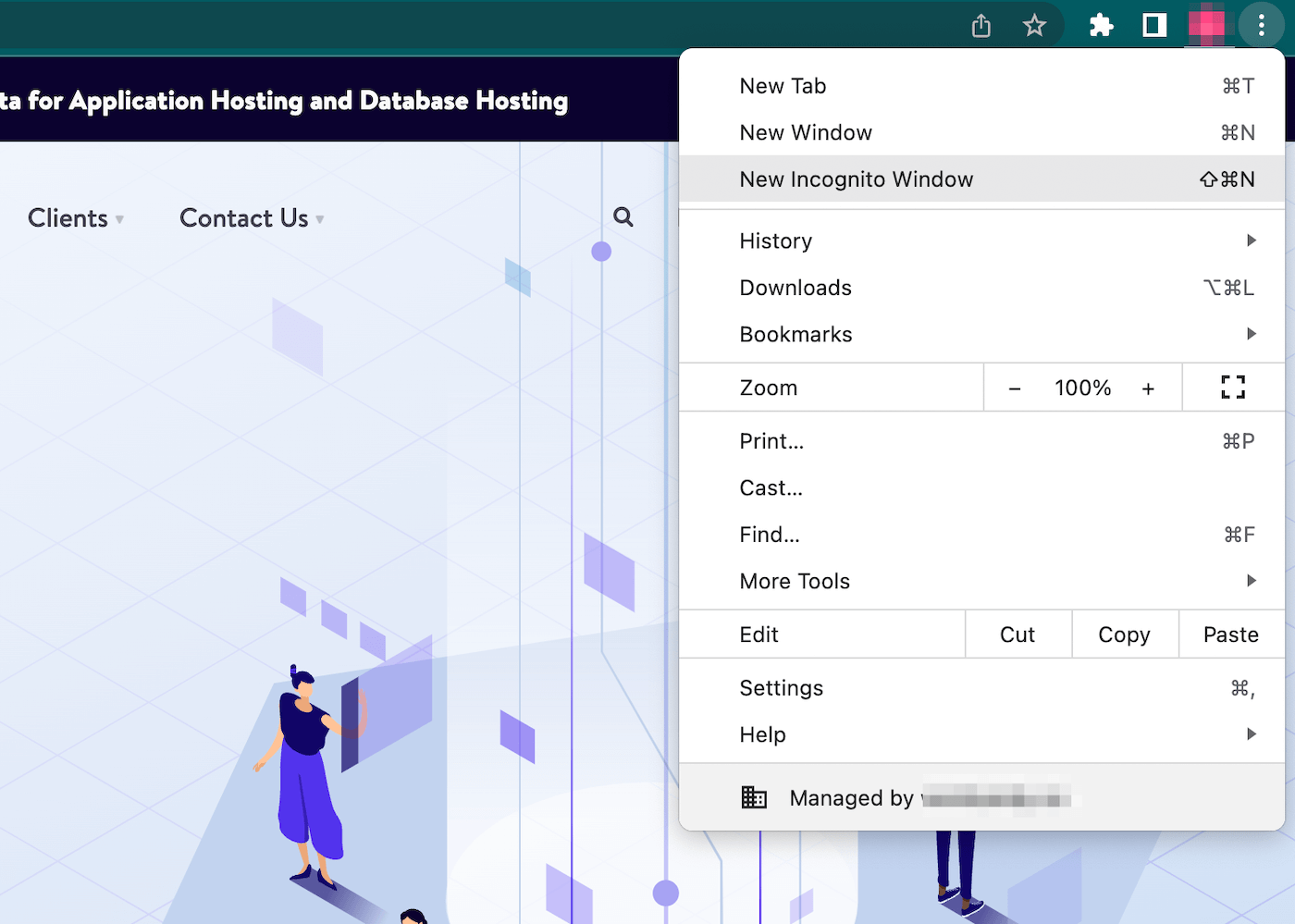
Using the incognito mode, try to visit the website again. It may enable you to do this without having to use more complicated solutions. However, keep in mind that this is primarily a short-term fix.
4. Disable or Uninstall Browser Extensions
As we mentioned earlier, third-party extensions could potentially interfere with how your browser and a web page interact. After you see the err_http2_protocol_error message, you can consider disabling these extensions to see if the error disappears.
To do this in Google Chrome, visit More Tools > Extensions:
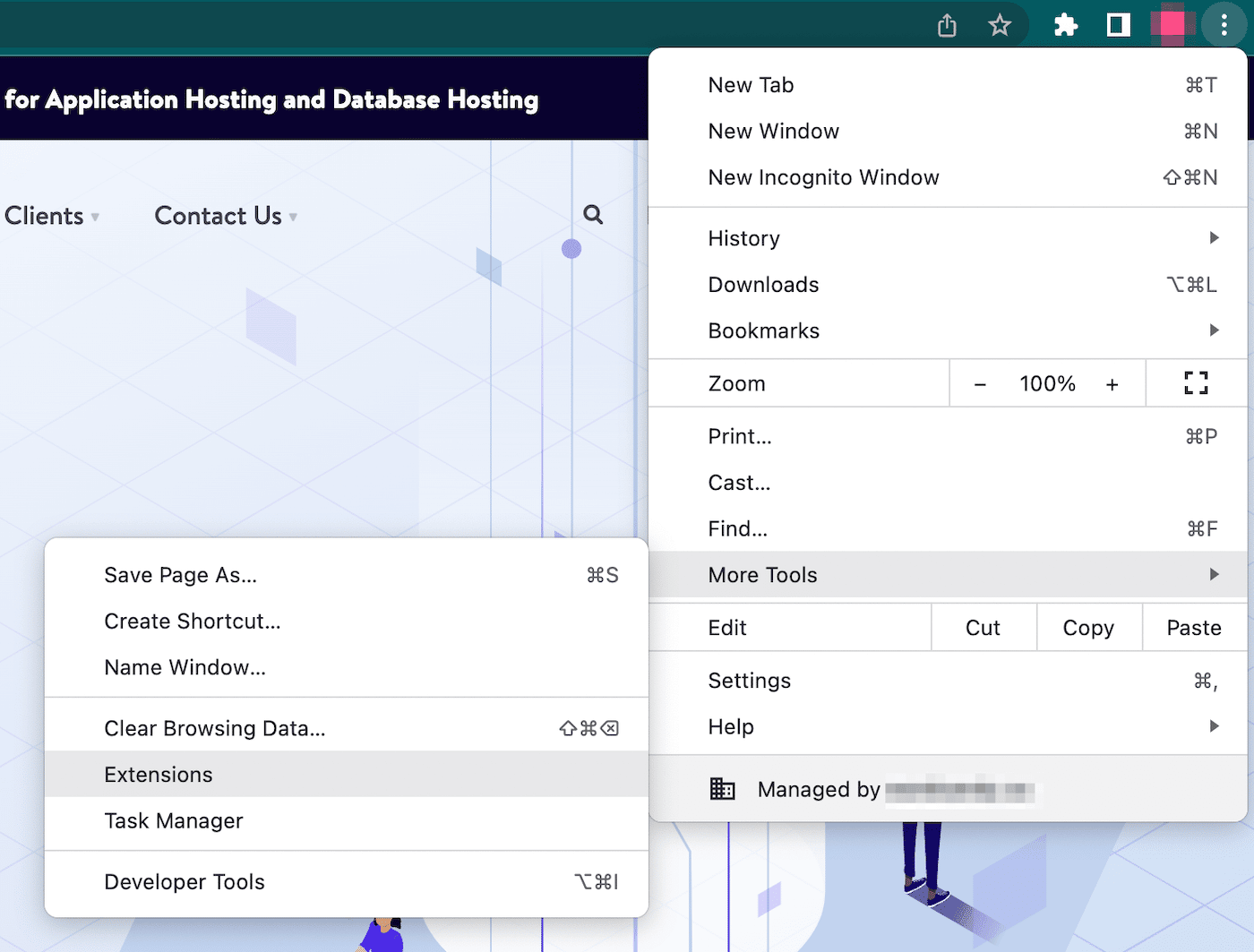
This will take you to a web page that lists your Chrome extensions. First, use the switches on the bottom-right corner to turn off each extension:
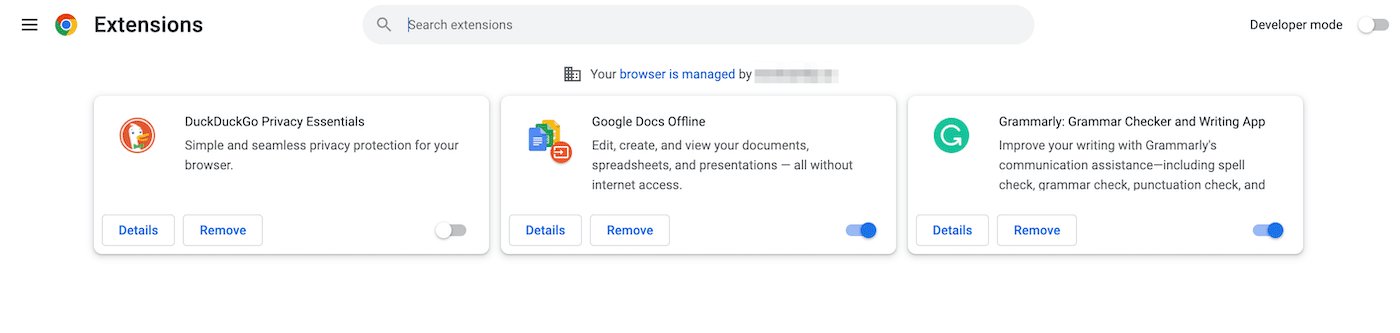
Now that your extensions are disabled try to go to the web page that caused the error. If the page loads, you’ll know that one of your extensions caused the problem.
Now, you can go back to the Extensions page and enable them one by one. After you turn on an extension, see if the error returns. When you find the problematic extension, consider removing it entirely.
5. Turn Off the Browser’s QUIC Protocol
Quick UDP Internet Connections (QUIC) is an encrypted transport network protocol that was developed by Google. Essentially, its goal was to increase the speed, security, and efficiency of HTTP traffic.
Currently, only eight percent of websites use QUIC. Therefore, when sites aren’t configured to process this kind of traffic, it can cause incompatibility between the client and server. As a result, this can display an HTTP/2 protocol error.
To solve this problem, you can turn off the QUIC protocol in your browser. In Chrome, you’ll simply need to enter the following URL into your search bar:
chrome://flags/#enable-quic
Now you’ll see a highlighted result labeled Experimental QUIC protocol. For this setting, change it to Disabled:
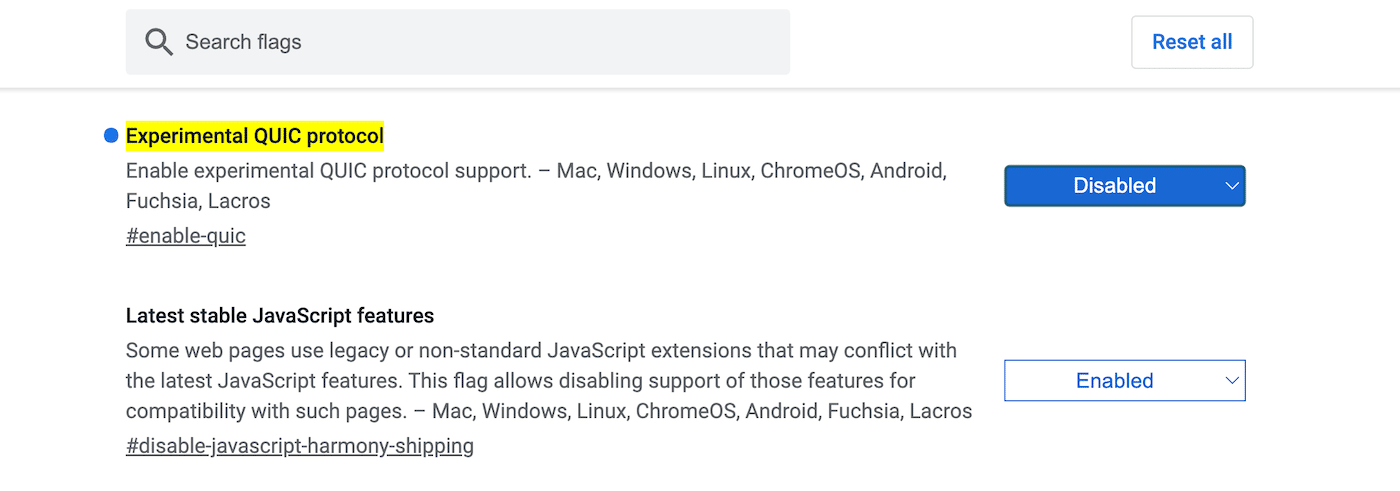
Once you make this change, you’ll need to relaunch your browser. This will disable QUIC, allowing you to view the incompatible website.
6. Restore the Browser’s Default Settings
As you use Google Chrome, you may not notice small glitches that can change its default settings. Over time, this can lead to more errors like the err_http2_protocol_error.
Fortunately, you can get your browser back to normal by reverting its settings to the default options. To get started, open the Google Chrome Settings page:
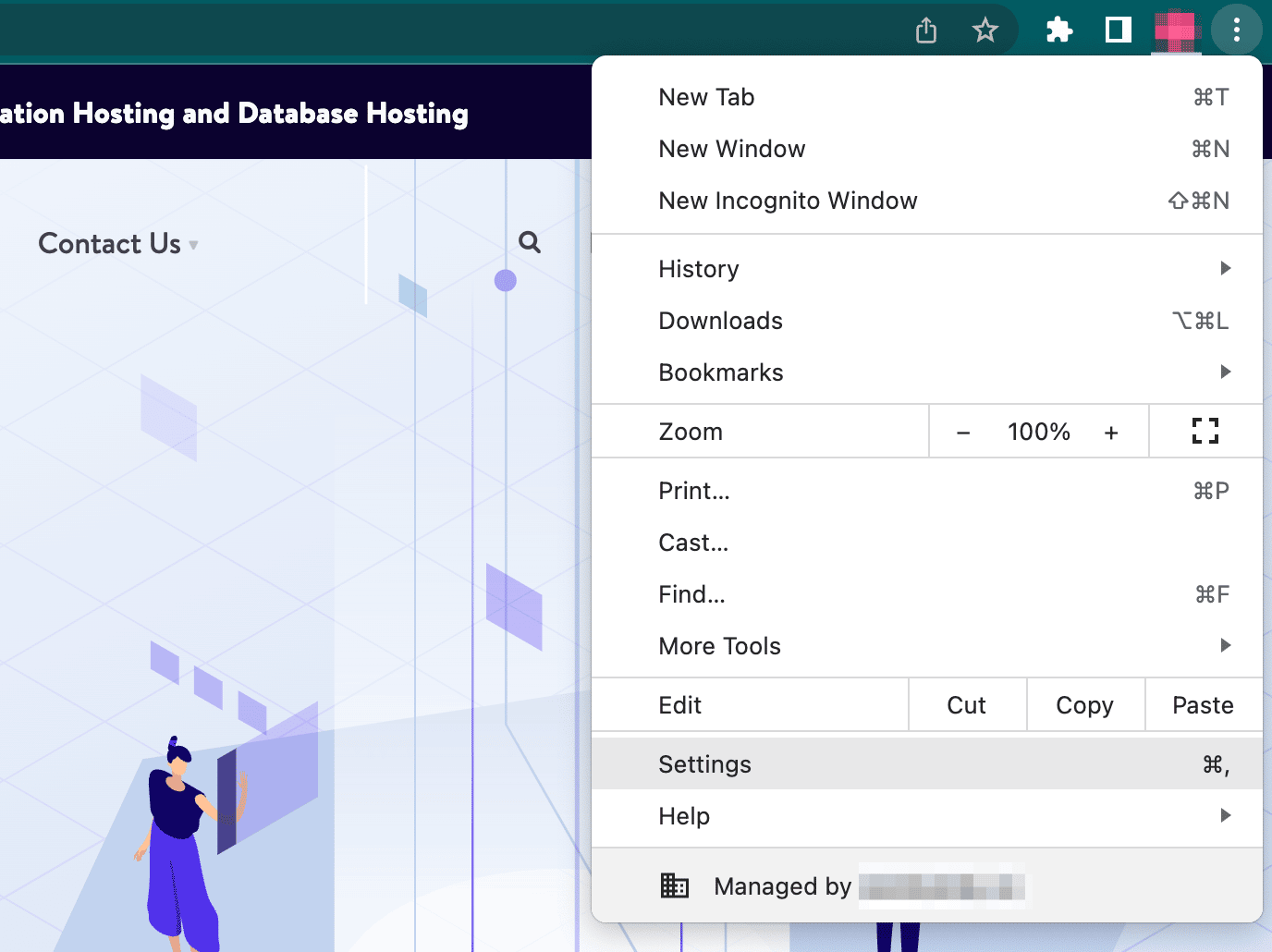
On the left, find the Reset settings tab. Then, select the Restore settings to their original defaults option:
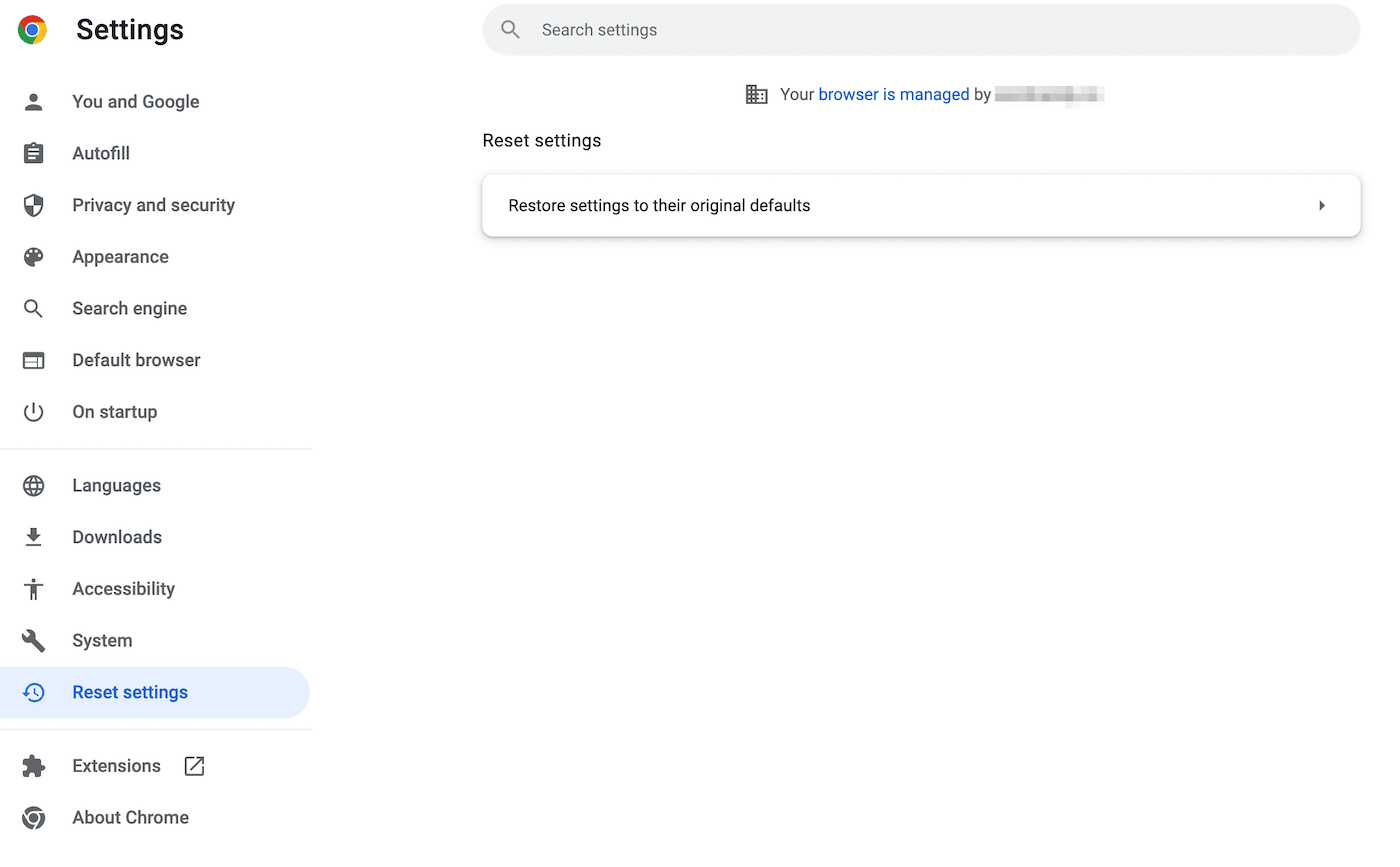
Finally, you’ll just need to confirm that you want to erase your current Chrome settings. If you do, click on Reset settings:
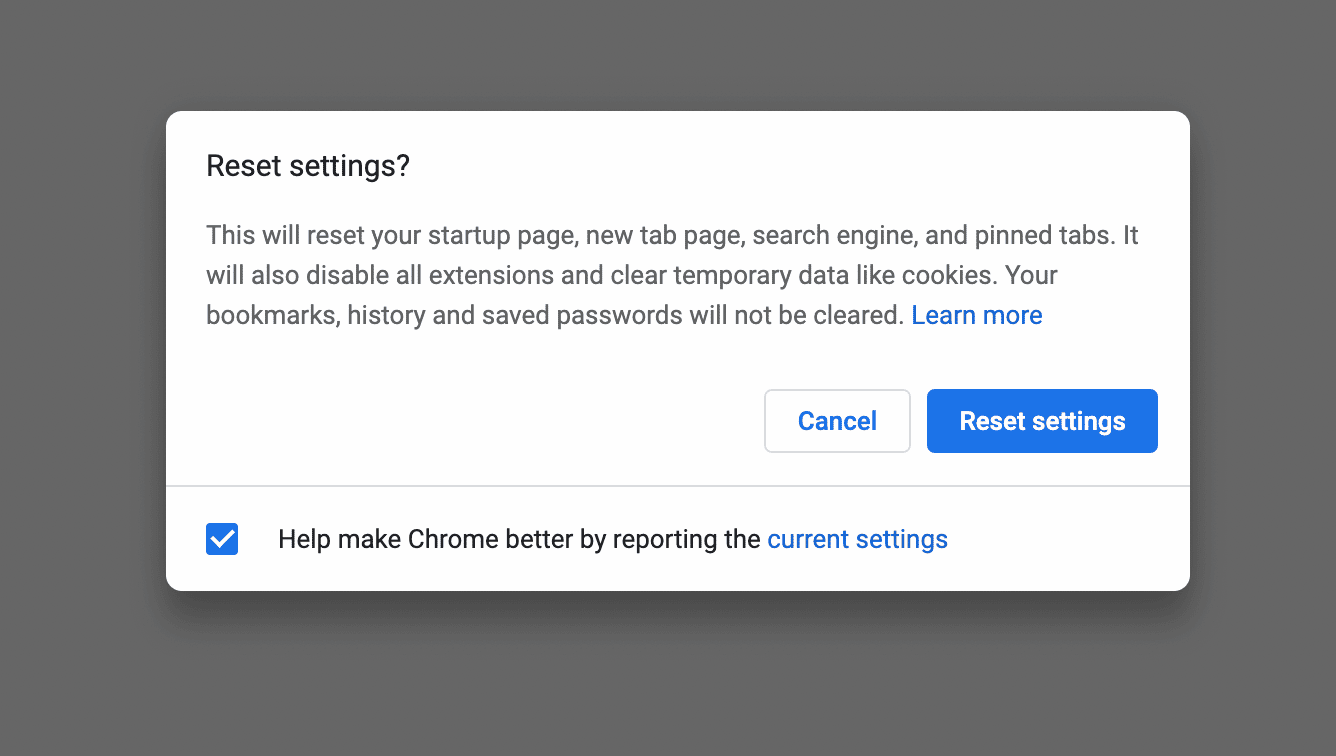
It’s important to keep in mind that this will erase your current search engine history, startup page, pinned tabs, extensions, bookmarks, and more. It will essentially revert your browser to a clean slate. However, it can remove any conflicting software or settings that are causing the HTTP/2 protocol error.
You can also consider resetting the experimental settings in your browser. These are not fully tested, functional features, so they could prevent your browser from communicating properly with a website.
To find your advanced experimental settings, search for the following address:
chrome://flags/
In the upper right-hand corner, select the Reset All option. If certain features were accidentally enabled, this will revert them to the default settings:
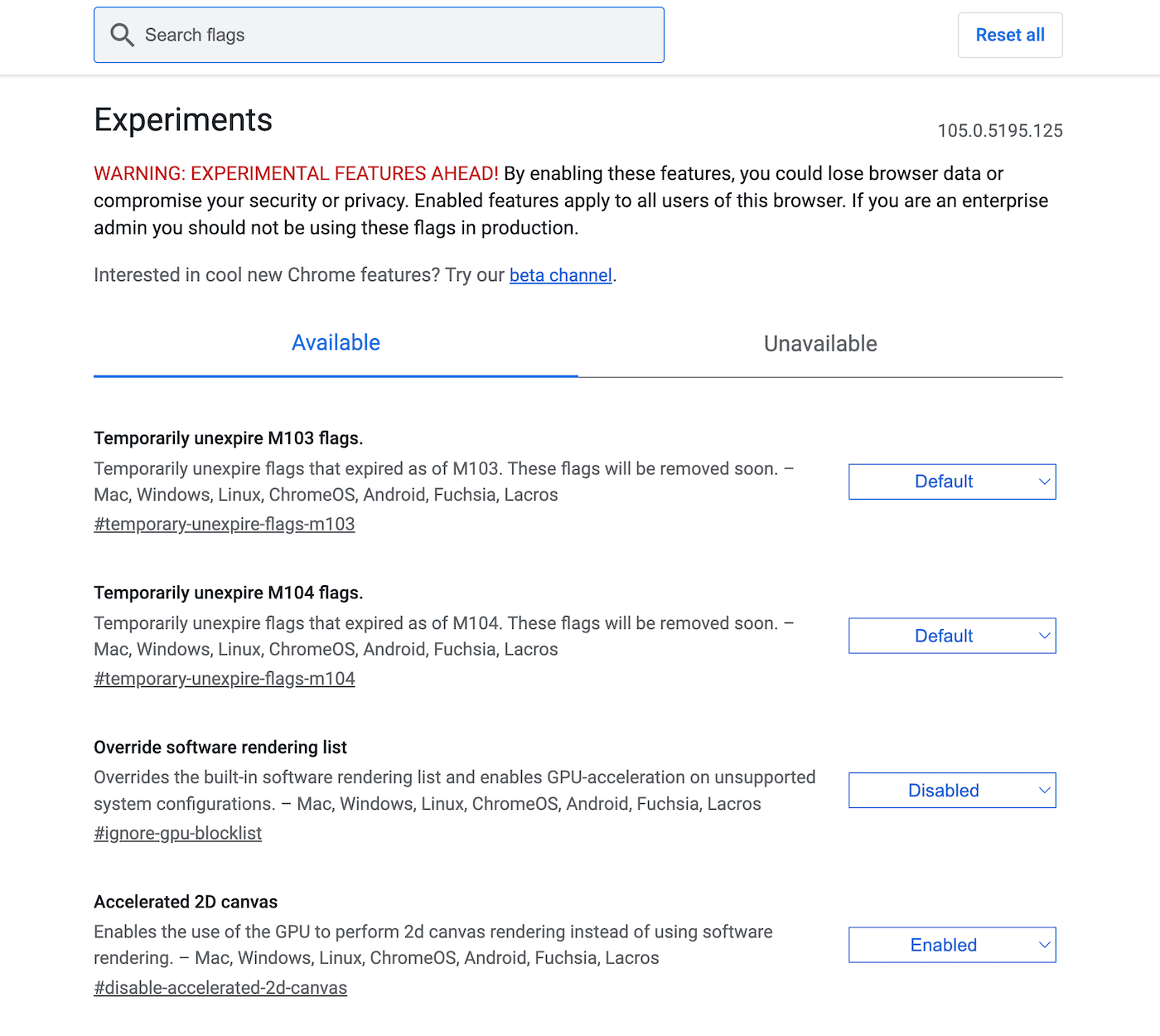
Then, these changes will be applied whenever you relaunch Chrome!
7. Reinstall Google Chrome
After executing all these methods, you may still see the troublesome HTTP/2 protocol error. If so, there could be an error within the Google Chrome app. Even if you restored the default settings, you may want to consider reinstalling the entire browser.
First, you’ll need to delete the browser from your device. To do this with a macOS operating system, open the Applications folder and move the Google Chrome app to the trash:
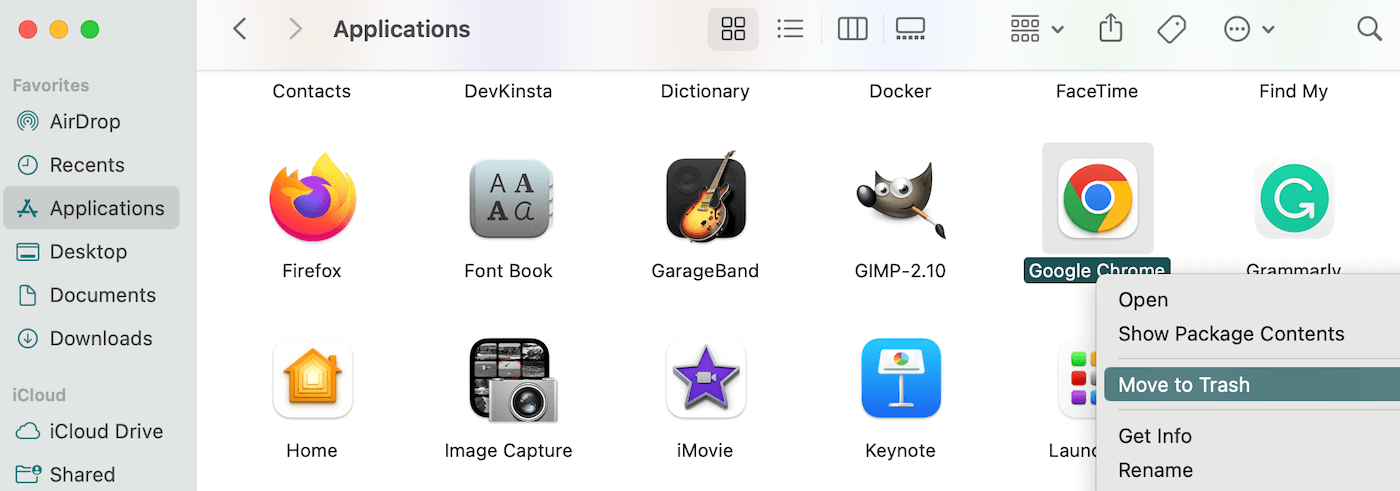
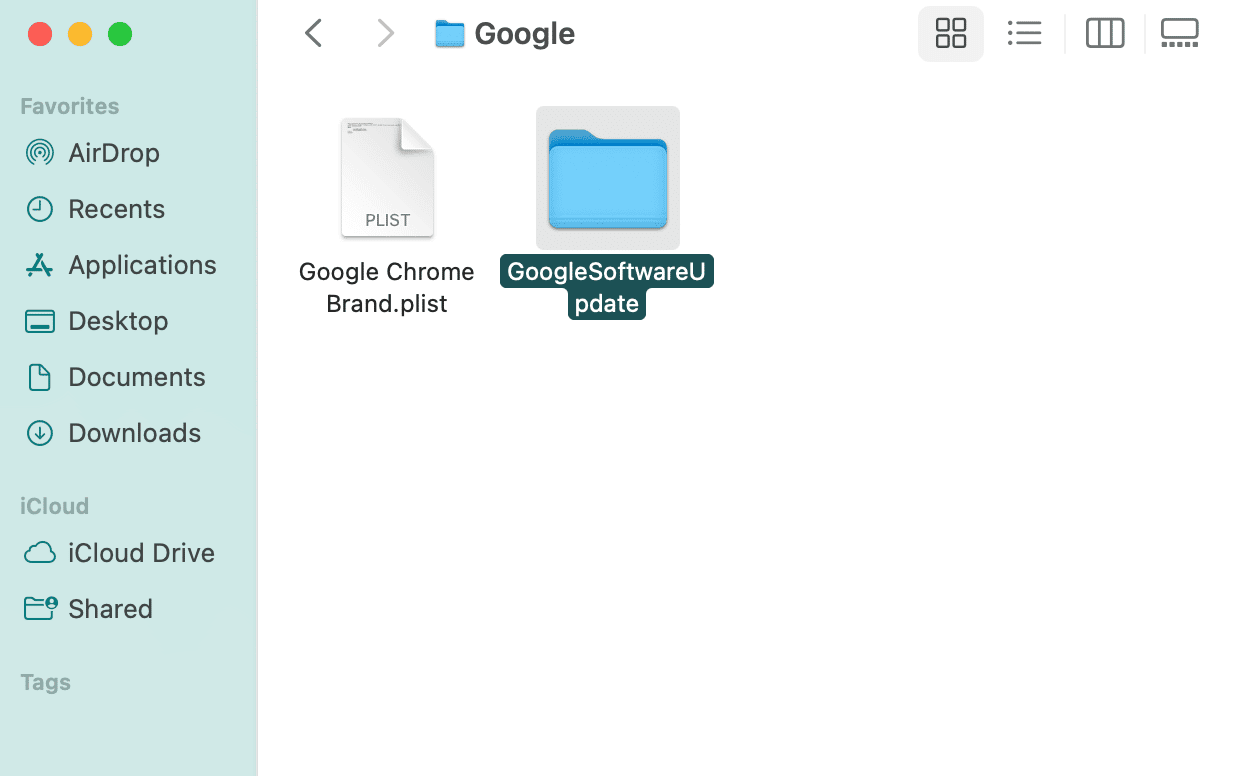
You’ll also want to delete any Chrome software updates. To find them, search for ‘~/Library/Google’ on your device. In your results, delete the “GoogleSoftwareUpdate” folder:
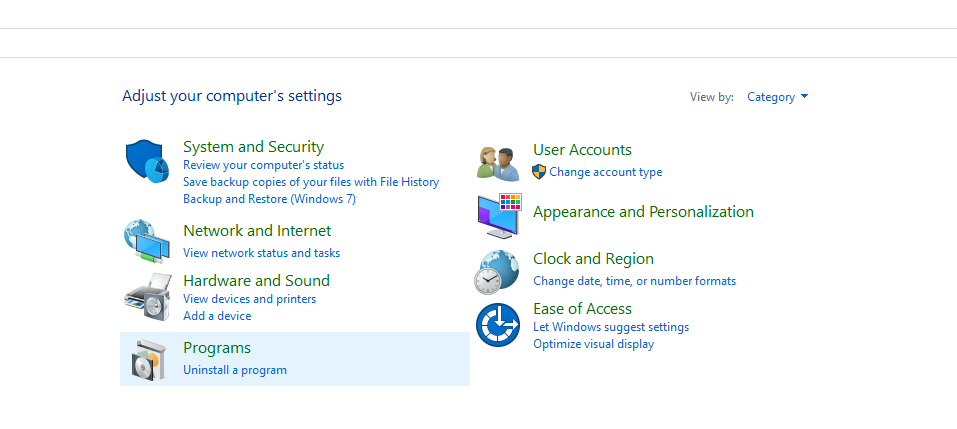
If you’re a Windows user, you’ll use different steps to delete Chrome. To start, click on the Windows Start button and search for the Control Panel. Open it, then find the Programs option. Click on Uninstall a Program under Programs:
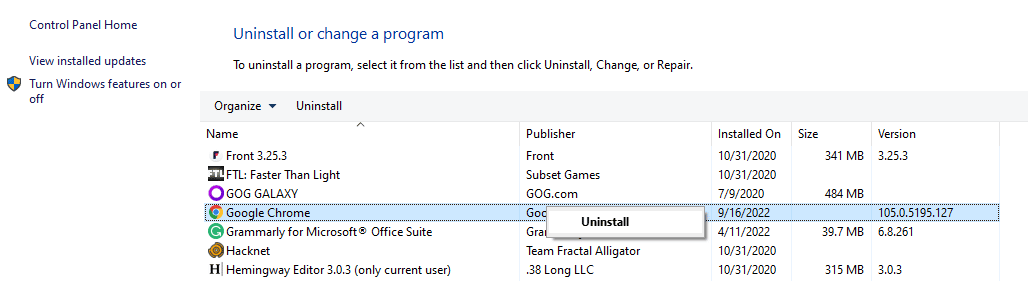
Now you’ll need to find Google Chrome and right-click on it. Lastly, hit Uninstall:
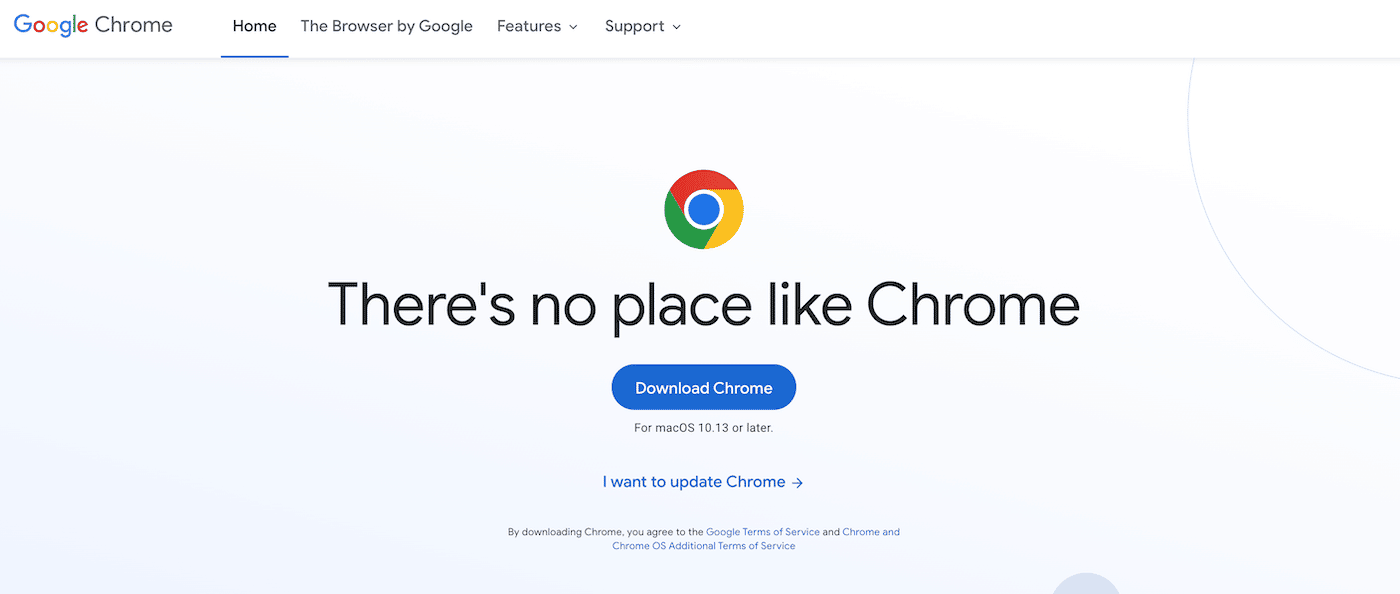
For both Mac and Windows users, you can reinstall Chrome in the same way. You’ll simply need to download the file included on the Google Chrome website:
Although this method could potentially solve the err_http2_protocol_error, it’s best only to use it as a last resort. Deleting Chrome will also remove all of its data, so be sure to try a few simpler solutions beforehand.
How To Fix the err_http2_protocol_error In a Device
So far, we’ve examined some methods to fix the err_http2_protocol_error using a web browser. However, in some cases, the browser may not be the source of the problem. To help you troubleshoot the issue, let’s discuss how to make your device compatible with the HTTP/2 protocol.
1. Reset Your Device’s Date and Time
Although it may not seem like a big deal, it’s important to have the correct date and time displayed on your device. If this information isn’t accurate, the incorrectly time-stamped data packets could be refused. This can lead to an err_http2_protocol_error.
With a Windows operating system, you can right-click on the clock in the bottom-right corner of your desktop. Then, select Adjust date and time:
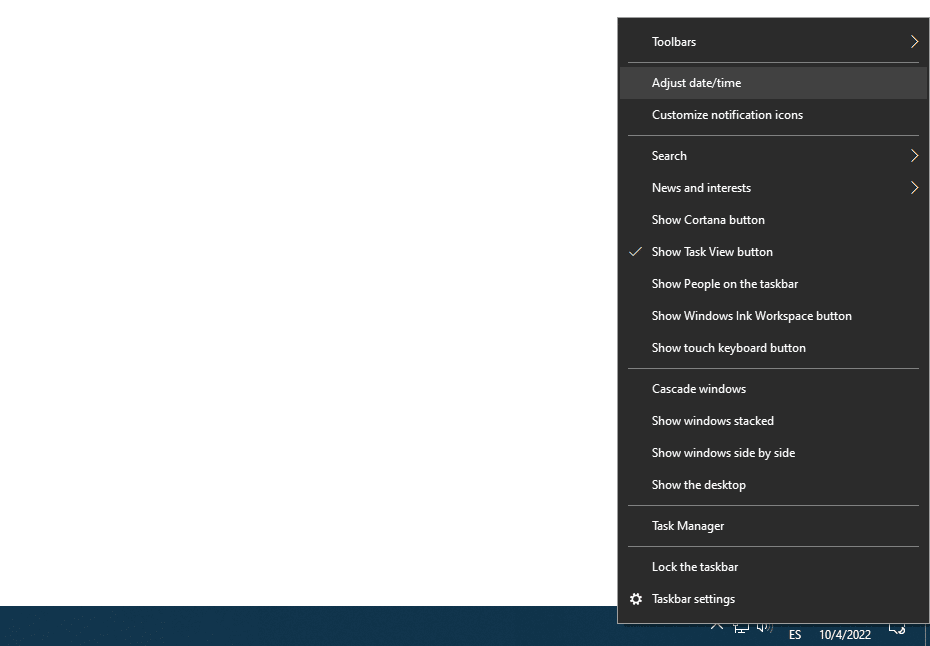
If your computer isn’t automatically displaying the right time, you’ll need to disable the Set time automatically setting. Beneath this, be sure to set the correct time zone:
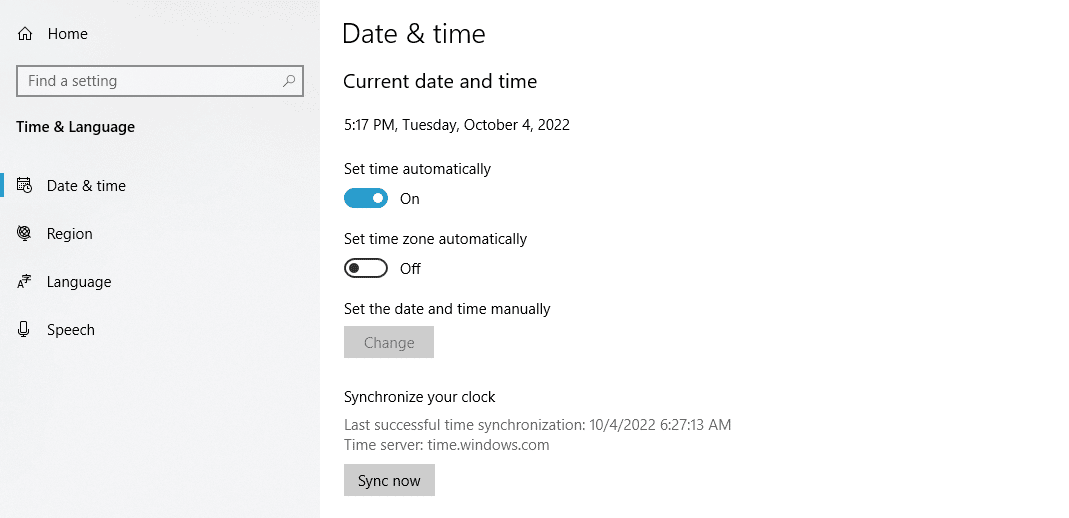
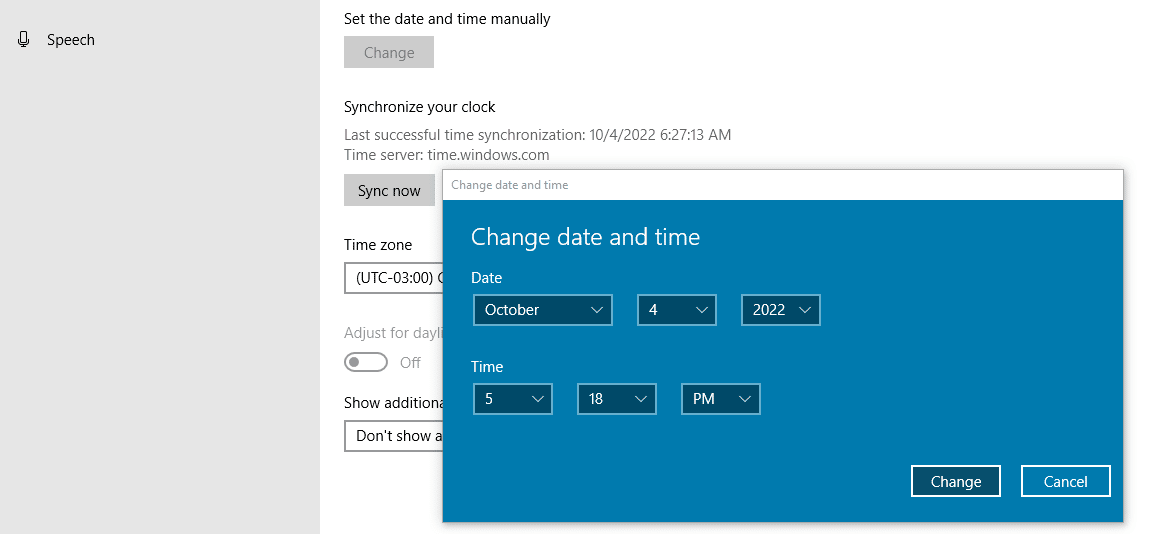
Next, select the Change button to Set the date and time manually. In the pop-up window, enter the correct date and time:
For Mac users, click on the Apple menu. Then, select System Preferences. Here, find the Date & Time option:
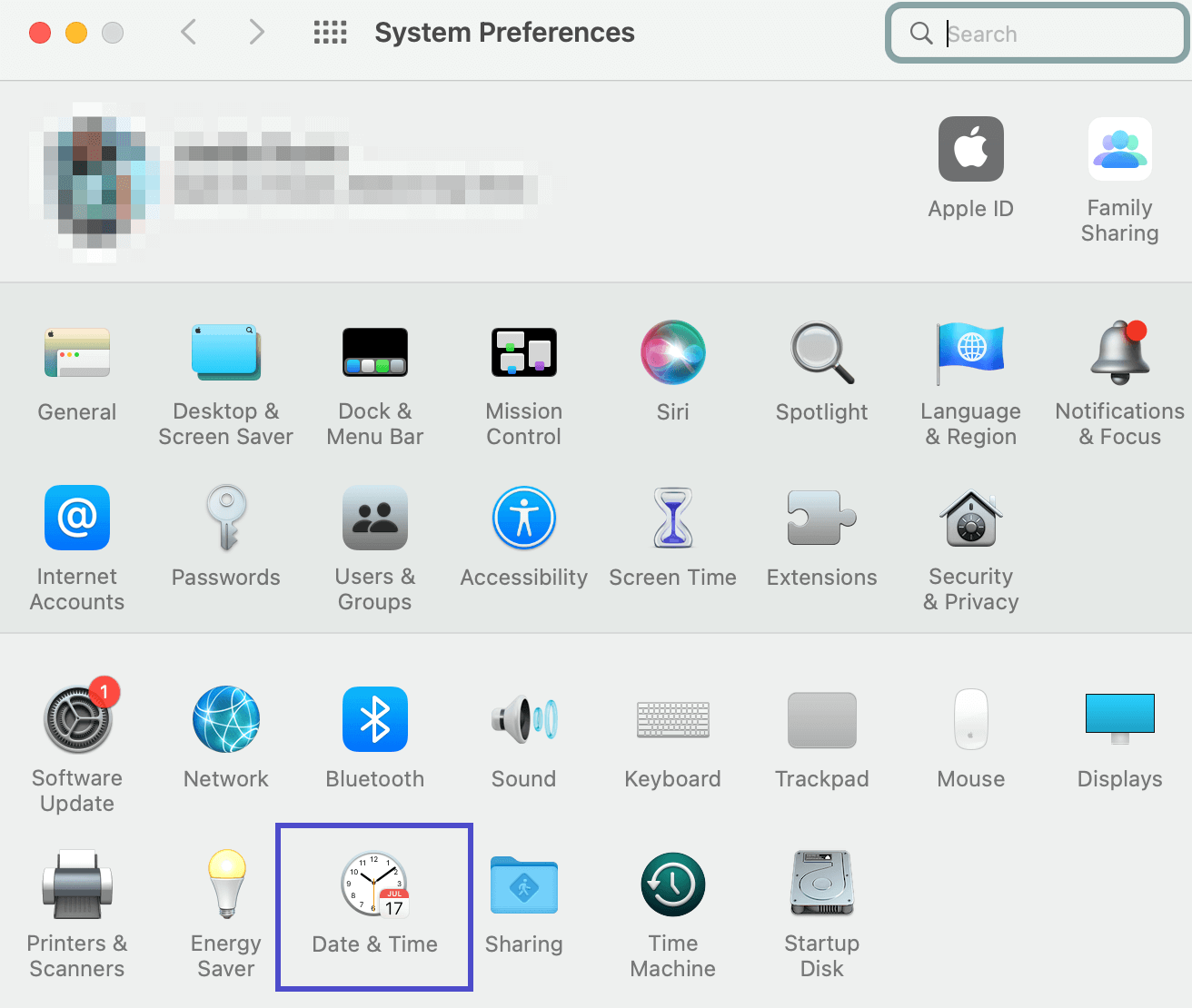
In the bottom-left corner, click on the lock to make changes. Now you can deselect the Set date and time automatically option and choose the correct values:
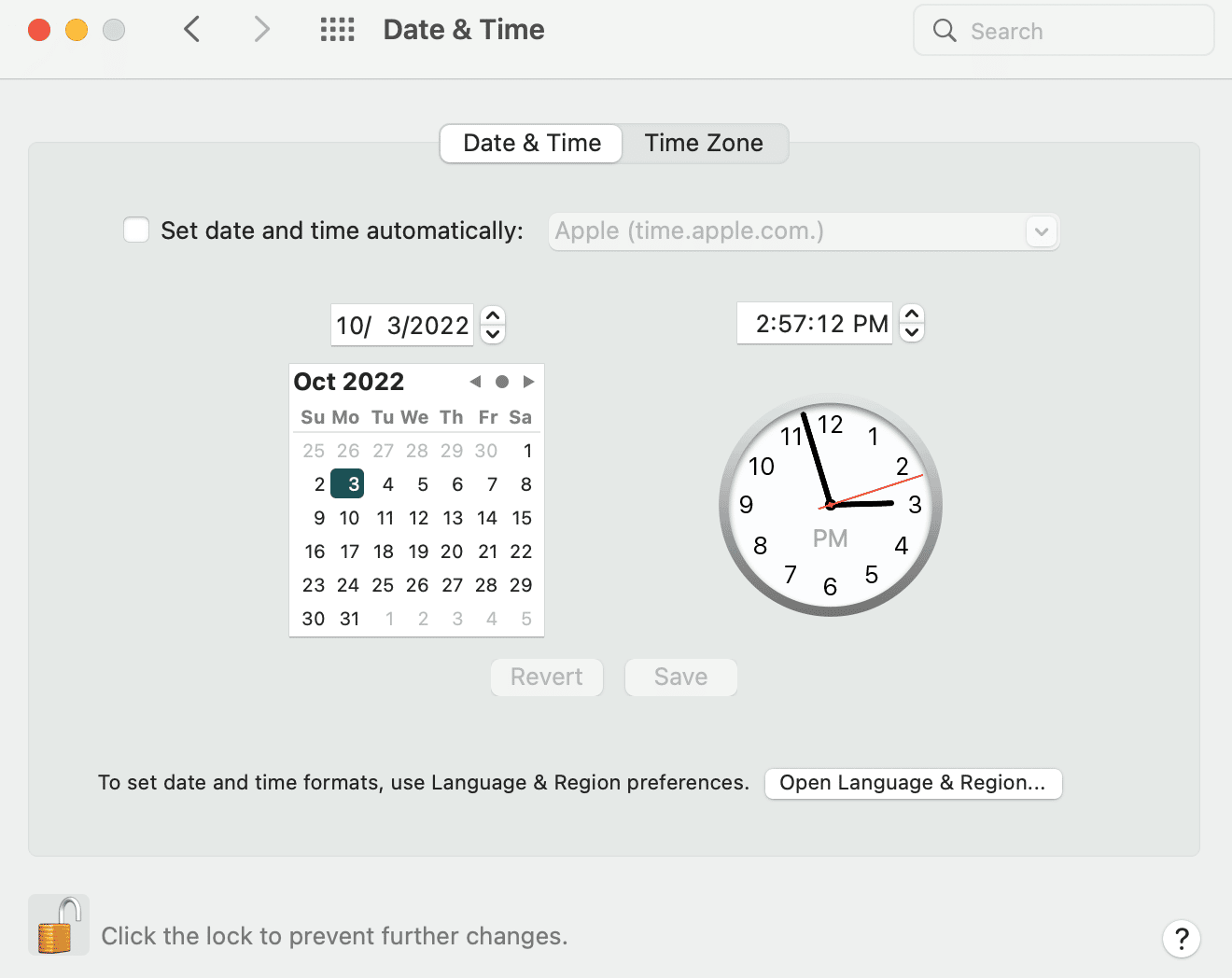
After you make these changes, try relaunching the web page!
2. Update Your Operating System
If you haven’t updated your device in a while, this can cause a multitude of performance issues. To ensure you can avoid any conflicts between your operating system and visited websites, you’ll need to check for recent upgrades.
Using a macOS device, you can start by performing a backup. Then, go to System Preferences > Software Update:
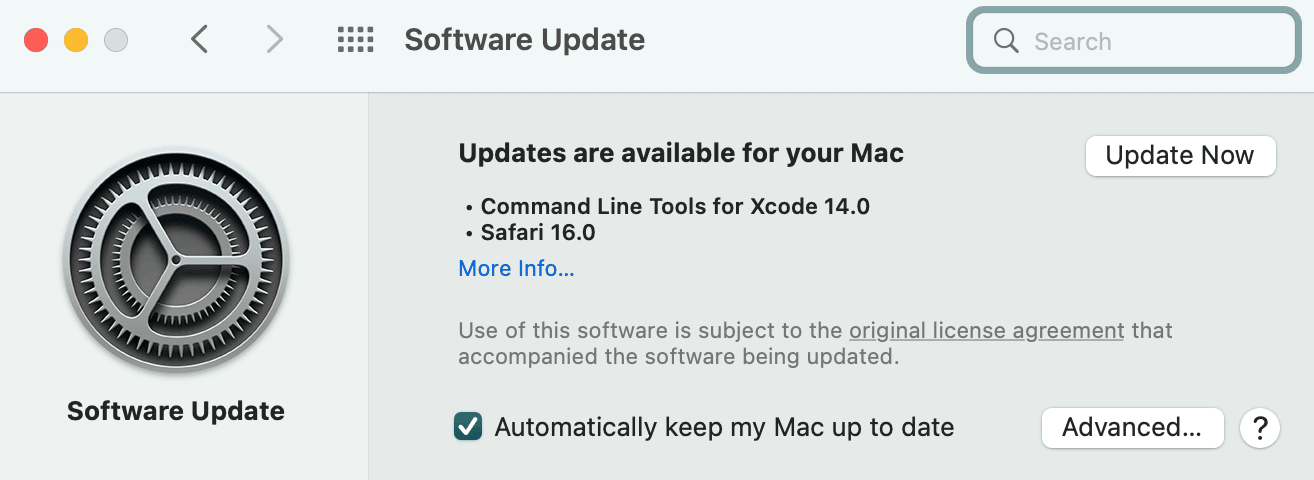
In this window, you’ll see any newly available updates. If you’re ready to install them, click on Update Now.
With a Windows computer, you can navigate to Start > Settings > Windows Update. If you haven’t already, install the latest update:
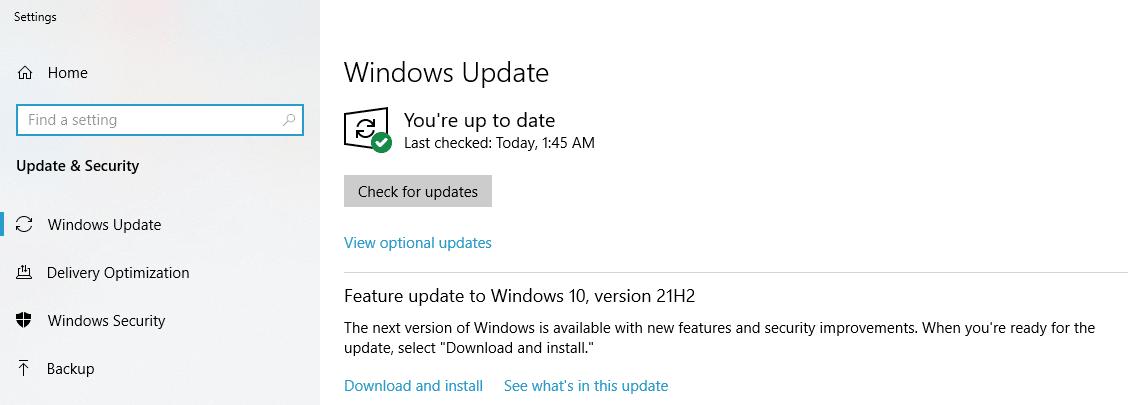
Once your device is up-to-date, it should be compatible with most websites that you want to visit. To see if this is the case, check whether the HTTP/2 protocol error is fixed. If not, continue with the following methods.
3. Flush the DNS
On the internet, the Domain Name System (DNS) functions as an index for all available websites and their unique IP addresses. When you visit a website, your operating system or browser will save this information in a database. This can lead to faster loading times on revisited websites.
If you’re seeing the err_http2_protocol_error, you can try flushing your DNS cache. Put simply, this will erase the IP addresses and other DNS data from your computer.
To flush a Mac DNS cache, open the command line interface called Terminal. In this window, enter the following command:
sudo killall -HUP mDNSResponder
This should successfully clear the DNS, removing the HTTP/2 protocol error. However, keep in mind that you’ll need to use slightly different processes for older versions of macOS.
If you have Windows 10, 8, 7, or XP, you can start by opening Command Prompt. In the command line, paste this command:
ipconfig /flushdns
You should see a confirmation message once the DNS has been flushed!
4. Check Antivirus Software
To keep your computer safe while you’re browsing, you likely have an antivirus program installed. Although this software offers many security benefits, it can occasionally flag certain applications as malicious. When this happens, it may unnecessarily limit your access to a website.
If none of the previous methods worked, you can check your antivirus software to see if it is functioning properly. First, open your notifications, which can display new security issues:
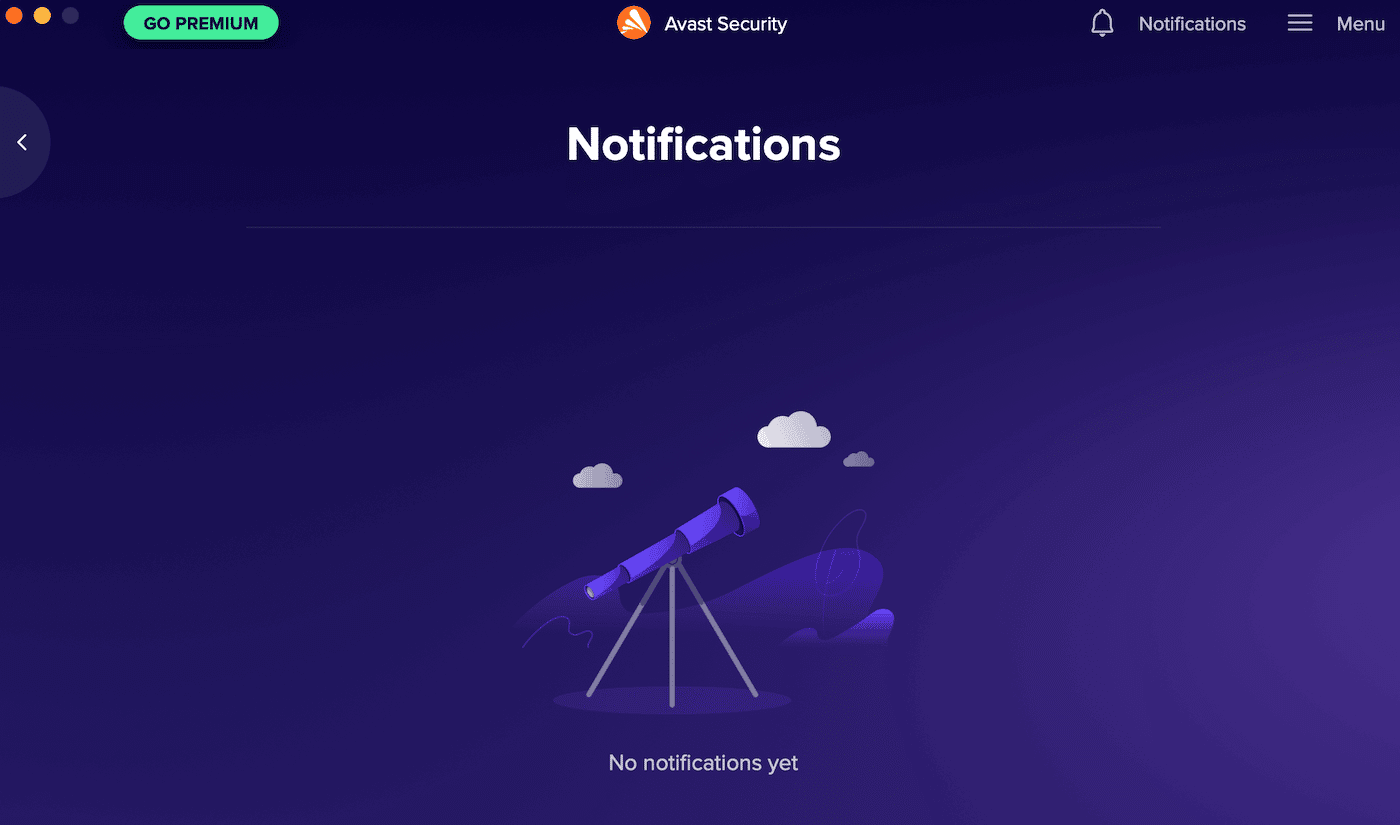
Most antivirus software will also have a quarantine list. This will contain all of the detected security threats on your computer:
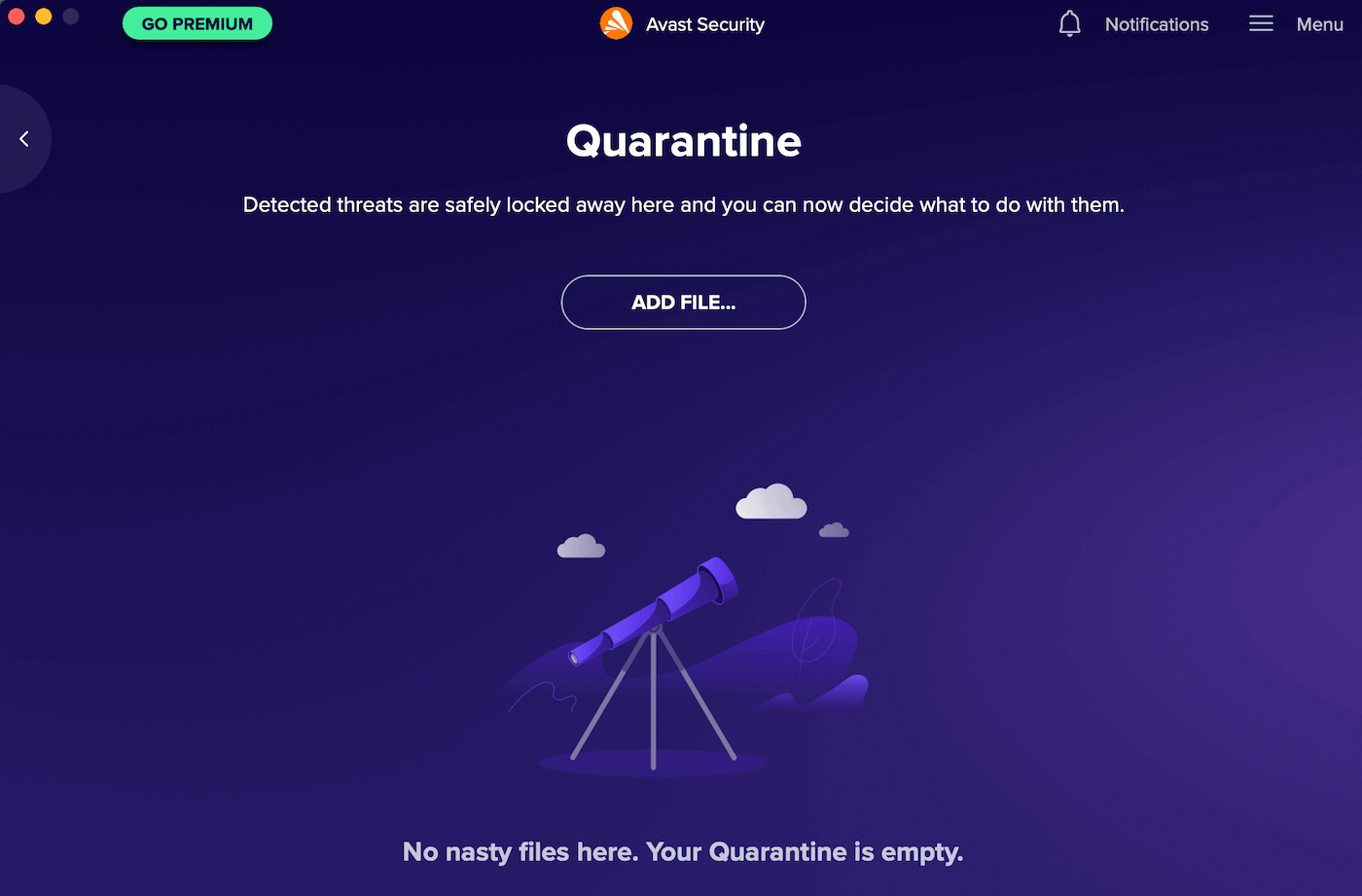
In either of these areas, evaluate whether any unwanted applications are being flagged. If so, you may need to temporarily disable your antivirus software.
Having trouble certain web pages thanks to this annoying error? 😣 The solution is here ⬇️Click to Tweet
Summary
When the err_http2_protocol_error happens, it can be extremely frustrating. Instead of quickly viewing necessary online resources, you’ll only be able to see an error message. Luckily, you can take a few simple steps to solve this problem.
Even as a complete beginner, you can optimize your web browser to bypass HTTP/2 protocol errors. By simply clearing the cache, opening a private window, or turning off third-party extensions, you can successfully view the blocked content. If the problem lies in your operating system, you can consider performing software updates or flushing the DNS cache instead.
As a website owner, you’ll need to know that your web pages can be reached at any time. With Kinsta, you’re able to use our HTTP Status and Redirect Checker to make sure your website is functioning correctly. Additionally, you can check your disk usage in the My Kinsta dashboard!
Download Windows Speedup Tool to fix errors and make PC run faster
An HTTP2 Protocol Error is observed in several systems and primarily pertains to browser or network issues. As the name suggests, people face this issue when there are interferences in their HTTP2 Network Protocol. This may be caused by the presence of a corrupt or incompatible extension, bad cookies, and other glitches of the kind. If you, too, are countering the ERR_HTTP2_PROTOCOL_ERROR on your Chrome browser, this article will help you resolve it.
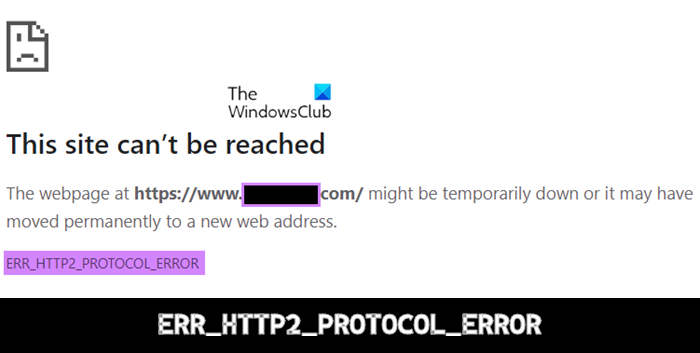
To fix error ERR_HTTP2_PROTOCOL_ERROR on Google Chrome on Windows 11/10, follow these suggestions:
- Hard Refresh the webpage
- Update your browser to its latest version
- Set the correct date and time on your device
- Disable or uninstall any conflicting browser extensions
- Disable the browser QUIC Protocol
1] Hard Refresh the webpage
The simplest trick in the book is the one you should try before any other. If you face a ERR_HTTP2_PROTOCOL_ERROR while loading a Chrome webpage, you can press the CTRL key and then refresh the page to check if the issue has been resolved or not.
2] Update your browser to its latest version
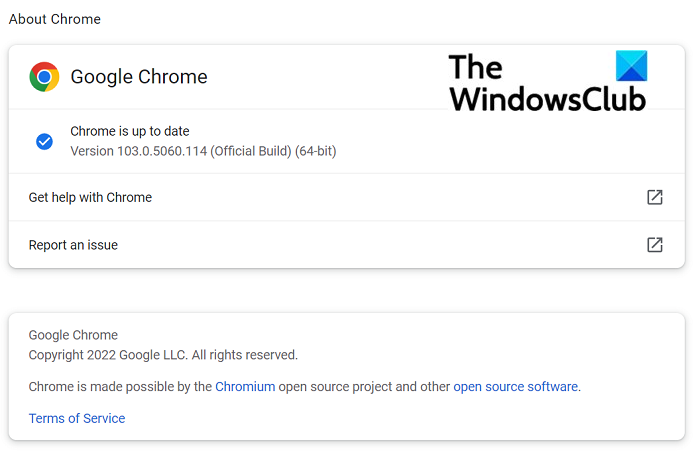
There’s a high chance that you may run into this error if you’re working on an outdated version of your web browser. Because of incompatible data packets, the website that you’re trying to run may refuse to accept the client’s request. You can try updating your web browser and checking if the error still persists.
If you are using Google Chrome:
- Open Chrome on your PC and click on the ellipse’s icon at the top-right corner
- Here, select Help and further go to About Google Chrome
- Under the About Chrome section, you’ll see if there are any pending updates for your browser.
- If there are, click to initiate them and once it’s updated, relaunch the browser.
Users of Edge, Firefox, etc. can follow these steps to update the browser manually.
After relaunching the browser, check if you continue to face the HTTP2 Protocol Error.
3] Set the correct date and time on your device
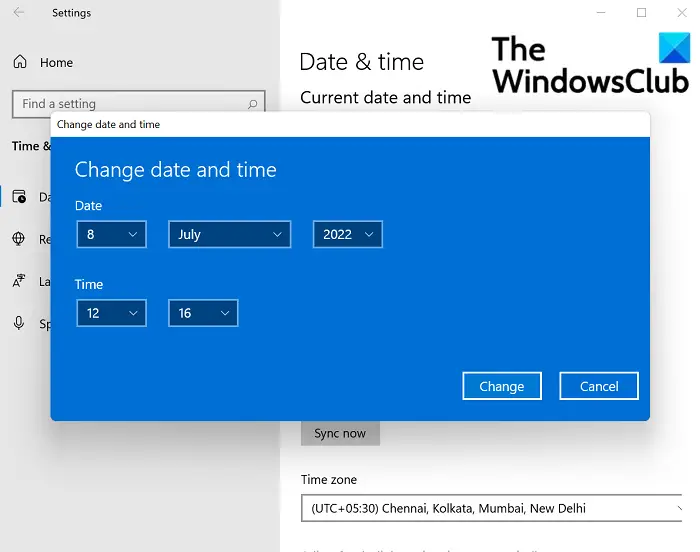
Another cause of error ERR_HTTP2_PROTOCOL_ERROR can be the incorrect time and date that you may have set up on your device. Rectifying it to the current date and time as per your time zone can help you rid yourself of this error.
- Check if the date and time on your computer are correct and if not, right-click on the clock on your computer’s system tray and further click on Adjust date/time
- Here, firstly, toggle off the Set time automatically option and under the Set time manually setting, click on Change
- Here, set the time as is correct and save the changes
Now, restart your system and relaunch the webpage to see if the issue has been resolved or not.
4] Disable or uninstall any conflicting browser extensions
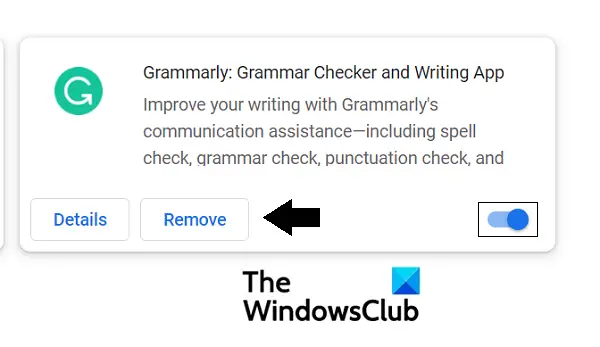
Getting rid of any browser extensions that are causing hindrances in the communications between your browser and a webpage can also do the trick for you.
- From the top-right corner of your browser homepage, click on the Extensions icon
- On the bottom of this action box, you’ll find a Manage Extensions option. Click on it
- This will take you to a separate page where you can find all the browser extensions that you currently have running on your computer
- Locate the conflicting one from the group. You can now disable it by toggling off the enable extension option, or click on Remove to uninstall it
Once you’ve taken care of the problematic extension, relaunch Chrome to check if the webpage is loading properly or not.
5] Disable the browser QUIC Protocol
- Launch Chrome on your PC and enter the following in the Address bar
chrome://flags/#enable-quic
- This will help you locate the relevant flag. Find the highlighted ‘Experimental QUIC Protocol’ and from the dropdown to the right, select Disabled
- In order to implement this change, relaunch the browser
If the problematic webpage is now loading without any hiccups, you’ll find the HTTP2 Protocol Error to have been resolved.
How do I fix insecure Chrome?

Sometimes, our browsing and surfing experience on the internet is restricted since some sites have unsafe content to view. If a site isn’t safe to visit, Chrome shows that the following connection/webpage is secure. In order to check whether a webpage is safe to visit or not, you can visit that site and check its security info from the left of its address bar. Below are the three indicators of a site’s security.
How do I change Google Chrome back to normal?
If you ever feel that Google Chrome on your computer is acting weirdly slow, it can be because of faulty extensions, excessive notifications, bad cookies, extensions & cache, etc. If you have tried everything, the best is to reset Google Chrome or Reinstall it. Some users have also experienced a slow experience because of limited RAM. You can choose to open fewer Tabs or use an alternate browser.
We hope that this post was helpful to you.
An undergraduate student of Business Economics at Delhi University, Divyansh loves Cricket, Formula 1, Television and dabbles his interest in Tech on the side. Writing about the Windows ecosystem is what excites him.
The err_http2_protocol_error is a common issue that pops up in several types of systems and applications, which makes it rather difficult to pinpoint a routine list of solutions. It’s displayed in relation to a problem occurring within the HTTP/2 Network Protocol. HTTP/2 was developed as a replacement for the original Hypertext Transfer Protocol (HTTP) application layer and has since been standardized and adopted by most applications and systems as of 2015. Let’s go over what this application layer is, why we see the err_http2_protocol_error error within it, what are some commonly affected apps and systems, as well as some potential solutions for you.

What does the err_http2_protocol_error mean?
The new HTTP/2 Network Protocol is an updated Hypertext Transfer Protocol version that most applications, systems, and internet browsers now run on. It helps applications run faster and simplifies how these systems communicate with one another. As a result, certain limitations of the original Hypertext Transfer Protocol, like being unable to support multiple requests at once or only allowing a single connection from a client, have been surpassed.
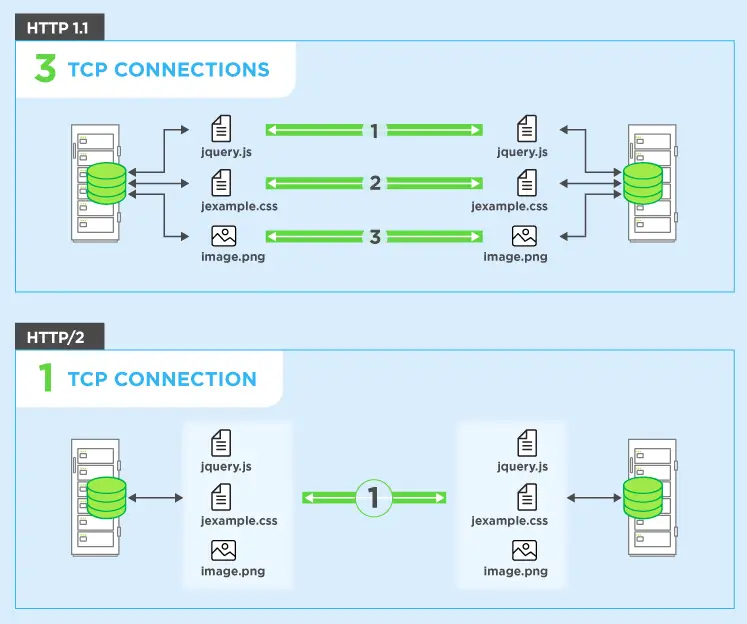
The err_http2_protocol_error will pop up from time to time in applications where the HTTP/2 protocol isn’t yet supported or is outdated. Things like outdated network drivers, problematic responses from DNS servers, or something in tandem with these can cause communication errors between the HTTP application layer and the device you’re using. An example of this is if you’re using an older application in conjunction with Google Chrome, which supports the newer version of the HTTP protocol, or if you’re using a browser that doesn’t yet support the new HTTP/2, causing compatibility issues to pop up with certain websites or applications.
What applications are affected by err_http2_protocol_error?
Unfortunately, this error is not limited to any specific type of application or system. However, it typically occurs in web browsers, such as Google Chrome and Mozilla Firefox, as well as in operating systems like Windows and macOS. Additionally, it can occur when trying to access certain websites or applications that use the updated protocol.
How to fix err_http2_protocol_error in internet browsers like Google Chrome and Mozilla Firefox
Due to the nature of this error, it’s less about correcting it and more about navigating around it and the updated HTTP/2 network protocol. However, there are several things you can do to see about resolving the err_http2_protocol_error.
1. Refresh the webpage.
When in doubt, refresh. The web browser equivalent of turning it off and on again doesn’t always work, but at times a website might just need a chance to try again to get it right.
2. Try using a different browser.
If one browser gets the error while another one doesn’t, there’s likely an error in the former. If both experience the error, it could be a communication error between the computer and the server you’re attempting to access. If this is the case, proceed to the next step.

3. Download and install any browser updates.
Believe it or not, errors like this do pop up on browser developers’ radar. Once they’ve found a fix for it, it’ll get released in an update for you to download and install. As such, you should see if there are any updates for your browser that you can do this with, as they may solve the problem for you.
4. Clear your browser data.
It’s possible that your browser cache may be harboring some corrupted files. Clearing these out may clear the error with them.
Here’s how to clear the cache in Google Chrome:
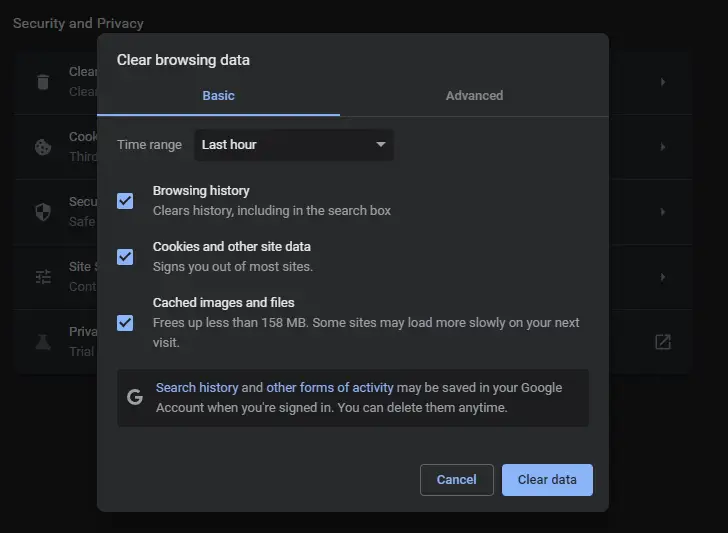
- Open your web browser and, in the address bar at the top, enter “chrome://settings/clearBrowserData”.
- Locate the Cache and Cookies options in the window that appears, select them, set the time range to All Time for them, then click on the Clear Data button at the bottom right.
5. Try resetting your browser entirely.
It’s possible there’s simply a bug somewhere that happens to be in the perfect spot to cause this error to occur. Resetting your browser will return it to factory settings, removing any bugs along with it.
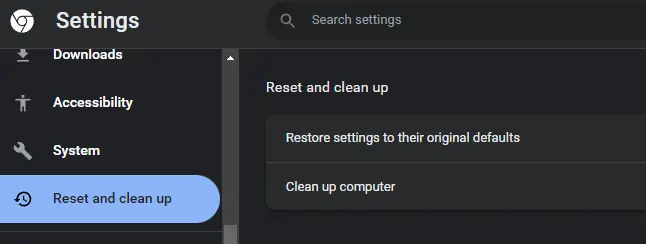
Start by opening your browser, then click on the Settings option, usually in the top right-hand corner.
Under the advanced options, locate and click the option for reset, then select the button to reset all settings. When this is complete, restart the browser and test for the error again.
How to fix err_http2_protocol_error in other applications
As mentioned above, it’s not just web browsers that may experience this error, but anything trying to access a web server. While there are simply too many possible applications to go into detail, there are a few general things to look for and steps that you can take.
1. Try flushing your DNS.
Since this is typically a communication error between your application and a web server, it’s possible that flushing your DNS can resolve such an issue.
- Start by opening the Command Prompt. You can find it by pressing the Windows key and typing “cmd” into the search bar.
- In the Command Prompt window, type the following command, then hit the Enter key: “ipconfig /flushdns”

- After a short delay, you should see a success message in the window. Type in “Exit” and hit Enter to close the window.
- Restart the computer and test the error again.
2. Check for server-side low disk space.
This solution method could be useful when you are the administrator of a server that’s returning the err_http2_protocol_error message. If your server is experiencing low or no disk space, responses sent from it can be cut off, leaving them no longer matching what their labels say they are. This causes applications to reject these responses and think they’ve lost access to the server altogether. If you can clear space or create more, it will likely resolve the error.
3. If using an NGINX server, disable GZIP.
Another potential solution for administrators. You can also try to disable gzip compression if you are using an NGINX server. To do this, you need to edit the NGINX configuration file. This can be done by opening up the text editor of your choice (such as vim, nano, or emacs) and editing the “nginx.conf” file. Once this file is open, you need to find the “gzip” line and comment it out by adding a “//” in front of it.
You can also solve this error in the NGINX server block by setting GZip to off and then changing max temp file to zero, with the following code line:
server {
…
…
gzip off;
proxy_max_temp_file_size 0;
location / {
proxy_pass http://127.0.0.1:3000/;
…
By doing this, you prevent the contents from being compressed twice. You can find more information about GZIP here.
4. Check your antivirus software.
Another solution you can try is to check your antivirus software. Sometimes, these programs can mistakenly flag certain files or applications as malicious when they are not. This can cause problems with our systems and applications, so it’s important to check and see if this is the case. You can do this by opening up your antivirus software and checking the settings or the quarantine list to see if any of your programs are getting flagged. You can also try turning off your antivirus temporarily to see if that fixes the issue.
5. If using ASP.net 3.1 and React JS App, check your extensions.
There is an extension within React (which also applies to Visual Studio 2019) that can sometimes run into its own error and result in the err_http2_protocol_error issue. Removing this extension (Microsoft.AspNetCore.SpaServices.Extensions) and then updating to the latest version should resolve any problems.
Conclusion
The err_http2_protocol_error can be a frustrating problem to deal with. However, by trying some of the solutions that we have outlined in this article, you may be able to fix it and get back to using your applications and systems as normal.
If you are still seeing the error, try checking out the methods listed in our more generic guide on fixing the “this site can’t be reached” error message in Chrome.