
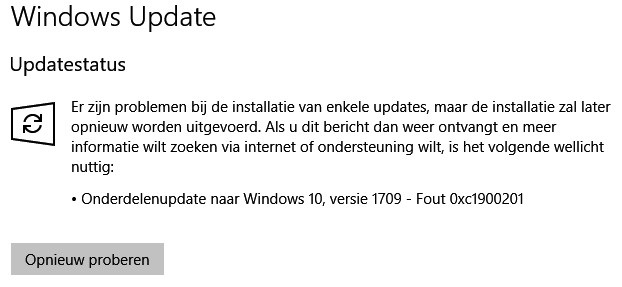
Некоторые пользователи в сети утверждают, что сталкиваются с ошибкой 0xc1900201, когда пытаются установить то или иное обновление для операционной системы Windows 10. В сообщении ошибки можно увидеть следующий текст:
С установкой некоторых обновлений возникли проблемы, но позднее будет предпринята еще одна попытка. Если вы продолжаете видеть это сообщение и хотите поискать дополнительные сведения в Интернете или обратиться в службу поддержки, вам может помочь следующая информация:
Обновление функций до Windows 10, версия 1709 — 0xc1900201
По всей видимости, подобная ошибка появляется только на Windows 10 и ни на какой другой версии ОС Майкрософт.
Содержание
- Причины появления ошибки 0xc1900201
- Методы решения ошибки 0xc1900201
- Метод №1 Запуск средства устранения неполадок
- Метод №2 Сброс всех компонентов с помощью «битника»
- Метод №3 Завершение переноса ОС с HDD на SSD
- Метод №4 Запуск утилиты DISM
Причины появления ошибки 0xc1900201
На сегодняшний день известно, что ошибка 0xc1900201 может появляться по следующему ряду причин:
- Центр обновления Windows застрял между обновлениями.
- Один из компонентов Центра обновления начал работать некорректно.
- Проблемы с верификацией аппаратного обеспечения на клонированной операционной системе.
- Серьезные повреждение системных файлов.
Сразу стоит отметить, что ошибка 0xc1900201 — это, как правило, легко решаемая проблема. Придерживайтесь приведенных ниже методов и все будет хорошо.
Методы решения ошибки 0xc1900201
Метод №1 Запуск средства устранения неполадок
Не спешите копаться в операционной системе! Первым делом вы должны пустить в дело автоматизированное средство устранения неполадок. Стоит заметить, что данное средство — не палочка-выручалочка. Проще говоря, либо оно вам поможет, либо оно не сделает ничего. Так или иначе попробовать определенно стоит. Чтобы запустить средство устранения неполадок Windows 10, вам нужно сделать следующее:
- нажмите Win+I на клавиатуре для открытия Параметров системы;
- откройте раздел Обновление и безопасность;
- перейдите во вкладку Устранение неполадок;
- найдите в списке Центр обновления Windows и выберите его ЛКМ;
- нажмите на кнопку Запустить средство устранения неполадок;
- следуйте за инструкциями средства на вашем экране;
- закончив работать со средством, перезагрузите компьютер.
Попробуйте обновить Windows 10 еще раз. На сей раз ошибка 0xc1900201 могла исчезнуть.
Метод №2 Сброс всех компонентов с помощью «битника»
Появление подобных ошибок может возникать в результате некорректной работы одного или нескольких компонентов Центра обновления Windows 10. Восстановить поврежденные компоненты очень легко с помощью самодельного «батника» (файла с расширением .bat), в котором заложен особый скрипт. Сейчас мы покажем вам, как создать такой батник и как им пользоваться.
Итак, создайте на своем рабочем столе самый обычный текстовый файл. Далее откройте этот текстовик и вставьте в него следующий скрипт:
:: Run the reset Windows Update components.
:: void components();
:: /*************************************************************************************/
:components
:: —— Stopping the Windows Update services ——
call :print Stopping the Windows Update services.
net stop bitscall :print Stopping the Windows Update services.
net stop wuauservcall :print Stopping the Windows Update services.
net stop appidsvccall :print Stopping the Windows Update services.
net stop cryptsvccall :print Canceling the Windows Update process.
taskkill /im wuauclt.exe /f
:: —— Checking the services status ——
call :print Checking the services status.sc query bits | findstr /I /C:»STOPPED»
if %errorlevel% NEQ 0 (
echo. Failed to stop the BITS service.
echo.
echo.Press any key to continue . . .
pause>nul
goto :eof
)call :print Checking the services status.
sc query wuauserv | findstr /I /C:»STOPPED»
if %errorlevel% NEQ 0 (
echo. Failed to stop the Windows Update service.
echo.
echo.Press any key to continue . . .
pause>nul
goto :eof
)call :print Checking the services status.
sc query appidsvc | findstr /I /C:»STOPPED»
if %errorlevel% NEQ 0 (
sc query appidsvc | findstr /I /C:»OpenService FAILED 1060″
if %errorlevel% NEQ 0 (
echo. Failed to stop the Application Identity service.
echo.
echo.Press any key to continue . . .
pause>nul
if %family% NEQ 6 goto :eof
)
)call :print Checking the services status.
sc query cryptsvc | findstr /I /C:»STOPPED»
if %errorlevel% NEQ 0 (
echo. Failed to stop the Cryptographic Services service.
echo.
echo.Press any key to continue . . .
pause>nul
goto :eof
):: —— Delete the qmgr*.dat files ——
call :print Deleting the qmgr*.dat files.del /s /q /f «%ALLUSERSPROFILE%Application DataMicrosoftNetworkDownloaderqmgr*.dat»
del /s /q /f «%ALLUSERSPROFILE%MicrosoftNetworkDownloaderqmgr*.dat»:: —— Renaming the softare distribution folders backup copies ——
call :print Deleting the old software distribution backup copies.cd /d %SYSTEMROOT%
if exist «%SYSTEMROOT%winsxspending.xml.bak» (
del /s /q /f «%SYSTEMROOT%winsxspending.xml.bak»
)
if exist «%SYSTEMROOT%SoftwareDistribution.bak» (
rmdir /s /q «%SYSTEMROOT%SoftwareDistribution.bak»
)
if exist «%SYSTEMROOT%system32Catroot2.bak» (
rmdir /s /q «%SYSTEMROOT%system32Catroot2.bak»
)
if exist «%SYSTEMROOT%WindowsUpdate.log.bak» (
del /s /q /f «%SYSTEMROOT%WindowsUpdate.log.bak»
)call :print Renaming the software distribution folders.
if exist «%SYSTEMROOT%winsxspending.xml» (
takeown /f «%SYSTEMROOT%winsxspending.xml»
attrib -r -s -h /s /d «%SYSTEMROOT%winsxspending.xml»
ren «%SYSTEMROOT%winsxspending.xml» pending.xml.bak
)
if exist «%SYSTEMROOT%SoftwareDistribution» (
attrib -r -s -h /s /d «%SYSTEMROOT%SoftwareDistribution»
ren «%SYSTEMROOT%SoftwareDistribution» SoftwareDistribution.bak
if exist «%SYSTEMROOT%SoftwareDistribution» (
echo.
echo. Failed to rename the SoftwareDistribution folder.
echo.
echo.Press any key to continue . . .
pause>nul
goto :eof
)
)
if exist «%SYSTEMROOT%system32Catroot2» (
attrib -r -s -h /s /d «%SYSTEMROOT%system32Catroot2»
ren «%SYSTEMROOT%system32Catroot2» Catroot2.bak
)
if exist «%SYSTEMROOT%WindowsUpdate.log» (
attrib -r -s -h /s /d «%SYSTEMROOT%WindowsUpdate.log»
ren «%SYSTEMROOT%WindowsUpdate.log» WindowsUpdate.log.bak
):: —— Reset the BITS service and the Windows Update service to the default security descriptor ——
call :print Reset the BITS service and the Windows Update service to the default security descriptor.sc.exe sdset wuauserv D:(A;;CCLCSWLOCRRC;;;AU)(A;;CCDCLCSWRPWPDTLOCRSDRCWDWO;;;BA)(A;;CCDCLCSWRPWPDTLCRSDRCWDWO;;;SO)(A;;CCLCSWRPWPDTLOCRRC;;;SY)S:(AU;FA;CCDCLCSWRPWPDTLOCRSDRCWDWO;;WD)
sc.exe sdset bits D:(A;;CCLCSWLOCRRC;;;AU)(A;;CCDCLCSWRPWPDTLOCRSDRCWDWO;;;BA)(A;;CCDCLCSWRPWPDTLCRSDRCWDWO;;;SO)(A;;CCLCSWRPWPDTLOCRRC;;;SY)S:(AU;FA;CCDCLCSWRPWPDTLOCRSDRCWDWO;;WD)
sc.exe sdset cryptsvc D:(A;;CCLCSWLOCRRC;;;AU)(A;;CCDCLCSWRPWPDTLOCRSDRCWDWO;;;BA)(A;;CCDCLCSWRPWPDTLCRSDRCWDWO;;;SO)(A;;CCLCSWRPWPDTLOCRRC;;;SY)S:(AU;FA;CCDCLCSWRPWPDTLOCRSDRCWDWO;;WD)
sc.exe sdset trustedinstaller D:(A;;CCLCSWLOCRRC;;;AU)(A;;CCDCLCSWRPWPDTLOCRSDRCWDWO;;;BA)(A;;CCDCLCSWRPWPDTLCRSDRCWDWO;;;SO)(A;;CCLCSWRPWPDTLOCRRC;;;SY)S:(AU;FA;CCDCLCSWRPWPDTLOCRSDRCWDWO;;WD):: —— Reregister the BITS files and the Windows Update files ——
call :print Reregister the BITS files and the Windows Update files.cd /d %SYSTEMROOT%system32
regsvr32.exe /s atl.dll
regsvr32.exe /s urlmon.dll
regsvr32.exe /s mshtml.dll
regsvr32.exe /s shdocvw.dll
regsvr32.exe /s browseui.dll
regsvr32.exe /s jscript.dll
regsvr32.exe /s vbscript.dll
regsvr32.exe /s scrrun.dll
regsvr32.exe /s msxml.dll
regsvr32.exe /s msxml3.dll
regsvr32.exe /s msxml6.dll
regsvr32.exe /s actxprxy.dll
regsvr32.exe /s softpub.dll
regsvr32.exe /s wintrust.dll
regsvr32.exe /s dssenh.dll
regsvr32.exe /s rsaenh.dll
regsvr32.exe /s gpkcsp.dll
regsvr32.exe /s sccbase.dll
regsvr32.exe /s slbcsp.dll
regsvr32.exe /s cryptdlg.dll
regsvr32.exe /s oleaut32.dll
regsvr32.exe /s ole32.dll
regsvr32.exe /s shell32.dll
regsvr32.exe /s initpki.dll
regsvr32.exe /s wuapi.dll
regsvr32.exe /s wuaueng.dll
regsvr32.exe /s wuaueng1.dll
regsvr32.exe /s wucltui.dll
regsvr32.exe /s wups.dll
regsvr32.exe /s wups2.dll
regsvr32.exe /s wuweb.dll
regsvr32.exe /s qmgr.dll
regsvr32.exe /s qmgrprxy.dll
regsvr32.exe /s wucltux.dll
regsvr32.exe /s muweb.dll
regsvr32.exe /s wuwebv.dll:: —— Resetting Winsock ——
call :print Resetting Winsock.
netsh winsock reset:: —— Resetting WinHTTP Proxy ——
call :print Resetting WinHTTP Proxy.if %family% EQU 5 (
proxycfg.exe -d
) else (
netsh winhttp reset proxy
):: —— Set the startup type as automatic ——
call :print Resetting the services as automatics.
sc.exe config wuauserv start= auto
sc.exe config bits start= delayed-auto
sc.exe config cryptsvc start= auto
sc.exe config TrustedInstaller start= demand
sc.exe config DcomLaunch start= auto:: —— Starting the Windows Update services ——
call :print Starting the Windows Update services.
net start bitscall :print Starting the Windows Update services.
net start wuauservcall :print Starting the Windows Update services.
net start appidsvccall :print Starting the Windows Update services.
net start cryptsvccall :print Starting the Windows Update services.
net start DcomLaunch:: —— End process ——
call :print The operation completed successfully.echo.Press any key to continue . . .
pause>nul
goto :eof
:: /*************************************************************************************/
Ни в коем случае ничего не меняйте в скрипте! Если вы поставите хотя один лишний пробел, точку или другой символ, то скрипт попросту потеряет свою полезность. Скопировали и вставили в текстовик — готово. Ок, теперь сохраните внесенные изменения в текстовый файл, нажмите на него ПКМ и выберите переименовать. Измените расширение файла с .txt на .bat.
Заметка: если в вашей ОС деактивирована функция показа расширений файлов, то вам нужно включить ее самостоятельно. Для этого откройте Проводник системы, перейдите во вкладку Вид и поставьте галочку возле опции Расширения имен файлов.
Нажмите ПКМ на созданный файл и выберите Запуск от имени администратора. И… на этом все. Созданный вами «батник» в автоматическом режиме сбросит все компоненты Центра обновления Windows 10. Перезагрузите компьютер и попробуйте обновить свою систему еще раз. Ошибка 0xc1900201 наверняка исчезла, если проблема действительно заключалась в поврежденных компонентах ЦО.
Метод №3 Завершение переноса ОС с HDD на SSD
Многие пользователи клонируют уже обжитую ОС, чтобы перенести ее со старенького жесткого диска на современный, быстрый твердотельный накопитель. Тем не менее во время процесса клонирования и переноса ОС может пойти что-то не так, вследствие чего система работает не совсем корректно. Возможно, ошибка 0xc1900201 как раз и стала результатом не самого удачного клонирования ОС.
Как утверждают некоторые пользователи в сети, данную проблему можно устранить, изменив параметр PortableOperatingSystem в реестре клонированной системе на 0. Сейчас мы покажем вам, как поменять значение для этого параметра.
- нажмите Win+R;
- пропишите в пустой строке regedit.msc и нажмите Enter;
- перейдите через навигационную строку по ветке ComputerHKEY_LOCAL_MACHINESYSTEMCurrentControlSetControl;
- нажмите ПКМ на параметр PortableOperatingSystem и выберите Изменить;
- выберите шестнадцатеричную систему исчисления и измените значение параметра на 0;
- сохраните изменения в реестре системы и перезагрузите компьютер.
Метод №4 Запуск утилиты DISM
Если никакие из вышеуказанных методов не работают и ошибка 0xc1900201 все еще донимает вас, то мы советуем воспользоваться утилитой Deployment Image Servicing and Management (DISM). Ваша задача — восстановить прежний образ системы, починить ее поврежденные компоненты. Вот что вам нужно сделать:
- нажмите Win+R;
- впишите в пустую строку cmd и нажмите Ctrl+Shift+Enter;
- вставьте команду DISM /Online /Cleanup-Image /RestoreHealth и нажмите Enter;
- дождитесь окончания работы команды и перезагрузите компьютер.
По входу в систему запустите обновление Windows 10 через ЦО и посмотрите, исчезла ли ошибка 0xc1900201 или нет. Ну а если и это не помогло, то остается попробовать удалить последние обновление, вернуть компьютер в исходное состояние либо полностью переустановить операционную систему. Удачи!
Ошибка обновления Windows 0xc1900201 появляется, когда пользователи пытаются установить последнее обновление, особенно обновление Windows 11 22H2. Ошибка сопровождается заявлением «Не удалось обновить раздел, зарезервированный системой».
Ошибка Центра обновления Windows 0xc1900201
В большинстве случаев ошибка возникает, когда зарезервированный системой раздел (SRP) заполняется. Системные резервные разделы (SRP) — это разделы жесткого диска, в которых хранится загрузочная информация для Windows. Это руководство познакомит вас с методами устранения неполадок, которые устранили проблему для других пользователей.
1. Измените размер раздела
Эта ошибка возникает, когда системный резервный раздел (SRP) заполняется и не имеет места для обновления. Вот почему наиболее подходящим методом устранения неполадок является изменение размера раздела.
Мы удалим папки, которые редко используются, чтобы освободить необходимое пространство.
Вот все, что вам нужно сделать:
- Откройте программу «Выполнить» и нажмите одновременно клавиши Win + R.
- Введите diskmgmt.msc в поле «Выполнить» и нажмите «Ввод».
- В следующем окне щелкните правой кнопкой мыши диск, содержащий SRP, и выберите «Свойства» в контекстном меню.
Доступ к свойствам диска
- Перейдите на вкладку «Том» и проверьте стиль своего раздела. Это будет либо таблица разделов GUID (GPT), либо главная загрузочная запись (MBR).
1-й сценарий: раздел GPT
Если у вас есть раздел GPT, выполните следующие действия:
- Нажмите Win + R, чтобы открыть «Выполнить».
- Введите cmd в «Выполнить» и нажмите Ctrl + Shift + Enter, чтобы открыть командную строку от имени администратора.
- Кроме того, вы можете ввести cmd в области поиска на панели задач и выбрать «Запуск от имени администратора».
- Нажмите «Да» в окне «Контроль учетных записей».
- Теперь введите следующую команду в командной строке и нажмите Enter, чтобы выполнить ее. Таким образом, вы добавите букву драйвера Y: для доступа к системному разделу.mountvol y: /s
- Теперь введите Y: и нажмите Enter.
- После этого введите следующее, чтобы открыть папку «Шрифты». Это папка, которую мы будем удалять. cd EFIMicrosoftBootFonts
Выполнить введенную команду
- Теперь введите del *.*, чтобы удалить файлы шрифтов.
Удалить папку со шрифтами
- Если вас попросят подтвердить действие, введите Y и нажмите Enter.
Теперь вы можете попробовать установить целевое обновление без каких-либо проблем.
2-й сценарий: раздел MBR
Если у вас есть раздел MBR, процесс будет немного другим и более длительным. Чтобы продолжить, выполните следующие действия:
- Нажмите Win + R, чтобы открыть «Выполнить».
- Введите diskmgmt.msc в поле «Выполнить» и нажмите «Ввод».
- Щелкните правой кнопкой мыши раздел, отмеченный как System Reservice.
- Выберите «Изменить букву диска и пути», а затем нажмите «Добавить».
Изменить букву диска и его путь
- Введите Y: в качестве буквы драйвера и нажмите OK.
Введите букву диска
- Теперь введите cmd в области поиска на панели задач и нажмите «Запуск от имени администратора».
- Нажмите «Да» в приглашении учетной записи пользователя.
- Когда вы окажетесь в окне командной строки, введите Y: и нажмите Enter. Это заставит вас переключиться на этот диск.
- Теперь выполните следующую команду, чтобы перейти в папку Fonts: cd BootFonts
- Затем выполните эту команду: takeown /dy /r /f .
- Чтобы создать резервную копию разрешения на диск, выполните следующую команду: icacls Y:* /save %systemdrive%NTFSp.txt /c /t
- Введите whoami и нажмите Enter. Запишите имя пользователя.
- Затем выполните эту команду: icacls . /grant <имя пользователя, полученное от whoami>:F /t
- Введите del *.*, чтобы удалить файлы шрифтов.
- Чтобы подтвердить действие, введите Y и нажмите Enter.
Как только это будет сделано, вы можете восстановить права доступа к диску, выполнив следующие действия:
- В командной строке выполните следующую команду. Если успешных файлов нет, значит команда выполнена некорректно; вам нужно обработать некоторые файлы, прежде чем продолжить. icacls Y: /restore %systemdrive%NTFSp.txt /c /t
- Выполните следующий код, чтобы настроить ACL обратно на System:icacls . / система грантов: f / t
- С помощью следующей команды верните право собственности на диск системе: icacls Y: /setowner «SYSTEM» /t /c
Вернуть право собственности на диск
- Теперь вернитесь в «Управление дисками» и обновите данные. Это подтвердит, достаточно ли свободного места в SRP.
- Если это так, щелкните правой кнопкой мыши раздел, зарезервированный системой, и выберите «Изменить букву диска и пути».
- Нажмите на диск Y: и выберите «Удалить».
- Наконец, нажмите «ОК» и закройте окно «Управление дисками».
Как только это будет сделано, вы можете попробовать установить обновление еще раз. Надеюсь, на этот раз вы сможете сделать это без каких-либо проблем.
2. Выполните сброс или восстановительную установку.
К этому моменту вы не нашли жизнеспособного решения, что говорит о том, что проблема не может быть устранена с помощью обычных методов устранения неполадок. Двигаясь вперед, у вас есть два варианта.
Вы можете восстановить Windows до состояния по умолчанию, если хотите запустить систему заново. С помощью этого метода вы удалите все приложения, которые вы установили самостоятельно. Он восстановит вашу Windows до того состояния, в котором вы ее купили.
Второй вариант — это ремонтная установка, при которой все файлы Windows заменяются свежими копиями. Однако это не повлияет на ваши файлы или программы.
Как правило, считается, что оба метода решают проблему, поэтому вы можете выбрать любой из них.
by Aleksandar Ognjanovic
Aleksandar’s main passion is technology. With a solid writing background, he is determined to bring the bleeding edge to the common user. With a keen eye, he always… read more
Updated on December 27, 2022
Reviewed by
Vlad Turiceanu

Passionate about technology, Windows, and everything that has a power button, he spent most of his time developing new skills and learning more about the tech world. Coming… read more
- If the upgrade procedure suddenly crashes every time you give it a go, you may need to change how the upgrade is distributed and the installation source.
- Windows Update is pretty plagued with issues, so your optional way out of this is to use an external source.
- You can always use the Windows above 10 installation media and perform a clean reinstallation.
XINSTALL BY CLICKING THE DOWNLOAD FILE
Fortect is a tool that does not simply cleans up your PC, but has a repository with several millions of Windows System files stored in their initial version. When your PC encounters a problem, Fortect will fix it for you, by replacing bad files with fresh versions. To fix your current PC issue, here are the steps you need to take:
- Download Fortect and install it on your PC.
- Start the tool’s scanning process to look for corrupt files that are the source of your problem
- Right-click on Start Repair so the tool could start the fixing algorythm
- Fortect has been downloaded by 0 readers this month.
By the latest reports, three-quarters of Windows 10 users have obtained Windows 10 Fall Creators Update.
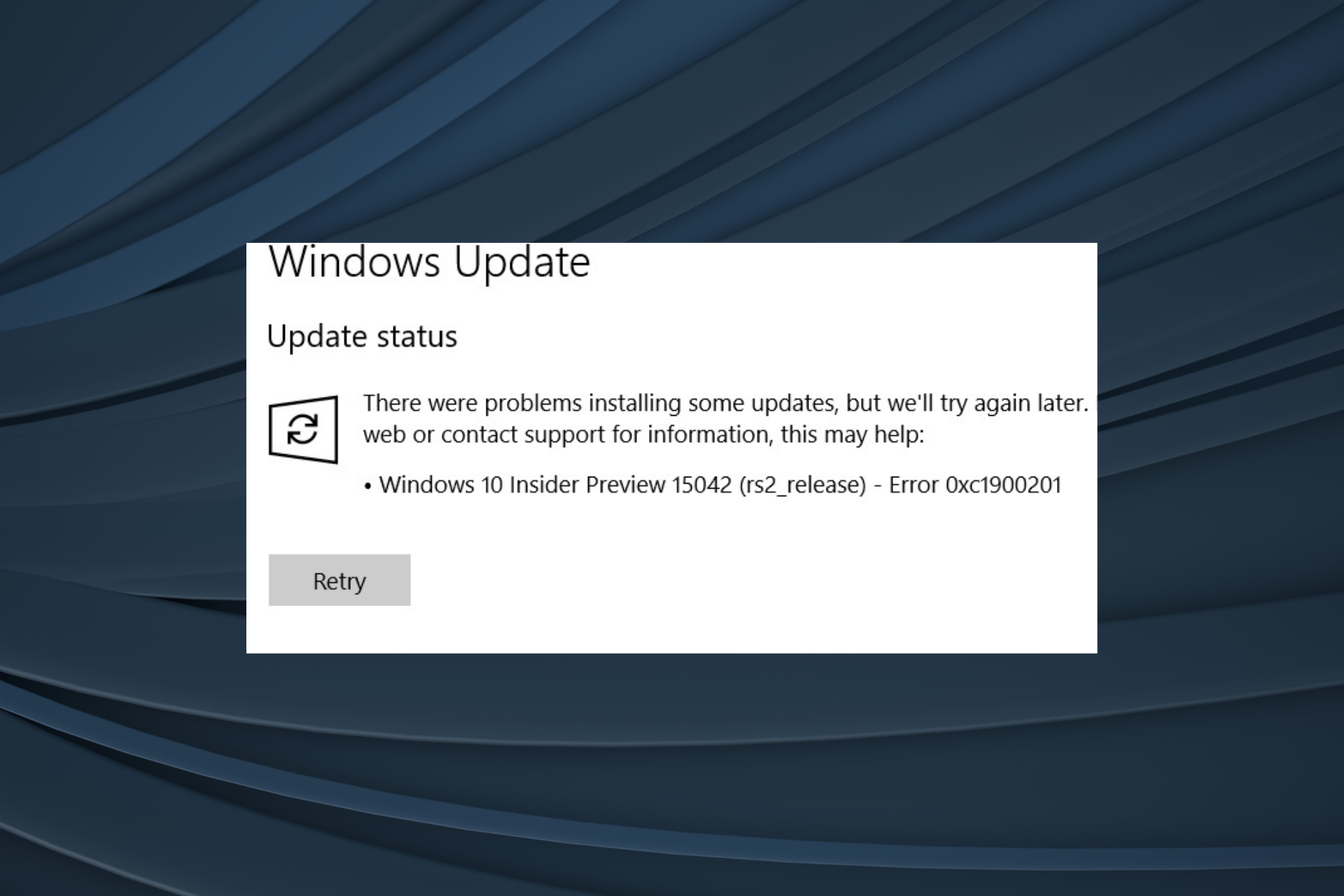
However, some users recently prompted to upgrade to version 1709 bump into an upgrade error baring the code 0xc1900201.
Seemingly, they cannot overcome this error after a few tries and can confirm that the connection or update services are responsible for the error at hand.
We prepared a list of the most common solutions that should fix the issue or provide a viable alternative. So, if you’re stuck with the 0xc1900201 Windows Update error on Windows 10 or Windows 11, make sure to check the list below.
How can I fix the error code 0xc1900201?
- How can I fix the error code 0xc1900201?
- 1. Expand System Reserved Partition
- 2. Use Media Creation Tool
- 3. Perform a clean reinstallation
1. Expand System Reserved Partition
This shouldn’t be something with what end-users should meet, but that’s Windows 10 for you. When it works – it works fine; when it doesn’t – you’ll need to turn to complex workarounds to make it work.
In this scenario, you’ll need to resize your System Reserved Partition to obtain the latest upgrade, Falls Creator Update.
All chances are that its nominal values vary around 100 MB, while you’ll need 200 to 600 to upgrade to the latest Windows 10 iteration.
This is a rather complex operation, and many tech-savvy users advise using some partition-managing third-party tool. The best one and the most simple to use is EaseUS Partition Manager.
Also, it won’t cost you a thing to back up your system before we move through the steps.
- Firstly, create a system repair disk in case something goes awry.
- Download EaseUs Partition Manager.
- Install this nifty tool and run it.
- Select your system partition. The one where Windows 10 is installed initially (most of the time, is C:)
- Click Resize/Move.
- Under the Decide size and position, reduce the available space to approximately 600 MB.
- After that, you should be able to see free and unreserved Unallocated space to restart your PC.
- Once it boots again, press the Windows key + R to open the Run elevated command line.
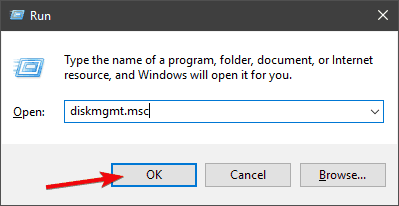
- In the command line, type diskmgmt.msc and press Enter.
- Right-click on the System Reserved Partition and click Extend Volume.
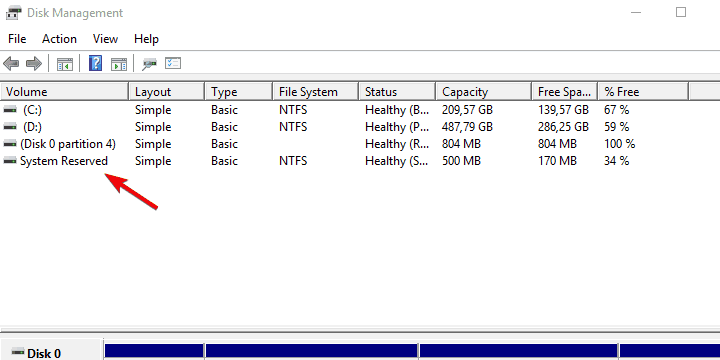
- Add the unallocated space you previously created to System Reserved Partition and confirm changes.
- Restart your PC and try upgrading again.
Some PC issues are hard to tackle, especially when it comes to missing or corrupted system files and repositories of your Windows.
Be sure to use a dedicated tool, such as Fortect, which will scan and replace your broken files with their fresh versions from its repository.
After that, you should be able to install all significant updates without any issues whatsoever.
2. Use Media Creation Tool
If the upgrade procedure suddenly crashes every time you give it a go, you may need to change how the upgrade is distributed and the installation source.
Windows Update is pretty plagued with issues, so your optional way out of this is to use an external source: USB or DVD with the installation files. You can create such media with Media Creation Tool.
If the problem is in connection or upgrades file distribution, this should resolve it accordingly. Make sure to follow the steps below to create an installation media and upgrade to Windows 10 with it:
- First, download Media Creation Tool by following this link.
- Next, run the tool and accept the Licence Terms.
- Choose Upgrade this PC, and the downloading process should commence.
- Once it downloads files, Media Creation Tool will start applying upgrades.
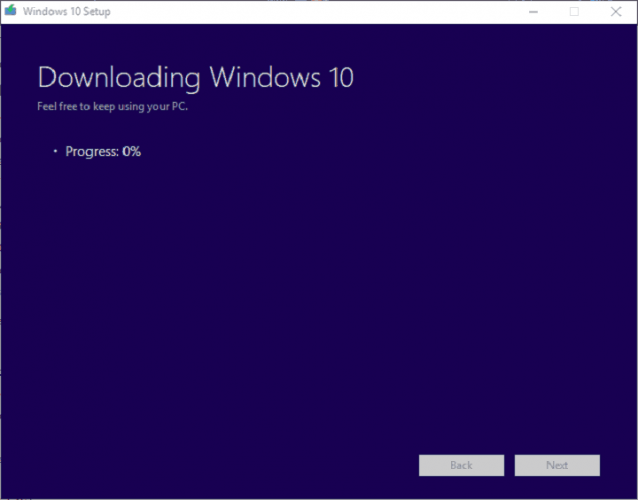
- This procedure should take up to 2 hours, depending on your Windows 10 version and bandwidth.
- Fix: Intelligo 100.1.4.1273 Installing Error
- iCUE is not working after an update? Fix it in 3 steps
- How to disable website recommendation from browsing history
- Voice commands & cloud sync gain a huge boost in Windows 11
- How to Enable Windows Update in the Registry [Quick Steps]
3. Perform a clean reinstallation
Finally, if none of the previous steps fell short, you can always use the aforementioned Windows 10 installation media and perform a clean reinstallation.
Once your system is completely renewed, it should pack the Fall Creators Update, a.k.a version 1709.
If you’re not sure how to perform a clean reinstallation of Windows 10, check this article for in-depth insight and a step-by-step explanation of the complete procedure.
With that, we can conclude this article. However, if you’re still unable to make it work and the same error code 0xc1900201 reappears, don’t forget to send your ticket to Microsoft.
On the other hand, if you managed to resolve the issue alternatively, we’ll be grateful if you share it with us in the comments section below.
- Why does Windows 10 version 1903 take so long to install?
The reason for a slow installation might be the free space on the drive. Another reason might be a slow Internet connection.
Still experiencing issues?
SPONSORED
If the above suggestions have not solved your problem, your computer may experience more severe Windows troubles. We suggest choosing an all-in-one solution like Fortect to fix problems efficiently. After installation, just click the View&Fix button and then press Start Repair.

Как исправить ошибку Центра обновления Windows 0xc1900201 (06.23.23)
При использовании операционной системы Windows 10 вы можете столкнуться с рядом ошибок. Одна из самых свежих — ошибка 0xc1900201. К настоящему времени вы знаете, что Windows выпускает обновления для своей операционной системы для выполнения различных функций, таких как исправление ошибок и повышение производительности. По этой причине, если вы проверяете Центр обновления Windows и понимаете, что одно из обновлений не загрузилось или не установилось правильно, лучше принять меры для устранения этой проблемы.
Причина ошибки обновления 0xc1900201
Может быть может быть несколько причин, по которым ваш компьютер не обновлялся правильно. Возможно, компоненты обновления Windows неисправны или загруженные файлы повреждены. Также может быть, что обновления загружались некорректно. Независимо от причины, по которой вы столкнулись с ошибкой 0xc1900201 в Windows 10, это руководство по ремонту ПК должно вернуть ваш компьютер в рабочее состояние.
Вариант 1. Перезагрузите компьютер.
Это исправление ошибки 0xc1900201 Центра обновления Windows является самым простым. Иногда сбои, вызывающие ошибку обновления, можно исправить, перезагрузив компьютер. Закройте все приложения и документы, над которыми вы работаете, чтобы не потерять прогресс. Перезагрузите компьютер, затем попробуйте запустить обновление еще раз.
Вариант 2: проверьте подключение к Интернету
Сетевое подключение может помешать загрузке обновления и, следовательно, привести к этой ошибке. Чтобы исправить это, попробуйте переключиться на разъем LAN, если вы подключены к Wi-Fi, или наоборот. После этого попробуйте загрузить и установить обновление еще раз.
Совет для профессионалов: просканируйте свой компьютер на наличие проблем с производительностью, нежелательных файлов, вредоносных приложений и угроз безопасности
, которые могут вызвать системные проблемы или снижение производительности.
Проблемы с бесплатным сканированием для ПК. 3.145.873загрузкиСовместимость с: Windows 10, Windows 7, Windows 8
Специальное предложение. Об Outbyte, инструкции по удалению, лицензионное соглашение, политика конфиденциальности.
Вариант 3. Запустите средство устранения неполадок Центра обновления Windows.
Средство устранения неполадок Центра обновления Windows — это утилита, прилагаемая к вашей ОС Windows, которая предназначена для диагностики и исправления ошибок при обновлении вашей ОС. Чтобы запустить его, выполните следующие действия:
Вариант 4: сбросить компоненты Центра обновления Windows вручную
Если неисправны компоненты Центра обновления Windows причина неисправности, их сброс и принудительный перезапуск должны решить проблему. Для этого выполните следующие действия:
чистые стоповые биты
net stop msiserver
net stop wuauserv
net stop cryptSvc
ren C: Windows SoftwareDistribution SoftwareDistribution.old
ren C: Windows System32 catroot2 Catroot2.old
net start bits
net start msiserver
net start wuauserv
net start cryptSvc
Вариант 5: Обновить Использование каталога Центра обновления Майкрософт
Иногда проблема заключается в загруженном обновлении. Вы можете найти это конкретное обновление в Интернете, загрузить его и установить вручную. Для этого выполните следующие действия:
Если эти действия не помогли, проблема может быть в вашем компьютере. Если, например, он не соответствует требованиям для установки обновлений, они не будут установлены. Остающийся вариант — обратиться к поставщику оборудования. Они расскажут вам, как действовать.
Если вы столкнулись с ошибкой Центра обновления Windows 0xc1900201, не паникуйте. Есть несколько быстрых исправлений, которые вы можете попробовать, чтобы ваш компьютер работал с последними обновлениями в кратчайшие сроки.
YouTube видео: Как исправить ошибку Центра обновления Windows 0xc1900201
06, 2023
The Windows update error 0xc1900201 pops up when the users try to install the latest upgrade, especially the Windows 11 22H2 upgrade. The error is accompanied by the statement, ‘We couldn’t update the system reserved partition.’
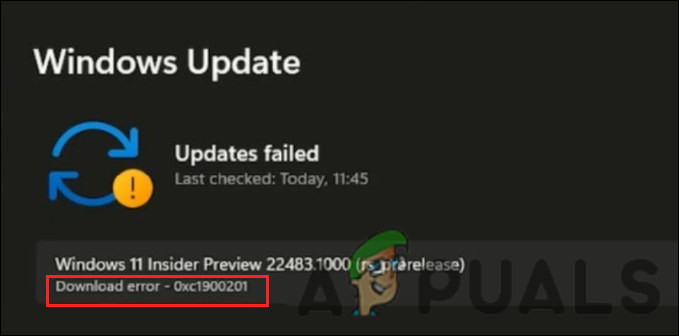
In most cases, the error is caused when the System Reserved Partition (SRP) becomes full. System Reserve Partitions (SRPs) are hard drive partitions that store boot information for Windows. This guide will walk you through the troubleshooting methods that fixed the issue for other users.
1. Resize the Partition
This error is caused when the System Reserve Partition (SRP) becomes full and does not have space for the update. This is why the most appropriate troubleshooting method to start is by resizing the partition.
We will remove the folders not often used to create the required space.
Here is all that you need to do:
- Open the Run program, and Press the Win + R keys together.
- Type diskmgmt.msc in Run and click Enter.
- In the following window, right-click on the disk that contains SRP and choose Properties from the context menu.
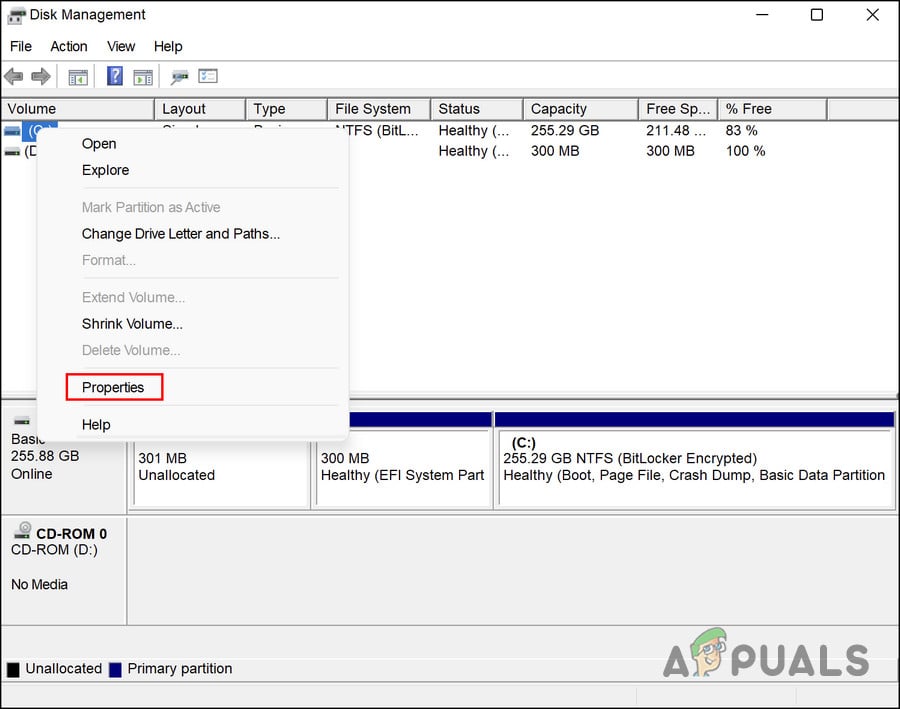
Access the properties of the drive - Head over to the Volume tab and check your partition style. It will either be GUID Partition Table (GPT) or Master Boot Record (MBR).
1st Scenario: GPT Partition
If you have a GPT partition, proceed with the following methods:
- Press Win + R to open Run.
- Type cmd in Run and press Ctrl + Shift + Enter to open Command Prompt as an administrator.
- Alternatively, you can type cmd in the search area of the taskbar and choose Run as administrator.
- Click Yes in the User Account Control prompt.
- Now, type the following command in Command Prompt and hit Enter to execute it. By doing so, you will add the Y: driver letter to access the System Partition.
mountvol y: /s
- Now, type Y: and hit Enter.
- Once done, type the following to open the Fonts folder. This is the folder that we will be removing.
cd EFIMicrosoftBootFonts
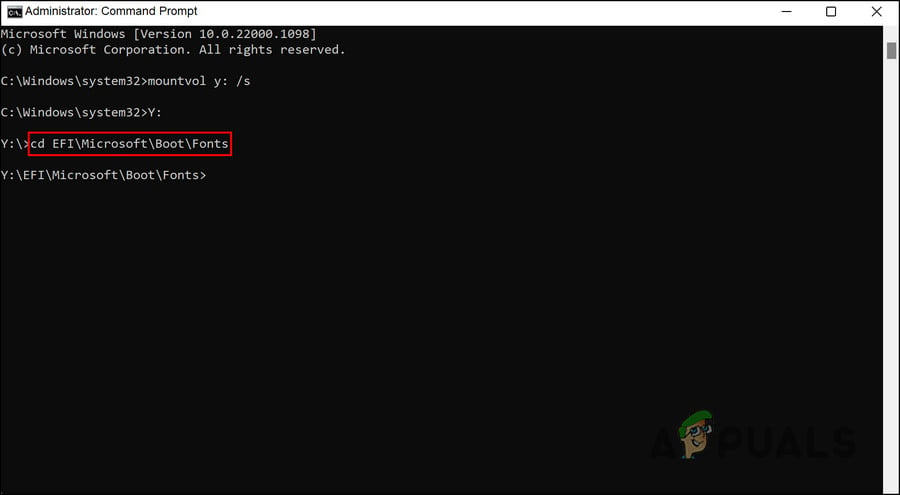
Execute the entered command - Now, type del *.* to delete font files.
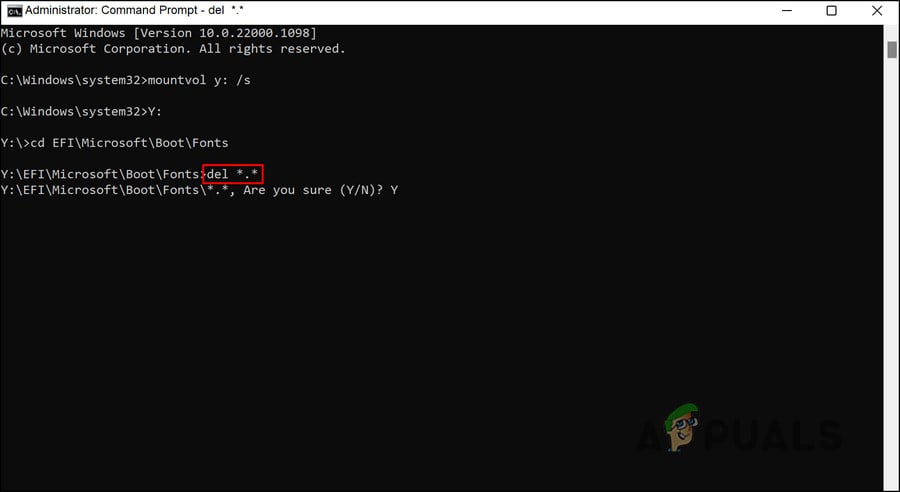
Delete the fonts folder - If asked to confirm the action, type Y and hit Enter.
You can now try installing the targeted update without any problems.
2nd Scenario: MBR Partition
If you have an MBR partition, the process will be slightly different and longer. Follow these steps to proceed:
- Press Win + R to open Run.
- Type diskmgmt.msc in Run and click Enter.
- Right-click on the partition marked as System Reservice.
- Choose Change Drive Letter and Paths and then click on Add.
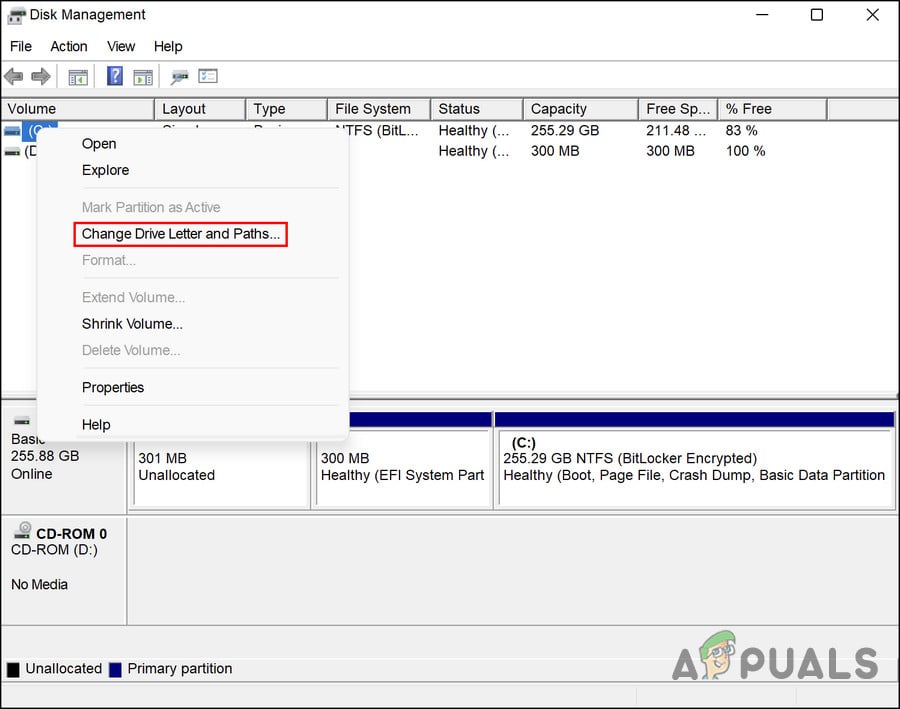
Change the drive letter and its path - Enter Y: as the driver letter and click OK.
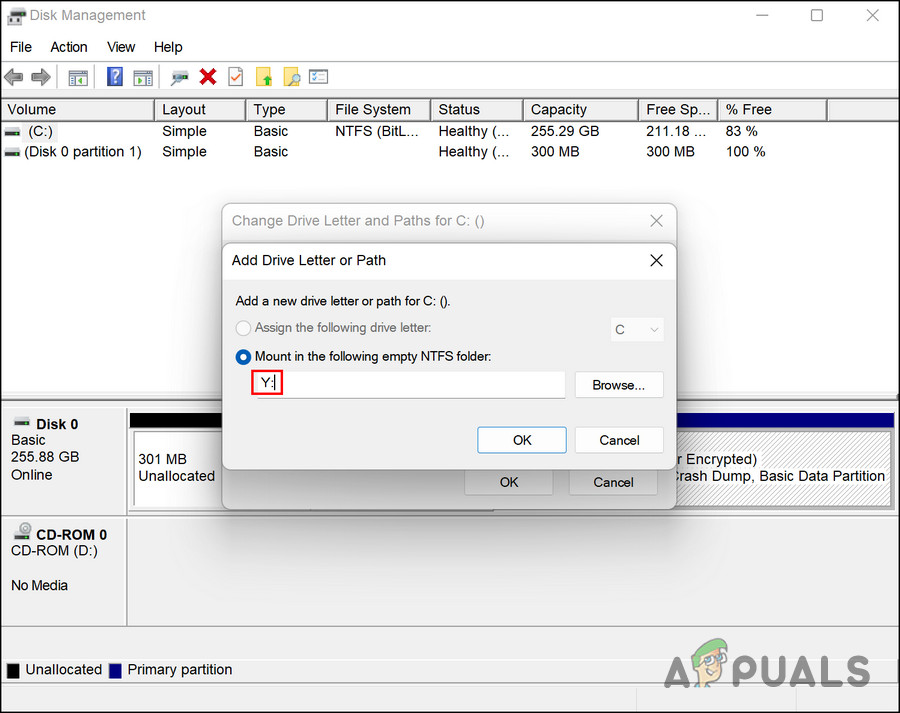
Enter a drive letter - Now, type cmd in the search area of the taskbar and click on Run as administrator.
- Click Yes in the User Account Prompt.
- Once you are inside the Command Prompt window, type Y: and click Enter. This will make you switch to that drive.
- Now, execute the following command to head over to the Fonts folder:
cd BootFonts
- Next, execute this command:
takeown /d y /r /f .
- To backup the permission to the drive, execute the following command:
icacls Y:* /save %systemdrive%NTFSp.txt /c /t
- Type whoami and hit Enter. Note down the username.
- Then, execute this command:
icacls . /grant <username you got from whoami>:F /t
- Type del *.* to delete font files.
- To confirm the action, type Y and hit Enter.
Once this is done, you can restore the permissions of the drive by following these steps:
- In Command Prompt, execute the following command. If there are no successful files, then the command was executed incorrectly; you need to process some files before continuing.
icacls Y: /restore %systemdrive%NTFSp.txt /c /t
- Execute the following code to adjust the ACL back to the System:
icacls . /grant system:f /t
- Using the following command, revert the drive’s ownership to System:
icacls Y: /setowner “SYSTEM” /t /c
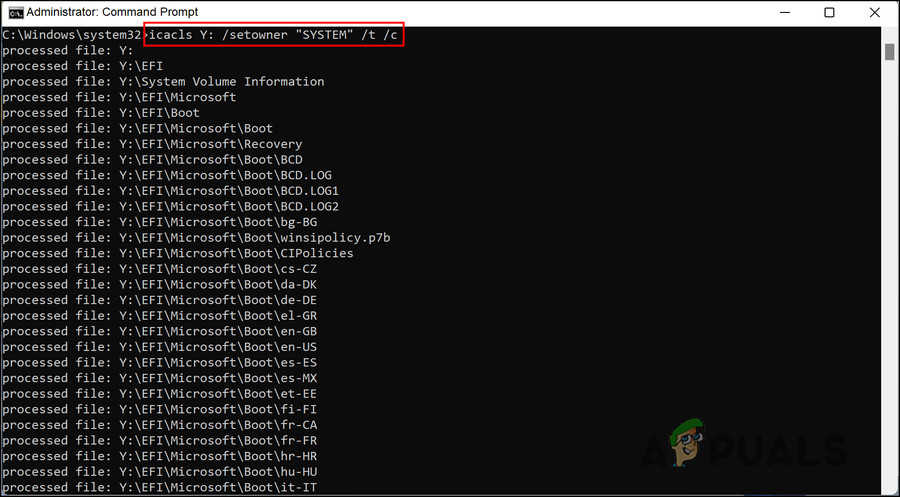
Revert drive’s ownership - Now, head back to Disk Management and refresh the data. This will confirm if the SRP finally has enough free space.
- If it does, right-click on the System Reserved Partition and choose Change Drive Letter and Paths.
- Click on the Y: drive and choose Remove.
- Finally, hit OK and close the Disk Management window.
Once this is done, you can try to install the update again. Hopefully, you will be able to do it without any issues this time.
2. Perform a Reset or a Repair Install
By this point, you have not found a viable solution, which suggests that the problem cannot be fixed using conventional troubleshooting methods. Moving forward, you have two options.
You can restore Windows to its default state if you want to give your system a fresh start. With this method, you will remove all the applications you installed yourself. It will restore your Windows to its state when you purchase it.
The second option is a repair installation, which replaces all Windows files with fresh copies. However, this will not affect your files or programs.
Generally, both methods are believed to solve the problem, so you can choose whichever method you prefer.

Zainab Falak
Zainab Falak is a highly educated professional with a background in actuarial science and a strong passion for technology. Her expertise lies in the field of data analytics and she is a proficient programmer in languages such as Python and R. At Appuals, Zainab shares her extensive knowledge of Windows 8, 10, and 11, covering a broad range of topics related to these operating systems. Zainab’s ability to effectively communicate technical concepts in a clear and concise manner has earned her recognition and respect in the tech community. She is committed to staying up-to-date with the latest developments in the field and providing readers with insightful and informative content.