
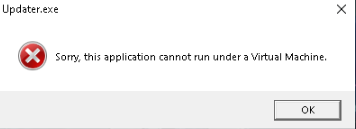
Sorry, This Application cannot run under a Virtual Machine is an error message that means the program has identified your machine as a Windows system emulator.
Virtual Machine: It is an isolated computer environment that is made possible by removing resources from a physical machine. While it is actually a part of another machine, it is presented to the user as if it were standalone.
If users do launch certain apps inside of a virtualized environment, they typically get this problem. However, there have been instances where people have experienced this problem while using physical computers.

To distinguish a virtual machine from a real computer system, an application must take into account a variety of variables such as:
Device Name: You should check to see if you have personalized your computer’s name or if you haven’t changed it yet since you purchased it. If the device is named too generically and by default, such as “Computer” or “Device,” it may be identified as a virtual machine.
Files and Processes: Applications may check to verify if the system’s currently active processes and services are the default Windows system and if any new/third party apps are installed. Whether you have less apps, the system can be mistakenly identified as a virtual machine because there aren’t as many processes, therefore you should check if that’s the case.
Previously Installed a Virtual Machine: The possibility that you have installed a virtual machine in the past could potentially affect whether or not your device is identified as one. Anything that has the words “Virtual” or “Machine” in it could be mistaken for one. If you had previously installed a VM application, you should examine your system for anything with the associated phrase because often VM apps create registry containing such terms.
Using an Illegitimate/Cracked Windows Copy: A cracked version of Windows is one that has been altered to run on a computer without going through Microsoft’s product activation process. Processes and system files that have been altered can cause the machine to differ from a genuine copy. A nulled or pirated copy of the operating system may be to blame if a program notices something different on the system.
The instructions below will assist you to resolve the VM problem and eventually start the application, regardless of whether you are using a virtual environment or on an actual Windows PC.
Our team has tried and tested each of the methods listed below; if one doesn’t work for you, try the next one until the issue is resolved.
Method 1: Modify SystemBiosVersion in Regedit
Note: Before proceeding with the steps, make sure you are using the administrator account of the computer.
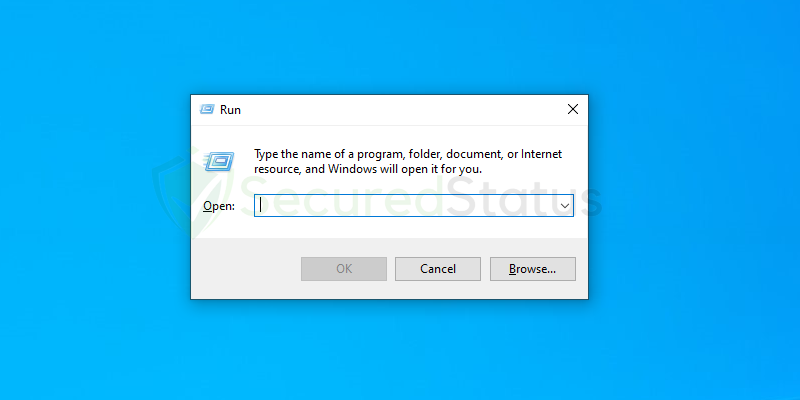
1 Type the Windows Key and R at the same time to open the Run application.
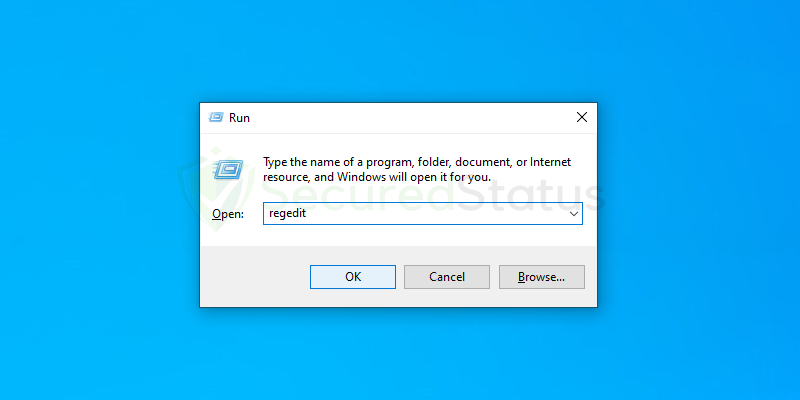
2 Once the Run terminal has opened, type regedit and click OK.
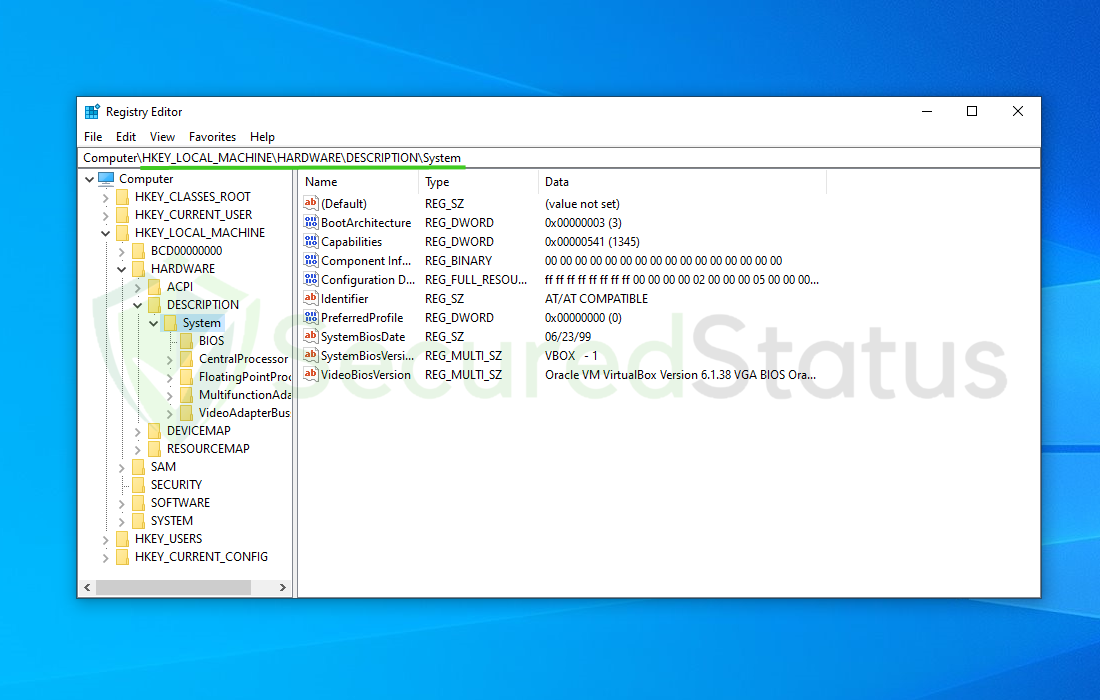
3 When the Registry Editor application launches, hover to the following directory: HKEY_LOCAL_MACHINEHARDWAREDESCRIPTIONSystem
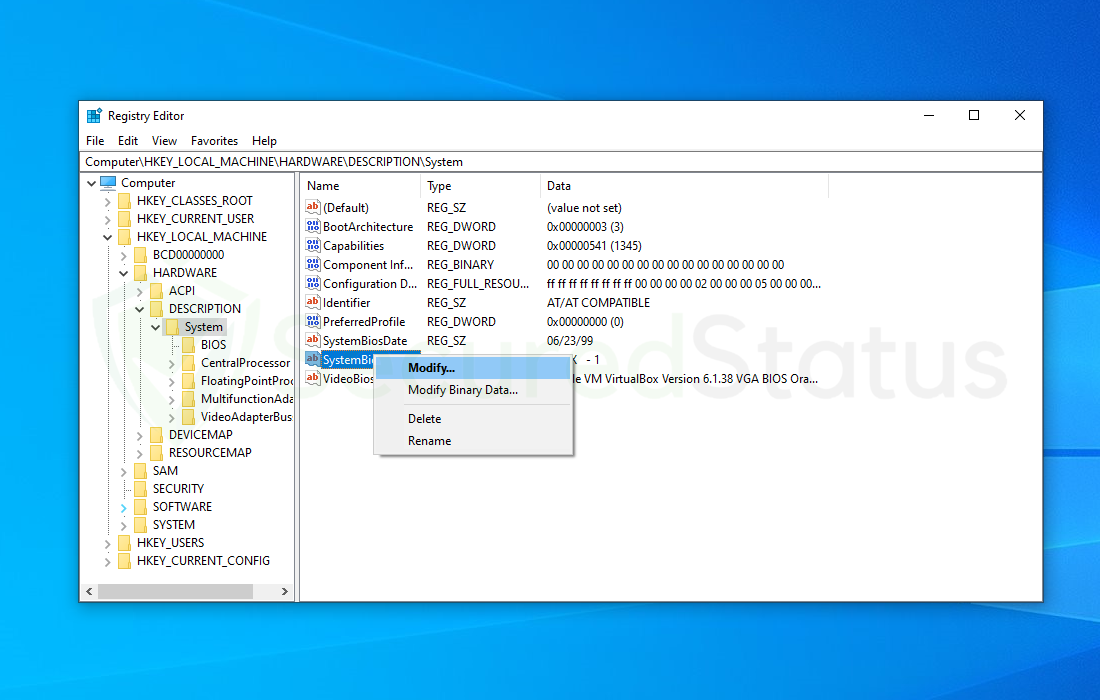
4 Right click the SystemBiosVersion and select Modify.
5 Change the Value data from whatever is written into NOBOX -1 then click OK.
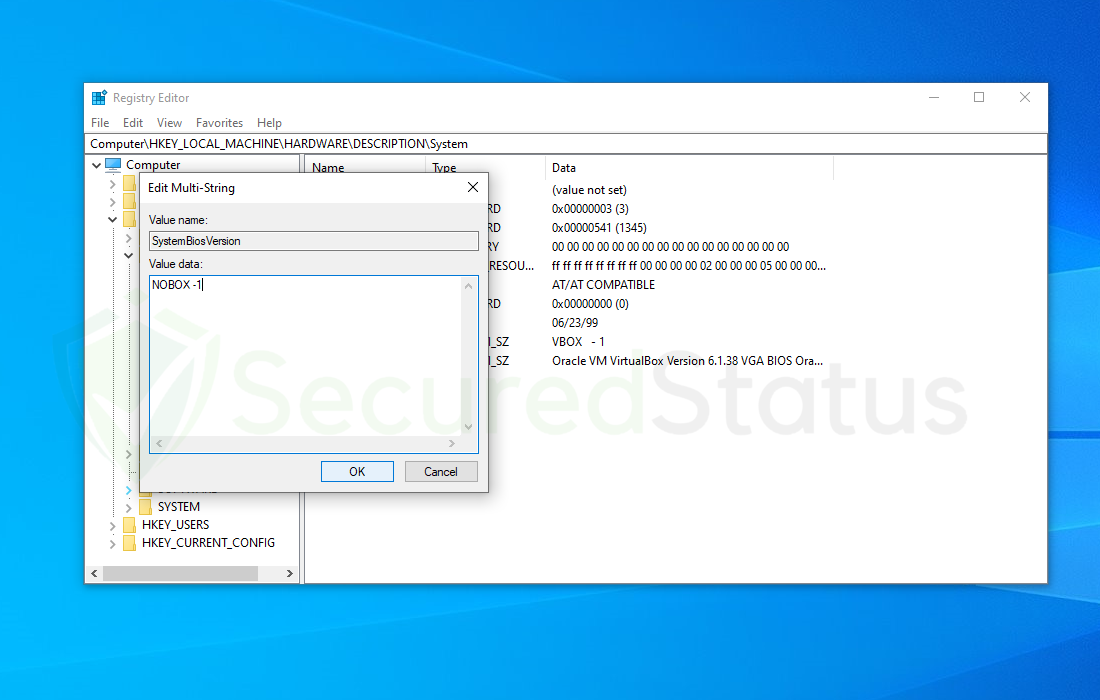
As stated earlier, make sure you are modifying the registry while in the administrator account otherwise the changes you made will be reverted back once the system is rebooted.
Method 2: Turn Off Windows Hypervisor Platform
1 Type Control Panel in the Windows search bar and open the program.
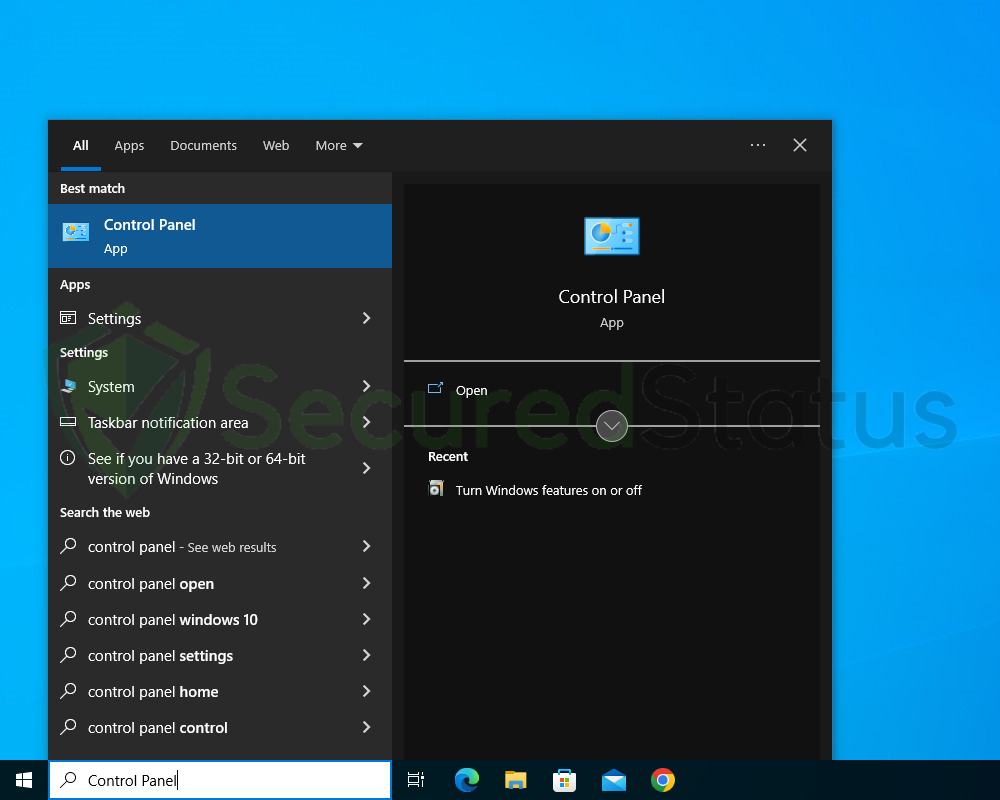
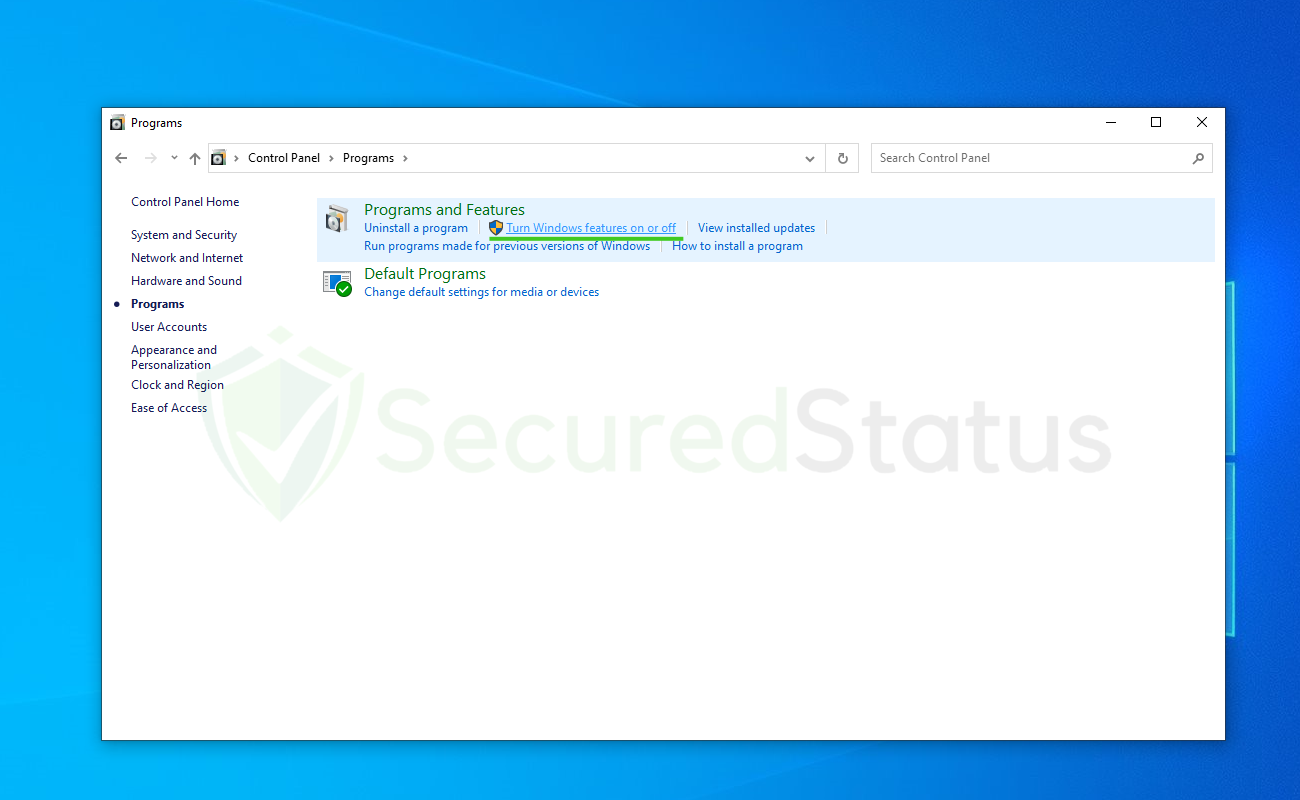
2 Once Control Panel opens up, click Programs and select Turn Windows features on or off under the Programs and Features option.
3 Scroll down and find Windows Hypervisor Platform, uncheck the said feature and hit OK.
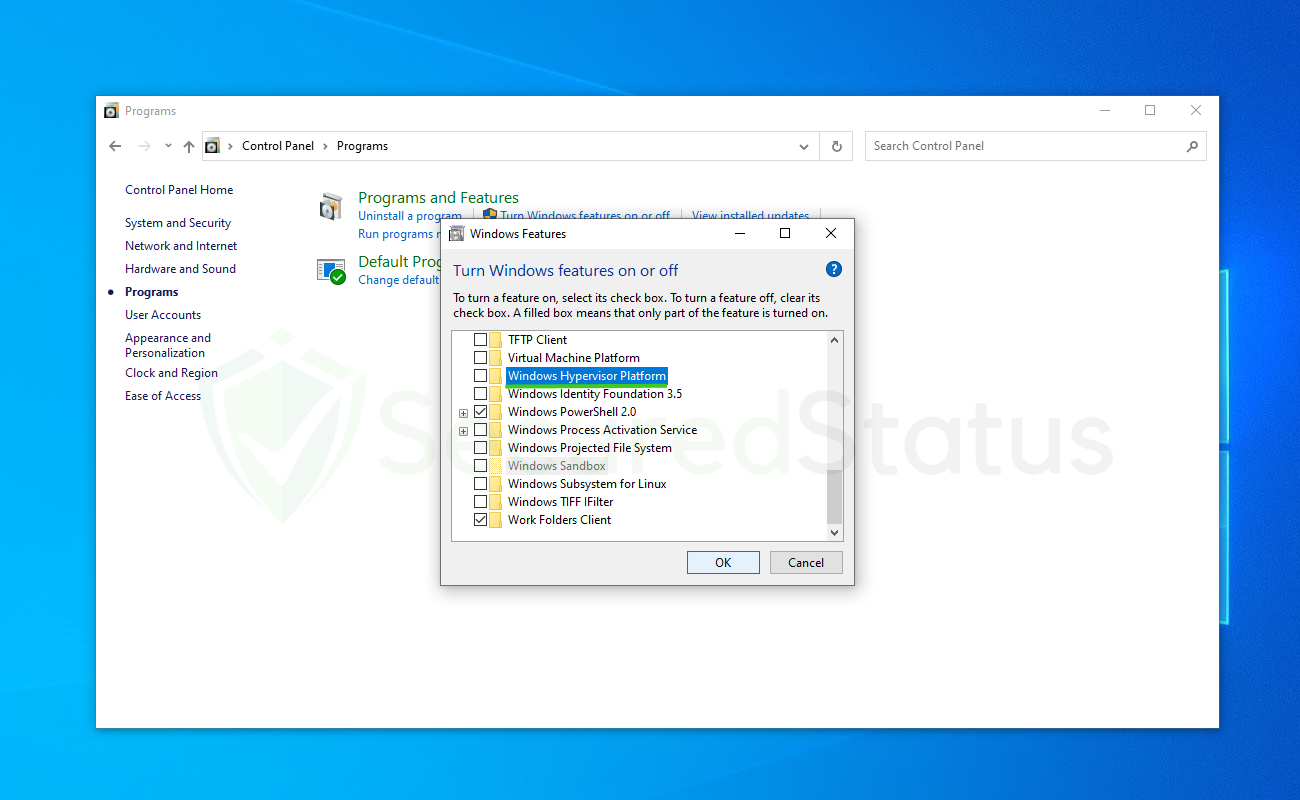
4 Wait for the changes to apply and once it is complete, restart the computer and the application should finally run.
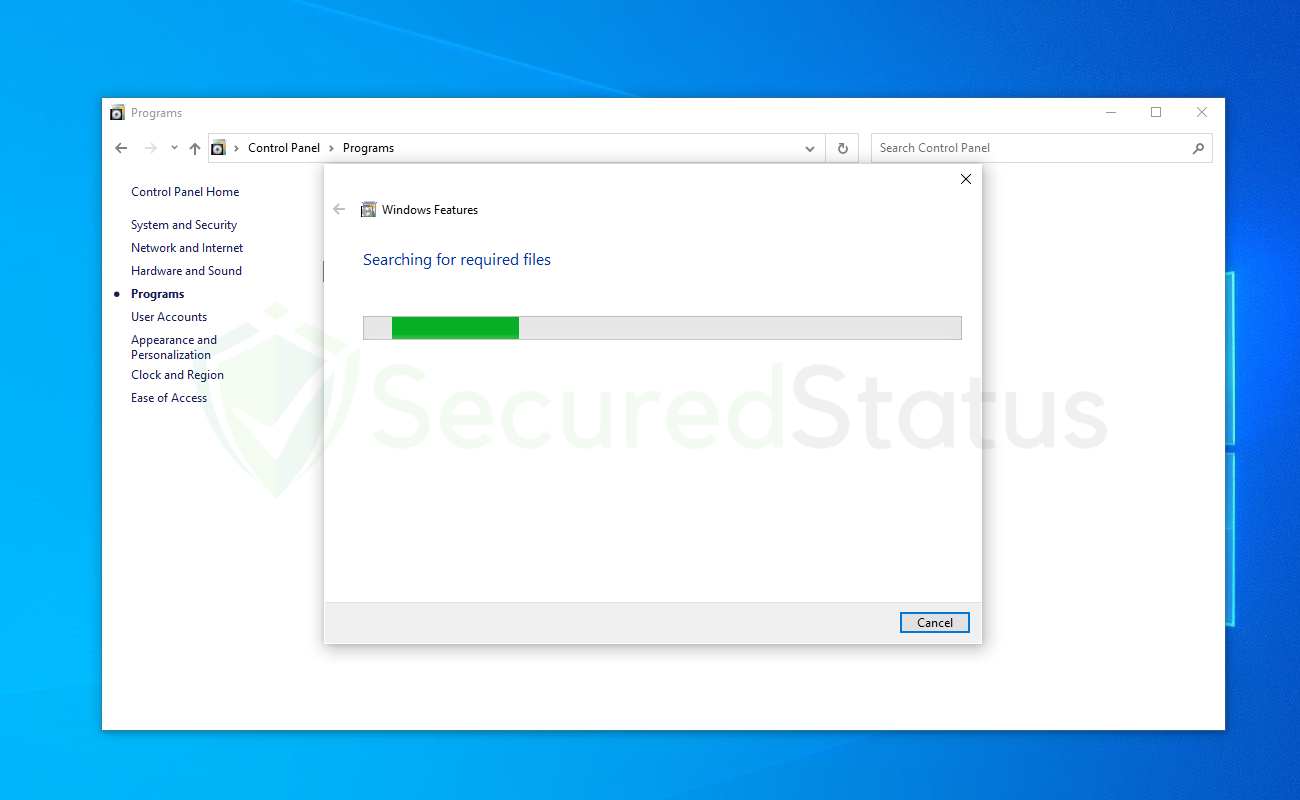
If you tried this and it did not work for you, you can try the other methods listed below. The next approach also needs administrator access to ensure that modifications are retained even after a reboot.
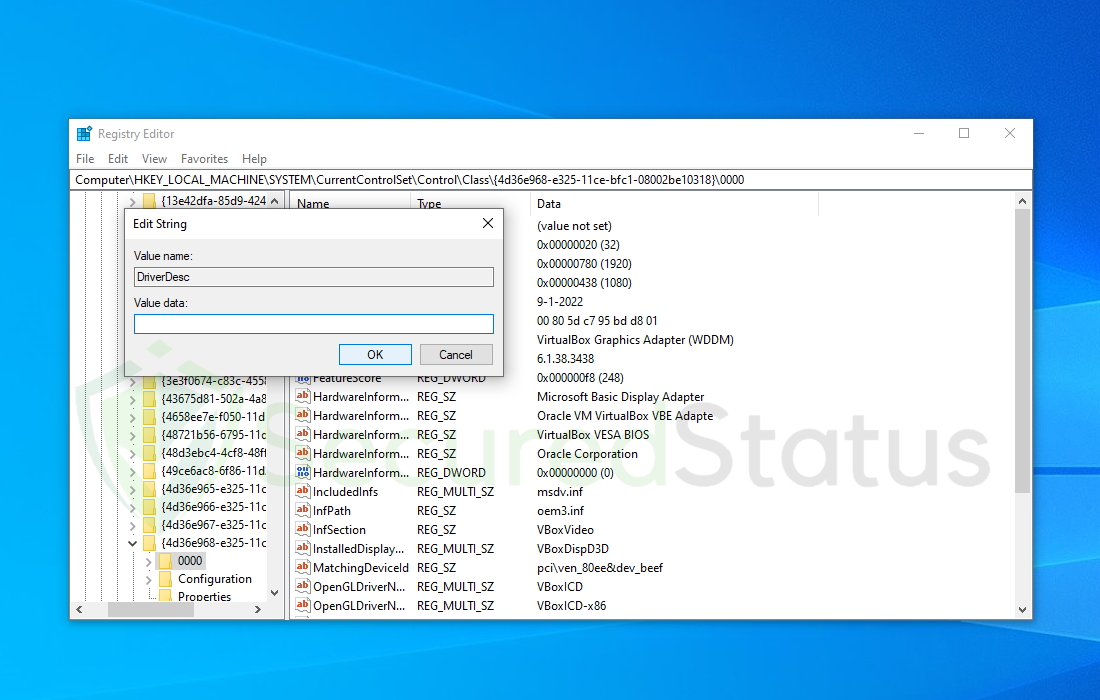
Method 3: Modify Driver Description in the Registry Editor
1 Open Registry Editor once again by clicking Windows Button + R at the same time. Then type regedit and hit OK.
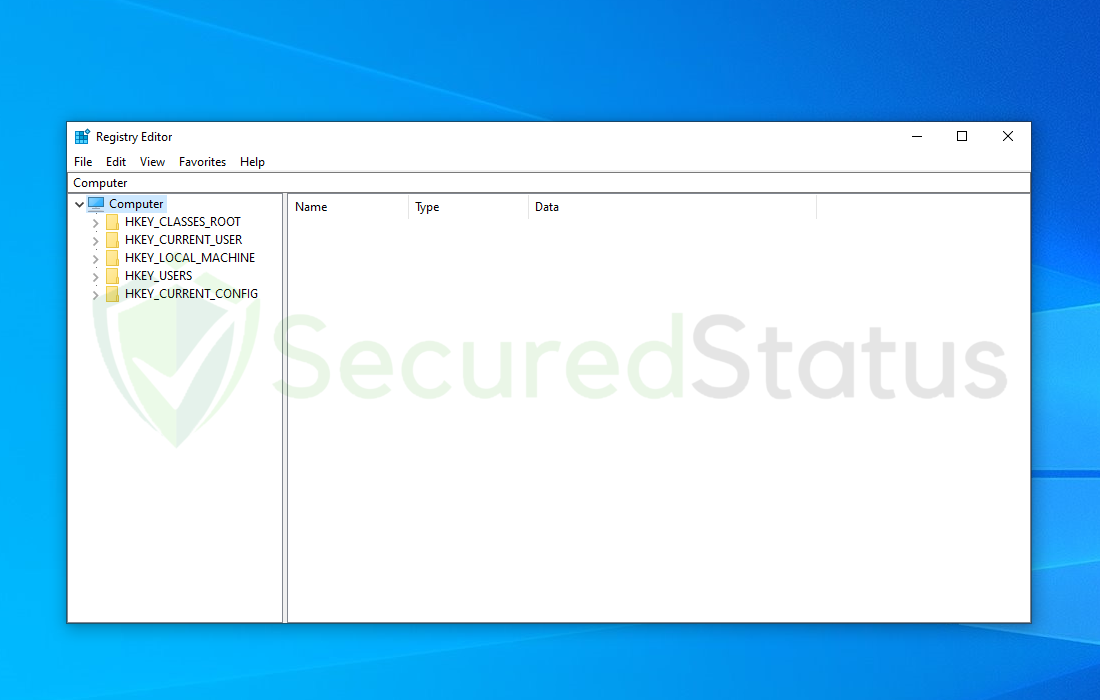
2 Open the directory HKEY_LOCAL_MACHINESYSTEMCurrentControlSetControlClass{4d36e968-e325-11ce-bfc1-08002be10318}000
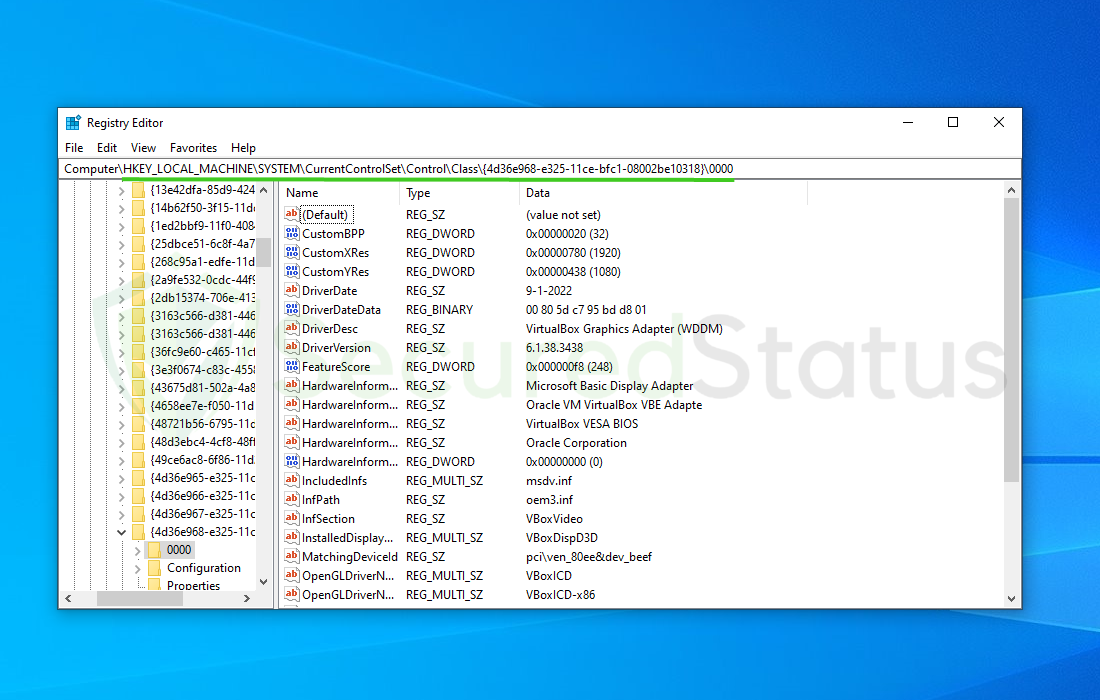
3 Right click DriverDesc from the following registries and select Modify. (If you cannot find it, search different folders such as 0001, 0002 and etc.)
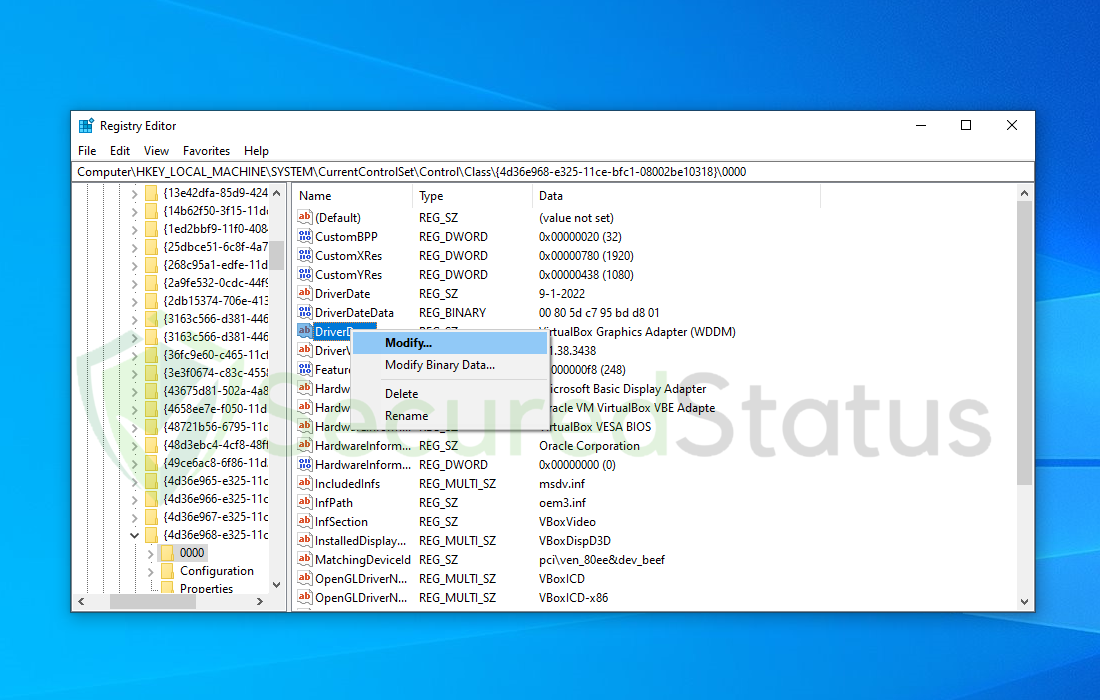
4 Delete everything inside the Value data and click OK.
Method 4: Scan for Malicious Virus (For Physical Machine Only)
Although it may appear unnecessary, malware in the system has the ability to alter system files and the registry, which can lead to malfunctions.
They have the ability to insert themselves into crucial system processes that could result in an error. It could be beneficial to periodically scan your system for malware if you are seeing the VM error on a physical Windows PC.
We recommend using Malwarebytes Anti-malware because we have determined that it can remove most types of malicious threats when we conducted malware tests.

Malwarebytes also offers a free 14-day trial when you download it for the first time, so you might want to use the remaining time of the trial to test out the premium features.
Download Malwarebytes
1 Click the button above to download the latest version of Malwarebytes Anti-malware.

2 Open the installation file after the download and follow the procedure shown.
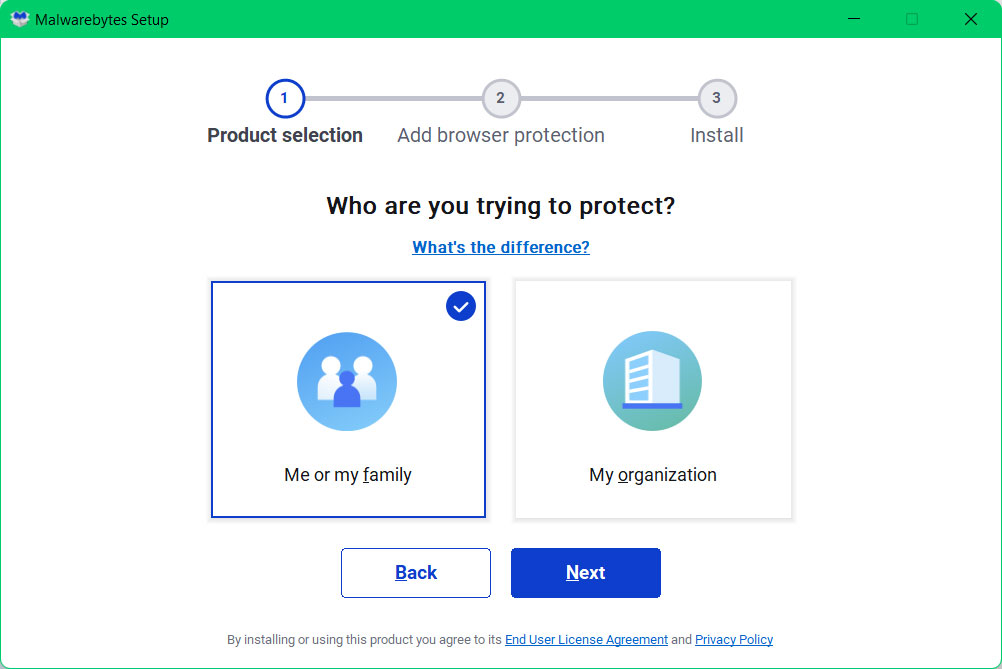
3 After following the software setup instructions, wait for the application to finish installing.

4 Once the application is installed, you may now run your first computer scan and wait for it to finish.
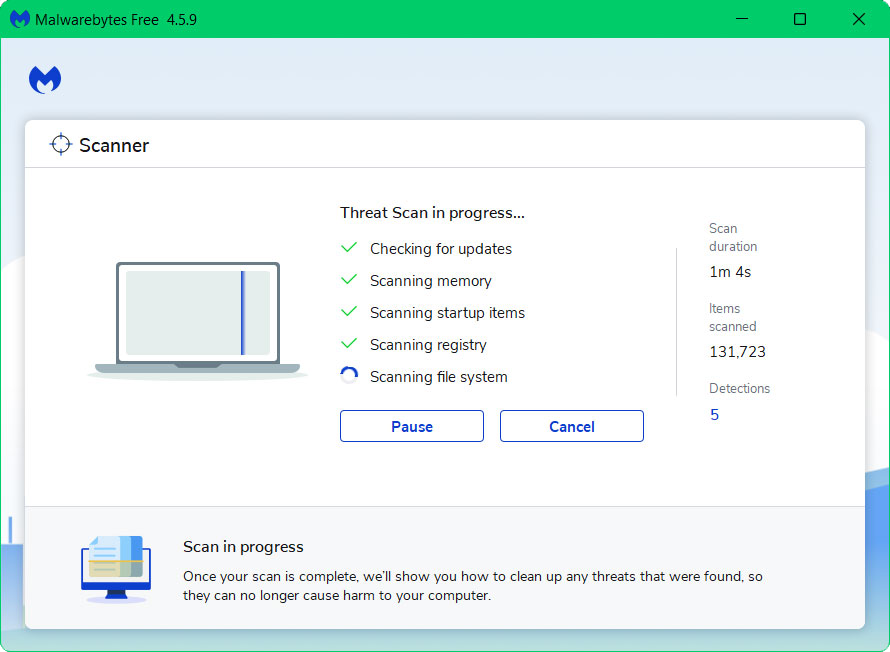
5 All discovered malware on the computer will be displayed on the screen, and you can eliminate them by pressing the “quarantine” button.
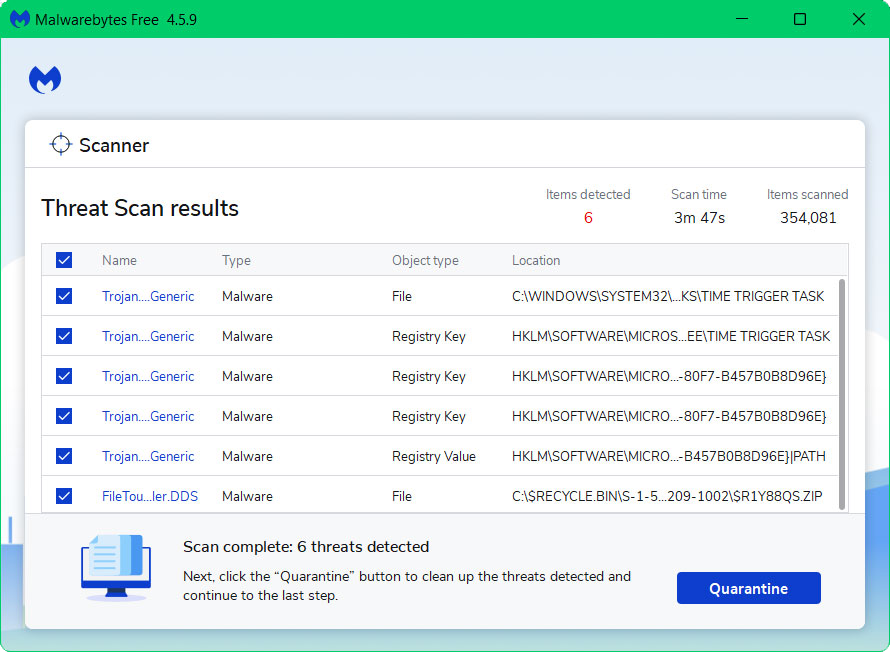
Any potential malware that may have been hiding on your system has now been eliminated, and the modifications it made to the system have been undone. You can check if the “application cannot run under a virtual machine” error is now resolved.
Попробуйте выполнить данные действия:
Необходимо отключить компонент Hyper-V. Для этого:
На панели управления выберите элемент Программы, а затем — Программы и компоненты.
Выберите Включение или отключение компонентов Windows.
Снимите галочку с пункта Hyper‑V, нажмите кнопку ОК, а затем кнопку Закрыть.
Перезагрузите ваш компьютер.
если Вам необходим Hyper-V и Вы им пользуетесь… то решить проблему не получится.
Некоторые программы, такие как online-игры и специализированный софт, отказываются запускаться на виртуальной машине. Как я понял, программа проверяет некоторые признаки виртуально машины (имена вендоров, VID/PID оборудования и т.д.) и найдя совпадение пишет что-то типа «Sorry, this application cannot run under a virtual machine». Ниже небольшой мануальчик по обходу детекта виртуальной машины для VMware Workstation. Не ручаюсь что на 100% рабочий, потому что вариантов определения виртуалки вагон и маленькая тележка, но самые распространенные проверки он обходит.
Для обхода детектирования виртуальной машины нам понадобятся:
- VMware Workstation v 12.1.0 build 3272444
- Пропатченый файл vmware-vmx.exe с изменными вендорами. Образ BIOS из которого были убраны строки с «VMware» и добавлен серийный номер материнской платы. Скачать можно отсюда.
- Прямые руки.
1. Устанавливаем VMware Workstation. Правилами хостинга запрешено публиковать ломанный софт, можете зайти на самый большой русскоязычный торрент трекер — там есть. Версия нужна 12.1.0 build 3272444, потому что патченный exe-файлик данной версии. Можете попробовать другую на свой страх и риск.
2. Создаем виртуальную машину и устанавливаем на неё операционную систему. Ваш покорный слуга использовал Windows 7, она работает стабильнее и менее требовательна к ресурсам.
3. Устанавливаем VMware Tools. Запускаем виртуальную машину. Далее идем «Виртуальная машина» —> «Установить пакет VMware Tools… «. В виртуальной машине появляется CD с установщиком. Запускаем программу установки, устанавливаем с настройками по умолчанию.
4. Меняем vmware-vmx.exe на файл из архива. (Путь по умолчанию: C:Program Files (x86)VMwareVMware Workstationx64vmware-vmx.exe)
5. Копируем образ BIOS в папку с виртуальной машиной. Можно скопировать в другую папку, только тогда в файле настроек нужно прописывать полный путь к файлу.
6. Правим файл с настройками виртуальной машины (файл с расширением .vmx) любым текстовым редактором. Добавляем строки:
monitor_control.restrict_backdoor = «true»
cpuid.1.ecx=»0—:—-:—-:—-:—-:—-:—-:—-«
bios440.filename = «6006.ROM»
isolation.tools.copy.disable = «TRUE»
isolation.tools.dnd.disable = «TRUE»
isolation.tools.paste.disable = «TRUE»
7. Устанавливаем нужную программу и пробуем запустить.
Обратите внимание, что пакет VMware Tools нужно установить ДО замены exe-файла и правки настроек виртуальной машины. В противном случае установщик скажет, что его нужно ставить только на виртуальную машину и отменит установку. А без установленного пакета недоступны некоторые важные функции, например, работа с 3D графикой.
БОльшая часть информации и файлы взяты отсюда. За что автору огромное спасибо!)
Сообщение скорее всего выглядит вот так:
1. Самое очевидное: вы действительно запустили клиент на виртуальной машине.
Как решить: Не надо так.
2. Антивирусная программа посчитала файлы игры подозрительными и запустил приложение в защищённой среде, т.е. в той же самой виртуальной машине.
Как решить: Добавить игру в исключения антивируса.
3. Проблема может быть решена изменением данных в реестре:
Не забудьте перезагрузить компьютер после изменений.
4. Если имя ПК установлено по умолчанию.
Как решить: изменить имя ПК
How to fix «This Application cannot run under a Virtual Machine» [solved] from treeofsavior
Не забудьте перезагрузить компьютер после изменений.
5.
Если вы используете ОС Windows 8/8.1, необходимо
отключить
компонент Hyper-V.
Для этого:
На панели управления выберите элемент Программы, а затем — Программы и компоненты.
Выберите Включение или отключение компонентов Windows.
Снимите галочку с пункта Hyper‑V, нажмите кнопку ОК, а затем кнопку Закрыть.
Перезагрузите ваш компьютер.
6. На панели управления выберите элемент Программы, а затем — Программы и компоненты.
Выберите Включение или отключение компонентов Windows.
Разворачиваем «.Net Framework 3.5 (включает .Net 2.0 и 3.0)
И снимаем галки с «Активация Windows Communication Foundation не по HTTP» и с «Активация Windows Communication Foundation по HTTP»
7. Если вы используете ОС Windows 8/8.1, необходимо
включить и отключить
компонент Hyper-V.
Для этого:
На панели управления выберите элемент Программы, а затем — Программы и компоненты.
Выберите Включение и затем отключение компонентов Windows.
Поставьте галочку на пункт Hyper‑V, нажмите кнопку ОК, а затем кнопку Закрыть.
Перезагрузите ваш компьютер.
8. Редкий вариант. Отключение виртуализации на уровне BIOS.
Как решить: следовать инструкции, но отключить, а не включить виртуализацию https://www.isumsoft.com/computer/enable-virtualization-technology-vt-x-in-bios-or-uefi.html
Нашли другое решение? Напишите в комментарии. Это будет полезно другим с подобной проблемой.
-
#2
Сталкивался с этой проблемой, не помог не один способ описанный выше. Возникает он если у вас на ПК хоть раз были программы, создающие виртуальную среду — разнообразные эмуляторы андроидов, смартфонов или ПК. Даже если удалить эти программы и почистить комп, следы от них все равно остаются, самое радикальное — переустановить винду. Мне, однако, помог способ, в котором нужно зайти в BIOS, и найти настройку связанную с возможностью запуска виртуальной среды на ПК, в разных версиях BIOSa эта настройка называется по разному, ищите по ключевым словам — Virtualization, VM, Cloud space и так далее. Чтобы эта ошибка прекратила появляться, нужно чтобы эти функции были выключены в Биосе — положение «Disabled”
Skip to content
Часто случается, что при запуске какого-либо вин-приложения из-под виртуальной машины приложение мгновенно закрывается с такой вот ошибкой:
Sorry, this application cannot run under a Virtual Machine
Это в основном означает, что разработчики данного приложения пожелали не давать ему возможности запускаться из-под виртуалок.
Исследовав проблему, нашел её решение для VMWare — оно состоит в том что необходимо подправить конфиг файла с расширением .vmx, дописав туда несколько строчек:
isolation.tools.getPtrLocation.disable = "TRUE"
isolation.tools.setPtrLocation.disable = "TRUE"
isolation.tools.setVersion.disable = "TRUE"
isolation.tools.getVersion.disable = "TRUE"
monitor_control.disable_directexec = "TRUE"
monitor_control.disable_chksimd = "TRUE"
monitor_control.disable_ntreloc = "TRUE"
monitor_control.disable_selfmod = "TRUE"
monitor_control.disable_reloc = "TRUE"
monitor_control.disable_btinout = "TRUE"
monitor_control.disable_btmemspace = "TRUE"
monitor_control.disable_btpriv = "TRUE"
monitor_control.disable_btseg = "TRUE"
А кто-то советует дописать чуть другое:
monitor_control.virtual_rdtsc = "false"
monitor_control.restrict_backdoor = "true"
isolation.tools.getPtrLocation.disable = "true"
isolation.tools.setPtrLocation.disable = "true"
isolation.tools.setVersion.disable = "true"
isolation.tools.getVersion.disable = "true"
monitor_control.disable_directexec = "true"
В обоих случаях мне удалось обойти защиту приложений и запустить их из под виртуальной машины!
UPD: Для смены мака и других свойств виртуальной машины — пробуем также VmTweaker — http://sourceforge.net/projects/vmtweaker/
Некоторые советуют ставить VirtualBox вроде в нем с этим нет проблем. Я лично не пробовал.
After installing Hyper-V in the windows, I get the following error for running a game in my windows. Of course I am not running it in the virtual machine. I want to run the game in the PC itself that I installed the Hyper-V.
sorry, this application cannot run under a virtual machine
Even I tried to stop the Hyper-V service inside the Hyper-V management but that doesn’t work for me and I get the same error. Please help me find a solution to this.
Thanks.

asked Mar 13, 2012 at 12:48

2
I found a good solution. making an entry in the boot loader, so that the hypervisor will not start by choosing that option while restarting the system. here is the steps to this:
1.At the command prompt, type the following:
bcdedit /copy {default} /d "No Hypervisor"
2.The above command should say: The entry was successfully copied to {guid}.
Copy that guid to the clipboard including the curly braces.
3.Now, type the following command:
bcdedit /set {guid} hypervisorlaunchtype off
In the above command, replace {guid} with what you copied in step 2.
I found the solution here : Hyper-V and VMware Workstation on the same computer.
It works for me and I hope it will works for people having the same problem.
answered Mar 17, 2012 at 22:32
AMCodedAMCoded
1,3362 gold badges22 silver badges38 bronze badges
This is the game copy-protection trying to stop you from running the game in a sandbox such as a virtual machine, where you’d be able to automate (bot) the game or hack the game by poking memory from outside of the machine.
The only way to resolve this issue is for you to either
A) Uninstall VirtualPC/Hyper-V completely
B) Ask the game company to change their policy, explaining precisely why you need Hyper-V and would like to play their game on the same machine, and wait for them to push out an update.
answered Mar 13, 2012 at 17:10

SecurityMattSecurityMatt
6,4651 gold badge21 silver badges28 bronze badges
2

- Mark as New
- Bookmark
- Subscribe
- Mute
- Subscribe to RSS Feed
- Permalink
- Report Inappropriate Content
>I’ve seen this application work under Parallels so can anybody tell me what the above error actually means?
It means the developer is a bonehead and put in an explicit check for virtualization, e.g. a blue pill check. If this software works in Parallels, there’s a good chance bypassing that alert would make it work in Fusion and Workstation 6. Maybe the developer was pestered by user asking for support in a VM that s/he put in the alert in on-purpose? Either way it’s a bad move. Your best bet is contacting the developer and asking for a workaround.
I found the software here: http://www.odeon.cn/ and version 1.98.6 contains that alert. I could find no obvious registry and/or file check using regmon/filemon where the developer is looking specifically for VMware but whatever criteria the check is based on, it must work on multiple host platforms.

- Mark as New
- Bookmark
- Subscribe
- Mute
- Subscribe to RSS Feed
- Permalink
- Report Inappropriate Content
I worked on an app once that checked to see if it was running on a VM. They actually had a fairly good reason for doing it…
You can find samples of code on the web for making this check. It typically consists of executing an illegal instruction, then examining the exception stack. Or something like that. The routine was pre-cooked, and I really didn’t spend much time looking at exactly what it was doing. In any case, not only was the routine able to determine whether it was running virtual, it could also tell you whether it was running under VMware, VirtualPC or Parallels.
- Mark as New
- Bookmark
- Subscribe
- Mute
- Subscribe to RSS Feed
- Permalink
- Report Inappropriate Content
Well my question is that does Fusion then itself depend on the _wording_ and _format_ of the exception stack? If not then it might be possible the twart these checks by rewriting it. so an option could be provided that allows me to «hide» from an application that’s using it to check etc etc.
- Mark as New
- Bookmark
- Subscribe
- Mute
- Subscribe to RSS Feed
- Permalink
- Report Inappropriate Content
Well my question is that does Fusion then itself
depend on the _wording_ and _format_ of the exception
stack? If not then it might be possible the twart
these checks by rewriting it. so an option could be
provided that allows me to «hide» from an application
that’s using it to check etc etc.
Well….I think that is the wrong approach to the problem. The problem is not with Fusion but rather with the application itself. So any fix should go into the application itself. If you start tweaking Fusion in order to get around that, then a different approach will be used by the next application which requires a different workaround in Fusion and so on.
As Richard already indicated in his previous post…contact the developer…
- Mark as New
- Bookmark
- Subscribe
- Mute
- Subscribe to RSS Feed
- Permalink
- Report Inappropriate Content
Yeah that would seem fair however my response was making the assumption that this and only this would be the way developers can check if you’re running in a virtual machine. I suppose there are other ways too. I don’t expect to get much help from the developer.
- Mark as New
- Bookmark
- Subscribe
- Mute
- Subscribe to RSS Feed
- Permalink
- Report Inappropriate Content
I don’t expect to get much help from the
developer.
Well…I do not know that specific application and what it does but are there any alternatives you can use instead if the developer really does not want to provide any workarounds?
- Mark as New
- Bookmark
- Subscribe
- Mute
- Subscribe to RSS Feed
- Permalink
- Report Inappropriate Content
There are actually a bunch of ways to check if you’re running in a VM. For example, once you install tools, the name of the network adapter in Windows is «VMware Accelerated AMD PCNet». In Linux the video card is detected as a VMware video adapter. IIRC the BIOS is named something VMware related. And so on. I’m sure there are similar easy checks for other virtualization software.
It’s akin to a program refusing to run on certain motherboards — there’s generally no valid reason to do this (drbanks, I’m curious what reason you had). The only reason I can come up with is the developer is paranoid about reverse-engineering or doesn’t want users to get around copy protection (and I don’t think these are really good reasons).
While technically[/i] it’s possible for VMware to play the arms race, it’d be a bad idea in terms of stability and ultimately it’s a problem with the developer of the uncooperative software.
Edited to include paranthetical notes —etung 2007.03.04 10:48
- Mark as New
- Bookmark
- Subscribe
- Mute
- Subscribe to RSS Feed
- Permalink
- Report Inappropriate Content
Why does virtualization make it easier to circumvent copy protection?
The same way that setting breakpoints or running a program in a debugger would make it easier — it’s then possible to examine memory state. Some viruses, for example, won’t run if a debugger is present in order to make it harder for antivirus writers to figure out what’s going on. Note that it’s still not easy to do, just something a determined attacker might use.
From what you’ve said about JAF, I don’t see any reason it shouldn’t be able to run in a VM.
- Mark as New
- Bookmark
- Subscribe
- Mute
- Subscribe to RSS Feed
- Permalink
- Report Inappropriate Content
As for why do this…
I’m not sure about the state of the NDAs, so I won’t be specific, but:
The particular application had to lock down the desktop and control all access to the outside world. Think of it as a kiosk-like application. It would have hardly been appropriate to allow the application to be run under a VM, where the user could access anything and everything in the real world on the host computer. So basically, the entire sandbox we tried so hard to create would be mooted if it were allowed to be run virtualized.
- Mark as New
- Bookmark
- Subscribe
- Mute
- Subscribe to RSS Feed
- Permalink
- Report Inappropriate Content
If you think about if you can tell you are running under virtualization then it’s not true virtualization.
A lot of what I described isn’t determining that you’re running in a virtual environment, it’s determining your hardware happens to match what a known virtual environment looks like. Also, once you start involving the real world (e.g. the network, unless you virtualize that too), it’s possible via timing attacks.
drbanks: Hmm, I hadn’t considered a security app. Thanks for pointing out this use case. However, I agree only from a developer perspective — as a user, I might not consider this a good thing 
Edited to include question about user’s perspective. —etung 2007.03.05 20:25
- Mark as New
- Bookmark
- Subscribe
- Mute
- Subscribe to RSS Feed
- Permalink
- Report Inappropriate Content
I’m not admitting to violating traffic laws but I have seen Defensive Driving applications that have tried to ‘lock’ my friend’s[/i] computer, of course they lock friend’s[/i] VM’s instead.
Also I have beta tested software that attempts to DRM-lock Office documents like Word, Excel, Adobe Acrobat, etc. They even went so far as to hook keyboard interrupts and lock the video frame buffers somehow. Luckily I screenshotted away from the host during the beta to demonstrate actual bugs not the ‘breaking’ of their technologies (which I also was successful in, btw). Needless to say the quickly became aware of the reality of virtualization.
- Mark as New
- Bookmark
- Subscribe
- Mute
- Subscribe to RSS Feed
- Permalink
- Report Inappropriate Content
There’s a security researcher that claims Intel VT and AMD-V can be used to make a perfectly undetectable ring -1 environment. Assuming there are no ‘give-away’ devices, drivers or registry entries. It might be possible to conjure an undetectable ring 0 — ring 3 working set. In practice such an x86 black box is impractical because you’ll always want to accelerate, trap and emulate, enlighten or paravirtualize some aspect of x86 and that will be your poker tell.

- Mark as New
- Bookmark
- Subscribe
- Mute
- Subscribe to RSS Feed
- Permalink
- Report Inappropriate Content
Out of interest try opening the VMX file associated with the virtual machine. Try adding the following line to it:
monitor_control.restrict_backdoor = TRUE[/code]
The VMware tools won’t function but it may stop the software detecting the fact that it is running in a VM. If it doesn’t work, just power off the VM and remove the line from the VMX file.
- Mark as New
- Bookmark
- Subscribe
- Mute
- Subscribe to RSS Feed
- Permalink
- Report Inappropriate Content
You should try capturing the install on a non-virtual Win OS using something like Altiris’s SVS, then once you have it captured, you then can export the layer, and import the layer on your Virtual OS via SVS again. This should get around this problem, that is unless the process/application checks for virtualization when it is ran.
The “Sorry, this application cannot run under a Virtual Machine” error message in Windows 11 can be quite frustrating for users who encounter it. While the error typically occurs when running a game that does not support a virtual machine environment, it can also appear in other situations. This article provides a comprehensive look at the causes of this error and offers detailed solutions to resolve it.
Also see: Force App or Game to Use Dedicated GPU or Integrated Graphics
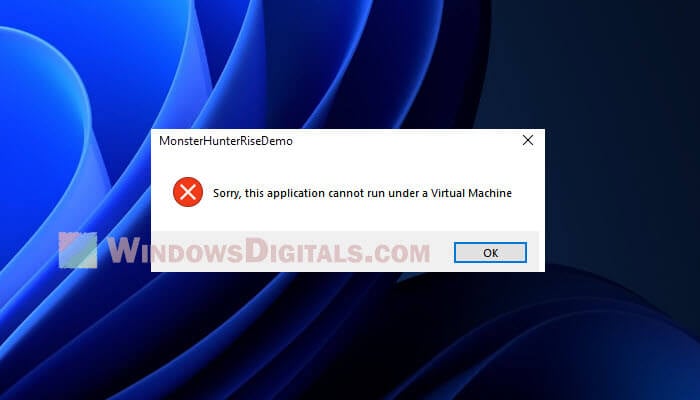
Understanding the “Sorry, this application cannot run under a Virtual Machine” error
When an application or game detects virtualization technologies on your computer, it may refuse to run and display the “this application cannot run under a virtual machine” error message. This is often because the application is designed to protect its intellectual property or ensure optimal performance by preventing users from running it in a virtual machine.
Virtualization can be provided by various features and programs, including:
- Hyper-V, a Windows-native virtualization technology
- Third-party virtualization programs like VMware or VirtualBox
- Antivirus software that utilizes virtualization to protect the system
Related resource: How to Close Virtual Desktop in Windows 11
Troubleshooting and resolving the error
To resolve the “Sorry, this application cannot run under a Virtual Machine” error in Windows 11, follow these detailed steps:
Check for running virtual machines
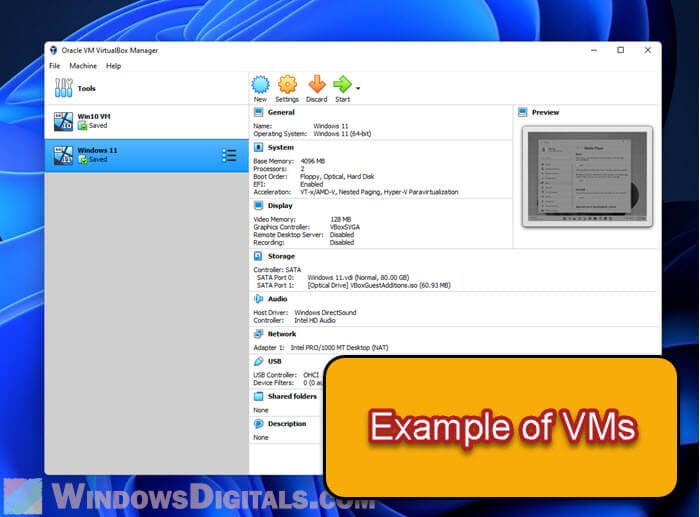
Before disabling any virtualization features, make sure no virtual machines are currently running on your computer. Close any active instances of VMware, VirtualBox, or other virtualization software.
Disable third-party antivirus software
Some antivirus programs use virtualization technologies that may cause the error. Temporarily disable your antivirus software to see if it resolves the issue. If the problem persists, proceed to the next steps.
Investigate Hyper-V status
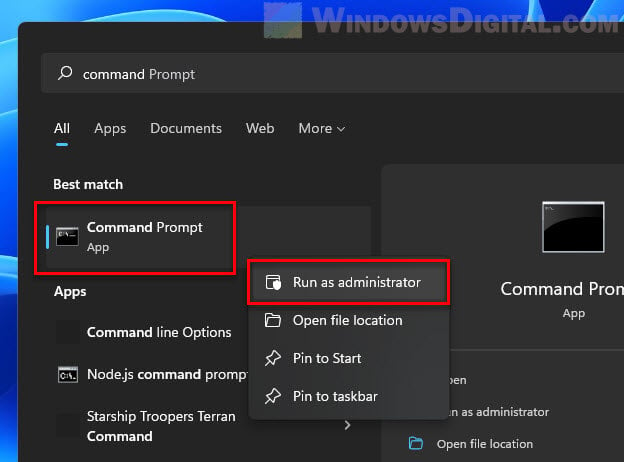
Open the Command Prompt as administrator by clicking the Start button, typing “cmd” in the search bar, and right-clicking on the “Command Prompt” search result. Choose “Run as administrator.” Click “Yes” when prompted by the User Account Control dialog.
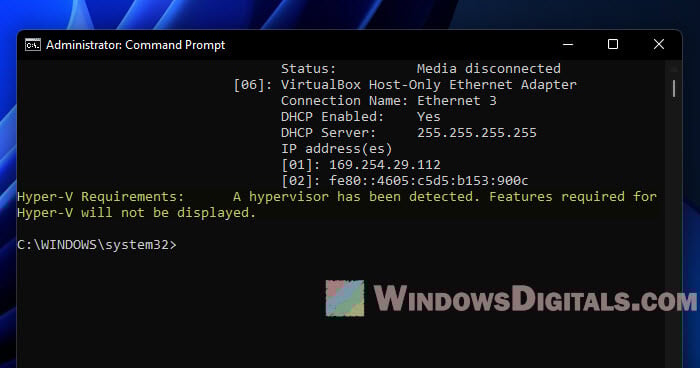
Type systeminfo in the Command Prompt and press Enter. Scroll down to the “Hyper-V Requirements” section to see if a hypervisor is detected.
Disable Hyper-V
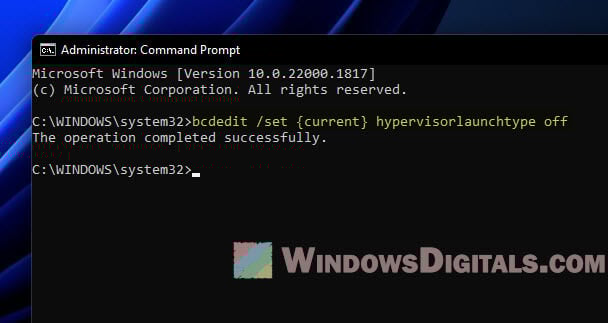
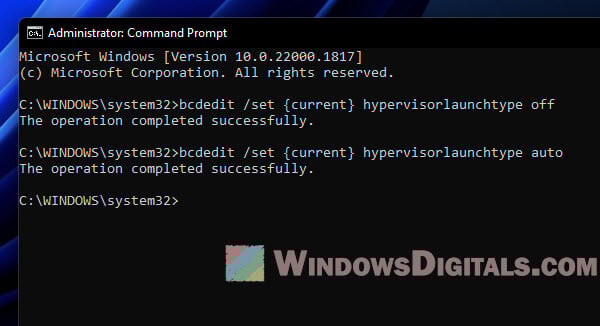
If a hypervisor is detected, enter the command bcdedit /set {current} hypervisorlaunchtype off and press Enter to disable Hyper-V. Restart your computer for the changes to take effect.
Disable additional virtualization features
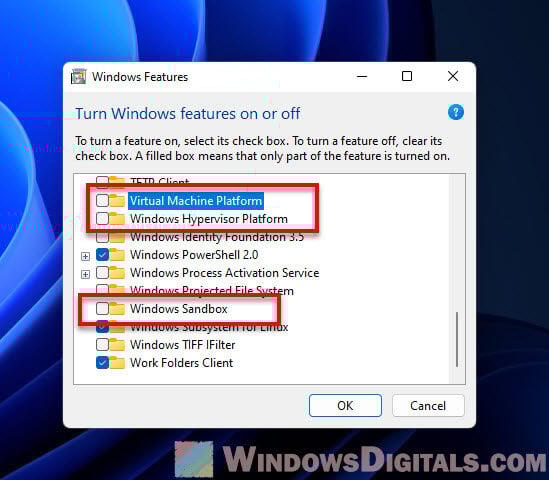
If the error persists, open the Control Panel by typing “Control Panel” in the search bar and selecting it. Navigate to Programs and Features > Turn Windows features on or off.
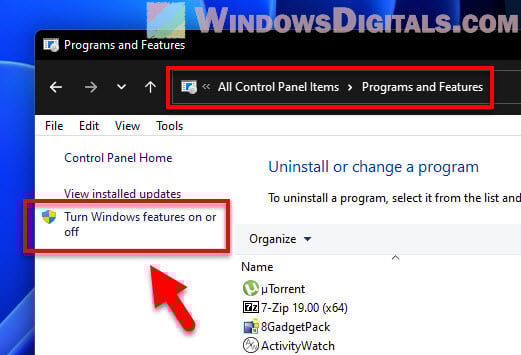
Uncheck any features related to virtualization, such as “Windows Sandbox,” “Windows Hypervisor Platform,” or “Virtual Machine Platform.” Restart your computer again for the changes to take effect.
Linked issue: Turn Windows Features On or Off: “Please wait…”
Re-enabling Virtualization Features
If you need to re-enable virtualization features after resolving the error, follow these steps:
Enable Hyper-V
Open the Command Prompt as administrator by pressing Win + X and choosing Windows Terminal (Admin). Click “Yes” when prompted by the User Account Control dialog. Enter the command bcdedit /set {current} hypervisorlaunchtype auto and press Enter to enable Hyper-V.
Restart your computer
Reboot your computer for the changes to take effect.
Useful tip: How to Allocate More RAM to a Game in Windows 11 or 10
Enable additional virtualization features
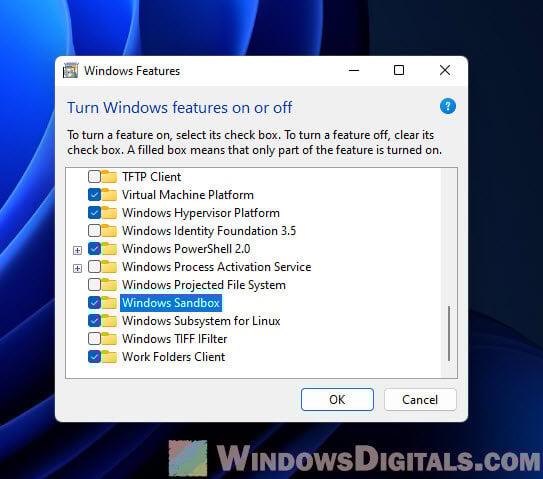
If you disabled other virtualization features, open the Control Panel, navigate to Programs and Features > Turn Windows features on or off, and re-enable the features you disabled earlier.
Re-enable antivirus software
If you disabled your antivirus software earlier, remember to re-enable it to ensure your system remains protected against potential threats. If the antivirus software was the cause of the issue, consider looking for an alternative solution that does not use virtualization technologies or contact the software vendor for support.
Alternative solutions
If the aforementioned steps do not resolve the issue, you can try the following alternative solutions:
Run the application in compatibility mode
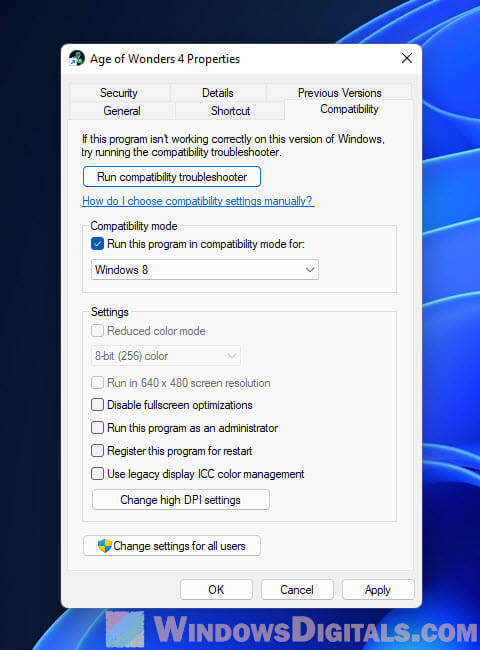
Some applications may have compatibility issues with Windows 11. To run the application in compatibility mode, right-click on the application’s executable file or shortcut, select “Properties,” and switch to the “Compatibility” tab. Check the box next to “Run this program in compatibility mode for,” and select a previous version of Windows, such as Windows 10 or Windows 8. Apply the changes and try running the application again.
Update graphics drivers
Outdated or incompatible graphics drivers can cause issues with certain applications. Ensure that your graphics drivers are up to date by visiting your graphics card manufacturer’s website or using the built-in Windows Update feature.
Contact the application’s or game’s support team
If none of the suggested solutions work, consider reaching out to the application’s support team for assistance. They may be aware of the issue and can provide you with a fix or workaround specific to the application.
Key takeaways
The “Sorry, this application cannot run under a Virtual Machine” error in Windows 11 can be a challenging issue to resolve, as it involves various virtualization technologies and potential compatibility issues. By carefully following the troubleshooting steps and alternative solutions provided in this article, users should be able to identify the root cause of the problem and implement a suitable solution.
It is important to keep in mind that virtualization technologies are continuously evolving and becoming more integrated with modern operating systems. As a result, developers may need to adapt their applications to better accommodate these changes, while users should stay informed about the latest advancements in virtualization and compatibility of games and applications.
Download Windows Speedup Tool to fix errors and make PC run faster
Some PC users have reported they received the error message Sorry, this application cannot run under a Virtual Machine when trying to run certain apps using virtualization software like VMware Fusion 7, Hyper-V et al on their Windows 11 or Windows 10 computer. This post provides the most applicable fixes to the issue.

If you get the error prompt stating Sorry, this application cannot run under a Virtual Machine when you run certain apps on your Windows 11/10 host machine, then the fixes we have presented below in no particular order can be easily applied to resolve the issue on your system.
- Initial checklist
- Disable Windows Hypervisor Platform
- Modify the DriverDesc registry key
- Edit the .vmx file
- Modify the SystemBiosVersion registry key
Let’s see these fixes in detail.
1] Initial checklist
Our investigations also revealed that the Sorry, this application cannot run under a Virtual Machine and can also be triggered on a physical machine. In this case, you can perform the following prechecks. Otherwise, you can continue with the rest of the solutions presented below.
- Check your device name for generic names like “Computer” or “Device,” as in some cases, these names by default may be identified as a virtual machine.
- Check files and processes: The system can be mistakenly identified as a virtual machine as applications may check to verify if the system’s currently active processes and services are the default Windows system and if any new/third-party apps are installed.
- Check for previously installed Virtual Machine: If you had previously installed a VM application, you should examine your system for anything with the associated phrase because often VM apps create a registry containing such terms. If that’s the case, you can use a third-party Uninstaller Software to completely uninstall the virtualization software from your Windows 11/10 computer.
- Make sure you’re running a genuine copy of Windows as the processes and system files that have been altered can cause the machine to differ from a genuine copy which can cause programs to not run as intended and throw errors.
- Run AV scan: You should consider running a full system AV scan on your system for malware if you are seeing the VM error on a physical Windows PC.
2] Disable the Windows Hypervisor Platform
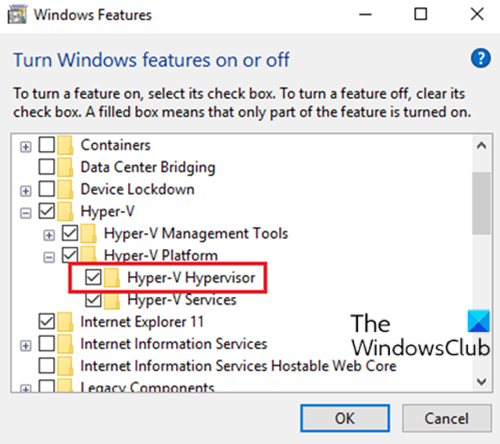
This fix requires you to disable Hyper-V assuming you’re running the app on a third-party virtualization software.
Read: How to enable Hyper-V on Windows 365 Cloud PC
3] Modify the DriverDesc registry key

Since this is a registry operation, it is recommended that you back up the registry or create a system restore point as necessary precautionary measures. Once done, you can proceed as follows:
- Press Windows key + R to invoke the Run dialog.
- In the Run dialog box, type regedit and hit Enter to open Registry Editor.
- Navigate or jump to the registry key path below:
HKEY_LOCAL_MACHINESYSTEMCurrentControlSetControlClass{4d36e968-e325-11ce-bfc1-08002be10318}000
- At the location, on the right pane, right-click the DriverDesc registry key (If you cannot find it, search different folders such as 0001, 0002, etc) to edit its properties.
- Select Modify.
- Now, delete the data inside the Value data field.
- Click OK to save changes.
- Exit registry.
4] Edit the .vmx file
- Shut down your virtual machine completely.
- Open the virtual machine folder in ~/Documents/Virtual Machines/.
- Right-click on your virtual machine and select Show Package Contents.
- Next, find the file with the .vmx file extension and open the file with a text editor.
- Now, scroll to the bottom of the file and write the following on a new line:
monitor_control.restrict_backdoor = "true"
- Save the file
- Launch your virtual machine
- Run the app again.
5] Modify the SystemBiosVersion registry key

- Open Registry Editor.
- Navigate or jump to the registry path below:
HKEY_LOCAL_MACHINEHARDWAREDESCRIPTIONSystem
- At the location, on the right pane, double-click the SystemBiosVersion entry to edit its properties.
- Now, change the Value data from whatever is written into NOBOX -1.
- Click OK to save changes.
- Exit Registry Editor.
We hope this helps!
Read next: BlueStacks cannot start when Hyper-V is enabled
How to solve this application cannot run under a virtual machine?
You may experience these errors on Windows 11 with certain Windows features enabled. To resolve the issue, amongst other solutions as outlined in this post above, you can try going to Turn Windows features on or off the Control Panel applet and turning off: the Hyper-V Virtual Machine Platform.
How do I run an application on a virtual machine?
You can apply the /appvpid:<PID> switch to any command, which enables that command to run within a virtual process that you select by specifying its process ID (PID). Using this method launches the new executable in the same App-V environment as an executable that is already running.
Read: Not enough memory in the system to start the virtual machine.
Obinna has completed B.Tech in Information & Communication Technology. He has worked as a System Support Engineer, primarily on User Endpoint Administration, as well as a Technical Analyst, primarily on Server/System Administration. He also has experience as a Network and Communications Officer. He has been a Windows Insider MVP (2020) and currently owns and runs a Computer Clinic.