
При начальной настройке сервера вы можете столкнуться с ошибкой «Не удалось проверить имя пользователя» («Failed to verify username»), которая появляется при подключении к серверу. Эта ошибка указывает на то, что сервер не смог найти лицензионный аккаунт игрока, который пытается подключиться. При этом, если использовать лицензионную версию игры, зайти на сервер удастся.

Причина возникновения ошибки
По умолчанию все новые сервера Minecraft требуют от всех подключающихся к ним игроков иметь лицензионную версию игры. Это позволяет использовать официальную систему скинов и защитить игроков от использования их аккаунтов на сервере третьими лицами. Однако не все администраторы хотят ограничивать доступ к своим серверам для игроков без лицензии майнкрафт. В таких случаях нужно предпринять ещё несколько шагов для настройки сервера.
Решение — Отключаем проверку лицензии
Чтобы решить эту проблему, давайте отключим проверку лицензии на сервере Minecraft Java Edition.
Прежде, чем продолжить
Отключение возможностей на сервере, связанных с использованием лицензионной версии Minecraft, создаёт угрозу безопасности. Поэтому рекомендуем проработать план по дальнейшей настройке сервера.
Есть несколько деталей, на которые следует обратить внимание:
-
После отключения проверки лицензии на сервере станет недоступна авторизация через сервера Microsoft, поэтому для безопасности следует установить и настроить дополнительный плагин для авторизации, если его ещё нет.
-
Если до этого на сервер заходили люди, имеющие официальную версию игры, их данные будут утеряны. Это происходит из-за того, что для хранения последних при отключенной проверке лицензии используются другие UUID.
-
После отключения проверки лицензии перестанет работать стандартный «белый список» и система банов, поэтому для ограничения доступа к серверу нужно будет использовать сторонние плагины.
-
После отключения проверки лицензии перестанут отображаться скины у игроков, не использующих сторонние лаунчеры, добавляющие свои системы скинов в игру. Для отображения скинов используйте сторонние плагины.
Отключаем проверку лицензии
За все возможности, связанные с лицензионными аккаунтами, отвечает всего один параметр в файле server.properties — online-mode. Давайте изменим его:
-
Перейдите в корневую папку сервера. Это папка, в которой находится ядро.
-
В корневой папке сервера найдите файл
server.properties.
Если вы работаете с сервером на вашем компьютере, расширения файлов могут быть скрыты, и тогда файл будет называться просто server. В панели на нашем хостинге расширения файлов отображаются всегда, и проблем с этим возникнуть не должно.
-
Откройте файл с помощью любого текстового редактора. В Windows для этого можно использовать даже «Блокнот», а в нашей панели можно просто кликнуть по файлу левой кнопкой мыши.
-
Найдите в этом файле следующую строку:
- Замените в найденной строке
trueнаfalse. Должно получиться так:
- Сохраните файл и перезапустите сервер.
Designed by Markus Persson, Jens Bergensten, Stephen McManus and Developed by Mojang Studios, Xbox Game Studios, Telltale Games, 4J Studios, Double Eleven, Other Ocean Interactive is a 3D game where players can seemingly move from one house to another. The game is designed such that one can do both, destroy and create a city.
You might have come across the “Failed To Verify Username Minecraft” or “Session Invalid.” issue before you tried joining your Minecraft server. This issue is no new and is tackled by many more as it occurs basically because the client’s launcher failed to re-authenticate with Mojang’s session servers. Fortunately, the good news is this can be fixed with just a few steps.
This is an error that makes a lot of trouble for a true Minecraft lover. When out of nowhere in between the game, the Error pops up. This Error proves to be the most frustrating and fastidious for players.
Contents
- 1 What is Failed to Verify Username Minecraft Error?
- 2 What are the Causes of Failure to Verify?
- 3 How to Fix Failed to Verify Username Minecraft?
- 3.1 When Connecting Premium Server[Premium version]
- 3.2 When Connecting to Personal Server[Cracked Codes Version]
- 4 How to Fix Failed to Verify Username Minecraft for Mac?
- 5 Other Minecraft Servers
- 6 Final words
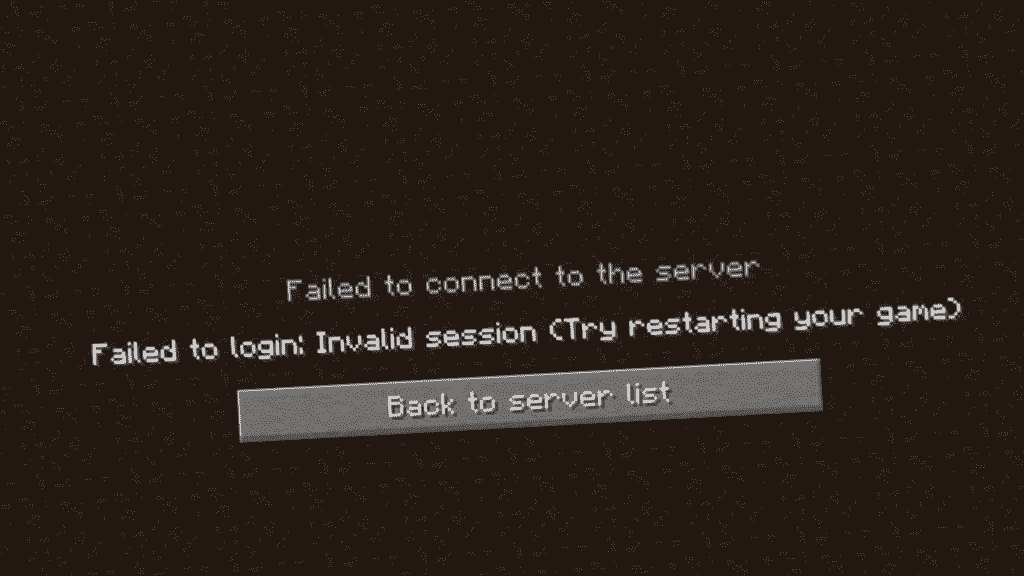
Failed To Verify Username Minecraft error also occurs if you are running a non-premium version of Minecraft. And if you haven’t bought the premium version yet, you entry to most of the servers would be restricted. The fact that the server is running in online mode, the good thing is that you can change to online mode reasonably, very quickly.
The important thing is that it occurs for both Licensed players and Crack code players. Although for a licensed one, it’s much easy to fix. But even for players with cracked codes, it can be easily set by following few simple steps already clearly mentioned in the article. So read the article carefully, and we would solve all your doubts regarding this article.
What are the Causes of Failure to Verify?
This is the Failed To Verify Username Minecraft error that is encountered by numerous other users when they try to connect to other servers. In layman’s terms, the issue is that the data of servers is licensed under, and it’s designed to scan the player — whether the player is authorized or not under the Minecraft license. The Error in simple language that failed to verify Username or Email Address means that their authentication servers [Minecraft/Mojang] are currently not performing up to the expectations, meaning it won’t permit you.
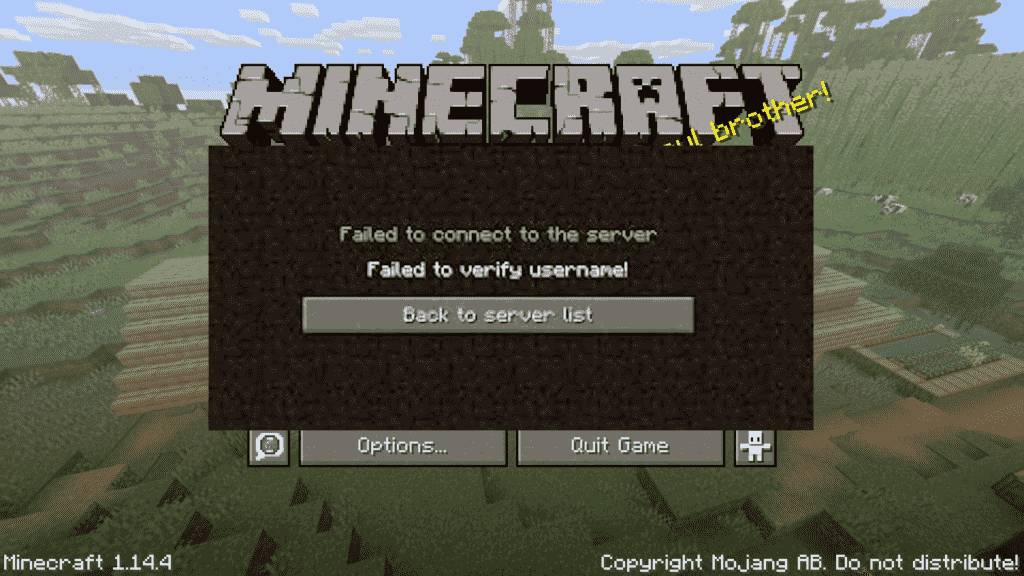
If you try to re-join, kindly note that your side has not raised this issue or problem (offline mode). It would be best if you wait patiently. For the time, Minecraft/Mojangservers are back online. Our article has clearly described the Failed To Verify Username Minecraft errors related to connecting to servers and the solutions right there themselves.
How to Fix Failed to Verify Username Minecraft?
Fortunately, these issues are easy to solve, and by following these line by line process of How to solve. We assure you your gaming won’t halt by this Error. We have divided the entire Failed To Verify Username Minecraft Error into two parts, which are-
If only Failed to login: Invalid session, then try restarting your game and the launcher.
If it blinks, Failed to verify user name or email address.
When Connecting Premium Server[Premium version]
If you are connecting to an unknown server and face a Failed To Verify Username Minecraft error related to the session, possibly it can only mean that — the server works only with licensed accounts (for example, mc.hypixel.net)!
SOLUTION
1) In TLauncher, log in under the Minecraft/Mojang license in the “Accounts” menu item in the panel.
1.1) If you haven’t purchased a license yet, find a server that doesn’t verify for a license. You would find plenty of them.
When Connecting to Personal Server[Cracked Codes Version]
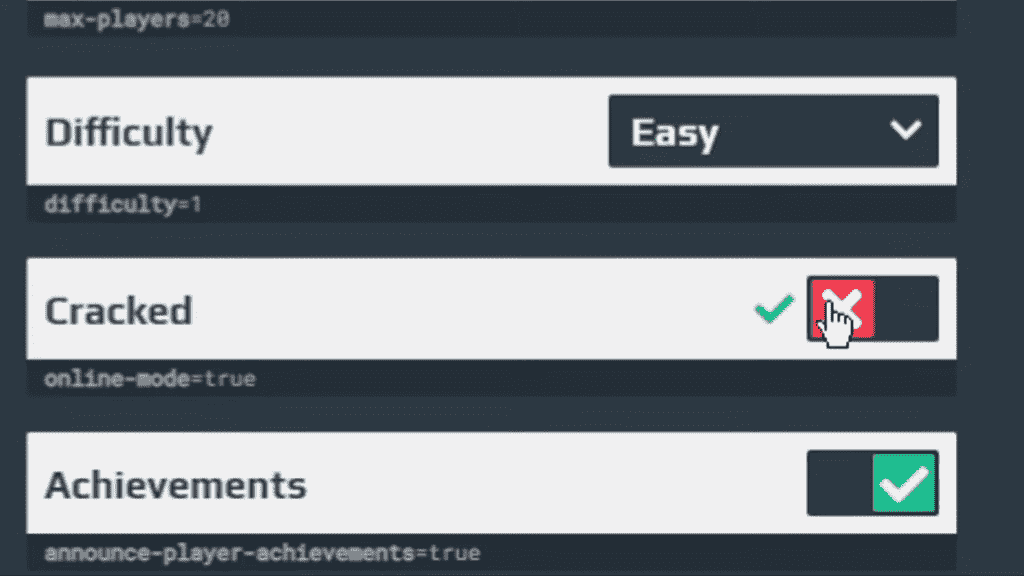
If you only have created the server by using a separate server-client, say, Aternos, then it might because the server, by default, checks the license of your account.
SOLUTION
In that case, you need to disable the license check of the server in the panel:
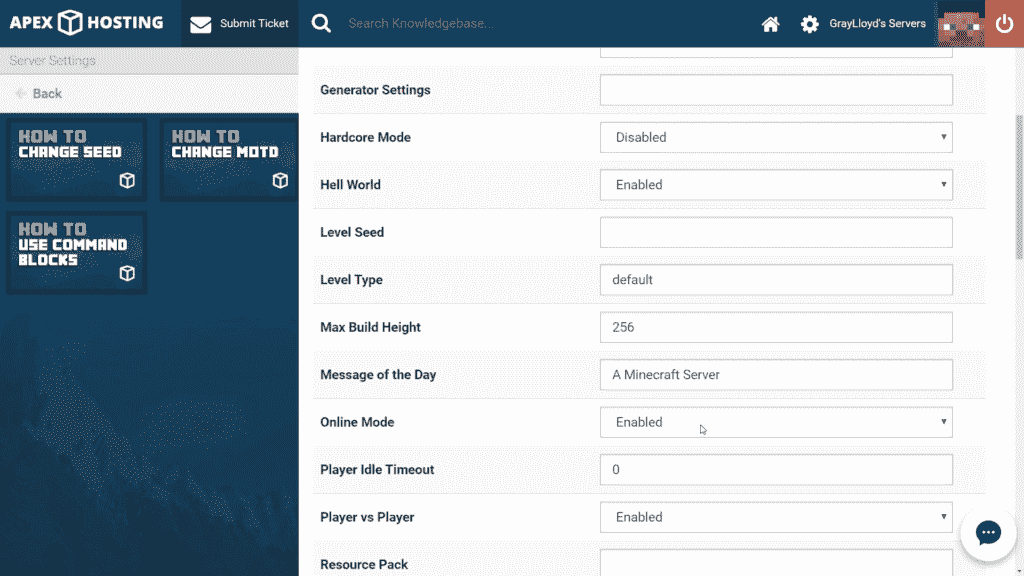
1) For a separate server client: Search for the server.properties (Server Properties) file in the server folder, hereafter look for online-mode=true line and make it to online-mode=false. After this, you can connect to the server.
2) For Aternos and similar other hostings: In these interfaces, search setting menu items as online-mode, License Check, Cracked Client Access. Right away, Disable such settings!
Common issues faced
After you restart the launcher, players still can’t join.
If you are currently using the premium version of Minecraft and have already followed the steps How to resolve the Error and still cannot join, try restarting the server. It should work perfectly fine by now.
How to Fix Failed to Verify Username Minecraft for Mac?
Since the Apex Hosting software doesn’t come for Mac, you cannot solve this issue. Moreover, there is rarely a situation where this error appears in Mac. As a last option, you can try re-installing Minecraft to check if the error persists.
Other Minecraft Servers
SCP Minecraft
Captive Minecraft Server
Final words
Encounter with Error is part of our life. Many philosophers believe that errors open room for success to let in. Keeping this in mind, we advise you that be patient even if, after one or two attempts, the Failed To verify Error doesn’t resolve. Apart from the reasons mentioned above, it might be very well possible that your network connection is slow or Ping is high.
Or you are stuck with in human mind’s limitation. Brain Cramps are very easy to get if one keeps on repeating the same task again and again. It’s very well possible that you are seeing something and applying something else. Have a calm mind and follow the instruction and steps, and this Error would never pop up.
HAPPY GAMING!
-
Partition Wizard
-
Partition Manager
- 5 Ways to Fix Failed to Verify Username Error on Minecraft
By Linda | Follow |
Last Updated November 02, 2022
Are you playing Minecraft? Have you ever encountered error «Failed to verify username Minecraft«? In this post, MiniTool Partition Wizard offers you 5 ways to fix this issue. You can try them one by one.
Failed to Verify Username Minecraft
Minecraft is a sandbox game developed by Microsoft’s Mojang Studios. In the game, players can interact with blocks in a 3D world. Features in the game include exploring the world, collecting resources, synthesizing items, and survival adventures.
The game allows players to run a multiplayer game mode through the server. However, some people report that they have encountered error «Failed to connect to the server. Failed to very username» when logging into the server.
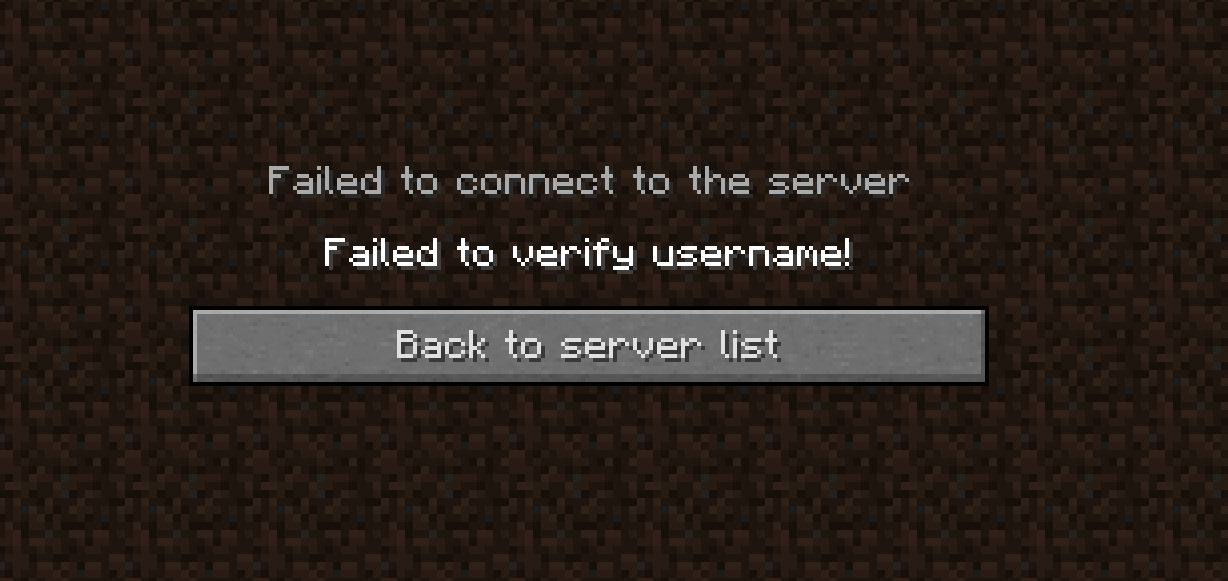
Why does the Minecraft failed to verify username error occur? The most common reasons are as follows:
- The server is down.
- You are running the cracked version.
- Outdated Java and other reasons.
If You Can’t Connect to Minecraft Server, How to Fix it?
How to Solve Failed to Verify Username Minecraft Error
Fix 1. Log out and Back in
Sometimes, this error may be temporary and many people report that this error disappears after they log out and back in the game. This method is simple that I recommend you to try it first.
- Close your game.
- Log off your account from your launcher.
- You will then be asked to type in your email and password again, please do.
- Once logged in, you can then start your game and join the server.
Fix 2. Check the Server
If the above method doesn’t work, please check the server status on Mojang website. If the server is down, what you should do is to wait until the server is back online.
How to Fix the Friends Can’t Connect to Minecraft Server Issue?
Fix 3. Activate the Cracked Version
The cracked version cannot authenticate with most Minecraft servers. If you are using the cracked version, please activate it.
If the server is online still and you are using the official version, you can then try the following methods.
Fix 3. Edit the Hosts File
You may encounter the failed to verify username issue if the Minecraft entries in the Hosts file are not properly configured. In this case, removing the Minecraft entries from the Hosts file may solve the problem.
- Close Minecraft.
- Open Notepad and click File > Open.
- Navigate to C: WindowsSystem32driversetc.
- Change the file type dropdownto All Files and double-click on the Hosts
- Expand the Editmenu and select Find.
- Search for Minecraft(or Mojang) and delete all the entries related to it. These entries are usually located at the bottom of the file and look like website addresses.
- Save the file and close it.
- Open the Minecraft and login to the server again.
Fix 4. Update Minecraft and Java to their Latest Releases
One of possible reasons why you get the Minecraft failed to verify username error is that the Minecraft and Java is out of date. You can update them to their latest versions.
- Open the Minecraft and click on the Optionsbutton near the username.
- Click on the Force Updatebutton and let the update process complete.
- Click Windows, type Configure Javaand launch Configure Java.
- Steer to the Updatetab and click on the Update Now If an update is available, apply the Java update.
If possible, you can also try adding the game into the whitelist of the Firewall.
Fix 5. Change the Server Mode to Offline
If you are using a custom Minecraft server, changing the server mode to offline may solve the problem. But please note that switching into the offline mode may reset your progress to defaults.
- Stop the Minecraft server and then completely exit it.
- Navigate to the installation directory of the server (the folder where the Server.jar file is located).
- Choose the Propertiesfile and open it with Notepad.
- Expand Editand click Find.
- Aearch for online-mode and change its value to false.
- Launch game and login to the server again to see whether the issue is solved.
About The Author

Position: Columnist
Author Linda has been working as an editor at MiniTool for 1 year. As a fresh man in IT field, she is curious about computer knowledge and learns it crazily. Maybe due to this point, her articles are simple and easy to understand. Even people who do not understand computer can gain something.
By the way, her special focuses are data recovery, partition management, disk clone, and OS migration.
Minecraft launcher may show ‘failed to verify username’ if the launcher itself or the Java edition of your system is outdated. Moreover, hindrance from the antivirus/firewall or conflicting applications (like Hamachi) may also cause the issue at hand.
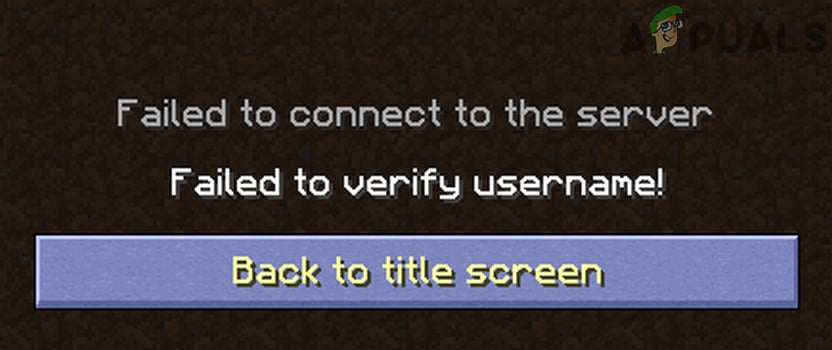
Before proceeding with the troubleshooting process, check the status of the Minecraft servers (especially, the auth server) if they are up and running. Moreover, performing a reboot of your PC/local server may do the trick for you. Additionally, make sure only one server instance is running on the machine. Also, it is worth mentioning that cracked versions cannot authenticate with the Minecraft server and thus show the ‘failed to verify username’ message.
Solution 1: Edit the Hosts File
You may encounter the failed to verify username issue if the Minecraft entries in the Hosts file of your system are not properly configured. In this context, removing the Minecraft entries from the Hosts file may solve the problem.
- Exit the Minecraft launcher and end the related processes in the Task Manager.
- Now click Windows, type: Notepad and right-click on Notepad. Then select Run as Administrator.
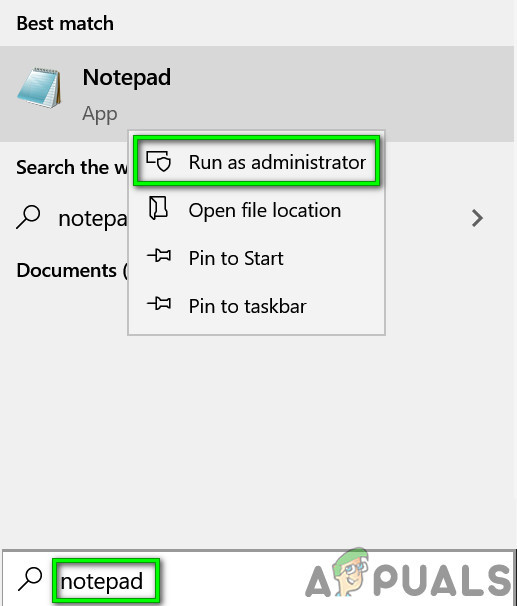
Open Notepad As Administrator - Then expand File and select Open.
- Now navigate to the following path (copy-paste the address):
WindowsSystem32driversetc
- Then change the file type dropdown to All Files and double-click on the Hosts file.
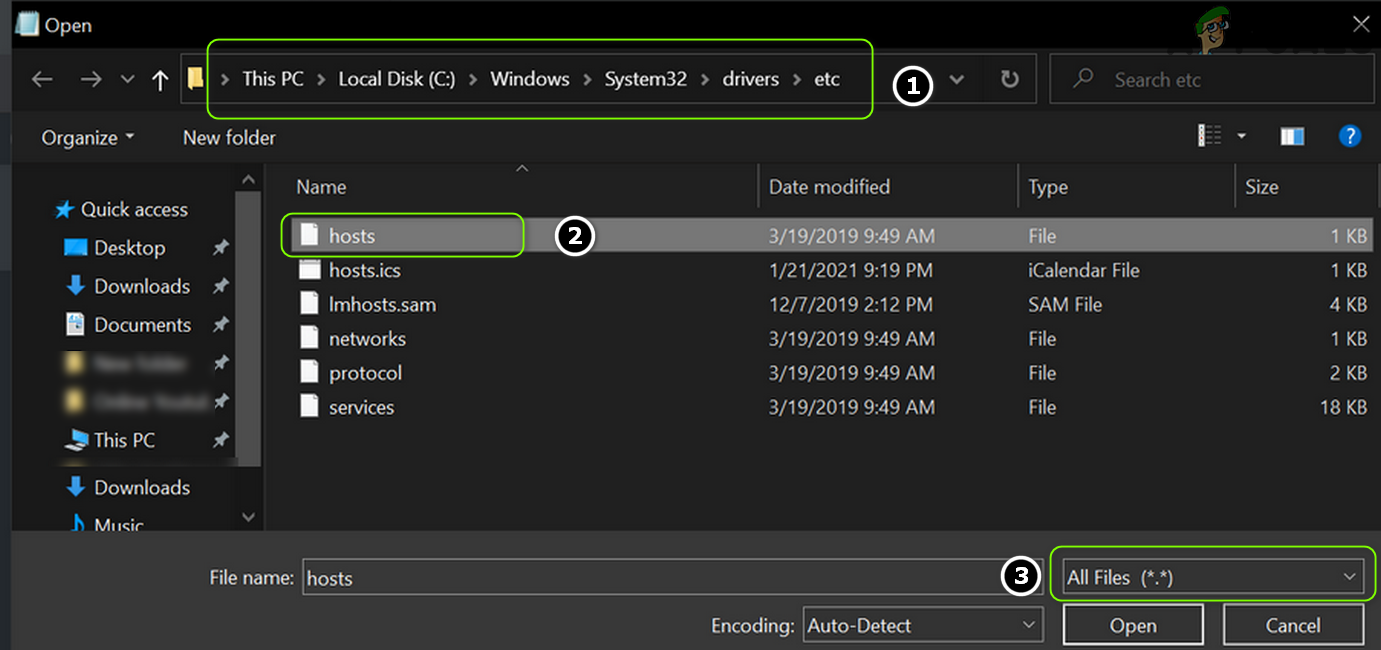
Open the Hosts File in the Notepad - Now expand the Edit menu and select Find.
- Then search for Minecraft (or Mojang) and delete all the entries related to it.
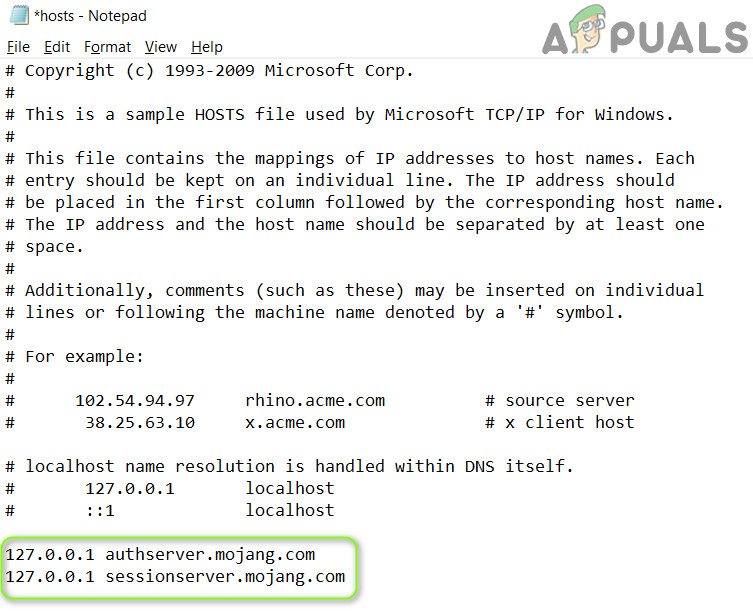
Delete Mojang Entries from the Hosts File - Now save the file and close it.
- Then open the Minecraft launcher and check if it is clear of the ‘failed to verify username’ issue.
Solution 2: Update the Minecraft Launcher and Java to their Latest Releases
You may encounter the failed to verify username issue in Minecraft if its launcher or the Java installation of your system is outdated. In this case, updating the launcher and the Java installation to their latest releases may solve the problem.
- Open the Minecraft launcher and near the username, click on the Options button.
- Then click on the Force Update button and let the update process complete (if it updates).
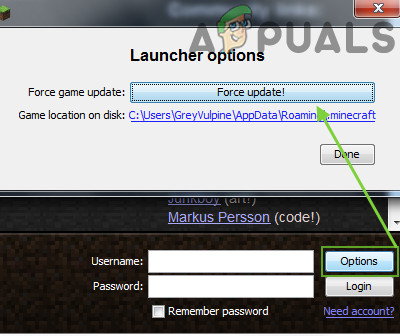
Force Update the Minecraft Launcher - Now reboot your PC and upon reboot, check if the username issue is resolved.
- If not, download the official Minecraft launcher and install it as an administrator (without removing the previous installation).
- Once installed, check if the username issue is resolved.
- If the issue persists, click Windows, type: Configure Java and launch Configure Java.
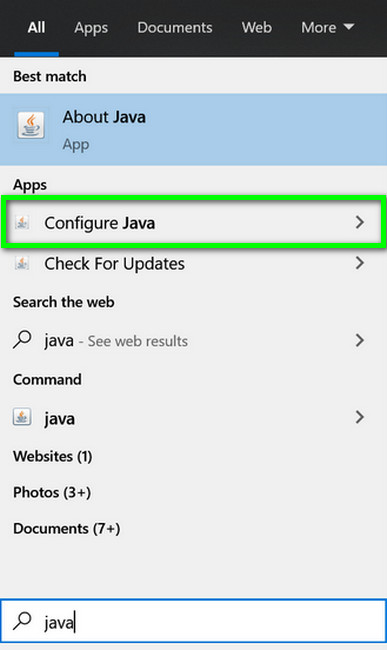
Open Configure Java - Now steer to the Update tab and click on the Update Now button (near the bottom corner of the window).
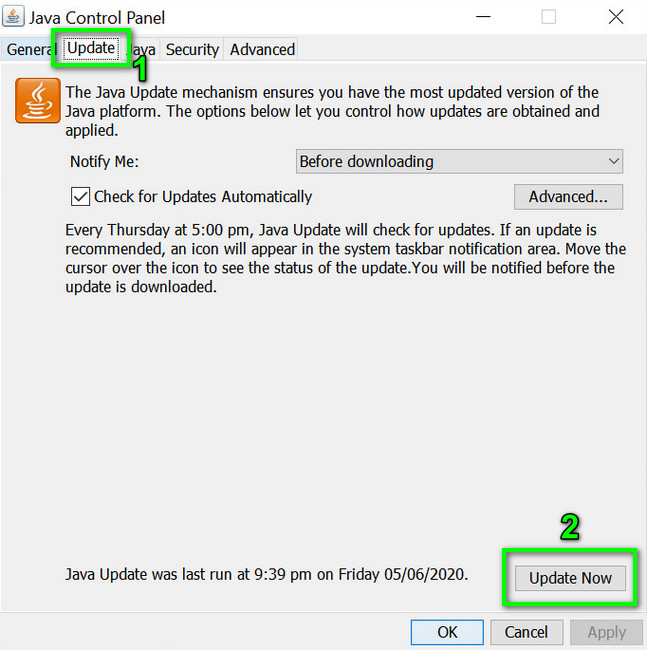
Click Update Java in the Update Tab - If an update is available, apply the Java update. Now repeat the same to the other versions of Java (if you have more than one installation of Java).
- After updating Java, check if the Minecraft is clear of the failed to verify username issue.
Solution 3: Create More Storage on the System Drive
The failed to verify username issue may emerge if the drive on which Minecraft is installed is nearly full (which may force the OS to prioritize different essential system operations over the Minecraft processes and thus cause the issue). In this scenario, deleting the temp/unnecessary files of the drive may solve the problem.
- Firstly, delete all the unnecessary files on the system drive (if its storage capacity is nearly full) and then perform a disk cleanup of the drive.
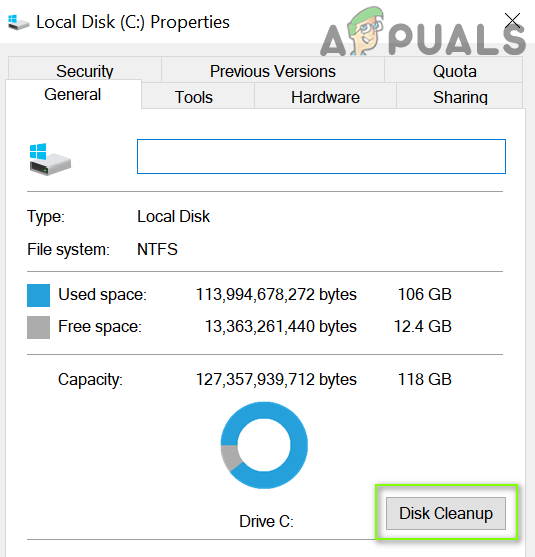
Click Disk Cleanup in the System Drive’s Properties - Now launch Minecraft and check if it is operating fine.
Solution 4: Log out and Log Back into the Minecraft Launcher
A temporary glitch between your Minecraft launcher and its server may cause the ‘failed to verify username’ issue. In this scenario, logging out and logging back into the launcher may solve the problem.
- Exit the Minecraft launcher (as well as any 3rd party launcher like Lunar client, if using) and make sure no process related to it is running in the Task Manager.
- Then open the Minecraft launcher and Quit Game (if applicable).
- Now click on the username (near the top right corner) and select Log out.
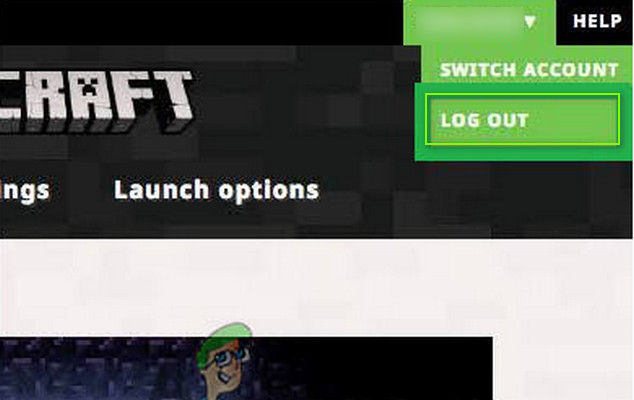
Log Out of the Minecraft Launcher - Then exit the Minecraft launcher and end the Minecraft-related processes in the Task Manager.
- Now launch a web browser and steer to the Minecraft website.
- Then log in using your Minecraft credentials and after that, open the Minecraft launcher.
- Now log in using your Minecraft credentials and check if the ‘failed to verify username’ issue is resolved. If so, then you may use the 3rd party launcher (if being used).
- If the issue persists, log out of the Minecraft (and any 3rd party client) and close any of the related processes in the Task Manager.
- Then launch a web browser and steer to the Minecraft website.
- Now click on Login and open the link of Forgot Password.
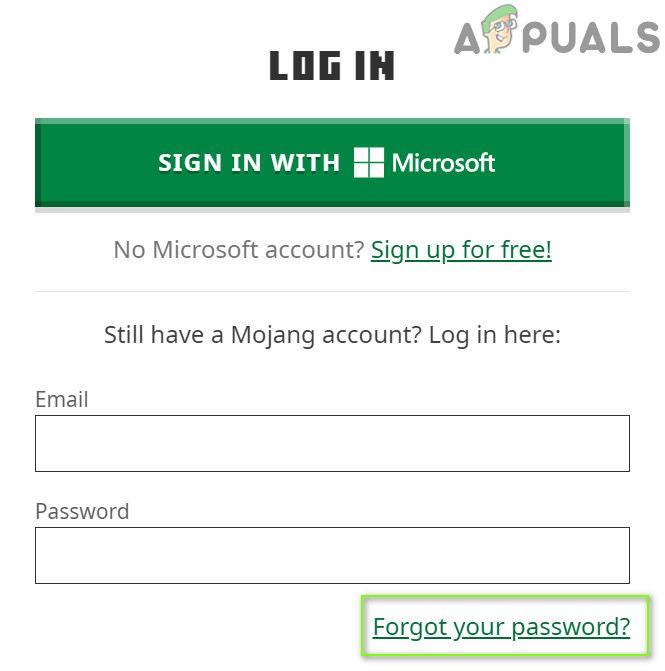
Click on the Forgot Your Password Link on the Mojang Website - Then, enter your email (registered with Minecraft) and click on Request Password Reset.
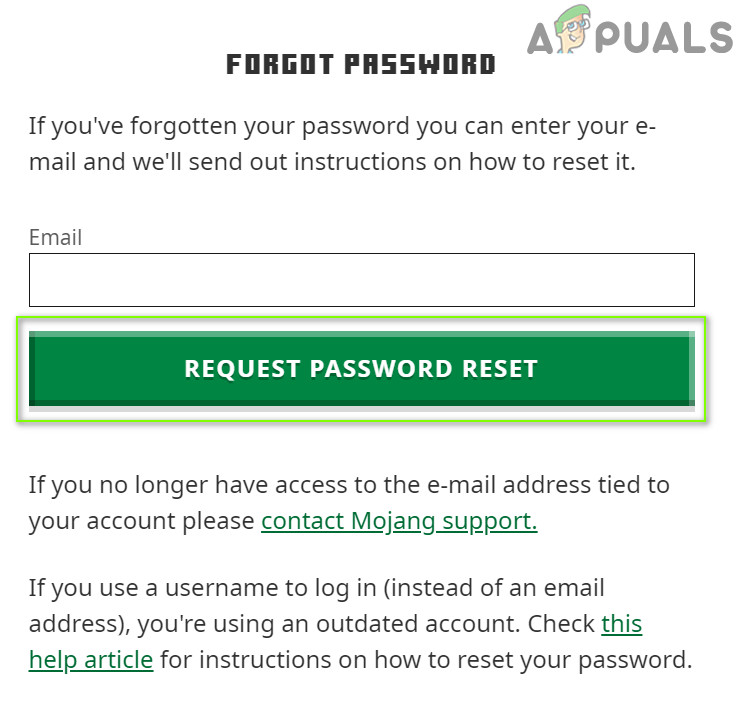
Request Password Reset on the Minecraft Website - Now follow the instructions in the email to reset your password and once the password reset is completed, open the Minecraft launcher.
- Then log in using your credentials and check if the username issue is resolved.
If the issue persists, then check if your username has space at the end (login to the Minecraft website, double-click on your user’s name, and check if space is highlighted with the name), if so, then you may have to contact the Minecraft support to remove the trailing space.
Solution 5: Allow the Connection to Minecraft in the Antivirus/Firewall Settings
You may fail to verify the username in Minecraft if the antivirus/firewall of your system (Kaspersky is reported to cause the issue at hand) is blocking access to a resource essential for the operation of Minecraft. In this context, allowing the Minecraft connection in the antivirus/Firewall settings may solve the problem. Before proceeding, check if you can access the Minecraft Session Server (a white page means it is OK).
Warning: Advance with extreme caution and at your own risk as editing the antivirus/Firewall settings is a proficient task and if not done properly, you may expose your system/data to threats.
- Temporarily disable antivirus and Firewall of your system.
- Then check if the username issue is resolved.
Add Minecraft to Trusted Applications of the Firewall
If the issue was resolved after temporarily disabling the antivirus/firewall, then you may add Minecraft in the trusted applications of the antivirus/firewall to allow the connection to Minecraft. For elucidation, we will go through the process for Kaspersky.
- Launch Kaspersky and open its settings.
- Now, in the left pane, steer to the Additional tab, and in the right pane, open Threats and Exclusions.
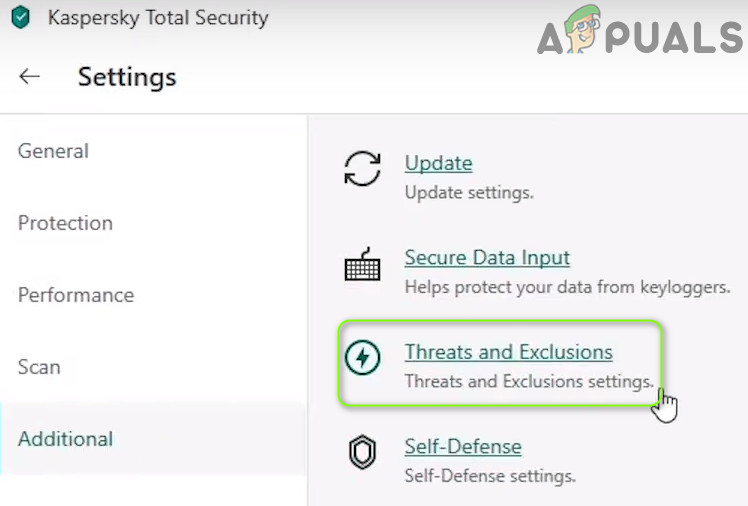
Open Threats and Exclusions in the Kaspersky Settings - Then click on Specify Trusted Applications (in the Exclusions section) and click on Add.
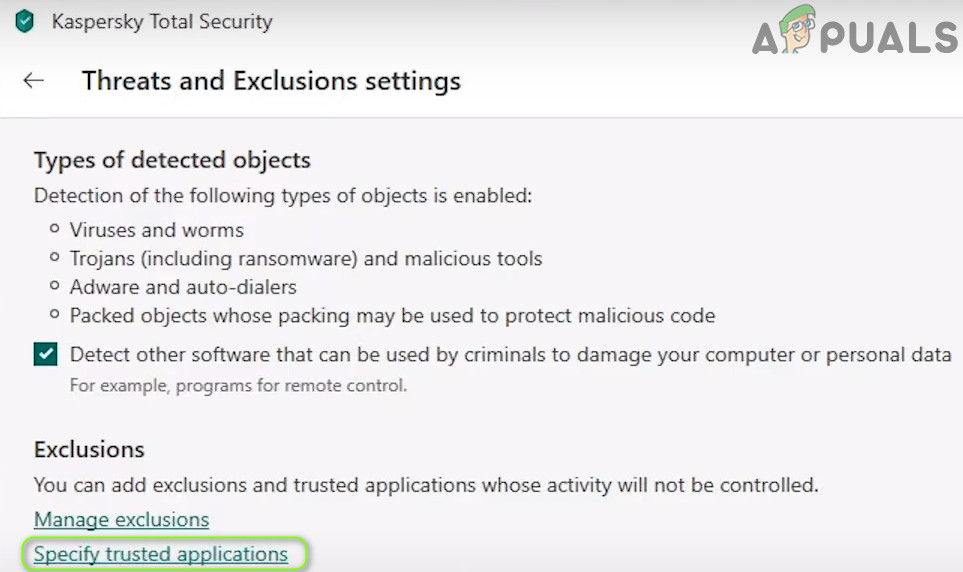
Open Specify Trusted Applications in Threats and Exclusions Settings of Kaspersky - Now select Minecraft in the applications’ list or click on Browse and select Minecraft (i.e., Minecraft.exe) in its installation directory.
- Then checkmark all the options (e.g., Do Not Scan Files Before Opening, etc.) and click on Add.
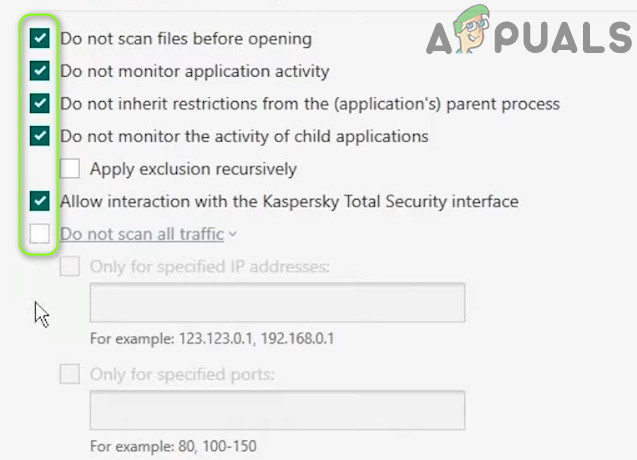
Enable All the Exclusions of the Application in Kaspersky - Now save your changes and repeat the same for the following applications (if applicable):
- java.web start launcher
- MinecraftServer.exe
- Java (TM) Platform SE binary (usually located at, c:program filesjavajre7binjavaw.exe)
- Any other Java installation
- Then open the Minecraft launcher and check if it is clear of the verification issue.
Allow the Inbound / Outbound Connection
If the issue persists, you may have to create the inbound/outbound rules to allow the connection to the server. For illustration, we will discuss the process for the Windows Defender Firewall.
- Click Windows, type: Firewall, and select Windows Defender Firewall with Advanced Security.
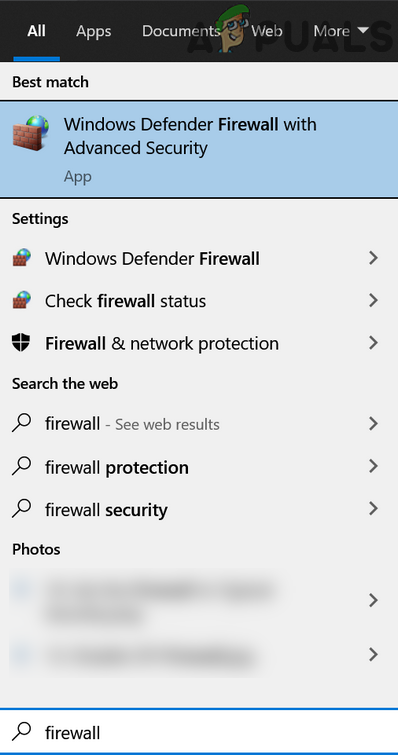
Open Windows Defender Firewall - Now make sure no inbound and outbound rule is blocking access to Minecraft (or your local server) and is set to Allow the Connection.
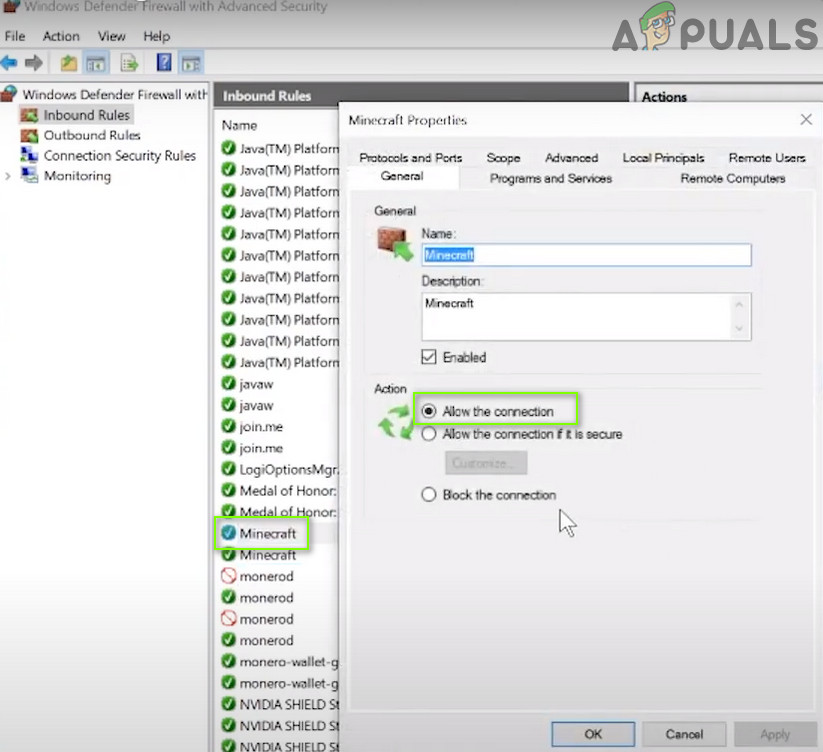
Allow the Minecraft Connection Through the Windows Defender Firewall - Then, in the Inbound tab, click on New Rule and select Program.
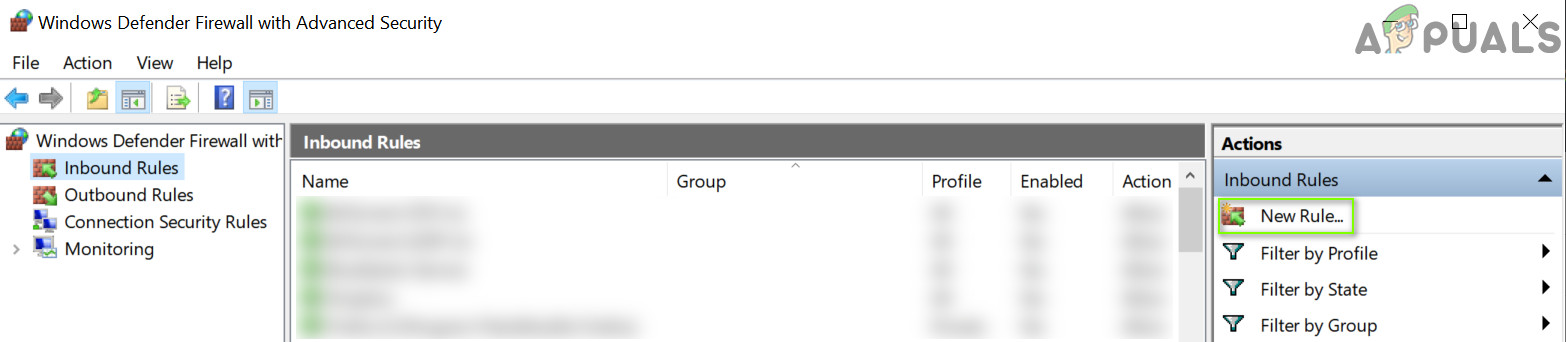
Create a New Inbound Rule - Now, click on Browse (in front of This Program Path) and steer to the installation directory of Minecraft.
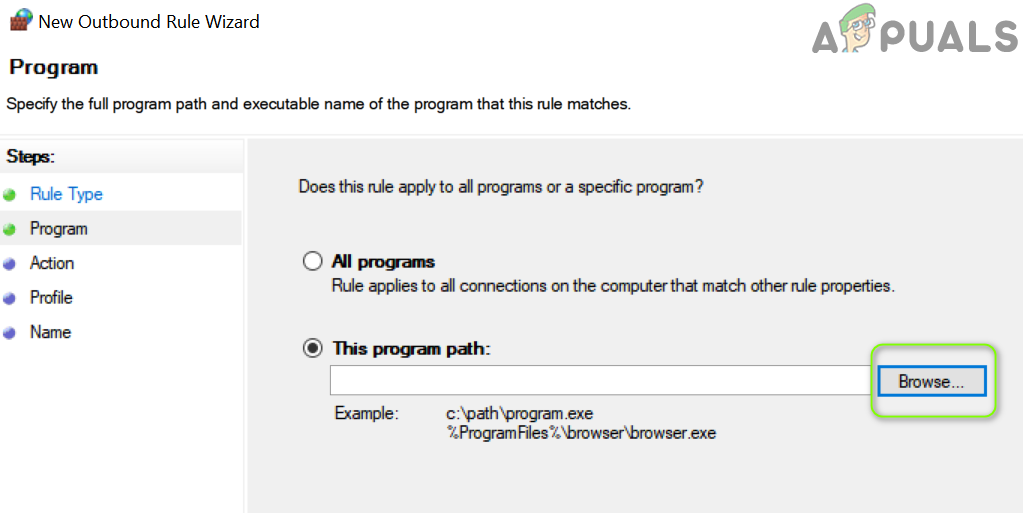
Open Browse and Steer to The Installation Directory of Minecraft - Then double-click on Minecraft.exe and click on Next.
- Now select Allow the Connection and choose all the three profiles (i.e., Domain, Private, and Public, etc.).
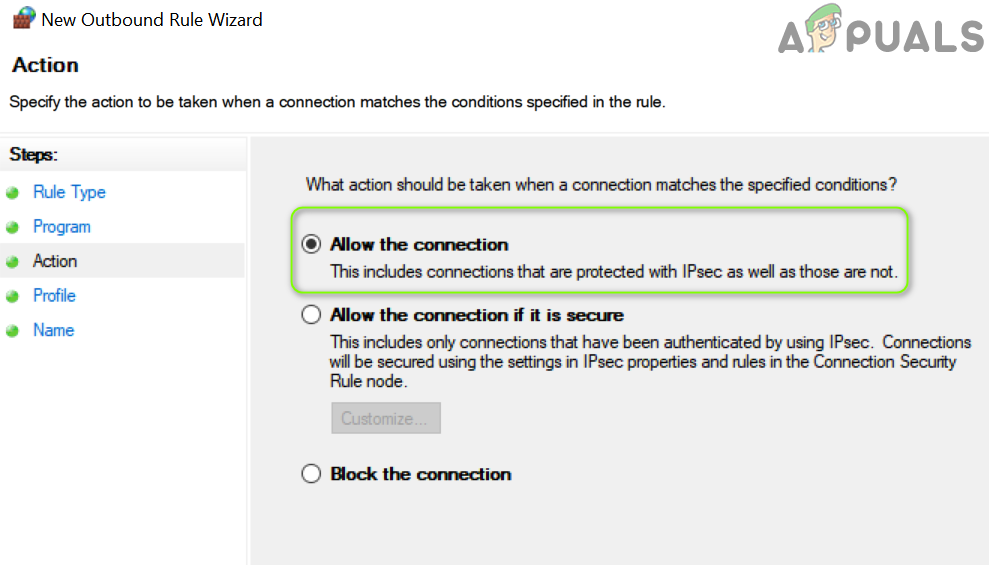
Select Allow The Connection in New Rule Window - Then name the rule as per your easiness and click on Next.
- Now repeat the same for the Minecraft server and Java installation.
- Then repeat the same steps to create the outbound rules for Minecraft.
- Now reboot your PC and check if the username issue is resolved.
If that did not do the trick, then make sure the required ports are properly forwarded in the (system and router) firewall. Also, it will be a good idea to check if the parental filters are not blocking the Minecraft connection and thus causing the issue.
Solution 6: Disable/Remove the Conflicting Applications
You may encounter the failed to verify username issue if the conflicting applications (Hamachi server and Relevant Knowledge are reported to create the issue) are hindering the operation of Minecraft. In this context, disabling/removing the conflicting applications may solve the problem.
- Clean boot your PC (do not disable Minecraft-related processes/services) and check if you can log in to Minecraft.
- If so, then enable the processes/services one by one till the problematic one is found.
- Once found, either disable that process/service at the system startup or completely remove it (if not essential).
Hamachi server and Relevant Knowledge are reported to cause the issue at hand. If you have Hamachi, then disable/enable it when using Minecraft (or uninstall it), whereas, it will be better to uninstall Relevant Knowledge in Apps & Features.
Solution 7: Change the Server Mode to Offline
If none of the solutions so far did the trick for you (and you are using a custom Minecraft server), then changing the server mode to offline may solve the problem. But before proceeding, make sure the server application (e.g., Craftbukkit) is updated to its latest version. Also, if a whitelist is active on the server, then check if whitelisting (or pardoning yourself) solves the problem.
Warning: Proceed at your own risk as setting the server mode as offline may expose your server to hacked accounts and hacking attempts. Also, switching into the offline mode may reset everyone’s progress to defaults.
- Firstly, make sure to stop the Minecraft server (execute “/stop” in the server console) and then completely exit it.
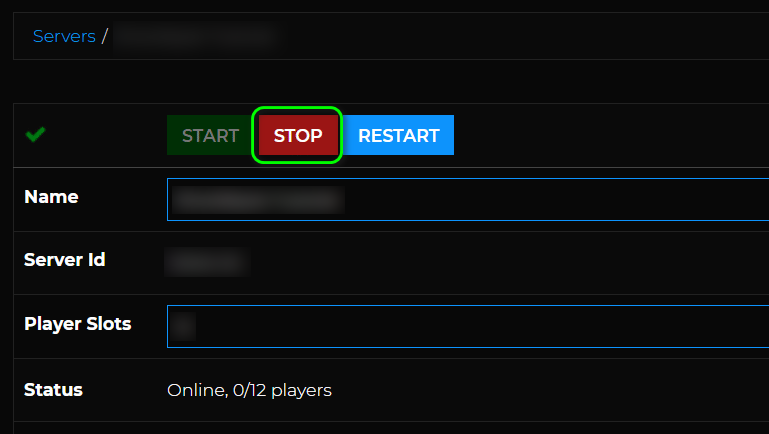
Stop the Minecraft Server - Then right-click Windows and open File Explorer.
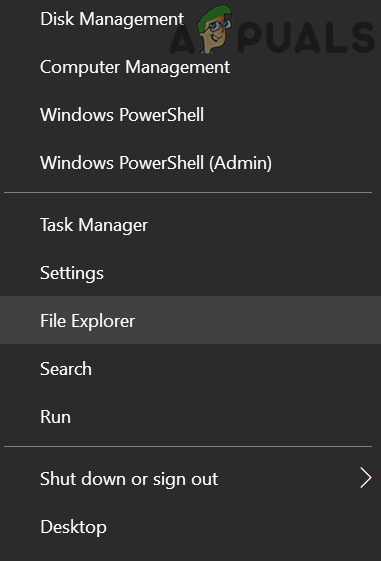
Open the File Explorer - Now navigate to the installation directory of the server (the folder where the Server.jar file is located), usually, Documents/Minecraft.
- Then right-click on Server.Properties file and select Open With>> Notepad.
- Now expand Edit and click Find.
- Then search for online-mode and change its value to false (so it looks like online-mode=false).
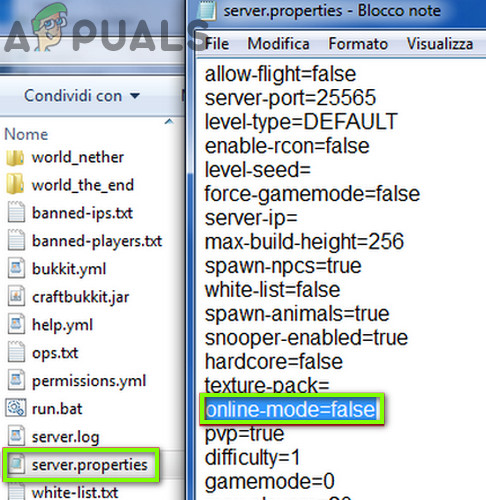
Set Online-Mode to False in Server.Properties of Minecraft - Now save your changes and launch/start the server to check if it is clear of the failed to verify username issue. If so, then you may set up a whitelist on the server (to avoid security concerns).
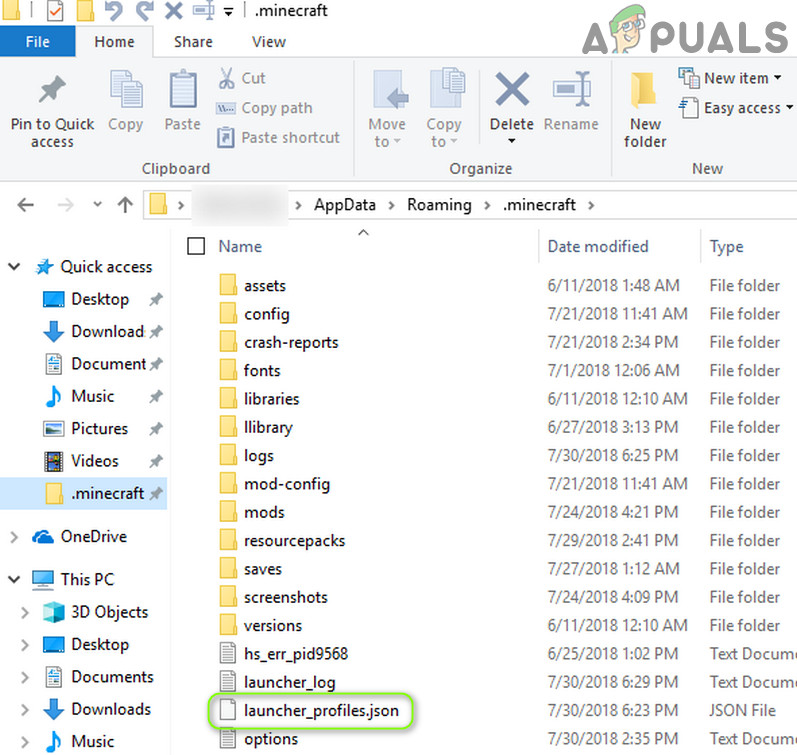
If the issue persists, then check if disabling IPv6 (or setting the IPv4 in the startup batch of your server) on all the network adapters resolves the issue. If the issue persists and you are using a Lunar client, then setting the “displayName” in the launcher_profiles.json (open with Notepad) in the Lunar folder of %appdata% directory file to your username resolves the issue. If not, check if deleting the mentioned launcher_profiles.json resolves the issue.
-
У меня стоит своя система скинов и т.п.
И вообщем недавно некоторые игроки стали жаловаться что у ник пишет при заходе не сервер «Failed to verify username» , а потом и у меня самого.
Вырубил все плагины и сменил карту, дело точно не в них.
Потом поставил чистый(не модифицированный под мой ссылки) craftbukkit R2.0 и поставил onlinemode=false
Все зашли, Изменил в нем ссылки(ссылки все проверены и работают) на checkserver и поставил onlinemode=true, опять пишет «Failed to verify username».
Я попробовал запустить сервер(модифицированный) с компа с онлайнмод=тру — все работает отлично и в логах все норм.
А вот в логе сервера, который на хостинге вот такое чудо:2012-07-30 23:05:01 [SEVERE] java.lang.ClassFormatError: Unknown constant tag 117 in class file net/minecraft/server/ThreadLoginVerifier
2012-07-30 23:05:01 [SEVERE]at java.lang.ClassLoader.defineClass1(Native Method)
2012-07-30 23:05:01 [SEVERE]at java.lang.ClassLoader.defineClass(ClassLoader.java:787)
2012-07-30 23:05:01 [SEVERE]at java.security.SecureClassLoader.defineClass(SecureClassLoader.java:142)
2012-07-30 23:05:01 [SEVERE]at java.net.URLClassLoader.defineClass(URLClassLoader.java:447)
2012-07-30 23:05:01 [SEVERE]at java.net.URLClassLoader.access$100(URLClassLoader.java:71)
2012-07-30 23:05:01 [SEVERE]at java.net.URLClassLoader$1.run(URLClassLoader.java:361)
2012-07-30 23:05:01 [SEVERE]at java.net.URLClassLoader$1.run(URLClassLoader.java:355)
2012-07-30 23:05:01 [SEVERE]at java.security.AccessController.doPrivileged(Native Method)
2012-07-30 23:05:01 [SEVERE]at java.net.URLClassLoader.findClass(URLClassLoader.java:354)
2012-07-30 23:05:01 [SEVERE]at java.lang.ClassLoader.loadClass(ClassLoader.java:423)
2012-07-30 23:05:01 [SEVERE]at sun.misc.Launcher$AppClassLoader.loadClass(Launcher.java:308)
2012-07-30 23:05:01 [SEVERE]at java.lang.ClassLoader.loadClass(ClassLoader.java:356)
2012-07-30 23:05:01 [SEVERE]at net.minecraft.server.NetLoginHandler.a(NetLoginHandler.java:96)
2012-07-30 23:05:01 [SEVERE]at net.minecraft.server.Packet1Login.handle(SourceFile:68)
2012-07-30 23:05:01 [SEVERE]at net.minecraft.server.NetworkManager.b(NetworkManager.java:229)
2012-07-30 23:05:01 [SEVERE]at net.minecraft.server.NetLoginHandler.a(NetLoginHandler.java:48)
2012-07-30 23:05:01 [SEVERE]at net.minecraft.server.NetworkListenThread.a(NetworkListenThread.java:61)
2012-07-30 23:05:01 [SEVERE]at net.minecraft.server.MinecraftServer.w(MinecraftServer.java:567)
2012-07-30 23:05:01 [SEVERE]at net.minecraft.server.MinecraftServer.run(MinecraftServer.java:459)
2012-07-30 23:05:01 [SEVERE]at net.minecraft.server.ThreadServerApplication.run(SourceFile:492)
2012-07-30 23:05:01 [SEVERE] Unexpected exception
java.lang.ClassFormatError: Unknown constant tag 117 in class file net/minecraft/server/ThreadLoginVerifier
at java.lang.ClassLoader.defineClass1(Native Method)
at java.lang.ClassLoader.defineClass(ClassLoader.java:787)
at java.security.SecureClassLoader.defineClass(SecureClassLoader.java:142)
at java.net.URLClassLoader.defineClass(URLClassLoader.java:447)
at java.net.URLClassLoader.access$100(URLClassLoader.java:71)
at java.net.URLClassLoader$1.run(URLClassLoader.java:361)
at java.net.URLClassLoader$1.run(URLClassLoader.java:355)
at java.security.AccessController.doPrivileged(Native Method)
at java.net.URLClassLoader.findClass(URLClassLoader.java:354)
at java.lang.ClassLoader.loadClass(ClassLoader.java:423)
at sun.misc.Launcher$AppClassLoader.loadClass(Launcher.java:308)
at java.lang.ClassLoader.loadClass(ClassLoader.java:356)
at net.minecraft.server.NetLoginHandler.a(NetLoginHandler.java:96)
at net.minecraft.server.Packet1Login.handle(SourceFile:68)
at net.minecraft.server.NetworkManager.b(NetworkManager.java:229)
at net.minecraft.server.NetLoginHandler.a(NetLoginHandler.java:48)
at net.minecraft.server.NetworkListenThread.a(NetworkListenThread.java:61)
at net.minecraft.server.MinecraftServer.w(MinecraftServer.java:567)
at net.minecraft.server.MinecraftServer.run(MinecraftServer.java:459)
at net.minecraft.server.ThreadServerApplication.run(SourceFile:492)Помогите мне, кто поможет, кину денежку
Пользуюсь craftbukkit R2.0 -

Animator
Старожил
Пользователь- Баллы:
- 123
- Skype:
- andrey.koms
- Имя в Minecraft:
- ANIMA
:fp:
Ну при чем тут могут быть плагины? А уж тем более, карта?! :why: -

D_ART
Старожил
Девелопер
Пользователь- Баллы:
- 173
- Имя в Minecraft:
- Artarious
Скорее всего не правильно указана ссылка к скриптам. т.е нет user= на конце
-
Ну вдруг найдутся те, кто будет задавать пустые вопросы типа: А какие плагины стоят, отключи плагины и т.п.
-
Все указано, все ссылки проверены на работоспособность, а если бы была ошибка в них, то почему тогда с компа все нормально запускается и работает?
-
D_ART
Старожил
Девелопер
Пользователь- Баллы:
- 173
- Имя в Minecraft:
- Artarious
Ссылки изменены в клиенте и на сервере?
-
В папке meta-inf в архиве баккита переименуй удали файл bukkit.sf
(а туплю, удалять надо при такой ошибке)
-
Проблема решена.
Четвертый раз попытался поставить заново крафтбуккит, и всё получилось -

kirpitch99amk
Активный участник
Пользователь- Баллы:
- 63
- Имя в Minecraft:
- ParadoX
Здравствуй)
Расскажи пожалуйста по подробнее как у тебя получилось исправить эту ошибку
Что ты делал и в какой последовательности
Прошу, мне очень надо)
Отблагодарю лайком, плюсом или денежкой)
Срочно
Поделиться этой страницей
