
Если вы столкнулись с ошибкой ERR_SSL_VERSION_OR_CIPHER_MISMATCH, мы понимаем, в каком состоянии вы сейчас находитесь. Вы расстроены, Вам любопытно, и Вы немного злитесь. Когда клиенты стали спрашивать о сообщении ERR_SSL_VERSION_OR_CIPHER_MISMATCH, эксперты по SSL всерьез занялись этим вопросом и нашли некоторые решения.
Изучая анатомию этой ошибки, обнаружили, что устаревшее у Google и Mozilla шифрования RC4 вызывает данную ошибку. Итак, придумали четыре возможных решения, чтобы уничтожить ошибку из ваших систем. Прежде чем перейти к исправлениям, обратите внимание на следующие вещи:
- Если одно решение не работает, попробуйте следующее;
- Некоторые из этих решений не совсем безопасны, поскольку они предусматривают использование более старых, небезопасных протоколов.
Давайте начнем!
Решение 1. Включите все версии SSL / TLS
Примечание. Этот шаг включает старые, небезопасные протоколов. Если вас это не пугает, вы можете им воспользоваться на свой страх и риск.
- Открыть Chrome;
- Нажмите на три точки, которые вы видите в верхнем правом углу;
- Теперь перейдите в Настройки и найдите «прокси» в поле поиска;
- Вы должны увидеть опцию Open proxy settings, нажмите на нее;
- Перейдите на вкладку «Дополнительно»;
- Теперь отметьте все версии SSL и TLS;
- Нажмите кнопку «Применить»;
- Перезапустите Chrome.
Хоть мы предлагаем это, как возможное решение, мы не можем подчеркнуть, что это безопасно. Старые версии TLS и особенно SSL известны уязвимостями. На данный момент вы действительно не должны подключаться ни к чему, кроме TLS 1.2.
Решение 2. Отключите защиту Интернета в антивирусе / брандмауэре
Мы не можем дать вам пошаговые инструкции для этого, поскольку они будут отличаться для каждого антивируса / брандмауэра. Вероятно, Вы найдете то, что ищете на web-сайте поставщика. Как и в первом шаге, здесь также нужно включить все версии SSL и TLS.
Решение 3: Отключить протокол QUIC
- Поиск chrome: // flags / # enable-quic в адресной строке;
- Отключение по протоколу Experimental QUIC protocol;
- Перезапустите Chrome.
Решение 4. Очистите состояние SSL
- Откройте Chrome;
- Нажмите на три точки, которые вы видите в правом верхнем углу;
- Теперь нажмите «Настройки»;
- Теперь перейдите в Настройки и найдите «прокси» в поле поиска;
- Вы должны увидеть опцию Open proxy settings, нажмите на нее;
- Перейдите на вкладку «Содержимое»;
- Нажмите «Очистить состояние SSL»;
- Перезапустить Chrome.
Мы очень надеемся, что одно из этих четырех решений помогло вам устранить ошибку ERR_SSL_VERSION_OR_CIPHER_MISMATCH. Если нет, поделитесь своими проблемами вместе с проблемным URL-адресом, и мы постараемся Вам помочь.
При посещении сайтов на HTTPS между браузером и веб-сервером выполняется ряд действий по проверке сертификат и SSL / TLS-соединение. Они включают в себя рукопожатие TLS, проверку центра сертификации и расшифровку сертификата. Если браузер находит неподдерживаемую версию сертификата или неправильную конфигурацию, то он выведет ошибку «ERR SSL VERSION OR CIPHER MISMATCH». А также заблокирует доступ к сайту. В этой статье мы расскажем, как исправить эту ошибку.

- Причины возникновения ERR SSL VERSION OR CIPHER MISMATCH
- Проверьте свой SSL-сертификат
- Проверка на несоответствие имени сертификата
- Проверка старой версии TLS
- Проверка RC4 Cipher Suite
- Попробуйте очистить состояние SSL на компьютере
- Используйте новую операционную систему
- Временное отключение антивируса
Эта ошибка возникает в устаревших операционных системах или браузерах, но не всегда. Недавно один из наших клиентов столкнулся с ней на своем WordPress-сайте, который перенесли с другого хостинга. Мы работали с последней версией Chrome, поэтому проблема была в используемом SSL-сертификате. При этом браузер защищает своих пользователей, не позволяя им загружать сайт. Ниже приведены рекомендации по исправлению ошибки.

ERR SSL VERSION OR CIPHER MISMATCH
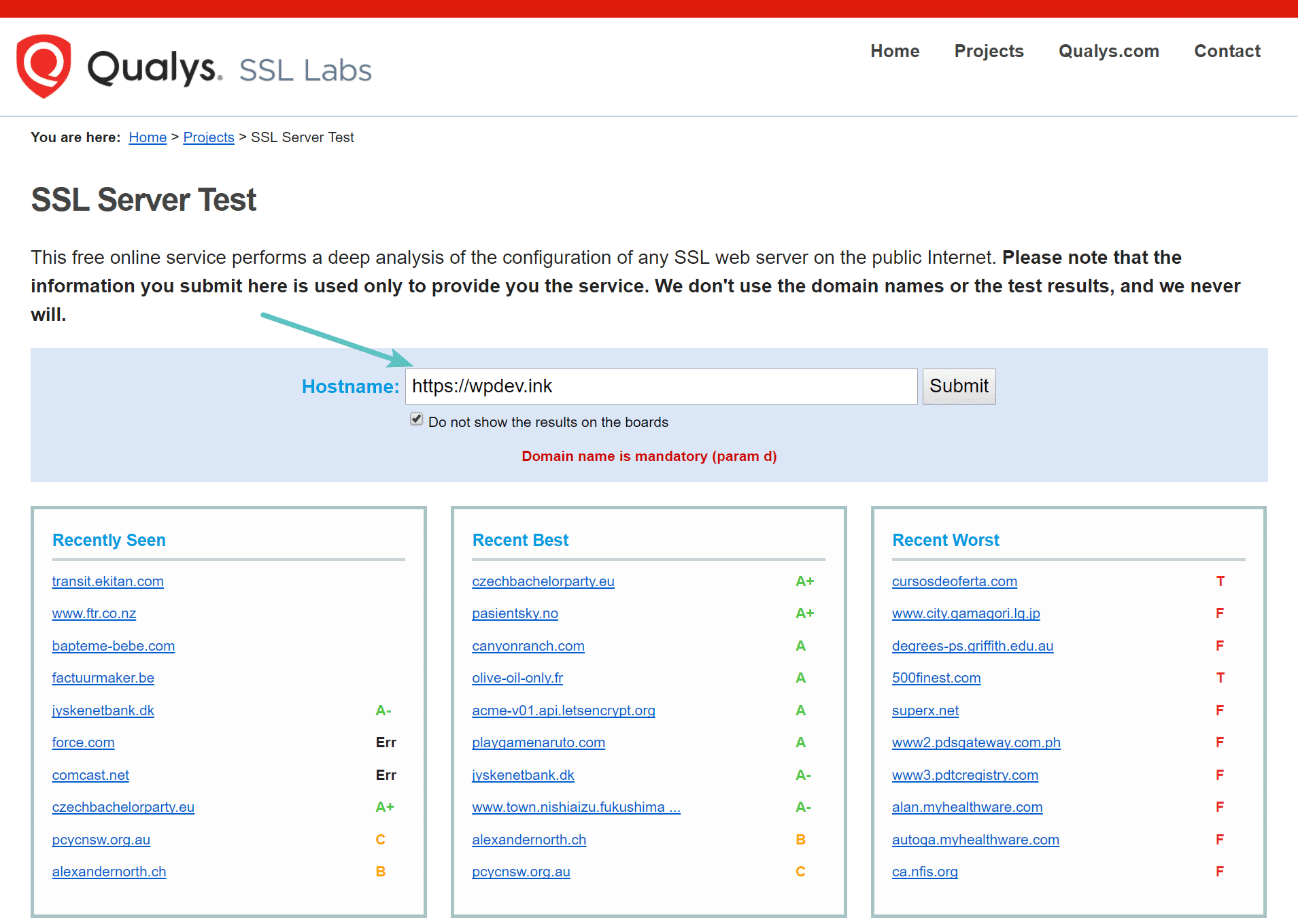
Проверьте SSL- сертификат, установленный на сайте. Мы рекомендуем использовать бесплатный инструмент проверки SSL от Qualys SSL Labs. Введите свой домен в поле Hostname и нажмите «Submit». Вы также можете скрыть результаты проведенной проверки.

Проверка SSL-сертификата
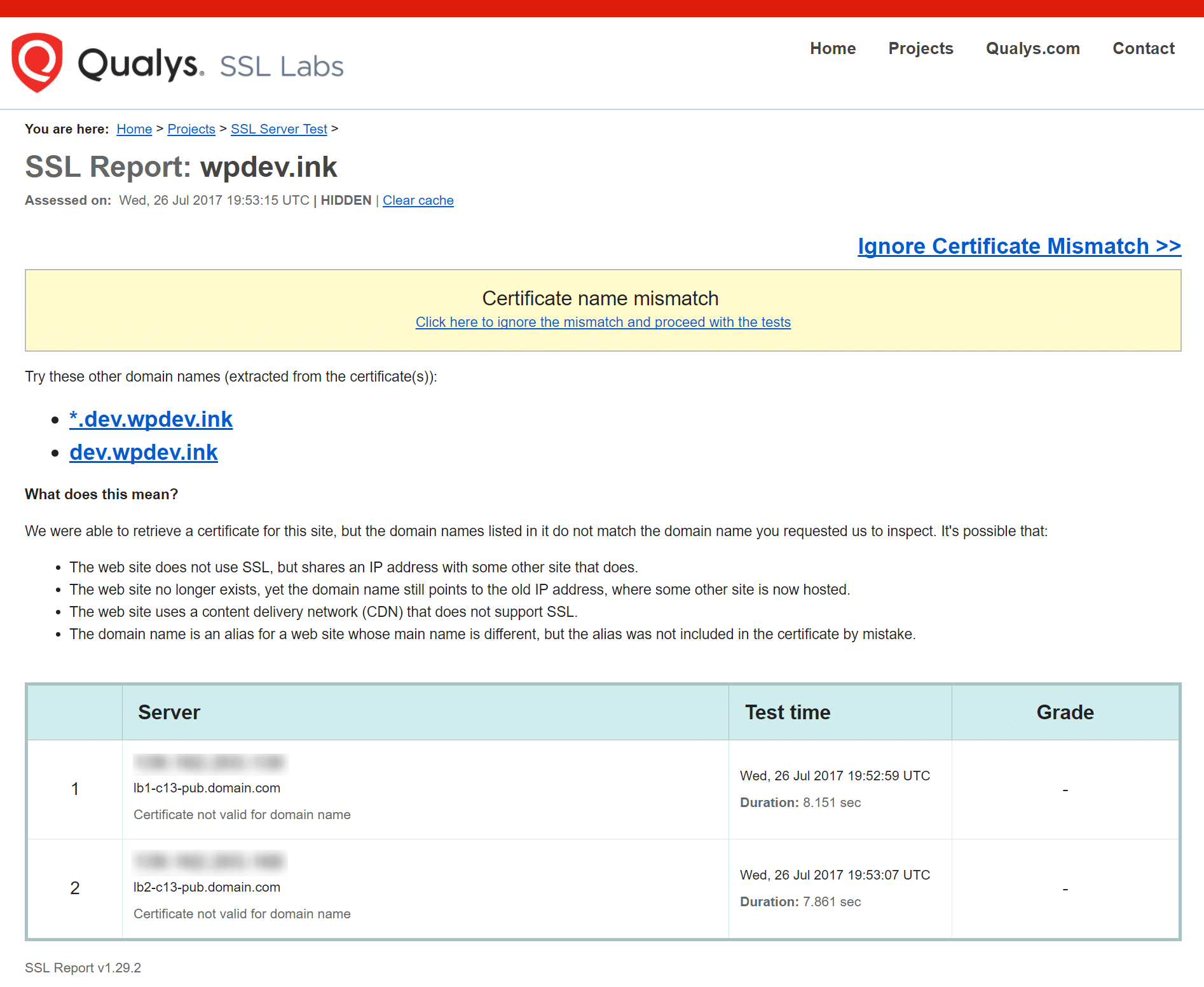
У упомянутого выше пользователя ошибка ERR SSL VERSION OR CIPHER MISMATCH возникала из-за несоответствия имени сертификата. Оно может быть вызвано несколькими причинами:
- Сайт не использует SSL, но при этом делит IP-адрес с другим сайтом, который использует SSL.
- Сайт больше не существует, но домен по-прежнему указывает на старый IP-адрес, на котором теперь размещается другой сайт.
- Сайт использует сеть доставки контента (CDN), которая не поддерживает SSL.
- Псевдоним доменного имени не был включен в сертификат.

Несоответствие имени сертификата
Также для проверки можно использовать Chrome DevTools. На открытой в браузере веб-странице сайта кликните правой кнопкой мыши и выберите пункт «Проверить». Затем зайдите на вкладку «Безопасность», пункт «Просмотреть сертификат». Используемый домен должен отображаться в информации о сертификате. Если нет, то в этом и кроется причина ошибки.
Но необходимо помнить, что существуют групповые сертификаты, а также некоторые другие варианты.

Проверка домена, на который выдан SSL-сертификат
Но в нашем случае ошибка ERR SSL VERSION OR CIPHER MISMATCH не позволила воспользоваться Chrome DevTools. В этой ситуации нам помог SSL Labs.
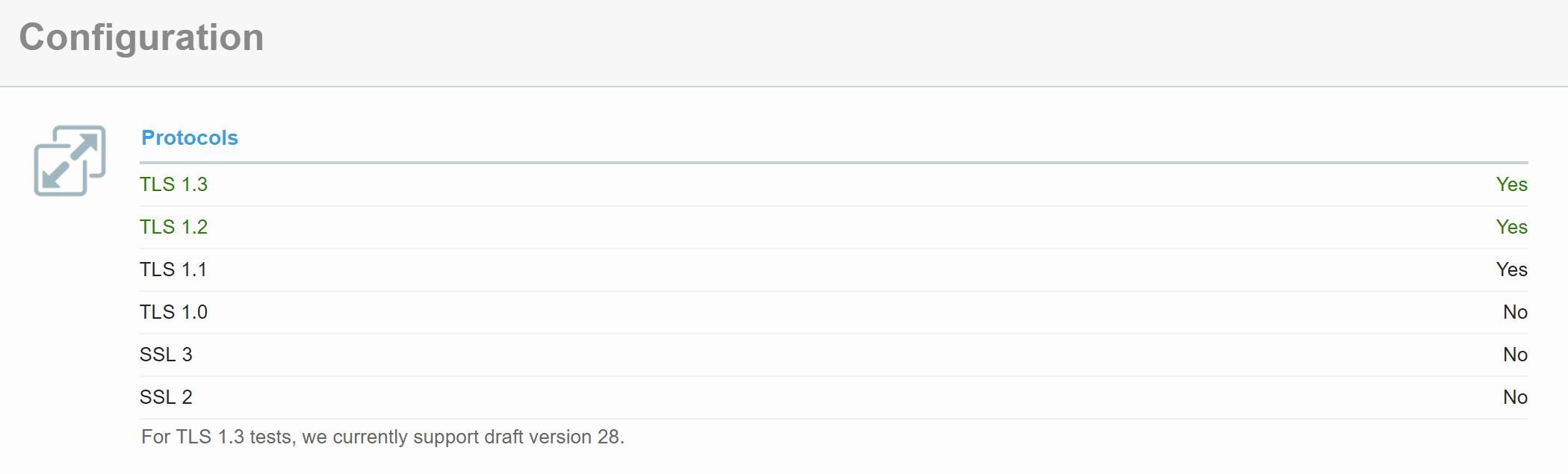
Причиной ошибки также может быть устаревшая версия TLS, используемая на сервере. Для применения SSL Labs сервер должен использовать TLS версии не ниже 1.2.
При настройке он покажет вам текущую версию TLS, работающую на сервере. Если она устарела, обратитесь в службу поддержки хостинга и попросите обновить версию TLS.

Проверка TLS 1.2
TLS 1.3 пока не является официальной версией транспортного протокола. Но можно активировать ее поддержку Google Chrome. Для этого скопируйте и вставьте следующее значение в адресную строку браузера:
chrome://flags/#ssl-version-max
Затем измените версию TLS, используемую по умолчанию, на TLS 1.3.

Новейшая версия TLS в браузере Google Chrome
Также ошибка ERR SSL VERSION OR CIPHER MISMATCH может быть вызвана удалением RC4 Cipher Suite из Chrome версии 48. Она возникает при разворачивании крупных корпоративных сайтов, требующих RC4. Почему? Потому что для обновления сложных конфигураций требуется больше времени.
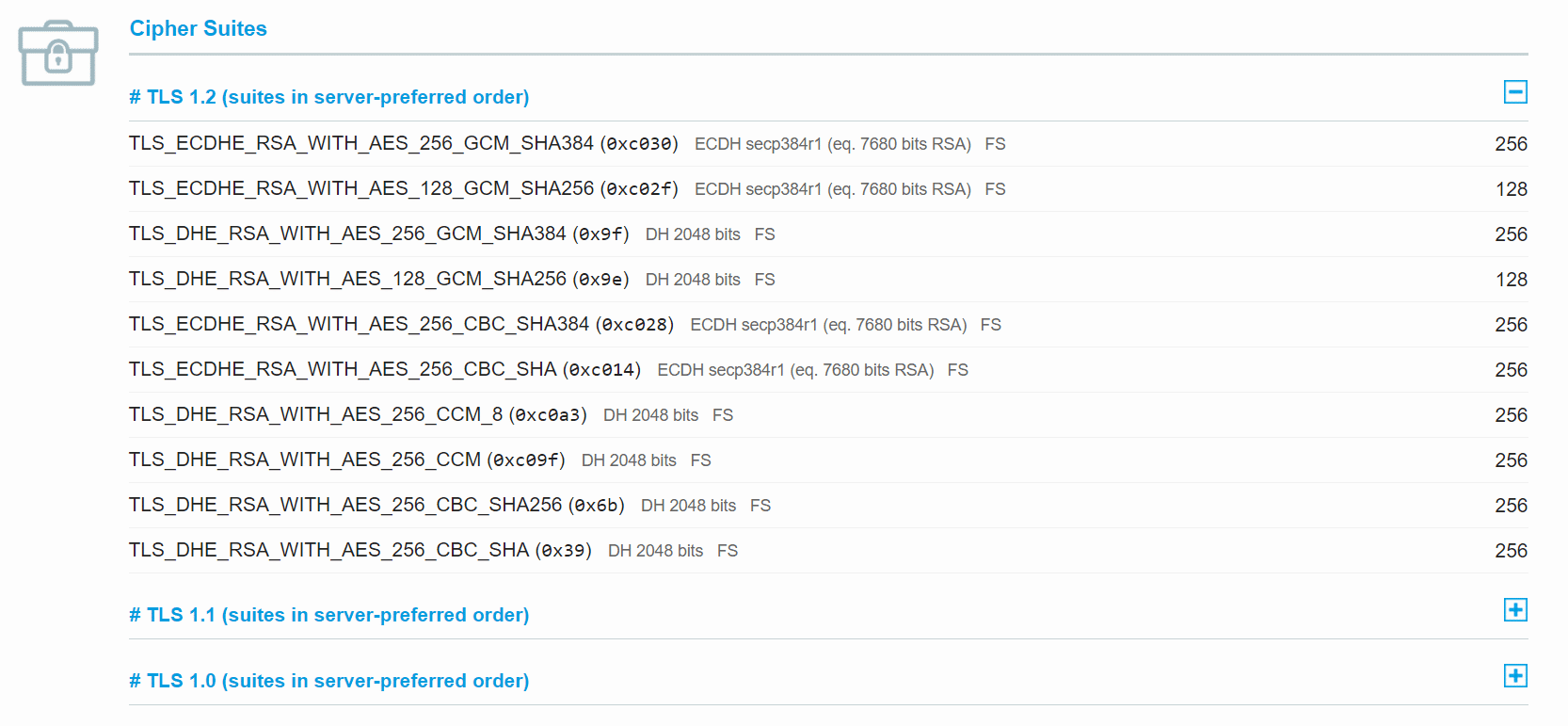
Исследования безопасности Google и Microsoft показывают, что рекомендуется отключить RC4. Поэтому убедитесь, что конфигурация сервера использует другой набор шифров. Просмотреть текущий набор шифров можно с помощью SSL Labs.

Набор шифров
Еще один вариант — очистить состояние SSL в браузере Google Chrome. Для этого выполните следующие действия.
- Нажмите на иконку настроек в Google Chrome и выберите пункт «Настройки».
- Кликните по ссылке «Показать дополнительные настройки».
- В разделе «Сеть» нажмите кнопку «Изменить параметры прокси». После этого откроется диалоговое окно «Свойства: Интернет».
- Перейдите на вкладку «Содержимое».
- Нажмите кнопку «Очистить SSL», а затем нажмите кнопку «ОК».
- Перезапустите браузер Google Chrome.

Очистка состояния SSL в Chrome на Windows
Многие операционные системы устарели из-за появления новых, и браузеры постепенно перестают их поддерживать. Google Chrome прекратил поддержку Windows XP еще в 2015 году. Мы рекомендуем обновлять операционные системы до новейших версий, если это возможно.
При возникновении ошибки ERR SSL VERSION OR CIPHER MISMATCH, убедитесь в том, что антивирусник отключен. Некоторые антивирусные программы создают «изоляционный слой» между браузером и сетью со своими собственными сертификатами. Иногда это может вызывать проблемы.
- Products
- SSL/TLS
- Troubleshooting
- ERR_SSL_VERSION_OR_CIPHER_MISMATCH
ERR_SSL_VERSION_OR_CIPHER_MISMATCH
After you add a new domain to Cloudflare, your visitors’ browsers might display ERR_SSL_VERSION_OR_CIPHER_MISMATCH (Chrome) or SSL_ERROR_NO_CYPHER_OVERLAP (Firefox) errors.
This error occurs when your domain or subdomain is not covered by an SSL/TLS certificate, which is usually caused by:
- A delay in certificate activation.
- An unproxied domain or subdomain DNS record.
- An expired Custom certificate.
- A multi-level subdomain (
test.dev.example.com).
Decision tree
Certificate activation
For domains on a full setup1, your domain should automatically receive its Universal SSL certificate within 15 minutes to 24 hours of domain activation2.
This certificate will cover your zone apex (example.com) and all first-level subdomains (subdomain.example.com), as long as your domain or subdomains have proxied DNS records within Cloudflare DNS.
-
The most common Cloudflare setup that involves changing your authoritative nameservers. ↩︎
-
Provisioning time depends on certain security checks and other requirements mandated by Certificate Authorities (CA). ↩︎
Potential issues
If your visitors experience ERR_SSL_VERSION_OR_CIPHER_MISMATCH (Chrome) or SSL_ERROR_NO_CYPHER_OVERLAP (Firefox), check the status of your Universal certificate:
- Log into the Cloudflare dashboard.
- Choose your account and domain.
- Go to SSL > Edge Certificates.
- Find the certificate with the Type of Universal.
- Make sure the Status is Active.
If the Status is anything other than Active, you can either wait a bit longer for certificate activation or take immediate action.
Solutions
If you need to immediately resolve this error, temporarily pause Cloudflare.
Since Universal certificates can take up to 24 hours to be issued, wait and monitor the certificate’s status. Once your certificate becomes Active, unpause Cloudflare using whichever method you used previously.
If your certificate is still not Active after 24 hours, try the various troubleshooting steps used to resolve timeout issues. If these methods are successful (and your certificate becomes Active), unpause Cloudflare using whichever method you used previously.
Proxied DNS records
Cloudflare Universal and Advanced certificates only cover the domains and subdomains you have proxied through Cloudflare.
If the Proxy status of A, AAAA, or CNAME records for a hostname are DNS-only, you will need to change it to Proxied.

Certificate expiration
If you have a Custom certificate and visitors experience ERR_SSL_VERSION_OR_CIPHER_MISMATCH (Chrome) or SSL_ERROR_NO_CYPHER_OVERLAP (Firefox), check its status to make sure it is not expired.
If it is expired, upload a replacement certificate.
Multi-level subdomains
By default, Cloudflare Universal SSL certificates only cover your root domain and one level of subdomain.
| Hostname | Covered by Universal certificate? |
|---|---|
example.com |
Yes |
www.example.com |
Yes |
docs.example.com |
Yes |
dev.docs.example.com |
No |
test.dev.api.example.com |
No |
This means that you might experience ERR_SSL_VERSION_OR_CIPHER_MISMATCH (Chrome) or SSL_ERROR_NO_CYPHER_OVERLAP (Firefox) on multi-level subdomains.
To prevent insecure connections on a multi-level subdomain, do one of the following:
- Enable Total TLS, which automatically issues individual certificates to your proxied hostnames not covered by a Universal certificate.
- Order an Advanced Certificate covering the subdomain.
- Upload a Custom Certificate covering the subdomain.
If none of these solutions work, you could also remove the multi-level subdomain.
When you visit a website running over HTTPS a series of steps are performed between the browser and the web server to ensure the certificate and SSL/TLS connection is valid.
Some of these include the TLS handshake, the certificate being checked against the certificate authority, and decryption of the certificate.
What Is the ERR_SSL_VERSION_OR_CIPHER_MISMATCH Error?
If for some reason the browser doesn’t like what it sees, such as a misconfiguration or unsupported version, your browser might display the following error: “ERR_SSL_VERSION_OR_CIPHER_MISMATCH” which prevents you from accessing the site.
Check out a few recommendations on how to fix this error.
What Causes the ERR_SSL_VERSION_OR_CIPHER_MISMATCH Error?
The ERR_SSL_VERSION_OR_CIPHER_MISMATCH error typically happens on older operating systems or browsers.
But that is not always the case. In fact, we just recently encountered a user having this issue on their WordPress site who was migrating to Kinsta from another host. We were, of course, running the latest version of Chrome, so the issue was with their SSL certificate. Chrome is actually protecting you by not letting you load it.
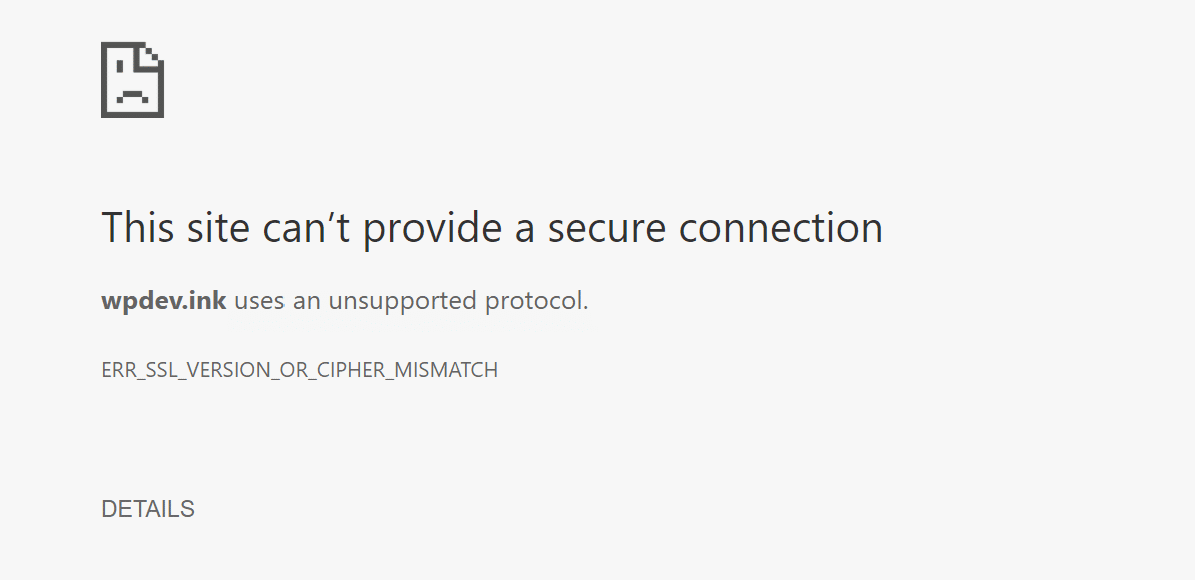
You might also see a variation of the error, such as:
- Error 113 (net::err_ssl_version_or_cipher_mismatch): unknown error
- The client and server don’t support a common SSL protocol version or cipher suite
Check out reasons below on why this happens and what you can do about it.
- Check Your SSL Certificate
- Check for Certificate Name Mismatch
- Check for Old TLS version
- Check RC4 Cipher Suite
- Clear SSL State In Chrome
- Use a New Operating System
- Temporary Disable Antivirus
Check Your SSL Certificate
If you see this error, the first and easiest place to start is to perform an SSL check on the certificate that is installed on the site. We recommend using the free SSL check tool from Qualys SSL Labs. It is very reliable and we use it for all Kinsta clients when verifying certificates. Simply input your domain into the Hostname field and click on “Submit.”
Check Out Our Video Guide to Fixing SSL Errors
You can also select the option to hide public results if you prefer. It could take a minute or two to scan your site’s SSL/TLS configuration on your web server.
Check for Certificate Name Mismatch
In this particular instance, the customer migrating to Kinsta had a certificate name mismatch which was throwing up the ERR_SSL_VERSION_OR_CIPHER_MISMATCH error. As you can see from the SSL Labs test below, this is pretty quick and easy to diagnose. As SSL Labs states, a mismatch can be a number of things such as:
- The site does not use SSL, but shares an IP address with some other site that does.
- The site no longer exists, yet the domain still points to the old IP address, where some other site is now hosted.
- The site uses a content delivery network (CDN) that doesn’t support SSL.
- The domain name alias is for a website whose name is different, but the alias was not included in the certificate.
Another easy way to check the current domain name issue on the certificate is to open up Chrome DevTools on the site. Right-click anywhere on the website and click on “Inspect.” Then click on the security tab and click on “View certificate.” The issued domain will show in the certificate information. If this doesn’t match the current site you’re on, this is a problem.
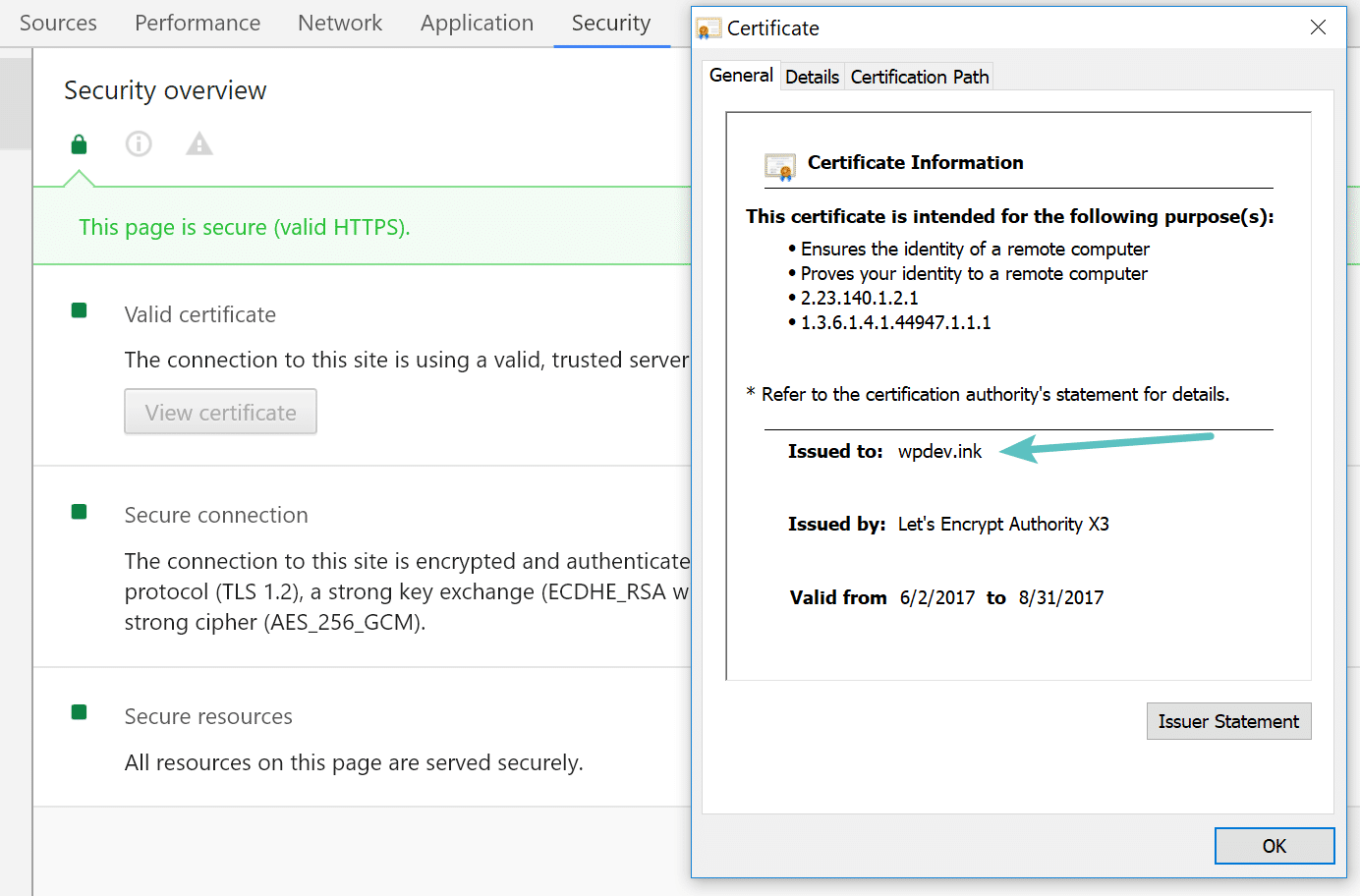
Remember though, there are wildcard certificates and other variations, but for a typical site, it should match exactly. However, in our case, the ERR_SSL_VERSION_OR_CIPHER_MISMATCH error actually prevented us from being able to check it in Chrome DevTools. That is where a tool like SSL Labs can come in handy.
Check for Old TLS version
Another possible reason is that the TLS version running on the web server is old. Ideally, it should be running at least TLS 1.2 (better yet, TLS 1.3). If you are a Kinsta customer you never have to worry about this as we always upgrade our servers to the latest and greatest supported versions. Kinsta supports TLS 1.3 on all of our servers and our Kinsta CDN. Cloudflare also enables TLS 1.3 by default.
(Suggested reading: if you’re using legacy TLS versions, you might want to fix ERR_SSL_OBSOLETE_VERSION Notifications in Chrome).
This is something the SSL Labs tool can also help with. Under configuration, it will show you the current version of TLS running on the server with that certificate. If it is old, reach out to your host and ask them to update their TLS version.
Check RC4 Cipher Suite
Another reason according to Google’s documentation for ERR_SSL_VERSION_OR_CIPHER_MISMATCH is that the RC4 cipher suite was removed in Chrome version 48. This is not very common, but it could happen in say larger enterprise deployments that require RC4. Why? Because everything usually takes longer to upgrade and update in bigger and more complex configurations.
Security researchers, Google, and Microsoft recommend that RC4 be disabled. So you should make sure the server configuration is enabled with a different cipher suite. You can view the current cipher suite in the SSL Labs tool (as seen below).
Clear the SSL State In Chrome
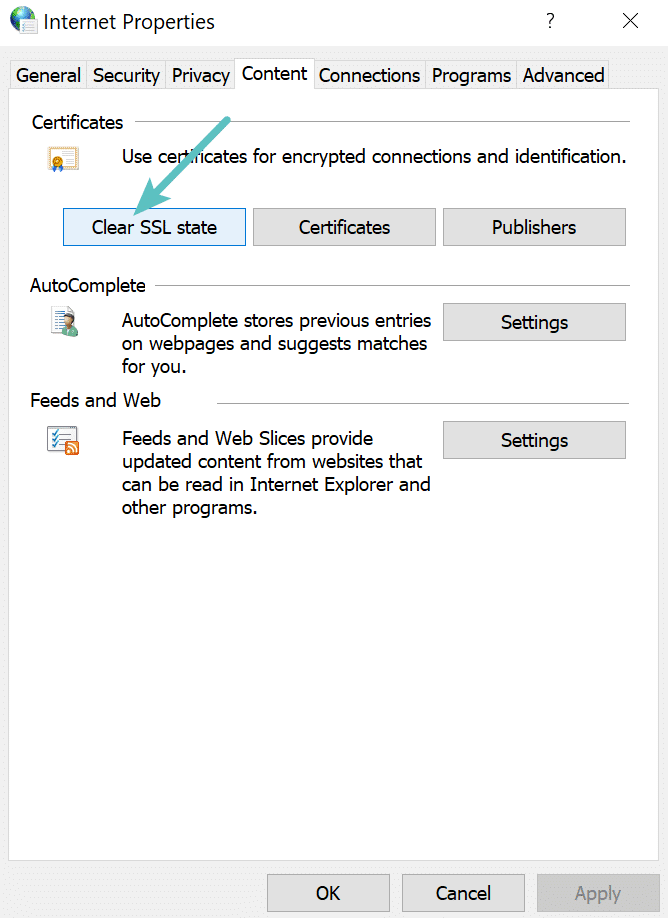
Another thing to try is clearing the SSL state in Chrome. Just like clearing your browser’s cache this can sometimes help if things get out of sync. To clear the SSL state in Chrome on Windows, follow these steps:
- Click the Google Chrome – Settings icon (Settings) icon, and then click Settings.
- Click Show advanced settings.
- Under Network, click Change proxy settings. The Internet Properties dialog box appears.
- Click the Content tab.
- Click “Clear SSL state”, and then click OK.
- Restart Chrome.
If you are on a Mac, see these instructions on how to delete an SSL certificate.
We’ve taken our knowledge of effective website management at scale, and turned it into an ebook and video course. Click on the link to download The Guide to Managing 60+ WordPress Sites!
Use a New Operating System
Older operating systems fall out of date with newer technologies such as TLS 1.3 and the latest cipher suites as browsers stop supporting them. Specific components in the latest SSL certs will simply stop working. Google Chrome, in fact, pulled the plug on Windows XP back in 2015. We always recommend upgrading to newer operating systems if possible, such as Windows 10 or the latest version of Mac OS X.
Temporary Disable Antivirus
The last thing we recommend trying if you are still seeing the ERR_SSL_VERSION_OR_CIPHER_MISMATCH error is to ensure you don’t have an antivirus program running. Or try temporarily disabling it. Some antivirus programs create a layer between your browser and the web with their own certificates. This can sometimes cause issues.
Introduction
The error ERR_SSL_VERSION_OR_CIPHER_MISMATCH occurs when a user’s browser cannot establish a secure connection with a web server that uses HTTPS and SSL. The issue may lie in the server configuration or locally on a user’s computer.
Follow the easy solutions in this guide to fix the ERR_SSL_VERSION_OR_CIPHER_MISMATCH error.
Solutions for Website Developers
As a developer or a webmaster, you might get a report that a user encountered this error when trying to access your website. The error may also appear in your Apache error logs.
The err_ssl_version_or_cipher_mismatch error usually occurs when there’s a problem with the SSL certificate or encryption modules. There are a few server-side actions you can take to resolve this issue.
Note: SSL stands for Secure Socket Layer, which refers to encryption security in your browser. Cipher refers to the code used to encrypt and decrypt the information.
Verify SSL Status of Website
Use a tool like the free Qualys SSL Labs Server Test. The tool examines the state of your certificates and encryption and generates a report.
This is a great place to start since the tool tests several different areas at once. If you have errors, the report highlights the sections that need attention.
Another way to check the SSL certificate status is to navigate to your website and click the padlock in the search bar.
On Google Chrome, it looks like this:
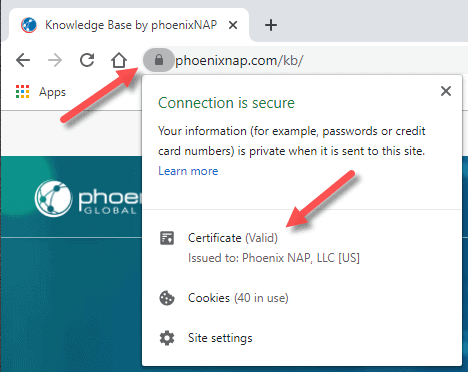
This method should be used only for a quick reference. We recommend using a dedicated tool, such as the Qualys SSL Labs tool we mentioned.
Check for Certificate Name Not Matching
An SSL certificate proves that your website is who it claims to be. The website name and the name on the certificate must match. Additionally, the certificate must come from a trusted provider.
There are a few reasons the names might not match, which can generate the error ERR_SSL_VERSION_OR_CIPHER_MISMATCH:
- When the domain does not use SSL, but another domain with the same IP address uses SSL.
- The domain points to an old IP address it no longer uses. The old website doesn’t exist, but another website has the first domain’s old IP address.
- The site uses a CDN (Content Delivery Network) that does not support SSL.
- The site has a domain name alias that is not in the certificate.
Once you determine the source of the problem, you can resolve the issue easily.
Verify TLS Version
TLS stands for Transport Layer Security and is a security protocol that’s used to encrypt communications between websites. The current version (at the time this article was written) is TLS 1.3. If your site is running an older version of TLS, it may cause the CIPHER_MISMATCH error.
Most modern browsers are set to use the latest version of TLS (if available on the website). If your server is not configured to use TLS 1.3, consider updating to the latest protocol.
Verify RC4 Cipher Suite
RC4 Cipher is an old and simple tool for encrypting traffic. It has been found to have significant vulnerabilities.
Some organizations still use RC4 for legacy applications, but most modern browsers do not support it. If a website is configured to use RC4, an error may occur.
The best solution is to move the site from RC4 to TLS 1.3 protocols. If you cannot completely disable RC4, add the TLS 1.3 protocol so that modern browsers don’t trigger the err_ssl_version_or_cipher_mismatch error.
Manually Inspect Security Certificate
To manually inspect your SSL Certificate, open the browser, load your webpage, and follow these steps:
In Firefox:
- Right-click anywhere on the page.
- Click View Page Info.
- Select the Security tab.
- Click View Certificate.
In Chrome:
- Right-click anywhere on the page.
- Click Inspect.
- In the Inspection pane near the top, click the arrows >> to reveal more options.
- Click Security.
- Click View Certificate.
In Safari:
- Double-click the padlock icon in the upper-right section.
- In the window that appears, click Show Certificate > Details.
If the site you are checking is not secure and has no certificate, there will be no option to view the certificate.
Solutions for End Users
The err_ssl_version_or_cipher_mismatch error can appear due to a client-side issue. The reason can be an older version of operating systems or an outdated browser. Current versions of TLS protocols are incompatible with old browsers and operating systems.
To bypass the mismatch error, try the solutions we list below.
Connect with a Different Computer
The easiest method to check if only your computer has the issue loading a website is to try using a different computer. The safest bet is to try from a machine with a recent version of an operating system.
If you can load the website without getting the error, you can proceed with troubleshooting using the suggestions in this guide.
Delete Cache and Cookies on Your Browser
Clearing your browser’s cache and cookies can help with SSL certificate issues. Depending on the browser and the version you are using, the steps to find the section for clearing cache may be different.
The CTRL+SHIFT+DELETE hotkey combination works for most browsers. When the pop up for clearing history or cache appears, change the timeframe to All or Everything. If you check all the options, you will lose saved logins and all history, so you can uncheck those options if you want to.
Enable TLS 1.3 Version on Old Browsers
Recent versions of web browsers use TLS 1.3 by default. If you did not update your browser or do not want to, you can check the TLS version and enable 1.3.
In Firefox:
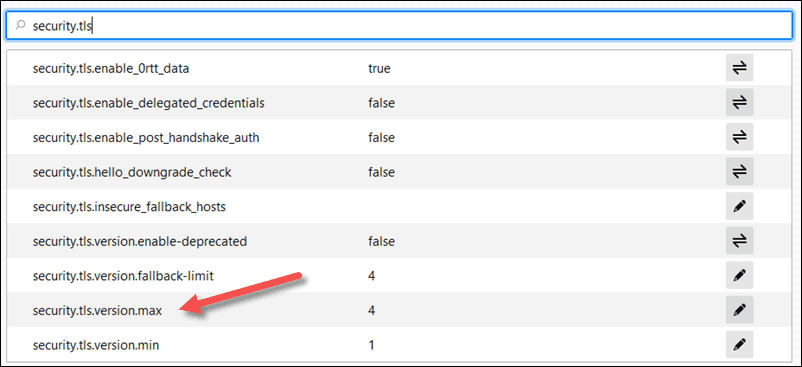
Open a new tab and type about:config in the address bar. Click the button to accept the risk and then type security.tls in the search bar.
Look for the security.tls.version.max option towards the bottom of the list. Set the value to 4 if it is not already set.
In Chrome:
Open a new tab and type chrome://flags in the address bar. Search for TLS using the search bar at the top. The results will include the TLS 1.3 downgrade hardening options.
Disable QUIC Protocol
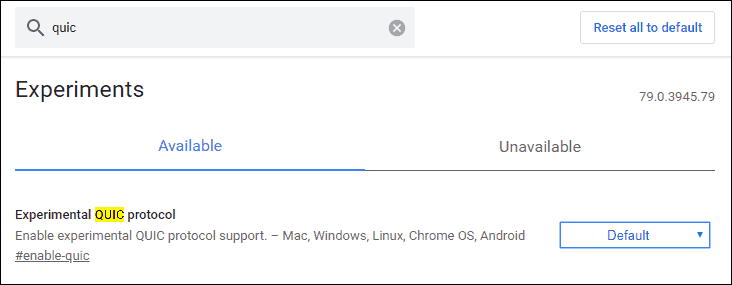
Chrome has many security settings, and “Experimental QUIC Protocol” can be the cause of the err_ssl_version_or_cipher_mismatch error.
To disable the QUIC protocol in Chrome:
In the address bar type in chrome://flags. In the search bar at the top, enter QUIC. The search results should list “Experimental QUIC protocol.”
Change from Default to Disabled, restart Chrome, and try loading the website again.
Clear the SSL State on your Computer.
To clear the SSL state on your computer, go directly to the “Internet Properties” section. The quickest way in Windows 10 is to search for “Internet Properties” or “Internet Options” from the Start menu.
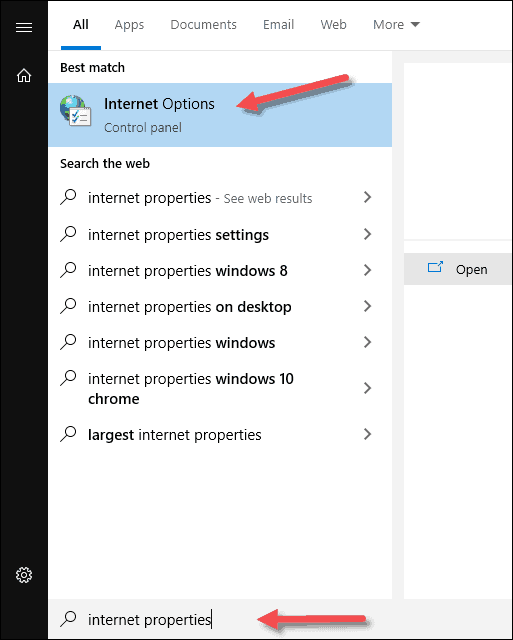
Navigate to the Content tab and click Clear SSL state.
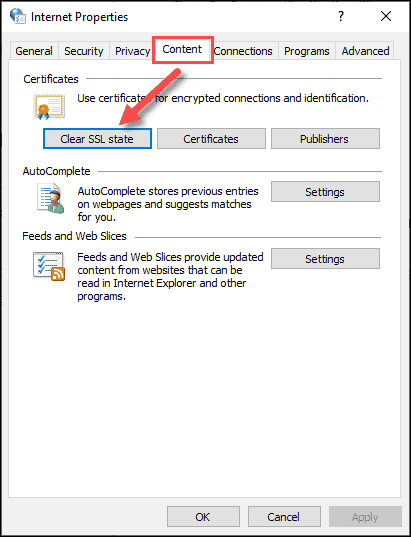
The pop-up message “The SSL cache was successfully cleared” appears.
Some older versions of Chrome allow you to access Internet Properties and clear SSL state from the advanced settings menu.
Update or Change your Web Browser
Most modern browsers update automatically on restart. If your browser did not update automatically, you could manually update it.
To check the version on most popular browsers, navigate to the Help and About section.
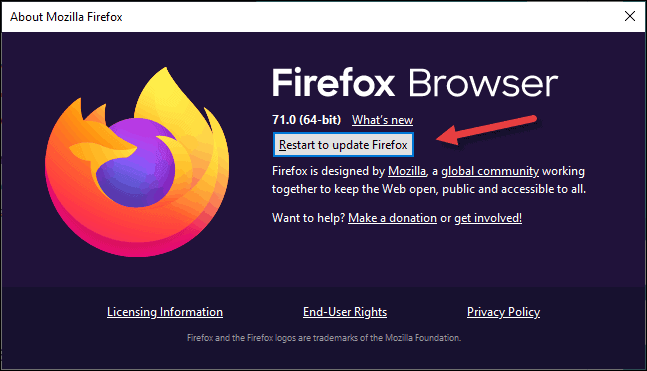
In most cases, you can manually update the browser from here. Once the update completes, try loading the website again.
Conclusion
This guide listed the most common solutions for the err_ssl_version_or_cipher_mismatch error. The causes may be on the server side or the client side.
By following the steps listed in this guide, you should be able to find the cause of the error and fix it.