
Рассмотрим, как настроить шаблон ошибки 404 в WordPress, чтобы создать полезную страницу, которая поможет пользователям сориентироваться на вашем сайте и улучшить поведенческие факторы.
Что такое ошибка 404 и почему важно правильно настроить страницу?
Ошибка 404 возникает, когда посетитель пытается получить доступ к странице, которая не существует. Многие склонны игнорировать эту страницу при использовании шаблонов WordPress и не задумываются о ее существовании. Тем не менее, если вы потратите время на создание удобной страницы 404, это поможет задержать пользователя на вашем сайте.
Интернет-адрес, ведущий на страницу с ошибкой 404, может оказаться просто неправильно набранным URL либо возникнуть со временем, если вы удалили проиндексированную страницу и забыли об этом. При выдаче кода 404 WordPress настроен на автоматический поиск файла 404.php. Базовый шаблон с этой ошибкой включен в некоторые темы WordPress. Если же этого файла нет, то будет показано системное сообщение, которое не несет полезной для пользователя информации.
Как создать страницу 404 ошибки, если ее нет в шаблоне — настройка
Не все темы WordPress имеют собственный файл шаблона ошибки 404. Если разработчик темы предусмотрел это, такой файл будет называться 404.php. WordPress автоматически использует эту страницу, когда возникает ошибка 404. Если в вашей теме нет этого файла, его можно создать самостоятельно.
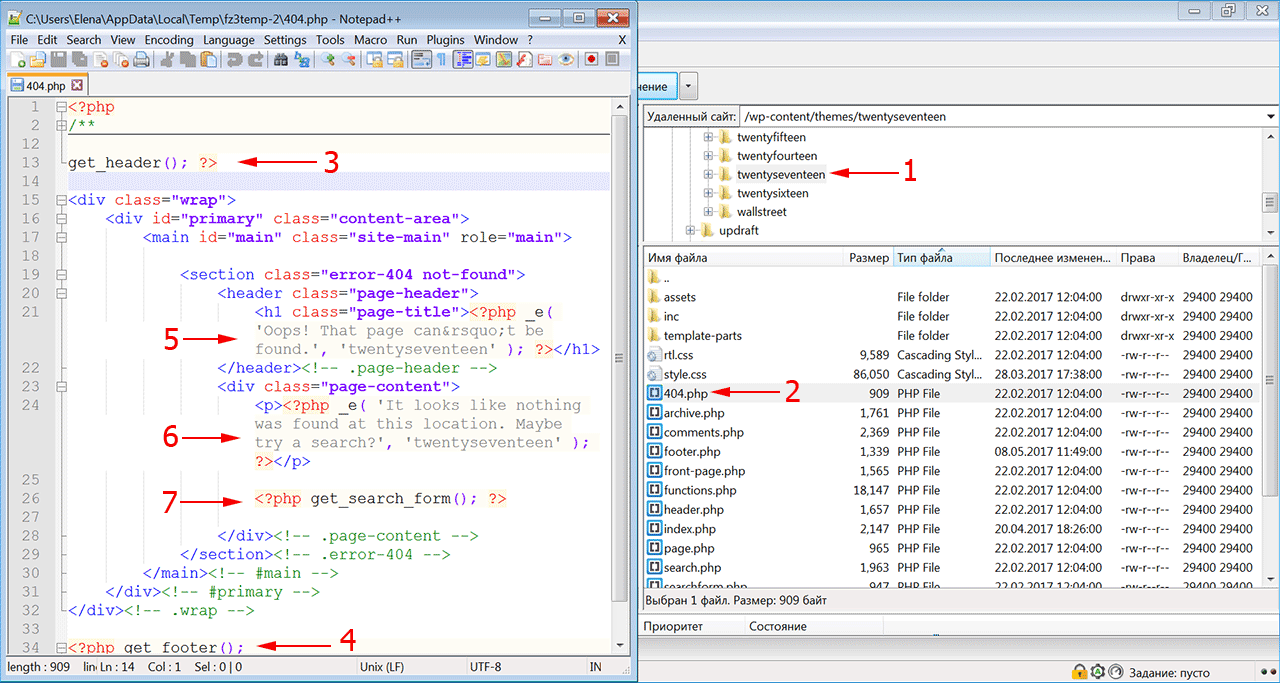
- Первое, что нужно сделать, это сформировать настраиваемый шаблон, например, редактируя файл 404.php, скопированный из другой темы. Если вы редактируете свою тему напрямую, настоятельно рекомендуется сделать резервную копию темы WordPress.
- Файл ошибки 404 расположен по адресу: /wp-content/themes/имя-темы/404.php
- Страница ошибки примет стиль активной темы, поскольку она вызывает шапку
- И подвал текущей темы.
- Понадобится только отредактировать заголовок и сообщение на странице в соответствии с вашими конкретными потребностями.
- Для этого откройте файл шаблона ошибки 404 в редакторе кода и измените текст сообщения на свое усмотрение.
- Добавьте в шаблон строку поиска, если ее там нет. Затем сохраните файл и загрузите его в каталог темы установки WordPress.
Поскольку все темы различаются, нет никакой гарантии, что простое копирование файла шаблона 404.php будет работать. Чтобы сервер нашел страницу 404, добавьте следующую строку в файл .htaccess:
ErrorDocument 404/index.php?error=404
Файл index.php расположен в корневой папке вашего сайта. Если WordPress находится в подкаталоге с именем «wordpress», код, добавляемый в файл .htaccess, должен быть:
ErrorDocument 404/wordpress/index.php?error=404
Что разместить на wordpress странице 404
Когда пользователь обнаруживает вместо искомой страницы сообщение об ошибке 404, разочарование может заставить его покинуть ваш сайт преждевременно. Задача веб-мастера помочь найти посетителю информацию, которую он искал, и тем самым снизить процент отказа и улучшить поведенческие факторы на сайте.
Рекомендуется указать пользователю правильное направление действий, которое заставит его задержаться на сайте. Это можно сделать несколькими способами:
- предоставить информацию о других разделах вашего интернет-ресурса, которые можно посмотреть;
- дать посетителю возможность связаться с вами по указанным контактным данным;
- добавить ссылки на популярные сообщения, последние комментарии, архивы;
- разместить строку поиска, чтобы посетитель сам нашел нужную информацию на сайте.
Чтобы сделать страницу уникальной, вы можете снабдить ее фоновым изображением в стиле оформления сайта. Допустимо также использовать html-теги и css-стили, чтобы придать шаблону индивидуальность.
Как создать в вордпресс 404 страницу при помощи плагина
Создать собственную страницу 404, как и любую другую страницу в WordPress можно при помощи плагина 404page (https://wordpress.org/plugins/404page/). Важной особенностью этого плагина является то, что он не создает перенаправление, а формирует правильный ответ сервера с кодом 404. Он сообщает поисковым системам, что страница не существует и должна быть удалена из индексирования, тогда как перенаправление приведет к HTTP-коду 301 или 302 и URL-адрес останется в индексе поиска.
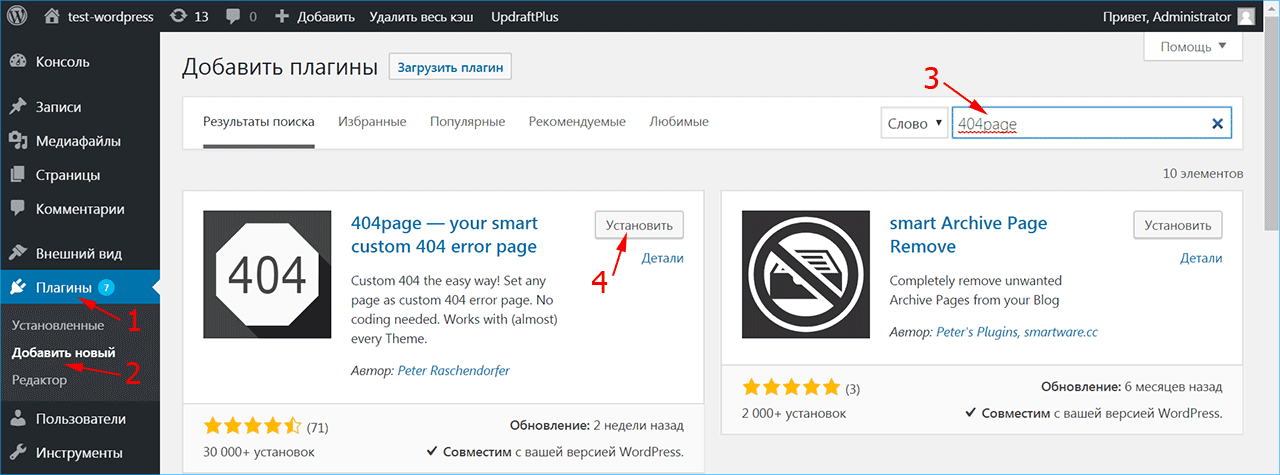
Установите плагин 404page из меню админки «Плагин -> Добавить новый» и активируйте его.
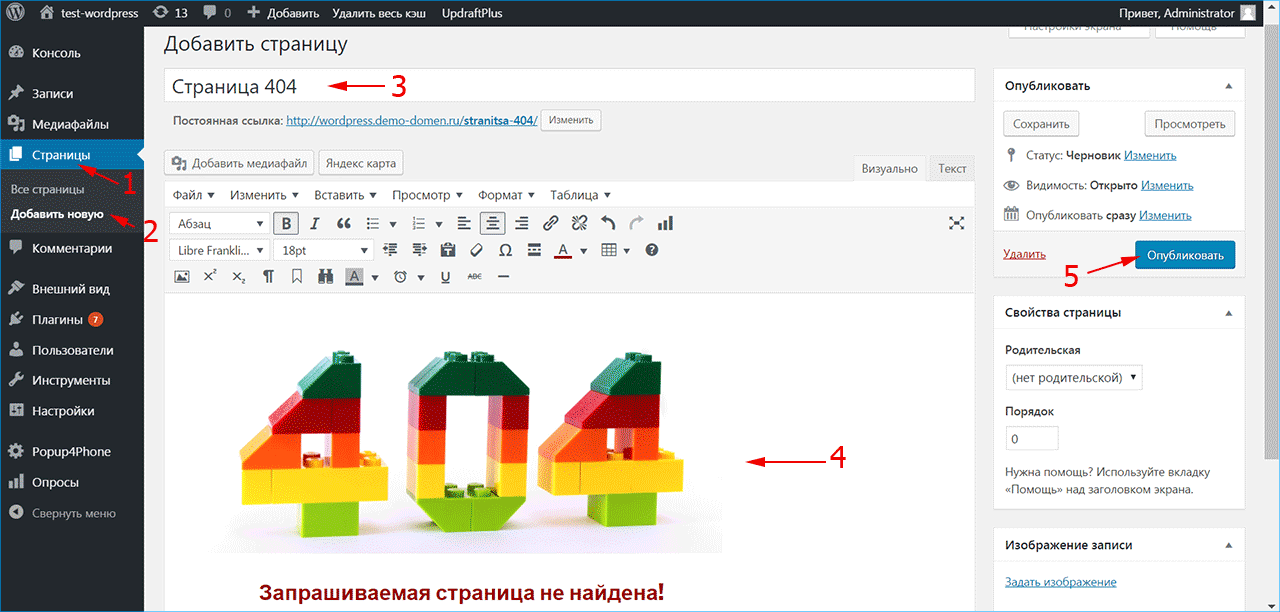
Создайте страницу 404 как обычную страницу WordPress из меню «Страницы -> Добавить новую». Внесите в нее всю необходимую информацию, которую вы хотите показать посетителю, и нажмите кнопку «Опубликовать». Плагин 404page также добавляет CSS-класс error404 в тег <body>, который можно использовать для задания дополнительных стилей на странице.
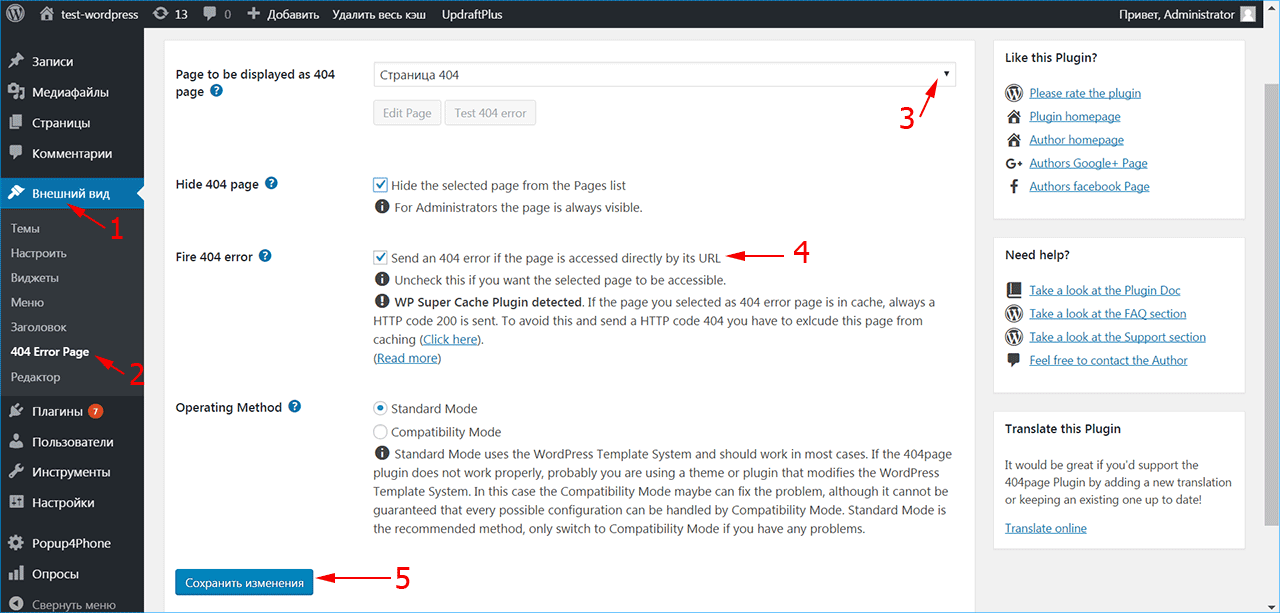
После активирования плагина в меню «Внешний вид» (1) появился раздел «404 Error Page» (2), в котором можно настроить отображение страницы ошибки.
Выберите созданную страницу 404 из списка страниц сайта (3). Убедитесь, что отмечен флажок (4), чтобы сервер отдавал код 404 при доступе к этой странице. Если вы используете кэширование, плагин выдаст предупреждение – страница из кэша будет отдавать код 200, поэтому ее нужно исключить из кэширования.
При возникновении проблем или конфликта с другими плагинами 404page может быть запущен в режиме совместимости. Нажмите кнопку «Сохранить изменения» (5).
Чтобы включить обработку ошибок 404 в WordPress, нужно установить структуру ссылок в меню «Настройки -> Постоянные ссылки» на любой пункт, кроме «По умолчанию». В противном случае ошибка 404 обрабатывается сервером, а не движком WordPress.
iPipe – надёжный хостинг-провайдер с опытом работы более 15 лет.
Мы предлагаем:
- Виртуальные серверы с NVMe SSD дисками от 299 руб/мес
- Безлимитный хостинг на SSD дисках от 142 руб/мес
- Выделенные серверы в наличии и под заказ
- Регистрацию доменов в более 350 зонах
An error 404 is when a visitor tries to access a page that does not exist. Sometimes people tend to overlook this feature, and never think about designing for it. Taking the time to make a user-friendly 404 page could mean the difference in a user staying on your website, or leaving.
Chances are you have created your website and checked multiple times to be sure that every link leads to somewhere. Eventually over time you may forget about a link that leads to a post you removed, or possibly changed the name to. Even if a visitor is searching for a page directly and they don’t get it right, then they will be taken to the error 404 page.
These can be made very user-friendly utilizing the WordPress template tags, and little bit of know-how.
Understanding The Error 404
The error 404 is a message that the visitor will receive when a page or post is not located. This is by default included within WordPress, but not with all themes. If you have created a custom theme, then you can increase the chances of a user sticking around even though they didn’t find what they were looking for with a properly designed 404 page.
The Basic Error 404 Template
The basic error 404 template is included with some WordPress themes but not all. WordPress is set to automatically look for the file 404.php when an error 404 is reached. If this file is not present, then it will give a basic error message which is not user-friendly.
If you do not already have this file you can create it. Make a new blank file and name it 404.php
Here is the basic code we will start with:
The 404.php File
<?php get_header(); ?>


<h2>Error 404 - Page Not Found.</h2>


<?php get_sidebar(); ?>

<?php get_footer(); ?>
The above code within the 404.php file would give a simple output wrapped in H2 tags that would read “Error 404 – Page Not Found.” – It would also get the WordPress Header, Sidebar, and Footer. These are all optional and should be modified to fit your WordPress theme.
We want to take this a few steps further to achieve our goal. Make a note that I am using the get_header() along with get_sidebar and footer to call our theme template files. Your’s may vary slightly and you will have to adjust your 404.php file accordingly.
Starting To Work On It
First, We will add the search form to our basic 404 page to make it a bit more helpful. This way even if a visitor lands on your 404, they then have the option of searching your site. This is the first method to help users stick around instead of leaving.
404.php File – Added Search Form
<?php get_header(); ?>

<h2>Error 404 - Page Not Found.</h2>

Search:

<?php include(TEMPLATEPATH . "/searchform.php"); ?>

<?php get_sidebar(); ?>

<?php get_footer(); ?>
Making It More Dynamic
To create a more dynamic error 404 page you can use redirects so that the user only sees the error briefly, then gets redirected to your home page. This page can be made to be somewhat SEO friendly as well.
For this next example we can start by editing the header.php file of your template. Within the meta tags at the top of your header.php file you can add the following:
The header.php File
<?php if (is_404()) { $redirectHome = get_option('home'); ?>
<?php echo $redirectHome; ?>
After this is added we will then edit our 404.php file to look like this:
404.php File
<?php get_header(); ?>

<h1>Error 404 - File Not Found.</h1>

<h3>Please <a href="<?php bloginfo('home'); ?>" Click here</a> to return to our home page, or you can wait to be redirected in 15 seconds.</h3>

<?php get_footer(); ?>
The above example will allow the user to land on the 404 error page but then automatically take them back to the home page. This will also help users stick around instead of them being left confused and leaving your website.
This example may not always be the best solution for everyone but can be helpful to someone looking for something specific on your site.
Making sure it works
You can test your 404 error page by typing your URL and following it with a page that you know does not exist.
Example: http://www.yourwebsitedomain.com/test404page.php
That should bring you to your 404 page for viewing and testing.
If it doesn’t work
If by chance your server is not automatically bringing you to your 404.php file we can modify our .htaccess file to make it work. Locate your .htaccess file within your WordPress install and add the following line to it:
ErrorDocument 404 /index.php?error=404
If your WordPress install is not in the root directory you will need to make sure the above code reflects that. If you have installed WordPress into a subfolder then modify your .htaccess like this:
ErrorDocument 404 /YOURSUBFOLDERNAME/index.php?error=404
This will force the use of your 404.php file.
A full example
The code below is a full demonstration that will show you some ways you can use the 404.php file to help users that have found something that doesn’t exist. Take a look at it and notice the options we are giving them to keep them around, and to help them find content.
<?php get_header(); ?>

<h1>404 Error</h1>

We cannot seem to find what you were looking for.

Maybe we can still help you.

<ul>

<li>You can search our site using the form provided below.</li>

<li>You can visit <a href="<?php bloginfo?>"</a></li>

<a href="<?php ('url'); ?>" the homepage.</a>

<li>Or you can view some of our recent posts.</li>

</ul>

Search:

TEMPLATEPATH . "/searchform.php"); ?>

<h3>Recent Posts</h3>

<ul>
	<?php query_posts('posts_per_page=5'); if (have_posts()) : while (have_posts()) : the_post(); ?>

<li><a href="<?php the_permalink() ?>" title="Permalink for : <?php the_title(); ?>"><?php the_title(); ?></a>
	endwhile; endif; ?>
	</ul>

<?php get_footer(); ?>
Anything above can be changed and styled to fit your needs. In the above example we are displaying that there was an error, and then following it with a list of options for the user. We are also still giving them the option to search our site, and have now added the ability for them to view our recent posts.
The combination of all of these gives the user that reached the page options. These options can be used to ensure a user doesn’t leave right away if they didn’t find exactly what they wanted.
Make it More User Friendly
To make it more user friendly and unique you could consider using the above examples with a different background image of your choice. You can also use html within the 404.php file to make a page all in itself for your error page. Here are some examples of unique error 404 pages for inspiration:
1. Mundofox.com

2. CSSRemix.com

3. CSSRemix.com

4. ChrisJennings.com

5. ook.co.uk
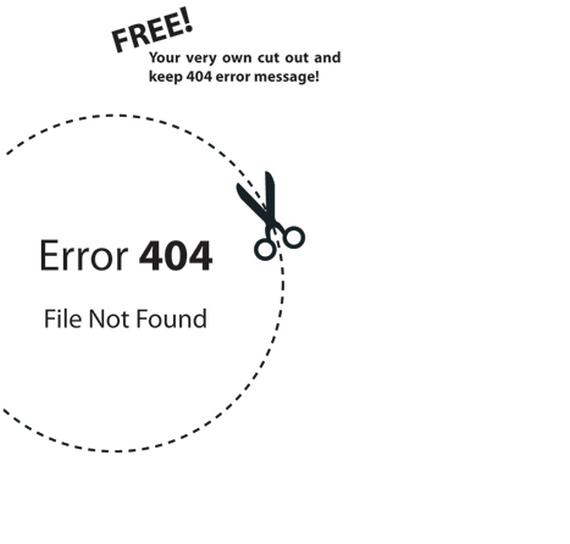
6. Youcastr.com
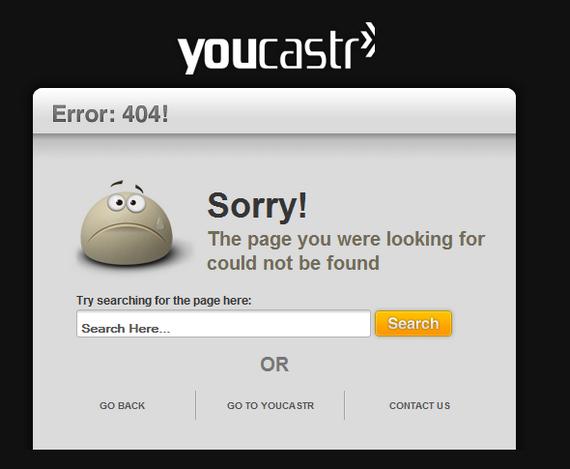
7. Mixx.com

8. JustCreativeDesign.com

9. Agens.no

10. Mushroomdigital.co.uk
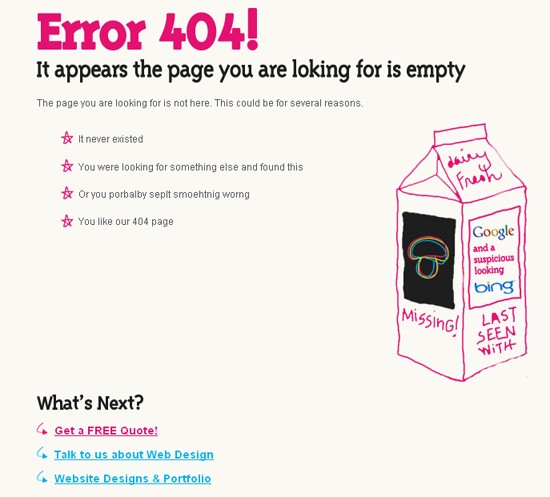
Using it Wisely
It is always good practice for both WordPress and static HTML sites to make use of the 404 page. Either using ads on it to monetize, or using it to better help your visitors navigate your website.
There are many ways to create your own custom 404 error page, and just as many ways to allow it to help website visitors. Use the examples above freely, and experiment with what works best for you.
This post may contain affiliate links. See our disclosure about affiliate links here.
Chances are high that you’ve landed on a 404 page and immediately left the website because it was less than helpful. A 404 page is what WordPress displays when someone enters or clicks on a URL that doesn’t exist on your website. This page is a generic error that just informs the visitor the page wasn’t found. In this article, we’ll explore how to create a custom 404 page for WordPress. Along the way, we’ll see both good and bad designs.
-
1
Why Create a Custom 404 Page for WordPress?-
1.1
Generic 404 Page
-
1.1
-
2
Custom 404 Page Examples-
2.1
1. Google -
2.2
2. WordPress.org -
2.3
3. WordPress.com -
2.4
4. Elegant Themes -
2.5
5. Twenty Twenty-One -
2.6
6. Twenty Twenty -
2.7
7. Slack -
2.8
8. Amazon
-
2.1
-
3
404 Page Content -
4
How to Create a Custom 404 Page in WordPress with the Divi Theme Builder-
4.1
Importing a Custom 404 Page into the Divi Theme Builder -
4.2
Creating a Custom 404 Page with the Divi Theme Builder
-
4.1
-
5
Ending Thoughts on Creating a Custom 404 Page for WordPress
Why Create a Custom 404 Page for WordPress?
It’s tempting to skip designing the 404 page because you hope no one will see it. However, it needs to be helpful to your visitors. It can be just as important as any other page. A general message is a bad user experience. It doesn’t look good and it gives them no reason to stay on your website.
First, let’s look at the generic page we’re trying to avoid.
Generic 404 Page

The standard 404 page that WordPress displays is just an error message. It’s placed within the body content area and shows your header, footer, and sidebars if you have them.
Unfortunately, it isn’t helpful. It’s kind of like asking a store worker if something you’re looking for is on the aisle you’re in and they just say no. You want them to point you to the correct aisle. You want more information.
A 404 page should give you more information. It should be helpful. It should provide tools, links, advice, or some form of help. You don’t want to be left alone in the aisle not knowing where to go next.
Custom 404 Page Examples
There are thousands of amazing 404 pages across the web. Some are funny, some are serious. Some are more helpful than others. A few are plain, while others are gorgeous. Here’s a look at a few 404 pages to get an idea of how they’re designed. Some are simple and boring while others are helpful and look great.
1. Google

Google’s (not WordPress) 404 page is simple. It’s a small area of content in the center of the screen. The message just tells you there’s an error and provides a graphic of a robot in pieces. It doesn’t provide other information, but it’s Google, so all you have to do is type something else in the search bar.
2. WordPress.org
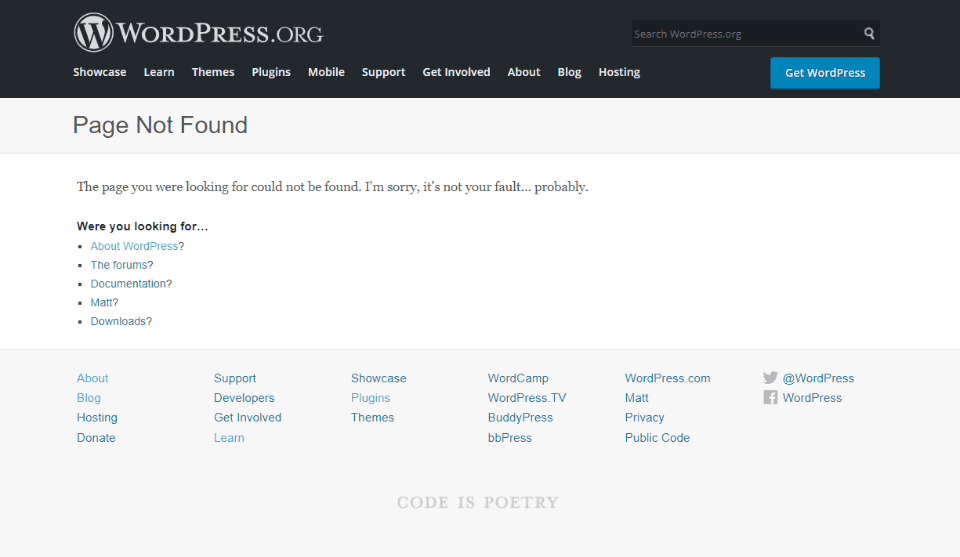
WordPress.org’s 404 page displays their standard header and footer. The body includes a title to show the page wasn’t found, a short explanation with a touch of humor, and then a list of links to help guide you. The links focus on being helpful.
3. WordPress.com
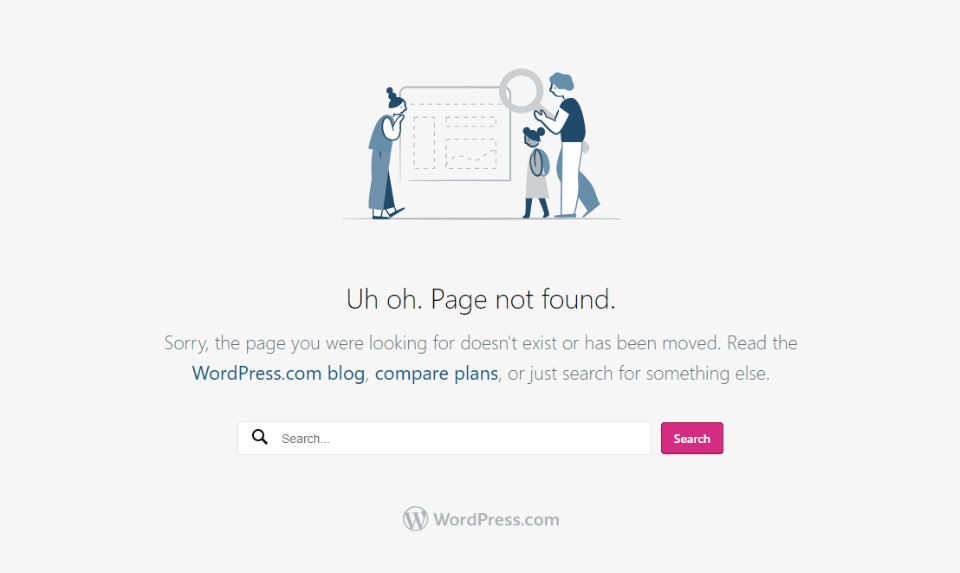
WordPress.com’s 404 page removes the header and footer. It shows a graphic, a title, a description with clickable links, a search box, and the WordPress.com logo. The links are helpful.
4. Elegant Themes

Elegant Themes’ 404 page (because I know you’re going to look anyway) shows the ET header, a large title with a small explanation, and a button as a CTA. You have access to almost everything from here.
5. Twenty Twenty-One
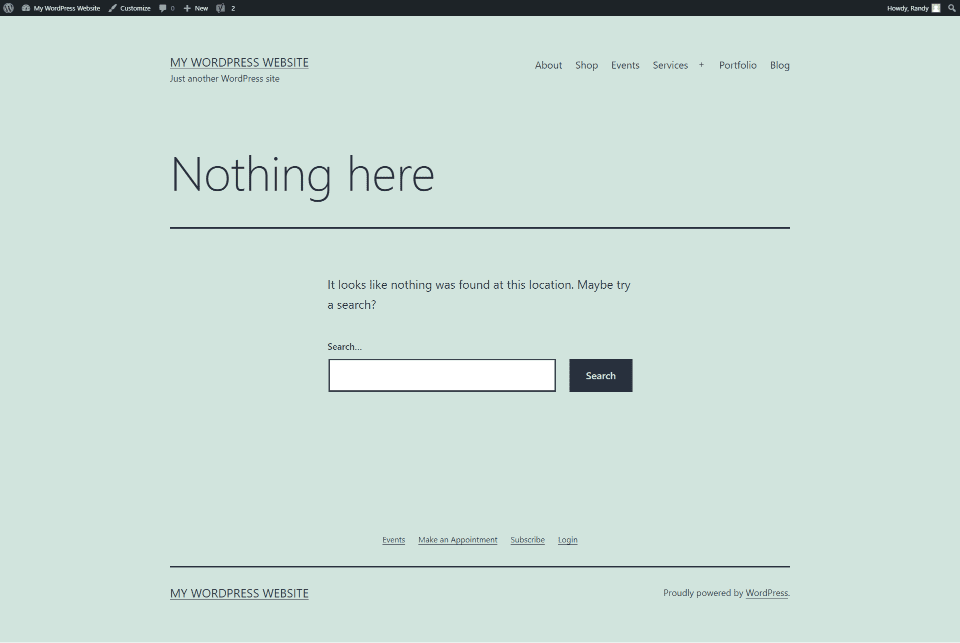
WordPress’s Twenty Twenty-One theme has a 404 page that uses your primary and footer menus. It has a large title. The body has a short description and a search box. Lines are used for styling. The background matches the site.
6. Twenty Twenty
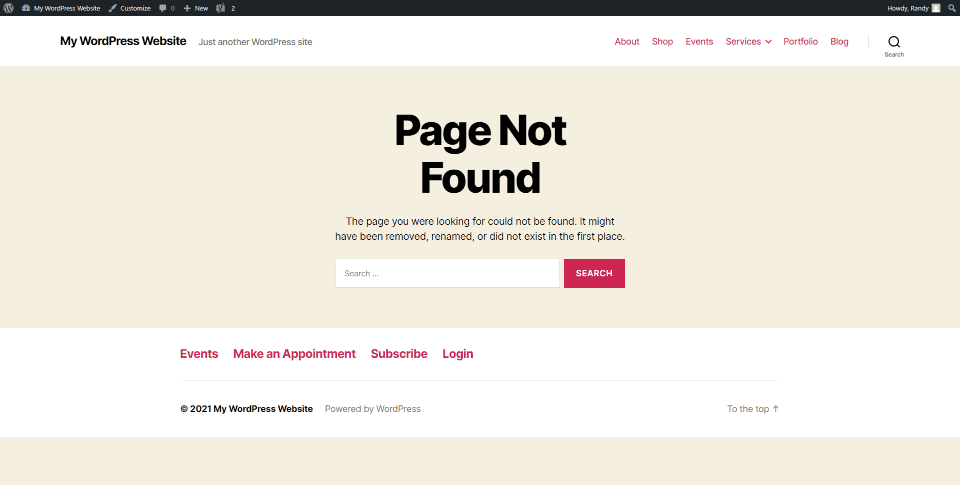
WordPress’s Twenty Twenty theme displays the header and footer. The body shows a large title in the center, an explanation, and a search box. All use the theme’s colors.
7. Slack
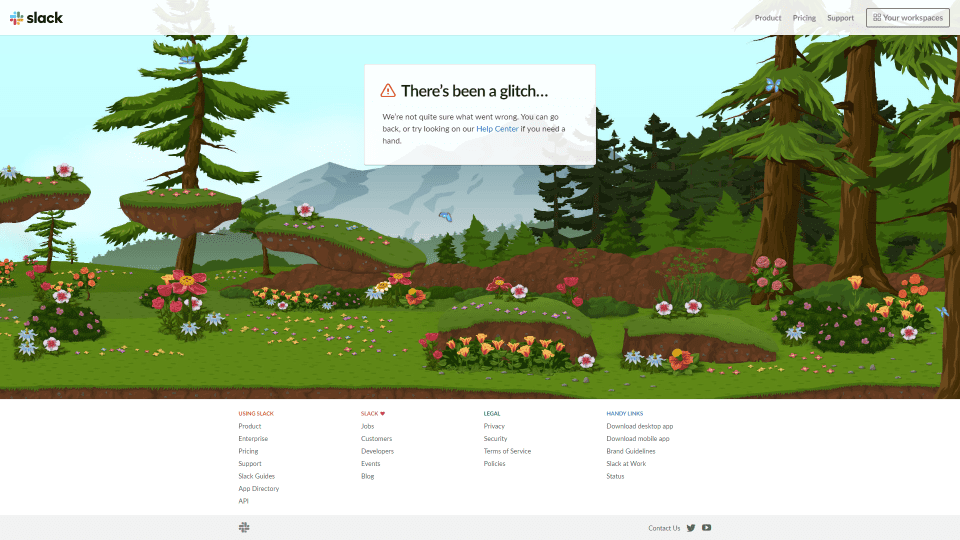
Slack’s (non WordPress) 404 page shows a box in the center with information about the error with a link to the help center. All the menus are here, too. The interesting part is the background. It’s a cartoon background that scrolls right or left to follow your mouse. Animated animals move across the screen.
8. Amazon

Amazon’s (also not WordPress) 404 page includes the Amazon logo with a search box, a large message, a smaller message with a link to the home page, and a photo of an animal with a link to learn more. It includes lots of different photos that can be displayed. They’re chosen at random.
404 Page Content
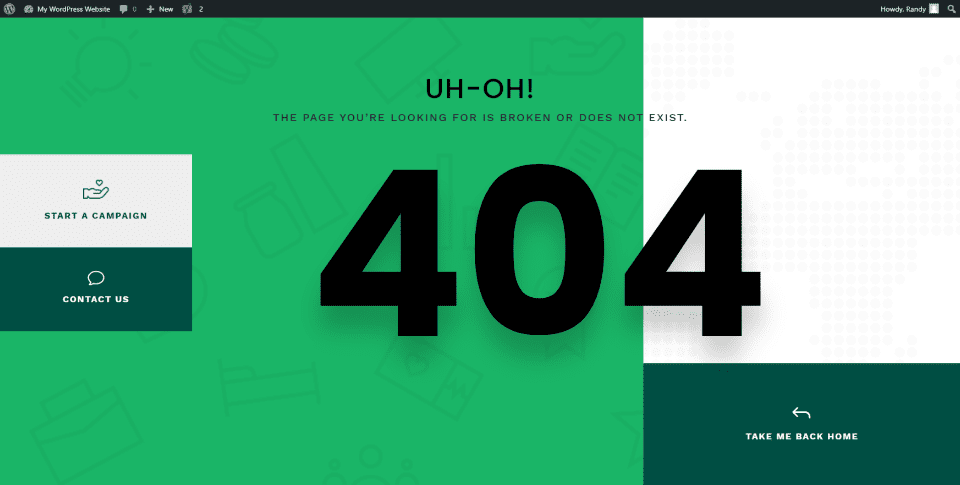
So, what does a 404 page need? We see a few common elements in the examples above.
First, it needs to be helpful. It shouldn’t just tell the visitor there is an error. It should tell what the error means. Imagine an error light coming on in your car. Your first question would be “what does that mean?” Not providing useful information about the error is frustrating.
Visitors need to know if they did something wrong or if the content doesn’t exist. If they don’t know, they’ll keep looking for the content until they furiously leave the website, vowing to never return. This is best done with a simple message and possibly an image that catches the eye. Something that stands out from your normal content that would appeal to your audience.
Next, it needs to provide some direction of what to do next. This could be a list of articles, a search box, a list of categories, most popular posts, most recent posts, a way to contact you, etc.
It’s that simple. 404 pages don’t need a lot of content. Just enough to be helpful.
The example above includes:
- Background colors and patterns that would match the website/
- A title with a short message about the error.
- Large text showing that it’s a 404 page.
- A few buttons providing the visitor with some directions.
It’s simple but stylish and helpful. That’s all you need.
Let’s look at how to create a custom 404 page for WordPress using the content ideas we just discussed.
How to Create a Custom 404 Page in WordPress with the Divi Theme Builder

The Divi Theme Builder makes it easy to create and assign a 404 page. Elegant Themes has several premade 404 pages that you can download for free. You can customize them any way you want. They’re a great way to get a head start on a 404 page design. If you prefer, you can build one from scratch.
The example above is from the Fourth Theme Builder layout pack. There are lots of 404 pages available in the ET blog. To find them, search for “theme builder layout pack” or check them out here:
- Download The First FREE Theme Builder Pack For Divi
- Download The Second FREE Theme Builder Pack For Divi
- Download The Third FREE Theme Builder Pack For Divi
- Download the Fourth FREE Theme Builder Pack for Divi
- Download the Fifth FREE Theme Builder Pack for Divi
- Download the Sixth FREE Theme Builder Pack for Divi
Importing a Custom 404 Page into the Divi Theme Builder
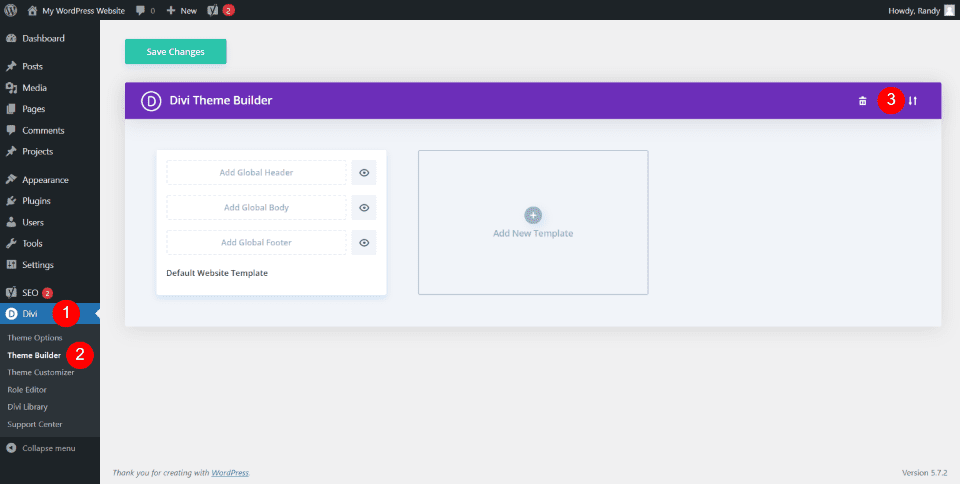
You’ll find the Divi Theme Builder in the WordPress dashboard by going to Divi > Theme Builder. This opens the page where you can create or import templates and assign them. In the upper right corner, you’ll see the import icon. Click this icon to import your 404 page template.
Note – for tutorials on using the Divi Theme Builder, search for “theme builder” here in the Elegant Themes blog.
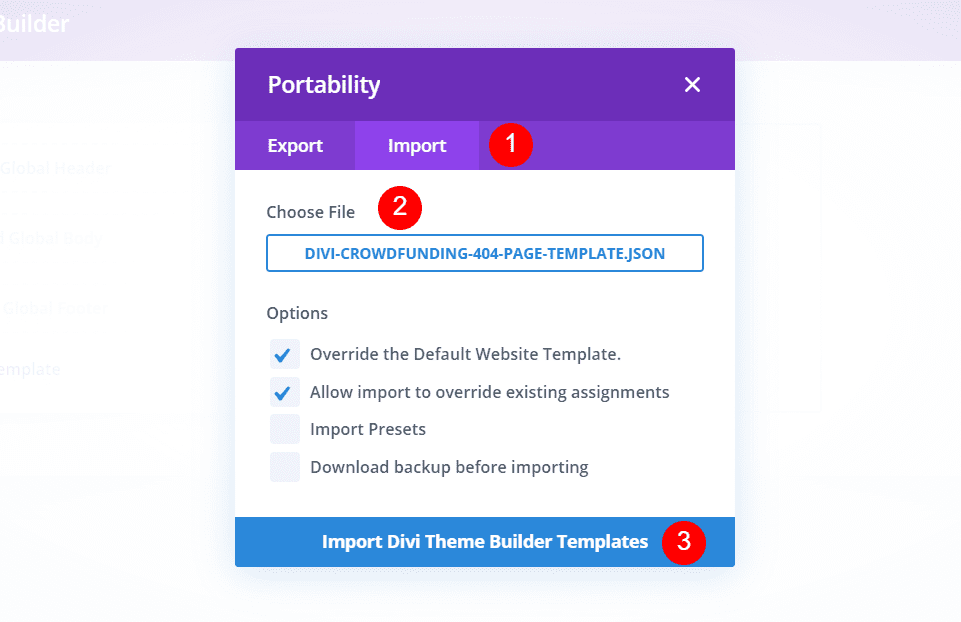
A modal opens where you can import your template. Select Import and navigate to your file under Choose File. The options to override the defaults and assignments are selected by default. I recommend leaving them selected. Click to import the template at the bottom of the modal. I’m importing the 404 page for the Crowdfunding Layout Pack.
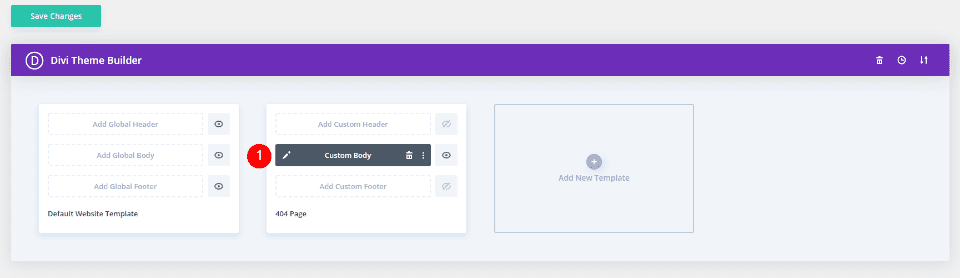
By importing a 404 page, it’s assigned automatically. Next, click on the edit icon to open the builder.
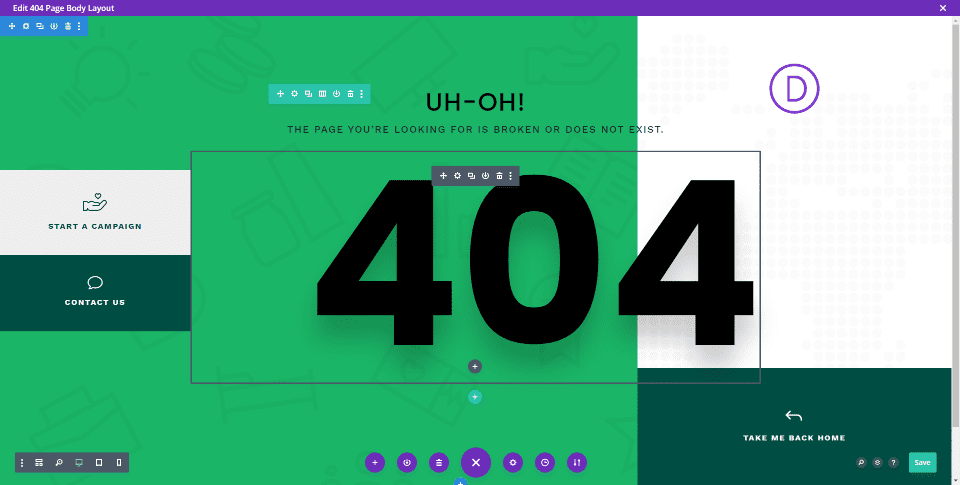
Now, make your edits within each module by adding your links, images, colors, text, etc. Save the layout and click the x in the upper right corner to close the builder.
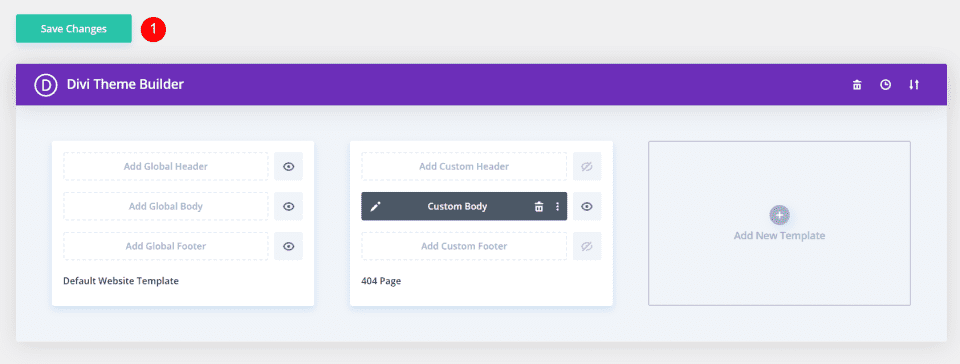
Finally, save the changes to apply the template. You now have a custom 404 page.
Creating a Custom 404 Page with the Divi Theme Builder
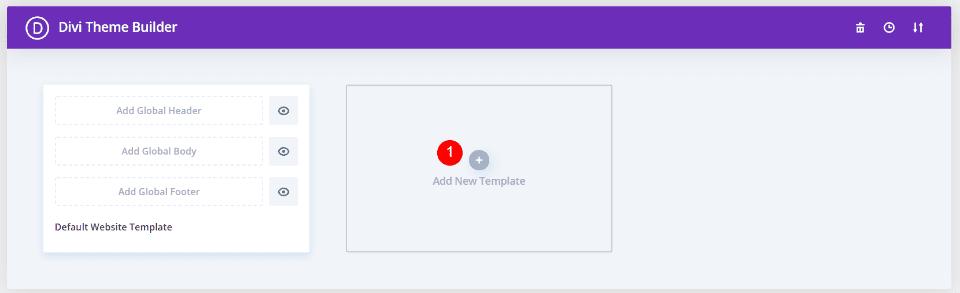
In the Theme Builder, select to add a new template.
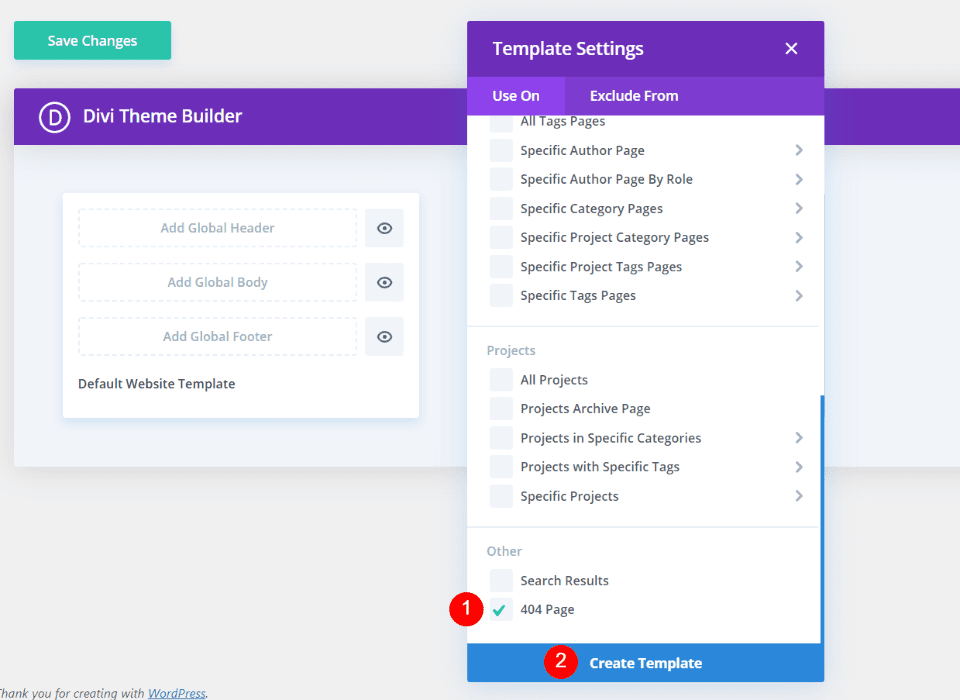
This opens the template settings. Scroll to the bottom and select 404 Page under Other. Next, click Create Template. The template settings will close.
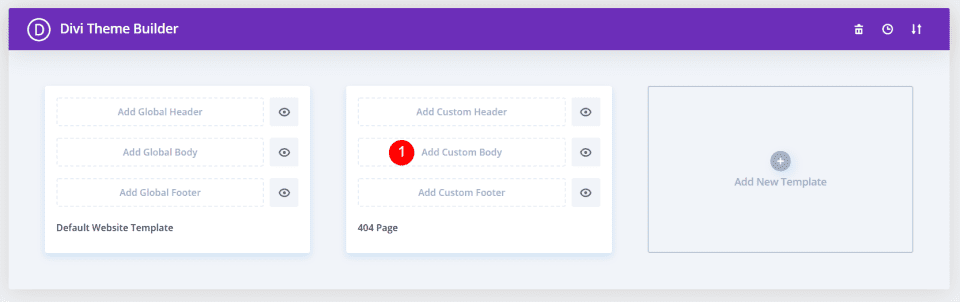
Now, you can create the 404 page. Most don’t use a header or footer. Select Add Custom Body.
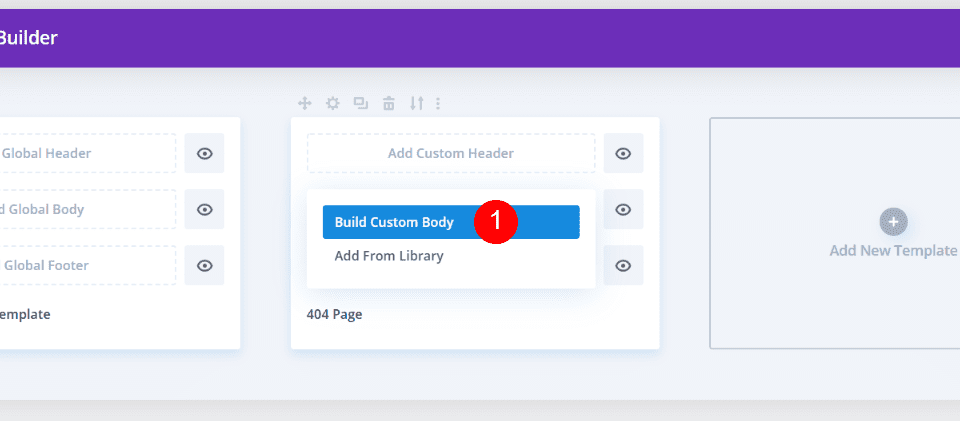
This shows two selections allowing you to build a custom body or add from the library. Select Build Custom Body.
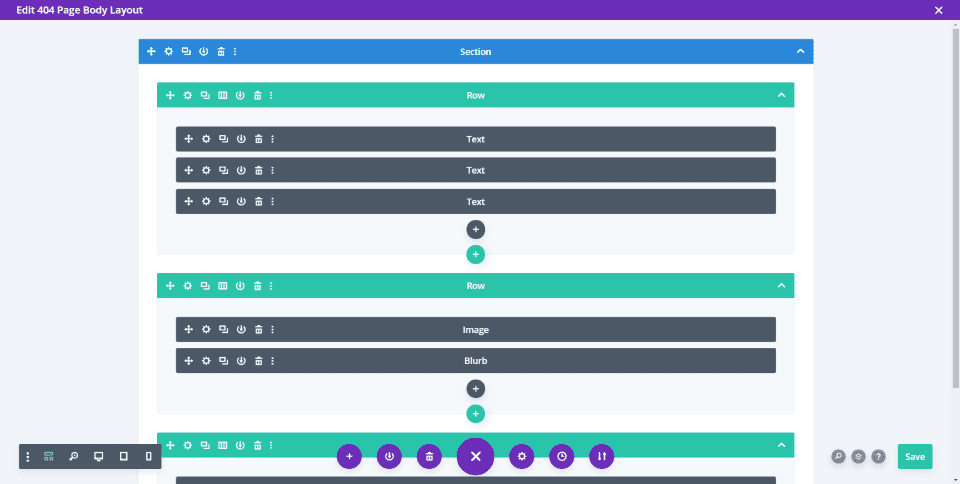
Build the 404 page with the Divi Builder as normal. Save and exit.
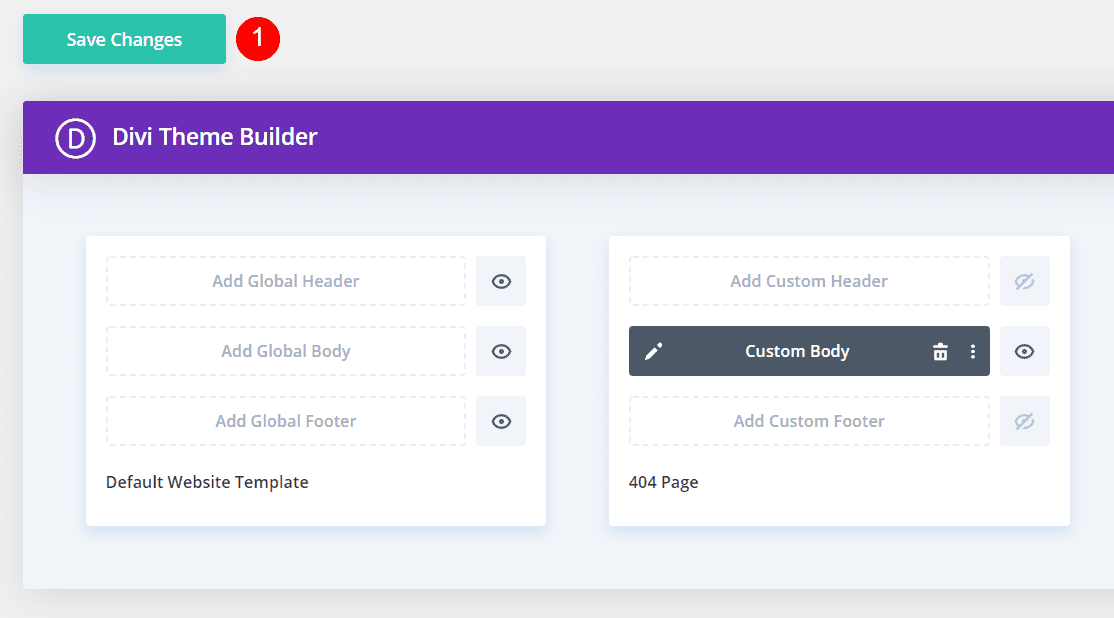
Finally, save your changes. You’re done.
Ending Thoughts on Creating a Custom 404 Page for WordPress
That’s our look at how to create a custom 404 page for WordPress. 404 pages need to be helpful. Unfortunately, the generic WordPress 404 page isn’t helpful, and it provides a poor user experience. Fortunately, you can create your own 404 page using the Divi Theme Builder.
Using the information we’ve provided here, you’re well on your way to create a beautiful 404 page that provides users with a great experience and looks amazing while doing it.
We want to hear from you. Have you created a custom 404 page for your WordPress website? Let us know about our experience in the comments.
Featured Image via Letters-Shmetters / shutterstock.com
Пользователь может столкнуться с ошибкой 404 по разным причинам. Как владелец сайта, вы должны быть уверены, что пользователь не будет чувствовать себя потерянным или озадаченным, когда это произойдет.
Чтобы быть уверенным, что посетитель останется на вашем сайте, даже столкнувшись с ошибкой 404, можно создать свою страницу 404, что очень просто сделать с помощью шаблона 404.php в вашей теме.

Что такое страница 404?
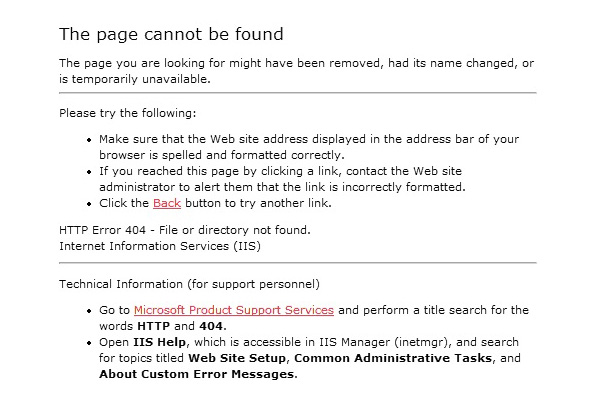 Страница 404 («Не найдена») — это страница, которую генерирует сервер, чтобы сообщить вам, что контент, доступ к которому вы пытались получить, не может быть найден. Обычно вы сталкиваетесь с ошибкой 404, когда что-то было перенесено или удалено, или когда вы переходите по ссылке/набираете адрес сайта с опечаткой.
Я сталкиваюсь со страницей 404 в основном потому, что я часто вручную набираю адрес сайта (не используя закладки), и у меня неуклюжие пальцы. Это часто приводит меня к запросу www.google.com/mial вместо необходимой мне страницы Gmail. Очень раздражает.
Еще несколько лет назад страницы 404 были просто стандартными страницами 404 сервера, но в последнее время разработчики и дизайнеры стараются создавать более дружественные 404 страницы, чтобы дать знать пользователю, где он находится, почему он туда попал, и куда он может пойти сейчас.
Как добавить свою страницу 404 в тему WordPress
Теперь давайте посмотрим, как же добавить 404 страницу, заточенную под вашу тему.
Добавить свою 404 страницу просто: все, что вам необходимо — это наличие в папке темы файла под названием «404.php«.
Конечно, если ваш файл «404.php» пуст, то страница «404», которая будет показываться вашим пользователям, будет пустой.
Быстрый метод создания своей страницы 404, которая будет хорошо подходить к вашей теме – это копирование всего содержимого файла «page.php» вашей темы в ваш новый файл «404.php«. Сделав это, удалите весь код, который относится к циклу, и замените его следующим кодом:
<h1>Page Not Found</h1>
<p>Sorry, but the page you requested has not been found</p>
Как сделать вашу страницу 404 отличной
Если пользователь попал на 404 страницу сайта, что вам действительно нужно — это помочь ему добраться до контента, который он рассчитывал получить. Если показывается стандартная страница 404 сервера, то велика вероятность того, что посетитель нажмет «Назад» и найдет нужный ему контент в другом месте.
Чтобы помочь пользователю получить контент, который он ищет, вам нужно добавить на свою страницу 404 элементы, перечисленные ниже. Эти вещи могут уже быть в вашей теме, и, следовательно, в вашей странице 404 (например, если вы скопировали код со своего файла «page.php«), в таком случае вам необходимо обратить на них внимание пользователя:
- Показать сообщение с извинением, которое объяснит, что контент, который искал пользователь, не найден. Упоминание кода «404» не обязательно, но вы можете его написать, если хотите.
- Предложить пользователю проверить адресную строку и убедиться, что в адресе сайта нет опечаток.
- Показать / обратить внимание пользователя на блок поиска, который поможет ему найти нужный контент на вашем сайте.
- Предложить материалы, которые, возможно, ищет посетитель, основываясь на странице, которую он запрашивал, или на популярных страницах сайта.
- Дать пользователю список вариантов «что теперь делать», например, перейти на главную страницу или посмотреть ваши архивы.
- Наконец, дать возможность пользователю сообщить об ошибке, добавив ссылку на пост / контактную форму / твиттер аккаунт, чтобы вы могли исправить ошибку, где это будет необходимо.
В моей воображаемой теме, я бы сделал это как-то так:
<?php get_header(); ?>
<div id="page">
    <h1>Page Not Found</h1>
    <p>We're very sorry, but the page you requested has not been found! It may have been moved or deleted.</p>
    <p>I'm not blaming you, but have you checked your address bar? There might be a typo in the URL.</p>
    <p>If there isn't, you could try searching my website for the content you were looking for:</p>
    <?php get_search_form(); ?>
    <p>Or maybe you were looking for one of my popular posts:</p>
    <ul>
        <li><a href="http://www.website.com/popular-post1">Popular Post 1</a></li>
        <li><a href="http://www.website.com/popular-post2">Popular Post 2</a></li>
        <li><a href="http://www.website.com/popular-post3">Popular Post 3</a></li>
        <li><a href="http://www.website.com/popular-post4">Popular Post 4</a></li>
    </ul>
    <p>Alternatively, you can go to <a href="http://www.website.com">my home page</a> or <a href="http://www.website.com/archives">browse my archives</a></p>
    <p>One last thing, if you're feeling so kind, please <a href="mailto:webmaster@website.com">tell me</a> about this error, so that I can fix it. Thanks!</p>
</div>
<?php get_sidebar(); get_footer(); ?>

Ключевые элементы
Если вы справитесь с «полезной» частью страницы 404, после этого можете добавить юмора и дизайнерских штук. Только не ставьте телегу впереди лошади. Давайте разберем ключевые элементы, которые мы использовали:
- Базовые: используем имя файла 404.php , чтобы WordPress использовал его как шаблон страницы ошибки
- Наш заголовок страницы (заключенный в тег H1) четко указывает, что страница не найдена.
- Даем короткое текстовое объяснение и предлагаем некоторые альтернативные решения (проверить URL)
- Предоставляем поиск (используя стандартную функцию WP search form)
- В завершение предоставляем ссылку на архивы. Продвинутые пользователи могут добавить сюда также список страниц, категорий или тегов.
- Предоставляем контакты для сообщения об ошибке.
И хотя бывает очень заманчиво добавить смешную картинку или надпись на вашей странице 404 , постарайтесь в первую очередь быть максимально полезными, а уже потом остроумными.
Невзирая на то, что существуют целые сайты, посвященные веселым 404 страницам, ваша основная задача – убедиться, что пользователь останется на вашем сайте и вернется к нему потом (разве что вы вознамерились попасть на один из таких сайтов, в таком случае – дерзайте!)
Другие факторы
Если пользователь попадает на страницу 404 не потому, что он сделал опечатку в URL (большинство пользователей не вводит напрямую адрес), велика вероятность того, что вы что-то перенесли или удалили.
Перенаправление старого контента
При переносе контента, всегда нужно перенаправлять старый URL на новый URL – это простой и эффективный способ убедиться, что все посетители, которые захотят увидеть этот контент, смогут это сделать. Перенаправление в WordPress можно легко сделать с помощью популярного плагина Redirection.
Этот плагин также позволяет отслеживать ошибки 404, сгенерированные вашим сервером, и адреса страниц, запрашиваемые при генерации 404 ошибки. Это позволяет вам перенаправить этот адрес на правильное расположение контента, улучшая общее впечатление пользователя.
Идем еще дальше
Как мы упоминали ранее, действительно хорошая 404 страница даже не обязательно должна быть похожа на 404 страницу. Добавив туда список страниц, категорий и тегов, вы можете дать пользователям непосредственно ссылки для перехода вместо того, чтобы заставлять их тратить время на уточнение поиска.
Также рассмотрите вариант с добавлением «популярного» контента: иногда популярный контент может быть даже лучшим вариантом, чем соответствующий начальному запросу контент, если ваша цель – удержать посетителей 404 страницы на сайте.
Не удаляйте посты. Удаляйте контент
И наконец, удаляя контент, подумайте, может быть стоит просто удалить содержимое поста / страницы (а не удалять весь пост / страницу), и сообщить пользователям, зачем вы удалили контент.
Вы можете пойти дальше и порекомендовать альтернативные источники, где пользователь сможет найти контент, похожий на тот, который вы удалили. Это поможет избежать «мертвых ссылок» на вашем сайте, при этом контент, который вы хотите удалить, будет удален.
Источник: WP Tuts
Смотрите также:

Изучает сайтостроение с 2008 года. Практикующий вебмастер, специализирующий на создание сайтов на WordPress. Задать вопрос Алексею можно на https://profiles.wordpress.org/wpthemeus/
Are you hoping to create custom 404 error pages that will keep users on your site? While error pages are usually the last place you want visitors to end up, you can easily turn them into positive experiences.

One of the best ways to do this is to create a fully-custom error 404 WordPress page. With the right tools and design, you can make encountering this error an engaging and user-friendly experience. Plus, you won’t need any coding knowledge or redirect plugins.
In this post, we’ll discuss the benefits of custom error pages, and then guide you through three ways to create one for your WordPress website.

The Benefits of Creating Custom Error Pages for Your Website
A 404 error page lets the user know there was a problem with their request. They may have mistyped a URL or tried to visit a page that no longer exists. This error is essentially a dead end, which can frustrate visitors and result in them leaving your website if you don’t give them an out.
However, if you design a custom page that provides value, you can ease your visitors’ frustrations and boost your site’s UX. Plus, with the right customization, your error page can slot right in with your other content, giving your site a stylish, consistent look and feel.
You also have the opportunity to include internal links on your error page, so visitors can easily navigate your site. Internal links prevent users from having to return to your home page, scoring points for user-friendliness. Plus, an internal linking structure can help search engines better understand your content, helping you build more authority for your site.

Image Source
Typically, error pages don’t offer much content for users to view and interact with. As such, it’s easy to lose visitors, who may go looking for answers elsewhere.
Therefore, you might decide to include search bars and navigation menus on these pages to encourage users to keep browsing. This can help you reduce bounce rates (the number of visitors who leave shortly after arriving) and boost your search rankings.
Finally, custom error pages enable you to show off your brand’s personality and reflect your company’s message and values. Clever 404 pages can help you shape brand perception and build more awareness about your company’s identity.
Now that you understand the benefits of creating custom 404 error pages, let’s look at three methods to add one to your WordPress website.
Method 1: The Beaver Builder Page Builder
As with most WordPress-related tasks, the best way to create custom 404 error pages is often by using a plugin. If you use a page builder, it may offer you this option built-in.
For example, the popular Beaver Builder page builder helps you to complete this task easily. With the premium tier, you get access to the Beaver Themer add-on, which allows you to directly edit your theme.
You’ll need to purchase your plan on the Beaver Builder website. Then, upload your zip files to WordPress. Once both plugins are activated, you can navigate to Beaver Builder > Themer Layouts.
Next, click on Add New. You’ll be taken to a new screen where you can give your layout a title:
-Aug-24-2022-06-47-02-41-PM.png?width=650&name=How%20to%20Create%20a%20Custom%20Error%20404%20WordPress%20Page%20(3%20Methods)-Aug-24-2022-06-47-02-41-PM.png)
You can also use the drop-down menu to select Themer Layout for your layout type, and choose 404. Then hit Add Themer Layout.
You’ll be redirected to a new page where you can click on Launch Beaver Builder. This shows you the default 404 error page:
-4.png?width=650&name=How%20to%20Create%20a%20Custom%20Error%20404%20WordPress%20Page%20(3%20Methods)-4.png)
Nothing too exciting here. However, you can customize the page to make it more unique to your brand. To change the messaging, select any text module to access the settings. In the General tab, you can alter the text, and under Style you can adjust the colors, fonts, and spacing:
-Aug-24-2022-06-47-01-99-PM.png?width=650&name=How%20to%20Create%20a%20Custom%20Error%20404%20WordPress%20Page%20(3%20Methods)-Aug-24-2022-06-47-01-99-PM.png)
In addition, you can make your error page more engaging by using additional modules. For example, you can include a navigation menu, a search field, or even a login form.
When you’re happy with your design, hit Done > Publish. Then you can test it on the front end by intentionally misspelling one of your site’s URLs.
Method 2: The HubSpot Starter CRM Suite
If none of your site’s existing plugins offer the functionality you need, or you’re already a HubSpot user, this may be the best method for you. Although you can use HubSpot for free, the Starter CRM Suite plan allows you to put your own spin on the content of your error pages (among many other things).
To get started, you’ll need to log into your HubSpot account. Then go to Marketing > Design Tools:
-1.png?width=650&name=How%20to%20Create%20a%20Custom%20Error%20404%20WordPress%20Page%20(3%20Methods)-1.png)
On the left side of the screen, click on File and choose New file. At the popup, you can select a template for your page. For example, you might build your page with HTML or use the drag-and-drop visual builder. Then, click on Next:
-2.png?width=624&name=How%20to%20Create%20a%20Custom%20Error%20404%20WordPress%20Page%20(3%20Methods)-2.png)
On the following screen, check the template box. Here, you can also select a page template from the drop-down menu and give your file a name:
-3.png?width=624&name=How%20to%20Create%20a%20Custom%20Error%20404%20WordPress%20Page%20(3%20Methods)-3.png)
Finally, hit Create. Once you’ve set up your 404 error page, you can structure and customize the content as much as you’d like.
When you’re happy with your template, you can apply it to your website in your HubSpot settings. On the Settings page, go to Websites > Pages:
-Aug-24-2022-06-47-02-85-PM.png?width=650&name=How%20to%20Create%20a%20Custom%20Error%20404%20WordPress%20Page%20(3%20Methods)-Aug-24-2022-06-47-02-85-PM.png)
Click on the System pages tab. Then, use the 404 error page drop-down menu to select the custom 404 page template you designed earlier, and make sure to save your changes.
Method 3: The 404page Plugin
The handy 404page plugin enables you to create neat 404 pages to keep visitors on your website. It’s free, and with over 100,000 active installations, it’s the most popular plugin of its kind. However, it’s important to note that 404page can’t create redirects.
-Aug-24-2022-06-47-03-21-PM.png?width=650&name=How%20to%20Create%20a%20Custom%20Error%20404%20WordPress%20Page%20(3%20Methods)-Aug-24-2022-06-47-03-21-PM.png)
For that reason, it’s very easy to use. Simply design your page as you normally would, including key elements like images, headings, and buttons. Then, navigate to Appearance > 404 Error Page. Currently, the plugin will show your default 404 page, usually dictated by your theme:
.png?width=650&name=How%20to%20Create%20a%20Custom%20Error%20404%20WordPress%20Page%20(3%20Methods).png)
However, you can use the dropdown menu under the General tab to choose the custom 404 error page you created. Then, save your changes.
You can then click on Test 404 error to preview your custom page, or hit Edit page to make changes to your page. You can also access advanced settings, which enables you to do things like send an HTTP 410 error for pages that are no longer available.
Delight your visitors with a custom 404 page.
To recap, there are several ways to create a custom error 404 WordPress page:
- Beaver Builder and Beaver Themer
- The HubSpot Starter CRM Suite
- The 404page plugin
Although it isn’t ideal for users to encounter 404 errors, it’s best to be prepared for the occasion. That way, you can use this page as an opportunity to reduce bounce rates and boost UX by encouraging users to stay on your site. It can even be a chance to add an extra delight moment to their experience.