
Если главная страница сайта отображается, а внутренние выдают ошибку 404 или 500, проблема заключается в отсутствии файла .htaccess или его неправильном содержании.
Внутренние страницы перестают открываться на CMS (WordPress, Joomla, DLE), поскольку в этих системах файл .htaccess имеет большое значение и часто видоизменяется. Проблема появляется при переносе сайта с одного виртуального хостинга на другой.
Оглавление статьи:
- Причины и решение ошибки 404/500
- Файл .htaccess для WordPress
- Хостинг на Windows и панель ISPmanager
Причины и решение ошибки 404/500
Файл .htaccess должен содержать записи, необходимые для работы CMS. При переносе сайта на новый хостинг, особенно через браузерные версии панелей хостеров, данный файл может не попасть в архив из-за настроек безопасности. Как следствие, на новом хостинге файла не будет, и правильно развернутая из бекапа и настроенная CMS работать не будет — кроме главной страницы. Наиболее часто проблема наблюдается на сайтах, где вместо стандартного отображения URL подключено ЧПУ.
Внутренние страницы перестают открываться, если:
- Файл .htaccess отсутствует. Проблема актуальна при переносе сайта с одного хостинга на другой.
- Файл пустой. Содержимое файла может быть удалено по ошибке, в результате заражения сайта вирусами или по иной причине.
- Содержимое файла изменено или повреждено. Если внутренние страницы сайта перестали работать после каких-либо действий с .htaccess, следует проверить файл на наличие всех директив, необходимых для работы CMS.
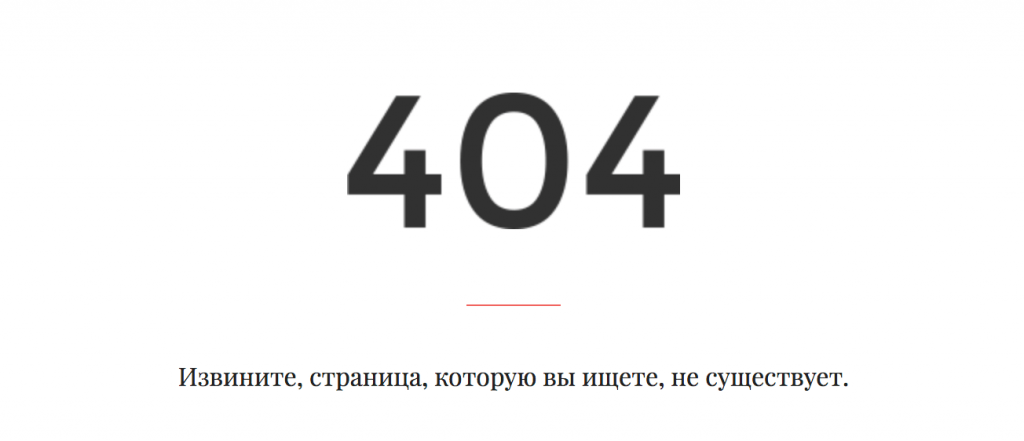
Отличительной особенностью ошибки с файлом .htaccess является измененный дизайн страницы 404/500. Страницы ошибки 404 будут отдаваться сервером и отличаться от оформления 404 у сайта (с шаблоном и дизайном, элементами навигации). Актуально, по крайней мере, для WordPress.
Для исправления ошибок нужно создать .htaccess с нужным содержимым. Содержание файла будет меняться в зависимости от CMS. Помимо указанного кода, в файле может содержаться любая информация и директивы, необходимые для функционирования сайта.
Файл .htaccess для WordPress
Каждая система управления контентом требует определенных директив для полноценного и корректного функционирования. Документ .htaccess должен располагаться в корне сайта и иметь, как минимум, указанное ниже содержание (для WordPress).
# BEGIN WordPress
RewriteEngine On
RewriteBase /
RewriteCond %{REQUEST_FILENAME} !-f
RewriteCond %{REQUEST_FILENAME} !-d
RewriteRule . /index.php [L]
# END WordPress
Содержимое файлов для других популярных CMS можно без проблем найти в сети — там текста в разы больше, и в статью информация попросту бы не влезла. У WordPress содержимое файла не менялось годами, а потому ошибка одинаково хорошо решается на всех версиях движка.
Хостинг на Windows и панель ISPmanager
Любые операции с файлом .htaccess актуальны только для хостингов, расположенных на Linux-серверах. Сервера от Windows попросту не имеют такого файла — вместо него аналогичные функции выполняются в документе web.config. Уточнять содержимое данного файла следует в поддержке соответствующей CMS.
Помимо этого, проблема с ошибкой 404 на внутренних страницах актуальна для Linux-серверов с панелями ISPmanager. В этом случае требуется отключить автоподдомены, если они включены, и проверить наличие проблемы. Ошибки 404 и 500 могут исчезнуть и без замены .htaccess (либо с файлом изначально все нормально, если он присутствует в корне и правильно заполнен).
Struggling with how to fix the 404 Not Found error on WordPress posts and pages?
This error might appear sometimes when you, or a visitor, try to access a certain page on your site. Instead of seeing the content that you expected, you see something like an “Error 404 Not Found” message instead.
Thankfully, this error message is usually localized to the specific page in question. That is, it shouldn’t affect any other parts of your site (though it can in rare cases).
However, that doesn’t mean it’s not frustrating, and you’ll definitely want to do your best to prevent and fix 404 errors on your site.
In this post, we’ll cover everything that you need to know about 404 errors including:
- What the 404 Not Found error is and what causes it
- Fixing sitewide 404 errors on WordPress
- Fixing individual 404 errors on WordPress
- Monitoring your site for 404 errors
- Creating a custom 404 page for your site (this will make more sense after you’ve read the other sections!)
Table Of Contents
- What Is Error 404 Not Found?
- How to Fix Sitewide 404 Not Found Errors in WordPress
- How to Fix Individual 404 Errors on WordPress
- How to Monitor Your WordPress Site for 404 Errors
- How to Create a Custom 404 Error Page
- Fix the WordPress 404 Not Found Error Today
What Is Error 404 Not Found?
The Error 404 Not Found message appears when you, or one of your visitors, tries to visit a page on your site that doesn’t exist.
That could be either because the page never existed, the page was removed (deleted), or the page’s URL was changed to a different URL.
For example, let’s say you have a blog post at yoursite.com/2020-guide. If you update the post for 2021 and change the URL to yoursite.com/2021-guide, then anyone who tried to visit the original 2020-guide URL would see a 404 error because that page no longer exists at that URL (unless you set up a redirect – more on that later!).
Most of the time, the error only appears when a person tries to visit a nonexistent URL on your site. That is, the error won’t affect any content that does exist.
In rare situations, however, a corrupted .htaccess file can cause the 404 error to appear on your entire site.
404 Error Variations
The 404 Error Not Found message can appear in several different variations depending on what web hosting/web server you’re using, the browser that a visitor is using, and how your site is configured.
Here are some common variations:
- “Error 404”
- “404 Not Found”
- “Not Found”
- “Page Not Found”
- “The requested URL was not found on this server.”
- “HTTP Error 404”
- “We can’t find the page you’re looking for.”
- “The page cannot be found”
To add some further complexity, it’s actually possible to create your own custom 404 message that will appear whenever there’s a 404 error on your site.
We’ll cover this topic in more depth later on, but this lets you create a more user-friendly error message and help redirect users to the right spot.
For example, on the Astra website, we have a custom 404 page that includes a search box to help users find the content that they’re looking for:
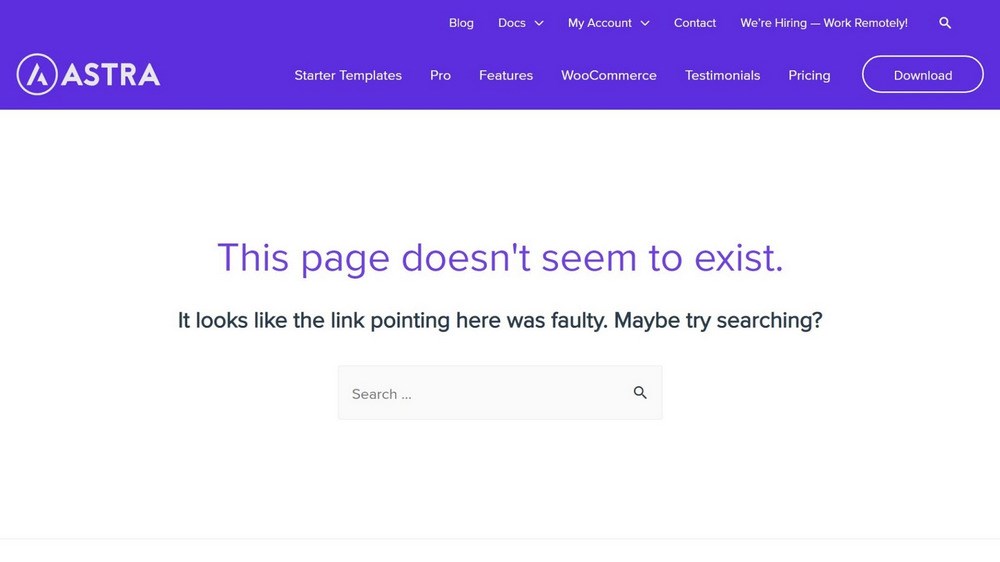
This is actually the default 404 error page for all sites using the Astra theme, though Astra makes it easy to create your own custom design – more on that later too.
Some websites even use their 404 pages as a way to show some creativity, like this 404 page from Ready to Go Survival:

What Causes Error 404 Not Found?
There are two types of 404 errors that you might be experiencing and the likely cause depends on which type of error it is.
We’ll include fixes for both types of problems below.
If you see a sitewide 404 Not Found error no matter what page you try to visit, the issue is likely with your WordPress site’s permalink structure or .htaccess file.
Something got corrupted somewhere which is causing your site’s server to think your site’s URLs don’t exist. It sounds serious, but this one is usually pretty easy to fix so don’t worry.
On the other hand, if you only see the 404 Not Found error on specific URLs (but the rest of your site works), then there are several potential problems:
- Broken links – Someone might be linking to a page on your site that doesn’t exist. This could be an external link on someone else’s site or an internal link on your own site. When people click the link, it takes them to a page that doesn’t exist and triggers the 404 error.
- Changed URLs – If you change the URL of a piece of content, you might have people still trying to visit the old URL which will trigger a 404 error (unless you set up a redirect).
- Typos – Someone might have accidentally mistyped the URL that they’re trying to visit.
It’s impossible to fix all of these causes because you can’t prevent someone from making a typo.
But you can fix broken links and changed URLs, and you can create a custom 404 page to create a more user-friendly experience for users who make typos.
Why You Need to Fix Error 404 Not Found?
The 404 error can be problematic for a couple of reasons.
The biggest reason is that it’s just plain frustrating for your visitors. They’re trying to access a certain piece of content. Instead of seeing the content they expected, they’re seeing a 404 error instead.
For this reason alone, you should always try to fix 404 errors on your site.
Beyond creating a poor user experience, 404 errors can also be an indirect drag on search engine optimization (SEO). If the 404 error is a result of a broken internal or external link, you might be wasting link equity.
Basically, Google ranks a page in part on how many links point to it. So if a link points to a missing page instead of the actual URL, you’re essentially missing out on the benefit of that link.
Some SEO experts also claim that 404 errors can make it harder for Google to crawl your site, though Google says this isn’t an issue.
How to Fix Sitewide 404 Not Found Errors in WordPress
If you’re seeing the Error 404 Not Found message across your entire WordPress site, you should be able to fix the problem by regenerating your site’s .htaccess file or permalinks.
If you can still access your WordPress dashboard, you can do this directly from your dashboard. Otherwise, you might need to connect to your server using FTP.
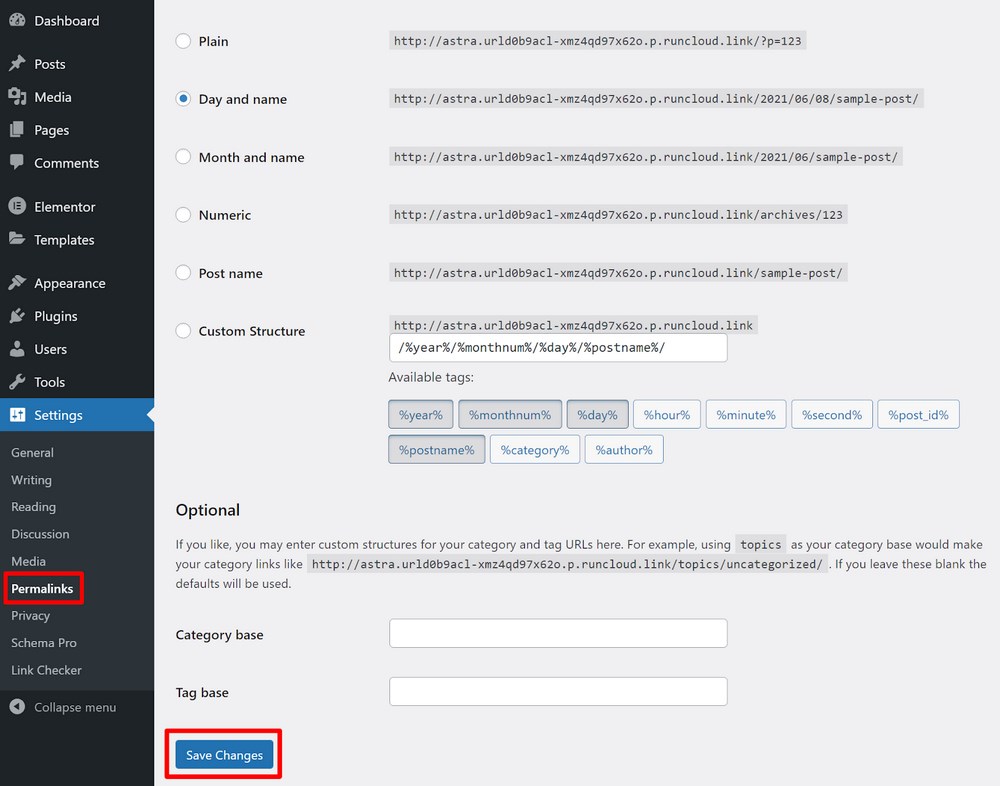
Assuming you still have dashboard access, all you need to do is go to Settings → Permalinks in your dashboard.
Then, just click the Save Changes button.
There’s no need to make any other changes – just clicking Save Changes will force WordPress to generate a new .htaccess file, which should fix the problem:
If you can’t access your WordPress dashboard, you’ll first need to connect to your site’s server using FTP with a tool like FileZilla (tutorial here).
Then, delete the existing .htaccess file. We recommend downloading a copy of the file first so that you have a backup just in case.
Once you delete the .htaccess file, you should be able to access your WordPress dashboard and you can generate a new .htaccess file by going to Settings → Permalinks and clicking Save Changes.
How to Fix Individual 404 Errors on WordPress
If you’re experiencing 404 errors on specific pieces of content, you’ll need a more targeted approach to fix the problem.
There are two tactics that you can try:
- Fix any broken links on your site to make sure you’re not accidentally sending visitors to content that doesn’t exist.
- For remaining errors, you can set up redirects to automatically send people to the correct URL(s) instead of showing a 404 error.
How to Find and Fix Broken Links
The first step in stopping 404 errors is to make sure you don’t have any broken links on your site that send users to a 404 error.
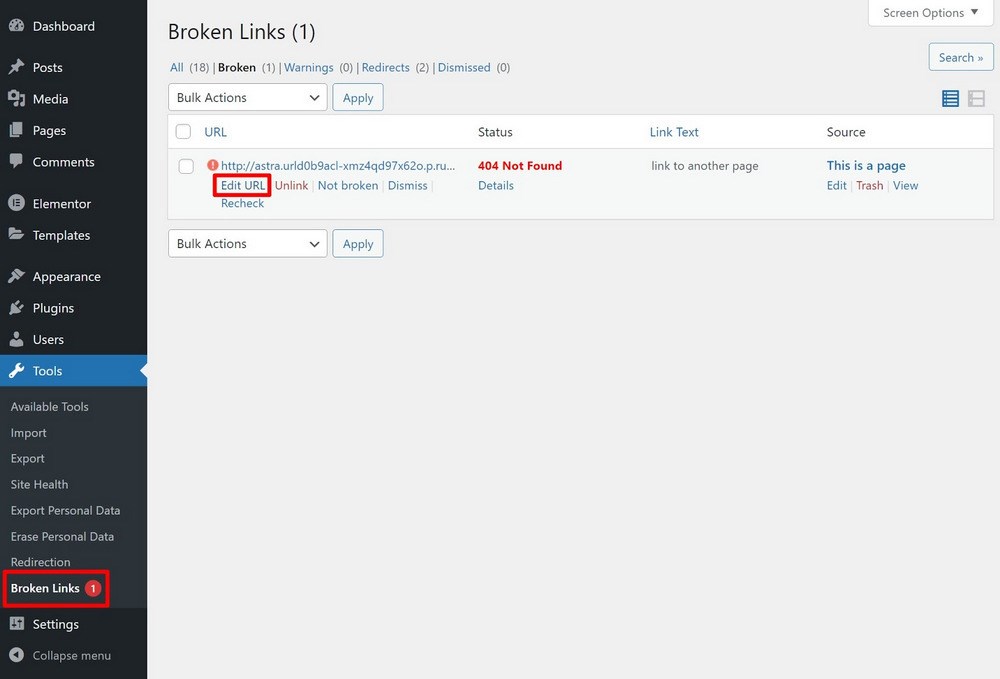
To quickly scan your site for broken links, you can use the free Broken Link Checker plugin.
Once you install and activate the plugin, go to Tools → Broken Links to view a report.
If the plugin detects a broken link, you can fix it directly from the plugin’s interface:
Note – while this plugin is useful, we recommend deactivating it once you’re finished to reduce any performance impact from the plugin’s scanning.
How to Set Up Redirects
For any remaining 404 errors, you can fix the problem by manually setting up a redirect to send users to the correct page.
Let’s go back to that example from before where you had a blog post published at yoursite.com/2020-guide and then you updated it for 2021 and changed the URL to yoursite.com/2021-guide.
To prevent people from seeing a 404 error when they visit yoursite.com/2020-guide, you can set up a redirect that automatically redirects the people who visit yoursite.com/2020-guide to yoursite.com/2021-guide.
There are several plugins that make it easy to set up redirects on WordPress, but we recommend the popular and free Redirection plugin.
All you do is enter the original URL and the new destination URL and the plugin will handle everything else for you:
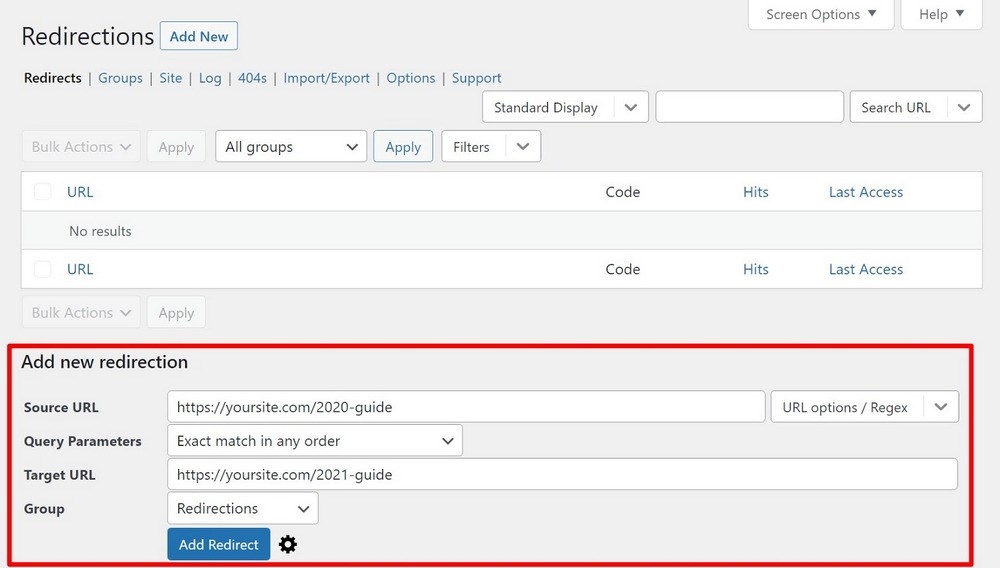
To learn more about what redirects are and how to use them, we have a complete guide on WordPress redirects, Or you can check this video to fix 404 errors using redirection.
How to Monitor Your WordPress Site for 404 Errors
If you want to proactively prevent 404 errors on your site, it can be useful to monitor which URLs are triggering them. Then, if you see that a particular URL is causing problems, you can step in and set up a redirect to send users to the proper spot.
There are a few ways that you can track the URLs that are triggering 404 errors:
- Google Analytics
- Google Search Console
- The Redirection plugin
Google Analytics
If you’re using Google Analytics, you can use its built-in reporting to check for URLs that caused 404 errors.
To get started, go to Behavior → Site Content → All Pages and then search for “Page Not Found” with Page Title as the primary dimension:
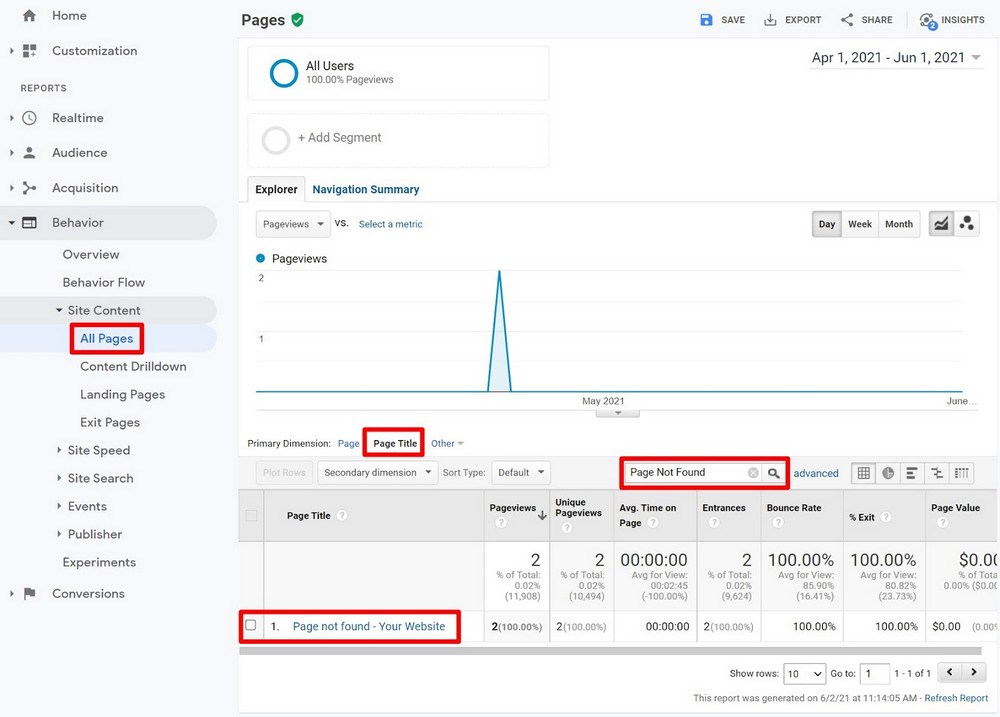
You can then click on the result to see the specific URLs that caused the error:
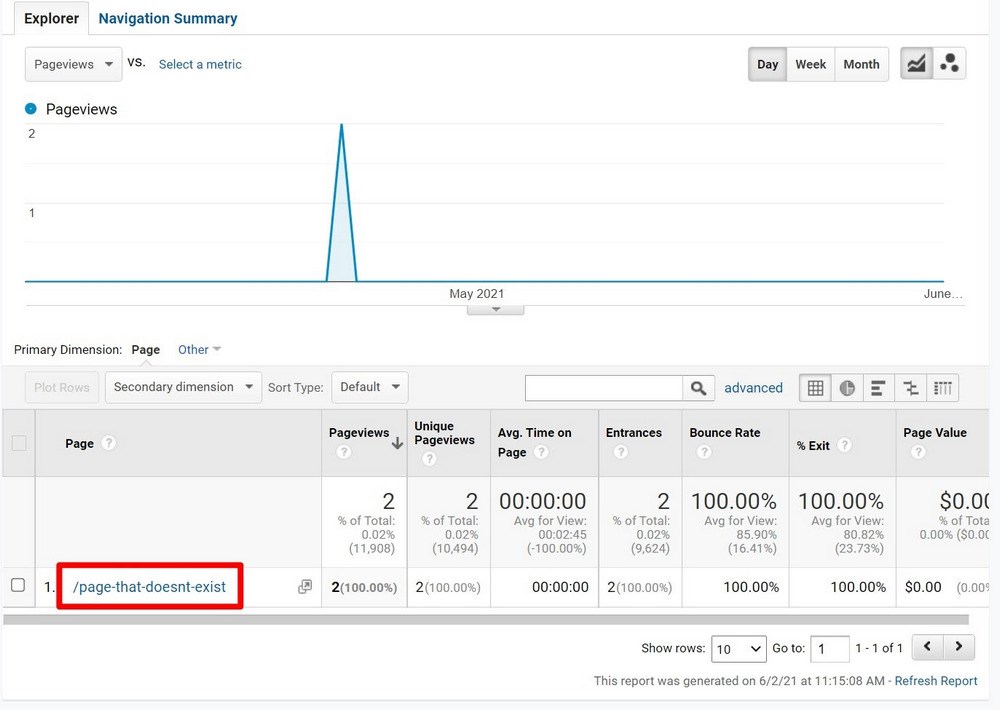
In this example, you can see that yoursite.com/page-that-doesnt-exist was the URL that triggered the 404 error. You can use this information to set up a redirect.
If you’re not using Google Analytics yet, you can follow our guide to add Google Analytics to WordPress or browse the best Google Analytics plugins.
Google Search Console
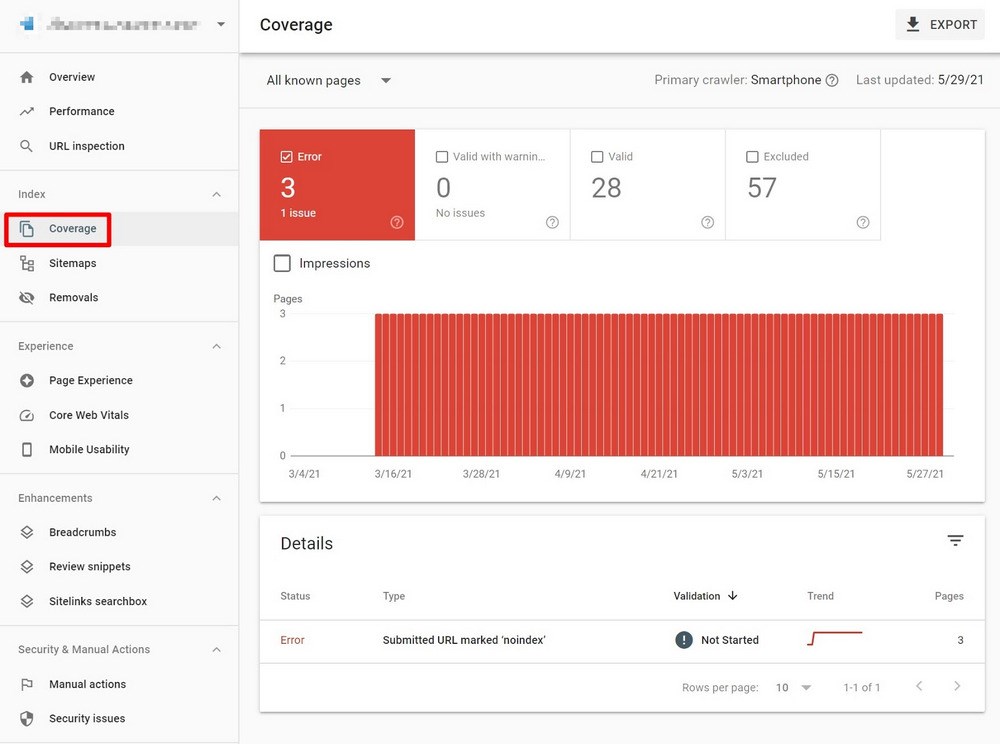
Google Search Console is another useful way to track 404 errors. Unlike Google Analytics, which tracks the 404 errors that your human visitors encounter, Google Search Console will show the 404 errors that Google’s web crawler bot encounters.
Typically, these errors are the result of broken links, either on your own site or someone else’s site. Or, it could be an issue with your sitemap including content that doesn’t exist.
To look for 404 errors, go to the Coverage report and check for 404 errors in the Type column:
Redirection Plugin
For a native WordPress solution to track 404 errors, you can use the free Redirection plugin that we mentioned above. It helps you both track 404 errors and then easily set up redirects for any problems that it finds.
In the setup wizard, make sure to enable the 404 logging feature. Beyond that, there’s nothing else to configure.
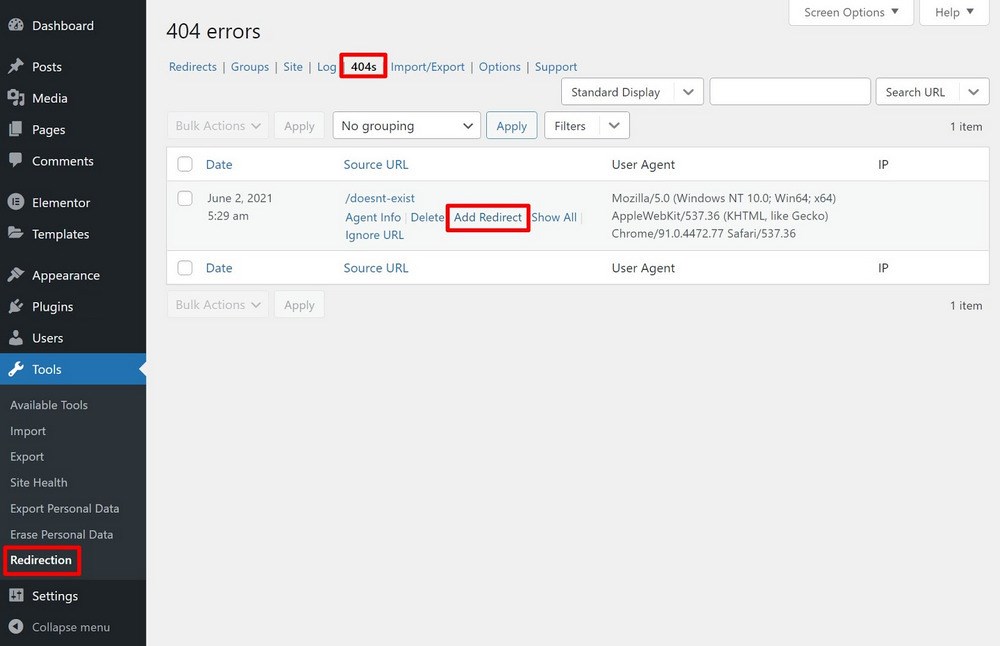
You can view a log of 404 errors by going to Tools → Redirection → 404s. If you hover over an error, the plugin will give you an option to set up a redirect right away:
How to Create a Custom 404 Error Page
As we mentioned earlier, another way to lessen the impact of 404 errors is to create your own custom 404 page. You can use your custom 404 page to…
- Explain the error and why the visitor isn’t seeing the content that they expected to find.
- Include a search box.
- Offer some relevant links to your most popular content/features.
There are lots of different ways that you can create a custom 404 page on WordPress – we’ll share three code-free methods.
Astra Theme
If you’re using the Astra theme, you can use Astra’s built-in Custom Layouts feature, which is available in Astra Pro.
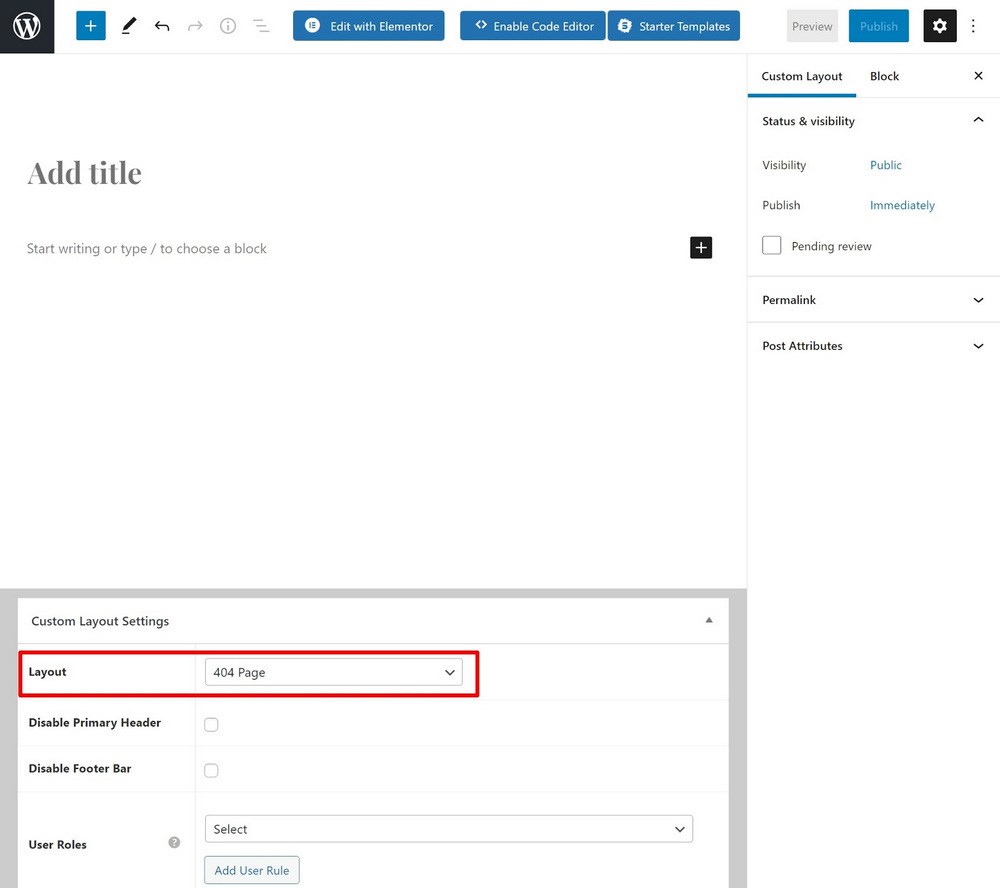
Once you activate the Custom Layouts module, you can go to Appearance → Astra Options → Custom Layouts.
Make sure to set the layout as the 404 page and then you can use the native WordPress editor or your favorite page builder to design the 404 page:
For a more detailed look, you can follow our guide on how to create a custom 404 page with Astra Custom Layouts.
Elementor Pro
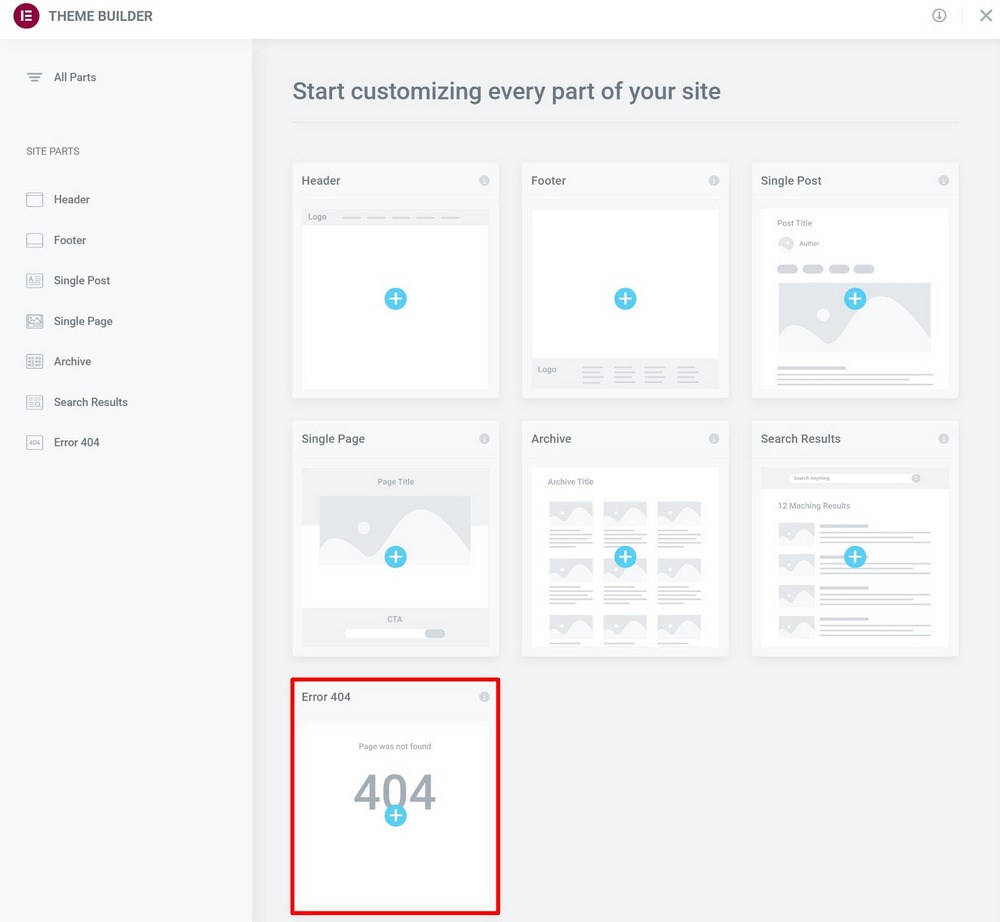
If you’re using Elementor Pro (our review), you can use Elementor Theme Builder to design a custom 404 page template:
To learn how to use the Elementor interface, you can follow our Elementor tutorial.
404page
For a free option to create a custom 404 page, you can use the 404page plugin.
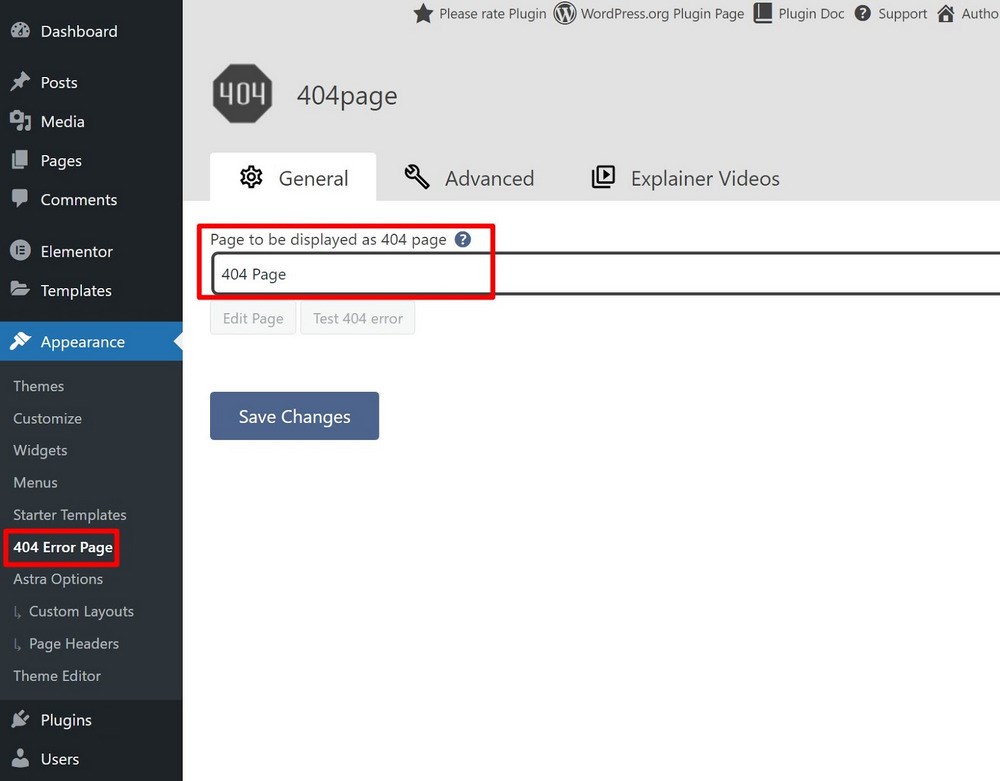
To get started, create the design that you want to use for your 404 page using a regular WordPress page (Pages → Add New). You can use the regular WordPress editor or your favorite page builder.
Once you’ve done that, go to Appearance → 404 Error Page and use the drop-down to select the page that you just created:
That’s it! People who experience a 404 error will now see that page.
Fix the WordPress 404 Not Found Error Today
The Error 404 Not Found message can be frustrating for WordPress users. But with the tactics in this post, you can easily fix your site’s 404 errors and prevent 404 errors in the future.
Beyond that, you can also create your own custom 404 error page that lessens the impact of errors by providing an explanation of what’s going wrong and helping visitors find the content that they’re looking for.
Recommended Articles:
- How to fix err_connection_refused error
Do you still have any questions about the Error 404 Not Found message on WordPress? Let us know in the comments!
Если главная страница сайта отображается, а внутренние выдают ошибку 404 или 500, проблема заключается в отсутствии файла .htaccess или его неправильном содержании.
Внутренние страницы перестают открываться на CMS (WordPress, Joomla, DLE), поскольку в этих системах файл .htaccess имеет большое значение и часто видоизменяется. Проблема появляется при переносе сайта с одного виртуального хостинга на другой.
Оглавление статьи:
- Причины и решение ошибки 404/500
- Файл .htaccess для WordPress
- Хостинг на Windows и панель ISPmanager
Причины и решение ошибки 404/500
Файл .htaccess должен содержать записи, необходимые для работы CMS. При переносе сайта на новый хостинг, особенно через браузерные версии панелей хостеров, данный файл может не попасть в архив из-за настроек безопасности. Как следствие, на новом хостинге файла не будет, и правильно развернутая из бекапа и настроенная CMS работать не будет — кроме главной страницы. Наиболее часто проблема наблюдается на сайтах, где вместо стандартного отображения URL подключено ЧПУ.
Внутренние страницы перестают открываться, если:
- Файл .htaccess отсутствует. Проблема актуальна при переносе сайта с одного хостинга на другой.
- Файл пустой. Содержимое файла может быть удалено по ошибке, в результате заражения сайта вирусами или по иной причине.
- Содержимое файла изменено или повреждено. Если внутренние страницы сайта перестали работать после каких-либо действий с .htaccess, следует проверить файл на наличие всех директив, необходимых для работы CMS.
Отличительной особенностью ошибки с файлом .htaccess является измененный дизайн страницы 404/500. Страницы ошибки 404 будут отдаваться сервером и отличаться от оформления 404 у сайта (с шаблоном и дизайном, элементами навигации). Актуально, по крайней мере, для WordPress.
Для исправления ошибок нужно создать .htaccess с нужным содержимым. Содержание файла будет меняться в зависимости от CMS. Помимо указанного кода, в файле может содержаться любая информация и директивы, необходимые для функционирования сайта.
Файл .htaccess для WordPress
Каждая система управления контентом требует определенных директив для полноценного и корректного функционирования. Документ .htaccess должен располагаться в корне сайта и иметь, как минимум, указанное ниже содержание (для WordPress).
# BEGIN WordPress
RewriteEngine On
RewriteBase /
RewriteCond %{REQUEST_FILENAME} !-f
RewriteCond %{REQUEST_FILENAME} !-d
RewriteRule . /index.php [L]
# END WordPress
Содержимое файлов для других популярных CMS можно без проблем найти в сети — там текста в разы больше, и в статью информация попросту бы не влезла. У WordPress содержимое файла не менялось годами, а потому ошибка одинаково хорошо решается на всех версиях движка.
Хостинг на Windows и панель ISPmanager
Любые операции с файлом .htaccess актуальны только для хостингов, расположенных на Linux-серверах. Сервера от Windows попросту не имеют такого файла — вместо него аналогичные функции выполняются в документе web.config. Уточнять содержимое данного файла следует в поддержке соответствующей CMS.
Помимо этого, проблема с ошибкой 404 на внутренних страницах актуальна для Linux-серверов с панелями ISPmanager. В этом случае требуется отключить автоподдомены, если они включены, и проверить наличие проблемы. Ошибки 404 и 500 могут исчезнуть и без замены .htaccess (либо с файлом изначально все нормально, если он присутствует в корне и правильно заполнен).
Дек 10, 2020
Anna
7хв. читання

Ошибка 404 в WordPress является одной из наиболее распространённых ошибок, с которой вы будете сталкиваться в интернете. Однако это не делает её менее раздражающей или неприятной, когда она появляется на вашем собственном веб-сайте. Хорошей новостью является то, что её исправление относительно простое, и процесс хорошо расписан для сайтов на WordPress.
В этой статье мы рассмотрим три способа исправления ошибки 404 в WordPress:
- Сброс настроек постоянных ссылок в WordPress (англ).
- Восстановление файла .htaccess (англ).
- Отключение тем и плагинов.
Однако, прежде чем закатывать рукава, мы поговорим о том, как работает ошибка 404 и какие причины её возникновения. Давайте перейдём непосредственно к этому!
Ошибка 404 это сообщение, которое появляется, когда вы пытаетесь получить доступ к странице, которую браузер не может найти. В зависимости от того, какой браузер вы используете, сообщение может незначительно отличаться. Например, Firefox отображает такой текст: «404 Not Found», а Chrome показывает сообщение — «404. That’s an error»:
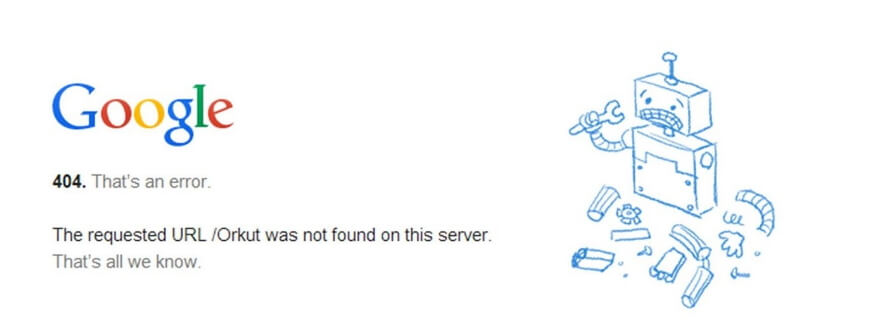
Эти сообщения об ошибках по умолчанию могут быть довольно неопределёнными, и любой веб-сайт может настроить собственную страницу ошибок 404 (англ). Это не является необходимым, но это позволяет объяснять посетителям, что сайт работает, и единственная проблема заключается в конкретной странице, которую они пытаются найти.
Независимо от того, как оно выглядит, существует много вещей, которые могут вызвать в WordPress сообщение: 404 ошибка. К ним относятся:
- Неверный URL. В некоторых случаях ошибка может быть в дополнительной букве, набранной в URL страницы.
- Проблемы с кэшированием. Иногда браузер может кэшировать страницу, к которой вы пытаетесь получить доступ, и пока она не найдена, вы будете видеть ошибку 404, даже если сайт работает для всех остальных.
- Проблема с настройками сервера доменных имен (DNS). Возможно, информация о вашем домене ещё не обновилась в DNS, поэтому вы видите ошибку при попытке получить доступ к одной из страниц вашего сайта.
- Проблемы с совместимостью в WordPress. В некоторых случаях проблемы с плагином или темой могут повлиять на то, как WordPress создаёт URL-адреса и постоянные ссылки для вашего сайта. Затем, если кто-либо попытается получить доступ к URL-адресу, который больше не работает, возникает ошибка 404 в WordPress.
Важно понимать, что ошибка 404 не уникальна только для WordPress. Она может возникать независимо от того, на какой платформе находится ваш сайт. Однако, если вы используете WordPress, у вас есть преимущество, так как существует множество способов решить эту проблему. Давайте поговорим о том, что делать, если вы столкнулись с ошибкой 404 в WordPress.
Что делать перед устранением ошибки 404 в WordPress
В следующих разделах вы будете редактировать некоторые файлы на бэкэнд WordPress. Мы проведем вас через весь процесс, и всё будет в порядке. Однако, когда вы решите редактировать конфиденциальные файлы в WordPress, лучше заранее создать резервную копию вашего сайта — на всякий случай.
Если у вас нет доступа к панели управления WordPress прямо сейчас, не волнуйтесь. В Hostinger существует несколько способов получить резервную копию вашего веб-сайта с панели управления хостингом.
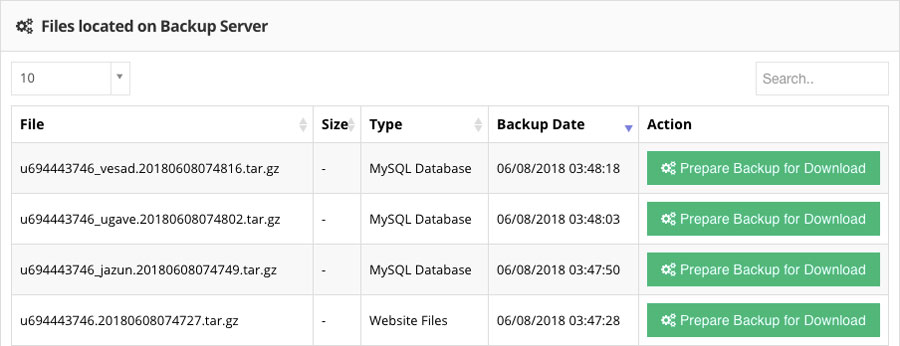
После этого вам нужно будет загрузить и настроить FTP-клиент. Мы рекомендуем FileZilla (англ), так как он бесплатный и предлагает все функции, которые могут вам понадобиться. Если вы раньше не использовали FTP, вы можете ознакомиться с нашим подробным руководством о том, как получить доступ к сайту Hostinger напрямую. Затем, когда вы будете готовы, вы сможете приступить к исправлению ошибок WordPress 404.
Как исправить ошибку 404 в WordPress (3 метода)
В некоторых случаях ненайденные страницы в WordPress вскоре исчезают сами по себе. Обычно это происходит, если они вызваны ошибкой с вашим хостинг-провайдером. Прежде чем приступать к серьёзному устранению неполадок, мы рекомендуем вам попробовать обновить сайт, предоставив ему пять или десять минут, чтобы всё уладить.
Если ошибка сохраняется и дальше, значит на вашем сайте существует проблема. В этом случае давайте рассмотрим три потенциальных решения одно за другим.
1. Сбросьте настройки своих постоянных ссылок (пермалинков) в WordPress
Одной из наиболее распространённых причин ошибки WordPress 404 является проблема с тем, как WordPress генерирует ваши постоянные ссылки (англ). Как вы, возможно, знаете, WordPress предоставляет вам несколько вариантов форматирования ссылок ваших записей и страниц. Например, вы можете настроить платформу для использования простых числовых ссылок или указать название каждой записи в качестве URL-адреса:
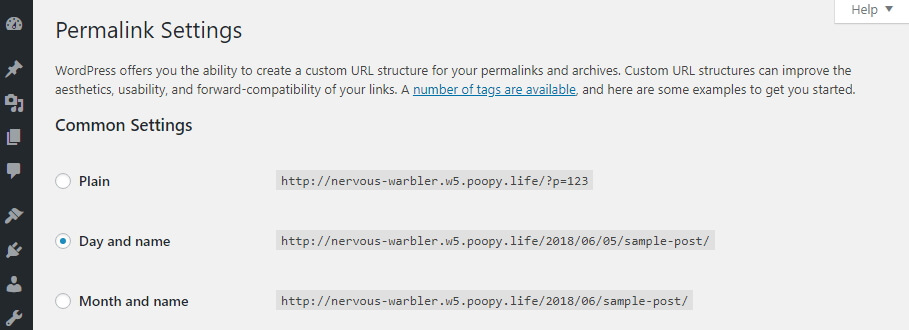
В любом случае первое, что вам нужно сделать, когда вы столкнётесь с ошибкой 404 в WordPress, это сбросить настройки ваших постоянных ссылок. Есть два способа сделать это: один через панель управления (Консоль), а другой через FTP. Если у вас есть доступ к панели управления, следуйте инструкциям в этом разделе. Еслм нет – вам следует перейти к методу номер два.
Если вы можете войти в свою панель инструментов, начните с перехода во вкладку Настройки> Постоянные ссылки. Обратите внимание на структуру, которую использует ваш сайт на данный момент. Вам нужно будет временно изменить её, чтобы сбросить настройки постоянных ссылок в WordPress, но вы измените её всего на мгновение.
Выберите параметр Простой в разделе Общие настройки и нажмите кнопку Сохранить в нижней части страницы:
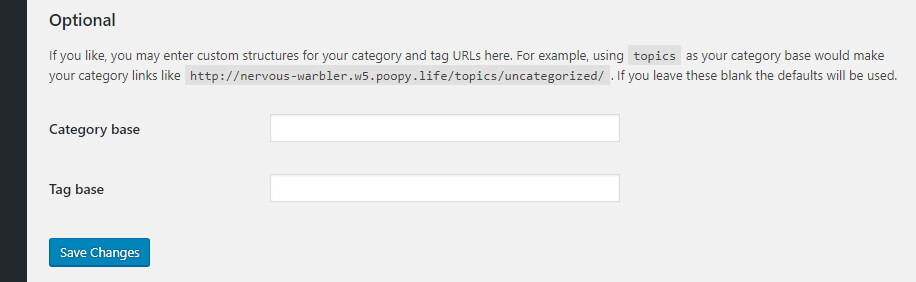
Страница перезагрузится. Затем вы можете продолжить и выбрать свой предыдущий тип постоянных ссылок и сохранить изменения ещё раз. Это всё, что требуется для сброса структуры ссылок на WordPress.
Теперь попробуйте просмотреть свой веб-сайт как обычно. Проверьте страницы, которые ранее выдавали ошибку 404. Если ошибка ушла, вы молодец – вам понадобилось минимум времени, чтобы её исправить!
2. Восстановите файл .htaccess в WordPress.
Когда вы вносите изменения в структуру постоянной ссылки в WordPress, они сохраняются в файл под названием .htaccess (англ). Этот файл определяет, как WordPress будет взаимодействовать со своим сервером, а также способ создания URL-адресов для страниц.
Если у вас нет доступа к панели управления, вам нужно будет вручную отредактировать .htaccess, чтобы переустановить постоянные ссылки. Чтобы начать работу, зайдите на свой сайт через FTP и перейдите в корневую папку WordPress. Это каталог, который содержит установку WordPress и обычно находится в папке public_html или www или назван в честь вашего сайта:
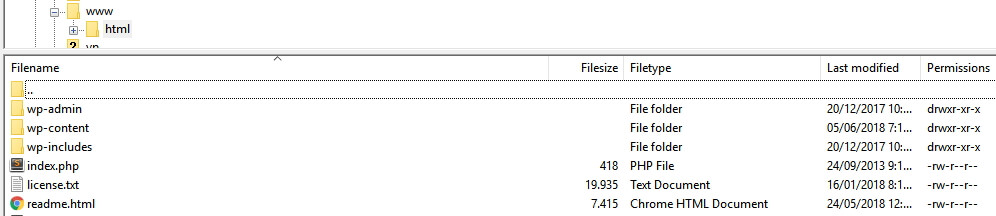
Откройте эту папку и найдите файл .htaccess. Если вы используете FileZilla, вам нужно щёлкнуть правой кнопкой мыши по файлу .htaccess и выбрать параметр Просмотреть / Изменить. Это означает, что вы загружаете копию файла на свой компьютер и открываете его с помощью локального текстового редактора по умолчанию. Теперь вы сможете внести любые изменения, которые вам нужны.
Если вы не понимаете, для чего нужен весь код в этом файле, не беспокойтесь. Вы не должны вносить в него никаких изменений, если вы не уверены в них на 100 %. Однако, что вы можете сделать, так это использовать код WordPress .htaccess, который выглядит следующим образом:
# BEGIN WordPress
<IfModule mod_rewrite.c>
RewriteEngine On
RewriteBase /
RewriteRule ^index.php$ - [L]
RewriteCond %{REQUEST_FILENAME} !-f
RewriteCond %{REQUEST_FILENAME} !-d
RewriteRule . /index.php [L]
</IfModule>
# END WordPress
Это чистый файл .htaccess без каких-либо изменений. Он удалит любые изменения, внесённые в вашу структуру постоянной ссылки. Идём дальше и создаём резервную копию содержимого старого файла .htaccess и заменяем его фрагментом кода, указанного выше.
После этого сохраните изменения в файле .htaccess с помощью текстового редактора и закройте его. FileZilla спросит, хотите ли вы заменить существующий файл .htaccess копией, которую вы только что отредактировали. Согласитесь на это действие, и всё! Вы просто переустанавливаете свои постоянные ссылки WordPress вручную, не нарушая ничего в этом процессе.
На этом этапе попробуйте снова вернуться на ваш сайт. Ошибка 404 должна исчезнуть, что уже является отличной новостью. Тем не менее, вы по-прежнему можете вернуть предыдущую структуру постоянных ссылок, если вам не нравятся числовые URL-адреса.
Помните, что вы можете изменить способ просмотра ваших постоянных ссылок, перейдя в панель управления и во вкладку Настройки> Постоянные ссылки. Выберите структуру, которую использовал ваш сайт до ошибки 404, и сохраните изменения. Тогда всё должно вернуться к нормальному функционированию.
3. Отключите темы и плагины в WordPress.
Как уже упоминалось ранее, иногда ваши плагины и темы могут влиять на структуру вашего WordPress, в зависимости от их настроек. Если вы попробовали один или оба предыдущих метода и ошибка 404 по-прежнему сохраняется, отключите свои темы и плагины.
Есть два способа сделать это, в зависимости от того, имеете ли вы доступ к панели управления или нет. Если у вас есть доступ, перейдите во вкладку Плагины> Все плагины и выполните этот процесс для каждого из ваших плагинов:
- Нажмите кнопку Деактивировать под именем плагина.
- Проверьте свой сайт, чтобы узнать, сохраняется ли ошибка 404.
- Если ошибка всё ещё существует, повторно активируйте отключённый плагин.
- Перейдите к следующему плагину в списке и повторите процесс.
Ваша цель – отключать каждый плагин один за другим. Вы можете отключить их всех сразу, но в большинстве случаев всего один плагин вызывает проблемы. Если отключение одного из ваших плагинов устраняет проблему, у вас есть три варианта. Вы можете проверить, есть ли доступное обновление, и временно отключить плагин до тех пор, пока оно не появится, или вы не замените плагин на альтернативный.
Если вы проверили все свои плагины, и ни один из них не оказался причиной проблемы, вам также придётся убедиться, что ваша активная тема не приводит к ошибке 404. Этот процесс намного быстрее, так как вам нужно проверить всего одну тему. Перейдите на вкладку Темы и переключите свою активную тему на какую-нибудь другую:
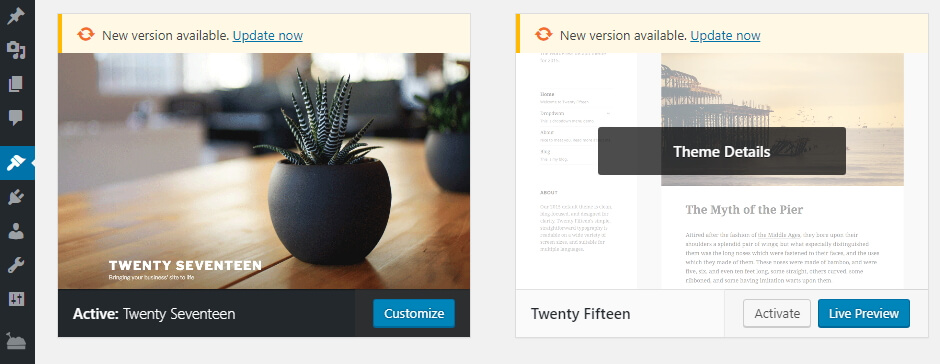
Теперь проверьте, не исчезла ли ошибка 404. Если да, то вам снова нужно выбирать между поиском обновления или поиском новой темы. Переключение тем в WordPress может быть немного хлопотным, но в конечном итоге это необходимо, раз уж ваша текущая тема приводит к ошибкам.
Если у вас нет доступа к панели управления, вы можете отключить тему и плагины вручную через FTP. Чтобы сделать это, зайдите на свой сайт с помощью FileZilla, затем перейдите в каталог public_html / wp-content. Здесь вы найдёте несколько папок, две из которых называются plugins и themes соответственно:
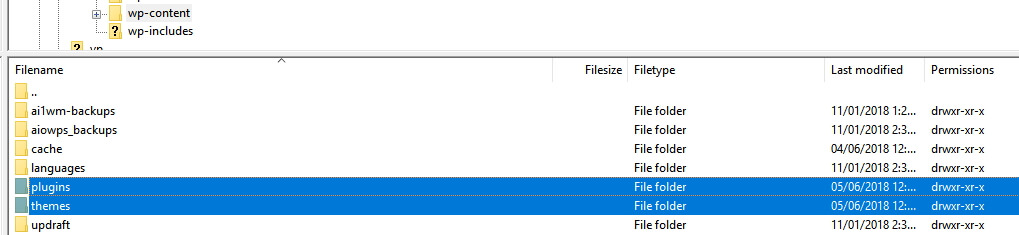
Сначала зайдите в каталог плагинов. Вы заметите, что для каждого плагина есть своя папка. Выберите одну из этих папок, щёлкнув по ней правой кнопкой мыши и выберите опцию Переименовать:
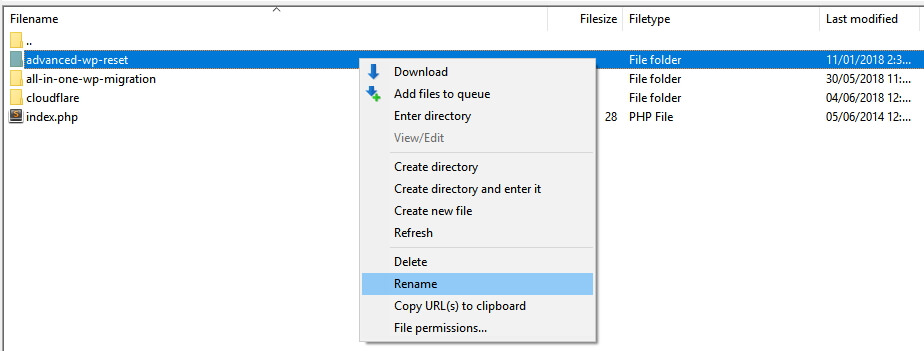
Измените название папки на что-то вроде akismet.disabled, так чтобы вы смогли легко её идентифицировать. Простого изменения названия папки плагина достаточно для того, чтобы WordPress его отключил. Теперь проверьте, не исчезла ли ошибка 404. Если нет, верните этой папке прежнее название и повторите этот процесс для каждого следующего плагина в папке.
Если один из ваших плагинов стал причиной ошибки, вы знаете, как с этим справиться. Однако, если окажется, что ошибка 404 возникает не из-за них, вы можете перейти в каталог тем wp-content> themes. Найдите папку с активной темой и переименуйте её так же, как и плагины:
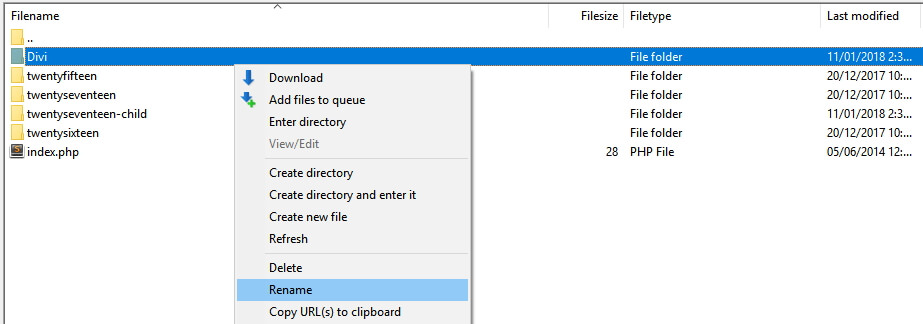
Поскольку WordPress всегда нуждается в активной теме, отключение вашей приведет к тому, что платформа будет использовать один из готовых вариантов по умолчанию. Это может повлиять на внешний вид вашего веб-сайта, но не беспокойтесь, это временно.
Если ошибка исчезла, вам может потребоваться подобрать новую тему. Однако, если это не так, восстановите предыдущее название папки своей темы, чтобы WordPress снова её распознал.
Дополнительная информация
Ошибка 404 это не единственная проблема, которая может возникнуть с веб-сайтом в WordPress. Вот список наиболее популярных ошибок в WordPress с углублённой информацией о том, как их исправлять:
- Как исправить ошибку 403 Forbide Error в WordPress
- Как исправить ошибку 500 Internal Server Error в WordPress
- Ошибка 502 Bad Gateway в WordPress – причины и как исправить
- Как отладить и исправить ошибку 503 Service Unavailable в WordPress
- Ошибка 504 Gateway Time-out и как её исправить в WordPress
- Как исправить ошибку HTTP при загрузке изображений в WordPress
- Как исправить ошибку «Извините, вы не можете получить доступ к этой странице» в WordPress
Вывод
Ошибка 404 может показаться простой, но она может нанести большой урон. Если ваши посетители не могут найти нужные им страницы, они могут начать искать в другом месте, а зачем вам это? Это означает потерянный трафик и, возможно, снижение конверсий.
К счастью, есть много способов решить эту проблему в WordPress, включая отключение тем и плагинов, восстановление вашего файла .htaccess и сброс ваших постоянных ссылок.
Если у вас возникли какие-либо вопросы, советы или рекомендации по работе с ошибкой WordPress 404 – давайте поговорим о них в разделе комментариев!

Анна долгое время работала в сфере социальных сетей и меседжеров, но сейчас активно увлеклась созданием и сопровождением сайтов. Она любит узнавать что-то новое и постоянно находится в поиске новинок и обновлений, чтобы делиться ими с миром. Ещё Анна увлекается изучением иностранных языков. Сейчас её увлёк язык программирования!
It is common that you come across the WordPress 404 or “WordPress site permalinks not working” error on your website if it is not appropriately maintained. But there are times when your website is under maintenance, and your visitors will be automatically directed to a 404 error page.
Are you facing a WordPress 404 error or a “WordPress page not found” error? Don’t freak out! We have a solution for you.
- What is a WordPress 404 Error?
- How to Fix 404 Error on WordPress (8 Solutions)
- Clear the Browsing Cache and Cookies
- Set Your Permalinks
- Restore Your .htaccess file
- Set Up a 301 Redirect
- Disabling Plugins/Themes
- Change and Update WordPress URL in Database
- Fix WordPress 404 Error on Local Servers
- Alternative Method
- Conclusion
What is a WordPress 404 Error?
The 404 error is an HTTP response code that occurs when the server cannot find the file or page requested by the user. In response, the web hosting server automatically sends the user an error message, “404 Not Found“.
The WordPress 404 error commonly occurs when:
- You’ve newly migrated your site to a new host.
- You have changed your URL’s permalink structure and haven’t redirected the old URL.
- You don’t have file permissions.
- You have opened an incorrect URL.
- Poorly coded plugin/theme.
Many WordPress themes offer creative layouts & content options to display the 404 error page. Cloudways’ 404 error has a custom design and layout too:

Managed WordPress Hosting Starting from $10/month.
Enjoy hassle-free hosting on a cloud platform with guaranteed performance boosts.
How to Fix 404 Error on WordPress (8 Troubleshooting Solutions)
This tutorial will show you how to quickly fix the 404 Not Found status code. So let’s get started!
1. Clear Browser History & Cookies
The first troubleshooting method you should try is clearing the browser cache and cookies. Or you can try to visit your site in incognito mode.
2. Set Up Your Permalink
If apart from your homepage, your other WordPress website pages give you a 404 page not found error, you can update your permalink settings by following the steps below:
- Log in to your WordPress Dashboard.
- Go to Settings → Permalinks.
- Select the Default settings.
- Click the Save Changes button.
- Change the settings to the previous configuration (the one you selected before Default). Put the custom structure back if you had one.
- Click Save Settings.
Note: If you use a custom structure, copy/paste it into the Custom Base section.
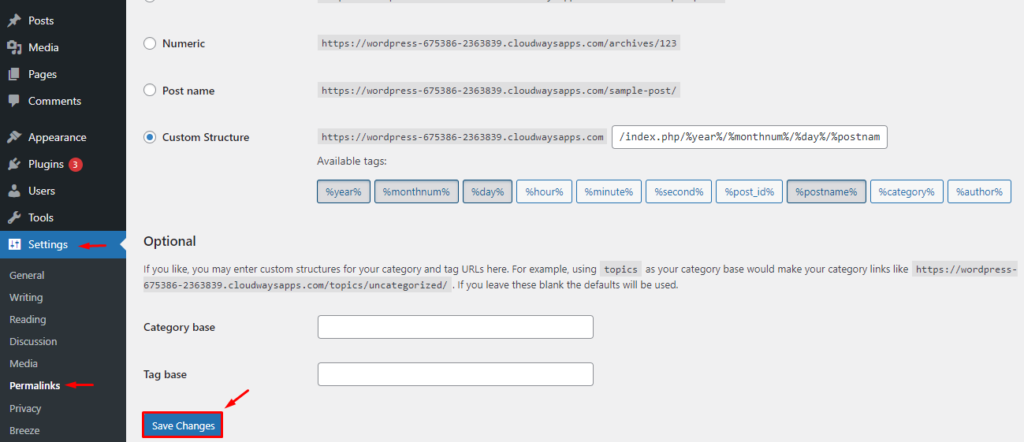
This solution could fix the WordPress 404 not found or “WordPress permalinks not working” error.
If it doesn’t work, you’ll need to edit the .htaccess file in the main directory of your WordPress installation (where the main index.php file resides). 404 errors are also usually due to misconfigured .htaccess files or file permission-related issues.
3. Restore Your .httaccess File
Since .htaccess is a hidden file, you must set all files as visible in your FTP.
Note: It’s always recommended to backup your site before editing any files or pages.
Follow the steps below:
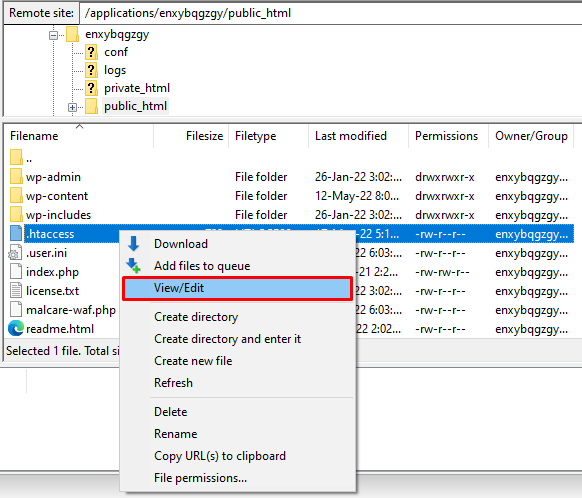
- Log in to your server using an FTP client.
- Download the .htaccess file which is located in the same location as folders like /wp-content/ wp-admin /wp-includes/.
- Open the downloaded file in any text editor.
- Visit the WordPress .htaccess support page and copy/paste the version of the code that is most suitable for your website.
- Save the .htaccess file and upload it to the live server.
For example, if you have Basic WP, use the code below.
# BEGIN WordPress

RewriteEngine On

RewriteRule .* - [E=HTTP_AUTHORIZATION:%{HTTP:Authorization}]

RewriteBase /

RewriteRule ^index.php$ - [L]

RewriteCond %{REQUEST_FILENAME} !-f

RewriteCond %{REQUEST_FILENAME} !-d

RewriteRule . /index.php [L]

# END WordPress
4. Setup a 301 Redirect
If you have changed the URL of any specific page and haven’t redirected it yet, it’s time to redirect the old URL to your new URL. You may redirect your old post/page via a plugin or a .htaccess file.
If you are comfortable working with .htaccess, add the following code to your .htaccess file. Don’t forget to replace the URLs with your own website.
Redirect 301 /oldpage.html https://www.mywebsite.com/newpage.html
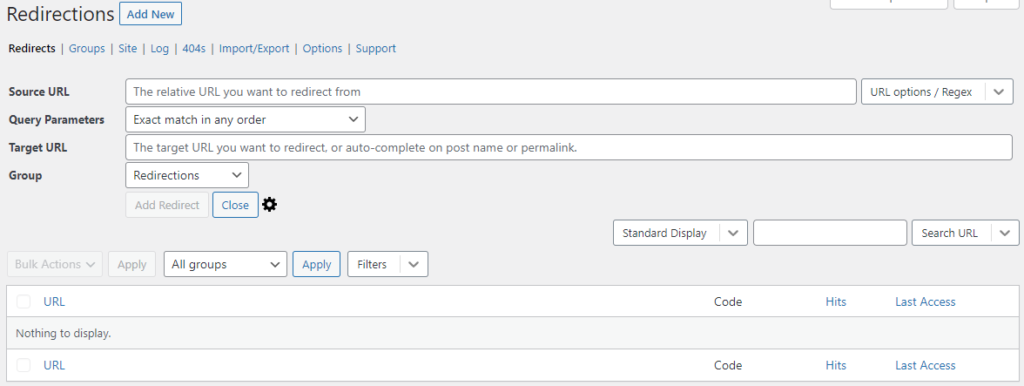
If you prefer the easy way, you may use a plugin to set up a 301 redirect. Follow the steps below:
- Install the Redirection Plugin.
- Go to the WordPress Dashboard.
- Click Tools > Redirection.
- Complete the setup and Add new redirection.
5. Disabling Plugins/Theme
An outdated or poorly coded plugin may be causing the 404 error on your WordPress site. To check this, you must deactivate all your plugins and change your current theme.
Note: All WordPress themes have 404.php files but don’t necessarily have a custom 404 error template file. WordPress automatically uses the 404.php page if the 404 error occurs.
You may access your WordPress files using an FTP like FileZilla. Go to public_html > wp-content and change the plugins folder name to something like myplugins.
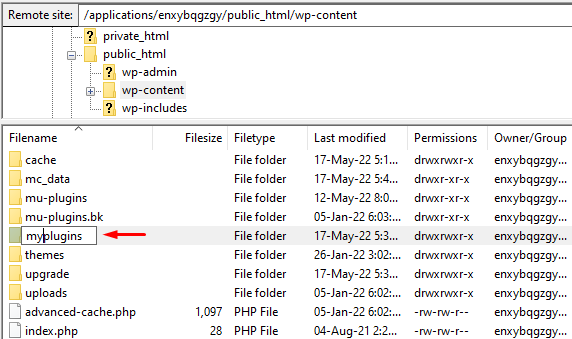
Now go back to your browser to check whether the website is working. If the error has been resolved, then any of your plugins could be the culprit.
Note: If it’s not resolved, simply change the myplugins folder name to plugins and move to the next troubleshooting method.
If it’s resolved, change the myplugins folder name to plugins and follow the steps below to check which of your plugin(s) is causing the error.
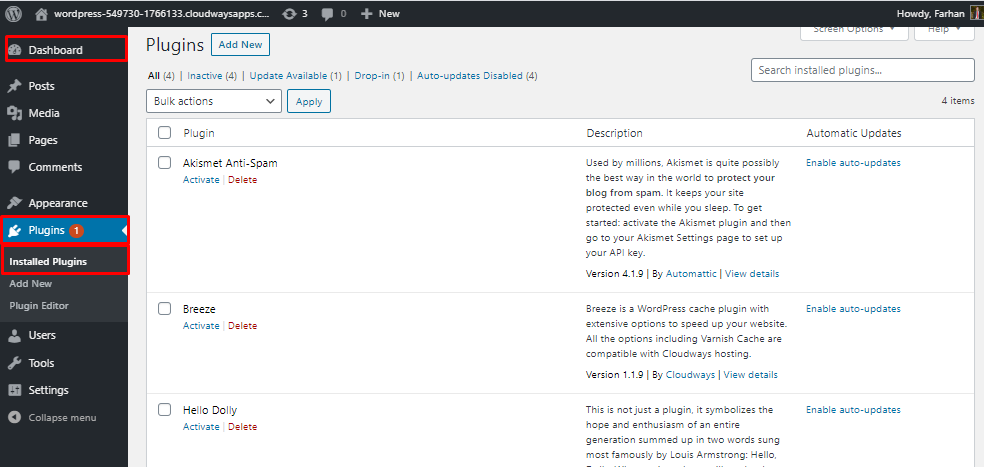
- Go to your WordPress dashboard.
- Go to Plugins > Installed Plugins.
- Activate each plugin one by one and check if your website is working.
- When you encounter the 404 error, you’d know which plugin caused it.
- Update the plugin or remove it to get rid of the error.
6. Change and Update WordPress URL in Database
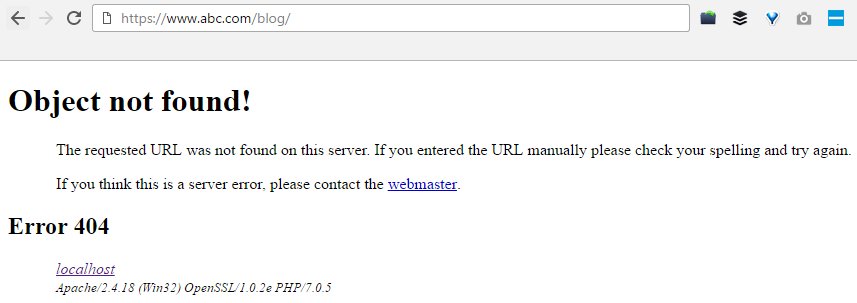
You might encounter the following error message on your WordPress website.
“The requested URL was not found on this server. If you entered the URL manually, please check your spelling and try again.”
Fix the error by following the steps below:
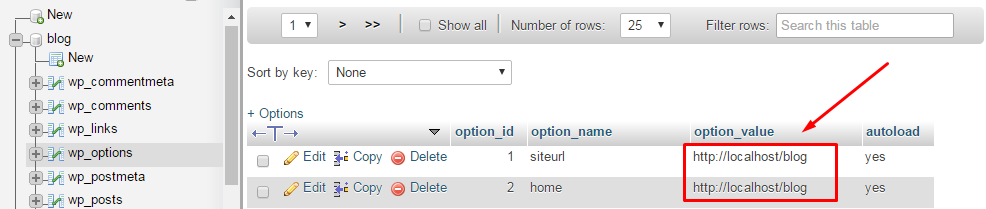
- Go to your PHPMyAdmin.
- Navigate to your database name, and select wp-option. For example, blog > wp-option.
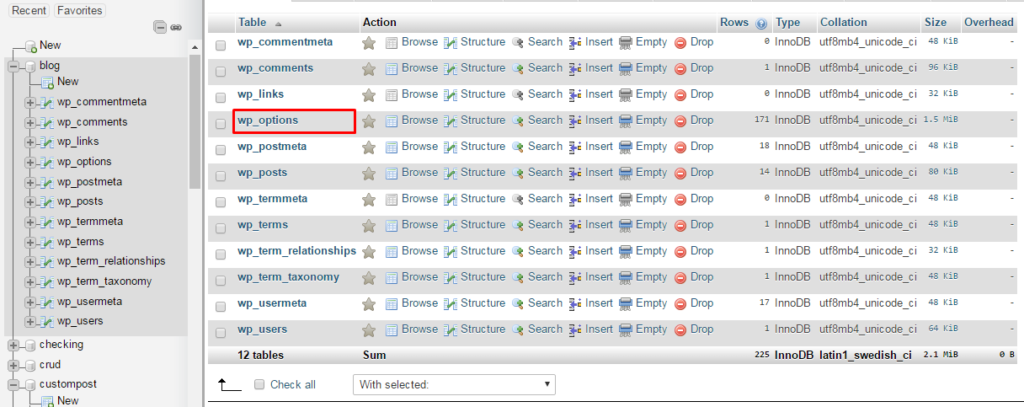
- Change the URL, for example, from https://www.abc.com/blog/ to http://localhost/blog.
7. Fix WordPress 404 Error on Local Servers
Many designers and developers install WordPress on their desktops and laptops using a local server for staging purposes. A common problem with local server installations of WordPress is the inability to get permalink rewrite rules to work.
You may try to change the permalinks for posts and pages, but eventually, the website shows the WordPress “404 Not Found” error.
Fixing Errors is Easier With Cloudways
Get rid of WordPress errors with a cloud hosting built to deliver a hassle-free experience with incredible speeds.
Start Free!
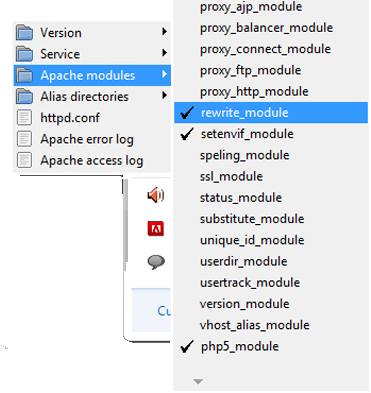
In this situation, turn on the rewrite module in your WAMP, XAMPP, or MAMP installation. I am using WAMP in this tutorial. Navigate to the taskbar and find the WAMP icon. After that, navigate to Apache → Apache modules.
It will enable a long list of modules that you can toggle on and off. Find the one called “rewrite_module” and click it, so it is checked.
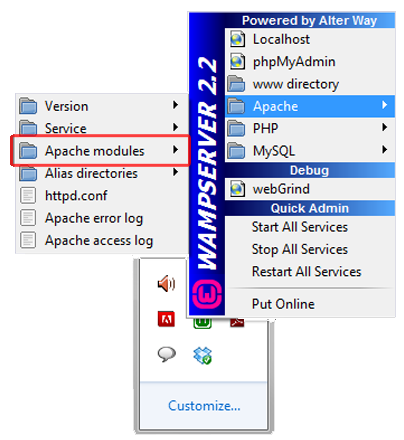
Then check whether your permalinks are working or not.
8. Alternative Method
If none of the above solutions work, you may try the alternative method to fix the 404 error.
- Navigate to the local server.
- Find the Apache folder, then go to the “conf” folder.
- Navigate to the httpd.conf file.
- Search for a line that looks like:
#LoadModule rewrite_module modules/mod_rewrite.so
- Remove the “#” sign so it looks like this:
LoadModule rewrite_module modules/mod_rewrite.so
Additional tip: PHP workers are used while executing your WordPress site’s code. An ecommerce site that gets 50,000 visitors per month needs a lot more resources than a simple blog with the same amount of traffic.
Conclusion
I hope this guide helped you solve the “WordPress 404 page error” or “WordPress permalinks not working” problem. Have you figured out any other ways to get rid of this problem? Please share your solutions with us in the comment section below.
Also, if you are a WordPress user and want to boost your site, you must try Cloudways WordPress hosting solutions and take advantage of its 3-day free trial.
Frequently Asked Questions
Q. Why am I getting a 404 error?
WordPress 404 errors usually occur when you have removed certain pages from your website and haven’t redirected them to your live pages. Sometimes, these errors may also occur when you have changed a URL of a specific page.
Q. How do I test a 404 error?
You can use multiple tools to test WordPress 404 errors, like Deadlinkchecker. Or you may access Google Analytics to find out which blogs are giving you a 404 error.
Q. How do I fix error 404 on WordPress?
You can fix the error 404 on WordPress by implementing the following solutions:
- Clear the browser cache and cookies
- Set your permalinks
- Make a default .htaccess file
- Set up a 301 redirect
- Disable plugins and themes
- Change and update the WordPress URL in the database
- Fix the error on local servers
Q. How to redirect WordPress 404 pages?
Follow the steps below to redirect WordPress 404 pages:
- Go to your WordPress dashboard.
- Navigate to Tools > Redirection.
- Apply redirection by pasting the broken URL in the source box and the new URL in the Target box.
Q. How to edit a WordPress 404 page?
You may edit a WordPress 404 page by following the steps below:
- Visit your WordPress dashboard.
- Navigate to Appearance > Theme Editor.
- Find the file named “404.php file” and edit the file yourself or with the help of a WordPress developer.
Для большинства предприятий веб-сайт играет решающую роль, и его необходимо постоянно поддерживать. Вам необходимо запланировать его обслуживание на регулярной основе. Проверка страниц с ошибками 404 – одна из основных задач, с которой нужно начать. Эти страницы с ошибками – обычное явление, с которым иногда бывает сложно справиться, но не невозможно.
Здесь, в конструкторе тем WordPress Templatetoaster, давайте начнем с изучения неработающих ссылок и страниц с ошибками 404.
Обнаружение неработающей ссылки или страницы с ошибкой 404 может быть самым неприятным моментом, когда целевая аудитория сталкивается с этим. Не только для посетителей, но и для пауков поисковых систем это может отрицательно повлиять на ваш сайт. Эти страницы ошибок можно разделить на два типичных типа:
-
Посетитель страницы с ошибкой 404
-
Страницы ошибок 404 бота
Google Analytics может помочь вам пометить страницы с ошибками 404, и вы можете найти много информации о 404 с помощью этого простого процесса:
Поведение> Контент сайта> Все страницы> Введите «404» в поле поиска.
Предоставленная информация творит чудеса, позволяя вам решать возникающие проблемы без каких-либо проблем.
Тем не менее, ошибки 404, с которыми сталкиваются пауки поисковых систем, немного отличаются от ошибок посетителей. Ошибки 404, которые посещали пауки поисковых систем, можно легко отследить с помощью Инструментов для веб-мастеров. Обычно есть три типа Инструментов для веб-мастеров, которые могут предоставить вам исчерпывающие отчеты об индексации:
-
Инструменты Google для веб-мастеров – доступны в Сканирование> Ошибки сканирования.
-
Инструменты Microsoft Bing для веб-мастеров – их можно найти в разделе “Отчеты и данные”> “Информация о сканировании”.
-
Инструменты Яндекса для веб-мастеров – доступны в разделе Индексирование> Исключенные страницы> Статус HTTP: не найден (404).
Просто из-за того, что паук поисковой системы запрограммирован на сканирование чего-либо на большинстве веб-сайтов, включая скрытые ссылки, Инструменты для веб-мастеров познакомят вас с некоторыми жуткими вещами о страницах с ошибками 404, которые обычный посетитель никогда бы не просмотрел. .
Теперь мы переходим к
«Как исправить страницу ошибки 404 в WordPress»
Хотя есть несколько способов избавиться от этих проблем со страницей ошибки WordPress 404, но сначала позвольте нам познакомиться с быстрым шагом:
После того, как вы познакомитесь с глюками, пора их избегать. Процесс фиксации оказывается удобным, если вы знаете конкретную ссылку, которая вызвала ошибку. Лучше сразу исправить ссылку. Это приведет не только к повышению качества вашего сайта для аудитории, но и для поисковых систем.
Измененный URL-адрес 404: иногда мы перемещаем страницу с исходного URL-адреса, рекомендуется добавить постоянное перенаправление 301 на страницы, которые были перемещены навсегда, вы можете просто сделать это через файл .htaccess вашего сайта или можете использовать плагин перенаправления WordPress для перенаправьте их на новые соответствующие страницы. Вы также можете сделать это из панелей хостинга, таких как Plesk или Cpanel.
Статический файл 404:
Если ошибка 404 возникает в статическом файле, таком как изображение или PDF-файл, вам просто нужно подтвердить его существование с помощью FTP-клиента.
Например, если http://mydomain.com/wp-content/uploads/picture.jpg – это URL-адрес, по которому встречаются страницы с ошибкой 404, просто выполните следующие действия:
-
Открыть FTP-клиент
-
Подключайтесь к серверу
-
Перейдите к местоположению этого файла
-
Подтвердите его существование
-
В случае его отсутствия, вы нашли потенциальную причину ошибки 404, вам необходимо загрузить этот файл. Иногда причиной этой ошибки может быть орфографическая ошибка в имени файла или неправильный путь.
В случае, если браузер завершает работу с ошибкой 404, даже если статический файл существует, пора проверить, является ли проблема результатом неправильной конфигурации WordPress или постоянной ссылки.
Ошибка 404 конфигурации страницы WordPress или постоянной ссылки:
Если вы получаете ошибку 404 отсутствия на странице, убедитесь, что она присутствует в бэкэнде WordPress, если она присутствует, убедитесь, что у вас настроена правильная структура постоянной ссылки в разделе «Настройки» -> «Постоянные ссылки».
В WordPress создано правило перезаписи постоянной ссылки для управления красивыми URL-адресами, иногда это правило сбивается. Вы можете просто повторно настроить его, перейдя на вкладку постоянных ссылок в WordPress Admin и выбрав повторное сохранение структуры постоянных ссылок.
Панель управления WordPress> Настройки> Постоянные ссылки: нажмите «Сохранить изменения».
Как только вы закончите с правильным сохранением изменений, проверьте URL-адрес еще раз. Эта ошибка 404, вероятно, исчезла бы. В большинстве случаев это быстрое исправление работает, но в случае, если эти ошибки 404 снова появятся, вы можете перейти к поиску других причин, выполнив поиск по отчетам об ошибках в Google.
Иногда отключение плагинов, которые создают персонализированные постоянные ссылки или обрабатывают перенаправление, также помогает избавиться от таких проблем.
Плагины отладки: вы даже можете использовать плагин отладчика для проверки правил перезаписи и проверки того, находится ли правило перезаписи, отвечающее за обработку URL-адреса. Для этого вы можете просто установить плагин, такой как «Debug This», который поможет вам изучить, что на самом деле представляет собой правило перезаписи WordPress.
Макет страницы 404 WordPress: WordPress включает страницу в тему для обработки того, что вы хотите отображать посетителям, сталкивающимся со страницами с ошибками 404, она называется 404.php, вы можете изменить эту страницу в соответствии с вашими потребностями. Темы WordPress по умолчанию добавляют на эту страницу множество вещей, таких как категории, архивы, поиск и т.д., Вы можете добавить то, что вам нужно. Создайте веб-сайт с такими инструментами, как программа для создания автономных веб- сайтов TemplateToaster, добавив множество функций для разработки и настройки этой страницы 404 в дополнение к другим элементам вашего сайта или темы WordPress. проверить темы WordPress
Связанное чтение: Учебник по WordPress 101
Лучшие хостинг-провайдеры WordPress
Как проверить версию WordPress
Как найти URL для входа в WordPress
Что это за тема WordPress
Как изменить язык WordPress
Как создать собственную страницу входа в WordPress
Как создать тему WordPress с нуля
Как перенести сайт WordPress на новый домен
Как установить WordPress
Наконец, если вы не можете решить проблемы даже после выполнения этих вышеупомянутых шагов, вам обязательно нужно открыть ветку на форуме WordPress.
Источник записи: https://blog.templatetoaster.com
All of a sudden I go to my WordPress website and all the pages give me a 404 page not found page. I’m assuming the problem lies with the permalink structure, which I could swear I did not touch. The permalink setting is on «month and name.»
I’ve researched similar instances of this problem online and a lot of it has to do with the .htaccess file? I tried finding, but I can’t. Perhaps it got deleted somehow? Where is it supposed to be located.
Any suggestions will be helpful
and of course I can see hidden files.
Marc
4,5013 gold badges41 silver badges62 bronze badges
asked Mar 3, 2011 at 15:07

2
.htaccess is a hidden file, so you must set all files as visible in your ftp.
I suggest you return your permalink structure to default ( ?p=ID ) so you ensure that .htaccess is the problem.
After that, you could simply set «month and name» structure again, and see if it works.
PS: Have you upgraded to 3.1? I’ve seen some people with plugin issues in this case.
answered Mar 3, 2011 at 15:18

9
Basically the .htaccess file should exists and the httpd.conf should be correct.
In my case, I changed the file /etc/apache2/apache2.conf in section:
<Directory "/var/www/html">
Line changed is:
AllowOverride None
to
AllowOverride All
And restart the web server with
systemctl restart apache2

answered Sep 9, 2016 at 4:52

georgeosgeorgeos
2,2382 gold badges24 silver badges27 bronze badges
5
Fixing that problem is very simple if you was using permalinks other than the default such as Day and name, Month and name, Numeric, Post name or Custom Structure, you only need to
Login to your admin area: Settings > Permalinks which should be : http://yoursite.com/wp-admin/options-permalink.php
Choose Default permalink setting, then save changes
Then you can return it again to your other previous permalink choice or keep it as default as yo wish
Note that this problem can happen when you move your site from a domain or location to another one.
answered Sep 27, 2013 at 19:59

usama sulaimanusama sulaiman
1,9933 gold badges24 silver badges37 bronze badges
8
If the default behavior (example.com/?p=42) is working, you should:
- Change to your preferred permalink style:
Admin: Settings > Permalinks, and click Save. Sometime it fixes the issue. If it didn’t: - Verify that the file
/path/to/wordpress/.htaccesshas been changed and now includes the lineRewriteEngine On. If it doesn’t include the line, it’s a WordPress permissions issue. -
Verify that the ‘rewrite’ module is loaded: create a PHP file with
<?php
  phpinfo()
?>
in it, open it in the browser and search for
mod_rewrite. It should be in the ‘Loaded Modules’ section.
If it’s not, enable it — Look at your apache defaultindex.htmlfile for details — in Ubuntu, you do it with the helpera2enmod. -
Verify that apache server is looking at the
.htaccessfile. openhttpd.conf— or it’s Ubuntu’s alternative,/etc/apache2/apache2.conf. In it, You should have something like<Directory /path/to/wordpress> Options Indexes FollowSymLinks AllowOverride All Require all granted </Directory> -
After making these changes, don’t forget to restart your apache server.
sudo service apache2 restart

RyanS
6271 gold badge10 silver badges26 bronze badges
answered Jan 30, 2017 at 2:06

tsvikastsvikas
15.3k1 gold badge19 silver badges11 bronze badges
0
IF all this dont work, your .htaccess is correct, and permalinks trick didnt work, you may have not enabled your apache2 rewite mod.
I ran this and my issue was solved:
sudo a2enmod rewrite
answered Feb 20, 2018 at 18:06

2
Within the WordPress admin interface do the following:
-
Go to admin setting
-
Click on permalink and select post name in radio button.
-
Scroll down and you will see
.htaccesscode here like.<IfModule mod_rewrite.c> RewriteRule ^index.php$ - [L] RewriteCond %{REQUEST_FILENAME} !-f RewriteCond %{REQUEST_FILENAME} !-d RewriteRule . /wordpress/index.php [L] </IfModule> - Copy the code and paste in the
.htaccessfile.

Blackbam
16.3k24 gold badges94 silver badges146 bronze badges
answered Mar 14, 2014 at 10:24

3
This error is causing due to disabled of rewrite mod in apache httpd.conf document ,just uncomment it and enjoy the seo friendly permalinks
answered Apr 5, 2013 at 22:34

Asif KhanAsif Khan
811 silver badge1 bronze badge
- Check that the directory on .htaccess are the correct
- Check the fields «siteurl» and «home» are the correct
answered Mar 4, 2011 at 7:07

José CarlosJosé Carlos
1,00516 silver badges29 bronze badges
1
We had the same problem and solved it by checking the error.log of our virtual host. We found the following message:
AH00670: Options FollowSymLinks and SymLinksIfOwnerMatch are both off,
so the RewriteRule directive is also forbidden due to its similar
ability to circumvent directory restrictions :
/srv/www/htdocs/wp-intranet/
The solution was to set Options All and AllowOverride All in our virtual host config.
answered Jul 3, 2018 at 14:48

BlackBlack
17k36 gold badges150 silver badges256 bronze badges
If you have FTP access to your account:
First, login to your wp-admin and go to Settings > Permalinks
You should see something at the bottom that says:
«If your .htaccess file were writable, we could do this automatically, but it isn’t so these are the mod_rewrite rules you should have in your .htaccess file. Click in the field and press CTRL + a to select all.»
If this is true do the following:
-
Go into preferences for your FTP client and make sure hidden files are displayed (varies depending on your FTP client) — If you don’t do this you won’t be able to find your htaccess file
-
Go to the folder that your wp-admin, wp-content, wp-includes directories are located. Check for .htaccess file. If it exists skip to step 4
-
If it does not exist, create a new blank file in your FTP program called .htaccess
-
Change the CHMOD for your .htaccess file to 666 (your preference on how you want to do this)
-
Go back to your Permalinks page and edit the link structure you want. Problem should be solved!
-
Make sure to change the chmod of the htaccess file back to 644 after you are done.
Just had the same problem and it seemed to fix it instantly! Good luck!
answered Oct 12, 2012 at 16:47

JEFF BJEFF B
1262 silver badges12 bronze badges
1
Most of the time this issue is fixed by simply visiting the Settings -> Permalink page in the WordPress admin and click Save (as several other answers already pointed out). When this page is accessed, WordPress rewrites the directives in the .htaccess file which magically fixes the issue. The issue often happens after moving a site (the site breaks because the .htaccess gets left behind or the settings need to be updated).
If WordPress doesn’t have the right permissions to write the .htaccess file, a notice will appear at the top of the page and further instructions at the bottom when the settings are saved. In this case you need to edit the .htaccess file yourself or, better, to fix the permissions on that file. The file is at the root of the WordPress installation. cd into the directory and sudo chmod 644 .htaccess. You might also want to check if the file belongs to the right group and change that is needed with chown. Ask your hosting provider if you don’t know how to do that.
If you are on shared hosting that’s probably all you can do. If you still have the issue you might want to talk to you hosting provider’s support. Otherwise, make sure the use of .htaccess files is enabled on the server, as @georgeos already suggested. Note that httpd.conf is not always used (Ubuntu indicates it is deprecated but the official Apache docs still says it is often the main configuration file). /etc/httpd/conf/httpd.conf and /etc/apache2/apache2.conf seem to be the most common places for this file. Find the block for the public folder, usually <Directory /var/www/> and make sure that the AllowOverride directive is set to All. If it is set to None, your .htaccess file is simply ignored by the server.
answered Aug 15, 2017 at 23:45

mrtnmgsmrtnmgs
1,32413 silver badges26 bronze badges
You may have .htaccess disallowed in webhost settings.
Setting to default permalinks would work in that case.
answered Feb 28, 2017 at 14:34

FankyFanky
1,5741 gold badge17 silver badges19 bronze badges
Case 1:- Let us think if migrate site from one hosting to another hosting if see this kind of issue.
Solution:- Simply go to old server copy .htaccess file code, then past in new server .htaccess file. 99% it i will works.
answered Nov 7, 2017 at 5:05

NavrukNavruk
9276 gold badges17 silver badges29 bronze badges
Before trying to do any permalink or server config changes, please check you .htaccess file. This mostly is a corrupt or blank .htaccess file issue. Reset the htaccess file to the default
# BEGIN WordPress
<IfModule mod_rewrite.c>
RewriteEngine On
RewriteBase /
RewriteRule ^index.php$ - [L]
RewriteCond %{REQUEST_FILENAME} !-f
RewriteCond %{REQUEST_FILENAME} !-d
RewriteRule . /index.php [L]
</IfModule>
# END WordPress
answered Mar 15, 2019 at 11:37

Mustafa sabirMustafa sabir
4,1001 gold badge18 silver badges27 bronze badges
0
after 2 long days,
the solution was to add options +FollowSymLinks to the top of my .htaccess file.
answered Apr 4, 2020 at 2:29

Ahmad AliAhmad Ali
6641 gold badge13 silver badges28 bronze badges
I have the same problem and so I remove the Apache and make it again and the problem was solved.
answered Jun 6, 2013 at 16:38

boomzboomz
6575 silver badges21 bronze badges
Just Navigate to Settings->Permalink in your dashboard and then Save Changes button in the last.
answered Jul 13, 2017 at 10:30

I just changed the permalink to ‘month and day’of all the posts by ging to setting>permalink.
Now all posts are open and working fine.
Again, I renamed to all posts to its actual permalink. Its again working fine.
This method worked for me
answered May 20, 2018 at 13:57

For nginx users
Use the following in your conf file for your site (usually /etc/nginx/sites-available/example.com)
location / {
 try_files $uri $uri/ /index.php?q=$uri&$args;
 }
This hands off all permalink requests to index.php with a URI string and supplied arguments. Do a systemctl reload nginx to see the changes and your non-homepage links should load.
answered Jun 14, 2018 at 14:24

Go to your WordPress Dashboard, scroll down to settings, select Permalink,
in custom settings that appear, go to custom structure and replace the text in the text field with
/index.php/%year%/%monthnum%/%day%/%postname%/
and then save changes
answered Jul 7, 2021 at 14:42

InsookwaInsookwa
791 silver badge5 bronze badges
Wanted to share my two cents. Recently came accross that very same issue installing WordPress 5.9. Year 2021.
Configuration:
Platform MAC, Software
XAMPP, WordPress5.9
None of the previous answer did it for me.
The issue was due to the fact that files permissions accross the XAMPP folder were set to «Read only».
- Locate the
XAMPPfolder. (Usually in the Applications folder). - Right click
XAMPPfolder. Get info.- Bottom right unlock button → Follow instructions.
Sharing and permissions→Everyone→Read & Write.- Bottom left three dots button →
Apply to enclosed items.
answered Jan 29, 2022 at 10:39

amarinediaryamarinediary
4,5504 gold badges25 silver badges40 bronze badges
This scenario can also be caused by a database version that’s out of sync with the WP files installed on server. Nothing else listed here worked for me; I solved it with a manual WP update.
answered Nov 1, 2022 at 20:40

BlorfBlorf
5163 silver badges12 bronze badges
I had this issue not so long ago. I had reset my permalink to default or just saved it, updated themes/core to (4.7.4)/plugins, deactivated all plugins, switched to default theme, optimized database, .htaccess is already default, checked file permissions, mod_rewrite is on.
So far nothing works, what works are the posts, new page, the /contact page EXCEPT for old pages.
Basically, the pages/URLs that aren’t working are:
/breeding
/training
/training/*
/breeding/*
Ultimate, I found these files in the root folder:
/breeding.php and /training.php
I renamed both files and the pages above worked.
answered May 16, 2017 at 16:05


Рассмотрим, как настроить шаблон ошибки 404 в WordPress, чтобы создать полезную страницу, которая поможет пользователям сориентироваться на вашем сайте и улучшить поведенческие факторы.
Что такое ошибка 404 и почему важно правильно настроить страницу?
Ошибка 404 возникает, когда посетитель пытается получить доступ к странице, которая не существует. Многие склонны игнорировать эту страницу при использовании шаблонов WordPress и не задумываются о ее существовании. Тем не менее, если вы потратите время на создание удобной страницы 404, это поможет задержать пользователя на вашем сайте.
Интернет-адрес, ведущий на страницу с ошибкой 404, может оказаться просто неправильно набранным URL либо возникнуть со временем, если вы удалили проиндексированную страницу и забыли об этом. При выдаче кода 404 WordPress настроен на автоматический поиск файла 404.php. Базовый шаблон с этой ошибкой включен в некоторые темы WordPress. Если же этого файла нет, то будет показано системное сообщение, которое не несет полезной для пользователя информации.
Как создать страницу 404 ошибки, если ее нет в шаблоне — настройка
Не все темы WordPress имеют собственный файл шаблона ошибки 404. Если разработчик темы предусмотрел это, такой файл будет называться 404.php. WordPress автоматически использует эту страницу, когда возникает ошибка 404. Если в вашей теме нет этого файла, его можно создать самостоятельно.
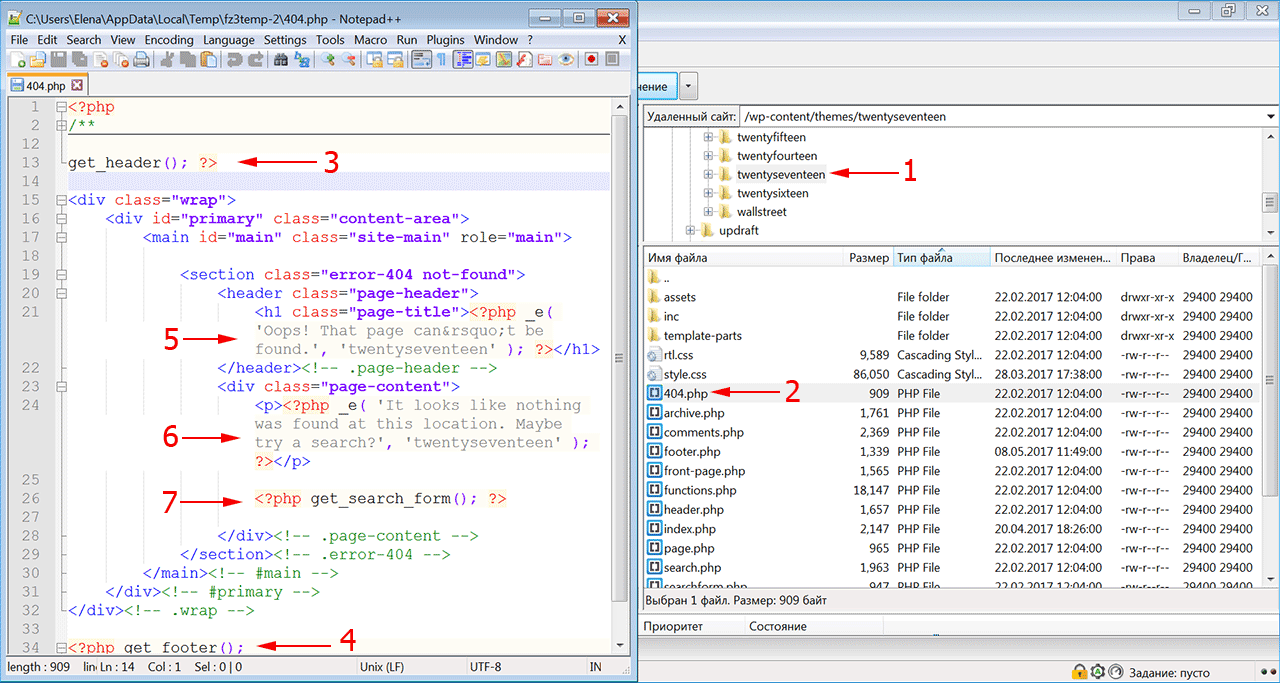
- Первое, что нужно сделать, это сформировать настраиваемый шаблон, например, редактируя файл 404.php, скопированный из другой темы. Если вы редактируете свою тему напрямую, настоятельно рекомендуется сделать резервную копию темы WordPress.
- Файл ошибки 404 расположен по адресу: /wp-content/themes/имя-темы/404.php
- Страница ошибки примет стиль активной темы, поскольку она вызывает шапку
- И подвал текущей темы.
- Понадобится только отредактировать заголовок и сообщение на странице в соответствии с вашими конкретными потребностями.
- Для этого откройте файл шаблона ошибки 404 в редакторе кода и измените текст сообщения на свое усмотрение.
- Добавьте в шаблон строку поиска, если ее там нет. Затем сохраните файл и загрузите его в каталог темы установки WordPress.
Поскольку все темы различаются, нет никакой гарантии, что простое копирование файла шаблона 404.php будет работать. Чтобы сервер нашел страницу 404, добавьте следующую строку в файл .htaccess:
ErrorDocument 404/index.php?error=404
Файл index.php расположен в корневой папке вашего сайта. Если WordPress находится в подкаталоге с именем «wordpress», код, добавляемый в файл .htaccess, должен быть:
ErrorDocument 404/wordpress/index.php?error=404
Что разместить на wordpress странице 404
Когда пользователь обнаруживает вместо искомой страницы сообщение об ошибке 404, разочарование может заставить его покинуть ваш сайт преждевременно. Задача веб-мастера помочь найти посетителю информацию, которую он искал, и тем самым снизить процент отказа и улучшить поведенческие факторы на сайте.
Рекомендуется указать пользователю правильное направление действий, которое заставит его задержаться на сайте. Это можно сделать несколькими способами:
- предоставить информацию о других разделах вашего интернет-ресурса, которые можно посмотреть;
- дать посетителю возможность связаться с вами по указанным контактным данным;
- добавить ссылки на популярные сообщения, последние комментарии, архивы;
- разместить строку поиска, чтобы посетитель сам нашел нужную информацию на сайте.
Чтобы сделать страницу уникальной, вы можете снабдить ее фоновым изображением в стиле оформления сайта. Допустимо также использовать html-теги и css-стили, чтобы придать шаблону индивидуальность.
Как создать в вордпресс 404 страницу при помощи плагина
Создать собственную страницу 404, как и любую другую страницу в WordPress можно при помощи плагина 404page (https://wordpress.org/plugins/404page/). Важной особенностью этого плагина является то, что он не создает перенаправление, а формирует правильный ответ сервера с кодом 404. Он сообщает поисковым системам, что страница не существует и должна быть удалена из индексирования, тогда как перенаправление приведет к HTTP-коду 301 или 302 и URL-адрес останется в индексе поиска.
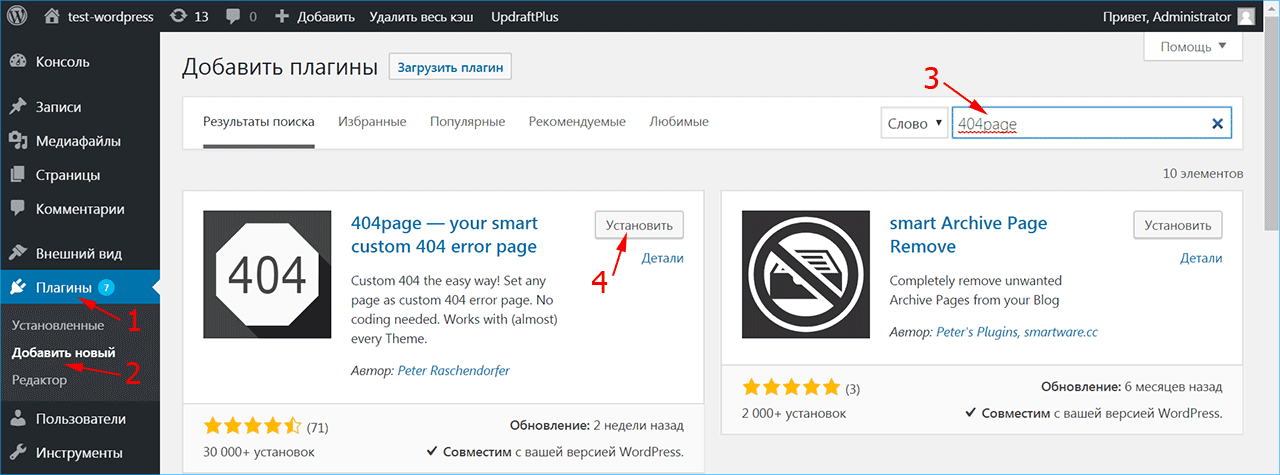
Установите плагин 404page из меню админки «Плагин -> Добавить новый» и активируйте его.
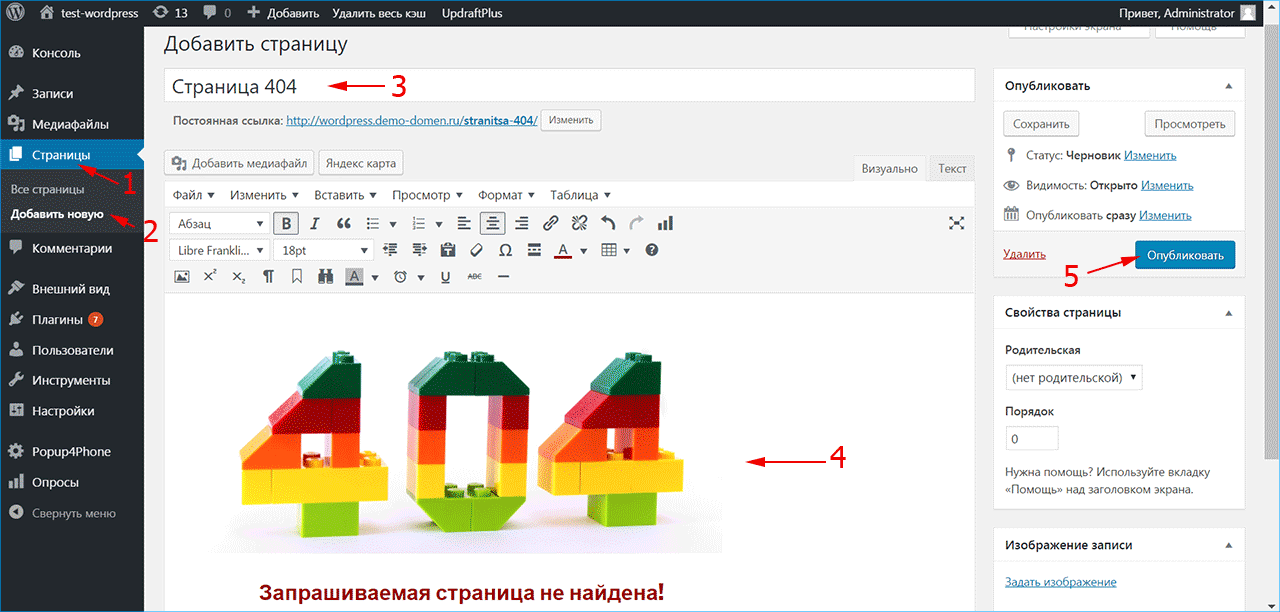
Создайте страницу 404 как обычную страницу WordPress из меню «Страницы -> Добавить новую». Внесите в нее всю необходимую информацию, которую вы хотите показать посетителю, и нажмите кнопку «Опубликовать». Плагин 404page также добавляет CSS-класс error404 в тег <body>, который можно использовать для задания дополнительных стилей на странице.
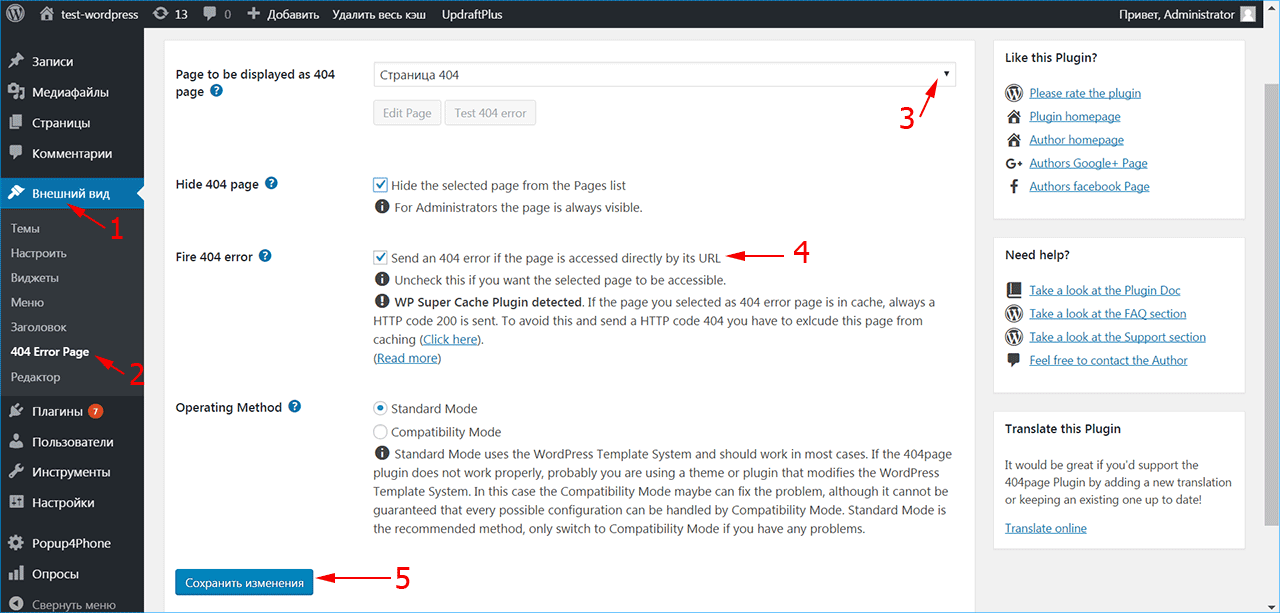
После активирования плагина в меню «Внешний вид» (1) появился раздел «404 Error Page» (2), в котором можно настроить отображение страницы ошибки.
Выберите созданную страницу 404 из списка страниц сайта (3). Убедитесь, что отмечен флажок (4), чтобы сервер отдавал код 404 при доступе к этой странице. Если вы используете кэширование, плагин выдаст предупреждение – страница из кэша будет отдавать код 200, поэтому ее нужно исключить из кэширования.
При возникновении проблем или конфликта с другими плагинами 404page может быть запущен в режиме совместимости. Нажмите кнопку «Сохранить изменения» (5).
Чтобы включить обработку ошибок 404 в WordPress, нужно установить структуру ссылок в меню «Настройки -> Постоянные ссылки» на любой пункт, кроме «По умолчанию». В противном случае ошибка 404 обрабатывается сервером, а не движком WordPress.
iPipe – надёжный хостинг-провайдер с опытом работы более 15 лет.
Мы предлагаем:
- Виртуальные серверы с NVMe SSD дисками от 299 руб/мес
- Безлимитный хостинг на SSD дисках от 142 руб/мес
- Выделенные серверы в наличии и под заказ
- Регистрацию доменов в более 350 зонах

От автора: приветствую, вас, уважаемые читатели. 404 ошибка WordPress: что это? зачем? и почему? Из этой статьи вы узнаете ответы на эти вопросы, а именно: что такое 404 ошибка WordPress, как исправить ошибку 404 в WordPress и как, благодаря ошибке 404, подсказать пользователю, что он набрал неверный адрес.
Что же такое ошибка 404?
Начнем, пожалуй, с определения того, что же такое ошибка 404. Ошибка 404 — это стандартный код ответа сервера на ошибочный запрос. Этот код означает, что по данному адресу ничего нет: Not Found (не найдено). Прежде всего этот код необходим для поисковых роботов, чтобы сообщить им, что по данному URL ничего нет.
А нужна ли ошибка 404?
Здесь можно было бы ограничиться одним словом — нужна. Но давайте попробуем понять, зачем именно она нужна. На самом деле есть подход, применяющийся порой веб-мастерами, который состоит в следующем: при обращении к несуществующему адресу идет перенаправление на главную страницу сайта. Этот подход не очень хорош, поскольку так выходит, что на одну страницу — главную — ведут несколько ссылок. На эту ситуацию уже не очень хорошо могут отреагировать поисковые системы.
Вот для того, чтобы избежать возможных неприятностей, и существует ошибка 404, которая должна отправляться в ответ на ошибочный запрос. В этом случае мы говорим поисковому роботу, что такой страницы нет, и он должен удалить ошибочный адрес из поискового индекса.
Настройка страницы 404 в WordPress
Итак, мы выяснили, что страница 404 — нужна. Как же настроить в WordPress эту страницу и в чем заключается настройка 404 страницы? Собственно, зачастую нам не придется делать ничего особенного, поскольку в WordPress все уже сделано за нас. Все, что вам необходимо сделать — создать в папке активной темы новый шаблон (если его там еще нет), который так и называется — 404.php.
Далее этот шаблон мы можем оформить по собственному вкусу. Это может быть как шаблон в общем стиле сайта, так и кардинально отличающийся от общей стилистики. Вообще, оформление страницы 404 — довольно интересный и иногда даже занимательный вопрос. Многие сайты стараются выделиться, создавая страницы 404 с юмором, с т.н. «пасхальными яйцами», вставляя на эту страницу всевозможные занимательные картинки.

Бесплатный курс «Создание тем на WordPress. Быстрый старт»
Изучите курс и узнайте, как создавать уникальные темы на WordPress с нестандартной структурой страниц
Скачать курс
Это может быть как относительно простая, но со вкусом оформленная страница ошибки 404, например, как на Гитхабе:

Так и довольно сложная, великолепная и оригинальная страница студии дизайна Bluedaniel — www.bluedaniel.com/404:

Ради интереса вы можете обратиться к поиску по картинкам Google, набрав простой поисковый запрос — 404. В ответ Вы найдете массу интересных и креативных картинок, которые используются для оформления страницы 404.
WordPress — 404 не работает…
Иногда вы можете столкнуться с такой ситуацией, что шаблон 404.php есть, но он почему-то не срабатывает, т.е. WordPress при возникновении ошибки 404 просто не подключает этот шаблон. Такое иногда случается и связано с настройками сервера.
Как же исправить эту ситуацию? Очень просто. Найдите в корне вашего сайта (рядом с папкой wp-content) файл .htaccess и добавьте в этот файл следующую строку:
|
ErrorDocument 404 /index.php?error=404 |
Эта строка заставит сервер при возникновении ошибки 404 обращаться по нужному адресу. Ну а WordPress уже подключит страницу 404. Если вдруг вы не найдете в корне сайта файл .htaccess, тогда создайте его самостоятельно. Сделать это можно через любой редактор кода (например, Notepad++).
Ошибка 404 — что делать?
До этого мы с Вами рассматривали оформление страницы 404 в WordPress. Но что делать, если на вашем сайте только и присутствует страница 404? Т.е. работает только главная, а при попытке перейти на любую другую страницу вы получаете в ответ ошибку 404 в WordPress? Да, такое тоже иногда бывает. Но не спешите кричать «Караул!» и переустанавливать WordPress. Можно попытаться решить проблему своими силами.
Вполне возможно, что почему-то произошла ошибка с настройками постоянных ссылок в WordPress. Попробуйте зайти в меню Параметры — Постоянные ссылки и просто нажмите кнопку Сохранить изменения. В большинстве случаев это поможет решить проблему с постоянной ошибкой 404 в WordPress.
Если первая рекомендация не помогла, тогда проверьте наличие в корне сайта упомянутого ранее файла .htaccess. Откройте этот файл и проверьте, присутствуют ли в нем вот эти строки:
|
# BEGIN WordPress <IfModule mod_rewrite.c> RewriteEngine On RewriteBase / RewriteRule ^index.php$ — [L] RewriteCond %{REQUEST_FILENAME} !—f RewriteCond %{REQUEST_FILENAME} !—d RewriteRule . /index.php [L] </IfModule> # END WordPress |
Если вдруг этих строк там не окажется, тогда добавьте их. Этот способ также должен помочь решить проблему постоянной ошибки 404 в WordPress.
Друзья, надеюсь, ознакомившись со статьей вы исправили ошибку 404 в WordPress и смогли настроить страницу 404. Если у вас возникли какие-либо вопросы — не стесняйтесь их задавать, мы попробуем ответить на них.
Бесплатный курс «Создание тем на WordPress. Быстрый старт»
Изучите курс и узнайте, как создавать уникальные темы на WordPress с нестандартной структурой страниц
Скачать курс

Создание тем на WordPress. Быстрый старт
Изучите курс и узнайте, как создать тему на WordPress
Смотреть
Languages:
English •
Creating an Error 404 Page 日本語
(Add your language)
While you work hard to make sure that every link actually goes to a specific web page on your site, there is always a chance that a link clicked will slam dunk and become a famous 404 ERROR PAGE NOT FOUND.
All is not lost. If your visitors encounter an error, why not be a helpful WordPress site administrator and present them with a message more useful than «NOT FOUND».
This lesson will teach you how to edit your «error» and «page not found» messages so they are more helpful to your visitors. We’ll also show how to ensure your web server displays your helpful custom messages. Finally, we’ll go over how to create a custom error page consistent with your Theme’s style.
Contents
- 1 An Ounce of Prevention
- 2 Understanding Web Error Handling
- 3 Editing an Error 404 Page
- 4 Creating an Error 404 Page
- 5 Tips for Error Pages
- 5.1 Writing Friendly Messages
- 5.2 Add Useful Links
- 6 Testing 404 Error Messages
- 7 Help Your Server Find the 404 Page
- 8 Questions About Error Files
An Ounce of Prevention
Some errors are avoidable, you should regularly check and double check all your links. Also, if you are deleting a popular but out-of-date post, consider deleting the body of the post, and replacing it with a link referring visitors to the new page.
Understanding Web Error Handling
Visitors encounter errors at even the best websites. As site administrator, you may delete out-of-date posts, but another website may have a link to your inside page for that post.
When a user clicks on a link to a missing page, the web server will send the user an error message such as 404 Not Found. Unless your webmaster has already written custom error messages, the standard message will be in plain text and that leaves the users feeling a bit lost.
Most users are quite capable of hitting the back key, but then you’ve lost a visitor who may not care to waste their time hunting for the information. So as not to lose that visitor, at the very least, you’ll want your custom message to provide a link to your home page.
The friendly way to handle errors is to acknowledge the error and help them find their way. This involves creating a custom Error Page or editing the one that came with your WordPress Theme.
Editing an Error 404 Page
Every theme that is shipped with WordPress has a 404.php file, but not all Themes have their own custom 404 error template file. If they do, it will be named 404.php. WordPress will automatically use that page if a Page Not Found error occurs.
The normal 404.php page shipped with your Theme will work, but does it say what you want it to say, and does it offer the kind of help you want it to offer? If the answer is no, you will want to customize the message in the template file.
To edit your Theme’s 404 error template file, open it in your favorite text editor and edit the message text to say what you want it to say. Then save your changes and upload it to the theme directory of your WordPress install.
While you are examining and editing your 404 template file, take a look at the simple structure of the 404.php file that is shipped with Twenty Thirteen. It basically features tags that display the header, sidebar, and footer, and also an area for your message:
<?php
/**
 * The template for displaying 404 pages (Not Found)
 *
 * @package WordPress
 * @subpackage Twenty_Thirteen
 * @since Twenty Thirteen 1.0
 */

get_header(); ?>

	<div id="primary" class="content-area">
		<div id="content" class="site-content" role="main">

			<header class="page-header">
				<h1 class="page-title"><?php _e( 'Not Found', 'twentythirteen' ); ?></h1>
			</header>

			<div class="page-wrapper">
				<div class="page-content">
					<h2><?php _e( 'This is somewhat embarrassing, isn’t it?', 'twentythirteen' ); ?></h2>
					<p><?php _e( 'It looks like nothing was found at this location. Maybe try a search?', 'twentythirteen' ); ?></p>

					<?php get_search_form(); ?>
				</div><!-- .page-content -->
			</div><!-- .page-wrapper -->

		</div><!-- #content -->
	</div><!-- #primary -->

<?php get_footer(); ?>
So, to change the error message your visitor sees, revise the text within the h1 heading and within the page-content class; if necessary, add more paragraphs below that.
Creating an Error 404 Page
If your WordPress Theme does not include a template file named 404.php, you can create your own.
Because every theme is different, there is no guarantee that copying over the 404.php template file found in the Twenty Thirteen Theme will work, but it’s a good place to start. The error page you copy from the Twenty Thirteen Theme will adopt the style of the current theme because it actually calls the header and footer of the current theme. That’s less work for you, and you may only have to edit the message to suit your particular needs.
To use the 404.php template file from the WordPress Twenty Thirteen Theme:
- Copy the file /wp-content/themes/twentythirteen/404.php into the directory of your current theme.
- Then, as described in the previous section, edit the error message to present your desired error message.
If copying the default 404.php into your theme directory does not work well with your theme, you can also:
- Change the Default Theme’s 404.php template file’s header, sidebar, footer, and other codes to match the rest of the Theme’s layout.
Or
- Copy the index.php file of your current theme to a file called 404.php.
- Open that file and delete all sections dealing with posts or comments, see The Loop.
- Then, edit your 404 error message.
Tips for Error Pages
There are various improvements you can make to your 404 Error web pages so let’s look at some of your options.
Writing Friendly Messages
When an error message is displayed, you can say many things to help a visitor feel reassured they’ve only encountered a minor glitch, and you’re doing the best you can to help them find the information they want. You can say something clever like:
"Oops, I screwed up and you discovered my fatal flaw.
Well, we're not all perfect, but we try.  Can you try this
again or maybe visit our <a
title="Our Site" href="http://example.com/index.php">Home
Page</a> to start fresh.  We'll do better next time."
You should also attempt to show the user what they want. Check out the AskApache Google 404 Plugin to add google search results to your 404.php
Or, say something shorter and sweeter. Almost anything you say is better than 404 Error Page Not Found. You can find more information about writing 404 Error pages on the Internet, like List Apart’s Perfect 404.
As an implementation of the Perfect 404 page, this solution will tell the user it’s not their fault and email the site admin.
Helpful 404 page
When a visitor gets a 404 error page, it can be intimidating, and unhelpful. Using WordPress, you can take the edge off a 404 and make it helpful to users, and yourself, too, by emailing whenever the user clicks a link to a non-existent page.
<p>You
<?php
#some variables for the script to use
#if you have some reason to change these, do.  but wordpress can handle it
$adminemail = get_option('admin_email'); #the administrator email address, according to wordpress
$website = get_bloginfo('url'); #gets your blog's url from wordpress
$websitename = get_bloginfo('name'); #sets the blog's name, according to wordpress

  if (!isset($_SERVER['HTTP_REFERER'])) {
    #politely blames the user for all the problems they caused
        echo "tried going to "; #starts assembling an output paragraph
	$casemessage = "All is not lost!";
  } elseif (isset($_SERVER['HTTP_REFERER'])) {
    #this will help the user find what they want, and email me of a bad link
	echo "clicked a link to"; #now the message says You clicked a link to...
        #setup a message to be sent to me
	$failuremess = "A user tried to go to $website"
        .$_SERVER['REQUEST_URI']." and received a 404 (page not found) error. ";
	$failuremess .= "It wasn't their fault, so try fixing it.
        They came from ".$_SERVER['HTTP_REFERER'];
	mail($adminemail, "Bad Link To ".$_SERVER['REQUEST_URI'],
        $failuremess, "From: $websitename <noreply@$website>"); #email you about problem
	$casemessage = "An administrator has been emailed
        about this problem, too.";#set a friendly message
  }
  echo " ".$website.$_SERVER['REQUEST_URI']; ?>
and it doesn't exist. <?php echo $casemessage; ?>  You can click back
and try again or search for what you're looking for:
  <?php include(TEMPLATEPATH . "/searchform.php"); ?>
</p>
Add Useful Links
If you encounter a «page not found» situation on the WordPress site, it is filled with helpful links to direct you to the various categories and areas of information within the WordPress site. Check it out at http://wordpress.org/brokenlink.php.
To add similar useful links to your 404 page, create a list, or a paragraph, so the visitor can easily determine which section might be useful to visit. Information of that nature is much better than having the user just reach a dead-end. To help you understand how to link to documents within your site, especially to Pages and Categories, see Linking_Posts_Pages_and_Categories.
Testing 404 Error Messages
To test your custom 404 page and message, just type a URL address into your browser for your website that doesn’t exist. Make one up or use something like:
http://example.com/fred.php
This is sure to result in an error unless you actually have a php file called fred. If your error page doesn’t look «right», you can go back and edit it so it works correctly and matches your Theme’s look and feel.
Help Your Server Find the 404 Page
By default, if WordPress cannot find a particular page it will look for the 404.php web page. However, there may be cases where the web server encounters a problem before WordPress is aware of it. In that case, you can still guarantee that your web server sends the visitor to your 404.php template file by configuring your web server for custom 404 error handling.
To tell your web server to use your custom error files, you’ll need to edit the .htaccess file in the main directory (where main index.php file resides) of your WordPress installation. If you don’t have an .htaccess file, see Editing Rewrite Rules (.htaccess) on how to create an .htaccess file.
To ensure the server finds your 404 page, add the following line to your .htaccess file:
ErrorDocument 404 /index.php?error=404
The url /index.php is root-relative, which means that the forward slash begins with the root folder of your site. If WordPress is in a subfolder or subdirectory of your site’s root folder named ‘wordpress’, the line you add to your .htaccess file might be:
ErrorDocument 404 /wordpress/index.php?error=404
Questions About Error Files
- Why not just hard code the path all the way to the 404.php file?
- By allowing index.php to call the error file, you ensure that the 404.php file used will change automatically as you change your theme.
- What happens if I switch to a theme that does not have a 404.php file?
- Visitors clicking on a broken link will just see a copy of the home page of your WordPress site (index.php), but the URL they see will be the URL of the broken link. That can confuse them, especially since there is no acknowledgement of the error. But this is still better than a getting a «NOT FOUND» message without any links or information that could help them find what they seek.
WordPress is a powerful CMS. Sometimes a slight tweak can make your website inaccessible. However, finding a solution for any WordPress problem is extremely easy (check out how to properly ask for WordPress support and get it). In the past we have covered some of the most common problems WordPress users face. Like the internal server error or error establishing database connection. Another common problem that most WordPress users face at some point is WordPress posts returning a 404 Error. In this article we will show you how to fix WordPress posts returning 404 error.
Usually in this scenario a user can access their WordPress admin area, their blog’s main page, but when accessing a single posts they get a 404 Not found error. First of all, don’t panic most of the time your posts are still there and completely safe. This usually happens if your .htaccess file got deleted or something went wrong with the rewrite rules. What you need to do is fix your permalinks settings.
Video Tutorial
Subscribe to WPBeginner
If you don’t like the video or need more instructions, then continue reading.
Go to Settings » Permalinks, and simply click on Save Changes button.
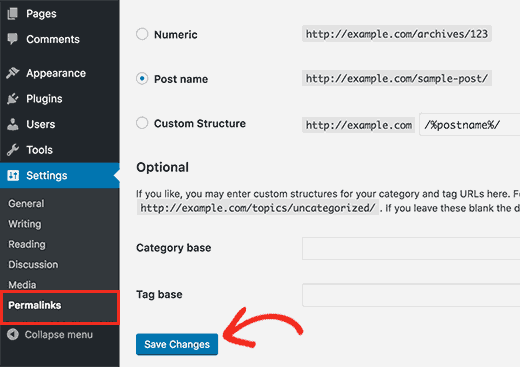
This will update your permalinks settings and flush rewrite rules. In most cases this solution fixes the WordPress posts 404 error. However, if it does not work for you, then you probably need to update your .htaccess file manually.
Login to your server using FTP, and modify the .htaccess file which is located in the same location where folders like /wp-content/ and /wp-includes/ are located. The easiest thing you can do is to temporarily make the file writeable by changing the permissions to 666. Then repeat the original solution. Don’t forget to change the permissions back to 660. You can also manually add this code in your .htaccess file:
# BEGIN WordPress
<IfModule mod_rewrite.c>
RewriteEngine On
RewriteBase /
RewriteRule ^index.php$ - [L]
RewriteCond %{REQUEST_FILENAME} !-f
RewriteCond %{REQUEST_FILENAME} !-d
RewriteRule . /index.php [L]
</IfModule>
# END WordPress
Fix for Local Servers
Often designers and developers install WordPress on their computers using a local server for testing purposes. If you want to use pretty permalinks, then you need to enable the rewrite_module in the Apache configuration of your MAMP, WAMP, or XXAMP.
We hope this article helped you resolve posts returning 404 error in WordPress. Did this solution work for you? Do you have another solution that worked for you? Please share it in the comments below. We would like to make this article a comprehensive resource for users who run into this issue.
Disclosure: Our content is reader-supported. This means if you click on some of our links, then we may earn a commission. See how WPBeginner is funded, why it matters, and how you can support us.

Editorial Staff at WPBeginner is a team of WordPress experts led by Syed Balkhi. We have been creating WordPress tutorials since 2009, and WPBeginner has become the largest free WordPress resource site in the industry.
Reader Interactions
All of a sudden I go to my WordPress website and all the pages give me a 404 page not found page. I’m assuming the problem lies with the permalink structure, which I could swear I did not touch. The permalink setting is on «month and name.»
I’ve researched similar instances of this problem online and a lot of it has to do with the .htaccess file? I tried finding, but I can’t. Perhaps it got deleted somehow? Where is it supposed to be located.
Any suggestions will be helpful
and of course I can see hidden files.
Marc
4,6213 gold badges39 silver badges62 bronze badges
asked Mar 3, 2011 at 15:07
2
.htaccess is a hidden file, so you must set all files as visible in your ftp.
I suggest you return your permalink structure to default ( ?p=ID ) so you ensure that .htaccess is the problem.
After that, you could simply set «month and name» structure again, and see if it works.
PS: Have you upgraded to 3.1? I’ve seen some people with plugin issues in this case.
answered Mar 3, 2011 at 15:18
9
Basically the .htaccess file should exists and the httpd.conf should be correct.
In my case, I changed the file /etc/apache2/apache2.conf in section:
<Directory "/var/www/html">
Line changed is:
AllowOverride None
to
AllowOverride All
And restart the web server with
systemctl restart apache2
answered Sep 9, 2016 at 4:52
georgeosgeorgeos
2,3412 gold badges24 silver badges28 bronze badges
5
Fixing that problem is very simple if you was using permalinks other than the default such as Day and name, Month and name, Numeric, Post name or Custom Structure, you only need to
Login to your admin area: Settings > Permalinks which should be : http://yoursite.com/wp-admin/options-permalink.php
Choose Default permalink setting, then save changes
Then you can return it again to your other previous permalink choice or keep it as default as yo wish
Note that this problem can happen when you move your site from a domain or location to another one.
answered Sep 27, 2013 at 19:59
usama sulaimanusama sulaiman
2,0133 gold badges24 silver badges37 bronze badges
8
If the default behavior (example.com/?p=42) is working, you should:
- Change to your preferred permalink style:
Admin: Settings > Permalinks, and click Save. Sometime it fixes the issue. If it didn’t: - Verify that the file
/path/to/wordpress/.htaccesshas been changed and now includes the lineRewriteEngine On. If it doesn’t include the line, it’s a WordPress permissions issue. -
Verify that the ‘rewrite’ module is loaded: create a PHP file with
<?php
  phpinfo()
?>
in it, open it in the browser and search for
mod_rewrite. It should be in the ‘Loaded Modules’ section.
If it’s not, enable it — Look at your apache defaultindex.htmlfile for details — in Ubuntu, you do it with the helpera2enmod. -
Verify that apache server is looking at the
.htaccessfile. openhttpd.conf— or it’s Ubuntu’s alternative,/etc/apache2/apache2.conf. In it, You should have something like<Directory /path/to/wordpress> Options Indexes FollowSymLinks AllowOverride All Require all granted </Directory> -
After making these changes, don’t forget to restart your apache server.
sudo service apache2 restart
RyanS
6271 gold badge10 silver badges26 bronze badges
answered Jan 30, 2017 at 2:06
tsvikastsvikas
15.7k1 gold badge21 silver badges11 bronze badges
0
IF all this dont work, your .htaccess is correct, and permalinks trick didnt work, you may have not enabled your apache2 rewite mod.
I ran this and my issue was solved:
sudo a2enmod rewrite
answered Feb 20, 2018 at 18:06
2
Within the WordPress admin interface do the following:
-
Go to admin setting
-
Click on permalink and select post name in radio button.
-
Scroll down and you will see
.htaccesscode here like.<IfModule mod_rewrite.c> RewriteRule ^index.php$ - [L] RewriteCond %{REQUEST_FILENAME} !-f RewriteCond %{REQUEST_FILENAME} !-d RewriteRule . /wordpress/index.php [L] </IfModule> - Copy the code and paste in the
.htaccessfile.
Blackbam
17.3k24 gold badges97 silver badges150 bronze badges
answered Mar 14, 2014 at 10:24

3
This error is causing due to disabled of rewrite mod in apache httpd.conf document ,just uncomment it and enjoy the seo friendly permalinks
answered Apr 5, 2013 at 22:34
Asif KhanAsif Khan
811 silver badge1 bronze badge
- Check that the directory on .htaccess are the correct
- Check the fields «siteurl» and «home» are the correct
answered Mar 4, 2011 at 7:07
José CarlosJosé Carlos
1,00516 silver badges29 bronze badges
1
We had the same problem and solved it by checking the error.log of our virtual host. We found the following message:
AH00670: Options FollowSymLinks and SymLinksIfOwnerMatch are both off,
so the RewriteRule directive is also forbidden due to its similar
ability to circumvent directory restrictions :
/srv/www/htdocs/wp-intranet/
The solution was to set Options All and AllowOverride All in our virtual host config.
answered Jul 3, 2018 at 14:48
BlackBlack
17.8k39 gold badges156 silver badges268 bronze badges
If you have FTP access to your account:
First, login to your wp-admin and go to Settings > Permalinks
You should see something at the bottom that says:
«If your .htaccess file were writable, we could do this automatically, but it isn’t so these are the mod_rewrite rules you should have in your .htaccess file. Click in the field and press CTRL + a to select all.»
If this is true do the following:
-
Go into preferences for your FTP client and make sure hidden files are displayed (varies depending on your FTP client) — If you don’t do this you won’t be able to find your htaccess file
-
Go to the folder that your wp-admin, wp-content, wp-includes directories are located. Check for .htaccess file. If it exists skip to step 4
-
If it does not exist, create a new blank file in your FTP program called .htaccess
-
Change the CHMOD for your .htaccess file to 666 (your preference on how you want to do this)
-
Go back to your Permalinks page and edit the link structure you want. Problem should be solved!
-
Make sure to change the chmod of the htaccess file back to 644 after you are done.
Just had the same problem and it seemed to fix it instantly! Good luck!
answered Oct 12, 2012 at 16:47
JEFF BJEFF B
1262 silver badges12 bronze badges
1
Most of the time this issue is fixed by simply visiting the Settings -> Permalink page in the WordPress admin and click Save (as several other answers already pointed out). When this page is accessed, WordPress rewrites the directives in the .htaccess file which magically fixes the issue. The issue often happens after moving a site (the site breaks because the .htaccess gets left behind or the settings need to be updated).
If WordPress doesn’t have the right permissions to write the .htaccess file, a notice will appear at the top of the page and further instructions at the bottom when the settings are saved. In this case you need to edit the .htaccess file yourself or, better, to fix the permissions on that file. The file is at the root of the WordPress installation. cd into the directory and sudo chmod 644 .htaccess. You might also want to check if the file belongs to the right group and change that is needed with chown. Ask your hosting provider if you don’t know how to do that.
If you are on shared hosting that’s probably all you can do. If you still have the issue you might want to talk to you hosting provider’s support. Otherwise, make sure the use of .htaccess files is enabled on the server, as @georgeos already suggested. Note that httpd.conf is not always used (Ubuntu indicates it is deprecated but the official Apache docs still says it is often the main configuration file). /etc/httpd/conf/httpd.conf and /etc/apache2/apache2.conf seem to be the most common places for this file. Find the block for the public folder, usually <Directory /var/www/> and make sure that the AllowOverride directive is set to All. If it is set to None, your .htaccess file is simply ignored by the server.
answered Aug 15, 2017 at 23:45

mrtnmgsmrtnmgs
1,37313 silver badges26 bronze badges
You may have .htaccess disallowed in webhost settings.
Setting to default permalinks would work in that case.
answered Feb 28, 2017 at 14:34
FankyFanky
1,6231 gold badge18 silver badges20 bronze badges
Before trying to do any permalink or server config changes, please check you .htaccess file. This mostly is a corrupt or blank .htaccess file issue. Reset the htaccess file to the default
# BEGIN WordPress
<IfModule mod_rewrite.c>
RewriteEngine On
RewriteBase /
RewriteRule ^index.php$ - [L]
RewriteCond %{REQUEST_FILENAME} !-f
RewriteCond %{REQUEST_FILENAME} !-d
RewriteRule . /index.php [L]
</IfModule>
# END WordPress
answered Mar 15, 2019 at 11:37
Mustafa sabirMustafa sabir
4,1301 gold badge19 silver badges28 bronze badges
0
Case 1:- Let us think if migrate site from one hosting to another hosting if see this kind of issue.
Solution:- Simply go to old server copy .htaccess file code, then past in new server .htaccess file. 99% it i will works.
answered Nov 7, 2017 at 5:05
NavrukNavruk
9276 gold badges17 silver badges29 bronze badges
after 2 long days,
the solution was to add options +FollowSymLinks to the top of my .htaccess file.
answered Apr 4, 2020 at 2:29
Ahmad AliAhmad Ali
6941 gold badge10 silver badges28 bronze badges
Go to your WordPress Dashboard, scroll down to settings, select Permalink,
in custom settings that appear, go to custom structure and replace the text in the text field with
/index.php/%year%/%monthnum%/%day%/%postname%/
and then save changes
answered Jul 7, 2021 at 14:42
InsookwaInsookwa
891 silver badge5 bronze badges
This scenario can also be caused by a database version that’s out of sync with the WP files installed on server. Nothing else listed here worked for me; I solved it with a manual WP update.
answered Nov 1, 2022 at 20:40
BlorfBlorf
5263 silver badges12 bronze badges
I have the same problem and so I remove the Apache and make it again and the problem was solved.
answered Jun 6, 2013 at 16:38
boomzboomz
6575 silver badges21 bronze badges
Just Navigate to Settings->Permalink in your dashboard and then Save Changes button in the last.
answered Jul 13, 2017 at 10:30
I just changed the permalink to ‘month and day’of all the posts by ging to setting>permalink.
Now all posts are open and working fine.
Again, I renamed to all posts to its actual permalink. Its again working fine.
This method worked for me 
answered May 20, 2018 at 13:57
For nginx users
Use the following in your conf file for your site (usually /etc/nginx/sites-available/example.com)
location / {

                try_files $uri $uri/ /index.php?q=$uri&$args;

            }
This hands off all permalink requests to index.php with a URI string and supplied arguments. Do a systemctl reload nginx to see the changes and your non-homepage links should load.
answered Jun 14, 2018 at 14:24
Wanted to share my two cents. Recently came accross that very same issue installing WordPress 5.9. Year 2021.
Configuration:
Platform MAC, Software
XAMPP, WordPress5.9
None of the previous answer did it for me.
The issue was due to the fact that files permissions accross the XAMPP folder were set to «Read only».
- Locate the
XAMPPfolder. (Usually in the Applications folder). - Right click
XAMPPfolder. Get info.- Bottom right unlock button → Follow instructions.
Sharing and permissions→Everyone→Read & Write.- Bottom left three dots button →
Apply to enclosed items.
answered Jan 29, 2022 at 10:39

amarinediaryamarinediary
4,8204 gold badges27 silver badges45 bronze badges
I had this issue not so long ago. I had reset my permalink to default or just saved it, updated themes/core to (4.7.4)/plugins, deactivated all plugins, switched to default theme, optimized database, .htaccess is already default, checked file permissions, mod_rewrite is on.
So far nothing works, what works are the posts, new page, the /contact page EXCEPT for old pages.
Basically, the pages/URLs that aren’t working are:
/breeding
/training
/training/*
/breeding/*
Ultimate, I found these files in the root folder:
/breeding.php and /training.php
I renamed both files and the pages above worked.
answered May 16, 2017 at 16:05
Если вы знакомы с Интернетом, вы должны знать об ошибках 404. Эти страницы раздражают, когда вы ищите контент в Интернете. Вы увидите слова: «Страница не может быть найдена. Страница, которую вы ищете, могла быть удалена, изменила ее название или временно доступна ». Обычно это происходит, когда нет URL-адреса для доставки.
На всякий случай, если вы никогда не видели такое сообщение или хотите увидеть страницу 404 на своем собственном веб-сайте, введите URL-адрес страницы, которую вы ищете, а затем введите строку тарабарщины. Вы увидите, о чем я говорю. Это происходит из-за сбоя во взаимодействии клиент-сервер, который может произойти по многим причинам:
- Страница, которую вы ищете, может больше не существовать.
- Ссылка на страницу, которую вы ищете, может быть неработающей.
- Возможно, вы просто ввели неправильный URL.
Активный веб-сайт не может полностью избежать этих ошибок, но можно сделать многое, чтобы свести их к минимуму.
Ошибки 404 и влияние на SEO
Страница 404 вредна для вашего SEO. Посетитель теряется, потому что ссылки на вашем сайте не поддерживаются должным образом. Одна или две неработающие ссылки, которые иногда появляются в поисковых системах, не имеют большого значения. Но у вас есть более серьезная проблема, если поисковая система часто сталкивается с этими ошибками на вашем сайте. Повышенный показатель отказов окажет негативное влияние на ваше SEO, и вашему сайту может потребоваться время, чтобы оправиться от этого.
Если вы используете плагин Google Analytics, вы можете легко увидеть ошибки, поскольку они помечены. Но поисковые системы также сталкиваются с ошибкой 404, которой никогда не делают обычные посетители, потому что они сканируют что угодно на вашем сайте. Таким образом, даже скрытые ссылки являются источником 404 ошибок для поисковых систем. Xenu или Screaming Frog могут помочь найти эти ошибки и исправить их.
Вы также должны искать битые изображения или битые вставки видео. Их сложно найти с помощью инструментов для веб-мастеров или Google Analytics, но Xenu и Screaming Frog также могут вам помочь. Вы также можете выполнить поиск в журналах сервера, выполнив поиск 404 плюс «.jpg» и «.png». Они не причинят большого вреда, но это не очень хорошее впечатление для посетителей.
Исправление ошибок 404
Есть много способов перенаправления и исправления ошибок 404, и вы можете попробовать эти шаги последовательно:
- Вы можете вручную проверить неработающие ссылки и исправить перенаправления, выполнив поиск в конфигурации вашего .htaccess или NGINX сервера, но это требует от вас некоторых технических навыков. Или несколько настроек в файле 404.php могут помочь. Это лучший способ исправить ошибку 404, но если вам неудобно работать с кодом, вы должны пропустить этот шаг.
- Если URL-адрес изменен, перейдите на правильный URL-адрес. Если файл статический, проверьте, существует ли файл, открыв FTP и проверив.
- Если он существует, но его появление в браузере является проблемой, то это проблема сервера или WordPress. Для этого создайте 2 отдельных файла – файл HTML и файл PHP и загрузите их. Если у вас есть доступ к этим файлам, значит, проблема с сервером, а проблема в WordPress.
- WordPress использует массив перезаписи, который управляет постоянными ссылками. Нестандартные плагины, изменения в каталоге или пользовательские типы сообщений могут нарушить постоянные ссылки, вызывая ошибку 404. Чтобы установить это правильно, просто перейдите в раздел «Постоянные ссылки» и снова сохраните структуру постоянных ссылок в папке wp.admin. Откройте «Постоянные ссылки» в разделе «Настройки» и «Сохраните изменения». Постоянные ссылки будут обновлены. Это исправление в основном сделает всю работу.
- Если у вас установлены плагины или любой плагин, который создает постоянные ссылки, отключите их и проверьте.
- Проверьте массив перезаписи WP с помощью плагина Debug This. После активации этот плагин покажет правила перезаписи, а также фактическую перезаписываемую строку PHP.
- Отключите плагины один за другим и определите плагин, который вызывает ошибки.
- Нет необходимости полностью удалять старый контент. Вместо этого вы можете создать настраиваемую страницу по этому URL-адресу и направлять посетителей на другие похожие страницы или сообщения на вашем веб-сайте.
Существует множество плагинов, которые помогают находить, отслеживать и перенаправлять неработающие ссылки. Я перечислил здесь несколько популярных из них, которые достаточно хорошо справляются со своей задачей.
Проверка неработающих ссылок
Broken Link Checker – это бесплатный плагин из репозитория WordPress. Это один из первых плагинов, который приходит на ум, когда вы хотите избавиться от этих надоедливых страниц.
После установки он просканирует ваш сайт на предмет любых ссылок, которые не работают. В зависимости от размера вашего сайта это может занять время. Вы можете выбрать получение уведомления о неработающих ссылках на свою электронную почту или в виджете проверки неработающих ссылок на панели инструментов. Вы также можете запретить поисковым системам переходить по этим неработающим ссылкам.
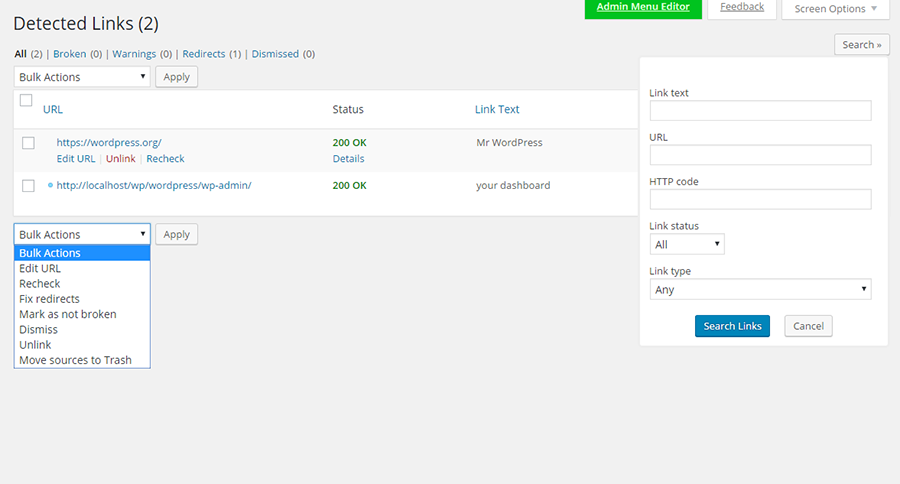
Вы можете увидеть в действии средство проверки неработающих ссылок, открыв средство проверки ссылок в разделе «Настройки». Параметр «Создать настраиваемый фильтр» можно использовать, чтобы сделать видимыми только некоторые ссылки, например, ссылки для определенной категории сообщений. Что вы решите делать со ссылкой, можно решить с помощью опций, которые открываются при наведении курсора на каждую ссылку.
Вы можете изменить URL-адрес, и все экземпляры этого URL-адреса будут исправлены. Вы можете удалить ссылку, при этом текст останется без изменений. Если ссылка в порядке, но отображается как неработающая, вы можете изменить ее вручную. Опция “Закрыть” оставит ссылку неизменной до следующего изменения статуса. Вы можете отключать плагин после каждого использования и повторно активировать его для периодического сканирования, если это необходимо.
Страница 404 от SeedProd
Какой бы ни была тема вашего веб-сайта, вы можете использовать страницу 404 от SeedProd для разработки и настройки своей пользовательской страницы 404. Вы можете полностью заменить страницу 404 своей темы и полностью настроить новую страницу 404. При необходимости вы даже можете использовать HTML5 и CSS3 для настройки.
Фоновое изображение может быть растянуто на весь браузер, а плагин поддерживает несколько сайтов, а также BuddyPress.

В премиум-версии вы можете собирать потенциальных клиентов, нажав на информацию электронной почты. Информация может храниться в вашей базе данных WordPress и быть экспортирована любому поставщику услуг электронной почты. MailChimp, Aweber, Get Response, Constant Contact и Campaign Monitor интегрированы, а также шрифты Google и Typekit.
Встраивайте видео, просто набрав URL, включите Gravity Forms и собирайте информацию о посетителях с помощью этого плагина. Посетители могут продолжить поиск страницы, которую они искали, на вашем веб-сайте.
Стоимость лицензий колеблется от 29 долларов за использование на одном сайте в течение одного года до 199 долларов за неограниченное количество сайтов в течение всей жизни. Покупка сопровождается гарантией возврата денег.
Все 404 перенаправляют на домашнюю страницу
Все 404 Redirect to Homepage будут перенаправлять все ссылки с ошибкой 404 на домашнюю страницу с использованием перенаправления SEO 301 – это перенаправление сообщает посетителю, что страница была перемещена навсегда. Вы также можете перенаправить его на любую настроенную страницу.
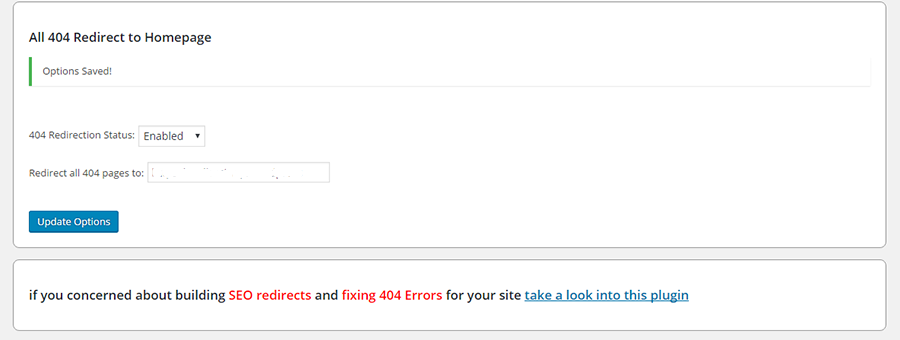
Это простой плагин, в котором вы должны включить статус перенаправления, заполнить URL-адрес страницы, на которую должен быть перенаправлен 404. И как только вы нажмете кнопку обновления, настройки будут сохранены в базе данных.
404–301
С 404 по 301 работает почти так же, как и предыдущий плагин, перенаправляя все ошибки 404 на любую страницу, которую вы установили с помощью перенаправления 301, 304 или 307. Эти числа указывают, была ли страница перемещена временно или навсегда. После установки этого плагина вы обнаружите, что панель инструментов вашего веб-мастера почти всегда будет сообщать об ошибках Nil.
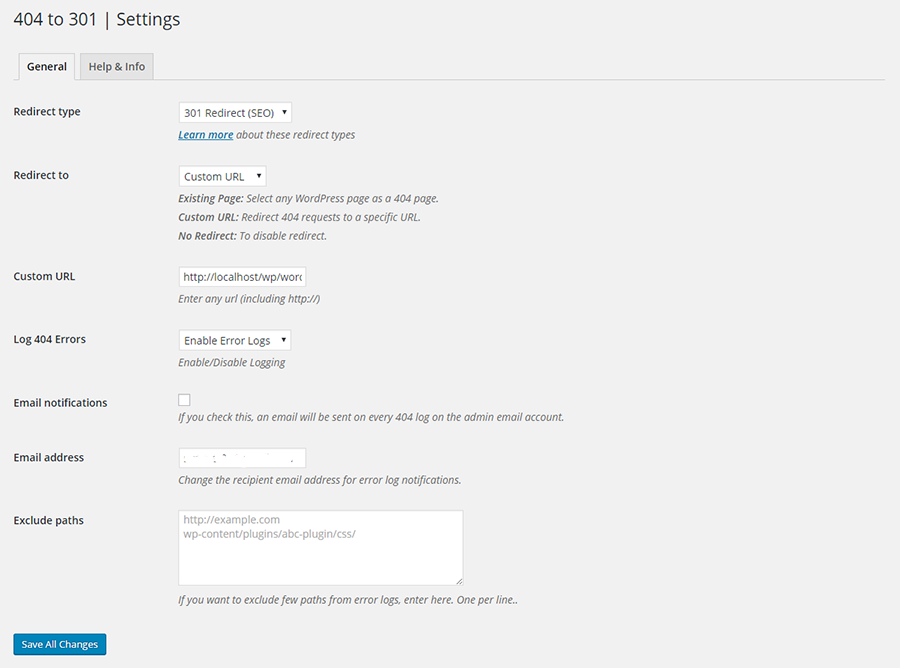
Вы можете выбрать мониторинг ошибок, а также включить уведомления по электронной почте об ошибках 404. Если вы просто хотите отслеживать или вести журнал, вы можете отключить параметр «Перенаправление». Плагин легкий, готов к переводу и совершенно бесплатный, с пожизненными обновлениями. Разработчики и другие пользователи могут получить доступ к плагину на GitHub.
Пользовательский 404 Pro
Вы можете использовать Custom 404 Pro, чтобы заменить стандартную страницу ошибки 404 на настраиваемую страницу, которую вы можете создать в разделе Pages вашей панели администратора. Или вы можете просто указать полный URL-адрес для перенаправления 404.
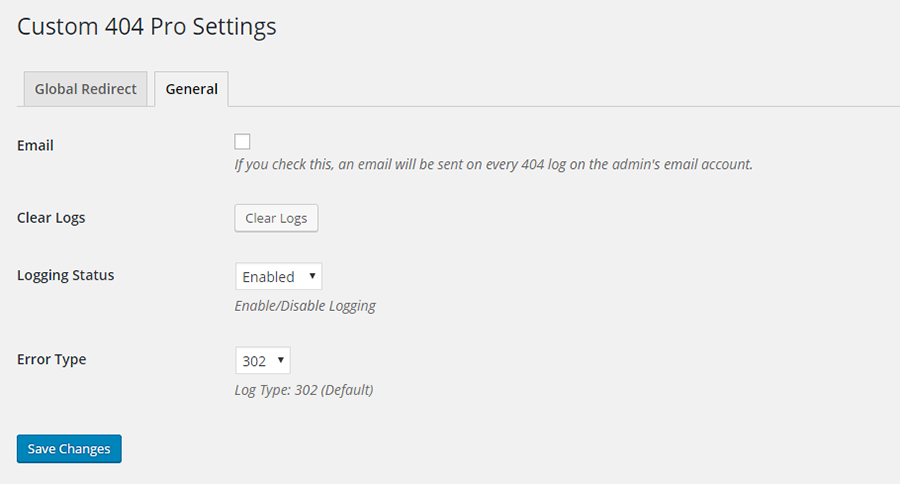
Могут быть записаны данные 404, а также ключевые слова, по которым посетитель попал на страницу 404. Поддержка этого плагина доступна на GitHub.
Регистратор ошибок 404
404 Error Logger – это простой и эффективный плагин, который регистрирует все ошибки, возникающие на вашем сайте WordPress. Имея всю эту информацию, вы можете определить неработающие ссылки и недостающий контент. При желании вы также можете записывать дополнительную информацию, такую как IP-адрес, пользовательские агенты и источники перехода. И вы можете заблокировать IP-адреса, если хотите.
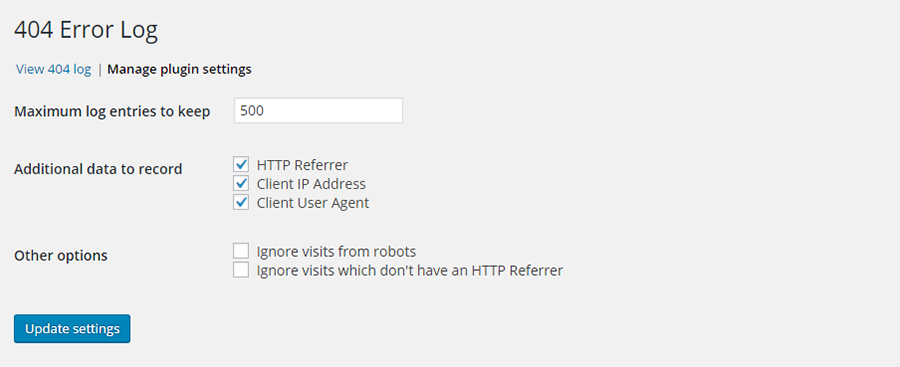
Этот плагин не будет работать, если вы используете плагин кеширования, который кэширует все ошибки 404.
Перенаправление
Перенаправление помогает отслеживать ошибки 404 с помощью перенаправления 301. Это популярный плагин в репозитории WordPress, с более чем 500 000 активных установок. Вы можете перенаправить все URL-адреса, а не только страницы с ошибками. Это особенно полезно, если вы перемещаете свой веб-сайт или меняете каталог, в котором установлен WordPress.
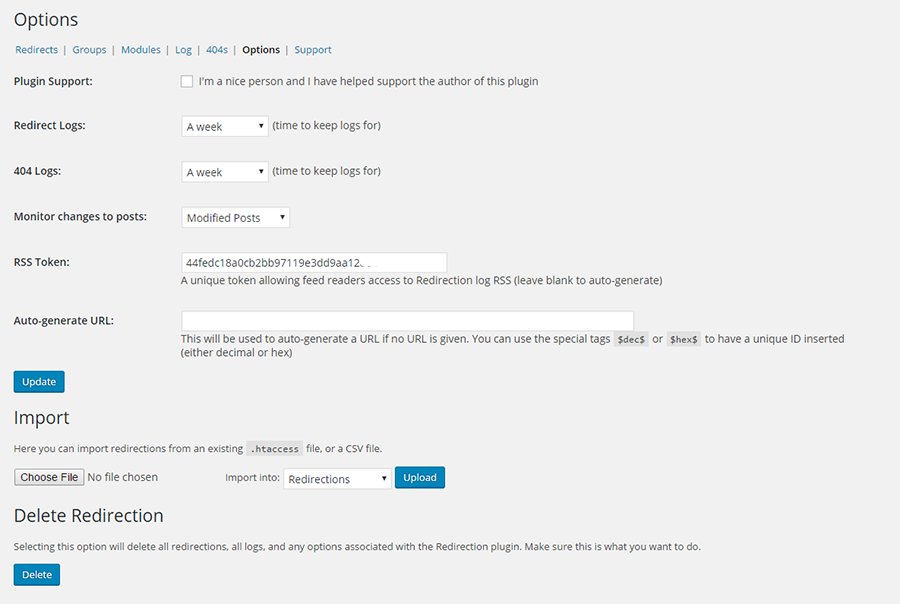
Плагин отслеживает 404 ошибки и ведет полные журналы. Вы также можете настроить его так, чтобы некоторые URL-адреса могли переходить на другую страницу, файл или веб-сайт. Вы можете настроить разные перенаправления в зависимости от статуса входа, перенаправления на случайные страницы или на основе источников перехода.
Плагин автоматически добавит 301 редирект при изменении URL-адреса публикации. Это также можно сделать вручную. Он полностью работает внутри вашего сайта WordPress, и .htaccess не требуется. Из журнала вы можете проверить, кто пытался войти в систему и сколько попыток входа было сделано.
Плагин WordPress Ultimate 404
Плагин WordPress Ultimate 404 дает вам полный контроль над вашими 404 страницами. Он предлагает 4 готовых шаблона, которые вы можете выбрать для отображения в качестве страницы с ошибкой. Шаблоны можно настроить. Также поддерживается стандартный шаблон 404 темы WordPress.

Плагин ведет запись всех событий с ошибкой 404, поэтому вы знаете, какая страница является наиболее посещаемой. При необходимости вы можете добавить URL-адрес перенаправления. Ключевое слово, используемое посетителем для поиска, записывается, давая вам ценную информацию о SEO.
Вы можете приобрести этот плагин на CodeCanyon за 19 долларов. Он поставляется с будущими обновлениями и 6-месячной поддержкой. Поддержка может быть продлена до 12 месяцев за дополнительные 5,70 долларов США.
Google 404
Google 404 – это не совсем плагин WordPress. Это просто расширенный скрипт страницы 404 от Google.
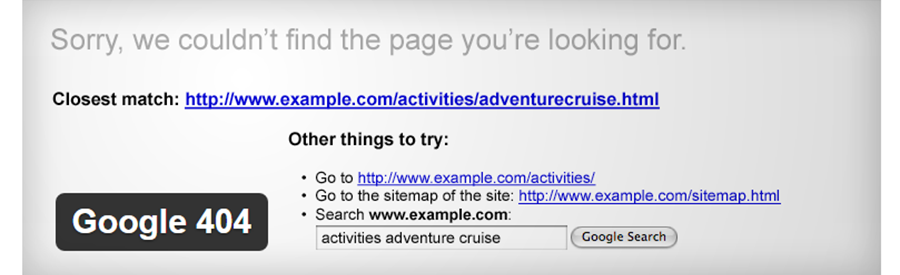
Он встраивает окно поиска на вашу страницу 404, поэтому посетителю предлагается продолжить поиск на вашем веб-сайте. Здесь может быть размещена полезная информация, относящаяся к поисковому слову, используемому посетителем. Или вы можете помочь посетителю найти информацию, которую он ищет.
Чтобы плагин был полностью эффективным, Google требует, чтобы вы отправили XML-карту вашего сайта WordPress и создали учетную запись веб-мастера Google.
404 Стр.
Вы не должны изо всех сил отказываться от страницы 404. Создайте страницу 404 на своем сайте WordPress так же, как вы обычно создаете страницы в WordPress. После этого откройте Настройки на панели инструментов WordPress. Щелкните страницу ошибки 404 и выберите страницу, которую вы только что создали, в качестве страницы ошибки 404. Вот и все.

Плагин не создает редирект. При перенаправлении URL остается в поисковом индексе, и это может повлиять на SEO. Этот плагин обеспечивает доставку правильного кода 404 в поисковые системы. Плагин сильно отличается от других. На сервер запросы не отправляются. Вместо этого используются собственные ресурсы WordPress.
404, чтобы начать
404 to Start обнаруживает ошибку 404 даже раньше, чем это делают поисковые системы. Вы можете установить перенаправление на 301 (постоянно), что является настройкой по умолчанию. Или вы можете установить его на 302, что является временным перенаправлением.
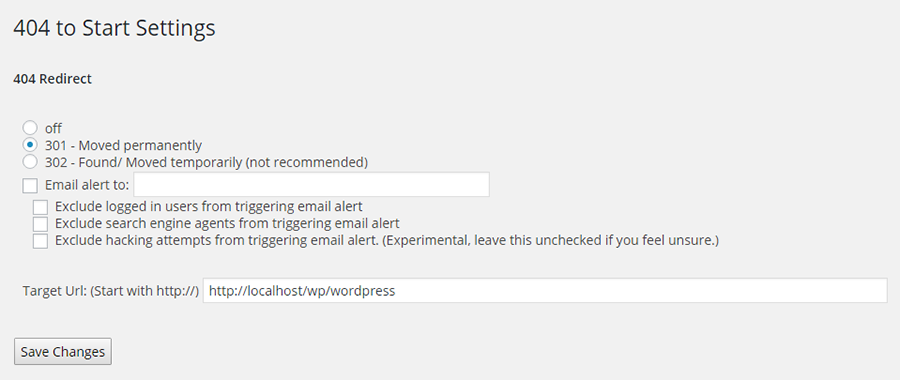
Он перенаправляет все 404 веб-страницы на стартовую страницу или на любую другую страницу, которую вы хотите. Вы можете выбрать вариант получения уведомления по электронной почте. Всякий раз, когда пользователя перенаправляют, вы будете знать, какой браузер он использует и URL-адрес, к которому он пытается получить доступ. Вы можете выбирать из настроек, которые позволяют направлять страницы 404 на любой URL-адрес, который вы выберете – домашнюю страницу или любую другую страницу вашего сайта.
Внутренние ссылки RB
RB Internal Links – полезный плагин для владельцев блогов. С помощью этого плагина они могут ссылаться на сообщения и страницы на своем сайте WordPress с помощью шорткода. Нет необходимости вводить длинный URL-адрес.
Структура постоянных ссылок на сайте не нарушается, и для создания ссылки для публикации используется шорткод. Затем этот тег вставляется вручную или с помощью плагина wysiwyg. Этот плагин упрощает переход от одной ссылки к другой на веб-сайте. Это также позволит искать сообщения по категориям.
Плагин быстрого перенаправления сообщений на страницу
Плагин Quick Page Post Redirect выполняет свою работу по двум направлениям. Один из них – это метод быстрого перенаправления, при котором вам просто нужно ввести URL-адрес запроса и URL-адрес назначения. Затем плагин будет перенаправлять в соответствии с указанными вами URL-адресами.
Ни создавать страницу, ни иметь существующую страницу не требуется. Этот плагин очень пригодится, когда вам нужно исправить опечатки, которые произошли при создании страницы, или когда вы хотите перенаправить старые URL-адреса на новые URL-адреса. Вы также найдете это отличным помощником при перемещении веб-сайта.
Для существующей страницы или сообщений на экран редактирования добавляется мета-поле опций, где вы можете ввести новый URL-адрес. Это хорошо работает для пунктов меню и повторяющихся сообщений. Также лучше всего работать в структуре постоянных ссылок WordPress.
Плагин перенаправления SEO
При построении SEO Перенаправление плагин, авторы сосредоточились на сохранении его простым для пользователей всех уровней, и вы можете увидеть это в том, как плагин работает. Расширенная панель управления поможет вам контролировать все, что может делать плагин.
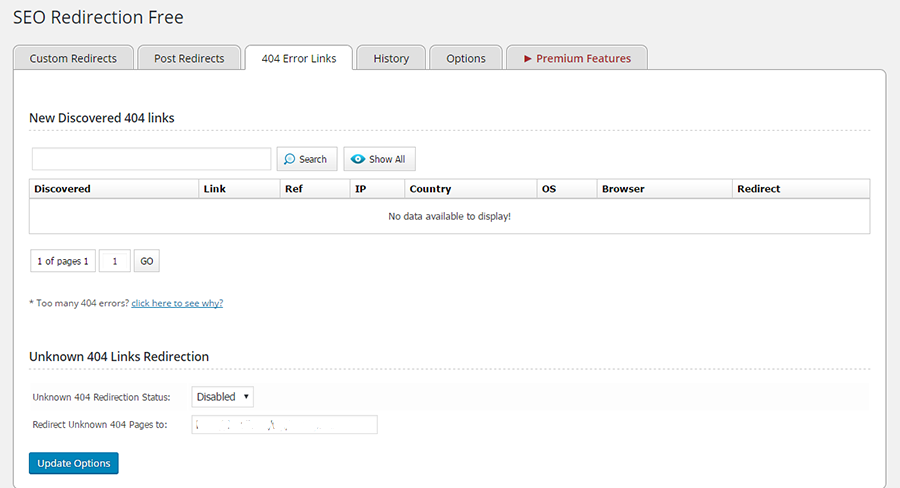
Вы можете отслеживать страницы с ошибками 404 и перенаправлять их все одним щелчком мыши. Возможно перенаправление 301, 302 или 307, равно как и перенаправление по шаблону. Все содержимое папки можно перенаправить, изменив настройки папки на вкладке перенаправления. Можно вести историю перенаправлений.
Чтобы перенаправить любое сообщение, вы можете заполнить полный URL-адрес и папку назначения и нажать «Добавить». Или вы можете отредактировать целевой URL в публикации или на странице редактирования и нажать «Сохранить». Плагин также пригодится при смене доменного имени или перемещении сайта. Обратите внимание, что этот плагин не поддерживает установку с несколькими сайтами.
Менеджер безопасного перенаправления
Safe Redirect Manager – эффективный плагин для обработки ошибок 404 при установке с несколькими сайтами. Вы можете перенаправить на новые URL-адреса, используя коды состояния HTTP, которые вы создаете.
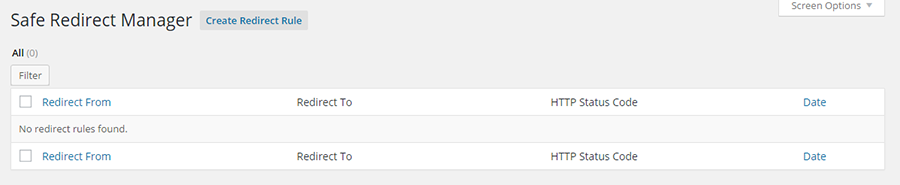
Он позволяет перенаправление только на хосты из белого списка с помощью функции wp_safe_redirect.
в заключение
Важно проявлять инициативу и, насколько это возможно, уберечь свой сайт от ошибок 404. В вашем списке дел по обслуживанию WordPress вы можете:
- Запланируйте проверку журналов статистики вашего сайта, чтобы найти отчеты об ошибках 404.
- Регулярно проверяйте внутренние и внешние ссылки. Небольшие сайты могут проводить проверку один раз в месяц, большие – раз в неделю.
- Частота проверки будет зависеть от содержания веб-сайта, а не посетителей. Сайты с тяжелым содержанием должны проверять чаще.
С таким количеством доступных качественных плагинов у вас нет причин не поддерживать свои ссылки в отличном состоянии. Попробуйте их и держите свой веб-сайт в отличном состоянии.
Источник записи: https://www.wpexplorer.com