Код 0x000003e3 очень старый, первые сообщения об ошибке появились еще в 2013 году. С тех пор Microsoft так и не исправила причину появления сбоя, поэтому даже сегодня сбой сохранил актуальность. Появляется при попытке подключить сетевой принтер или установить к нему общий доступ. Ошибка 0x000003e3 сложна тем, что может появляться совершенно по разным причинам, не существует универсального исправления проблемы. В каждом из известных методов есть люди, которые поблагодарили автора за эффективность способа, и те, кто не получил облегчения. Мы же собрали все то, что работает у других пользователей, повысив до максимума ваши шансы на получение положительного эффекта.
Причины ошибки 0x000003e3
Условно есть всего 3 группы проблем, которые приводят к данной ошибке:
- Неправильные настройки подключения.
- Проблемное программное обеспечение.
- Сбойные драйвера.
Как исправить ошибку 0x000003e3?
Обычно не удается добавить общий принтер как раз из-за некорректных параметров подключения. Несколько реже – из-за кривого программного обеспечения некоторых разработчиков. В части случаев дело в драйверах, но мы уже не будем описывать процедуру их переустановки в сотый раз. Скорее всего, вы и сами разберетесь с ней.
Настраиваем подключение
Здесь собраны хитрости и некоторые неочевидные настройки, изменение которых имеет очень высокие шансы на успех.
Что делать при ошибке 0x000003e3:
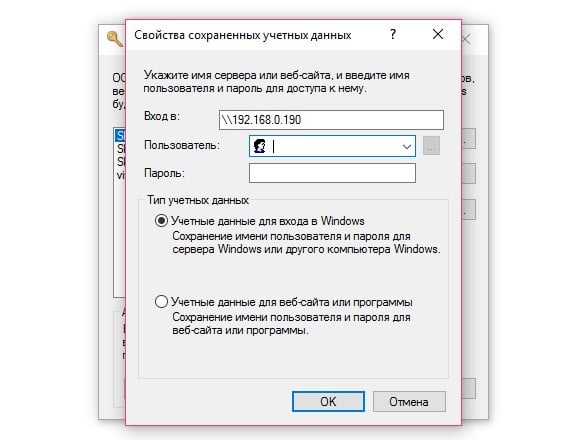
- Добавить параметры для автоматического подключения (рекомендуем). Больше 10 людей назвали этот способ эффективным. Нам нужно ввести в строку «Выполнить» (открывается комбинацией Win + R) команду rundll32.exe keymgr.dll, KRShowKeyMgr и нажать Enter. Нажимаем на кнопку «Добавить» в новом окне. В первую строку вставляем IP-адрес принтера в таком формате \192.168.0.190 (может отличаться), ниже вставляем логин и пароль пользователя, который имеет права на использование принтера.
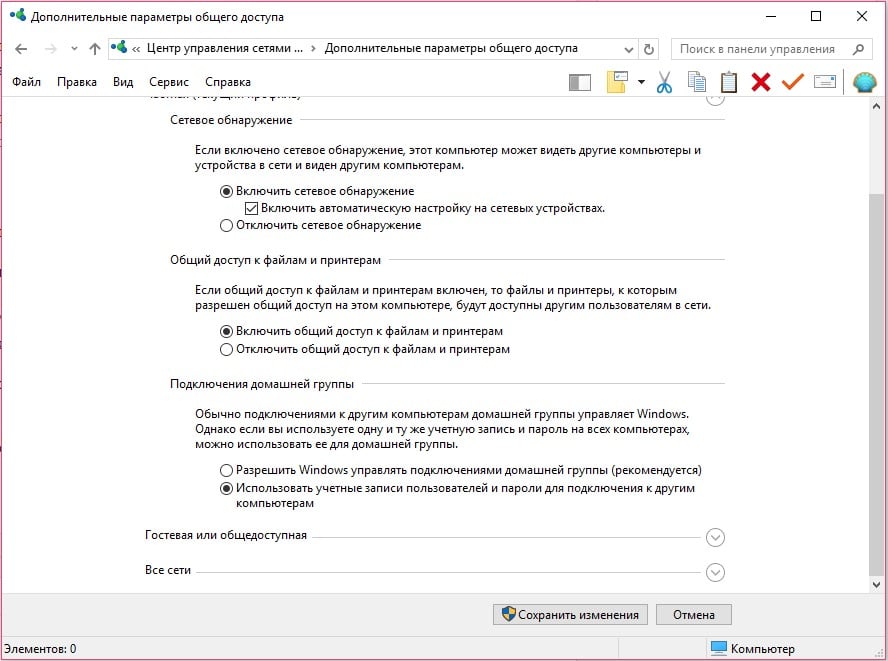
- Настроить параметры общего доступа. Открываем «Центр управления сетями и общим доступом», жмем на ссылку «Изменить дополнительные параметры общего доступа». Проверяем, что активно «Включить сетевое обнаружение». В блоке «Общий доступ к файлам и принтерам» устанавливаем флаг в поле «Включить». Самое важное – в разделе «Подключения домашней группы» выбираем «Использовать учетные записи пользователей и пароли для подключения к другим компьютерам».
- Попробовать подключиться принтеру по IP-адресу. Вместо его имени, стоит попробовать использовать IP-адрес. Особенно актуально это у тех, кто пытается в первый раз подключиться к устройству печати. После подключения автоматически установится необходимый драйвер.
Что еще нужно попробовать?
На некоторых форумах встречаются интересные сообщения о нестандартных способах исправления ошибок:
- Удалить программу Trend Micro. Некоторые версии программного обеспечения негативно влияют на возможность подключения компьютера к принтеру.
- Подправить реестр. Есть сведения о том, что это работает. Нужно перейти в редакторе реестра по пути HKEY_LOCAL_MACHINESYSTEMControlSet001ControlPrintPrinters*Имя вашего принтера*CopyFiles и удалить всю папку ICM.
- Переустановить принтер. Подробная инструкция есть в ветке на форуме Microsoft, но на английском языке.
Пока это все способы исправления ошибки 0x000003e3, которые имеют хорошие шансы на успех. Все остальное либо не подтверждено, либо, по нашему мнению, работает в крайне маленьком проценте случаев.
Сейчас мы нуждаемся в вашей помощи. Пожалуйста, отпишитесь о результатах проведенных процедур и поделитесь дополнительными сведениями о проблеме, которые вам удалось выяснить.
Check our expert solutions for quick troubleshooting
by Matthew Adams
Matthew is a freelancer who has produced a variety of articles on various topics related to technology. His main focus is the Windows OS and all the things… read more
Updated on February 17, 2023
Reviewed by
Alex Serban

After moving away from the corporate work-style, Alex has found rewards in a lifestyle of constant analysis, team coordination and pestering his colleagues. Holding an MCSA Windows Server… read more
- The 0x000003e3 printer error appears when accessing the printer or sending a print job.
- It usually arises due to incompatible drivers or when an antivirus or Firewall is blocking the connection.
- To fix things, disable the antivirus, whitelist File and Printer Sharing in Firewall, or modify the Registry, amongst other solutions.
XINSTALL BY CLICKING THE DOWNLOAD FILE
Fortect is a tool that does not simply cleans up your PC, but has a repository with several millions of Windows System files stored in their initial version. When your PC encounters a problem, Fortect will fix it for you, by replacing bad files with fresh versions. To fix your current PC issue, here are the steps you need to take:
- Download Fortect and install it on your PC.
- Start the tool’s scanning process to look for corrupt files that are the source of your problem
- Right-click on Start Repair so the tool could start the fixing algorythm
- Fortect has been downloaded by 0 readers this month.
Printers are vital devices used often with computers in both homes and offices. But these are more prone to errors, especially when the printer is connected wirelessly. And an error that usually affects users is 0x000003e3.
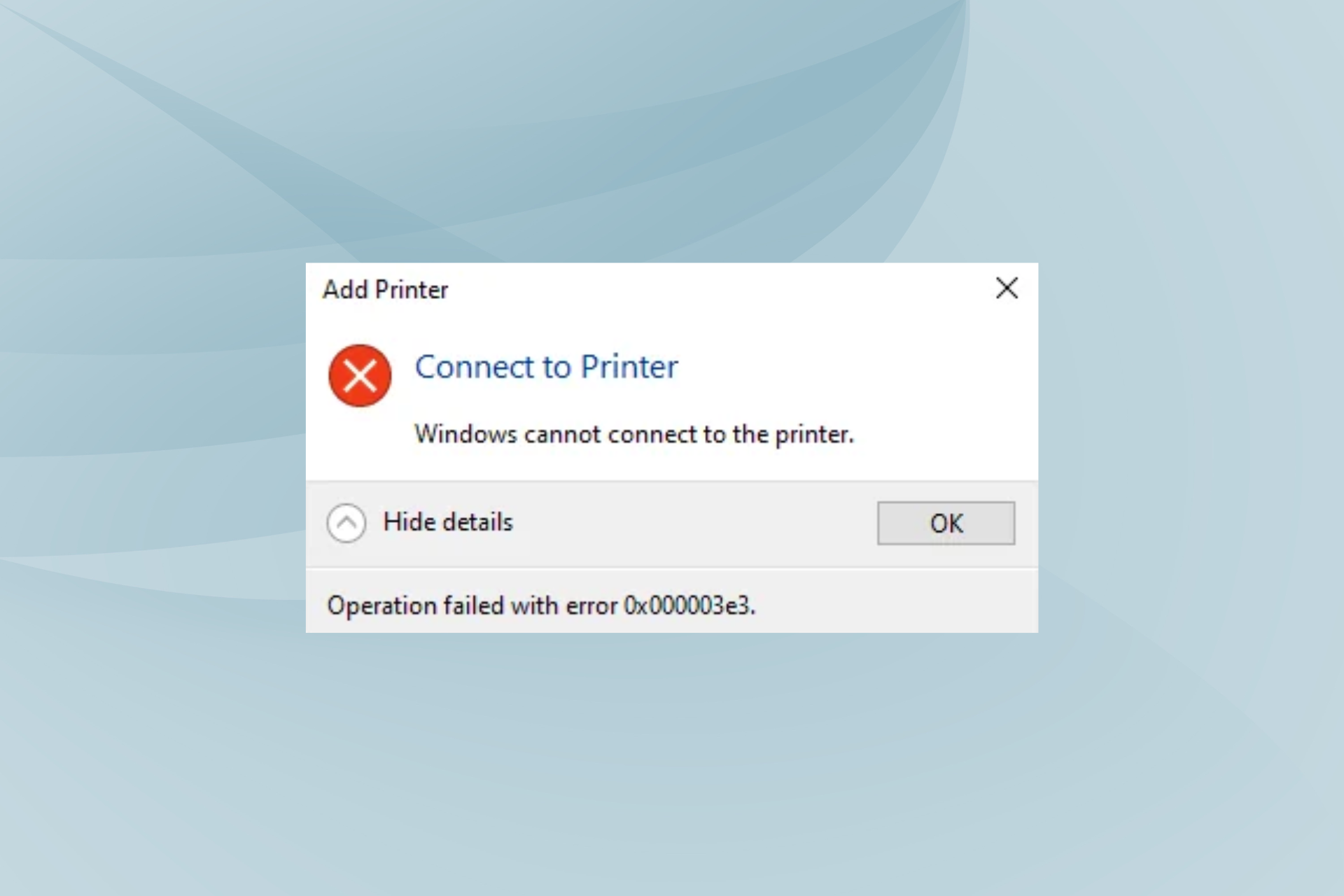
The full error message reads, Windows cannot connect to printer. Operation failed with error 0x000003e3. The error affects every iteration, from Windows 7 to Windows 11. But with the right approach, you can have things up and running in no time. Let’s find out.
What does error 0x000003e3 mean?
The error indicates the PC’s inability to print from a shared local network printer. And it doesn’t go away even after a restart. Here are a few reasons you might be getting the error:
- Issues with the driver: In most cases, an incompatible or outdated driver triggered the error, and users also had 0x000003e3 when installing the printer driver.
- Bug in Windows: A few also found that a recent version of the OS led to the error, and uninstalling the update fixed things.
- Third-party conflicts: Several third-party applications, including antivirus and security software, can affect the connection and lead to this error.
How can I fix printer error 0x000003e3?
Before we head to the slightly complex solutions, try these quick troubleshooting tips:
- If you have an antivirus installed, disable it, and verify whether things work out. In case yes, we recommend you switch to a more reliable antivirus.
- For users who have TrendMicro installed, uninstall the program to get rid of error 0x000003e3. It’s been found to conflict with the printing operation, though a patch for the issue was released.
- Check if there’s an update available for Windows and install it.
If these don’t work, move to the fixes listed next.
1. Run the printer troubleshooter
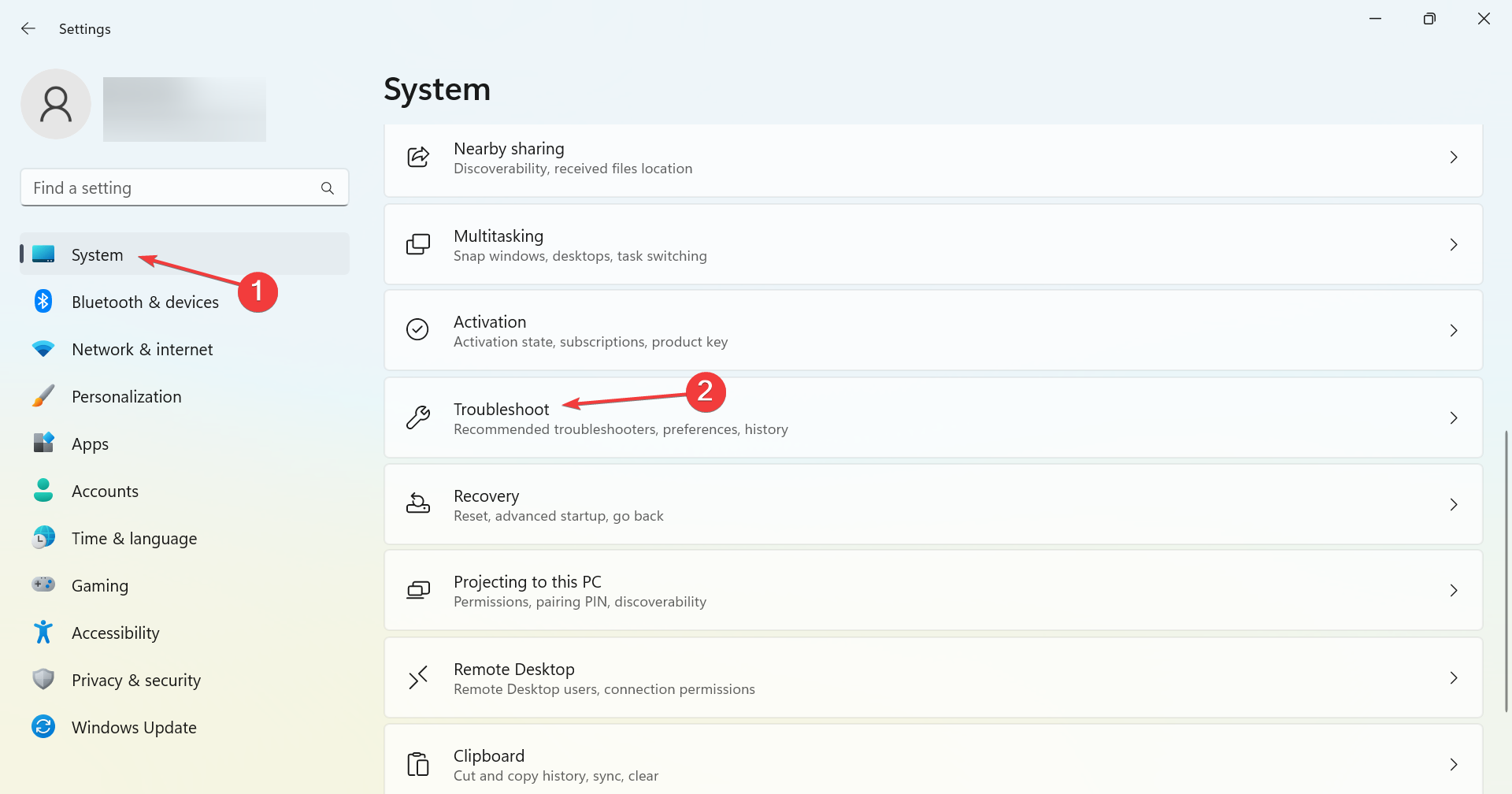
- Press Windows + I to open Settings, and click on Troubleshoot on the right in the System tab.
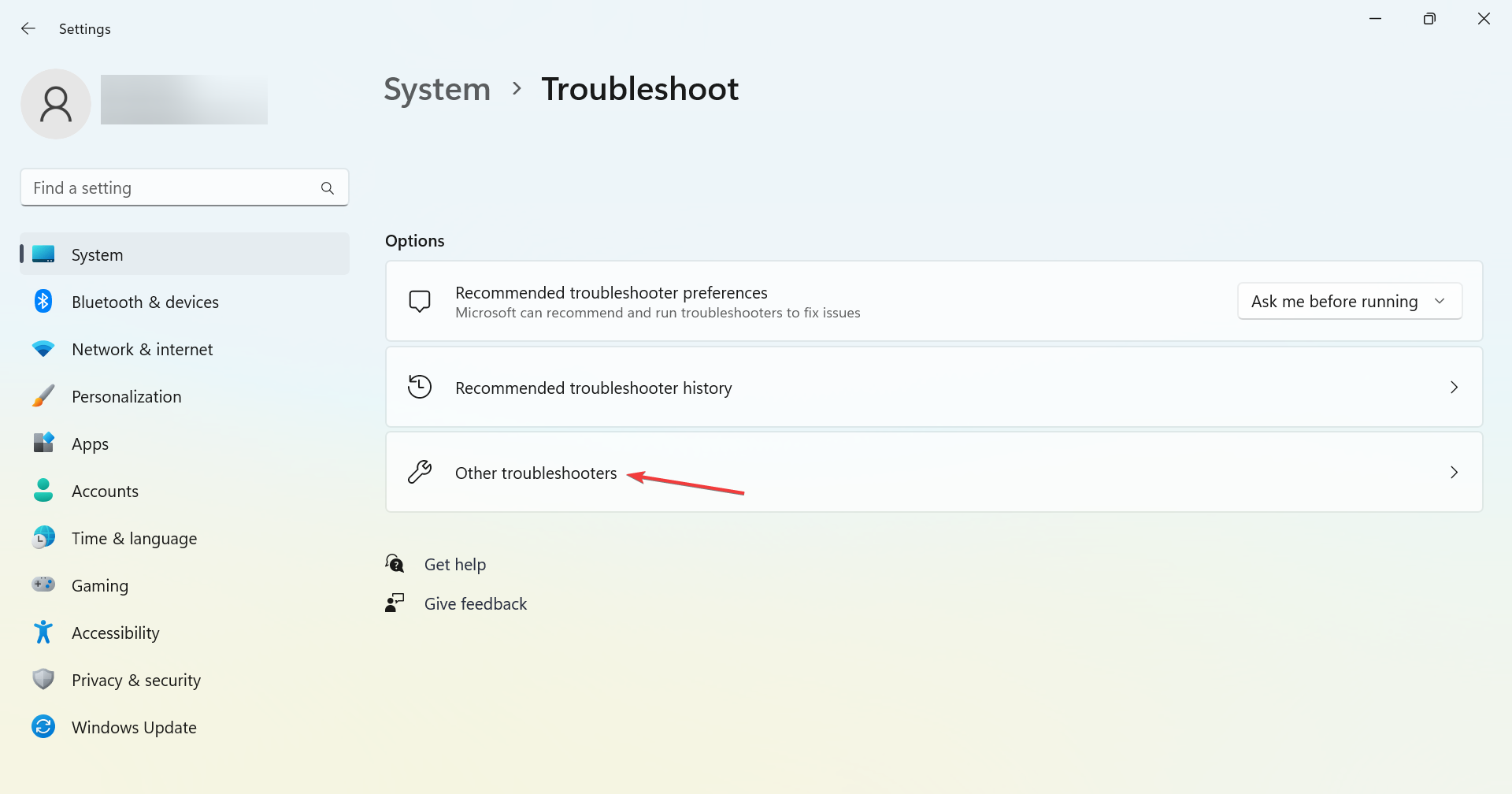
- Click on Other troubleshooters.
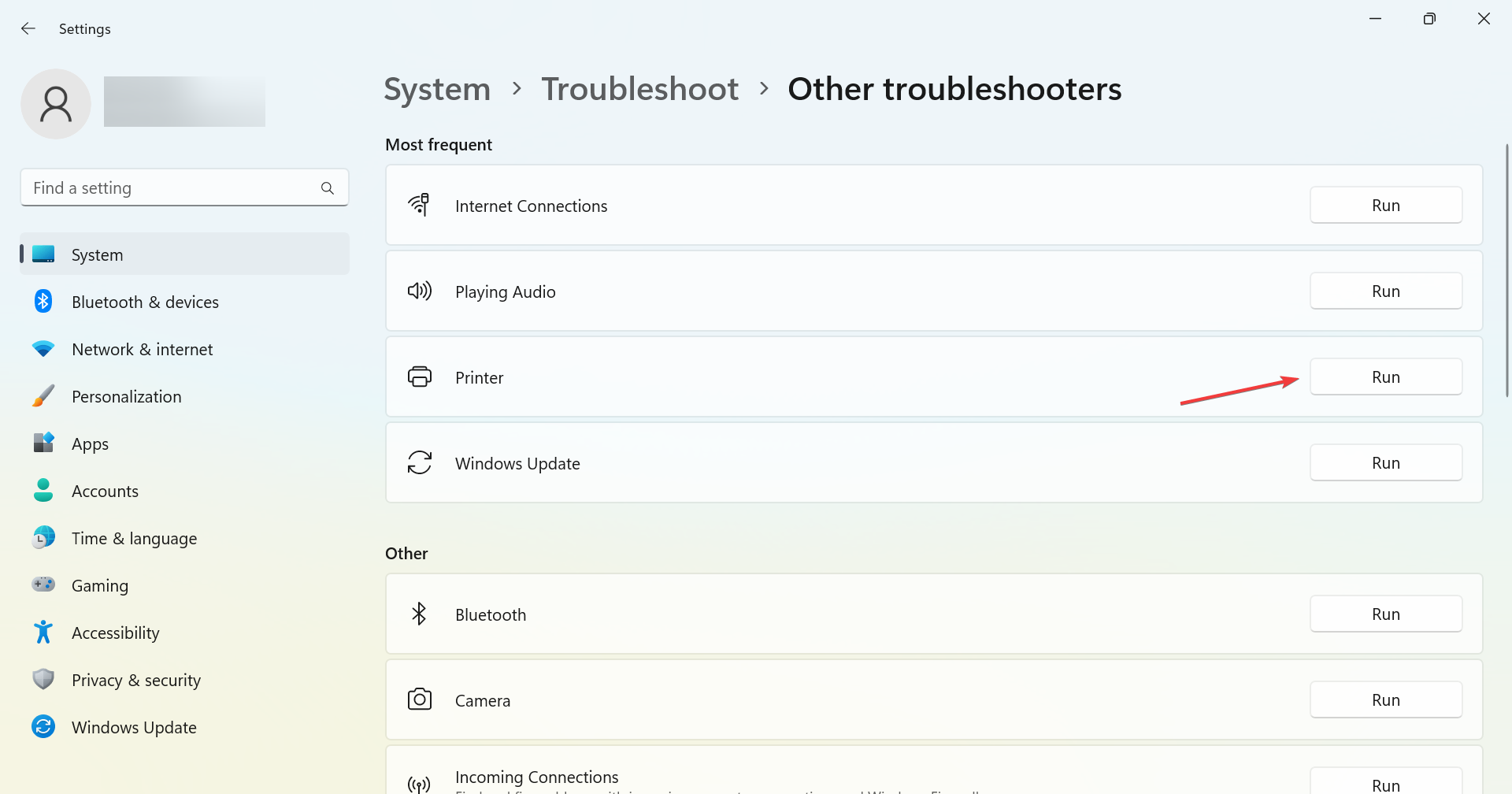
- Locate the Printer entry and click on the Run button next to it.
- Follow the on-screen instructions to complete the process.
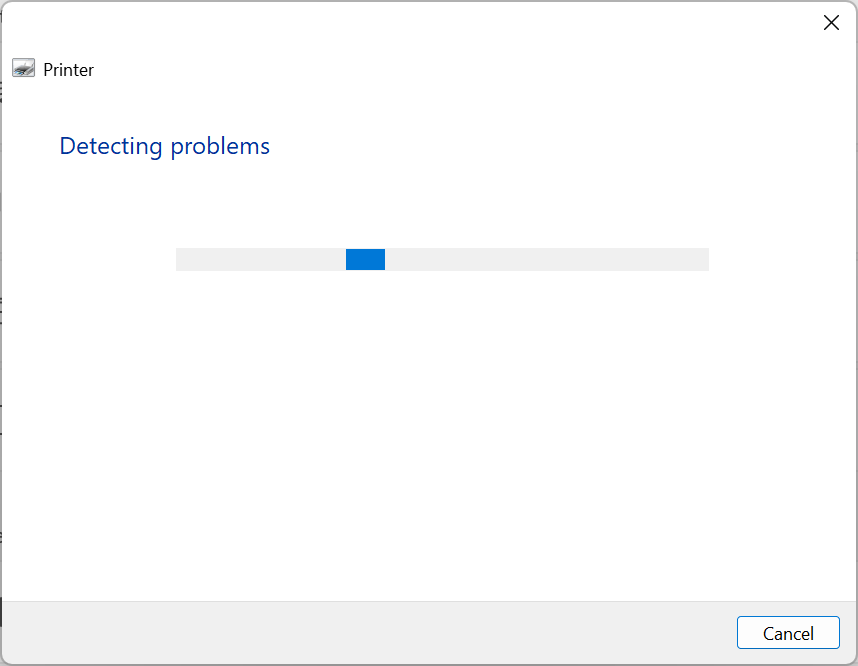
Your primary approach when dealing with the 0x000003e3 error or even other problems with the printer should be to run the dedicated troubleshooter.
2. Uninstall recent Windows Update
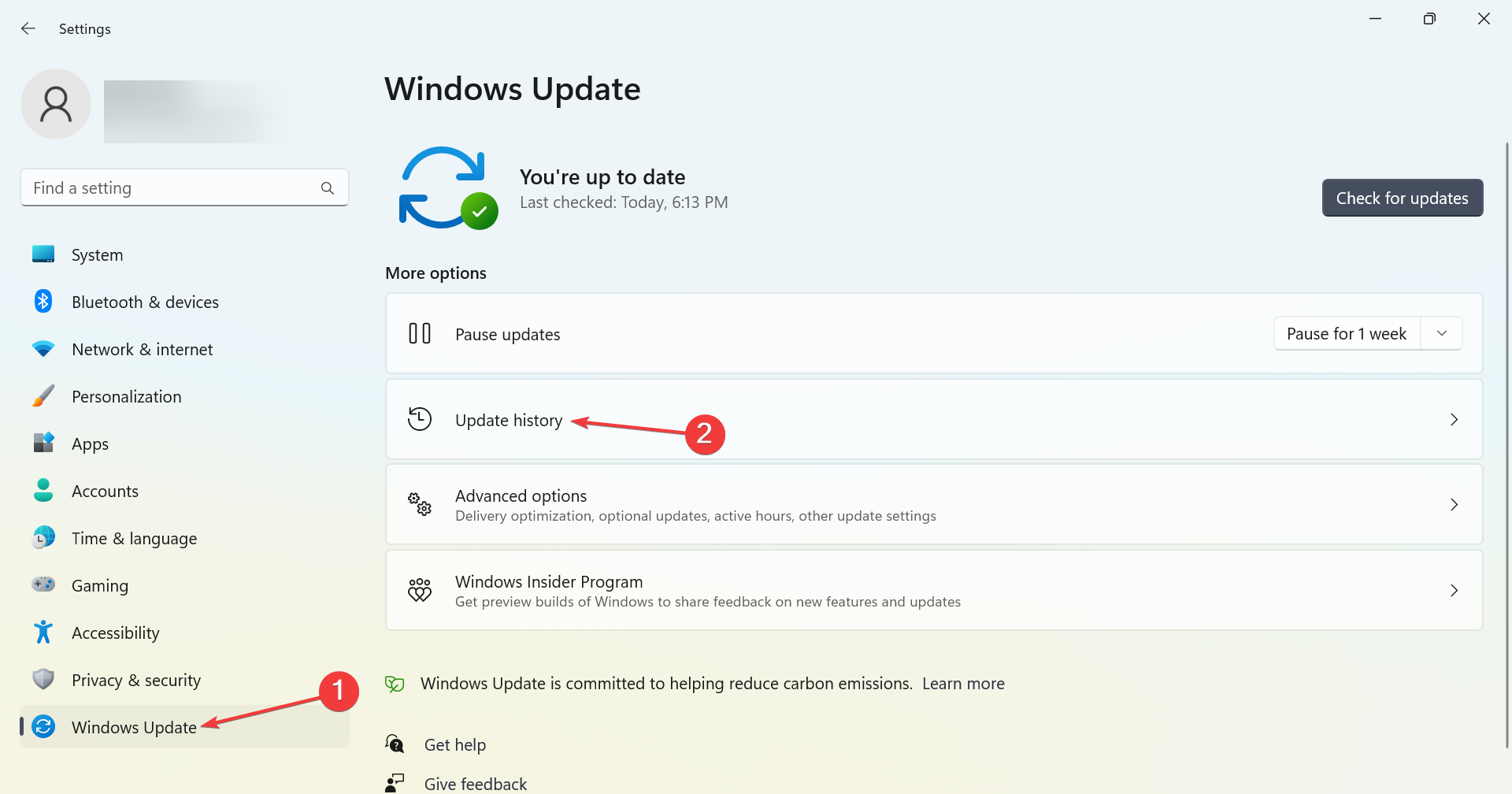
- Press Windows + I to open Settings, go to Windows Update, and click on Update history.
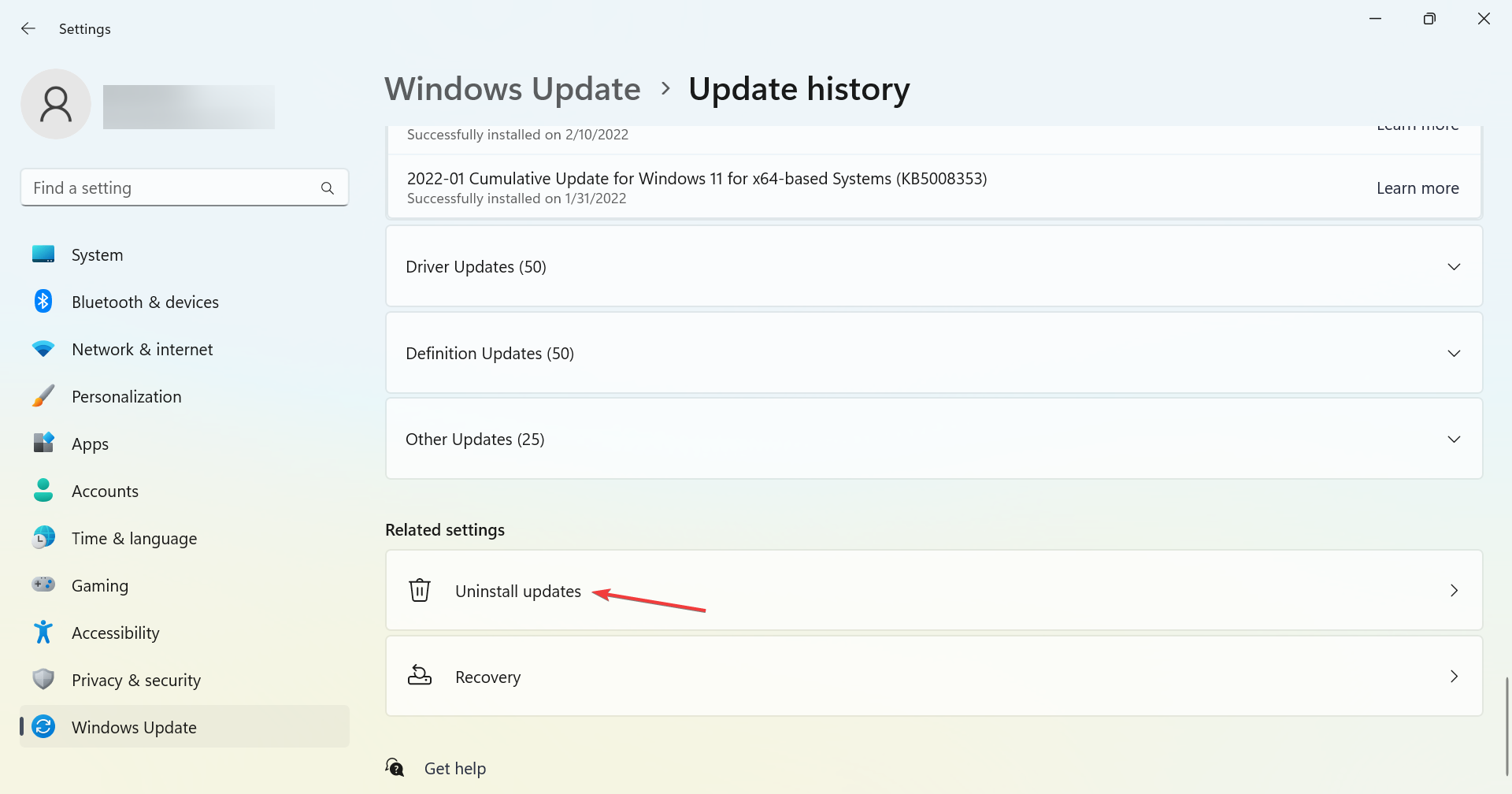
- Scroll down to the bottom and click on Uninstall updates.
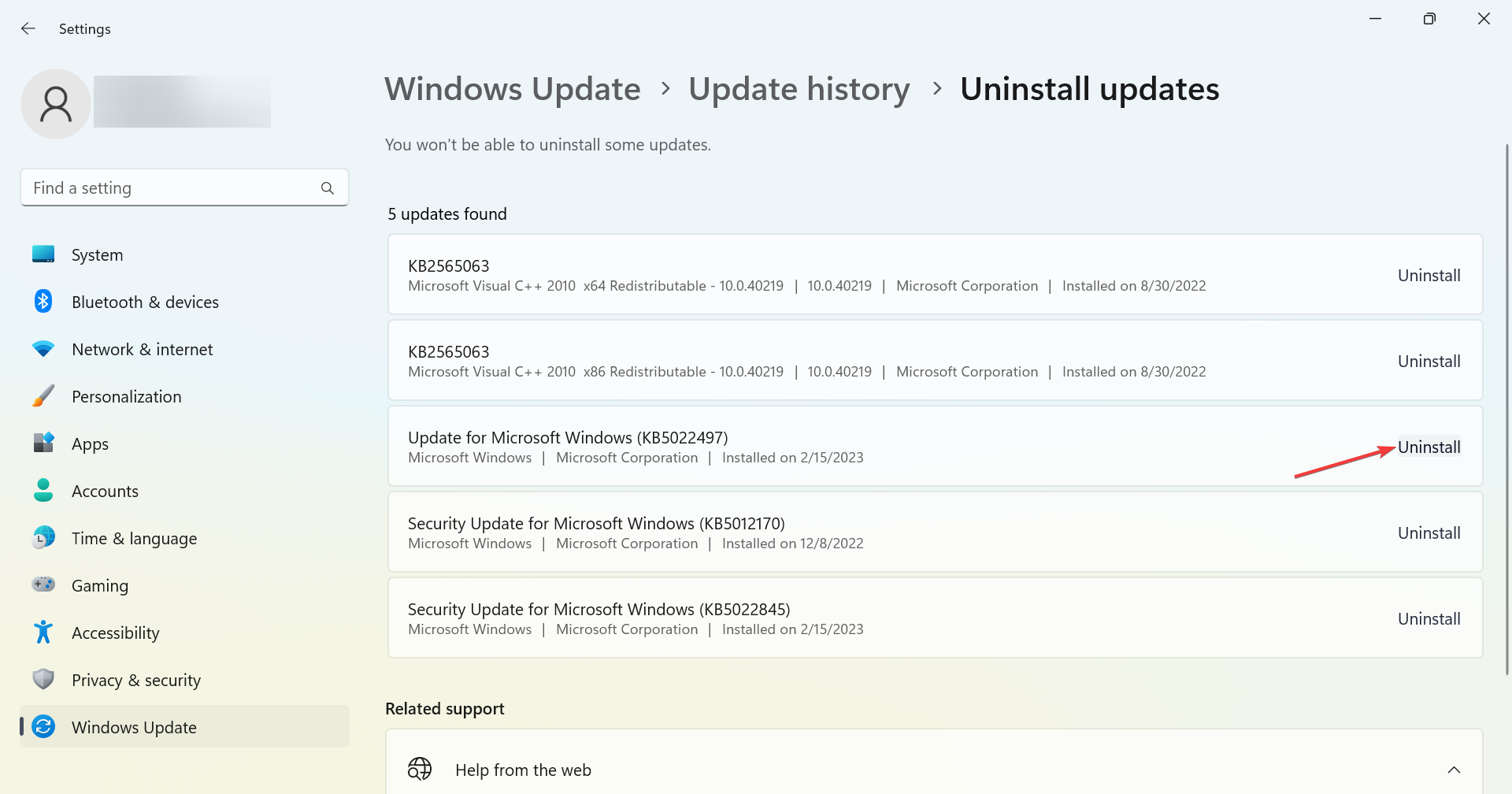
- Locate the last major update, and click Uninstall next to it.
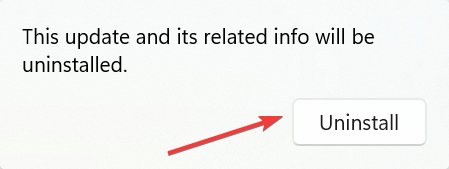
- Again, click Uninstall in the confirmation prompt that appears.
In case the problem started a while back, check if any updates were installed around the same time. If true, uninstall them since many have been found to trigger the error.
3. Manually install the printer drivers
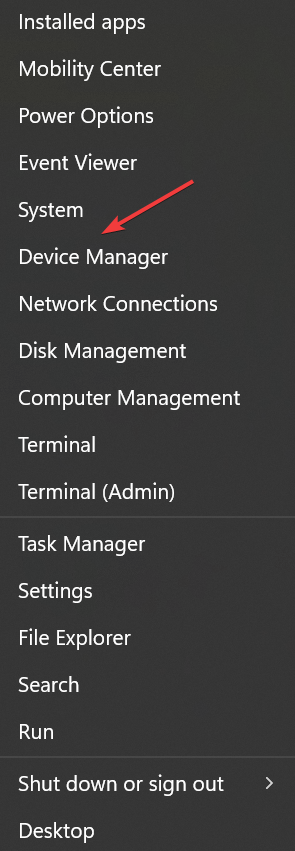
- Press Windows + X to open the Power User menu, and select Device Manager.
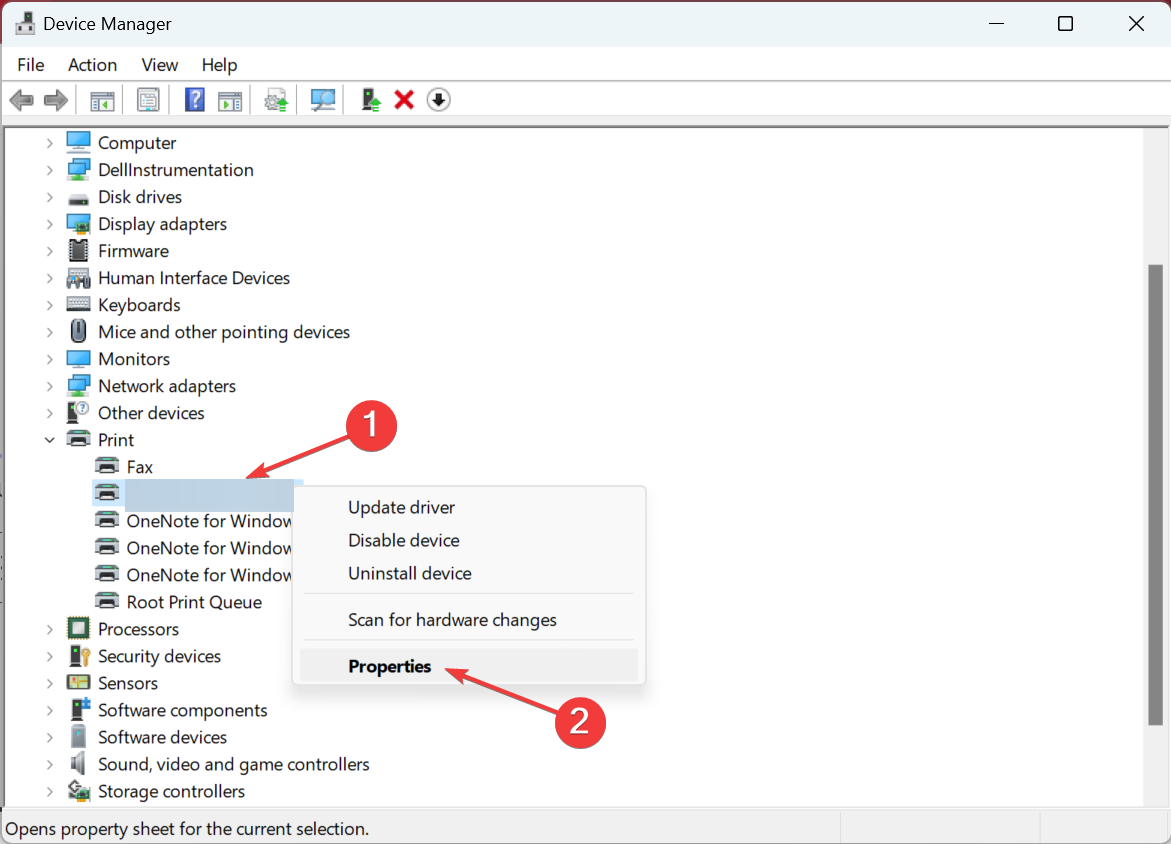
- Locate the printer, right-click on it, and choose Properties.
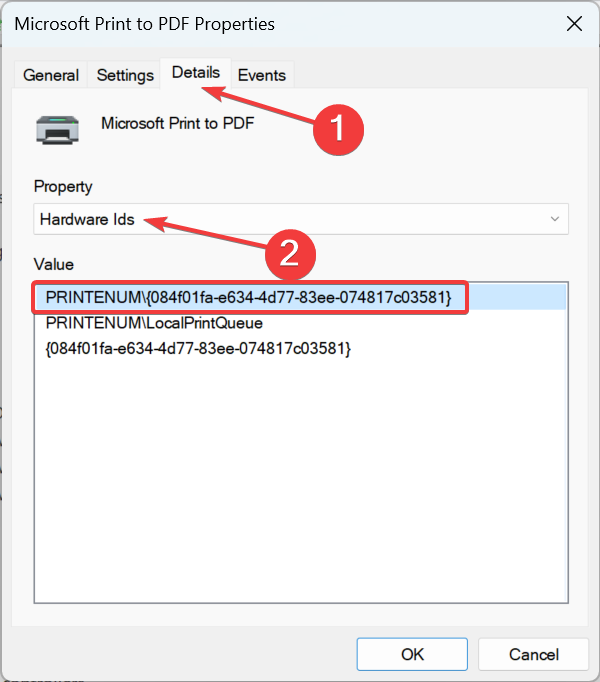
- Now, head to the Details tab, choose Hardware Ids from the Property dropdown menu, and then copy the ID.
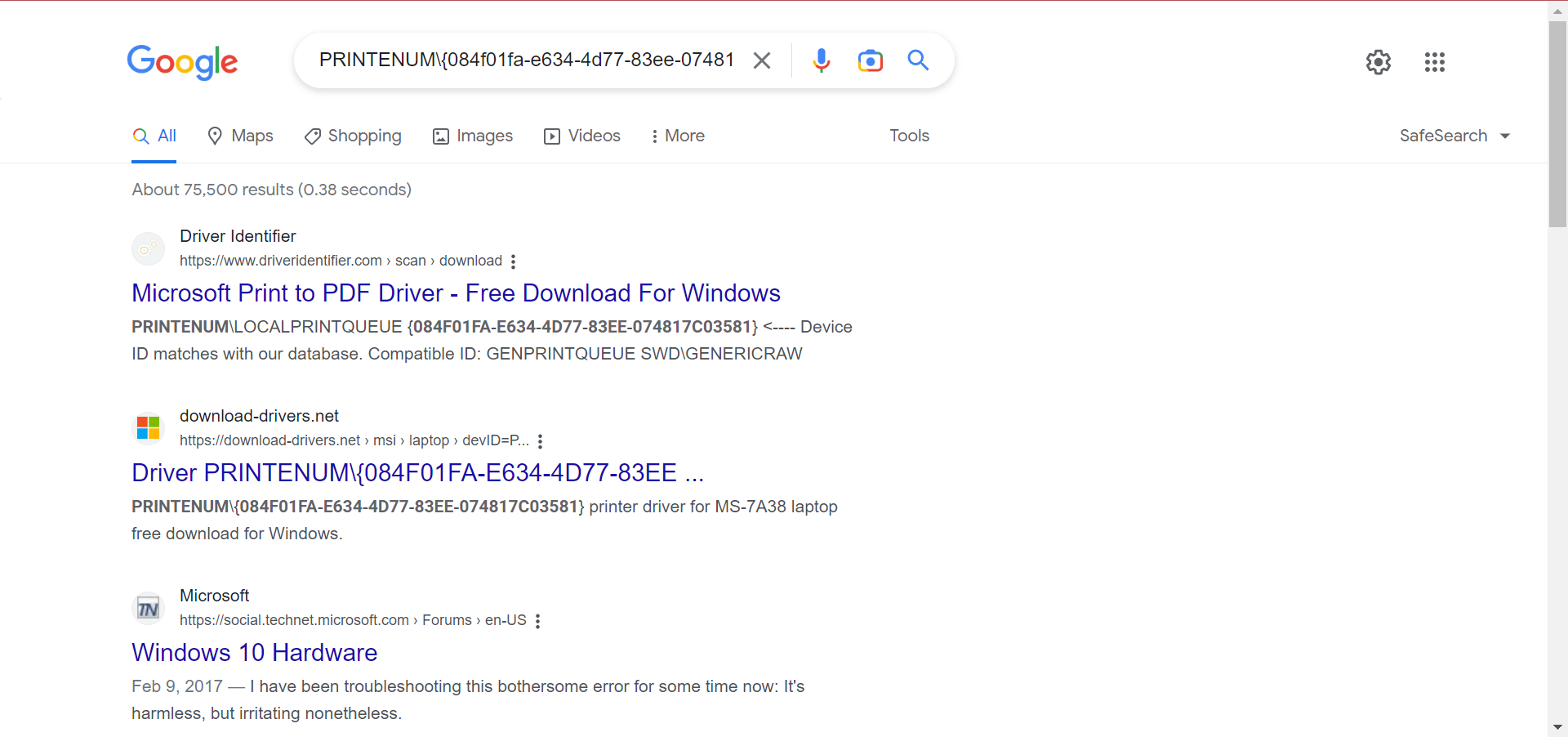
- Next, go to Google or any other search engine, search using the Hardware ID you copied earlier, and click OEM entry here. It’s usually the first, though not always.
- Download the driver setup, and run it to complete the installation process.
Some PC issues are hard to tackle, especially when it comes to missing or corrupted system files and repositories of your Windows.
Be sure to use a dedicated tool, such as Fortect, which will scan and replace your broken files with their fresh versions from its repository.
If you keep getting the 0x000003e3 error when Windows tries to install the driver, a quick solution is manually installing the printer driver from the manufacturer’s website. Just make sure not to download the driver from an unverified source.
4. Modify the registry

NOTE
Before you proceed, create a restore point or back up the Registry to restore the previous settings in case things don’t work out as expected.
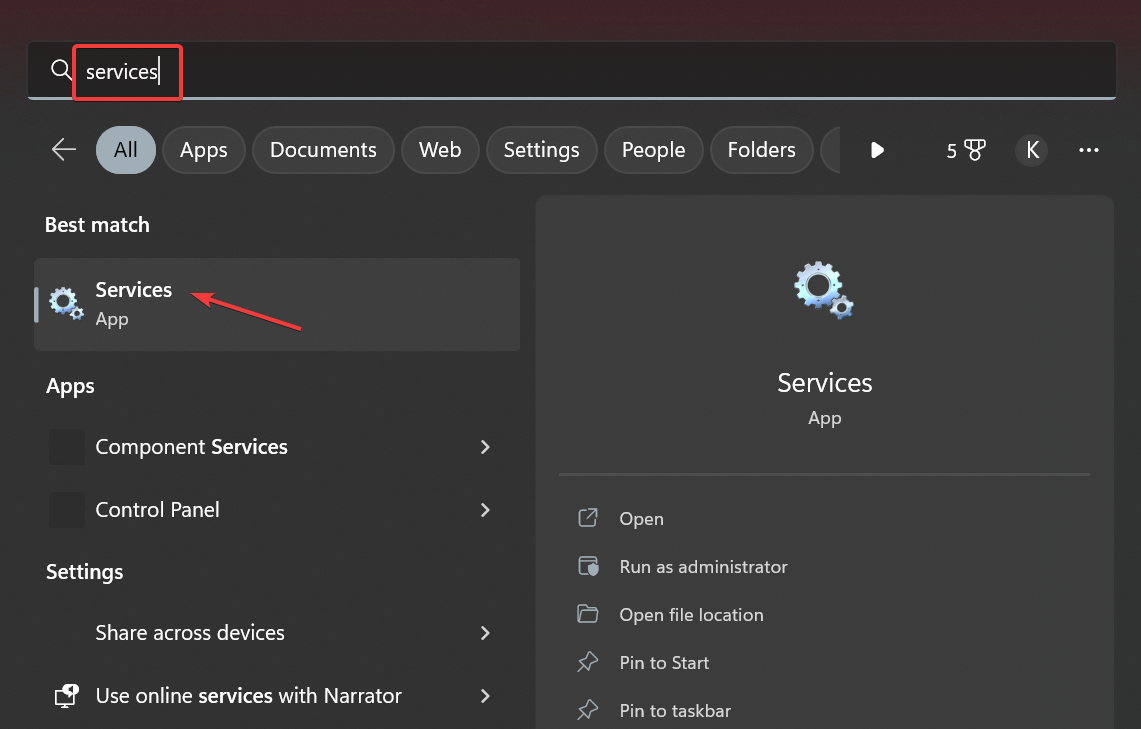
- Press Windows + S to open Search, type Services, and click on the relevant search result.
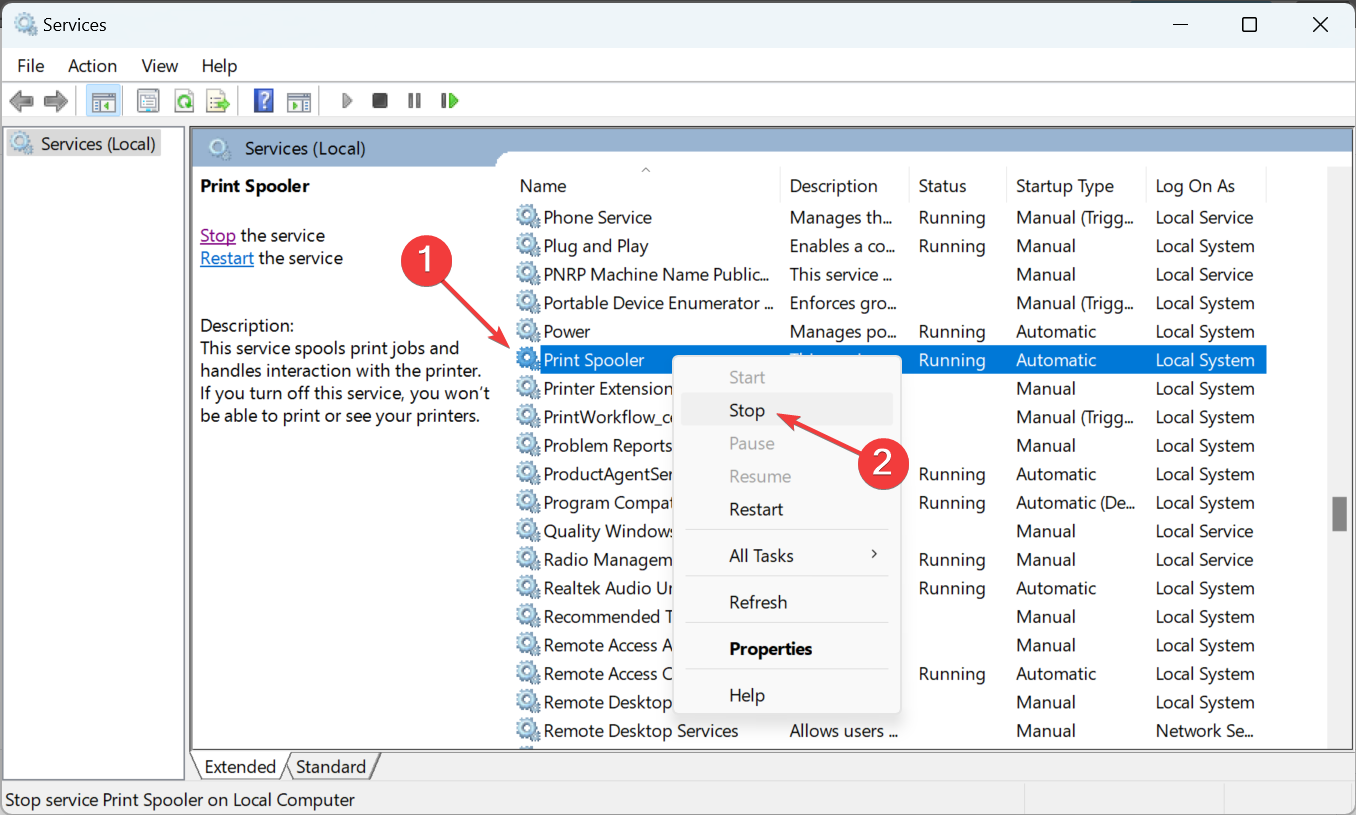
- Locate and right-click on the Print Spooler service, and then select Stop.
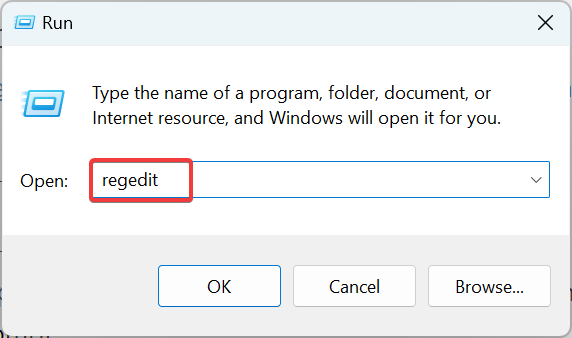
- Next, press Windows + R to open Run, type regedit in the text field, and hit Enter.
- Click Yes in the UAC prompt.
- Paste the following path in the address bar and hit Enter:
ComputerHKEY_LOCAL_MACHINESYSTEMCurrentControlSetControlPrint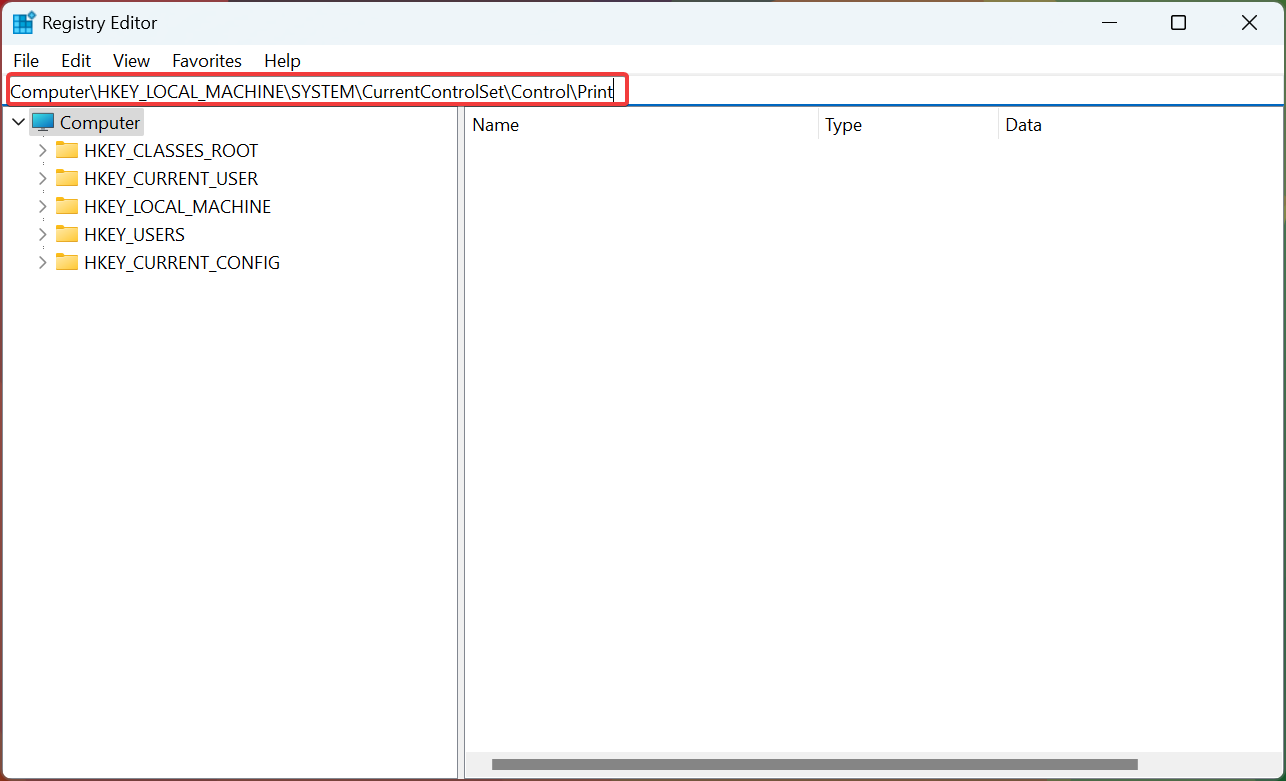
- Now, expand Environments, and choose your architecture of the OS.
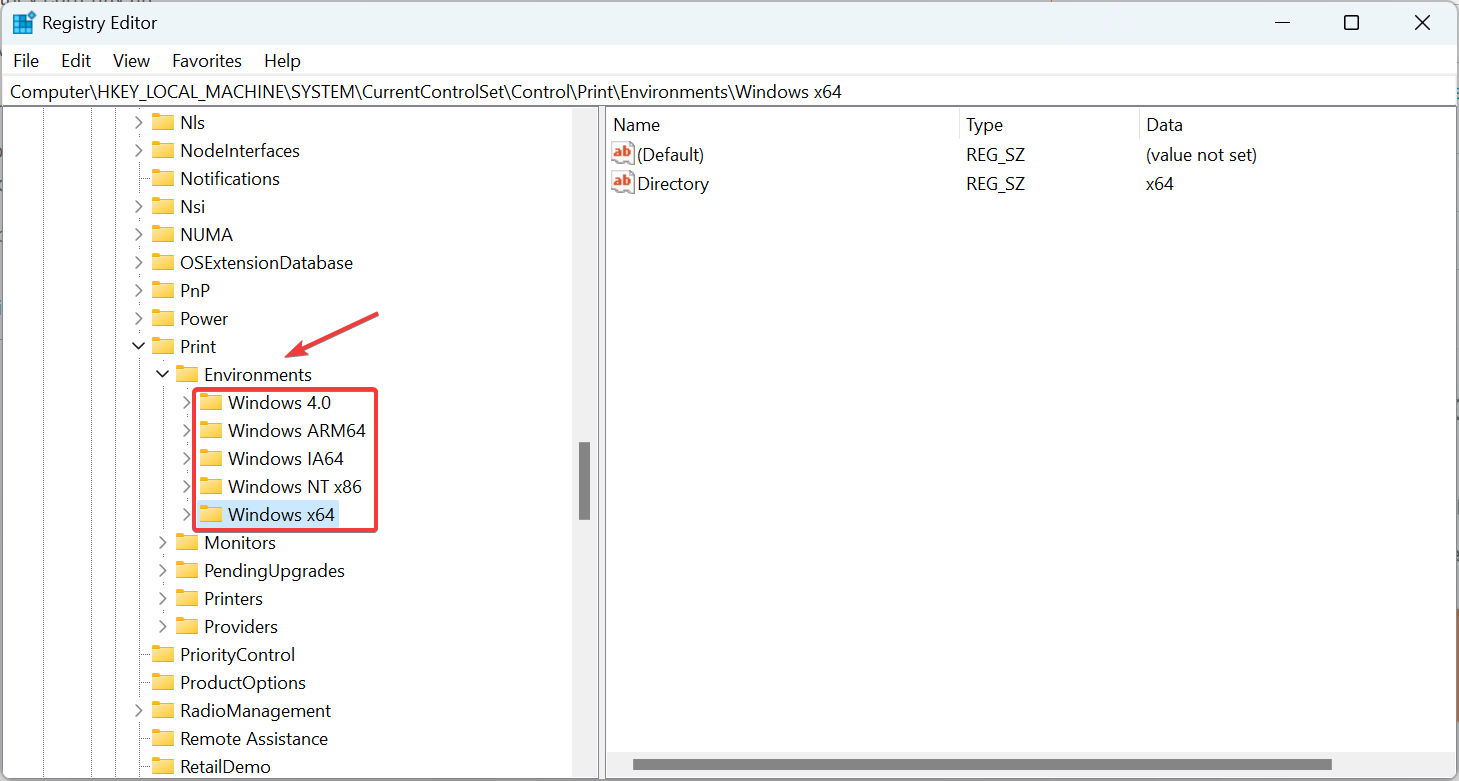
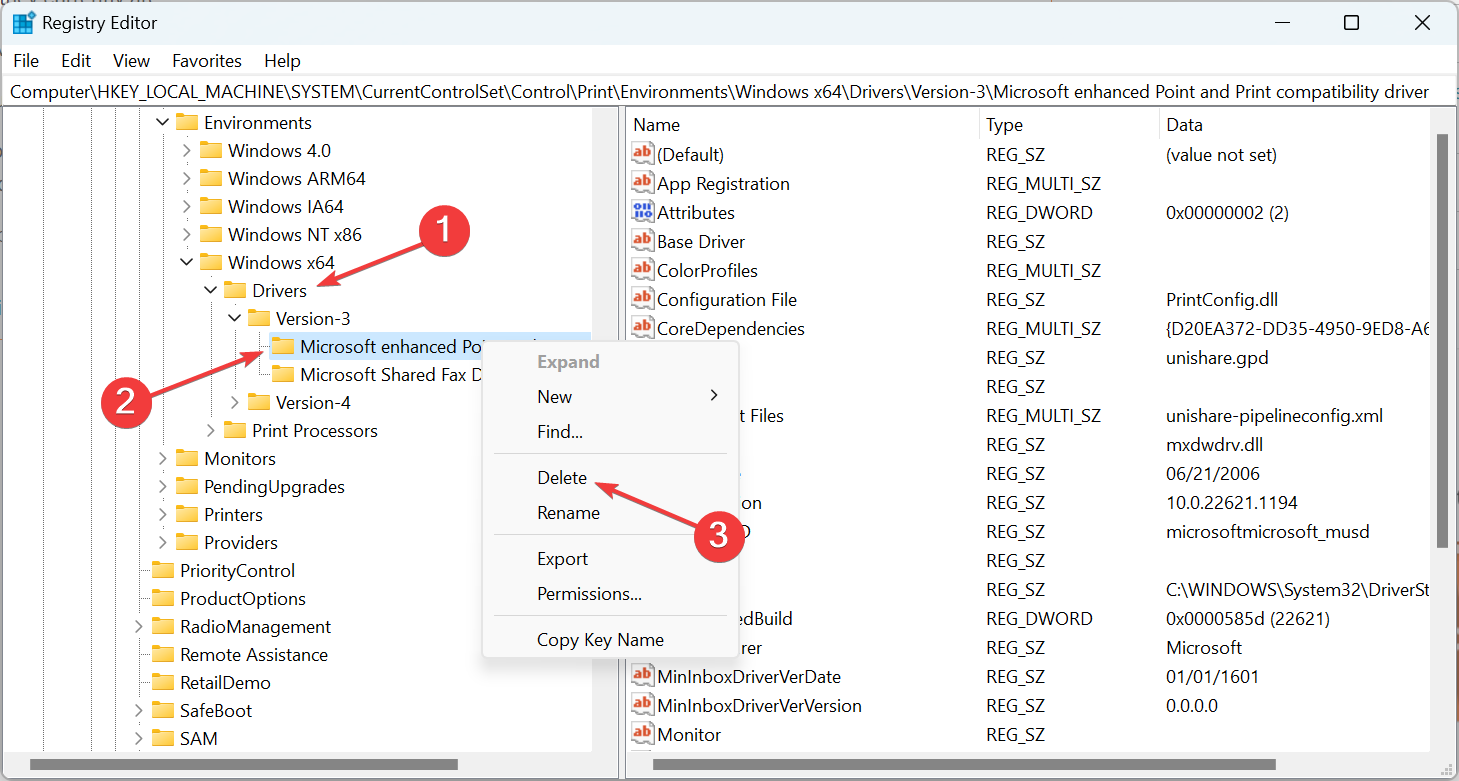
- Double-click on Drivers, then on Version 3, right-click on the key under it, and select Delete.
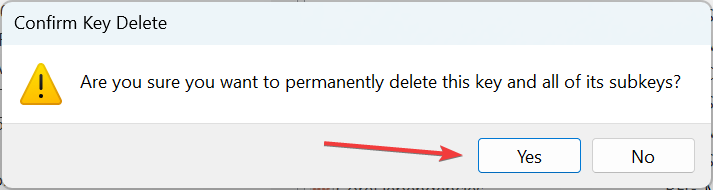
- Click Yes in the confirmation prompt.
- Similarly, delete the other keys here.
- Now, delete all the keys under the following four entries as well:
- Monitors
- PendingUpgrades
- Printers
- Providers
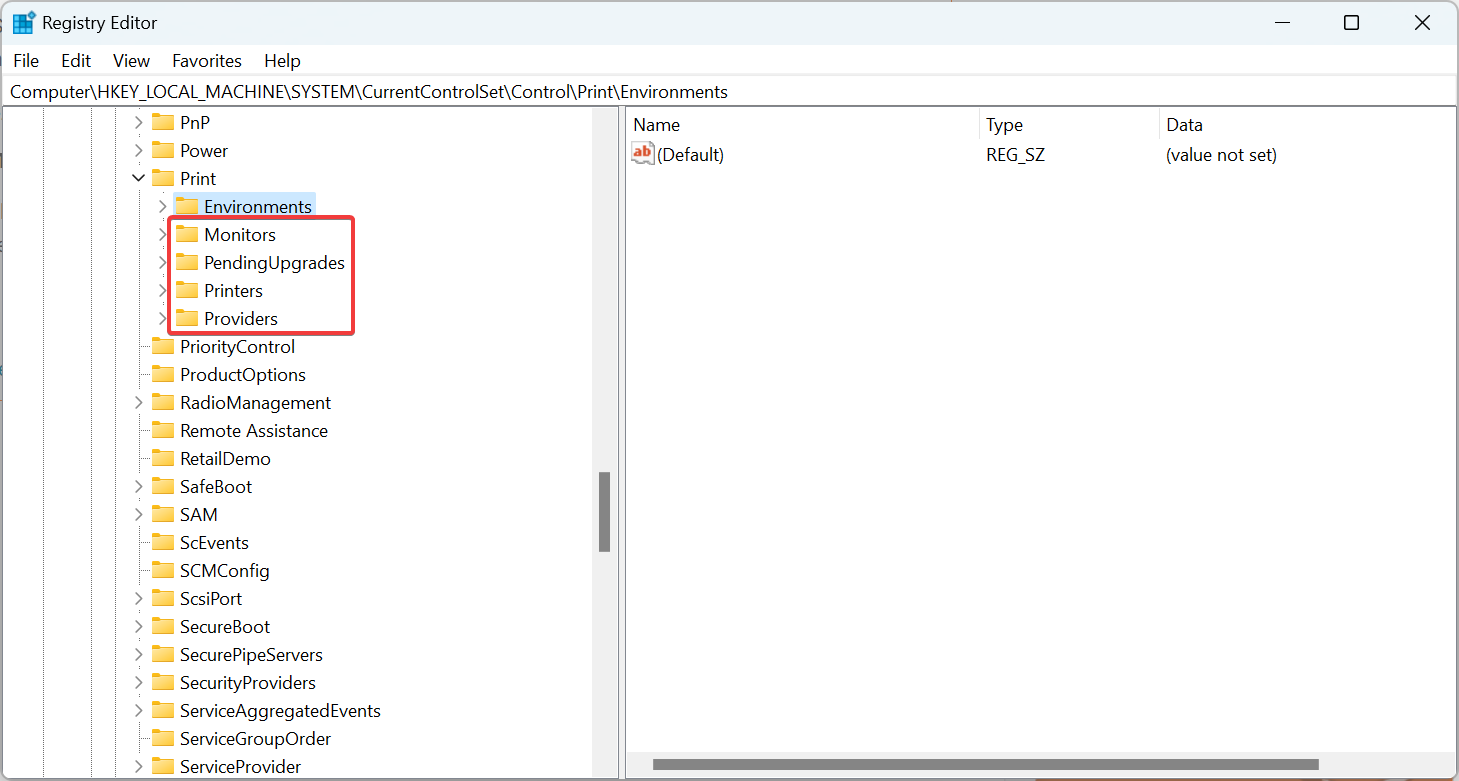
- Once done, go back to Services, right-click on Print Spooler, and select Start.
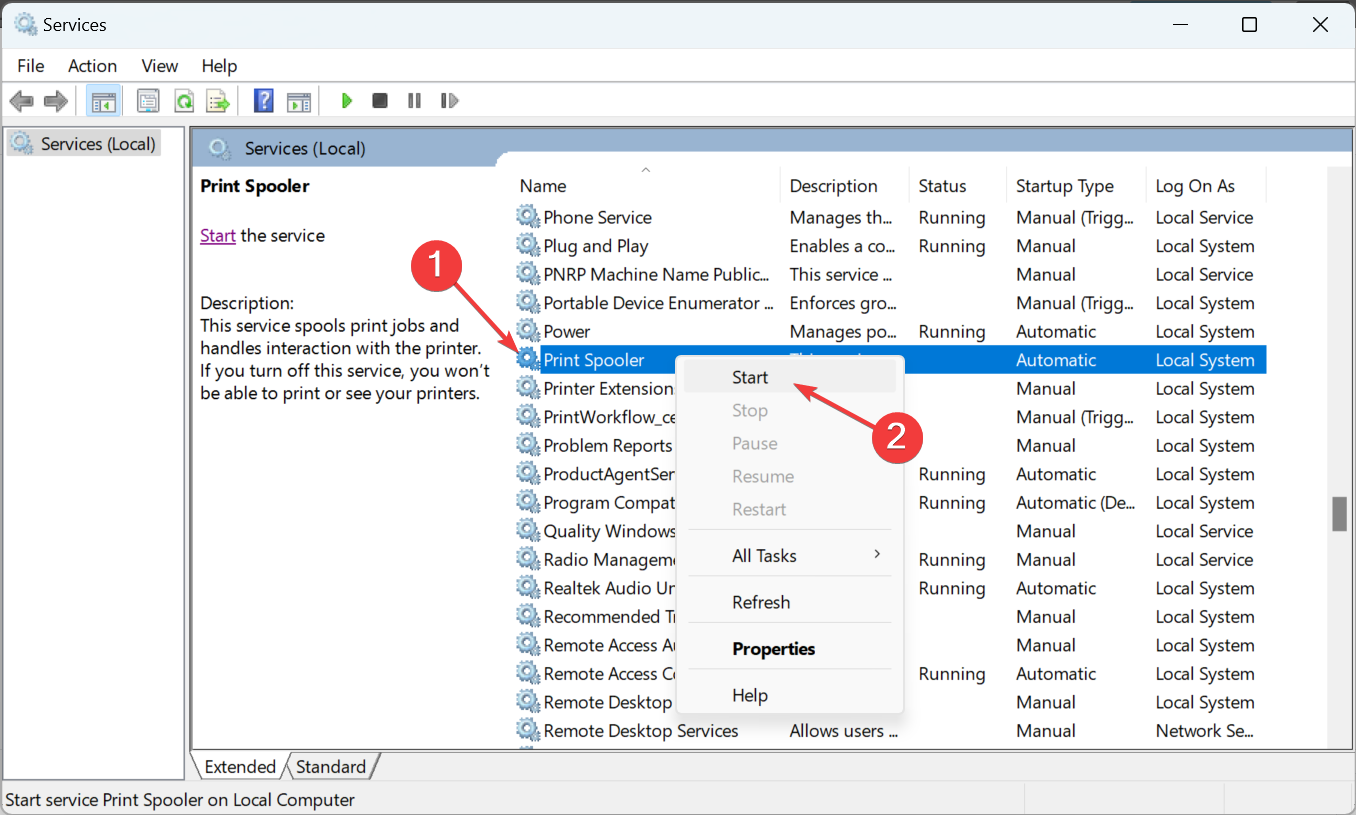
In all likelihood, you shouldn’t get the 0x000003e3 network printer error anymore in Windows. If the problem persists, head to the next solution.
- 0xc000003e Application Error: 5 Ways to Fix It
- WD SES Device USB: Device Driver not Found [Fix]
- Printer Status Unknown: 4 Ways to Fix This Error
5. Allow File and Printer sharing in Firewall
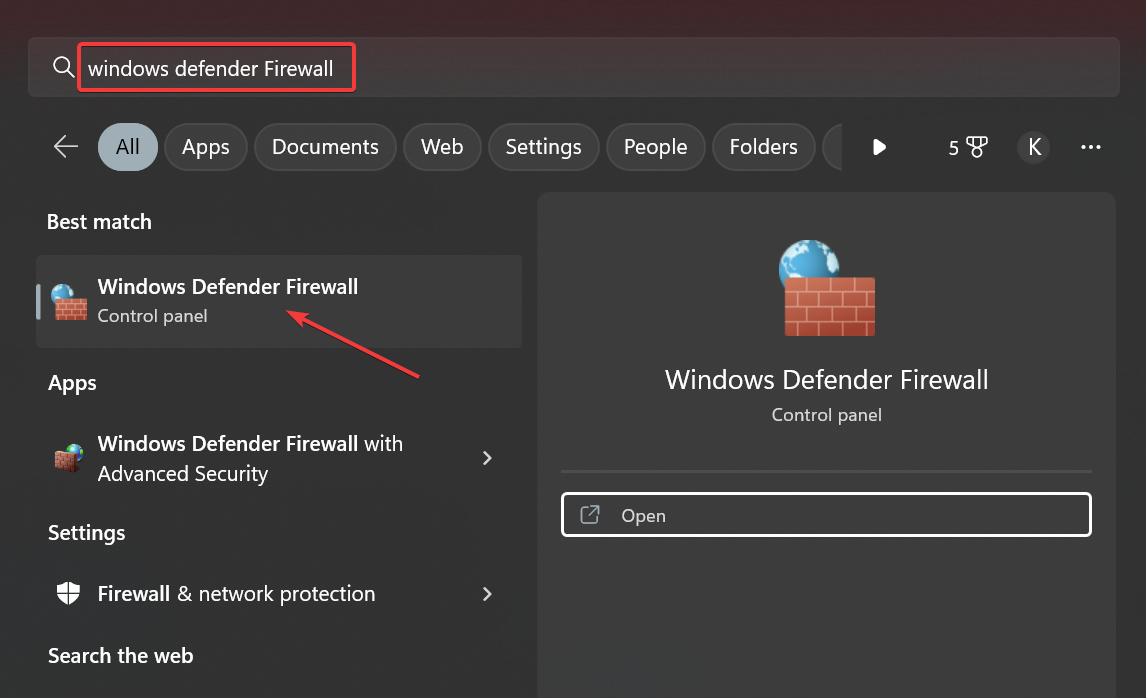
- Press Windows + S to open Search, type Windows Defender Firewall in the text field, and click on the relevant result.
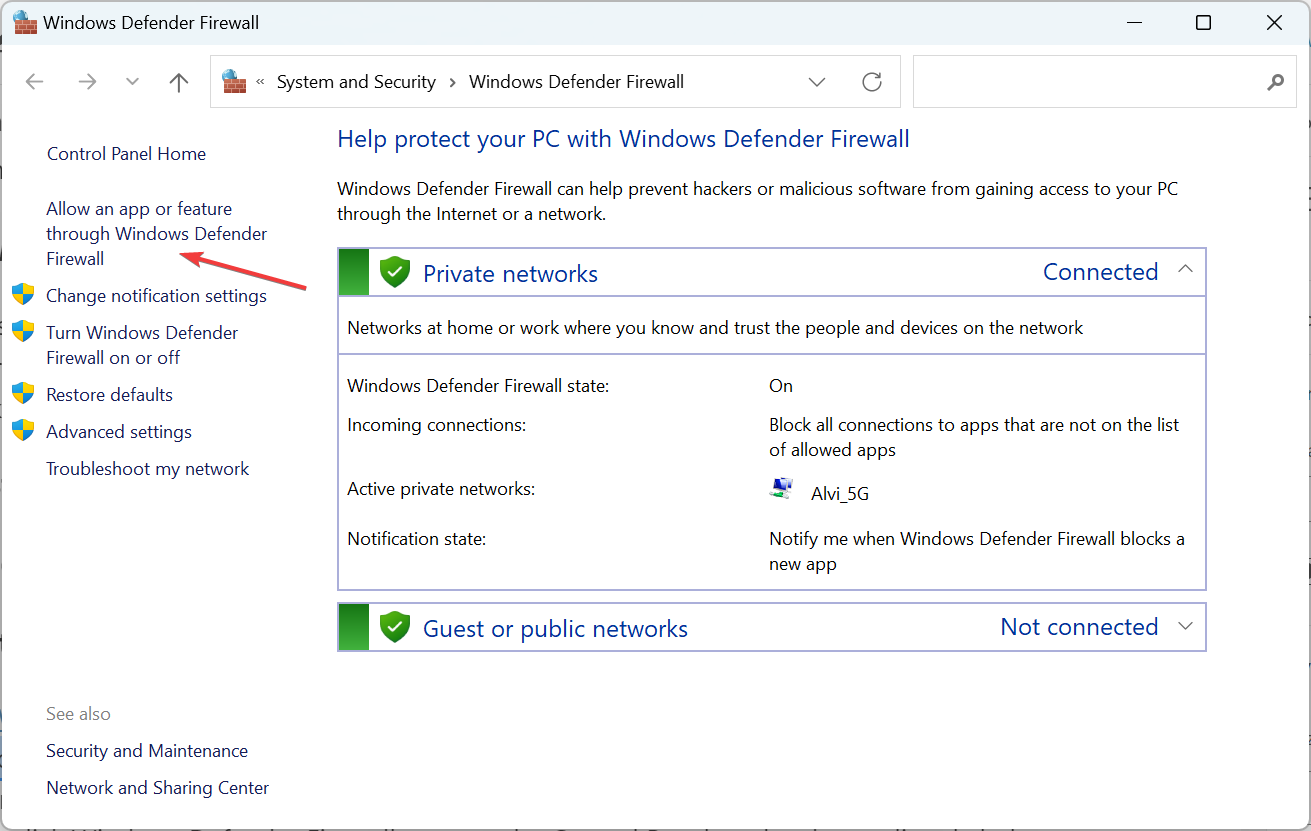
- Click on Allow an app or feature through Windows Defender Firewall on the left.
- Now, click on Change settings.
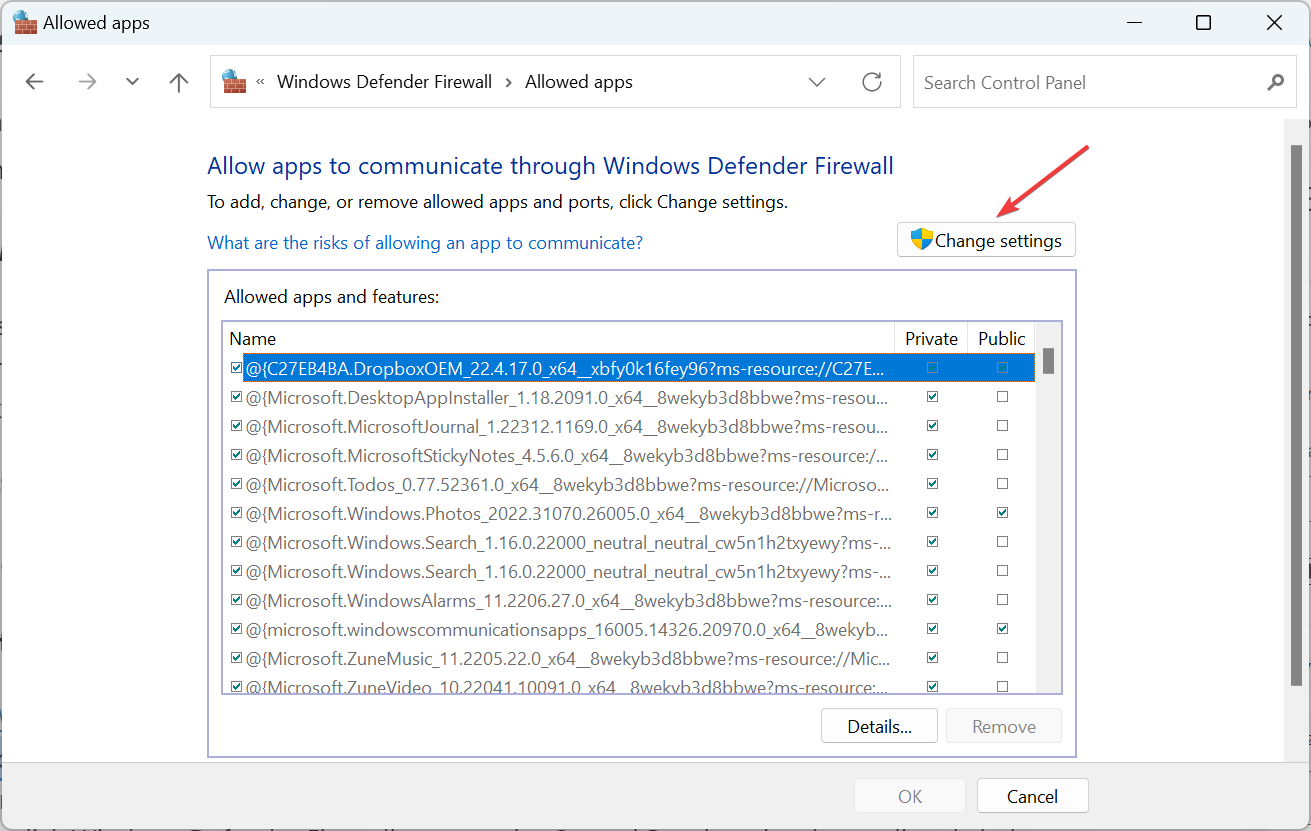
- Make sure both the Private and Public checkboxes are ticked for File and Printer Sharing, and click OK to save the changes.
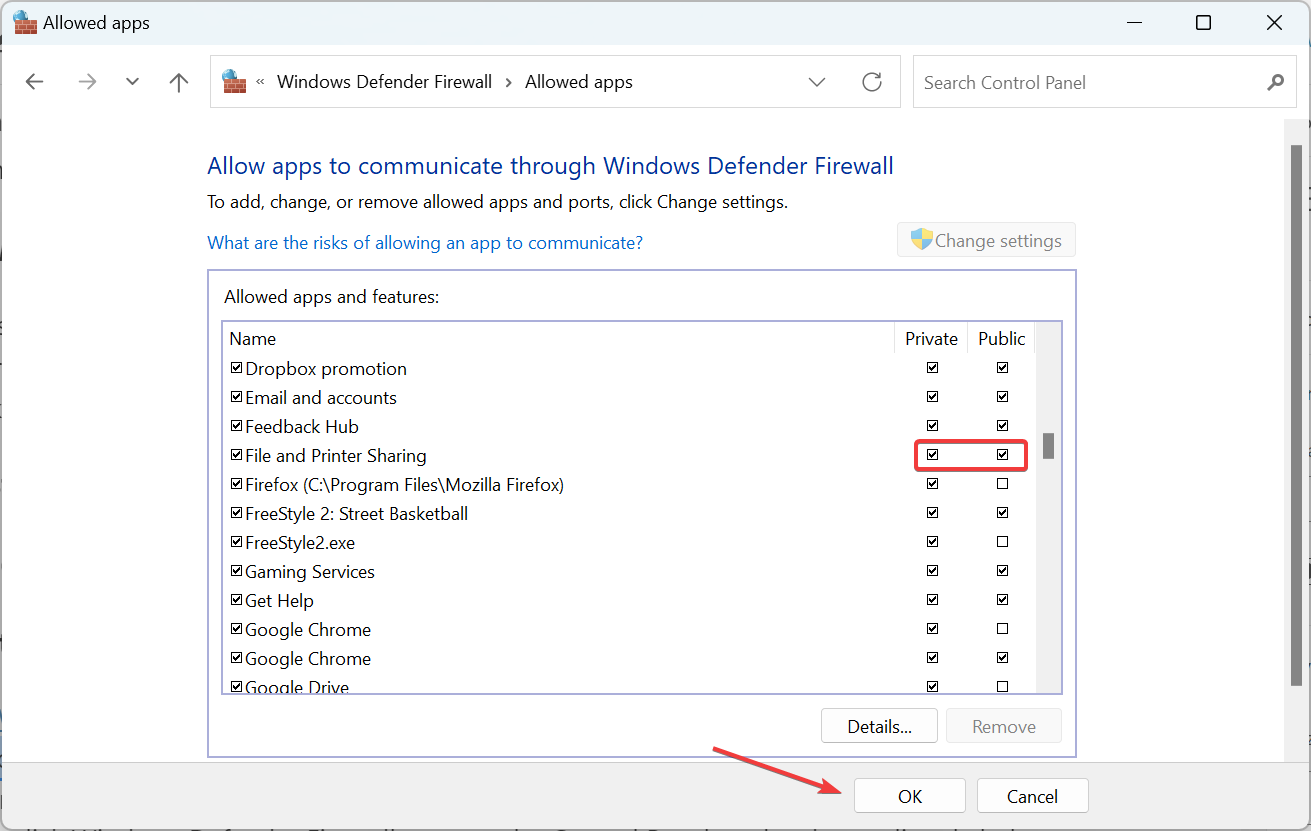
If you are getting the 0x000003e3 Cannot connect to printer due to the built-in firewall, make sure File and Printer Sharing is allowed to fix things.
6. Reinstall the printer
If nothing works, the last option is to remove the device and then manually add the printer back. The connection may have run into issues, but it’s easy to fix with a simple reinstall.
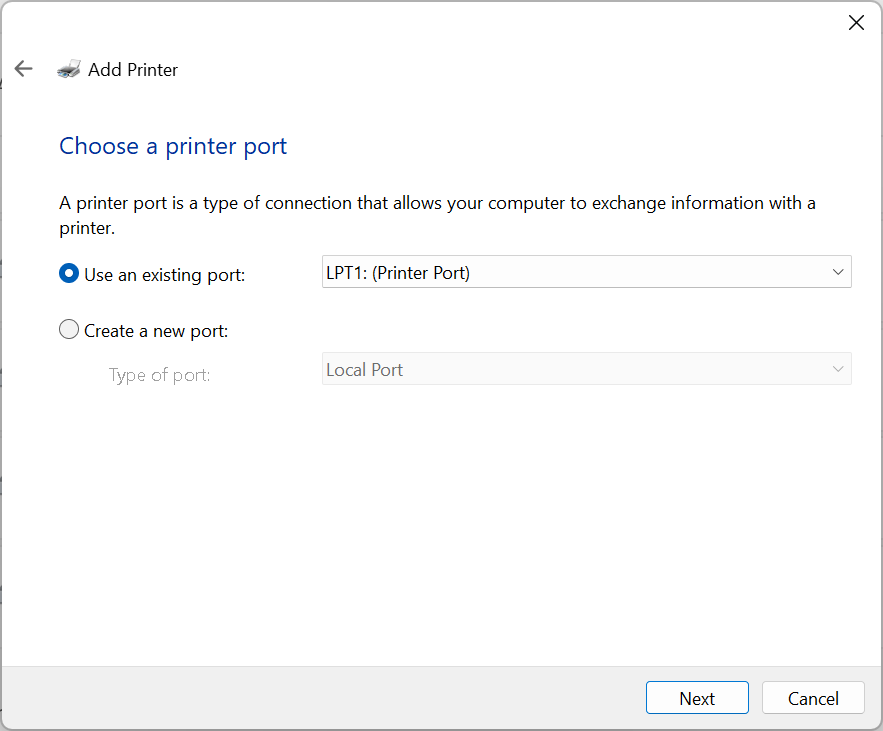
While re-adding the printer, use an LPT1: (Printer Port), install the suitable drivers available on the PC, and follow the on-screen instructions. The process is simple and shouldn’t take more than a few minutes.
That’s it! One of the solutions listed here should have helped you get rid of the Operation failed with error 0x000003e3 popup in Windows.
For those who frequently use printers, check the best Printer Management Software for Windows.
If you have any other queries or want to share a solution not listed here, drop a comment below.
Still experiencing issues?
SPONSORED
If the above suggestions have not solved your problem, your computer may experience more severe Windows troubles. We suggest choosing an all-in-one solution like Fortect to fix problems efficiently. After installation, just click the View&Fix button and then press Start Repair.

Several Windows 10 users complained about an error code 0x000003e3 when they were trying to print through a shared network printer. In such cases, the printer status shows offline, and a failure message appears like “Cannot connect to the printer” or “Operation failed error 0x000003e3”. In this post, we will look into the reasons causing this error code, and six workarounds that might help you to address this issue.

What is Error 0x000003e3?
This error occurs when you are trying to print through a shared local network printer. You might receive an error message as well saying – “Windows Cannot Connect To The Printer 0x000003e3“.
What causes Printer Error 0x000003e3?
There are several reasons that might result in this or similar error codes. Below, we have listed the most probable ones and their related fixes.
- Misplaced Mscms.dll file
- Corrupt Print spooler service
- Incompatible printer drivers
- Poor Network or Internet Connectivity Issues
First of all, restart your Windows and Printer and check if this error code resolves on its own. In case the error is still occurring, go through the below set of solutions.
- Restart Print Spooler
- Update all Printer drivers
- Copy/paste the Mscms.dll file under the system32 directory
To Fix the Printer Error 0x000003e3 on Windows 10, use the following workarounds –
1] Re-connect the Printer
Many a time, a simple restart of the Windows operating system resolves different error codes. So, if you have not yet rebooted your device, we recommend restarting your PC and checking if the problem resolves this way. When you reboot your PC, make sure to remove the power cable and connecting wires between your computer and the Printer as well.
Wait for at least 30 seconds and then plug back the connecting wire of your Printer to your device’s port. Turn on your computer and then your Printer and check if this addresses the print-related issues.
2] Restart the Print Spooler Service
Windows might fail to connect to your Printer when the Print Spooler service is turned off. If that’s the case, you must re-enable this service, and the problem resolves in no time. Here’s how to find this service and turn it On.
- Press Windows + R together to invoke the Run dialog.
- Type
services.mscin the text bar and hit OK to open the same. - Scroll down and locate the Print Spooler service here on the right pane.
- Once found, right-click on it and select Properties using the context menu.

- On the upcoming window, change the Startup type: to Automatic.
- Here, check if the service status reads Running.
- Hit the Start button then OK to save the changes.

That’s it, restarting the spooler service may resolve the error 0x00003e3. If not, follow the next workaround –
3] Manually copy/paste mscms.dll to the destined folder
The error code 0x000003e3 could also be the result of a missing mscms.dll file under the System32 directory on Windows 11/10. Go and check if this DLL file is available inside the aforementioned directory. If not, you must get this file online and paste it into the appropriate folder. Follow the below instructions to carry out this process –
- Press Window and E to launch File Explorer.
- Navigate to the following path on the Explorer –
C:Windowssystem32
- Once you are there, scroll down and locate the mscms.dll directory.
- When found, right-click on it, and select copy.

- Reach out to the below path and paste the copied item i.e. “mscms.dll” file at this location.
C:windowssystem32spooldriversw32x863
- This is applicable only to PCs with 32-bit architecture.
- If you are using a 64-bit computer, browse to the following path and paste the mscms.dll file here.
C:windowssystem32spooldriversx643
- Lastly, Restart the PC to confirm the latest changes.
4] Create a New Local Port
Though not always, this error code 0x00003e3 could also be the result of the Local Port damaging out. In such scenarios, all you need to create a new Local port which you might do by following the below steps –
- Click over the Windows icon and start typing Control panel in the search bar.
- When you see the matching item, click once on it.
- Go to the Devices and Printers category, and hit Add a printer. You may find this option next to “Add a device” (just below the system path). See the Snapshot below –

- Let the system scan for available shared printers and when it does complete, click over the “printer that I want isn’t listed” link.
- Succeeding after, check the radio button “Add a local printer or network printer with manual settings” and hit Next.

- On the subsequent wizard, mark the circle next to Create a new port.
- Next, select Standard TCP / IP Port using the drop-down menu and hit Next again.

- Now type the computer’s IP address in the Printers port name section. Make sure to use the following format – “\192.168.1.50HP LaserJet Pro M1136”.
Here, 192.168.1.50 is the IP address of the system where the shared printer is installed. If you want to use the printer under the network area, you should also enter the IP address of the network.
- Afterward, tap OK then Next to go ahead.
- Pick the printer model in order to install the driver then Next again.
- Click OK then Finish to save the recent changes.
How to know the IP address of your PC
If you don’t know the computer’s IP address, just go through the below steps –
- Right-click on Start and select Settings using the Power Menu.
- Select the Network & Internet category followed by Wi-Fi on the succeeding screen.
- Move to the right pane, and double-click on the device (being used for the net connectivity).
- Scroll to the Properties section and note down its IPv4 Address.

5] Uninstall Incompatible Printer Drivers
The presence of incompatible printer drivers may also cause this issue in Windows 11/10. So, just delete the outdated or corrupt drivers, restart your PC, and then reinstall them back. Here’s how to proceed –
- Right-click on Start Menu and choose the Run option.
- Type
printmanagement.mscand click OK to launch the print management wizard. - Expand the All Drivers directory next as shown below –
- Right-click on the Microsoft Print To PDF and select Delete.
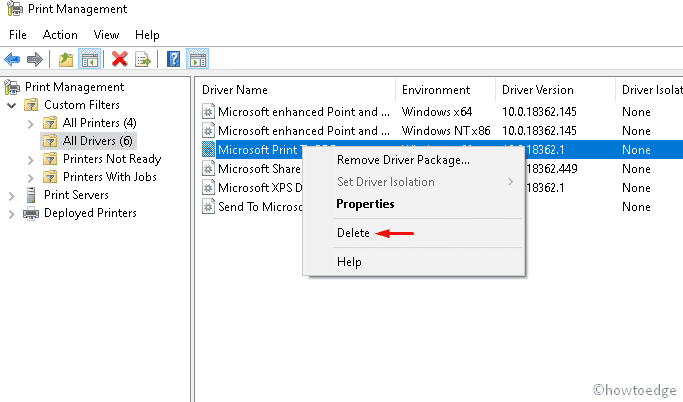
- If there is more than one printing application, delete all of them.
- Reboot your PC and add the printer again along with its drivers.
Find and Fix Driver Issues automatically via the PC Repair Tool – ‘DriverFix’.
6] Modify certain entries inside the Registry
If none of the above solutions work, fix “Can’t Connect Printer Error 0x000003e3” by modifying a few entries on the registry. Before you proceed to this, make sure to create a registry backup on your device.
- First of all, stop the Printer Spooler by opening the Services window (as discussed in Method 2).
- Click the Windows key and start typing Regedit in the text field.
- Right-click on Registry Editor from the appeared results and hit Run as Administrator.
- If the UAC prompts, tap Yes to authorize the access.
- Now, copy/paste the below path at its address bar and press Enter. Or, you may navigate to the destination folder expanding entries available on the left pane.
HKEY_LOCAL_MACHINESYSTEMControlSet001ControlPrintPrinters*YOUR PRINTER’S NAME*CopyFiles
- Expand the CopyFiles directory next and delete the existing ICM folder.
- Once over, Close the Registry window and restart your PC.
When Windows 11/10 reloads, check if the printer issue has now been resolved.
Note: If you are not able to reach out to the above path, try this alternate path –
HKEY_LOCAL_MACHINESOFTWAREMicrosoftWindows NTCurrentVersionPrintProvidersClient Side Rendering Print Provider
- Right-click on the Client Side Rendering Print Provider and hit the delete button on the context menu.
- Make sure to start the Printer Spooler service again using Method 2.
- Finally, Reboot your PC.
That’s it, we hope this guide helps to resolve the Error 0x00003e3 – Can’t Connect to the Printer has solved now.
Can’t Connect To the printer sharing 0x00003e3?
If you are not able to connect to the printer sharing because of an error code 0x00003e3, we suggest following and applying the fixes outlined in this post. Hopefully, this “Windows can’t connect to a shared network printer” issue resolves after applying the above six solutions.
Tip: If you are facing update, activation, or driver issues on your Windows PC, try RESTORO PC Repair Tool. This software will scan your device for potential issues and resolve them automatically.
Are you also experiencing Error 0x000003e3 Printer in Windows 10? This problem does not let users connect to a network printer and is pretty common after installing certain cumulative updates. Yes, the culprit sounds to be simple but it is the bug that creates a mess and ends up in several issues.
Very recently, the release of KB4524147 surfaced Local Print Spooler Service is Not Running error which annoyed the users a lot. Likewise, many Start Menu issues are also very common among people after the installation of any security update. Therefore, you should see if there is any cumulative update installed very recently or not. If you find any, first uninstall them and then try to connect to a network printer. However, there are other factors as well that you should check while trying to fix the above printer issue.
Here is how to Fix Error 0x000003e3 Printer in Windows 10 –
1] Uninstall Latest Cumulative Update
First of all, you need to check if there is any cumulative/security update installed recently. If so, then you should immediately get rid of that patch to fix this mess up.
- Press the key combos Win and I to open Windows Settings application. Head to the Update & security category once the app shows up.
- Reach out to the adjacent side of the following page and click View update history.
- Click Uninstall updates link as shown in the given snapshot.
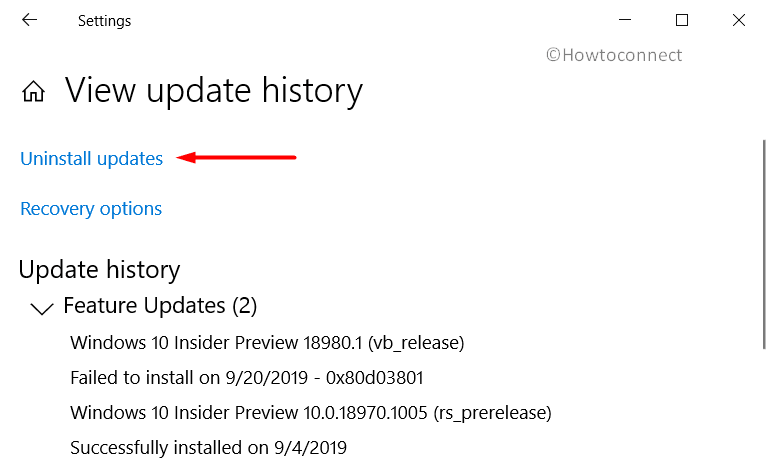
- From the window that shows up, find out the latest cumulative update. Select it and hit the Uninstall button at the top. (As of writing this fix, the problem is occuring post installation of KB4524147).
- Once you remove the package, try to print the document and you will encounter the above error.
2] Resolve Error 0x000003e3 Printer by Checking for Updates
The outdated operating system is always prone to several types of issues including Error 0x000003e3 Printer. Generally, Microsoft releases cumulative updates, patches, preview builds that contains amazing features and fixes for bugs and problems. So, if your Windows 10 is not running with the latest version, you may get troubles with the printer as well. Therefore, proceed with the below steps and ensure you install the latest patches.
Step-1: Use the key combination “Win + I” to access the Settings app. In the user interface of the app, click the Update & security category.
Step-2: On the right pane of the following page, click Check for updates button.
Step-3: The system will list down all the available packages, hit the Download button. After the download gets over, go through the instructions to install them.
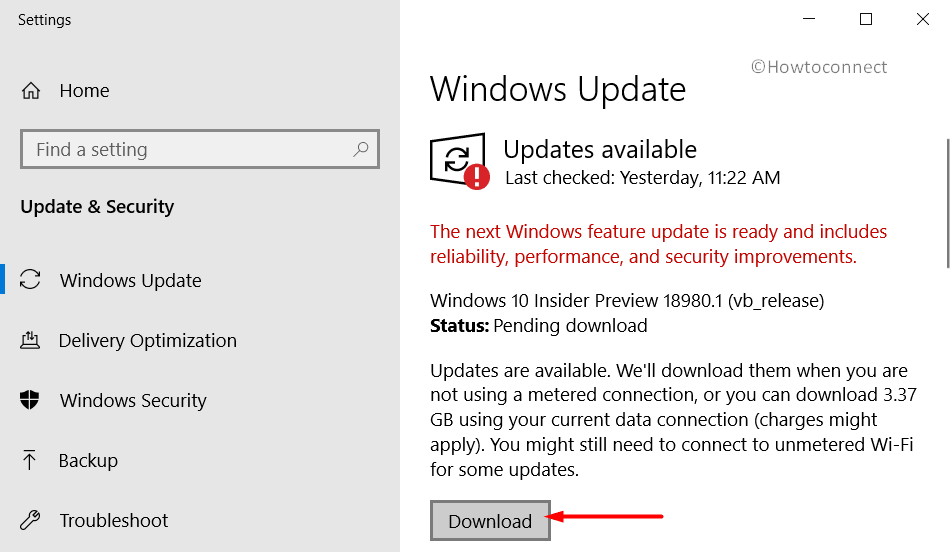
Step-4: If the update requires an installation, do it. After the reboot, try to share the affected printer and see if you receive the error or not.
3] Restart Print Spooler Service
When trying to fix any complications related to the printer, it is important to check its software as well. Print spooler is the service in Windows that controls the order in which the documents will be printed. While you carry on your work on the computer, it manages the printing jobs in the background. So, many times, after receiving Error 0x000003e3 Printer in Windows 10, you should first check this software service. Simply restart it and see whether this fixes the problem or not.
- Use the key combinations “Win + R” to quickly open Run dialog box. Once into it, insert the command “services.msc” and click OK.
- On the Services console, locate and right-click the service namely Print Spooler. Choose the Restart option from the menu.
- If the service is not running, then choose Properties from the menu.
- Set the Startup type to Automatic and henceforth click the Start button.
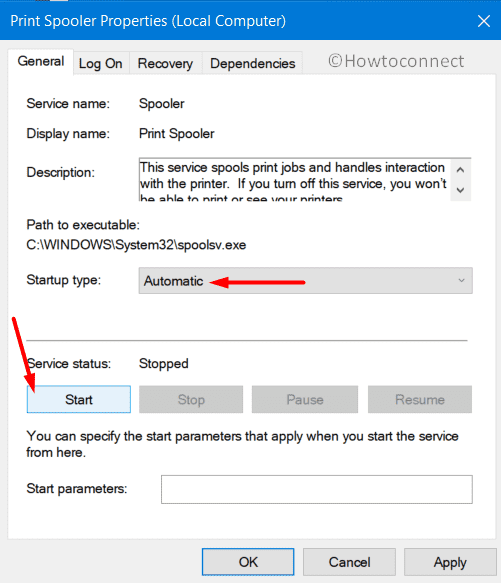
- Make the modifications effective by clicking Apply and OK buttons. Now, try to connect the printer.
4] Perform Registry Tweak to Fix Error 0x000003e3 Printer in Windows 10
The issue can also occur due to driver conflict and to resolve this you need to delete all the printer related registry keys. Moreover, you should also clear out all the contents from the printer’s folders as well. Let us see how to proceed with this workaround –
Note – In case of any incorrect modifications happen, you need to take a backup of the keys. This would help you to Import and Export Registry Editor when things fail to work normally.
- Open File Explorer, go to the below path and remove the entire contents from the following folders –
C:WindowsSystem32SpoolPrinters
C:WindowsSystem32SpoolDriversw32x86
- Go to the taskbar search, type services and hit Enter. Upon the appearance of Service Manager, find and do a right-click on Print Spooler.
- From the flyout menu, click on Stop.
- Access Registry Editor using your preferred ways. However, use the command regedit in the search and press Enter.
- Navigate to the path mentioned-below on the left sidebar of the Registry window –
ComputerHKEY_LOCAL_MACHINESYSTEMCurrentControlSetControlPrintEnvironments- Under the Environments key, go to the correct architecture and then expand Drivers/Version 3. Once you are there, remove everything on the right pane.
- Then, expand Monitors, Pending Upgrades, Printers, and Providers key one by one. Delete all the DWORDs or settings present on all of them.
- Again launch the Services and right-click Print Spooler. Select Start. Try to add a printer and hopefully, this will not show Error 0x000003e3 Printer.
Methods:
1] Uninstall Latest Cumulative Update
2] Check for Updates
3] Restart Print Spooler Service
4] Perform Registry Tweak
That’s all!!
Repair any Windows problems such as Blue/Black Screen, DLL, Exe, application, Regisrty error and quickly recover system from issues using Reimage.
Если вы столкнулись с ошибкой принтера 0x000003e3 на компьютере с Windows 11 или Windows 10 при попытке печати на общих локальных сетевых принтерах, то этот пост предназначен чтобы помочь вам найти наиболее подходящие решения, которые вы можете легко применить для быстрого решения этой проблемы.
Почему мой принтер постоянно выдает мне сообщение об ошибке?
Может быть несколько причин почему ваш принтер выдает сообщение об ошибке. Среди этих причин входят: поврежденные данные в катушке/лотке для печати могут быть причиной остановки этой службы. Другой наиболее вероятной причиной ошибки печати является соединение между вашим компьютером и принтером-это могут быть драйверы принтера или драйверы порта USB.
Если вы столкнулись с этой проблемой, вы можете попробовать наши рекомендуемые решения ниже в произвольном порядке и посмотреть, поможет ли это устранить ошибку принтера 0x000003e3 на вашем компьютере с Windows 11/10.
Повторно подключите PrinterRun Устранение неполадок принтера Перезапустите печать Служба диспетчера очереди печати Создание нового локального порта Удаление несовместимого драйвера принтера Вручную скопируйте/вставьте mscms.dll в папку назначения Изменение реестра
Давайте посмотрим на описание процесса, связанного с каждым из перечисленных решений.
1] Повторно подключите принтер
Первое, что вам нужно попробовать,-это повторно подключить принтер к компьютеру с Windows 11/10. Просто выключите принтер и отсоедините кабель от порта. Подождите не менее 30 секунд, затем снова подключите принтер. Наконец, включите принтер и проверьте, появляется ли ошибка снова. Если это так, перейдите к следующему решению.
2] Запустите средство устранения неполадок принтера
Как и в случае с большинством проблем, с которыми вы можете столкнуться в Windows 11/10, если есть средства устранения неполадок для оборудования или программного обеспечения/служб, вам рекомендуется запустить средство устранения неполадок. В этом случае вы можете запустить средство устранения неполадок принтера и посмотреть, поможет ли это исправить ошибку принтера 0x000003e3 в вашей системе Windows.
Выполните следующие действия:
Нажмите клавишу Windows + I , чтобы открыть приложение настроек . Нажмите Система на левой панели навигации. Нажмите Устранение неполадок на правой панели. Затем нажмите Другие средства устранения неполадок . Нажмите кнопку Выполнить для принтера.
3] Перезапустите службу диспетчера очереди печати
Для этого решения необходимо перезапустить службу диспетчера очереди печати. Вот как:
Нажмите Windows + R , чтобы вызвать диалоговое окно”Выполнить”. В диалоговом окне”Выполнить”введите services.msc и нажмите Enter, чтобы открыть окно”Службы”. В окне”Службы”найдите Диспетчер очереди печати . Щелкните правой кнопкой мыши Диспетчер очереди печати и выберите Свойства . В окне свойств нажмите Остановить
Это остановит процесс очереди печати. Не закрывайте окно свойств диспетчера очереди печати.
C: WINDOWS system32 spool PRINTERS Удалите все файлы в папке Принтеры .
Если вы не видите никаких файлов, вы может потребоваться показать скрытые файлы/папки.
Закройте окно проводника. В окне свойств диспетчера очереди печати нажмите кнопку Пуск , чтобы перезапустить службу.
3] Создайте новый Локальный порт
Чтобы создать новый локальный порт принтера, все, что вам нужно сделать, это переустановить или повторно добавить локальный принтер на компьютер с Windows 11/10.
4] Удалить несовместимый драйвер принтера
Чтобы удалить несовместимый драйвер принтера, сделайте следующее:
Нажмите клавишу Windows + R , чтобы открыть диалоговое окно”Выполнить”. В диалоговом окне”Выполнить”введите printmanagement..msc и нажмите OK или нажмите Enter, чтобы запустить мастер управления печатью. Разверните каталог Все драйверы . Затем щелкните правой кнопкой мыши Microsoft Print В PDF и выберите Удалить .
Если существует несколько приложений для печати, удалите их все.
Перезагрузите компьютер и снова добавьте принтер вместе с его драйверами.
При загрузке проверьте, решена ли проблема. Если нет, попробуйте следующее решение.
5] Вручную скопируйте/вставьте mscms.dll в папку назначения
Чтобы вручную скопировать/вставить mscms.dll в папку назначения, выполните следующие действия.:
Откройте проводник. Перейдите в следующий каталог: C: Windows system32 Прокрутите вниз, найдите файл mscms.dll и скопируйте файл. Затем перейдите в следующий каталог: C: windows system32 spool drivers x64 3 Вставьте в папку файл mscms.dll. закройте проводник. перезагрузите компьютер.
При загрузке проверьте, решена ли проблема. Если нет, попробуйте следующее решение.
6] Измените реестр
Поскольку это операция реестра, рекомендуется создать резервную копию реестра или создать точку восстановления системы как необходимые меры предосторожности. После этого вы можете действовать следующим образом:
HKEY_LOCAL_MACHINE SYSTEM ControlSet001 Control Print Printers * ИМЯ ВАШЕГО ПРИНТЕРА * CopyFilesВ этом месте разверните каталог CopyFiles . Удалите существующий. Папка ICM . Закройте редактор реестра. Перезапустите службу диспетчера очереди печати. Перезагрузите компьютер.
Надеюсь, это поможет!
Как исправить ошибку драйвера принтера?
Чтобы исправить ошибку драйвера принтера в Windows 11/10, выполните следующие действия. Выберите «Панель управления»> «Оборудование и звук»> «Устройства и принтеры»> «Диспетчер устройств». Щелкните Очереди печати, чтобы просмотреть раскрывающийся список. Найдите в списке модель своего принтера и щелкните его значок правой кнопкой мыши. Перейдите в панель управления компьютера и нажмите «Устройства и принтеры». Переустановите драйверы принтера.
Связанное сообщение : Исправлена ошибка сетевого принтера 0x00000bcb-не удается подключиться к принтеру.