
Spotify firewall blocking error is one of the most common issues faced by Spotify users. If your firewall is blocking Spotify, you will not be able to log in or use any other services on it. This article discusses different solutions for this problem and how to fix firewall blocking Spotify errors.
Why does this Firewall Problem Happen?
Before solving the firewall blocking error, you have to know why this problem occurred.
There are many reasons behind this “a firewall may be blocking Spotify” error.
- Located in a different country as your Spotify account.
- Using a Proxy can make this Spotify firewall blocking
- Using Multiple Account
- Because of using VPN
- Some networks (schools, offices, work) block certain services.
- Browsers Cache and Cookies
There are two types of errors that happen when you try to log in, one is -“A firewall may be blocking Spotify. Please update your firewall to allow Spotify. Additionally, you could try changing the currently used proxy settings (Error code: 17).“
And another one is “A firewall may be blocking Spotify. Please update your firewall to allow Spotify. Additionally you could try changing the currently used proxy setting(Error code: auth: 16)“.
You might notice the difference, one is error code 17, and another one is Error code: auth:16. So here we solve these two problems.
Also Read:
Spotify Can’t Play This Right Now
How To Listen to Spotify Offline
First Solve “a firewall may be blocking Spotify- error code auth:16.”
During login to your Spotify account, you put the right username and password, but you cannot log in to your Spotify account. Instead, it shows you a message- “A firewall may be blocking Spotify. Please update your firewall to allow Spotify. Additionally you could try changing the currently used proxy setting(Error code: auth: 16)“. You might think about how to allow Spotify through the firewall? Don’t panic; we will show you how to update the firewall to allow Spotify.
You can easily solve this firewall blocking Spotify problem.
1. First, put your user name and password and press login
2. After that, you see this message- “A firewall may be blocking Spotify. Please update your firewall to allow Spotify. Additionally, you could try changing the currently used proxy setting(Error code: auth: 16)”
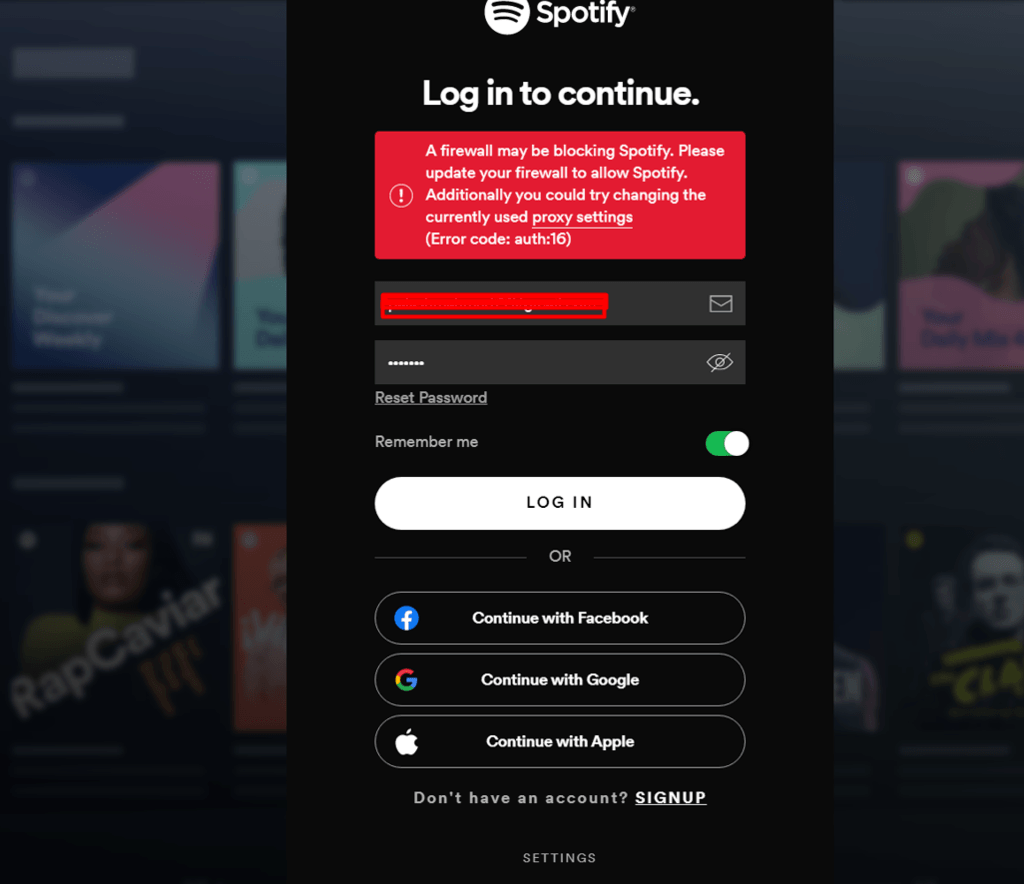
3. Click on the proxy setting. A new window will open
4. Then, Select No Proxy and press the “Restart App” button.
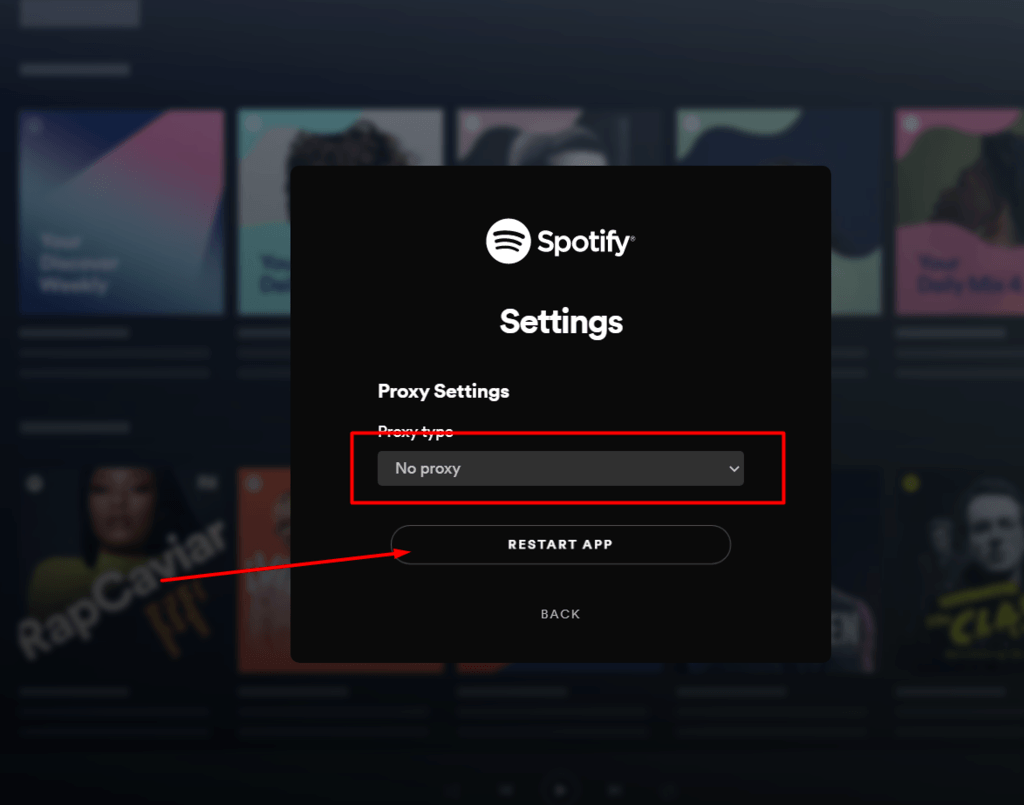
5. Then, it takes you to the login page. Now put in your username and password. And you will be able to log in to your Spotify Account.
Done!!
How To Solve Firewall Blocking Spotify Error 17
The firewall is a system that protects your computer from the outside world. It’s a tool to prevent unauthorized access. Unfortunately, there are times when you may encounter firewall blocking Spotify errors, especially if you use Spotify Premium service, which requires additional firewall configurations to work correctly without any errors or interruption.
This firewall problem can be easily fixed by updating your firewall configuration settings after ensuring that all network connections have been properly configured. In most cases, simply disabling Windows Firewall will enable this feature once again but reinstalling/reconfiguring your firewall should also fix this issue too!
After following these steps, try opening up Spotify once more – hopefully, everything will now run smoothly on your machine as expected! Next, make sure you read this- How to solve Spotify error 17?
Here we will share some more tips to solve the “Spotify a firewall that may be blocking” Problem.
Solution-1
How To Allow Spotify Through Firewall?
To solve the firewall blocking problem, follow these steps.
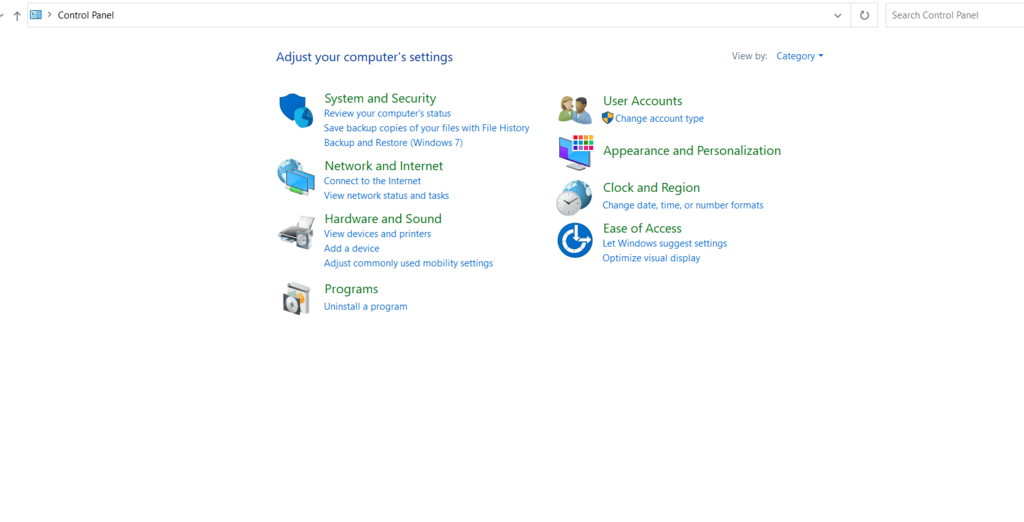
1. First, you have to visit the Control Panel.
2. After that, Click System and Security > Windows Defender Firewall
3. Now, at the top of the left corner, you can see “Allow an app or feature through Windows Defender Firewall,” click over there.
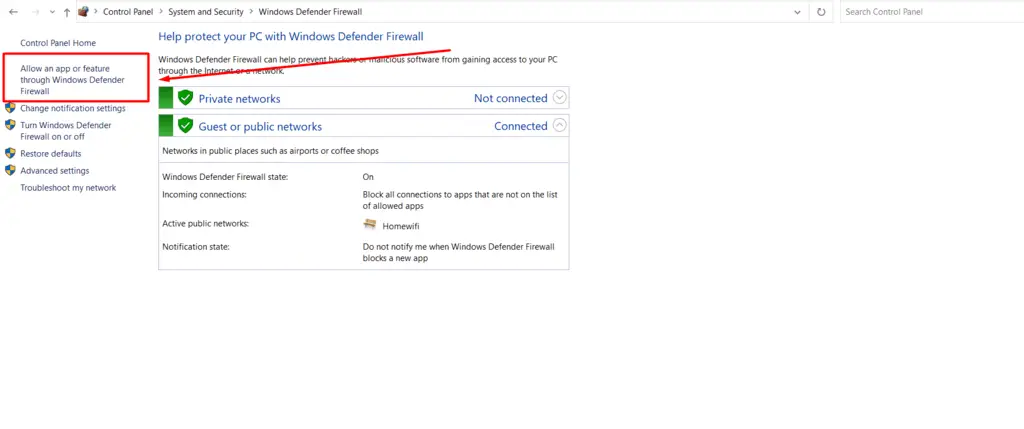
4. New Window will happen. Here you see a “change setting” button top right of the corner. Press the button.
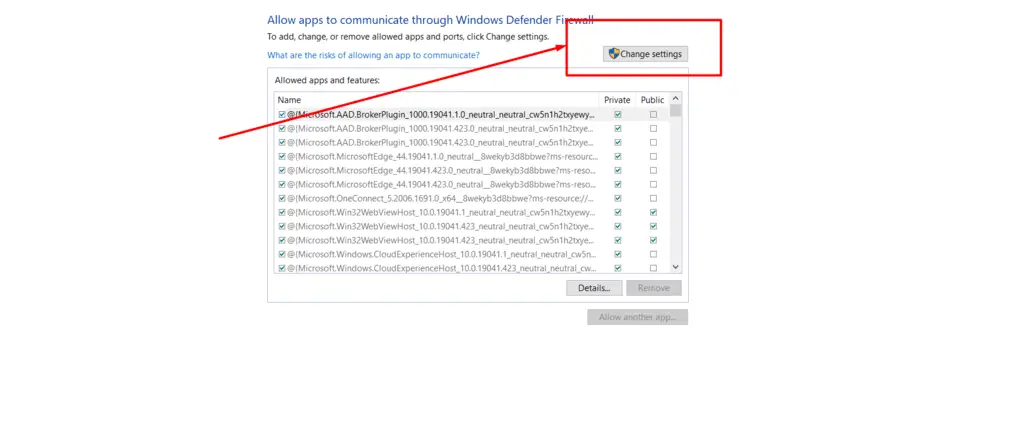
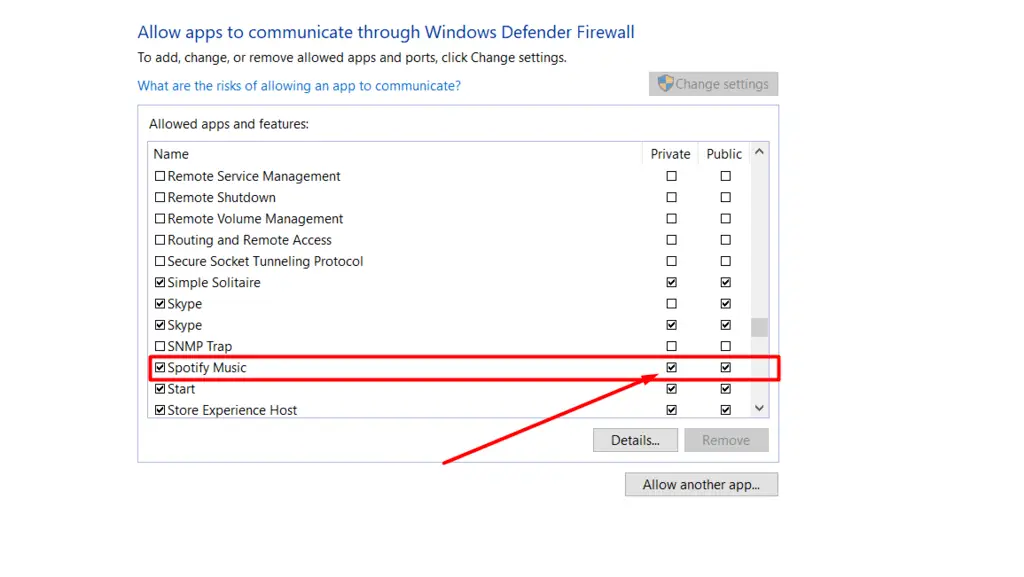
5. Now, scroll down in the box and look for Spotify and check Spotify. Make sure both private and public boxes are checked. Then press ok to confirm the process.
Solution-2: By Changing Country
1. Visit Spotify.com and log in to your account.
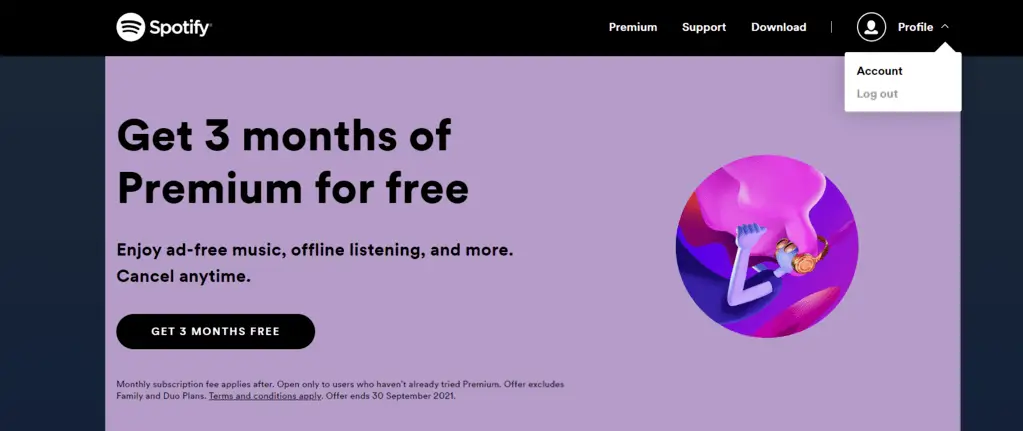
2. Top left corner, you can see your profile option. From there, select Account.
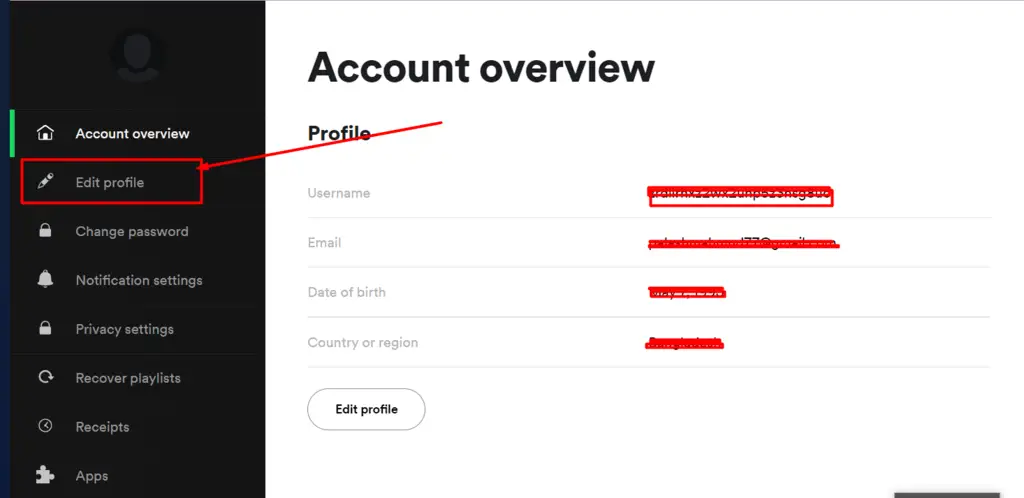
3. The Account Overview window will open. Click Edit profile.
4. Below, you see the country-changing option. Select your country and press Save Profile to confirm.
5. Now restart Spotify and log in again.
Solution-3: Change Proxy
1. Open your Spotify web browser.
2. Below the login page, you see the “SETTINGS” option.
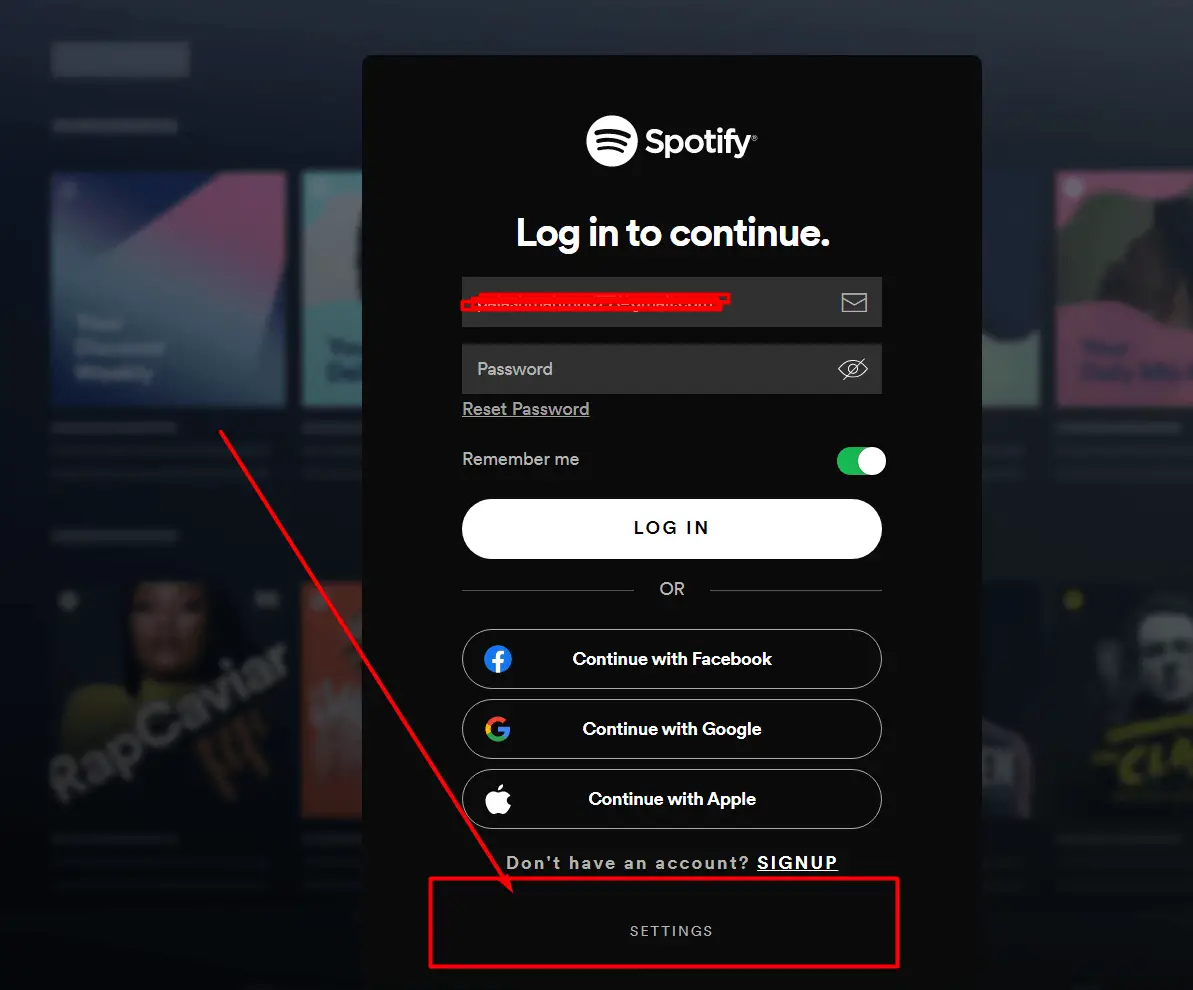
3. From proxy type Select No proxy
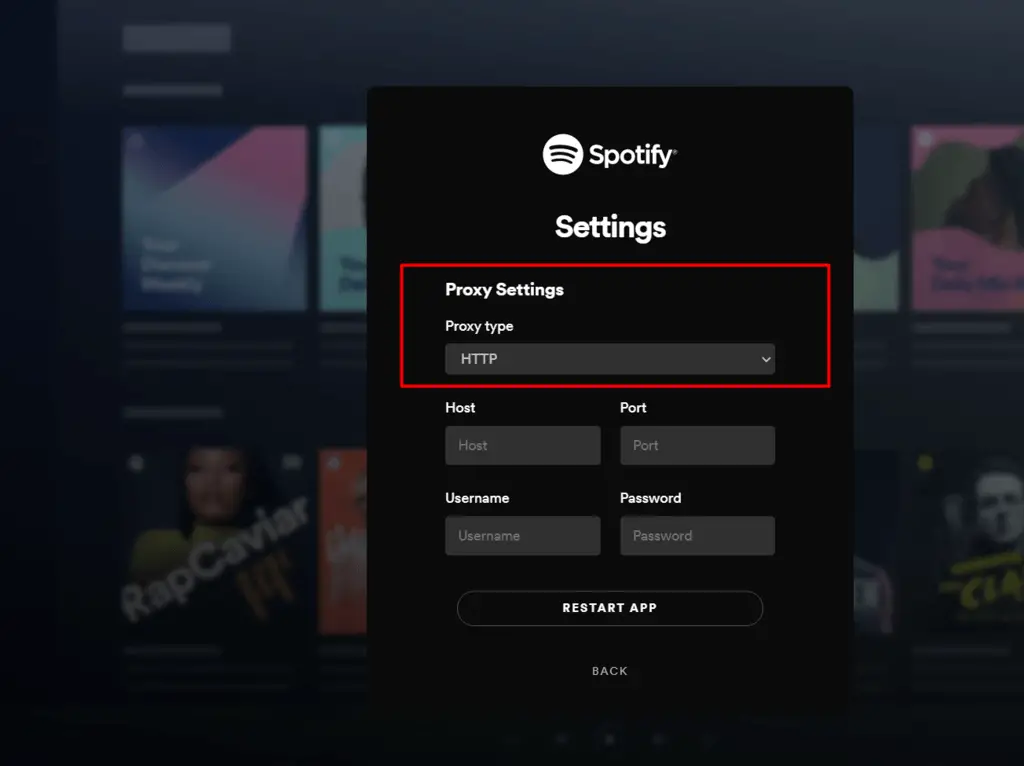
4. Restart App to finish the process.
5. Now log in to your account again.
If none of these works for you, try these secret tips.
Tricks-1:
Clear the App’s data from windows settings (not uninstalling). Then use a VPN and set the country location that you provided in your Spotify account. Next, log in to your account and make sure to check “remember me” if you are able to log in to your Account; after that no need to use VPN.
Tricks-2: Clear your browser cookies and cache or try incognito windows.
Tricks-3: If you have multiple accounts, then make sure you use the right credentials.
Tricks-4: Check your network and make sure they did not block Spotify.
Tricks-5: Use different devices.
Conclusion
We hope you found the solution to firewall blocking Spotify. Let us know which methods worked for you to solve this problem and what other problems have been tricky to fix or had no solutions yet. If we missed anything, please share it with us below!
Help Wizard
Step 1
Type in your question below and we’ll check to see what answers we can find…
If you couldn’t find any answers in the previous step then we need to post your question in the community and wait for someone to respond. You’ll be notified when that happens.
Simply add some detail to your question and refine the title if needed, choose the relevant category, then post.
Question:
More detail:
Category:
Just quickly…
Before we can post your question we need you to quickly make an account (or sign in if you already have one).
Don’t worry — it’s quick and painless! Just click below, and once you’re logged in we’ll bring you right back here and post your question. We’ll remember what you’ve already typed in so you won’t have to do it again.
NEXT STEP
3 Replies

Suggested posts
Let’s introduce ourselves!
Hey there you,
Yeah, you!
Welcome — we’re glad you joined the Spotify Community!
While you here, let’s have a fun game and get to know…

 Staff / Moderator/ 1 year ago in Social & Random
Read more
Ошибка блокировки брандмауэра Spotify – одна из наиболее распространенных проблем, с которыми сталкиваются пользователи Spotify.
Если брандмауэр блокирует Spotify, вы не сможете войти в систему и использовать какие-либо функции приложения. В этой статье приведены различные решения этой проблемы и способы устранения ошибок, блокирующих Spotify брандмауэром.
Код ошибки 3 появляется, когда пользователи пытаются безуспешно войти в свои учетные записи Spotify либо на сайте Spotify, либо в дестопном приложении.
Проблема часто связана с ошибкой ввода пароля. Возможно были внесены изменения в пароль от учетной записи Spotify. Это можно исправить, просто сбросив пароль. Кроме того, пользователи сообщали, что они смогли решить эту проблему, просто используя при входе свое имя пользователя вместо электронной почты или наоборот.
Кроме того, любые инструменты VPN, которые могут быть запущены на вашем компьютере, могут вызвать проблему, и вам следует немедленно удалить их.
Способ 1: Сбросить пароль Spotify
Это решение лучше использовать в начале, потому что оно часто устраняет проблему немедленно, как это было у многих пользователей раньше.
Поскольку ошибка может появиться либо при вводе данных на сайте, либо в настольном приложении, устранить проблему проще с помощью веб-клиента Spotify
Способ 2. Использовать имя пользователя вместо адреса электронной почты или наоборот
Да, это позволило решить эту проблему многим пользователям. Если вы пытались войти в систему, используя адрес электронной почты, который вы используете для Spotify, попробуйте использовать свое имя пользователя. То же самое относится и к пользователям, пытающимся войти в систему под своим именем пользователя.
Проверьте, перестал ли отображаться код ошибки Spotify 3!
Примечание: По умолчанию, имя пользователя – это первая часть вашего адреса электронной почты перед символом “@”
Ошибки 15, 16
Ошибки 15, 16 auth, не позволяют пользователям Spotify, войти в программу из-за обрыва соединения. Чаще всего отображается ошибка “Возможно, брандмауэр блокирует Spotify”.
1 способ
1
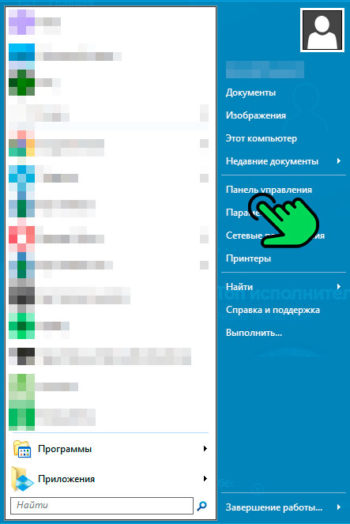
Открыть “Панель управления”.
2
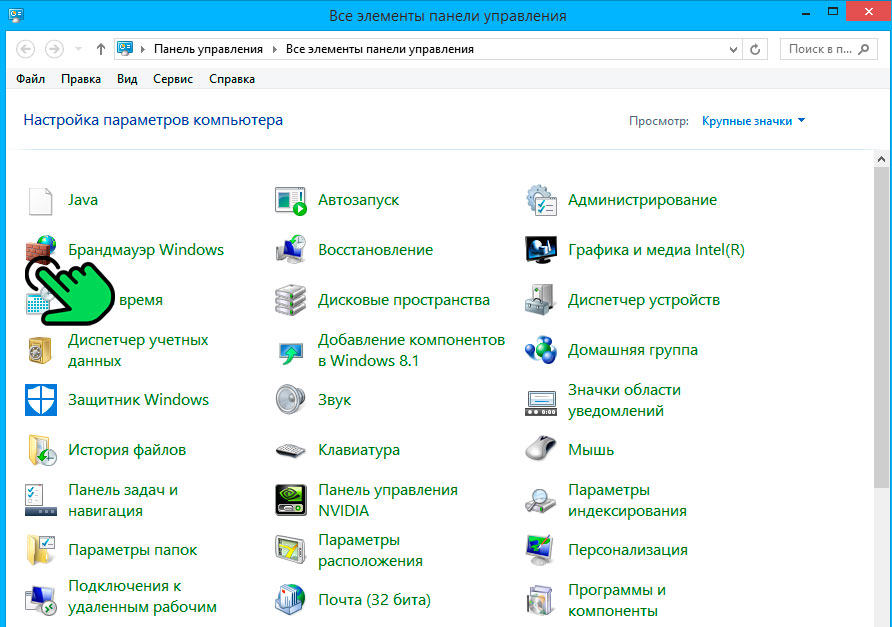
Открыть “Брандмауэр Windows”.
3
В левом меню выбрать “Разрешение взаимодействия с приложением или компонентом в брандмауэре Windows”.
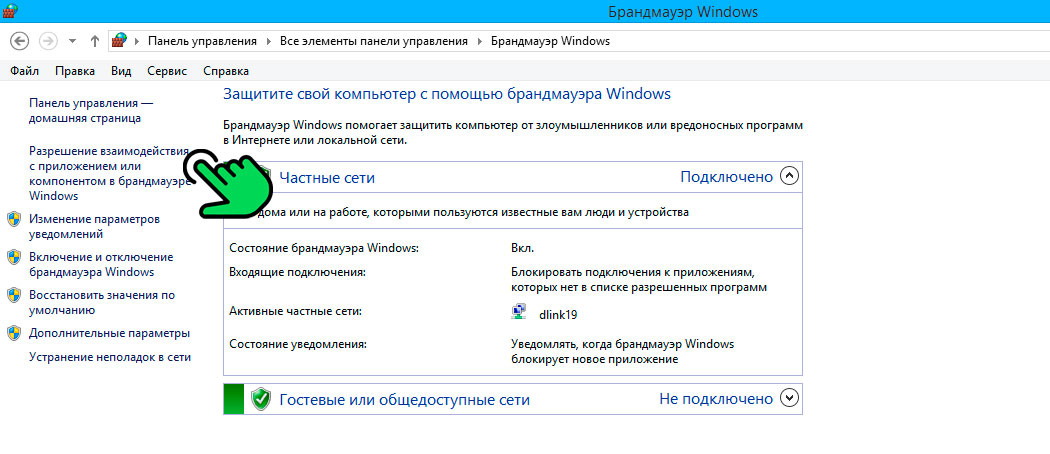
4
В списке найти приложение “spotify.exe” и проставить галочки в столбцах “Частная” и “Публичная”.
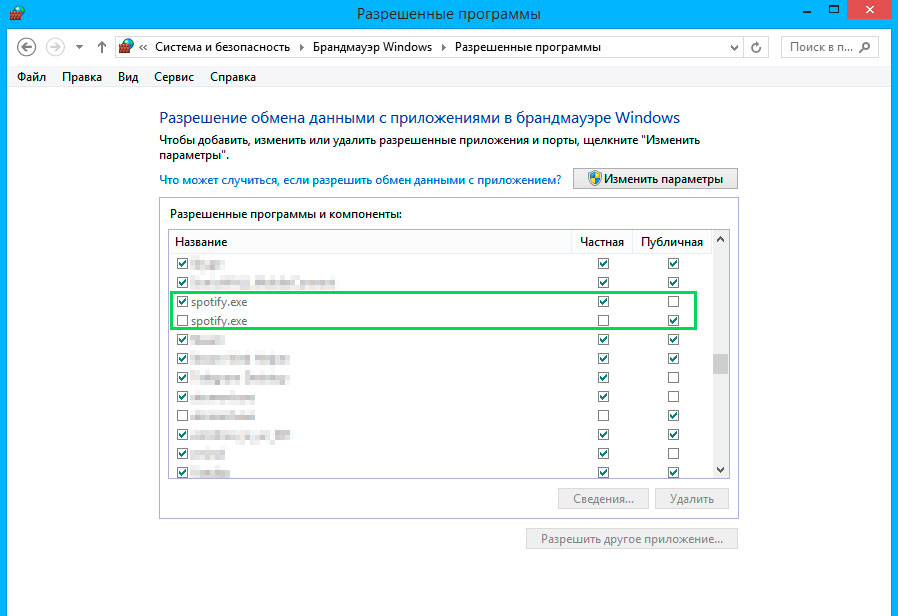
После выполнения приведенных шагов, проблема должна решиться.
2 способ: Отключить VPN-сервисы и Прокси
Отключите использование Прокси:
1
Открыть “Параметры ПК”.
2
Выбрать пункт “Сеть”.
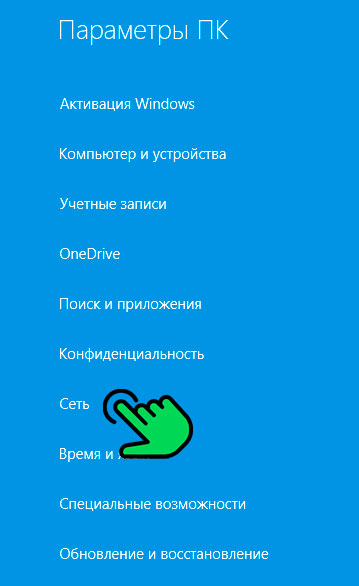
3
В открывшемся меню выбрать “Прокси”.
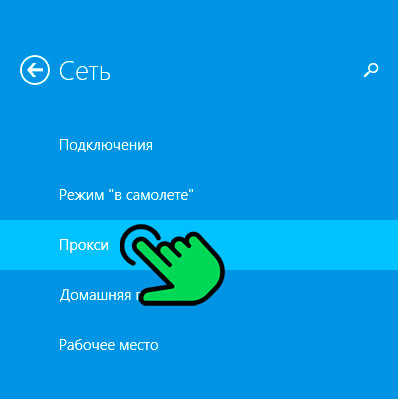
4
Пролистать экран вниз и повернуть тумблер “Использовать прокси” в положение “Откл.”
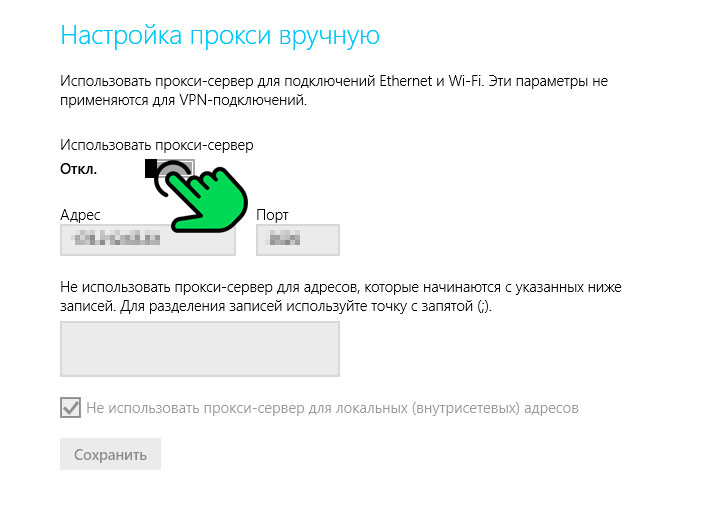
После чего пройдите в “Доступные сетевые подключения” и удалите созданные VPN-соединения и драйвера.
Использование VPN вместе со Spotify не рекомендуется, потому что неправильная настройка VPN-сети также может немедленно вызвать эту ошибку. Рекомендуется удалить VPN. Если установлены специальные VPN приложения, рекомендуется перейти в “Панель управления” и удалить их полностью. Вместе с ними будут удалены и соединения созданные самими сервисами при установке.
После удаления ВПН-программ удалите соединения, которые возможно создавались вами самостоятельно:
1
Открыть “Панель управления”
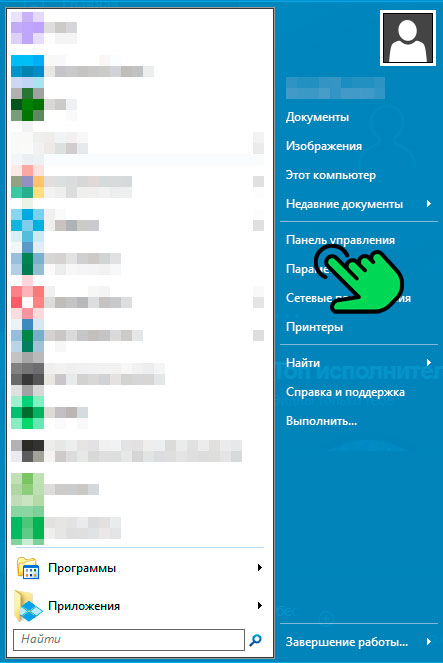
2
Перейти по ссылке “Просмотр состояния сети и задач”
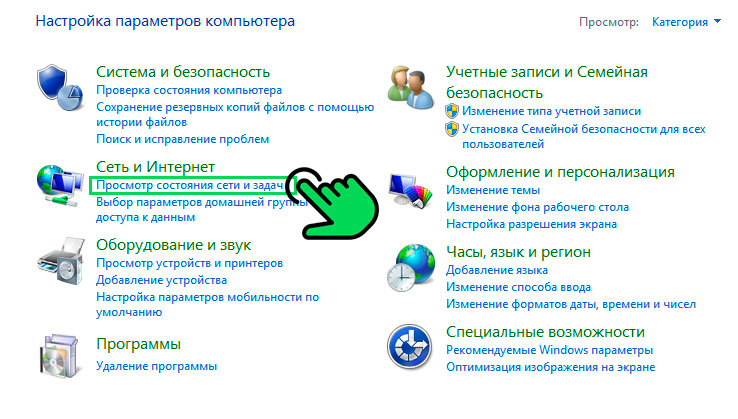
3
В левом меню кликнуть на ссылку “Изменение параметров адаптера”.
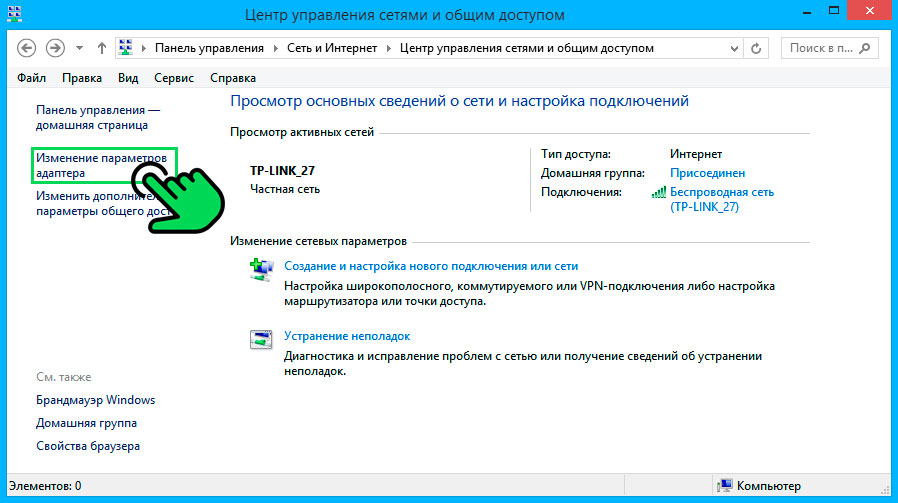
4
На открывшемся экране кликнуть правой кнопкой на ненужное соединение и выбрать пункт “Удалить”.
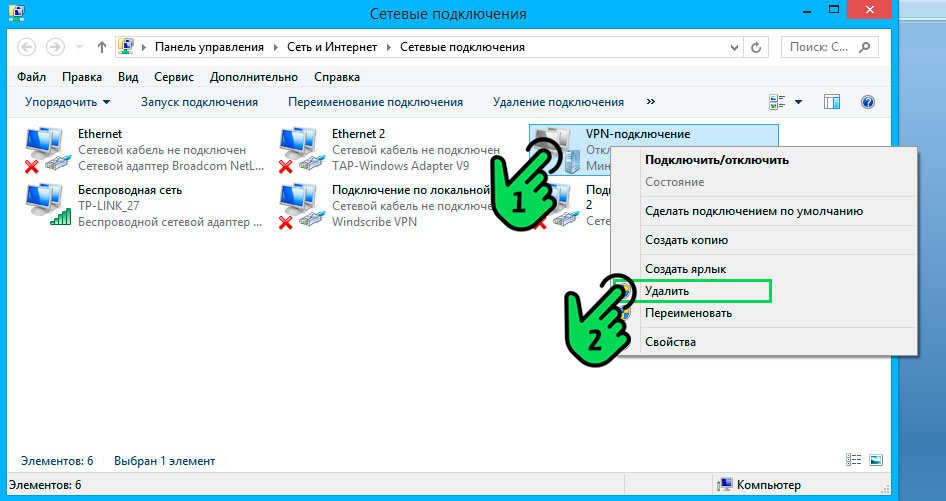
Перезагрузите компьютер, чтобы применить внесенные изменения.
Ошибка auth 17
Хотя код ошибки 17 возникает часто, однако точная причина до сих пор не определена. Возможно, проблема связана с иностранным IP-адресом.
Возможно используется VPN-соединение, поэтому вернитесь к предыдущим пунктам и удалите либо отключите VPN-приложение.
Ошибка auth 18
Код ошибки 18 возникает в процессе установки, когда файлы, которые необходимо скачать и установить на компьютер, по какой-то причине уже находятся на компьютере и используются другим приложением или процессом.
Рекомендуется вручную отключить процессы в “Диспетчере задач” и удалить файлы, мешающие установке.
Spotify — отличное приложение для прослушивания музыки на настольных и мобильных устройствах. Хотя у Spotify есть настольное приложение для Windows/Mac, мобильное приложение по-прежнему более популярно. Даже если вы не хотите использовать настольное приложение, вы можете использовать полноценную веб-версию Spotify, чтобы удовлетворить свои потребности в музыке.
Настольное приложение Spotify имеет много ошибок и сбоев, и пользователи часто сталкиваются с проблемами при его использовании. Многие пользователи недавно сообщили о необычном сообщении об ошибке Spotify, препятствующем входу в систему.
Сообщение об ошибке появляется при открытии настольного приложения. Некоторые пользователи сообщают об ошибке при входе в свои учетные записи Spotify. Полное сообщение об ошибке гласит:
“Брандмауэр может блокировать Spotify. Обновите брандмауэр, чтобы разрешить Spotify. Кроме того, вы можете попробовать изменить текущие настройки прокси-сервера (код ошибки: авторизация: 3).”
Код ошибки в конце сообщения может различаться в зависимости от вашей операционной системы. Например, вы можете получить ‘Код ошибки Spotify: авторизация: 39» или «Код ошибки Spotify: авторизация: 30«и т. д. Если вы получаете это сообщение об ошибке в Spotify, вот несколько вещей, которые вы можете сделать, чтобы решить эту проблему.
1. Перезагрузите компьютер

Хотя перезагрузка компьютера не является полным решением для сообщения об ошибке, но все же это то, что вы должны попробовать. Возможно, Spotify показывает вам сообщение об ошибке из-за ошибки или сбоя, и у вас все в порядке.
Так что, если вы не используете какой-либо VPN/прокси-сервис, лучше всего перезагрузить компьютер. Чтобы перезагрузить компьютер Windows, нажмите кнопку Кнопка «Пуск» в Windows > параметр «Питание»и выберите Перезапуск.
После перезагрузки откройте настольное приложение Spotify и войдите в свою учетную запись. Если вы по-прежнему получаете сообщение об ошибке, следуйте следующим методам.
2. Отключить VPN

В самом сообщении об ошибке рекомендуется изменить или отключить настройки прокси. Хотя есть возможность изменить настройки прокси-сервера в настольном клиенте Spotify, если вы используете VPN, вам нужно оставить его отключенным.
Когда вы подключаетесь к VPN, клиент Spotify пытается подключиться к серверу в другом регионе. Если сервер находится далеко от вас, настольный клиент не сможет подключиться и покажет вам сообщение об ошибке.
Итак, если вы используете программу VPN на своем компьютере с Windows, лучше отключить ее на некоторое время. После отключения перезагрузите компьютер и снова запустите клиент Spotify. На этот раз сообщение об ошибке, скорее всего, будет исправлено.
3. Разрешить Spotify через брандмауэр
Если вы по-прежнему получаете код ошибки Spotify: 39, ваше приложение брандмауэра блокирует клиент Spotify. Кроме того, в сообщении об ошибке утверждается, что «Брандмауэр может блокировать Spotify»; следовательно, вам нужно либо отключить программу брандмауэра, либо разрешить приложение Spotify.
Пропустить приложение через брандмауэр в Windows довольно просто. Для этого выполните несколько простых шагов, описанных ниже.
1. Сначала нажмите на поиск Windows и введите Брандмауэр и защита сети. Затем откройте приложение «Брандмауэр и защита сети» из списка.

2. На экране «Брандмауэр и защита сети» прокрутите вниз и нажмите «Разрешить приложение через брандмауэр‘ вариант.

3. На следующем экране щелкните значок Изменить настройки кнопка.

4. Затем найдите Spotify Music и установите флажок для обоих «Частный‘ и ‘Общественный‘.

5. После внесения изменений нажмите кнопку Хорошо кнопка.
Вот и все! Вот как вы можете разрешить Spotify через брандмауэр на ПК с Windows.
4. Отключите настройки прокси в приложении Spotify.
Этот метод отключит настройки прокси-сервера в настольном клиенте Spotify, чтобы устранить сообщение об ошибке «Брандмауэр может блокировать Spotify». Вот что вам нужно сделать.
1. Прежде всего, нажмите на Windows Search и введите Spotify. Далее откройте Настольное приложение Spotify из списка.

2. Когда приложение откроется, щелкните значок три точки в верхнем левом углу.

3. Наведите курсор на «Изменить» и выберите «Настройки‘.

4. В настройках Spotify прокрутите вниз до настроек прокси. В типе прокси выберите ‘Нет прокси‘.

Вот и все! Вот как вы можете отключить настройки прокси в настольном приложении Spotify.
5. Переустановите приложение Spotify.
Если вы правильно выполнили все шаги, сообщение об ошибке «Возможно, брандмауэр блокирует Spotify» уже устранено. Однако, если вы по-прежнему получаете сообщение об ошибке, рекомендуется еще раз просмотреть внесенные вами изменения.
Кроме того, вы можете переустановить приложение Spotify. Переустановка не имеет связи с прокси или VPN, но исключает поврежденные файлы приложения. Многие пользователи утверждали, что устранили код ошибки Spotify 39 или «Брандмауэр может блокировать Spotify» сообщение об ошибке при переустановке приложения.
Однако переустановка удалит все ваши настройки и пользовательские данные. Чтобы переустановить Spotify, откройте панель управления и удалите приложение Spotify. После удаления загрузите и установите последнюю версию Spotify на свой компьютер.
«Брандмауэр может блокировать Spotify» или «Код ошибки Spotify, точка доступа 39» обычно связан с приложением VPN, прокси или брандмауэра. Ошибку можно легко исправить, если найти виновника. Если вам нужна дополнительная помощь в устранении кода ошибки Spotify Firewall, сообщите нам об этом в комментариях. Также, если статья вам помогла, обязательно поделитесь ею с друзьями.
Tested fixes for the Firewall blocking Spotify error
by Henderson Jayden Harper
Passionate about technology, Crypto, software, Windows, and everything computer-related, he spends most of his time developing new skills and learning more about the tech world. He also enjoys… read more
Updated on December 28, 2022
Reviewed by
Alex Serban

After moving away from the corporate work-style, Alex has found rewards in a lifestyle of constant analysis, team coordination and pestering his colleagues. Holding an MCSA Windows Server… read more
- A Firewall that may be blocking Spotify is an issue that can come with several error codes.
- Proxy settings on Spotify and the PC, as well as Windows Defender Firewall, often cause the error.
- Allowing the Spotify app through Windows Firewall settings will prevent any interference it causes in its activities.
XINSTALL BY CLICKING THE DOWNLOAD FILE
Fortect is a tool that does not simply cleans up your PC, but has a repository with several millions of Windows System files stored in their initial version. When your PC encounters a problem, Fortect will fix it for you, by replacing bad files with fresh versions. To fix your current PC issue, here are the steps you need to take:
- Download Fortect and install it on your PC.
- Start the tool’s scanning process to look for corrupt files that are the source of your problem
- Right-click on Start Repair so the tool could start the fixing algorythm
- Fortect has been downloaded by 0 readers this month.
Spotify is an online music streaming platform that allows users to stream music from across the globe on various Operating Systems. Lately, users report the error message A firewall may be blocking Spotify on the platform.
Likewise, some complain about the Something went wrong on Spotify error message affecting the platform.
What does it mean when Spotify says a Firewall is blocking it?
The error may occur on Spotify with various error codes:
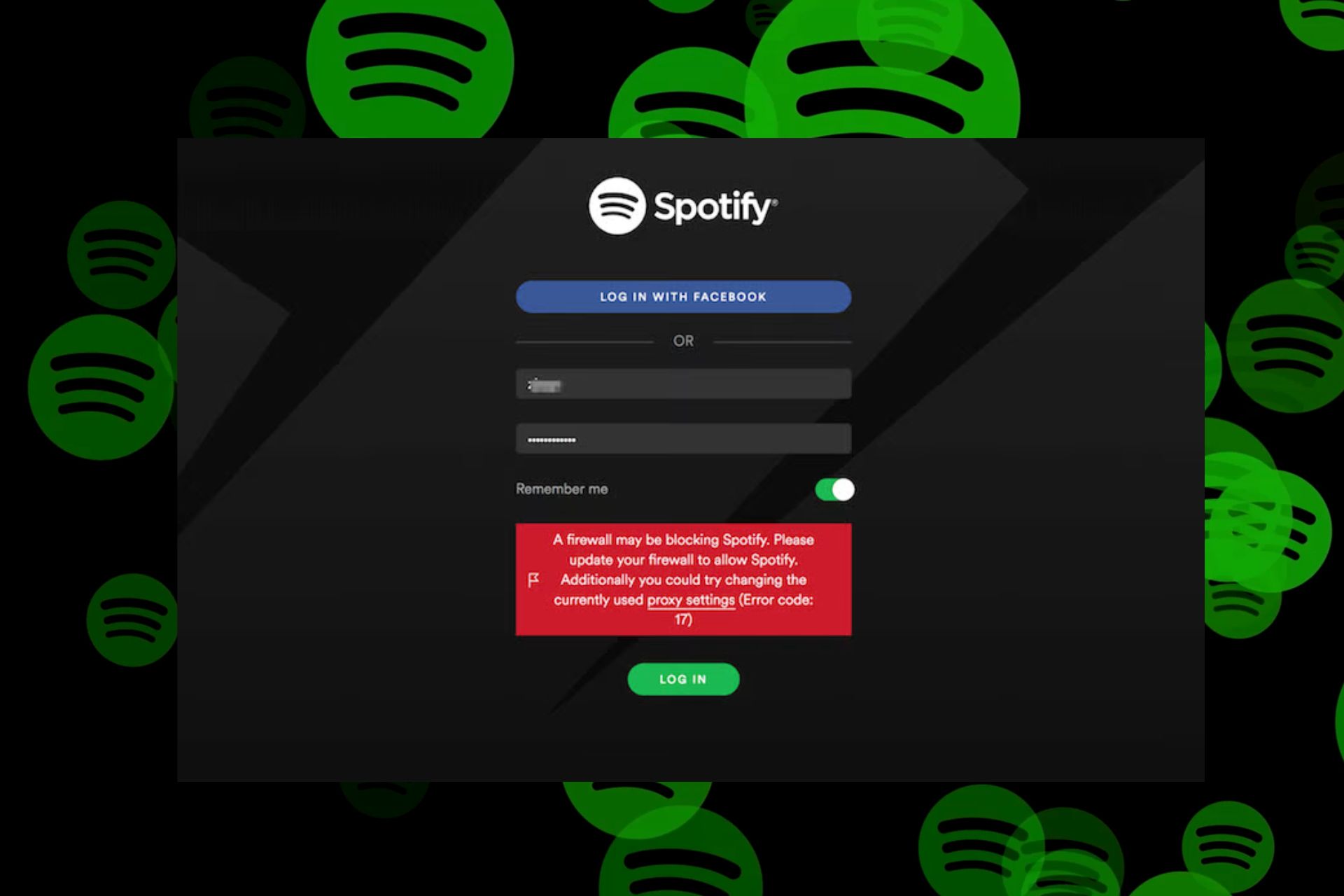
A firewall may be blocking Spotify. Please update your firewall to allow Spotify. Additionally, you could try changing the currently used proxy settings (Error code: 17).
Others are Error codes: auth: 15, 16, 30, 34, etc.
However, the error doesn’t mean your login credentials are wrong. It means some underlying problems are impeding the activities of the Spotify client. Some factors are:
- Antivirus program Firewall interference – Programs like Windows Defender Firewall can block other programs, causing the error to occur. It happens when the Firewall picks up a Spotify connection as a threat, causing it to crash or result in errors.
- Using a Spotify account from different geographical locations – Users who registered their Spotify account with a country different from their current one can run into the Firewall error.
- Proxy enabled on Spotify and Windows – If the Proxy is enabled, it can cause issues with the connections between Spotify and its servers. Also, a wrong configuration in the proxy settings in your PC or Spotify can result in the Firewall blocking Spotify.
- Outdated Spotify app – When the Spotify app is outdated, it prevents it from accessing the needed updates for fixing bugs and improving performance. It can cause Spotify not to open and run into several issues that may result in errors.
- Third-party app interference – Apps like Virtual Private Networks (VPN) can prompt internet connection issues in the Spotify app. It can conflict with its privacy policies or security protocols. Hence, running the VPN network alongside the Spotify app can cause the Firewall to block Spotify errors.
Nevertheless, we’ll take you through some basic steps for fixing the error.
What can I do if a Firewall is blocking Spotify on my PC?
Try the following preliminary checks:
- Fix network congestion on your PC.
- Close unnecessary programs that are running on your computer.
- Relaunch the Spotify app.
- Restart Windows in Safe Mode and check if the Firewall blocking Spotify error persists.
If the error persists, go ahead with the solutions below.
1. Change the Proxy settings option
- Launch Spotify, input your username and password, and then click Login.
- When the Error code: auth: 16 appears, click on the proxy settings option in the error message.
- Select No Proxy from the Proxy type drop-down, then click the Restart App button.
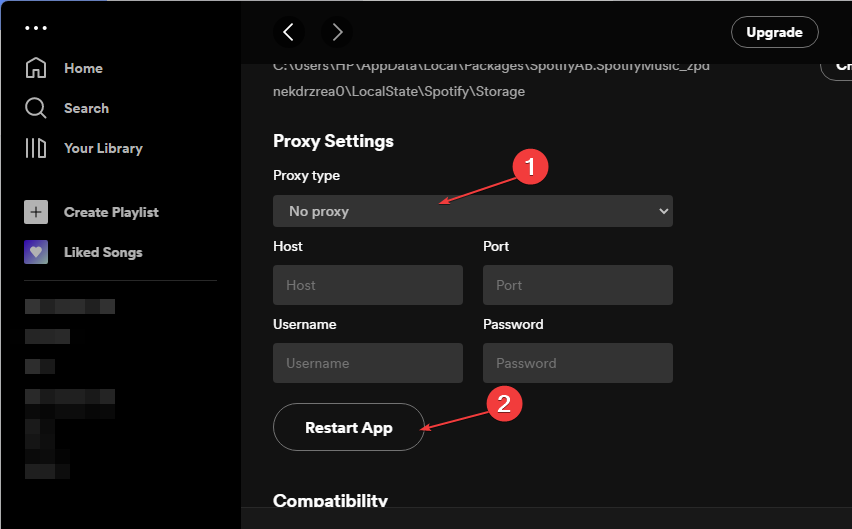
- Input your username and password, then click Login. You should be able to log in to your Spotify account.
Disabling the Proxy settings for Spotify will fix any interference causing the app.
2. Disable third-party Proxy Server
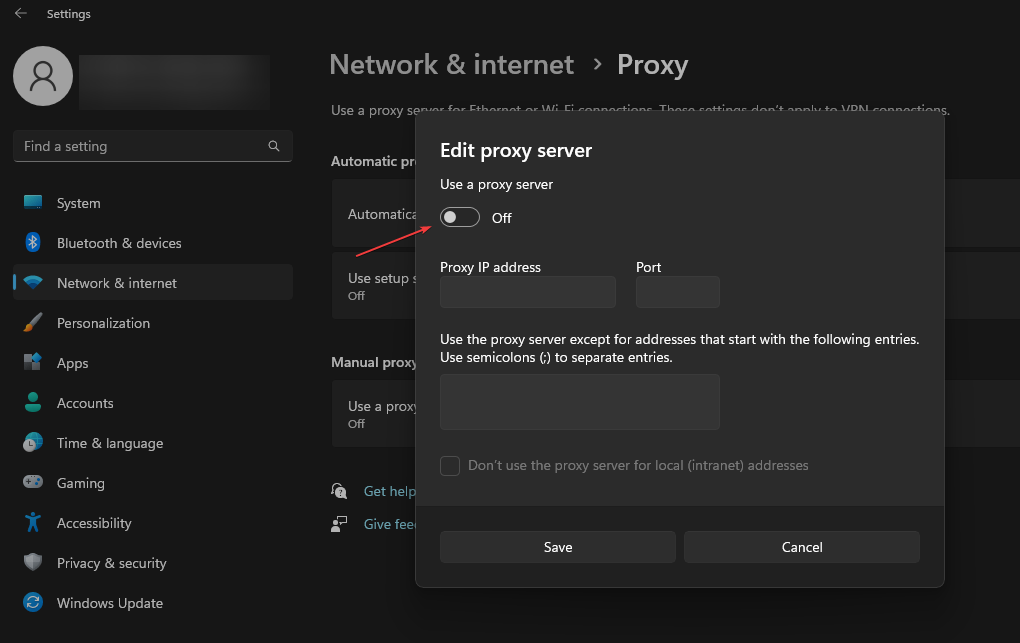
- Press Windows + I key to launch Settings.
- Select Network & Internet and click on the Proxy option.
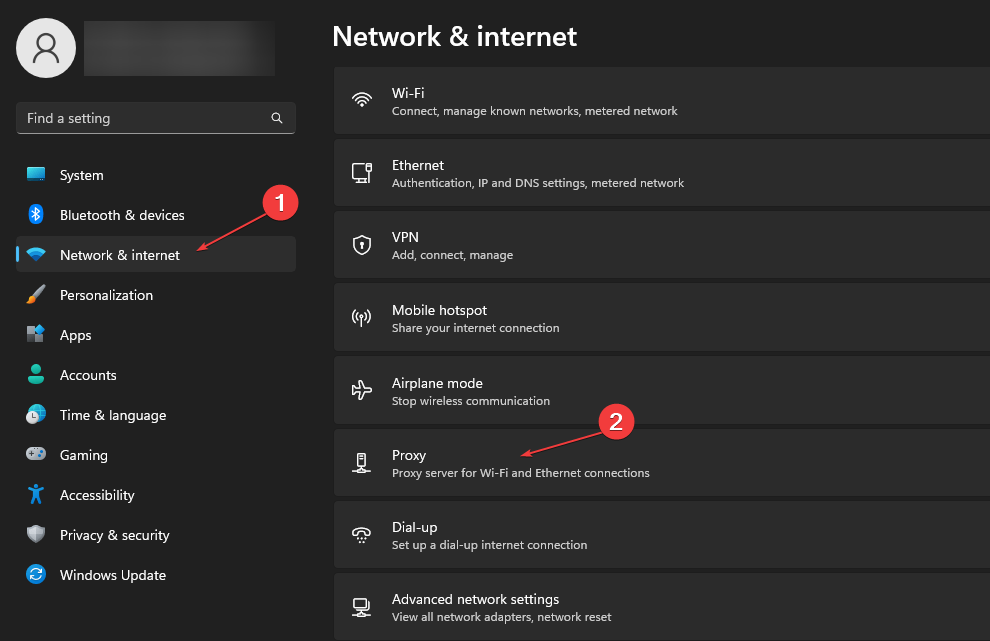
- Toggle off the Use a proxy server to disable it, then click the Save button.
Some PC issues are hard to tackle, especially when it comes to missing or corrupted system files and repositories of your Windows.
Be sure to use a dedicated tool, such as Fortect, which will scan and replace your broken files with their fresh versions from its repository.
Other third-party Proxy servers on your PC can cause the issue, so disabling them can fix it. Read how to fix the Proxy not turning off on Windows 11.
3. Allow Spotify through Windows Defender Firewall
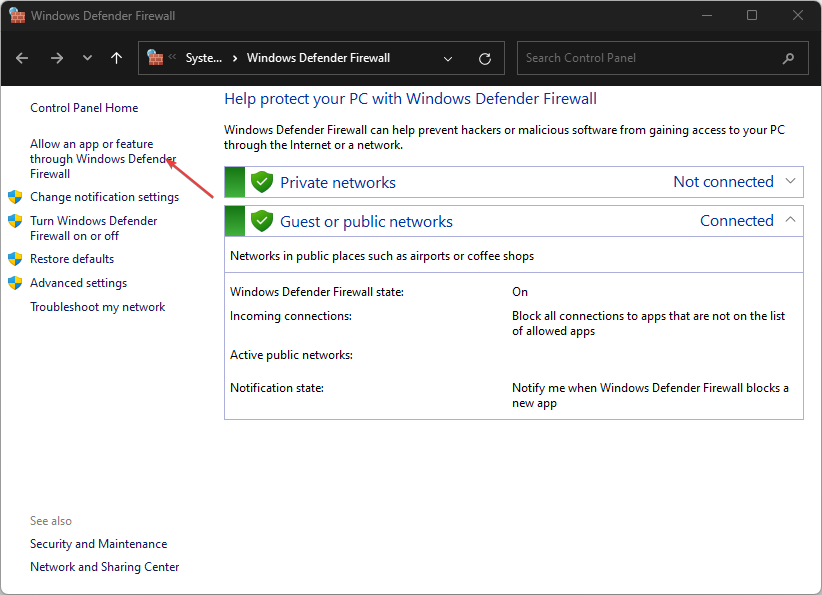
- Left-click the Start button, type firewall, and open Windows Defender Firewall.
- Go to Allow an app or feature through Windows Defender Firewall.
- Scroll down and select Spotify from the list of apps and check the boxes for both Private and Public.
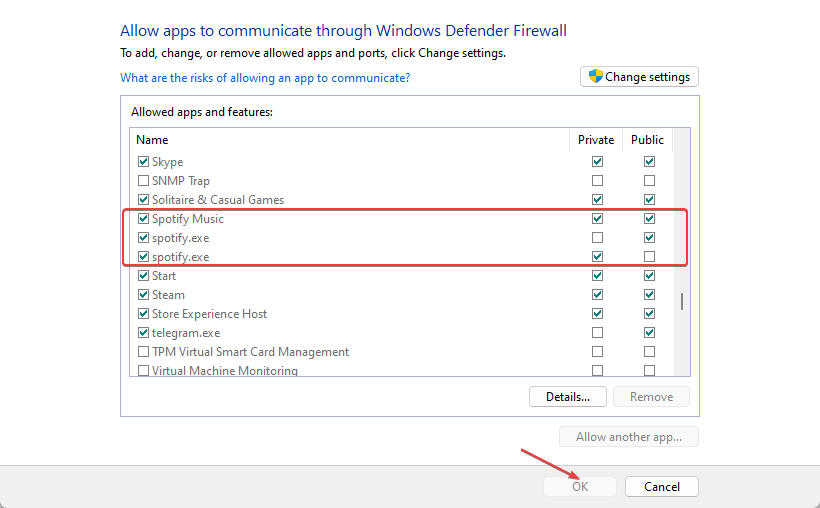
- Click OK to save the changes and restart your PC.
Allowing Spotify as an exception in Windows Firewall prevents the firewall from checking or delaying its processes. You can check how to fix Windows Firewall blocking other app features on your PC.
- Fix: FileType Selected Not Supported by This App
- 0x8007274d Mail Sync Error: How to Fix it
- What is WSHelper.exe & How to Fix its Errors
4. Change your Country
- Visit Spotify.com and log in to your account.
- Click on Profile and select Account from the drop-down.
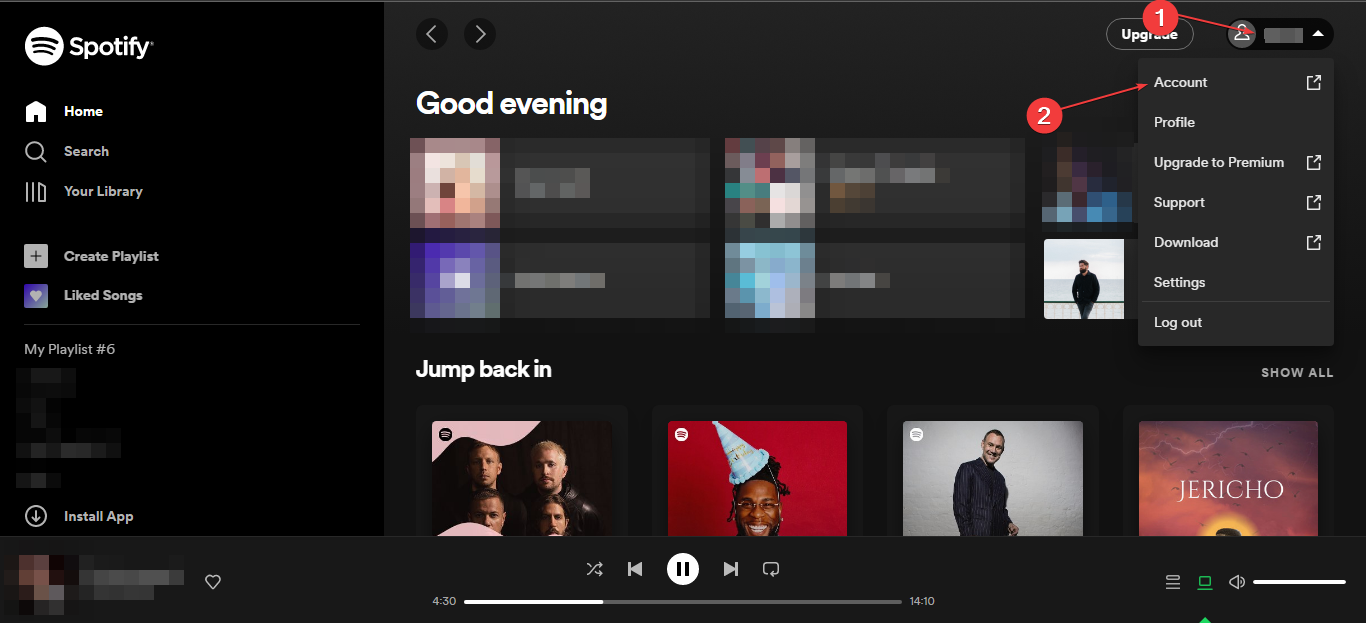
- On the left pane, click on Account overview, and tap the Edit Profile option.
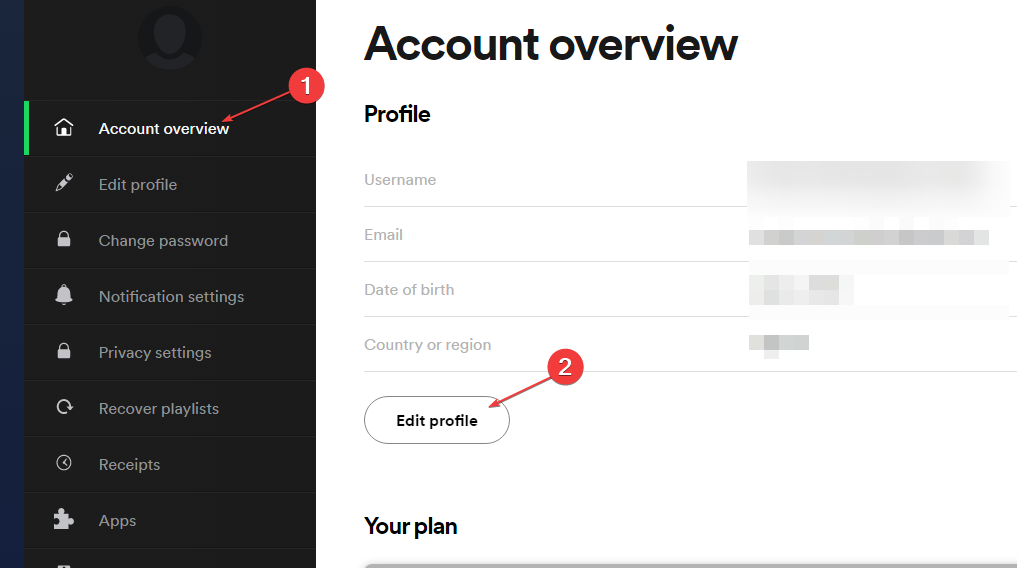
- Click Country or region, select your location from the drop-down and click on Save Profile.
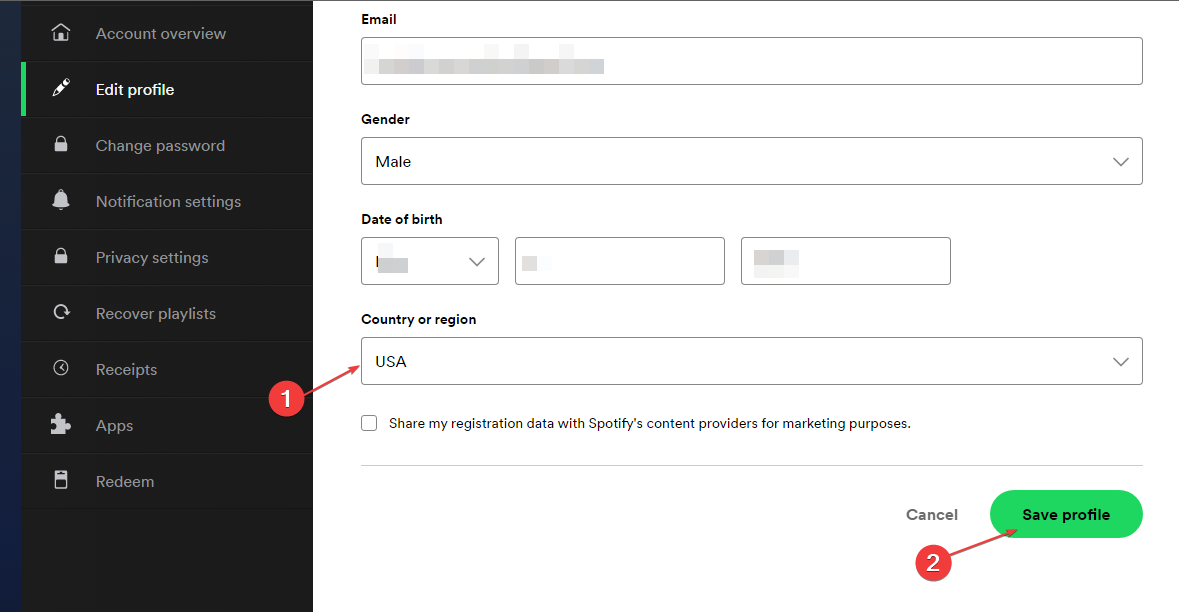
- Launch the Spotify app and check if the error appears.
Changing your country will fix any region or country settings causing problems with Spotify.
5. Disable third-party VPN
- Press Windows + I key to launch Settings.
- Select Network & Internet and click on VPN.
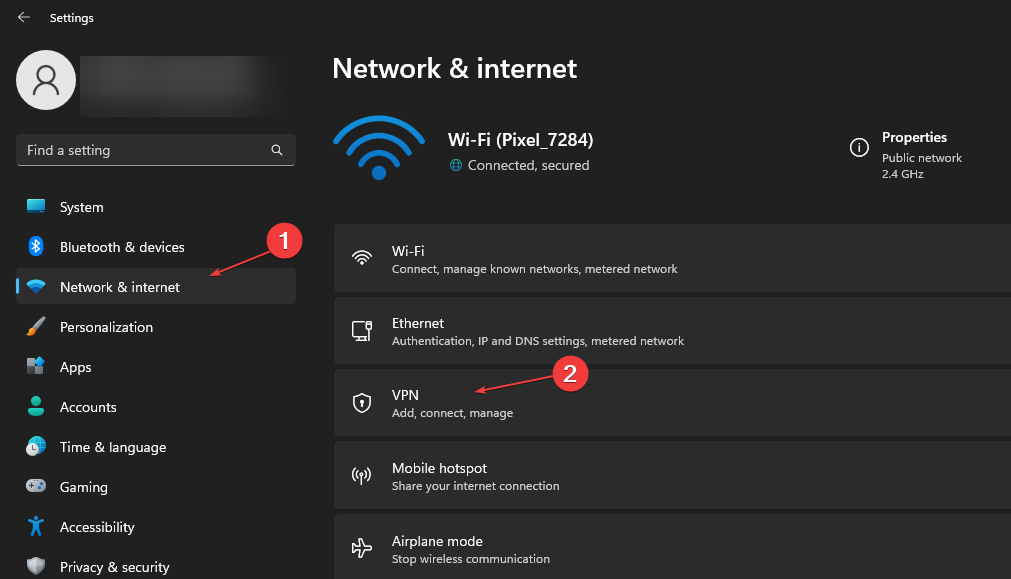
- Then click on Disconnect for other VPN services actively running.
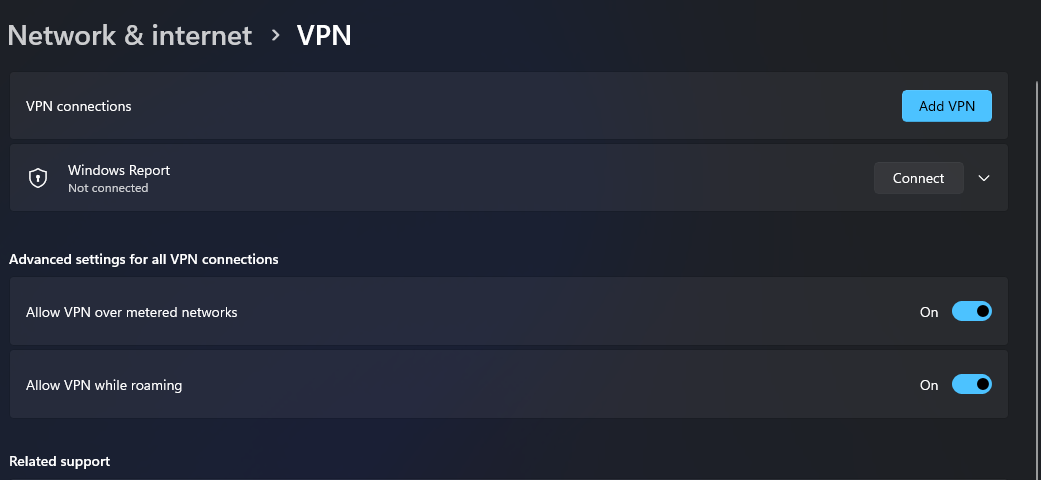
Disabling the Virtual Private Network (VPN) on your PC will fix any conflicts with the Spotify app.
You can also read our article on fixing VPN not working with Spotify for more information on resolving VPN issues.
6. Change your DNS Server Address
- Press Windows + R key to open the Run dialog box and type ncpa.cpl, then click OK to open the Network Connection page.
- Right-click your network adapter and select Properties from the drop-down.
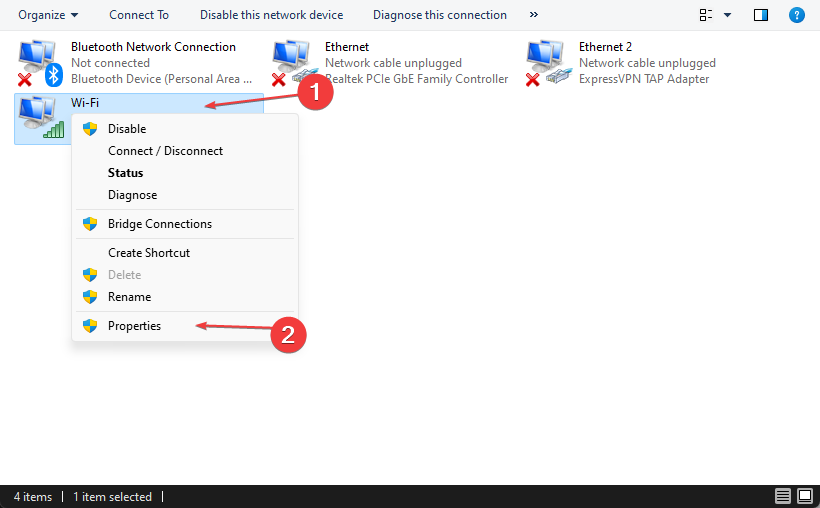
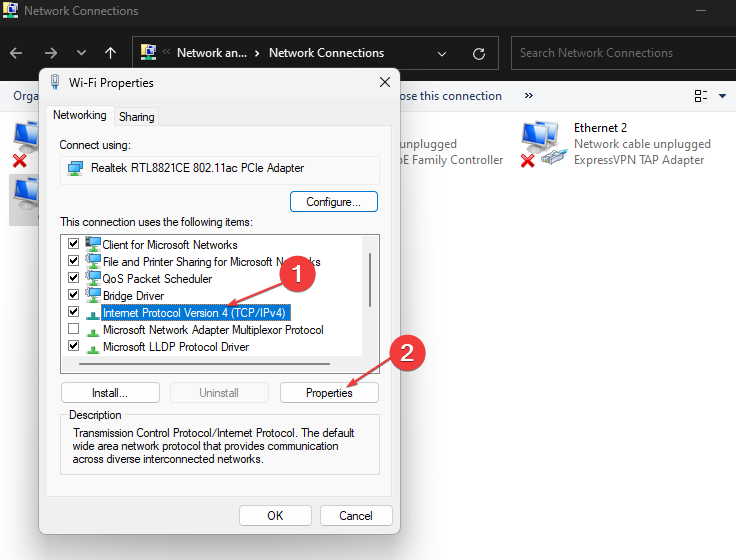
- Select Internet Protocol Version 4 (TCP/IPv4) and click Properties.
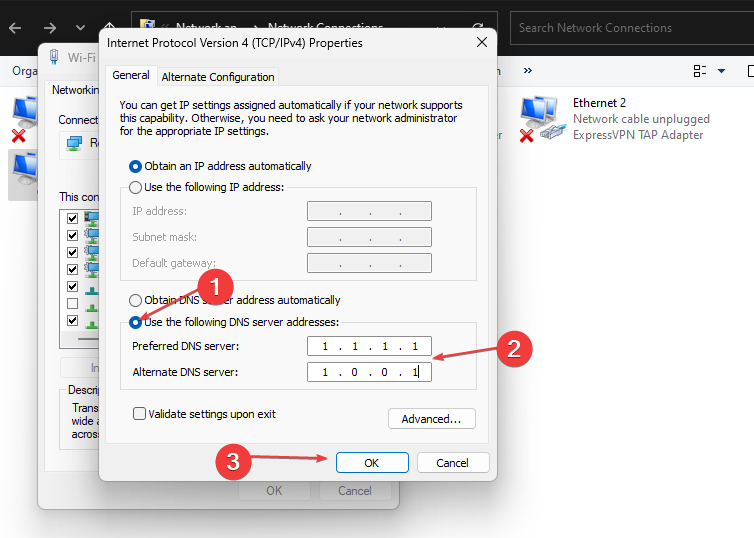
- Tick the box for the Use the following DNS server addresses option, type 1.1.1.1 in the Preferred DNS server and 1.0.0.1 for the Alternate DNS server, then click OK to save settings.
- Restart your PC, then check if the Spotify error persists.
Changing your DNS server address can help fix network issues and help Spotify connect to its servers. Read more about checking and changing the DNS server if you’re having trouble with the steps.
7. Reinstall the Spotify application
- Left-click the Start button, type the control panel, and press Open.
- Click on Programs and Features.
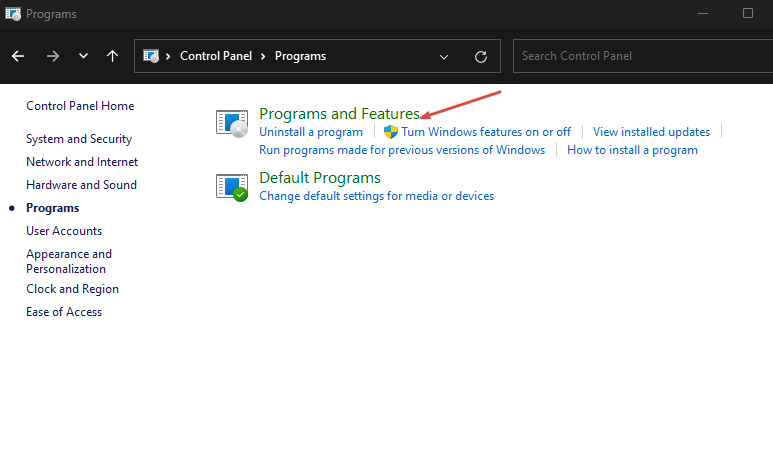
- Find Spotify and select Uninstall from the drop-down.
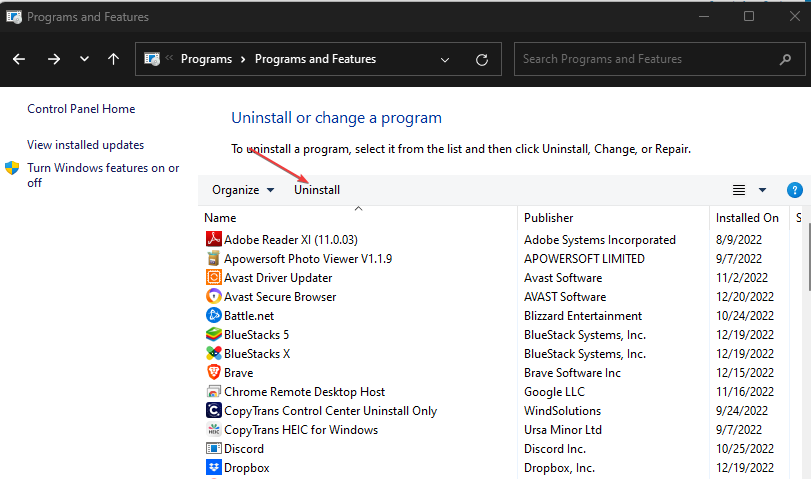
- Follow the onscreen prompts to complete the uninstallation.
- Download and install the latest version of Spotify on your PC and check if the error persists.
Installing a new copy of Spotify on your PC will repair corrupt installation files and install the latest version.
Check our guide on how to completely remove Spotify on Windows PC.
Conclusively, our readers can read our guide on listening to music together on Spotify on PC. Also, readers using the Spotify web app can check how to block ads on the Spotify web app on their browser.
If you have any questions or suggestions on this guide, kindly leave them in the comments section below.
Still experiencing issues?
SPONSORED
If the above suggestions have not solved your problem, your computer may experience more severe Windows troubles. We suggest choosing an all-in-one solution like Fortect to fix problems efficiently. After installation, just click the View&Fix button and then press Start Repair.
