
4 способа исправить внутреннюю ошибку сервера Minecraft (06.22.23)
 внутренняя ошибка сервера minecraft
Minecraft имеет огромное количество серверов, на которых игроки создают уникальные миры и используют особую игровую механику для всех игроков, которые посещают, используя адрес или ключ сервера. Эти серверы управляются либо создателем, либо частными лицами, либо официальными серверами Minecraft с большой дополнительной стоимостью.
Однако присоединение к серверу в Minecraft иногда может привести к возникновению ошибки с сообщением « Внутренняя ошибка сервера », что обычно означает, что проблема связана с вашим компьютером локально или с файлами конфигурации, которые не соответствуют серверам. И хотя это может показаться хлопотным, вы можете использовать следующие эффективные решения, чтобы быстро вернуться на свой любимый сервер.
Популярные уроки Minecraft
Перед тем, как начать вперед, обратите внимание, что вы должны войти в систему и запустить все программы в качестве администратора и иметь стабильное рабочее подключение к Интернету для всех подключений к серверам.
Способы исправить внутреннюю ошибку сервера Minecraft
1. Удаление папок UUID в Minecraft
Если ваша игра и раньше работала нормально, а «Внутренняя ошибка сервера» возникла недавно, вероятно, это как-то связано с вашим профилем пользователя для игры. Часто у некоторых игроков возникают проблемы с подключением к определенному серверу, в то время как другие легко входят в систему. Итак, выполните следующие действия, чтобы получить свой UUID и удалить его из файлов сервера:
2. Проверка модов
Модификации лежат в основе Minecraft, позволяя игрокам сделать свой игровой процесс более интересным и увлекательным, давая вам больше контроля над игровым миром. Однако такой большой доступ к игровой механике и элементам управления может привести к сбою некоторых модов в игре или на сервере. Обязательно дважды проверьте все установленные моды и их версии и попробуйте отключить их все в следующий раз, когда вы попытаетесь подключиться к серверу. Вы даже можете включить их по очереди, чтобы узнать, какой из них вызывает проблему.
3. Проверка плагинов
Плагины в основном разрабатываются сторонними поставщиками и могут быть загружены из любого места в Интернете, но наличие несовместимых плагинов в папке с игрой может вызвать проблемы. Убедитесь, что все добавленные вами плагины работают до последней версии и совместимы с вашей текущей версией игры.
4. Обновление / переустановка Minecraft
Известно, что все серверы имеют ограниченную совместимость с версиями игры, что означает, что время от времени более старая версия игры оказывается устаревшей, а игроки, пытающиеся войти в систему через эти версии, остановился в пути. Убедитесь, что ваше приложение Minecraft обновлено до последней сборки.
Кроме того, проблема могла быть в самих файлах игры, и одним из простых и невероятно справедливых решений было бы полностью удалить игру, а затем переустановить ее. Однако убедитесь, что у вас есть резервная копия данных вашего профиля пользователя вместе с последней версией сервера и его модулей

YouTube видео: 4 способа исправить внутреннюю ошибку сервера Minecraft
06, 2023
В Minecraft есть возможность создавать новые серверы. Эти серверы могут быть созданы одним человеком, к которому затем присоединятся другие игроки, поделившись адресом или ключом сервера. Кроме того, можно присоединить к серверам, которые являются официальными или управляются частными лицами.
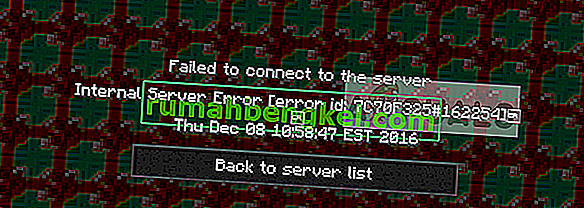
При подключении к серверу в Minecraft вы можете получить сообщение об ошибке «Внутренняя ошибка сервера». Обычно это означает, что локальная проблема связана с вашим компьютером, и есть либо некоторая неправильная конфигурация, либо несоответствие между модами и т. Д. Несмотря на то, что эта ошибка может показаться обременительной, решения в основном простые и эффективные.
Что вызывает «внутреннюю ошибку сервера» в Minecraft?
После проверки всех отчетов и отзывов пользователей мы пришли к выводу, что почти в 90% случаев ошибка связана с вашей установкой Minecraft или с вашей настройкой. Эта строка означает, что ваш Minecraft не смог выполнить рукопожатие с сервером из-за технических проблем. Вот некоторые из причин, по которым вы можете получить это сообщение об ошибке:
- Версия Minecraft: в прошлом мы видели, как Forge удаляет старые версии Minecraft как совместимые версии, способные подключаться к серверам. Если вы используете старую версию, скорее всего, вы столкнетесь с этой проблемой при подключении.
- Пакеты модов : в некоторых случаях моды в вашей установке Minecraft повреждены или несовместимы. Здесь вы должны сами решить, в чем может быть дело.
- Повреждение установки: ваша установка может быть повреждена или содержать неверные переменные. Установки Minecraft постоянно портятся, и беспокоиться не о чем. Несколько удалений здесь и там решат проблему.
- Временные файлы: каждая игра создает временные файлы для правильной работы и своих операций. Эти временные файлы могут быть повреждены или находиться в состоянии ошибки. Применяются те же средства правовой защиты, что и по последней причине.
- Плохой плагин: известно, что плохие плагины, похожие на моды, вызывают проблемы с Minecraft. Здесь мы можем попытаться диагностировать, какой из них вызывает проблему, и при необходимости удалить / обновить его.
Прежде чем мы перейдем к решениям, убедитесь, что вы вошли в систему как администратор на своем компьютере. Кроме того, мы предполагаем, что у вас есть открытое и активное подключение к Интернету и нет проблем с подключением к серверам с точки зрения сети.
Решение 1. Удаление папок UUID в Minecraft
Если вы внезапно столкнулись с внутренней ошибкой сервера и раньше Minecraft работал нормально, это, вероятно, означает, что в вашем профиле пользователя возникла проблема. Мы также наблюдали некоторые случаи, когда конкретный пользователь не мог войти на сервер, тогда как другие игроки могли это сделать так же легко. В этом решении мы получим ваш UUID с внешнего веб-сайта, а затем удалим все папки, содержащие эти идентификаторы, на вашем компьютере / сервере. Мы удаляем временные данные, поэтому беспокоиться не о чем.
- Перейдите на (этот) веб-сайт и получите свой UUID после ввода всех данных.
- Теперь войдите на сервер, перейдите к файлам вашего сервера и перейдите в мир .
- Выберите игроков и удалите имя пользователя и UUID того, кто получает сообщение об ошибке.
- Теперь перезагрузите локальный компьютер и попробуйте снова подключиться к серверу и проверьте, решена ли проблема.
Решение 2. Проверка установленных модов
Моды — это основа игрового процесса Minecraft. Они делают игровой процесс более интересным и интерактивным, а также дают пользователю больший контроль над внешним видом своей игры, а также интересные функции. Однако предоставление такого большого контроля над модами обычно имеет свои недостатки, и известно, что моды время от времени вылетают из игры.
Следовательно, вам следует дважды проверить все моды, установленные на вашем компьютере, и проверить их версии. Если у какого-либо из них есть несоответствие, рассмотрите возможность отключения мода и попробуйте запустить игру. Вы можете легко проверить совместимость версий мода на официальном сайте разработчика.
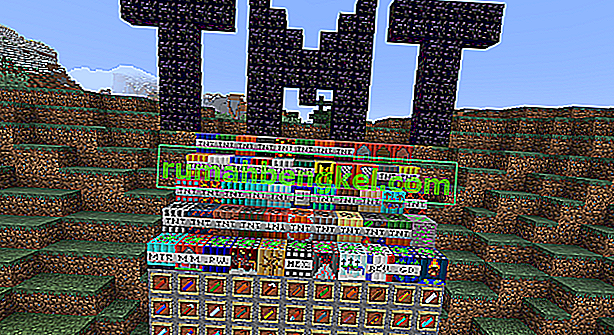
Простой метод устранения неполадок — отключить все моды, а затем включить их один за другим, чтобы узнать, какой из них вызывает проблемы.
Примечание: вы также можете попробовать повторно загрузить все пакеты модов, чтобы увидеть, в чем заключается ошибка. Это предлагает быстрое решение, если какой-либо мод не испытывает проблем с совместимостью независимо от версии.
Решение 3. Проверка установленных плагинов
Серверы Vanilla Minecraft очень популярны, потому что они дают возможность игроку устанавливать плагины в свою игру Minecraft, чтобы немного изменить игровой процесс и ввести больше интересных функций. Плагины в основном разрабатываются сторонними поставщиками и могут быть загружены практически из любого места в Интернете.
Плагины устанавливаются просто перетащив и сбросив файлы плагина в ваш сервер плагин папку. После этого потребуется перезагрузка. Обычно проблемы возникают, когда вы установили множество плагинов или несовместимые. Вы можете легко проверить, какую версию плагина вы используете, набрав «/ версия» в окне плагина. Убедитесь, что все плагины совместимы и работают до последней версии.
Чтобы устранить неполадки, вы можете легко отключить каждый плагин один за другим или посетить форумы, такие как Reddit, чтобы увидеть похожие случаи ошибки из-за плагина.
Решение 4. Обновление / переустановка Minecraft
Известно, что серверы имеют ограниченную совместимость с версиями Minecraft. Время от времени более старая версия Minecraft оказывается несовместимой, и все пользователи, пытающиеся подключиться к серверу, отклоняются. Следовательно, вы должны убедиться, что ваша установка Minecraft обновлена до последней сборки.
Кроме того, если у вас возникла проблема с вашими установочными файлами, это решение может помочь вам и устранить сообщение об ошибке. Полная переустановка решает проблему мгновенно, учитывая, что вы создали резервную копию данных профиля пользователя и модов.
- Нажмите Windows + R, введите « appwiz. cpl »в диалоговом окне и нажмите Enter.
- В диспетчере приложений найдите Minecraft , щелкните его правой кнопкой мыши и выберите Удалить .
Вы также можете удалить игру, запустив деинсталлятор из каталога папки. Убедитесь, что вы также удалили все файлы модов и временные файлы настроек.
- Теперь перейдите на официальный сайт Minecraft, введите учетные данные и снова загрузите игру.
Примечание. Этот метод предназначен для вашей локальной копии Minecraft. Вы также должны убедиться, что у вас установлена последняя версия сервера и всех модулей. Это было очень распространенной проблемой.
-
В этой статье, будет объеснено и описано большинство ошибок, которые может выдавать Minecraft во время запуска и подключения к серверам. Также будут приведены возможные варианты решения.
Ошибки связанные с вылетом Minecraft:
Bad Video Card Drivers – означает, что для вашей видеокарты не установлены, либо установлены слишком старые драйвера. Перейдите на сайт производителя и установите свежие драйвера.
Out of Memory — обычно Minecraft вылетает с этой ошибкой при нехватке оперативной памяти. Причиной может быть маленькое количество оперативной памяти, а также большое количество запущенных программ. Закройте все лишние программы. Если с памятью все ок, то ошибка возникает из за того что Java машине выделено мало памяти.
1. Идем в панель управления, находим значок Java.![[IMG]](http://www.nicegoing.ru/zm1012/img_jcku4zonvndaa2h_34927.png)
2. Переходим на вкладку Java![[IMG]](http://www.nicegoing.ru/zm1012/img_uzkyx8krvw15yh7vkm_34928.png)
3. Затем нажимаем кнопку View. Дважды кликаем на поле Runtime Parameters
![[IMG]](http://www.nicegoing.ru/zm1012/img_nq4k7bf6v1xdu3o9dwg_34929.png)
4. Вводим туда -Xms256m -Xmx2048m
Короткий FAQ:
-Xms – устанавливает начальное количество выделеной ОЗУ.
-Xmx – устанавливает максимальное количество выделеной ОЗУ. Выставлять Xmx стоит равным 3/4 от размера всей своей оперативки.
Пример: если у вас 1Гб оперативки, выставляем -Xmx768M
5. Применяем все изменения.Could not create the Java Virtual Machine — невозможно создать среду исполнения Java. Попробуйте обновить/переустановить Java.
Черный экран при запуске — вероятно, вы модифицировали minecraft.jar (установили мод, например), после чего он не прошел проверку на подлинность. Лечится обычно удалением папки META-INF из minecraft.jar
Ошибки связанные с серверами:
Bad Login, User not Premium – означает, что для входа на данный сервер требуется лицензия Minecraft. Если это ваш сервер, то отредактируйте файл server.properties, измените в нем значение online-mode=true на online-mode=false
The server responded with an invalid server key — проблема появилась в последних версиях Minecraft. Ошибку допустили разработчики игры.
Connection reset — означает, что сервер отключил ваше соединение. Обычно связано с недоступностью сервера, либо с проблемами в соединении.
Connection refused — сервер отклонил соединение. Означает, что по данному адресу нет запущенного сервера, либо имеются проблемы в соединении.
Read time out — вышло время ожидания ответа. Сервер и ваш клиент Minecraft общаются при помощи пакетов. Когда сервер либо клиент перестают отвечать на запросы (например у вас игра подвисла), выжидается какое то время (таймаут), после чего соединение обрубается. Сделано это для того, чтобы незаконченные висящие соединения закрывались и не создавали нагрузку.
Logged in from another location — кто-то уже зашел на сервер под вашим ником.
Internal Server Error — внутренняя ошибка сервера. Означает, что на сервере произошла какая-либо ошибка в выполняемом коде. Чаще появляется на самописных или модифицированных серверах.
Outdated Client – версия вашего клиента ниже, чем версия на сервере. К примеру вы заходите с Minecraft Beta 1.8 на сервер 1.0.0 .Обновите клиент до нужной версии.
Outdated Server — версия игры на сервере ниже чем на вашем клиенте. Пример: вы заходите на сервер 1.8.1 с Minecraft 1.0.0 .Откатите клиент до актуальной для сервера версии.
Майнкравт незапускаицо! – извините, я ничем не могу вам помочь
![[IMG]](http://www.nicegoing.ru/zm1013/img_izrka9u7ykk54wju5_37707.jpg)
-

123f
Активный участник
Пользователь- Баллы:
- 88
- Skype:
- ragnazarich
- Имя в Minecraft:
- HA4AJibHuK
блиин….
Майнкравт незапускаицо!
И ты знаешь изза кого
И да, дежурное: Лайкать через тв не честно! -

-

FioklSSS
Активный участник- Баллы:
- 88
- Имя в Minecraft:
- Mobbed
-

Vandezio
Активный участник
Пользователь- Баллы:
- 68
- Имя в Minecraft:
- Vandezio
Как мне исправить споут ? Я захожу на баккит версии 1.2.5 . Зашёл вроде всё нормально. Разбил блок — Disconnect from server. В консоли сервера куча ошибок. Такое началось , когда сделали нов версию споута. Как исправить?
-
FioklSSS
Активный участник- Баллы:
- 88
- Имя в Minecraft:
- Mobbed
-
Read time out, проблемка, играю 20 минут, и обрываться сервер
-
Ему ответил и тебе отвечу так же
![[IMG]](http://ssmaker.ru/b02c061f.png)
-
Доказательства? :fp:
Буду я ещё школоте что то доказывать :bm: -
:fp:, этих сайтов с этой с инфой, знаешь сколько? Короче разговор закрыт.
-
123f
Активный участник
Пользователь- Баллы:
- 88
- Skype:
- ragnazarich
- Имя в Minecraft:
- HA4AJibHuK
Read Time Out — Таймаут чтения
Из этого логично предположить что с сервера перестала приходить информация
Обычно вылазиет при больших а главное долгих лагах
Спросите друзей были-ли лаги у них в момент ошибки и были-ли вы на сервере в это времяНе претендую на звание эксперта, но во многом я разбираюсь
-
Я 1 был там и каждые 20 мин вылетает
-
Должно же быть определенное решение проблемы:why:
-

krlmisha
Старожил
Пользователь- Баллы:
- 153
- Skype:
- krlmisha2010
-
Как же они надоели копипастить мой пост! :bm::fp:
-
krlmisha
Старожил
Пользователь- Баллы:
- 153
- Skype:
- krlmisha2010
Поделиться этой страницей

Minecraft is one of the most famous online multiplayer games it contains a huge player base of gamers that absolutely adore its gameplay. However, in this article, we will be addressing the internal server error on Minecraft that some users have been getting while attempting to connect to a server or sometimes even during gameplay.
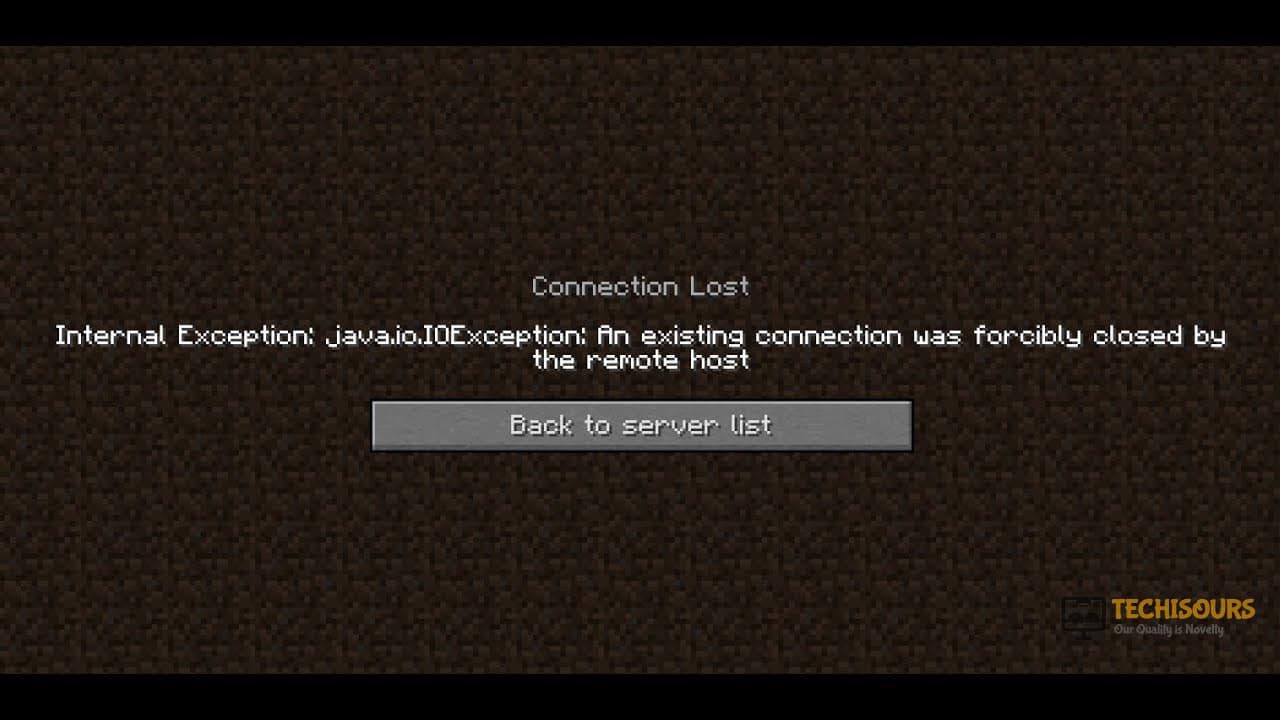
What Causes the Internal Server Error on Minecraft?
After going through some basic troubleshooting guides, we concluded that the following are some of the most prominent reasons behind the occurrence of this issue.
- Log Files: In some cases, the log files that store the login data for a server might’ve been corrupted due to which it might not have properly registered the persons’ login on the server due to which the internal server error is being triggered on Minecraft.
- Mods: In some situations, the mods installed on your game might actually be interfering and preventing some important game files from running properly due to which the internal server error is being triggered. It is best to just check which mods are faulty and are hindering your game from working properly by following the methods below.
- Faulty Plugins: It is also possible that you have installed some plugins on your computer that are faulty and due to that, you are facing issues while logging in to the Minecraft server. Therefore, try removing any faulty plugins to fix the Internal Server Error on Minecraft.
- Background applications: In some rare occasions, background applications can also prevent Minecraft from being able to properly register with the game servers due to which this issue might be triggered. Therefore, it is also wise to diagnose for any rogue background applications.
Now that you are familiar with most of the reasons behind this particular issue, we will be moving on towards implementing the fixes.
Before you start:
- Take the power adapter of your router out of the socket and wait for it to shut down completely.

Plugging out the adapter - After waiting for a couple of minutes, power cycle the router by inserting its power adapters into the socket and wait till it acquires full signals.
- Sometimes, this error might occur if the Minecraft servers are under maintenance, If this is the case, then the solution is beyond your control. You can check the server status by visiting the Minecraft server website.
Solution 1: Delete the UUID folder
- Open up the server’s log and note down the “UUID” of the person who encountered the error. This UUID will most probably be written in the first line.
- Now log in to your server and navigate to the “Server Files”.
- Now proceed to the “World” and choose “Players”.
- Here, delete the person’s user name and UUID who has encountered the Internal Server Error.
- Now restart your PC and connect to the server to check if you come across minecraft internal server error again.
Note: If you don’t want to permanently delete the player who encountered the error, just put them in “Jail” and after they join the server, simply “Unjail” them.
Solution 2: Delete installed Mods
Method 1:
This error might trigger due to some incompatible mods installed on your computer. If you have several different mods installed on your PC, then it is a hectic task to locate the faulty mod and delete it to resolve the issue. So, the most efficient approach is to disable all the mods and enable them one by one to check which one is the backbone of the error. A method to disable the mods in Minecraft is indexed below:
- Login to the Minecraft’s “Control Panel” and stop your server.
- From the “File” menu, select “FTP File Access” and enter your FTP password.

Choose FTP FIle Access - From the “Server folder” list, click on the “Mods” folder.

Choosing Mods - Now select the mod you want to disable and click on the “Rename” button at the top of the page.
- Now add “.disable” at the end of the mod name. (For Example: change “Baubles.jar” to “Baubles.jar.disable”).

Renaming mods - Now “Apply” the changes and exit your FTP connection.
- Restart your server and check whether the minecraft internal server error pops up again.
Solution 3: Delete installed Plugins
- Press “Win + R” on the keyboard to open the Run box and search for “%appdata%”.

Typing in %appdata% - Now open the “Minecraft” folder and then double-click on the “Plugins” folder to open it.
- Select all the files in the “Plugin” folder and hit the “Delete” key on the keyboard to delete all the installed plugins.
- After deleting the plugins, login to your Minecraft account and check if you encounter the internal server error minecraft again while connecting to a server.
Solution 4: Close background applications
- Press the “Ctrl + Shift + Esc” keys simultaneously on the keyboard to open the “Task Manager”.
- Navigate to the “Processes” tab, select all the unwanted processes that might be bandwidth-intensive, one by one, and click on the “End Task” button.

Ending background applications - When the unwanted applications are closed, launch Minecraft on your PC and proceed to connect to a server to check if you encounter this error again.
Solution 5: Edit game’s JSON file
- Navigate to the “stats” folder in the game’s server and double-click on the JSON file to open it.
- Now scroll down in the file and delete the “stat.killEntity.EntityHorse : 3” entry.
- Save the file and launch Minecraft again to check if the internal server error is rectified.
Solution 6: Update Minecraft
- Press “Windows key + R” on the keyboard to open the run box and search for “%appdata%”.
Typing in %appdata% - Now locate and double-click on the “.minecraft” folder.
- Navigate to the “.version” folder, press “Ctrl + A” from the keyboard, and hit the “Delete” key.
- When the deletion process is complete, launch Minecraft to automatically detect the changes and update itself.
Solution 7: Reinstall Minecraft
- Press “Windows key + R” from the keyboard to open the run box and search for “appwiz.cpl”.

Typing “appwiz.cpl” - Now locate Minecraft from the list of Softwares installed on your computer, right-click on it and select “Uninstall”.
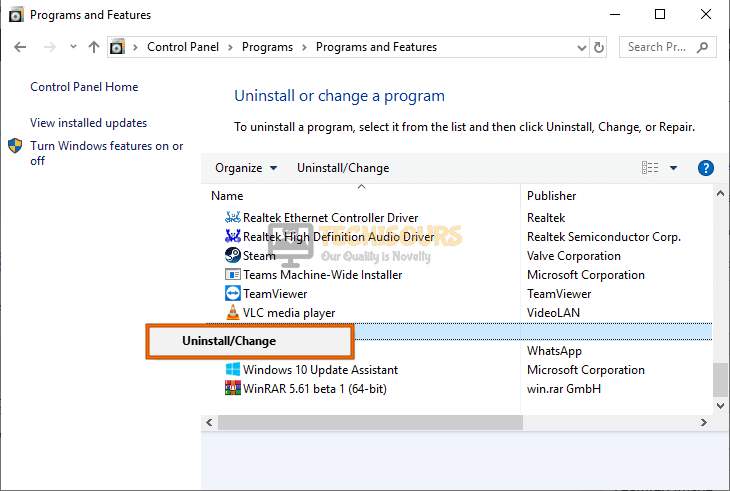
Uninstalling Minecraft - Now launch a browser and download Minecraft from its official website.
- Double-click on the downloaded executable file and follow the on-screen instructions to install the game on your PC.
- When the game has been installed successfully, launch it and try to connect to a server and most probably the internal server error minecraft issue would’ve been resolved uptil now.
Workaround:
- Press “Ctrl + Shift + Esc” keys on the keyboard to open the task manager and navigate to the “Process” tab.
- Here, locate a process related to “JAVA”. If you find that process, right-click on it and set its priority to “High”.
- Now press “Windows key + R” on the keyboard to open the run box and search for “%appdata%”.
Typing in %appdata% - Navigate to the “.minecraft” folder and open the “TooManyItems” file with notepad.
- In this file, make sure that the “Enable” entry is set to “True”.
- Launch Minecraft again and check if the error has been fixed.
If you are still unable to fix this issue, you can contact us for any further assistance.

Alan is a hardcore tech enthusiast that lives and breathes tech. When he is not indulged in playing the latest video games, he helps users with technical problems that they might run into. Alan is a Computer Science Graduate with a Masters in Data Science.
Back to top button
Minecraft Realms is the latest addition to the evolving franchise from Mojang Studios. It is essentially an expansion to the Original Minecraft but based on a subscription service. It allows players to create and manage their custom private Minecraft servers.
There are tons of pre-made worlds to choose from, adventure to experience maps. The creators of these maps always amaze the community with their awe-inspiring creations. The only major drawback might be how to properly find a fix to the Internal server error in Minecraft Realms.
Key Highlights
- The Internal Server Error appears when there’s a connection problem with the online server or realm.
- The servers being unstable, your network connection, or unnecessary plugins & mods are usually the cause of Internal Server Error.
- Check if the servers are down or undergoing scheduled maintenance.
- Try disabling Steam and Discord overlays, as they sometimes cause game issues.
- Occasionally, you may have some mods or plugins that are incompatible with the server or need to be better optimized, causing the error.
- The game creates UUID files for every player. You should carefully see if removing these files resolves the issue if they no longer play the game.
- Giving Minecraft Realms full access to your networks through Windows Firewall can also solve the error.
- Sometimes your ISP may block the servers’ traffic, causing the error. Try using a VPN to bypass the blockage and create a secure route to the servers.
- If nothing works, we suggest you upgrade your connection, so it’s more stable and has enough bandwidth to transmit data to the servers properly.
- If you’re not using an ethernet cable already, we’d recommend investing in one for an optimal connection.
What is the Internal Server Error in Minecraft Realms?
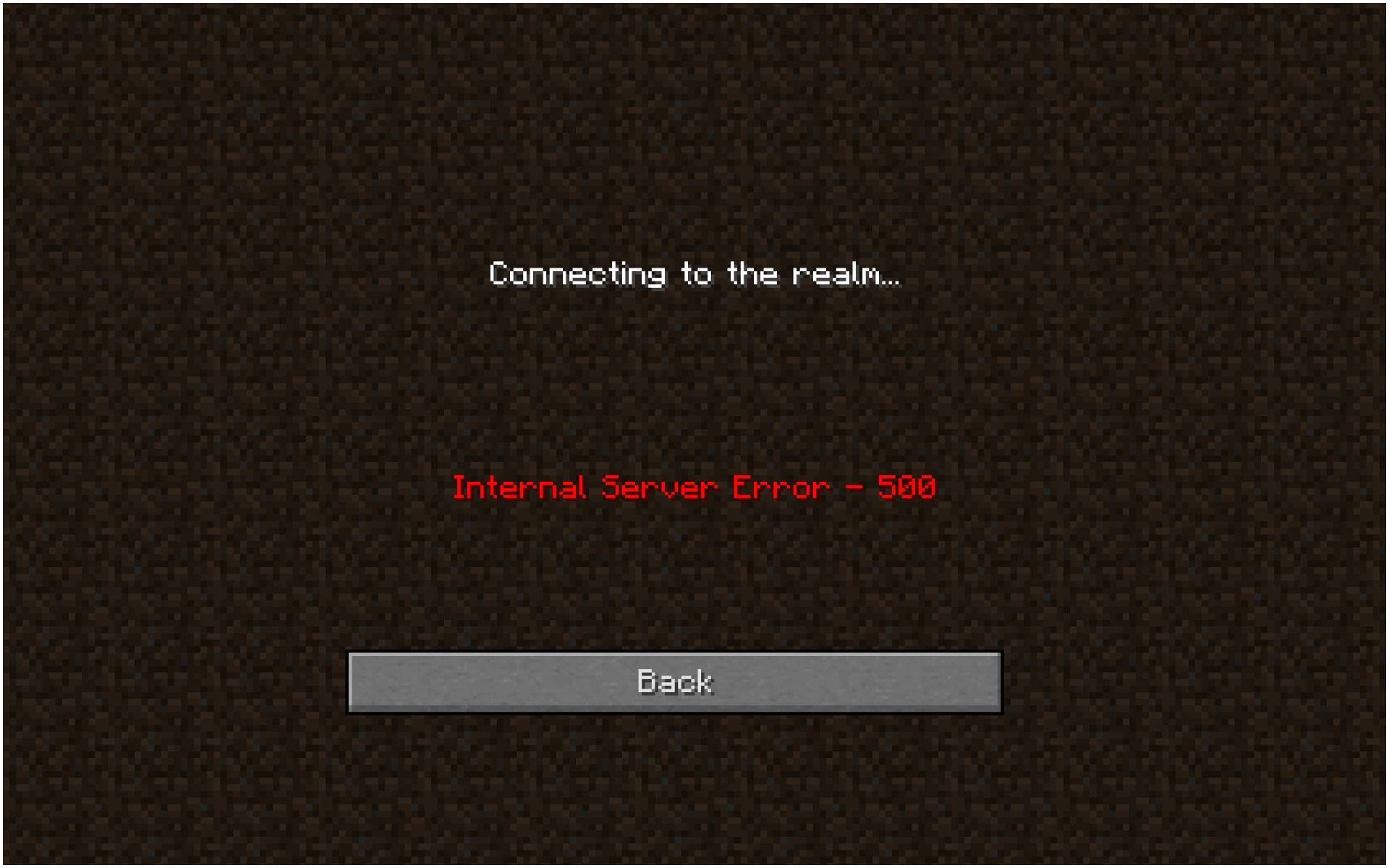
Although the servers of Minecraft realms tend to be smooth and steady for most players of the game. One of the most common problems you might face is the Internal server error. The game requires a constant network connection to be able to maintain its infrastructure and update server data.
It is a connection problem that disrupts your attempts at joining an online server or realm. In extreme cases, this issue can be unresolvable unless you can pinpoint the exact ways to solve it. Most players tend to brush these errors off at first glance as one of the player-created realms being insecure.
In most multiplayer games, network instability or various bugs and glitches are the probable causes for these kinds of errors. The errors can arise from the lackluster aspects of the game or simply due to unstable servers.
Most of the time that can be true, but if the error persists, then the reasons may just be from your side. As we mentioned before, the issue is more common than you would think.
So there are a variety of ways where players can easily learn how to fix and handle the internal server error in Minecraft Realms. Also, consider reading the Best Minecraft Launchers guide.
Common Reasons for the Internal Server Error
Before we discuss the eight different fixes for the server error, it’s important to know the reasons behind the server error. You will experience various issues with the realms not operating on their correct basis in the game. Over the years spent on the game, various solutions to the error have been discovered.
Minecraft can produce a few errors here and there in some ways. Besides that, the Minecraft community has pinpointed the exact causes of the Internal Server Error codes, which are straightforward enough:
- Realms Server Instability: There is a sprawling network of different and unique realms to be found throughout the list of creations in the game. The servers play a major role in stable connections for the game. Knowing the server status and how much vital they are are the first reasons behind the internal server error.
- Network Connection: There are 140+ million players across the world of Minecraft and its Realms. Among these will also be users that won’t have the suitable bandwidth allocation for the game. The internet speeds will be one of the few reasons you may encounter an internal server error during the realm joining attempts.
- Unnecessary Plugins & Mods: The world of Minecraft can be modified to your liking and preferences with various game plugin assets & mods to create something extraordinary. But overdoing them might cost you a little extra as far as prompting with the internal server error, breaking your connection to Minecraft Realms.
More from Exputer: How to get Mending in Minecraft
How to Fix Internal Server Error in Minecraft Realms
We have gone ahead and researched heavily into matters regarding the error in the game. Although the error is fairly common to occur for players throughout the game. It also carries different potential solutions to it, which are pretty easy to understand and do all by yourself.
The Official Minecraft Realms Forums were kind enough to provide helpful information alongside the multiple friendly communities of the game over on Discord and Reddit.
We urge you to follow all of these methods as each one can clear the issue for you in the game. You will run into more errors like the Internal server error, so you should also be able to learn how to fix other errors in Minecraft Realms. So let’s briefly discuss the eight methods to solve the following error in the game.
Checking the Server Status of the Game
First and foremost, players must be aware of ongoing issues that may occur on the servers of Minecraft Realms. They are a significant part of the game for the entire population of players. They are the bridge between the various realms of the game to access and enter with ease.
The game’s servers may undergo maintenance or downtime depending on whether the game is facing some sort of major issues or requires fine-tuning by the developers. Most of the time, you will be notified of the servers going under these procedures for a short time.
You can also simply follow the Offical Status Page of Mojang on Twitter as they update any sort of issues or ongoing server maintenance on the game via the dedicated game status account.
Update the Game to the Latest Version
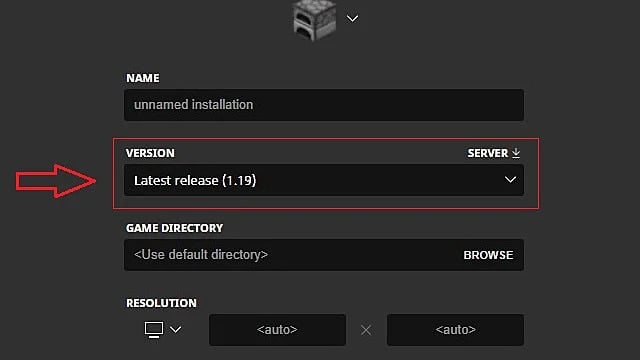
The developers at Mojang, as well as the popular community of the game, constantly strive to provide every bit of attention and update to the game. These updates improve the overall ecosystem of the game.
Installing the latest version of Minecraft Realms is one of the few best ways to reduce the chances of any sort of error occurring, even the Internal server error. You can install these patches or the latest versions with ease.
In this era of online gaming, keeping your games up-to-date is pretty much consequential.
You can easily update to the latest version of the game via the main menu of the Minecraft Realms Launcher since the “Realms” are essentially just the multiplayer expansions on top of the base game.
You will only need to patch the base game, and after doing so, it will automatically update your Realms servers to the latest version.
The easiest way to play the latest version is by clicking the small arrow on the right side of the play button at the main menu of the launcher. It will then install or load the newest version for you to play.
Disabling Background Applications & Overlays
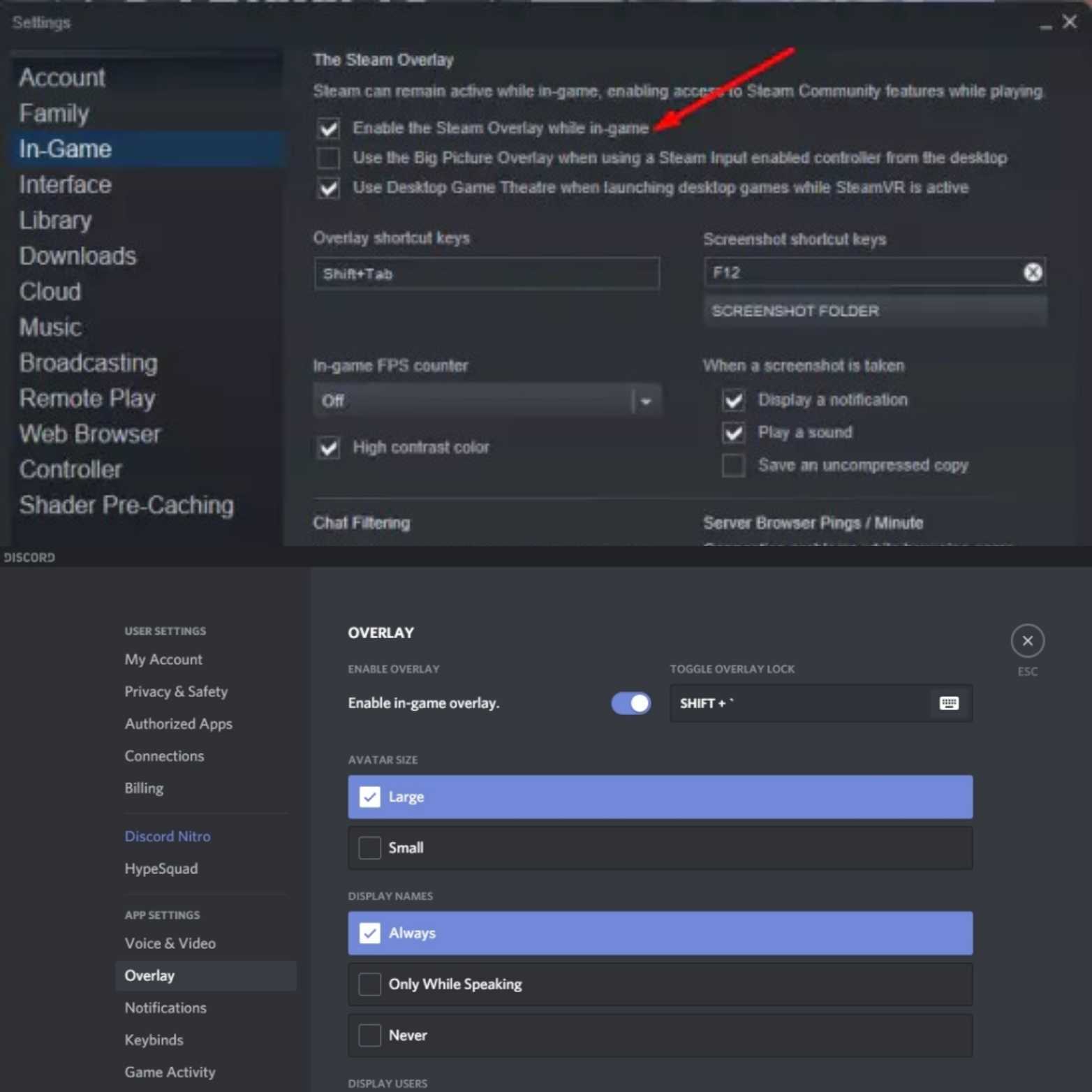
While it may seem odd, applications running in the background can cause some minor interferences while you are in the Realms of Minecraft. These can either be the apps or even the overlays which auto-toggled by default.
These things can add a toll on your total RAM usage, which is a vital PC component so that your operating system can function smoothly. It is highly suggested that you immediately remove or toggle these apps off. Software like these will randomly generate huge RAM usage spikes on your system.
By all means, Minecraft Realms is not a powerhouse of a game to run on your PC. However, overlays such as Steam and Discord tend to create interruptions like an internal server error in Minecraft Realms.
We even suggest permanently turning off useless background apps such as Windows Game Bar and OBS.
Removing Incompatible Mods & Plugins
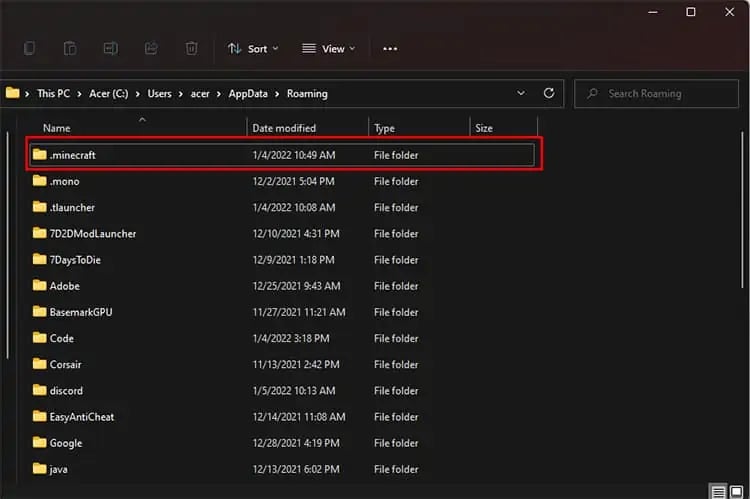
It is a well-known fact that modding the games can truly revitalize your experience in them. These are features solely developed by the fanbase of each game with intense appreciation and special properties.
The plugins, on the other hand, can enhance the quality of life aspects of games and improve their engine qualities too.
However, it is worth pointing out that on rare occasions, these mods and plugins can mess your game up. They are specifically the mods or plugins which are not mechanically optimized to run with the game.
Your main course of action should precisely check which mods are causing the issue. You can then safely uninstall them by going into the main options menu and then Resource Packs.
Here the packs will contain all the various mod packs or plugins you have downloaded, which can be instantly uninstalled.
Alternatively, you can try the following manual method by accessing the main game files:
- Locate and open the main Minecraft folder directory by typing %appdata% in the Windows Command Box.
- Open the folder titled “.minecraft”.
- Find the “resource packs” folder and delete the packs you think are useless or causing problems.
- Of course, If you have shaders for the game installed, you can remove them from the “shader packs” folder.
- Check back into Minecraft Realms if the internal server error has been resolved.
Deleting the “UUID” Files in Minecraft Folder
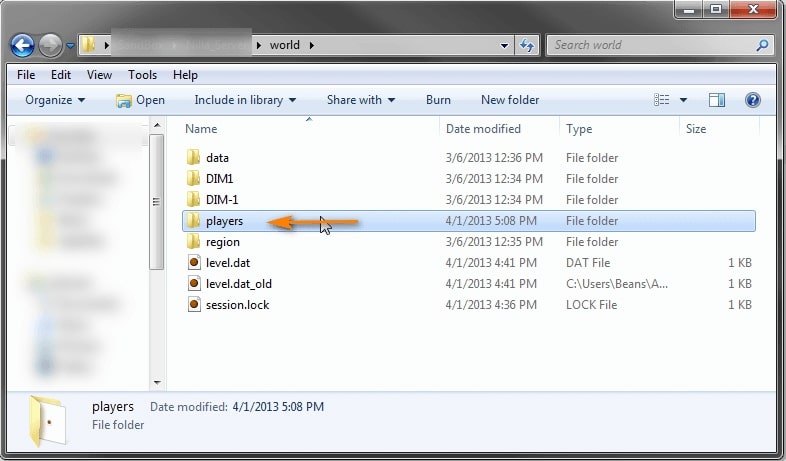
The UUID is described as a Universally Unique Identifier. These files are essentially a set of codes that are individually assigned to players in your realm. They work similarly to online Gamertags for players.
Preferably, you should delete the UUID data of players who don’t play anymore from your save folders. It will ensure no remaining cache data gets left behind. If it does, it will cause errors like the internal server error.
Although we must warn you to carefully delete the files as they also contain your save data of the different worlds you might have created in the game. You can delete the files with the step-by-step guide:
- Locate the main directory of the Minecraft game and head into the “.minecraft” folder.
- Click on the saves folder and then the world folder to locate its overall data.
- Now click on the Players folder to locate the UUID data.
- You should delete them if there are there.
- Head back into the game and the realm servers and in the world setting.
- If you spot any UUID or usernames of the player, you can erase them from here too.
- Now run the game as normal and check if the internal server error still exists in Minecraft Realms.
Enabling Firewall Network Permission to the Game
You can also try bypassing the game to gain access to the Windows Defender Firewall. It allows Minecraft Realms full access to your networks so let’s see how you can fix the internal server error through it:
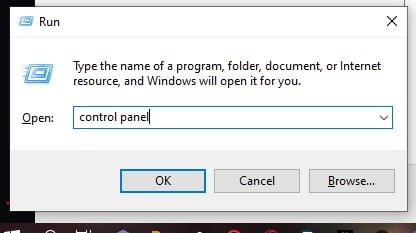
- First of all, open up the Windows Command function by typing the Windows+R key.
- Search for the Control Panel in the box
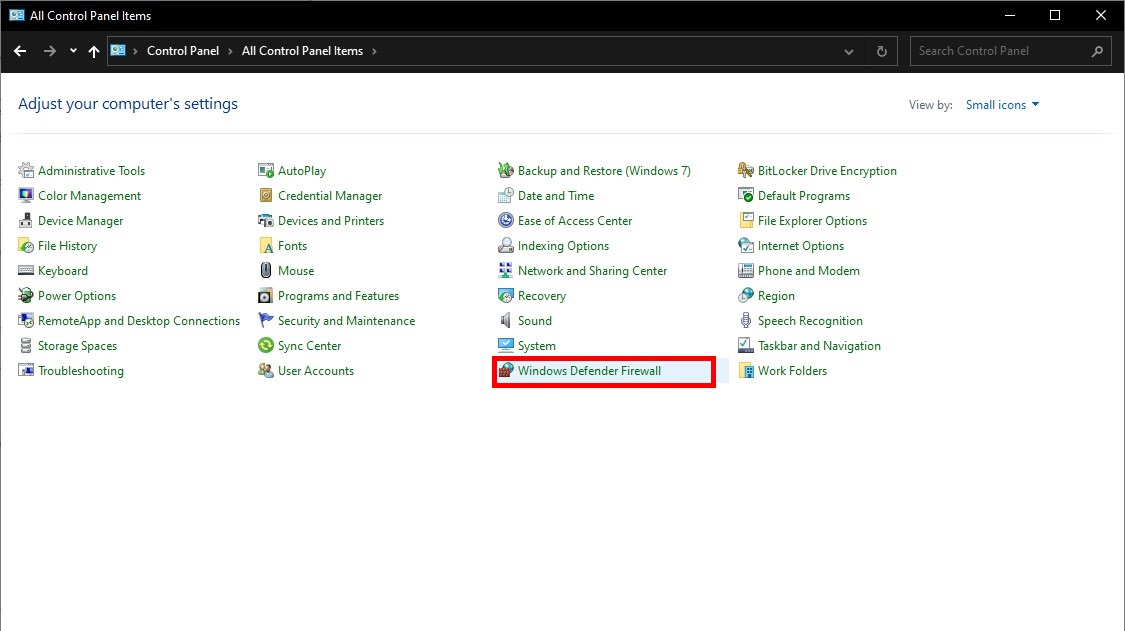
- While in the control panel, change the “View By” option in the top right to “small icons”.
- The Windows defender firewall menu should now be easily visible. As shown in the above image.
- On the next menu, click on the “Allow an app or feature through Windows Firewall Defender” option.
- Browse through the list of Allowed apps to see if Minecraft is checked here in both Private & Public options. If not, click Change Settings, and click “Allow another app…”. Proceed to locate the “.Exe” file of Minecraft in your folders and add it to the allowed apps list.
- Make sure to double-check if you check-marked the options we told you about, after which you are to go and check if the server error continues to exist in the game.
Use a VPN Connection
The Internal Server error 500 isn’t just related to Minecraft Realms but more so to servers in general, so players are always on the hunt for how to fix the issue. So the servers are conjoined together by several different backend connections around the world. The realms and worlds of the game are accessed via these connections.
However, your network connection may have sometimes been programmed by the ISP to block certain server trafficking, thus causing all sorts of issues like the internal server problem. You can simply use a VPN connection to secure a route to the blocked data you need for the realms.
Most importantly, using a VPN will not only bypass the network blockage but also help you maintain a stable and healthy connection to the Minecraft servers. So players may encounter fewer errors and latency problems.
Setting up a custom VPN may be a headache task, and we recommend consulting your ISP about it. If you are looking for an easier alternative, we highly suggest using NordVPN since it is the top VPN in the market.
Improving your Internet Connection
If all else fails, we strongly advise you to improve your network connection for the game further. Minecraft Realms is an open-ended and server-based expansion to the entire experience of the franchise. It will consistently require a proper and stable bandwidth transmission to register data with its backend servers.
Without solid and steady internet access, you will be plagued with errors such as Internal server errors. You will certainly face other annoying issues, such as being unable to host or establish a secure connection to players.
We urge you to invest in an ethernet cable connection. It will help boost your bandwidth transmission a lot and also provide the optimal connection without any sort of network error or the game crashing without warning.
Conclusion
The main priority should be to use all the mentioned fixes, which involve directly tinkering with the game files. It is reported throughout the forums and Reddit threads about the issue reoccurring due to a weak internet connection or a glitch in the game files.
Updating the game as well as restarting may also help you out as temporary quick fixes. You should also recheck the game settings in case there is anything causing issues through it. Remain cautious of when the servers may go under downtime by being up-to-date with the status website.
Minecraft Realms is not a heavy load game in data but more so just involves the user to avoid any incompatible mods or assets to use as plugins. Of course, using a VPN may also reduce further chances of errors.
This concludes our Internal Server error fix guide in Minecraft Realms and the eight unique ways users can follow with ease on how to fix it so they can get back to playing with their friends.
If you have any further helpful ideas to add or questions related to these solutions, let us know down in the comments box!
Was this article helpful?
Thanks! Do share your feedback with us. ⚡
How could we improve this post? Please Help us. ✍