
После сбоя или некорректного завершения работы гипервизора VirtualBox можно столкнуться с критической ошибкой запуска платформы, при этом в описании ошибки будет указано, что не удалось получить COM-объект VirtualBox. Причины, по которым не удается обнаружить зарегистрированный в системе COM-объект могут быть разные, поэтому нужно обращать внимание на детали ошибки.
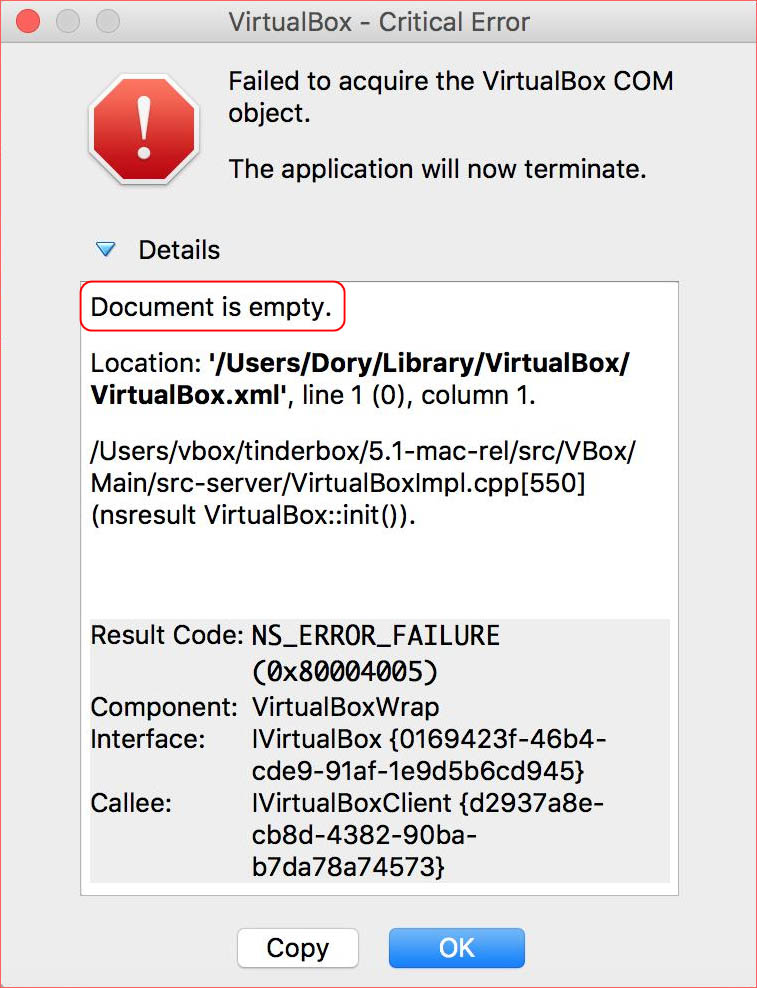
Если в детальном описании вы видите «Document is empty» (пустой документ), с большой долей вероятности причиной ошибки стало повреждение конфигурационного файла гипервизора.
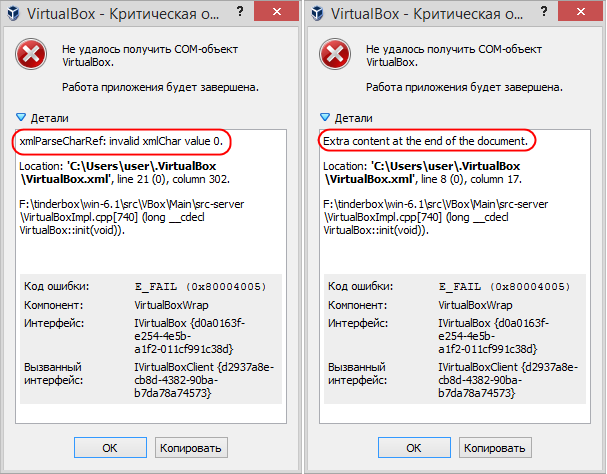
Примечание: приведенные ниже способы также эффективны в отношении ошибок «xmlParseCharRef: invalid xmlChar value 0», «Extra content at the end of the document» и других, в описании которых имеется указание на конфигурационный файл VirtualBox.xml.
Это неприятность, но она не настоль серьезна, как, скажем, повреждение файла-контейнера виртуальной машины, из-за чего последнюю пришлось бы удалить. Устранить эту неполадку можно как минимум двумя способами.
Восстановление из резервной копии
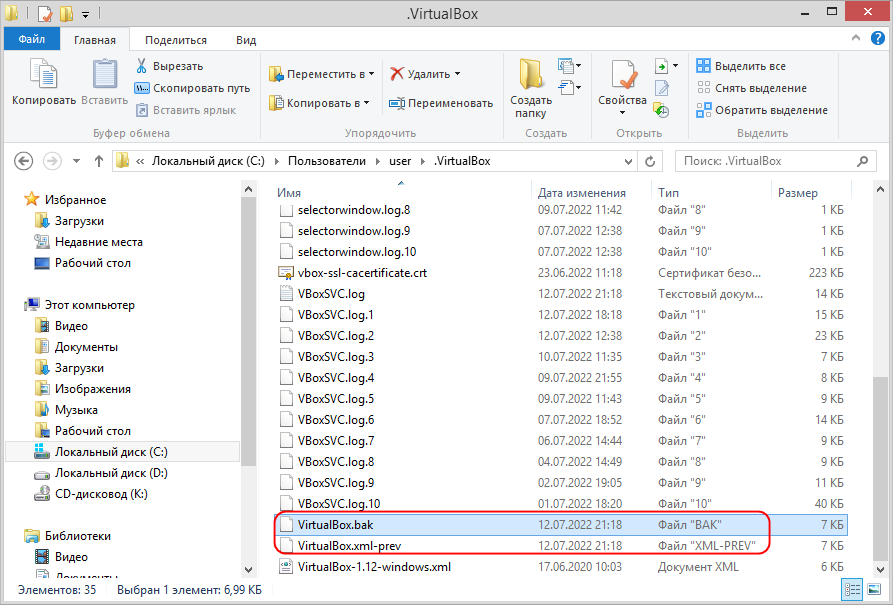
Данные о конфигурации VirtualBox хранятся не в одном, а в двух файлах: основном VirtualBox.xml и резервном VirtualBox.xml-prev. Воспользуйтесь этим.
Завершите работу всех запущенных виртуальных машин и самого гипервизора, после чего откройте Диспетчер задач и убедитесь, что все процессы программы действительно завершены.
Затем перейдите в расположение %userprofile%.VirtualBox, найдите там файл VirtualBox.xml и переименуйте его в VirtualBox.bak. Файл же VirtualBox.xml-prev, напротив, переименуйте в VirtualBox.xml.
Готово, можете запускать гипервизор и виртуальные машины.
Пересоздание конфигурационного файла
Если первый способ не помог, а такое может быть в случае повреждение обоих файлов, предоставьте платформе виртуализации возможность пересоздать конфигурационный файл.
Точно так же завершите все процессы приложения, перейдите в %userprofile%.VirtualBox и переименуйте оба указанных в описании первого способа файла, добавив или изменив их расширения на BAK.
Запустите VirtualBox.
Программа должна открыться без ошибок, но с пустым списком виртуальных машин, так как конфигурационный файл, из которого программа считывала данные, более не доступен.
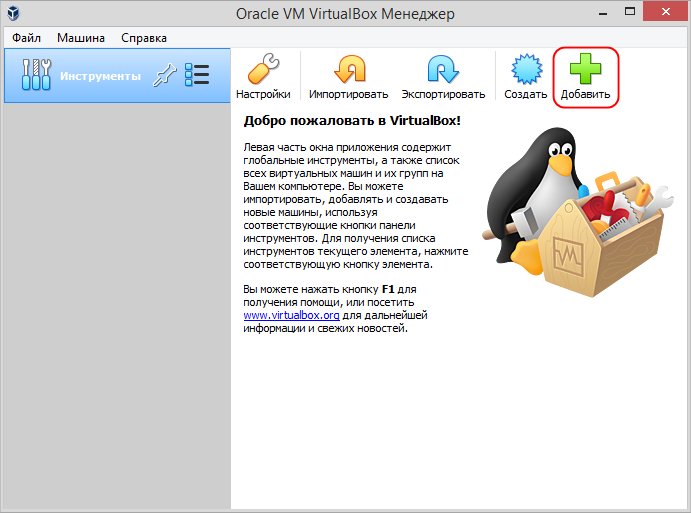
Нажмите кнопку «Добавить» и укажите путь к файлу настроек VBOX, расположенному в той же директории, в которой хранится файл-контейнер виртуальной машины.
Файл VBOX — этот тот же XML-документ, только в специальном формате. Программа считает его и добавит связанную виртуальную машину в список, доступный для управления через графический интерфейс.
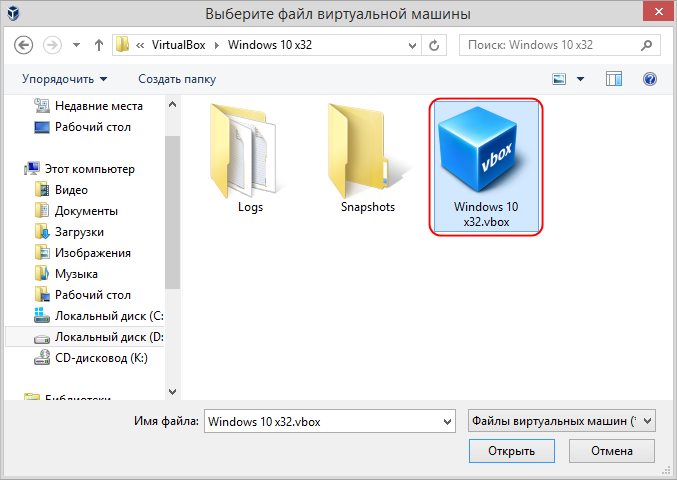
Через меню «Машина» -> «Добавить» импортируйте другие виртуальные машины,
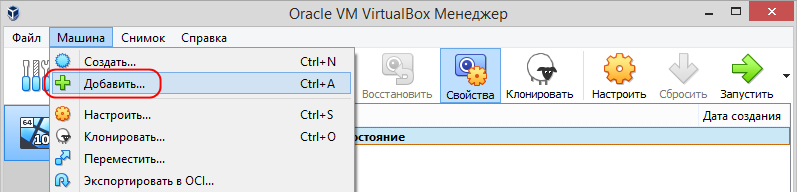
проверьте их работоспособность и, если все они работают нормально, удалите переименованные конфигурационные файлы как более ненужные.
 Загрузка…
Many Windows users are not able to access Oracle VirtualBox as when they try to launch a VM on your Windows 11/10 computer, they see the following error message.
Failed to acquire the VirtualBox COM object, The application will terminate.
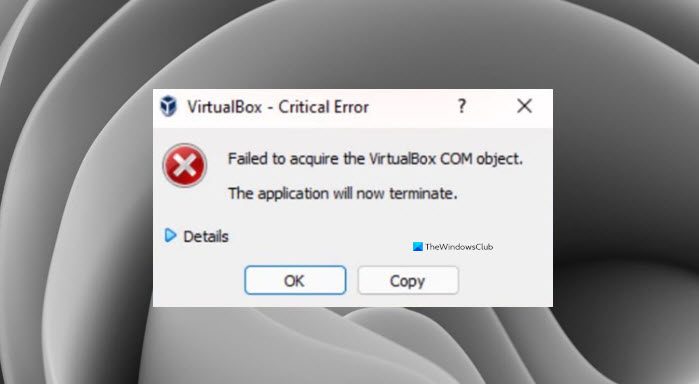
In this article, we are going to see why you are seeing this error and will try to resolve this with some simple solutions.
Why am I seeing “Failed to acquire the VirtualBox COM object” in VirtualBox?
Usually, one may see this error because of a lack of permissions. Even if you are an admin, you have to make sure that you are running the application as an administrator, otherwise, you will see the error in question. Other than that, the issue can be because of incompatibility, antivirus blocking the VM, and more.
If you are seeing “Failed to Acquire the VirtualBox COM Object” in Oracle VirtualBox, these are the things you can do to resolve the error.
- Run VirtualBox as an administrator
- Install VirtualBox as an administrator
- Disable your antivirus
- Restore Access Control List (ACL) Permissions
- Move .Virtualbox folder to a different location.
Let us talk about them in detail.
1] Run VirtualBox as an administrator
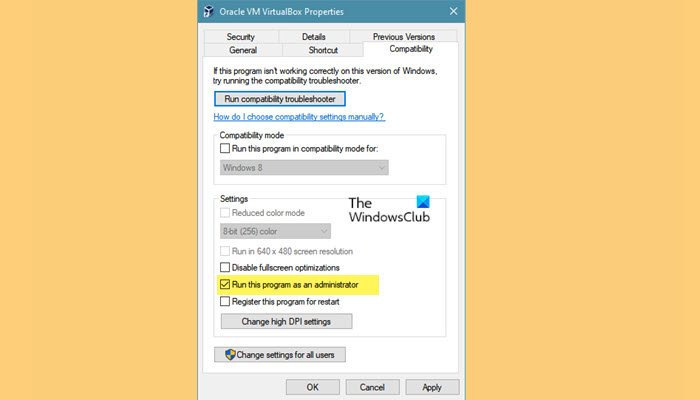
As mentioned earlier, the issue can be a lack of permission and you can run the application as an administrator to gain that permission. You can always right-click on the VirtualBox and select Run as administrator, but if you want to always open the app as an administrator, then follow the given steps.
- Right-click on VirtualBox Shortcut and select Properties.
- Go to the Compatibility tab.
- Tick Run the program as an administrator.
- Now, click Apply > Ok.
Reopen VM and hopefully, you will not see the error message.
However, you should know that running it as an admin is not secure.
2] Install VirtualBox as an administrator
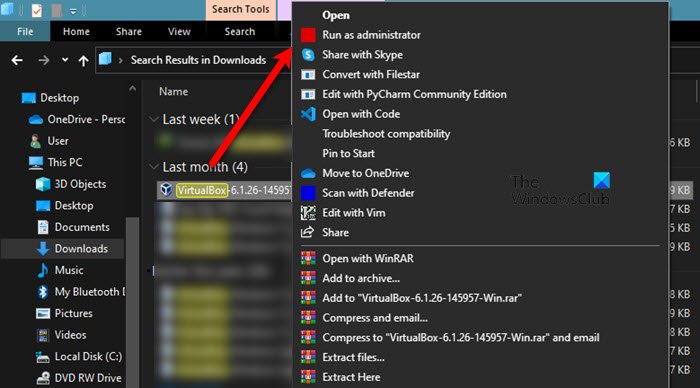
If opening the app as an admin is to no avail, then you may have to install VirtualBox with administrative privileges. To do that, first, uninstall the application. You can do that from Settings > Apps > Apps & features, select the program, and click Uninstall.
Now, you can right-click on the VirtualBox installation package and select Run as administrator. Now, follow the usual process to install the application on your system and you will be good to go.
3] Disable your antivirus
Next up, if the issue persists, then we have to assume that your antivirus is preventing your VirtualBox from functioning. Therefore, we would recommend you to temporarily disable the antivirus that you may have, for the VirtualBox to work on your system.
4] Restore Access Control List (ACL) Permissions
To reset File & Folder permissions to default, launch the command prompt as an Administrator and navigate through the tree of folders you need to fix. Then run the following command:
ICACLS * /T /Q /C /RESET
ICACLS will reset the permissions of all the folders, files, and subfolders to default.
5] Move .Virtualbox folder to a different location
The error message can be because of a corrupted Virtualbox.xml file or some other file present in the Virtualbox folder. So, it is recommended to move the entire Virtualbox folder to a different location, so that, it creates a new folder from the scratch and resolves the issue for you.
First of all close VirtualBox, then navigate to the following location.
C:Users<UserName>
Replace <UserName> with your username.
Right-click on .Virtualbox folder, and select Cut. Now, go to some other location and paste the folder there.
Finally, open VirtualBox and check if the issue persists.
How do I fix VirtualBox Failed to open session for virtual machine?
If you get Failed to open session for virtual machine error while starting a virtual machine, you need to run the VirtualBox with administrator permission. Following that, you can disable your antivirus or any other security shield that you have installed on your PC. Apart from that, it is suggested to restore Access Control List or ACL permissions as well.
That’s all! Hope it helped.
Related reads:
- VirtualBox Interface has active connections message when shutting down
- VirtualBox Failed to attach the USB device to the virtual machine.
Обновлено май 2023: перестаньте получать сообщения об ошибках и замедлите работу вашей системы с помощью нашего инструмента оптимизации. Получить сейчас в эту ссылку
- Скачайте и установите инструмент для ремонта здесь.
- Пусть он просканирует ваш компьютер.
- Затем инструмент почини свой компьютер.
VirtualBox — это пакет программного обеспечения для виртуализации Oracle, который позволяет размещать несколько операционных систем на одном физическом компьютере. Он может создавать и управлять гостевыми виртуальными машинами, каждая из которых имеет гостевую операционную систему и собственную виртуальную среду. VirtualBox обладает преимуществом экономии физического пространства, энергии и материальных затрат.

Однако многие пользователи сообщают, что не могут запустить VirtualBox. Критический отображается сообщение об ошибке — «Не удалось получить COM-объект VirtualBox. Приложение будет закрыто ». Это может быть связано с отсутствием прав администратора при установке программного обеспечения или недостаточными разрешениями для запуска служб VirtualBox.
Однако вы заметите, что вышеуказанная ошибка может быть исправлена различными способами. Чтобы исправить сообщение об ошибке, которое вы в настоящее время испытываете, попробуйте некоторые из этих вариантов и посмотрите, работает ли оно для вас.
Как исправить ошибку «Не удалось получить COM-объект VirtualBox»
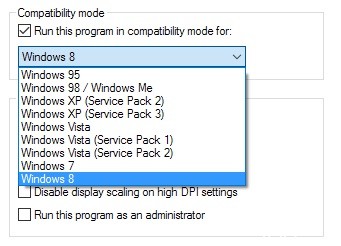
- Перейдите в меню «Пуск» или где установлен ваш VirtualBox.
- Найдите в ней приложение Oracle VirtualBox.
- Щелкните правой кнопкой мыши и перейдите в Свойства.
- На вкладке «Совместимость» вы найдете параметр (флажок) для запуска программы в режиме совместимости.
Обновление за май 2023 года:
Теперь вы можете предотвратить проблемы с ПК с помощью этого инструмента, например, защитить вас от потери файлов и вредоносных программ. Кроме того, это отличный способ оптимизировать ваш компьютер для достижения максимальной производительности. Программа с легкостью исправляет типичные ошибки, которые могут возникнуть в системах Windows — нет необходимости часами искать и устранять неполадки, если у вас под рукой есть идеальное решение:
- Шаг 1: Скачать PC Repair & Optimizer Tool (Windows 10, 8, 7, XP, Vista — Microsoft Gold Certified).
- Шаг 2: Нажмите «Начать сканирование”, Чтобы найти проблемы реестра Windows, которые могут вызывать проблемы с ПК.
- Шаг 3: Нажмите «Починить все», Чтобы исправить все проблемы.

- Установите этот флажок, если он еще не выбран, и вы сможете выбрать версию Windows, с которой вы хотите сделать его совместимым.
- Выберите одну за другой, от самой последней версии (Windows 10) до самой старой, вы обычно найдете используемый VirtualBox, совместимый с Windows 7 или Vista.
- Примените и сохраните изменения и запустите VirtualBox, чтобы проверить, сохраняется ли проблема.
Зарегистрировать команду VirtualBox
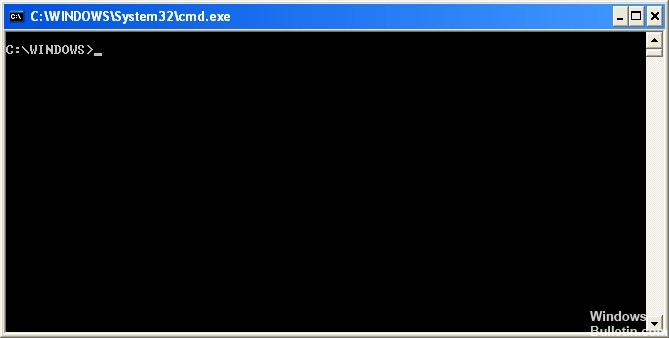
- Откройте меню «Пуск». Введите cmd и нажмите Enter, чтобы открыть командную строку. Вы также можете нажать на ярлык командной строки.
- Щелкните правой кнопкой мыши или введите и удерживайте, затем откройте подменю «Дополнительно», затем нажмите или нажмите «Запуск от имени администратора».
- Поместите текущий каталог cd в каталог, в котором установлен VirtualBox. Каталог — «C: // Program Files / Oracle / VirtualBox».
- Введите следующие команды, затем нажмите Enter.
VBoxSVC.exe / ReRegServer
regsvr32.exe VBoxC.dll - Выйдите из командной строки и перезагрузите компьютер, чтобы убедиться, что ошибка не устранена.
Установите VirtualBox с правами администратора
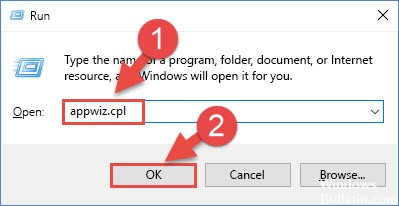
- Нажмите Windows + R, чтобы открыть диалоговое окно «Выполнить». Затем введите «appwiz.cpl» и нажмите Enter, чтобы открыть окно «Программы и компоненты».
- В разделе «Программы и компоненты» прокрутите список приложений и найдите Oracle VM VirtualBox. Как только вы увидели его, щелкните правой кнопкой мыши и выберите Удалить.
- Следуйте инструкциям на экране, чтобы завершить удаление и перезагрузить компьютер.
- После завершения следующей последовательности загрузки посетите официальный веб-сайт VirtualBox. Под Пакетами платформы VirtualBox, нажмите на хосты Windows, чтобы начать загрузку.
- Не делайте двойной щелчок, как обычно, после завершения загрузки. Щелкните правой кнопкой мыши на панели загрузки вашего браузера и выберите «Просмотр в папке».
- Щелкните правой кнопкой мыши установщик VirtualBox и выберите «Запуск от имени администратора».
- Следуйте инструкциям на экране для завершения переустановки VirtualBox.
- Перезагрузите компьютер и убедитесь, что сообщение об ошибке VirtualBox все еще присутствует.
https://forums.virtualbox.org/viewtopic.php?f=6&t=87691
Совет экспертов: Этот инструмент восстановления сканирует репозитории и заменяет поврежденные или отсутствующие файлы, если ни один из этих методов не сработал. Это хорошо работает в большинстве случаев, когда проблема связана с повреждением системы. Этот инструмент также оптимизирует вашу систему, чтобы максимизировать производительность. Его можно скачать по Щелчок Здесь

CCNA, веб-разработчик, ПК для устранения неполадок
Я компьютерный энтузиаст и практикующий ИТ-специалист. У меня за плечами многолетний опыт работы в области компьютерного программирования, устранения неисправностей и ремонта оборудования. Я специализируюсь на веб-разработке и дизайне баз данных. У меня также есть сертификат CCNA для проектирования сетей и устранения неполадок.
Сообщение Просмотров: 1,263
Приветствую всех на страницах блога К76, сегодня покажу как я лично разрешил проблему запуска программы VirtualBox и конкретных виртуальных машин, находящихся под её управлением. В качестве вводной информации ошибку можно охарактеризовать в следующих скринах. Для начала программа ответила на попытку запуска как-то общё. Мол, Не удалось получить COM-объект VirtualBox:
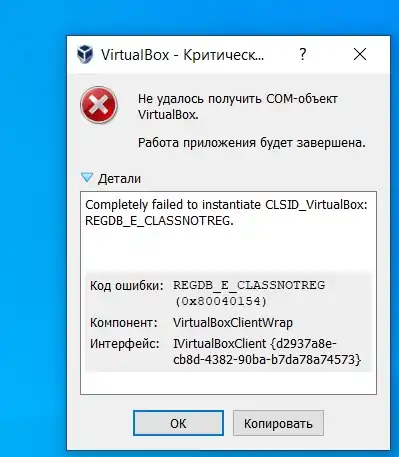
ошибка не удалось получить COM-объект VirtualBox
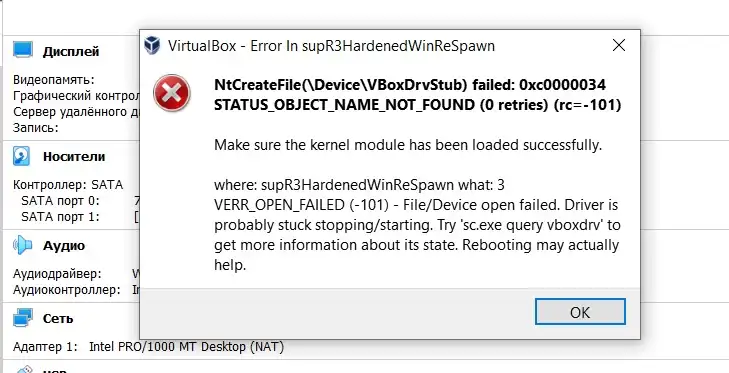

Проблема появилась для меня неожиданно (ну, как всегда), что послужило причиной точно уже неизвестно. В качестве предположения выдвину факт, что хозяйская Windows 10 за мгновение до случившегося была проверена на целостность образа при помощи инструмента DISM. При этом консоль отрапортовала об успешном исправлении системных ошибок. Это или что-то иное послужило, однако, появлением ошибки Не удалось получить COM-объект и иже с ней при попытке запустить VirtualBox. От первой сиюминутной проблемы с запуском самой программы я избавился сразу, просто запустив VirtualBox от имени администратора. Однако попробовав запустить любую из гостевых «виртуалок» я последовательно увидел две следующие ошибки:
В общем, не залезая в логи, одна из строчек окна указала на конкретную причину проблемы:

Таким образом, я воспользовался шансом вернуть существующий драйвер к жизни. Для начала убедимся, что в Диспетчере задач никаких процессов со стороны VirtualBox нет. Если есть, завершим их работу.
- Отправляемся в папку
C:Program FilesOracleVirtualBoxdriversvboxdrv
откуда устанавливаем драйвер VBoxDrv.inf, числящийся в коротком списке:

- Операция заняла секунды, после чего из консоли команд от имени администратора для статистики можно было бы проверить проверить состояние успешно работающего драйвера указанной в том же окне командой:
sc start vboxdrv
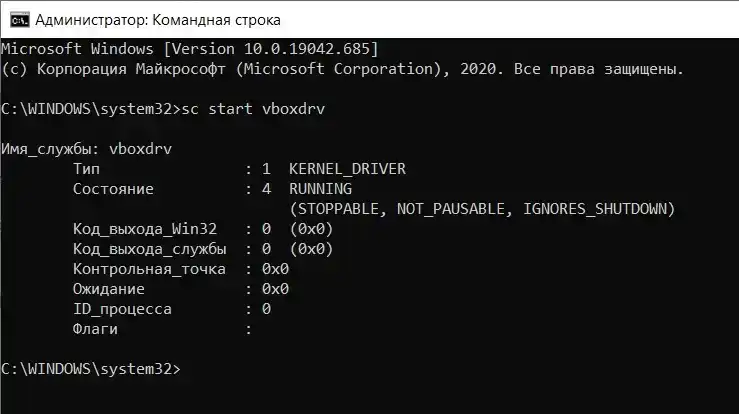
До того, используя указанную чуть выше команду, я бы увидел, видимо, такое сообщение консоли:
Имя_службы: vboxdrv
        Тип                : 1  KERNEL_DRIVER
        Состояние          : 1  STOPPED
        Код_выхода_WIN32   : 2  (0x2)
        Код_выхода_службы  : 0  (0x0)
        Контрольная_точка  : 0x0
        Ожидание           : 0x0
Короче говоря, перезапуска Windows не понадобилось. Каждая из гостевых машин ожила, фоном устанавливая погибший до сего драйвер. Соглашаясь с перемежающимися окнами установки драйвера со стороны UAC Windows, все виртуальные машины запустились на этот раз без проблем.
Успехов.
Several users are reporting that they are unable to launch VirtualBox. The critical error message that comes up is “Failed to acquire the VirtualBox COM object. The application will terminate”. In some cases, the error is also accompanied by a second error message pointing towards the problem. The issue does not seem to be specific to a certain Windows version since it’s confirmed to occur on both Windows 8.1 and Windows 10.

We investigated this issue by looking at various user reports and the repair strategies that are commonly deployed successfully in this particular scenario. As it turns out, there are multiple culprits that might end up triggering this issue:
- VirtualBox is not installed with admin access – Virtualbox is one of those software products that will require you to install them with admin privileges in order to be able to set up all the necessary services. Failing to do so might mean that some services will not be enabled by default. In this case, the easiest way to resolve the issue is to install Virtualbox the correct way.
- Malformed Master Guest Registry – In some cases, this particular error will occur due to a possibly malformed master guest registry. If this particular scenario is applicable, you should be able to resolve the issue by moving the .VirtualBox folder onto the desktop, forcing the application to create a new healthy version.
- Insufficient permissions – Even if VirtualBox is installed with administrative access, it might still need admin privileges in order to start some services that are needed for VM operations. Several affected users have managed to resolve the issue by configuring the VirtualBox shortcut to run with administrative privileges.
If you’re currently looking for a fix that will resolve this issue, this article will provide you with several troubleshooting steps that might just resolve the issue. Down below, you’ll find several methods that other users in a similar situation have successfully used to resolve the issue. Each potential fix mentioned below is confirmed to work by at least one affected user.
For the best results, we advise you to follow the methods in the order that they are presented since they are ordered by efficiency and severity. Regardless of the culprit that’s triggering the “Failed to acquire the VirtualBox COM object” error, one of the following potential fixes should help you fix the problem.
Method 1: Launching VirtualBox with admin privileges
It’s possible that you’re encountering this issue because you’re trying to launch VirtualBox from a shortcut that isn’t configured to run with admin access. Several affected users have reported that they managed to resolve the “Failed to acquire the VirtualBox COM object” error by configuring the VirtualBox shortcut to launch with admin access.
Here’s a quick guide on how to do this:
- First, let’s test if this theory is true by right-clicking on the Virtualbox shortcut and choosing Run as administrator.
Note: If these steps have eliminated the error, continue with the next steps below to make the changes permanent. - Right-click on the same VirtualBox shortcut and choose Properties from the context menu.
- From the Properties screen of Oracle VM VirtualBox, select the Compatibility tab and check the box associated with Run this program as an administrator (from the Settings screen)
- Click on Apply to make the change permanent.
- Restart Virtualbox and see if the issue has been resolved.

If you’re still encountering the “Failed to acquire the VirtualBox COM object” error, move down to the next method below.
Method 2: Installing VirtualBox with admin privileges
VirtualBox is one of those programs that need to be installed with admin privileges in order to function privileges. If you don’t grant admin access to VirtualBox installer, some critical services will not be configured properly. Several affected users that were also encountering the “Failed to acquire the VirtualBox COM object” error have reported that the issue was no longer occurring after they uninstalled their current VirtualBox installation and then re-installed it properly.
Here’s a quick guide on how to do this:
- Press Windows key + R to open up a Run dialog box. Then, type “appwiz.cpl” and hit Enter to open up the Programs and Features window.
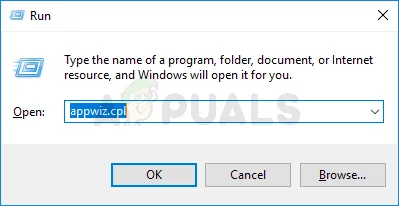
Type appwiz.cpl and Press Enter to Open Installed Programs List - Inside Programs and Features, scroll through the list of applications and locate Oracle VM VirtualBox. Once you see it, right-click on it and click Uninstall.

Uninstalling VirtualBox - Next, follow the on-screen prompts to complete the uninstallation and restart your computer.
- When the next startup sequence is complete, visit this link (here). Once you get there, click on Windows hosts (under VirtualBox platform packages) to initiate the download.

Downloading the latest Virtualbox installer - Once the installer is downloaded successfully, don’t double-click it as you normally would do. Instead, right-click on it from the download bar of your browser and click on Show in Folder.
- In the location of the VirtualBox installer, right-click on it and choose Run as administrator.

Running the Virtualbox installer as administrator - Follow the on-screen prompts to complete the re-installation of Virtualbox.
- Restart your computer and see if VirtualBox is not launching without the error message.
If you’re still seeing the “Failed to acquire the VirtualBox COM object” error when launching the program, move down to the next method below.
Method 3: Moving the .Virtualbox folder to a different location
This particular issue can also occur due to malformed master guest registry. It’s possible that the “Failed to acquire the VirtualBox COM object” error is caused by a bad Virtualbox.xml file or some other corrupted file from the .VirtualBox folder.
Several affected users have reported that they’ve been able to resolve the issue by moving the entire .VirtualBox folder to a different location. This procedure will force Virtualbox to create a new healthy folder from scratch, which will end up resolving any corruption issue located inside the Virtualbox folder.
Here’s a quick guide on how to move the .Virtualbox folder to a different location.
- First things first, make sure that VirtualBox is completely closed.
- Open File Explorer and navigate to the following location:
C:Users*Your UserName*
Note: *Your UserName* is simply a placeholder for your personal Windows user account. Please replace it with your own name.
- Once you get to this location, right-click on .VirtualBox and choose Cut from the context menu. Additionally, you can press Ctrl + X to cut the file directly.
- Paste the .Virtualbox folder in a convenable location such as the desktop.
Note: You can also delete the .Virtualbox folder. But moving the folder is a better alternative since it will allow you to move it back in case it doesn’t end up resolving the issue. - Once the folder is moved to a different location, launch VirtualBox again and see if the program is starting without the “Failed to acquire the VirtualBox COM object” error.

For MacOS Users:
It is advised that you reinstall VirtualBox. In most cases, reinstalling the latest release fixes the issue.

Kevin Arrows
Kevin Arrows is a highly experienced and knowledgeable technology specialist with over a decade of industry experience. He holds a Microsoft Certified Technology Specialist (MCTS) certification and has a deep passion for staying up-to-date on the latest tech developments. Kevin has written extensively on a wide range of tech-related topics, showcasing his expertise and knowledge in areas such as software development, cybersecurity, and cloud computing. His contributions to the tech field have been widely recognized and respected by his peers, and he is highly regarded for his ability to explain complex technical concepts in a clear and concise manner.