
 Всем привет. Заметили у себя процесс DsaTray.exe? И не знаете что это? Ничего страшного, я сейчас все расскажу. Значит DsaTray.exe этот процесс идет от проги Intel Driver and Support Assistant, по заглавным буквам, ну кроме Intel, то получается DSA, ну а слово Tray наверно означает что процесс DsaTray.exe отвечает за иконку в трее. Я не уверен, но такой процесс может быть и при наличии такой проги как Intel Driver Update Utility
Вот в диспетчере задач:

РЕКЛАМА
И тут он почему-то грузит процессор на 26%, почему — непонятно, тем более что процесс отвечает только за иконку.. И запускается он как я вижу то из этой папки:
C:Program FilesIntel Driver Update Utility
Intel Driver Update это прога для обновления драйверов, безобидная и грузить не может комп. Хм, но может в ней есть опция автоматической проверки драйверов? Если есть, то она может самостоятельно в фоне проверять наличие новых версий драйверов и при этом я допускаю что может немного нагружать комп…
В общем если вы хотите чтобы процесса DsaTray.exe больше никогда не было, то тут есть два варианта — или удалить прогу, от которой процесс, или переименовать сам процесс. По поводу первого — заходите в диспетчер задач, там находите процесс, нажимаете по нему правой кнопкой и выбираете открыть месторасположения файла, ну как-то так называется пункт. Потом смотрите на папку, которая откроется, на ее название, и так определяете от какой проги у вас процесс DsaTray.exe. Далее идете в окно программы и компоненты (для запуска зажмите Win + R и введите команду appwiz.cpl) и там находите прогу, нажимаете правой кнопкой и удаляете. Так вы удалите прогу, которая кстати не является критически важной, но с вопросом обновления драйверов, если это вам вообще нужно, то стоит разобраться.
Так, второй момент — переименование файла. Тут тоже все просто — идете в диспетчер, открываете папку откуда запускается процесс DsaTray.exe (как это сделать уже написал). После этого завершаете работу DsaTray.exe через диспетчер. И потом файл DsaTray.exe переименовываете так, чтобы просто изменить оригинальное имя, например можете его назвать так:
DsaTray.exe_rename
Кстати, забыл сказать, если у вас не отображаются расширения файлов, то у вас не будет DsaTray.exe, а будет просто DsaTray, но это сути не меняет если что.
На этом все ребята, надеюсь кому-то помог. Удачи и будьте счастливы!!
РЕКОМЕНДУЕМ: Нажмите здесь, чтобы исправить ошибки Windows и оптимизировать производительность системы
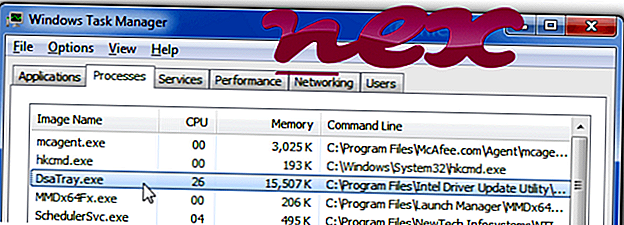
DSATray.exe процесс в диспетчере задач Windows
Процесс, известный как Intel Driver & Support Assistant Tray или Intel Driver Update Utility, относится к программному обеспечению Intel Driver & Support Assistant или Intel Driver Update Utility от Intel (www.intel.com).
Описание: DSATray.exe не является необходимым для Windows и часто вызывает проблемы. Файл DSATray.exe находится в подпапках «C: Program Files (x86)» (обычно C: Program Files (x86) Драйвер Intel и помощник по поддержке или C: Program Files (x86) Драйвер Intel Обновление Утилиты ). Известные размеры файлов в Windows 10/8/7 / XP составляют 131 360 байт (45% всех вхождений), 130 808 байт и еще 7 вариантов.
Это не системный файл Windows. DSATray.exe имеет цифровую подпись. Программное обеспечение запускается при запуске Windows (см. Раздел реестра: MACHINE Run). Вы можете удалить эту программу в панели управления. Программа не видна. Поэтому технический рейтинг надежности 12% опасности. Однако вам следует также прочитать отзывы пользователей.
Важное замечание: Некоторые вредоносные программы маскируют себя как DSATray.exe, особенно если они находятся в папке C: Windows или C: Windows System32. Поэтому вы должны проверить процесс DSATray.exe на вашем компьютере, чтобы увидеть, если это угроза. Мы рекомендуем Security Task Manager для проверки безопасности вашего компьютера. Это был один из лучших вариантов загрузки The Washington Post и PC World .
Аккуратный и опрятный компьютер — это главное требование для избежания проблем с DSATray. Это означает запуск сканирования на наличие вредоносных программ, очистку жесткого диска с использованием 1 cleanmgr и 2 sfc / scannow, 3 удаления ненужных программ, проверку наличия программ автозапуска (с использованием 4 msconfig) и включение автоматического обновления Windows 5. Всегда не забывайте выполнять периодическое резервное копирование или, по крайней мере, устанавливать точки восстановления.
Если у вас возникла реальная проблема, попробуйте вспомнить последнее, что вы сделали, или последнее, что вы установили до того, как проблема появилась впервые. Используйте команду 6 resmon для определения процессов, которые вызывают вашу проблему. Даже для серьезных проблем, вместо переустановки Windows, лучше восстановить вашу установку или, для Windows 8 и более поздних версий, выполнить команду 7 DISM.exe / Online / Cleanup-image / Restorehealth. Это позволяет восстановить операционную систему без потери данных.
Security Task Manager показывает все запущенные сервисы Windows, включая внедренные скрытые приложения (например, мониторинг клавиатуры или браузера, авто вход). Уникальный рейтинг риска безопасности указывает на вероятность того, что процесс является потенциальным шпионским ПО, вредоносным ПО или трояном. B Malwarebytes Anti-Malware обнаруживает и удаляет спящие шпионские, рекламные программы, трояны, клавиатурные шпионы, вредоносные программы и трекеры с вашего жесткого диска.
Связанный файл:
ekag20nt.exe speeddial.dll rslggr.exe DSATray.exe fsm32.exe xvpnd.exe recordingmanager.exe kvbrowserappmgr.dll gencra ~ 1.dll gtdetectsc.exe ose00000.exe
Contents
- 1. What is dsatray.exe?
- 2. Is dsatray.exe safe, or is it a virus or malware?
- 3. Can I remove or delete dsatray.exe?
- 4. Common dsatray.exe error messages
- 5. How to fix dsatray.exe
- 6. June 2023 Update
- 7. Download or reinstall dsatray.exe
Updated June 2023: Here are three steps to using a repair tool to fix exe problems on your computer: Get it at this link
- Download and install this software.
- Scan your computer for exe problems.
- Repair the exe errors with software tool
dsatray.exe is an executable file that is part of the GEICO Security Guard program developed by GEICO. The software is usually about in size.
The .exe extension of a file name displays an executable file. In some cases, executable files can damage your computer. Please read the following to decide for yourself whether the dsatray.exe file on your computer is a virus or trojan horse that you should delete, or whether it is a valid Windows operating system file or a reliable application.
Recommended: Identify dsatray.exe related errors
(optional offer for Reimage — Website | EULA | Privacy Policy | Uninstall)

Is dsatray.exe safe, or is it a virus or malware?
The first thing that will help you determine if a particular file is a legitimate Windows process or a virus, is the location of the executable itself. For example, a process like dsatray.exe should run from C:Program Filesgeicogsgdsatray.exe and not elsewhere.
To confirm, open the Task Manager, go to View -> Select Columns and select «Image Path Name» to add a location column to your Task Manager. If you find a suspicious directory here, it may be a good idea to investigate this process further.
Another tool that can sometimes help you detect bad processes is Microsoft’s Process Explorer. Start the program (it does not require installation) and activate «Check Legends» under Options. Now go to View -> Select Columns and add «Verified Signer» as one of the columns.
If the «Verified Signer» status of a process is listed as «Unable to Verify», you should take a moment look at the process. Not all good Windows processes have a Verified Signature label, but neither do any of the bad ones.
The most important facts about dsatray.exe:
- Located in C:Program FilesGEICOGSG subfolder;
- Publisher: GEICO
- Full Path: C:Program Filesgeicogsgdsatray.exe
- Help file: patchsv.geico.net/gsg
- Publisher URL:
- Known to be up to in size on most Windows;
If you had any difficulties with this executable, you should determine if it’s trustworthy before deleting dsatray.exe. To do this, find this process in Task Manager.
Find its location (it should be in C:Program FilesGEICOGSG) and compare the size etc with the above facts.
If you suspect that you may be infected with a virus, then you must attempt to fix it immediately. To delete the dsatray.exe virus, you should download and install a full security application like Malwarebytes. Note that not all tools can detect every type of malware, so you may need to try several options before you’re successful.
In addition, the functionality of the virus may itself affect the deletion of dsatray.exe. In this case, you must enable Safe Mode with Networking — a secure environment that disables most processes and loads only the most required services and drivers. When there, you can run a security program and a complete system analysis.
Can I remove or delete dsatray.exe?
You should not delete a safe executable file without a valid reason, as this may affect the performance of any associated programs that use that file. Be sure to keep your software and programs up to date to avoid future problems caused by corrupted files. With regard to software functionality issues, check driver and software updates more often, so there is little or no risk of such problems occurring.
According to various sources online,
1% of people remove this file, so it may be harmless, but it is recommended that you check the trustworthiness of this executable yourself to determine if it is safe or a virus. The best diagnosis for these suspicious files is a complete system analysis with Reimage. If the file is classified as malicious, these applications will also delete dsatray.exe and get rid of the associated malware.
However, if it is not a virus and you need to delete dsatray.exe, then you can uninstall GEICO Security Guard from your computer using its uninstaller, which should be located at: MsiExec.exe /X{4A94379D-3F17-400F-84F6-76F6D37E9252}. If you cannot find it’s uninstaller, then you may need to uninstall GEICO Security Guard to completely delete dsatray.exe. You can use the Add/Remove Program function in the Windows Control Panel.
- 1. In the Start menu (for Windows 8, right-click the screen’s bottom-left corner), click Control Panel, and then under Programs:
o Windows Vista/7/8.1/10: Click Uninstall a Program.
o Windows XP: Click Add or Remove Programs.
- 2. When you find the program GEICO Security Guard, click it, and then:
o Windows Vista/7/8.1/10: Click Uninstall.
o Windows XP: Click the Remove or Change/Remove tab (to the right of the program).
- 3. Follow the prompts to remove GEICO Security Guard.
Common dsatray.exe error messages
The most common dsatray.exe errors that can appear are:
• «dsatray.exe Application Error.»
• «dsatray.exe failed.»
• «dsatray.exe has encountered a problem and needs to close. We are sorry for the inconvenience.»
• «dsatray.exe is not a valid Win32 application.»
• «dsatray.exe is not running.»
• «dsatray.exe not found.»
• «Cannot find dsatray.exe.»
• «Error starting program: dsatray.exe.»
• «Faulting Application Path: dsatray.exe.»
These .exe error messages can occur during the installation of a program, during the execution of it’s associate software program, GEICO Security Guard, during the startup or shutdown of Windows, or even during the installation of the Windows operating system. Keeping a record of when and where your dsatray.exe error occurs is important information when it comes to troubleshooting.
How to fix dsatray.exe
A clean and tidy computer is one of the best ways to avoid problems with GEICO Security Guard. This means performing malware scans, cleaning your hard disk with cleanmgr and sfc /scannow, uninstalling programs you no longer need, monitoring any auto-start programs (with msconfig), and enabling automatic Windows updates. Don’t forget to always make regular backups or at least define recovery points.
If you have a bigger problem, try to remember the last thing you did or the last thing you installed before the problem. Use the resmon command to identify the processes that are causing your problem. Even in case of serious problems, instead of reinstalling Windows, you should try to repair your installation or, in the case of Windows 8, by executing the command DISM.exe /Online /Cleanup-image /Restorehealth. This allows you to repair the operating system without data loss.
To help you analyze the dsatray.exe process on your computer, you may find the following programs useful: Security Task Manager displays all Windows tasks running, including built-in hidden processes such as keyboard and browser monitoring or auto-start entries. A single security risk rating indicates the probability that it is spyware, malware or a potential Trojan horse. This anti-virus detects and removes spyware, adware, Trojans, keyloggers, malware and trackers from your hard disk.
Updated June 2023:
We recommend you try out this new software that fixes computer errors, protects them from malware and optimizes your PC for performance. This new tool fixes a wide range of computer errors, protects against things like file loss, malware and hardware failures.
- Step 1 : Download PC Repair & Optimizer Tool (Windows 10, 8, 7, XP, Vista – Microsoft Gold Certified).
- Step 2 : Click “Start Scan” to find Windows registry issues that could be causing PC problems.
- Step 3 : Click “Repair All” to fix all issues.

(optional offer for Reimage — Website | EULA | Privacy Policy | Uninstall)
Download or reinstall dsatray.exe
It is not recommended to download replacement exe files from any download sites, as these may themselves contain viruses etc. If you need to download or reinstall dsatray.exe, then we recommend that you reinstall the main application associated with it GEICO Security Guard.
Operating system information
dsatray.exe errors can occur in any of the following Microsoft Windows operating systems:
- Windows 10
- Windows 8.1
- Windows 7
- Windows Vista
- Windows XP
- Windows ME
- Windows 2000
Одним из способов обновления драйверов является обновление Windows или обновление драйверов вручную, а другим способом является загрузка определенных драйверов с веб-сайта производителя. Иногда пользователи получают следующую ошибку:
Связь с сервисным процессом не удалась.
Эта ошибка означает, что программе Intel Driver and Support Assistant не удалось связаться с сервером и загрузить соответствующие драйверы.
Причины
1]Приложение Intel Driver and Support Assistant может быть неполным или поврежденным.
2]Другие утилиты с аналогичной функцией могут мешать процессу.
Как обновить драйвера на данный момент?
Хотя мы, безусловно, попытаемся решить проблему, драйверы необходимо обновлять вовремя, чтобы предотвратить сбой в работе любого оборудования или приложения. Драйверы Intel можно загрузить из Центра загрузки Intel. Попробуйте автоматическое обновление, упомянутое на веб-сайте, прежде всего.
После этого попробуйте следующие решения:
1} Удалите стороннее программное обеспечение для обновления драйверов.
2} Отключить DSATray при запуске
3} Переустановите драйвер Intel и помощник по поддержке.
Решение 1]Удалите стороннее программное обеспечение для обновления драйверов.
Поскольку обновление всех драйверов одновременно — очень громоздкий процесс (если не помогает простое обновление Windows), многие пользователи рассматривают возможность установки стороннего программного обеспечения для обновления драйверов. Необходимо, чтобы мы удалили то же самое.
Решение 2]Отключить DSATray при запуске
1]Нажмите CTRL + ALT + DEL, чтобы открыть окно параметров безопасности, и выберите «Диспетчер задач» из списка.
2]На вкладке «Автозагрузка» найдите приложение DSATray.
3]Щелкните правой кнопкой мыши приложение и выберите «Отключить».
4]Перезагрузите систему и выберите «Проверить», помогает ли это.
Решение 3]Переустановите драйвер Intel и помощник по поддержке
1]Нажмите Win + R, чтобы открыть окно «Выполнить», и введите команду appwiz.cpl. Нажмите Enter, чтобы открыть окно «Программы и компоненты».
2]Найдите Intel Driver and Support Assistant в списке программ. Щелкните правой кнопкой мыши и удалите его.
3]Перезагрузите систему.
4]Снова загрузите программу с веб-сайта Intel и запустите ее.
Hello
Many thanks for getting back to me.
One update: it does seem that either my Windows 8.1 system has always worked fine, or has fixed itself some time ago. The issue however definitely remains on the other two Windows 10 machines I use: personal Home PC, and corporate device.
Home PC is Windows 10 Home 20H2 with latest CU installed (OS build 19042.985).
Corporate device is Windows 10 Enterprise with Apr CU installed (OS build 18363.1500).
There are no many similarities between these devices I have to say. IDSA normally works okay in each case and reports factual information.
To take your response turn by turn:
1. I shall run this for my home PC, but will not be able to supply it from corporate device (for the obvious reasons).
However, judging by by what I just found in Event Viewer I don’t believe the above is of any relevance to this issue as it relates to .NET which implies application issue:
Application: DSATray.exe
Framework Version: v4.0.30319
Description: The process was terminated due to an unhandled exception.
Exception Info: System.Exception
at NotifyIcon.Win32.Error.ThrowAsException()
at NotifyIcon.Win32.NotificationAreaIcon.AddOrModify()
at NotifyIcon.Win32.NotificationAreaIcon.ShowIcon()
at NotifyIcon.Wpf.NotifyIconComponent.ShowIcon()
at DSATray.App.OnStartup(System.Windows.StartupEventArgs)
at System.Windows.Application.<.ctor>b__1_0(System.Object)
at System.Windows.Threading.ExceptionWrapper.InternalRealCall(System.Delegate, System.Object, Int32)
at System.Windows.Threading.ExceptionWrapper.TryCatchWhen(System.Object, System.Delegate, System.Object, Int32, System.Delegate)
at System.Windows.Threading.DispatcherOperation.InvokeImpl()
at System.Windows.Threading.DispatcherOperation.InvokeInSecurityContext(System.Object)
at MS.Internal.CulturePreservingExecutionContext.CallbackWrapper(System.Object)
at System.Threading.ExecutionContext.RunInternal(System.Threading.ExecutionContext, System.Threading.ContextCallback, System.Object, Boolean)
at System.Threading.ExecutionContext.Run(System.Threading.ExecutionContext, System.Threading.ContextCallback, System.Object, Boolean)
at System.Threading.ExecutionContext.Run(System.Threading.ExecutionContext, System.Threading.ContextCallback, System.Object)
at MS.Internal.CulturePreservingExecutionContext.Run(MS.Internal.CulturePreservingExecutionContext, System.Threading.ContextCallback, System.Object)
at System.Windows.Threading.DispatcherOperation.Invoke()
at System.Windows.Threading.Dispatcher.ProcessQueue()
at System.Windows.Threading.Dispatcher.WndProcHook(IntPtr, Int32, IntPtr, IntPtr, Boolean ByRef)
at MS.Win32.HwndWrapper.WndProc(IntPtr, Int32, IntPtr, IntPtr, Boolean ByRef)
at MS.Win32.HwndSubclass.DispatcherCallbackOperation(System.Object)
at System.Windows.Threading.ExceptionWrapper.InternalRealCall(System.Delegate, System.Object, Int32)
at System.Windows.Threading.ExceptionWrapper.TryCatchWhen(System.Object, System.Delegate, System.Object, Int32, System.Delegate)
at System.Windows.Threading.Dispatcher.LegacyInvokeImpl(System.Windows.Threading.DispatcherPriority, System.TimeSpan, System.Delegate, System.Object, Int32)
at MS.Win32.HwndSubclass.SubclassWndProc(IntPtr, Int32, IntPtr, IntPtr)
at MS.Win32.UnsafeNativeMethods.DispatchMessage(System.Windows.Interop.MSG ByRef)
at System.Windows.Threading.Dispatcher.PushFrameImpl(System.Windows.Threading.DispatcherFrame)
at System.Windows.Threading.Dispatcher.PushFrame(System.Windows.Threading.DispatcherFrame)
at System.Windows.Application.RunDispatcher(System.Object)
at System.Windows.Application.RunInternal(System.Windows.Window)
at System.Windows.Application.Run(System.Windows.Window)
at DSATray.App.Main()
This very error is being thrown upon boot up — but not each time, which is also interesting — on both of these devices.
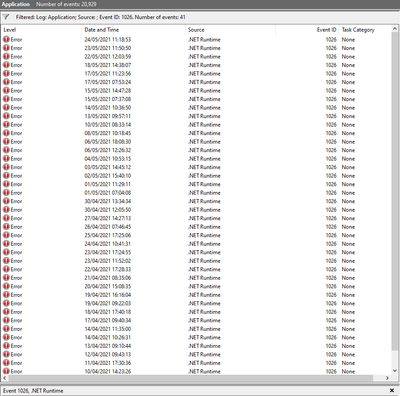
2. No, I have not tried it as it rarely resolves anything.
3. N/A as it’s happening in the background.
4. I’ve not found anything interesting in logs, DATA folder simply shows both devices’ configuration etc.