
- Home
- Guides
- Gaming
23 Mar 2023 7:53 AM +00:00 UTC
Can’t play Destiny 2 due to the error code Seal? Try these tips!
Credit: Bungie
If you are getting Destiny 2 error code Seal, we can help!
After Anteaters, Baboons, Bees, Nightingales and Weasels, it is Seal that is taking its turn at making the lives of Destiny 2 players difficult. Many gamers are unable to play the sci-fi game due to this pesky error.
In this article, we will explore what the Destiny 2 error code Seal is, why it occurs, and provide you with some solutions to fix this network issue.
What is Destiny 2 error code Seal?
According to the Bungie support page, the Destiny 2 error code Seal is a general networking error. That means it occurs when the connection between the game client and the game server is interrupted or lost for some reason.
There can be several underlying reasons for the Destiny 2 error code Seal to occur. Problems with your internet connection and Bungie’s servers being overloaded with players or temporarily unavailable due to maintenance are the most common causes.
Regardless of the cause of the error code Seal, it is important to address it promptly to avoid further disruption to your gameplay experience. In the next section, we will discuss some of the steps you can take to fix this issue and get back to playing Destiny 2.
How to fix Destiny 2 error code Seal
Encountering error code Seal can be a frustrating issue for players who want to enjoy uninterrupted gameplay in Destiny 2. However, there are several effective solutions that can help you fix this error and get back to playing.
Here are some troubleshooting tips to fix Destiny 2 error code Seal:
- First, check to see if there are known service outages. PlayStation users can go here and Xbox players can go here to check the server status. PC gamers can visit the Twitter support page of Bungie.
- If the servers are running as they should, the problem might be on your end. Run a speed test to see if your upload and download speed is up to snuff.
- Try turning UPnP on and off and see if it makes any difference.
- Minimise the number of other bandwidth-heavy devices and apps that are running while you try to play Destiny.
- Power cycle your console as well as your network device.
- Bungie strongly recommends a wired internet connection as WiFi connections may lead to signal strength and stability issues. So if possible, switch to a wired connection.
Hopefully, one of the suggestions will fix the Destiny 2 error code Seal. If not, Bungie has a helpful network troubleshooting guide that covers more in-depth solutions to general network issues such as port forwarding and NAT types.
For more articles like this, take a look at our
Guides
and
Gaming
page.
Go to DestinyTheGame
r/DestinyTheGame
r/DestinyTheGame
Welcome to Destiny Reddit! This sub is for discussing Bungie’s Destiny 2 and its predecessor, Destiny. Please read the sidebar rules and be sure to search for your question before posting.
Members
Online
•
by
CrimsonPablo
Anyone know what error code seal is from?
Every time I’ve been trying to join a fireteam I get that error code
Destiny 2, developed by Bungie, is a popular online multiplayer game that immerses players in a vast sci-fi universe. However, like any online game, Destiny 2 is not immune to technical issues that can hinder gameplay. One such issue is the Destiny 2 Error Code Seal, which indicates a networking error preventing players from accessing the game. In this article, we will explore several methods to fix Destiny 2 Error Code Seal and get you back to playing the game seamlessly.
Read: Fix Destiny 2 Error Code Plum
If you’re getting the error code Seal in your game then it must be due to network connection issues. Here are some ways to fix this issue.
Method 1: Turn UPnP On and Off
Universal Plug and Play (UPnP) is a network protocol that allows devices to discover and establish connections with other devices on a network. Enabling or disabling UPnP can sometimes help resolve networking issues associated with Destiny 2. Follow these steps:
- Ensure that your PC is connected to your router’s network.
- Open a web browser on your PC.
- Enter your router’s IP address into the address bar and press Enter. This will open your router’s interface. You can find the IP address in the router’s manual or by searching online using your router’s model number.
- Log in to your router’s interface using your username and password.
- Navigate to the router’s Settings menu.
- Look for an option called “Advanced Network” or similar.
- Click on “Advanced Network” to access the advanced network settings.
- Locate the UPnP option and check or uncheck the box next to it to turn it on or off.
- Save the changes and exit the router’s interface.
- Launch Destiny 2 and check if the Error Code Seal issue persists.
Method 2: Restart Your PC
The first step in resolving any technical issue is to perform a simple restart. Restarting your PC can help refresh system processes and clear any temporary glitches that may be causing the Destiny 2 Error Code Seal. Follow these steps:
- Close Destiny 2 and any other programs or applications running on your PC.
- Click on the “Start” button in the lower left corner of your screen.
- Select the “Restart” option from the power menu.
- Allow your PC to shut down and reboot.
- After your PC restarts, launch Destiny 2 and check if the error is resolved.
By restarting your PC, you give it a fresh start and a chance to resolve any underlying issues causing the Destiny 2 Error Code Seal.
Enabling or disabling UPnP can help establish a proper network connection for Destiny 2, potentially resolving the Error Code Seal.
Method 3: Update Your Network Drivers
Outdated or faulty network drivers can cause networking issues, including the Destiny 2 Error Code Seal. Updating your network drivers to the latest version can help resolve compatibility issues and improve network connectivity. Follow these steps to update your network drivers:
- Press the Windows key + X on your keyboard and select “Device Manager” from the menu.
- In the Device Manager window, expand the “Network adapters” category.
- Right-click on your network adapter and select “Update driver” from the context menu.
- Choose the option to search automatically for updated driver software.
- Windows will search for the latest driver updates and install them if available.
- Restart your PC after the driver update is complete.
- Launch Destiny 2 and check if the Error Code Seal issue is resolved.
Updating your network drivers ensures that your network adapter is functioning properly and can establish a stable connection to the Destiny 2 servers.
Run a Speed Test
Performing a speed test can help determine if your internet connection is performing at its expected speed. Visit a reputable speed test website and run the test. Ideally, your download and upload speeds should meet or exceed the recommended requirements for Destiny 2. If your speeds are significantly lower than expected, consider contacting your internet service provider to address any connectivity issues.
Connect Directly to the Router
If you are using a wireless connection to connect your PC to the router, try connecting it directly using an Ethernet cable. Wired connections tend to provide more stable and reliable connections compared to wireless connections, which can be susceptible to interference. By eliminating potential wireless issues, you can ensure a more stable connection for playing Destiny 2.
Check for IP Address Conflicts
IP address conflicts can occur when multiple devices on the same network are assigned the same IP address. This can lead to networking issues, including the Destiny 2 Error Code Seal. To check for IP address conflicts:
- Press Windows + R on your keyboard to open the Run dialog box.
- Type “cmd” and press Enter to open the Command Prompt.
- In the Command Prompt, type “ipconfig /all” and press Enter.
- Look for any duplicate IP addresses listed under the network adapter you are using.
- If you find any conflicts, access your router’s interface and manually assign unique IP addresses to each device to resolve the conflict.
Disable Firewall and Antivirus Software
Firewall and antivirus software can sometimes block the necessary network connections for Destiny 2, resulting in the Error Code Seal. Temporarily disable these security measures to see if they are causing the issue. Remember to re-enable them once you have finished playing for continued protection.
Reset Your Router
Performing a router reset can help resolve any temporary issues or configuration conflicts that might be affecting your network connection. To reset your router:
- Locate the Reset button on your router (usually on the back or bottom).
- Use a small, pointed object (such as a paperclip) to press and hold the Reset button for about 10 seconds.
- Release the Reset button and wait for the router to restart.
- Once the router has restarted, establish a connection to it and launch Destiny 2 to see if the Error Code Seal is resolved.
by Milan Stanojevic
Milan has been enthusiastic about technology ever since his childhood days, and this led him to take interest in all PC-related technologies. He’s a PC enthusiast and he… read more
Updated on July 19, 2022

XINSTALL BY CLICKING THE DOWNLOAD FILE
This software will repair common computer errors, protect you from file loss, malware, hardware failure and optimize your PC for maximum performance. Fix PC issues and remove viruses now in 3 easy steps:
- Download Restoro PC Repair Tool that comes with Patented Technologies (patent available here).
- Click Start Scan to find Windows issues that could be causing PC problems.
- Click Repair All to fix issues affecting your computer’s security and performance
- Restoro has been downloaded by 0 readers this month.
Since its launch, Destiny 2, the sci-fi shooter by Bungie may not have changed much if you’re coming back to it after a while. This hybrid first-person shooter game mixes different elements from classics and other genres, but little has changed though it has come with some tweaks here and there, and some rebalances.
As with any other game, there’s always those moments where you’ll find errors popping up and you’ve no idea what they mean. The same goes with Destiny 2, whose error codes are quite a number, some are still under review to find fixes.
If you find yourself disconnected from Destiny 2, you’ll get an error message with a code at the bottom. Each of these error codes indicate a different type of disconnection and helps track what is causing you to lose connectivity with your game.
Before you troubleshoot, some of the things you need to check are known service outages that can affect connectivity.
Error codes can be categorized into two:
- Platform errors, which occur when playing the game or during installation and are indicated by a string of numbers and/or letters
- Destiny errors, which are encountered during installation or gameplay and are often a single word for an animal, plant or musical instrument as you’ll see below.
We picked the common ones and listed them here so you can know what to do when they show up during gameplay.
How to fix frequent Destiny 2 error codes
- Error Multiple disconnects
- Error Baboon
- Error Weasel/Hawk
- Error Bee/Fly/Lion
- Error Buffalo
- Error Marionberry
- Error Chicken
- Error Centipede
- Error Lettuce and Anteater
- Error Cabbage
- Error Sheep
- Error Chive
- Error Beaver/Flatworm/Leopard
- Error Termite
- Error Broccoli
- Error Boar
- Error Turtle
- Error Mulberry/Toad/Nightingale/Lime
- Error Urchin
- Error Oyster
- Error Canary
- Error Honeydew
- Error Tapir
- graphics runtime detected
1. Multiple disconnects
If you receive the same error code multiple times, it means there’s a single root issue like corrupted data in the Destiny installation or a source of instability in your network setup. In this case, do the following:
- Close and restart the application
- Restart and clear cache on your platform
- Switch to a wired connection if you’re on WiFi
- Power cycle your network hardware
- Contact your ISP to troubleshoot potential network traffic, stability or packet loss issues.
— RELATED: Avoid Destiny 2 crashes and bugs by downloading latest NVIDIA and AMD drivers
2. Error Baboon
This error can be caused by packet loss or disconnections between your network and Bungie, such as ISP saturation or internet congestion, WiFi setups, or loss of connection on mobile hotspots. To fix it, switch to a wired connection temporarily to rule out WiFi signal strength/stability. If it recurs, force quit Destiny 2 by doing the following based on your platform type:
Xbox 360:
- Press the Guide button
- Press Y button to go back to dashboard
Xbox One:
- Press Xbox button in the game/app
- Check that the big app tile is highlighted
- Press Menu button
- Select Quit
3. Error Weasel/Hawk
Meaning: This error was previously grouped under Centipede, but is a split-off error. To resolve this issue, switch to a wired connection temporarily to rule out the connection as a possible culprit, then power cycle your console if you cannot launch Destiny 2 by holding the power button down for 5 to 10 seconds until it resets.
— RELATED: Destiny 2’s massive 68GB free space requirement keeps players on edge
4. Error Bee/Fly/Lion
These three errors are caused by general disconnection issues between you and the routes your traffic passes through the internet to connect to Bungie. Such issues include packet loss, disconnections between your home network and bungie like ISP saturation or internet congestion, and faulty connection setup or wiring.
Such disconnections can also be caused by bandwidth claimed by other apps and devices so you can also avoid file sharing, streaming videos or other tasks that use up bandwidth on devices connected to your network, or console apps running in the background.
5. Error Buffalo
This error happens to gamers who haven’t signed in with their platform account, or the platform’s service is under maintenance, or the subscription has expired. The resolution is to sign in with the platform account, and renew subscriptions, otherwise maintenance has to be complete before you can play again.
6. Error Marionberry
This error indicates an issue with your networking setup, when the network or parental control settings change either on the network or game console, or after a WiFi blip. It can also show when your router is connected but is in a bad state – faulty firmware or failing hardware. To fix it, reboot your router by doing the following:
- Log out our from Destiny 2
- Turn off your console
- Power cycle your router or modem by turning each off and wait 30 seconds before turning back on one at a time, starting with your modem
- Turn on your console and relaunch Destiny once your network is back up
Note: you can also adjust your parental controls on your router to open up player-to-player connectivity. If it recurs, port forwarding and firewall exceptions can alleviate the error.
— RELATED: Windows 10 GameGuard error: What it is and how to fix it
7. Error Chicken
This happens when you’re accessing an older version of Destiny 2 after a new update has been made available. To fix it, update Destiny to the latest version by doing this on your console:
Xbox One:
- Power down your console till it turns off
- Unplug it from the power outlet for five minutes
- Plug it back in and relaunch Destiny 2. This forces it to check for and download updates
- Launch Destiny 2 once the update has been downloaded and installed
8. Error Centipede
This is a general networking error caused by loss of server connection. To resolve it, switch to a wired connection, or get your NAT to an Open or Type 1 state.
However, not all NAT type issues can be solved, like if you’re on a corporate or college/campus network, or your ISP limits the traffic you send/receive – this is beyond your control so you cannot resolve it yourself.
9. Error Lettuce and Anteater
If you get both these issues, please note that Bungie is actively tracking it and we will update this once a solution is given.
— RELATED: How to fix ‘Do you own this game’ error code 0x803F8001
10. Error Cabbage
This may happen when your router’s settings block communications to or from Destiny 2 services. To resolve this, you need to inspect your router manual to use the solutions below as some settings pages may have alternate naming conventions based on the device’s manufacturer:
- Connect your console directly to the router via wired or WiFi connection. You may encounter more issues if you try to connect to Destiny through a router connected to an alternate router. For best results, connect to the router connected to your modem
- From the router settings page, go to Home > Toolbox > Firewall.
- Create a new Firewall level within your Router settings. You can call it Destiny 2.
- From the Router settings page, go to Home > Toolbox > Game & Application Sharingand configure the following settings: Enable UPnP, Disable “Extended Security”, and Disable any “Assigned Games & Applications” settings
11. Error Sheep

This happens when you try to join a fireteam in which a member hasn’t updated to the latest version of Destiny 2. To resolve it, close and restart Destiny to initiate the update.
Note: If the console fails to update Destiny automatically, update it manually. If all players are playing the latest Destiny version, try to resume the game and see if it helps.
12. Error Chive
Some PC issues are hard to tackle, especially when it comes to corrupted repositories or missing Windows files. If you are having troubles fixing an error, your system may be partially broken.
We recommend installing Restoro, a tool that will scan your machine and identify what the fault is.
Click here to download and start repairing.
Bungie is trying to find out the main cause of this issue, but if you get it while playing, try and troubleshoot by doing the following:
- Update your graphics card drivers or re-install them if the error persists. You can also do this manually
- Use Scan and Repair function to ensure the app is installed properly.
— RELATED: Windows 10 April Update triggers games crashes, stutter and errors [FIX]
13. Beaver/Flatworm/Leopard
These errors are caused by failure to connect your console to another player’s console through the internet. This can be due to connection quality problems like packet loss, ISP saturation, or internet congestion, faulty wiring or Wi-Fi setups, and router/network configuration issues.
They are common when multiple consoles are connecting through one router to the internet, but some solutions for this include:
- Enabling UPnP on the router
- Opening your NAT to reduce the frequency of the error
- Switching to a wired connection from a WiFi connection
14. Error Termite
If you get this error, try resuming your game again or whatever you were doing before the error came up. If it recurs, exit Destiny 2 and relaunch the game.
You can also use Scan and Repair tool after which you can download and install the files at the end of the scan and repair process, then relaunch Destiny 2 and try again.
15. Error Broccoli
These errors mean that there’s an issue detecting the player’s GPU and are caused by a driver crash. To fix this, ensure your operating system and graphics card drivers are up to date with the latest version.
— RELATED: Fix: “For this game you need to be online” Xbox error
16. Error Boar

If you get this error, you may be losing connection to Xbox Live while downloading patches or trying to load content. Similarly, if you accidentally cancel the download, you can get the Boar error.
If your install comes to a halt, go to Active Downloads or Download Management window on your system and check the progress bar before you cancel the download.
Boar also comes up when using wireless connections, so you can try using a wired connection because losing it will stop the download with no option to resume. Otherwise delete and restart the download process.
If you’re not downloading a patch or update, you may be having a service issue, which can mean limited or no connectivity to Xbox Live services that causes the error due to failure in loading the content.
Sometimes you can see Boar error in rare cases when there’s a region mismatch between your account and Destiny 2. To fix this:
- Install Destiny
- Before launching the game, create a new account and ensure the region of your new account matches that of the game
- Launch Destiny 2 to download the update
- After you download it, sign out of your current account and back into the original account and launch Destiny 2
If you continue seeing Boar error, delete and re-install Destiny 2 on your console.
— RELATED: 100+ Best Windows 10 Store Games to Play in 2018
17. Error Turtle
If you’re seeing this error for the first time, try playing again and resume what you were doing before the error came up, otherwise exit and relaunch the game.
If the error recurs, maintain a wired connection, check for packet loss, and clear the cache on your console. Some users have reported that logging into the network from a different device helps resolve the error.
18. Error Mulberry/Toad/Nightingale/Lime
If you receive this error, try playing again or resume what you were doing before it showed up. Otherwise, if it recurs, exit Destiny 2 and relaunch the game.
If it persists, then Bungie is probably testing something on their servers so you can check their official sites or pages for updates.
If it doesn’t go away, delete and reinstall the game. If deleting and reinstalling doesn’t help, there may be damaged or malfunctioning hardware.
19. Error Urchin
This error means you cannot launch Destiny 2 due to a restriction placed on your account. To fix this, choose a different activity or go to Destiny Account Restrictions and Banning Policies page.
Note: This error may appear to players trying to access The Reef, and have characters below level 20, yet only those with 20 or higher can access it.
20. Error Oyster
This happens when content patches or updates don’t download. To fix it, power cycle your network hardware and ensure you’re on a wired connection when downloading and installing updates. Otherwise, try deleting and re-installing the Destiny 2 app.
— RELATED: How to fix EasyAntiCheat error messages in Ubisoft games
21. Error Canary
This error means that Destiny 2 cannot detect a connection to your network, which may indicate a possible problem with your console or network hardware. You can also get it if multiple instances of Destiny 2 are running simultaneously, so you may have to end all instances via Task Manager prior to relaunching the game so as to fix it.
Switch from WiFi to wired connection temporarily to rule out connectivity issues, then cold reboot your console and networking hardware such as router, modem, or others.
Note: A temporary drop in your network connection will disconnect you from Destiny 2, but may not disconnect you from other services such as Xbox Live.
22. Error Honeydew
This happens if public access to an activity has been overridden manually by Bungie, especially if an issue has been found, or an activity is taken offline before a Destiny 2 update. Check for any updates from Bungie’s official pages and sites.
23. Error Tapir
Error Tapir usually occurs on gaming consoles. The quickest way to fix is to restart your console. If the issue persists after rebooting your device, try to install the latest system and game updates. Hopefully, these two methods will fix the problem.
Is there a Destiny 2 error code you’re experiencing that hasn’t been listed here? Let us know in the comments section below.
RELATED STORIES TO CHECK OUT:
- Fix: Windows 10 Game bar not opening
- Full Fix: Windows 10 keeps installing Candy Crush games
- 5 of the best flight simulator games for PC

Newsletter
by Milan Stanojevic
Milan has been enthusiastic about technology ever since his childhood days, and this led him to take interest in all PC-related technologies. He’s a PC enthusiast and he… read more
Updated on July 19, 2022
XINSTALL BY CLICKING THE DOWNLOAD FILE
This software will repair common computer errors, protect you from file loss, malware, hardware failure and optimize your PC for maximum performance. Fix PC issues and remove viruses now in 3 easy steps:
- Download Restoro PC Repair Tool that comes with Patented Technologies (patent available here).
- Click Start Scan to find Windows issues that could be causing PC problems.
- Click Repair All to fix issues affecting your computer’s security and performance
- Restoro has been downloaded by 0 readers this month.
Since its launch, Destiny 2, the sci-fi shooter by Bungie may not have changed much if you’re coming back to it after a while. This hybrid first-person shooter game mixes different elements from classics and other genres, but little has changed though it has come with some tweaks here and there, and some rebalances.
As with any other game, there’s always those moments where you’ll find errors popping up and you’ve no idea what they mean. The same goes with Destiny 2, whose error codes are quite a number, some are still under review to find fixes.
If you find yourself disconnected from Destiny 2, you’ll get an error message with a code at the bottom. Each of these error codes indicate a different type of disconnection and helps track what is causing you to lose connectivity with your game.
Before you troubleshoot, some of the things you need to check are known service outages that can affect connectivity.
Error codes can be categorized into two:
- Platform errors, which occur when playing the game or during installation and are indicated by a string of numbers and/or letters
- Destiny errors, which are encountered during installation or gameplay and are often a single word for an animal, plant or musical instrument as you’ll see below.
We picked the common ones and listed them here so you can know what to do when they show up during gameplay.
How to fix frequent Destiny 2 error codes
- Error Multiple disconnects
- Error Baboon
- Error Weasel/Hawk
- Error Bee/Fly/Lion
- Error Buffalo
- Error Marionberry
- Error Chicken
- Error Centipede
- Error Lettuce and Anteater
- Error Cabbage
- Error Sheep
- Error Chive
- Error Beaver/Flatworm/Leopard
- Error Termite
- Error Broccoli
- Error Boar
- Error Turtle
- Error Mulberry/Toad/Nightingale/Lime
- Error Urchin
- Error Oyster
- Error Canary
- Error Honeydew
- Error Tapir
- graphics runtime detected
1. Multiple disconnects
If you receive the same error code multiple times, it means there’s a single root issue like corrupted data in the Destiny installation or a source of instability in your network setup. In this case, do the following:
- Close and restart the application
- Restart and clear cache on your platform
- Switch to a wired connection if you’re on WiFi
- Power cycle your network hardware
- Contact your ISP to troubleshoot potential network traffic, stability or packet loss issues.
— RELATED: Avoid Destiny 2 crashes and bugs by downloading latest NVIDIA and AMD drivers
2. Error Baboon
This error can be caused by packet loss or disconnections between your network and Bungie, such as ISP saturation or internet congestion, WiFi setups, or loss of connection on mobile hotspots. To fix it, switch to a wired connection temporarily to rule out WiFi signal strength/stability. If it recurs, force quit Destiny 2 by doing the following based on your platform type:
Xbox 360:
- Press the Guide button
- Press Y button to go back to dashboard
Xbox One:
- Press Xbox button in the game/app
- Check that the big app tile is highlighted
- Press Menu button
- Select Quit
3. Error Weasel/Hawk
Meaning: This error was previously grouped under Centipede, but is a split-off error. To resolve this issue, switch to a wired connection temporarily to rule out the connection as a possible culprit, then power cycle your console if you cannot launch Destiny 2 by holding the power button down for 5 to 10 seconds until it resets.
— RELATED: Destiny 2’s massive 68GB free space requirement keeps players on edge
4. Error Bee/Fly/Lion
These three errors are caused by general disconnection issues between you and the routes your traffic passes through the internet to connect to Bungie. Such issues include packet loss, disconnections between your home network and bungie like ISP saturation or internet congestion, and faulty connection setup or wiring.
Such disconnections can also be caused by bandwidth claimed by other apps and devices so you can also avoid file sharing, streaming videos or other tasks that use up bandwidth on devices connected to your network, or console apps running in the background.
5. Error Buffalo
This error happens to gamers who haven’t signed in with their platform account, or the platform’s service is under maintenance, or the subscription has expired. The resolution is to sign in with the platform account, and renew subscriptions, otherwise maintenance has to be complete before you can play again.
6. Error Marionberry
This error indicates an issue with your networking setup, when the network or parental control settings change either on the network or game console, or after a WiFi blip. It can also show when your router is connected but is in a bad state – faulty firmware or failing hardware. To fix it, reboot your router by doing the following:
- Log out our from Destiny 2
- Turn off your console
- Power cycle your router or modem by turning each off and wait 30 seconds before turning back on one at a time, starting with your modem
- Turn on your console and relaunch Destiny once your network is back up
Note: you can also adjust your parental controls on your router to open up player-to-player connectivity. If it recurs, port forwarding and firewall exceptions can alleviate the error.
— RELATED: Windows 10 GameGuard error: What it is and how to fix it
7. Error Chicken
This happens when you’re accessing an older version of Destiny 2 after a new update has been made available. To fix it, update Destiny to the latest version by doing this on your console:
Xbox One:
- Power down your console till it turns off
- Unplug it from the power outlet for five minutes
- Plug it back in and relaunch Destiny 2. This forces it to check for and download updates
- Launch Destiny 2 once the update has been downloaded and installed
8. Error Centipede
This is a general networking error caused by loss of server connection. To resolve it, switch to a wired connection, or get your NAT to an Open or Type 1 state.
However, not all NAT type issues can be solved, like if you’re on a corporate or college/campus network, or your ISP limits the traffic you send/receive – this is beyond your control so you cannot resolve it yourself.
9. Error Lettuce and Anteater
If you get both these issues, please note that Bungie is actively tracking it and we will update this once a solution is given.
— RELATED: How to fix ‘Do you own this game’ error code 0x803F8001
10. Error Cabbage
This may happen when your router’s settings block communications to or from Destiny 2 services. To resolve this, you need to inspect your router manual to use the solutions below as some settings pages may have alternate naming conventions based on the device’s manufacturer:
- Connect your console directly to the router via wired or WiFi connection. You may encounter more issues if you try to connect to Destiny through a router connected to an alternate router. For best results, connect to the router connected to your modem
- From the router settings page, go to Home > Toolbox > Firewall.
- Create a new Firewall level within your Router settings. You can call it Destiny 2.
- From the Router settings page, go to Home > Toolbox > Game & Application Sharingand configure the following settings: Enable UPnP, Disable “Extended Security”, and Disable any “Assigned Games & Applications” settings
11. Error Sheep
This happens when you try to join a fireteam in which a member hasn’t updated to the latest version of Destiny 2. To resolve it, close and restart Destiny to initiate the update.
Note: If the console fails to update Destiny automatically, update it manually. If all players are playing the latest Destiny version, try to resume the game and see if it helps.
12. Error Chive
Some PC issues are hard to tackle, especially when it comes to corrupted repositories or missing Windows files. If you are having troubles fixing an error, your system may be partially broken.
We recommend installing Restoro, a tool that will scan your machine and identify what the fault is.
Click here to download and start repairing.
Bungie is trying to find out the main cause of this issue, but if you get it while playing, try and troubleshoot by doing the following:
- Update your graphics card drivers or re-install them if the error persists. You can also do this manually
- Use Scan and Repair function to ensure the app is installed properly.
— RELATED: Windows 10 April Update triggers games crashes, stutter and errors [FIX]
13. Beaver/Flatworm/Leopard
These errors are caused by failure to connect your console to another player’s console through the internet. This can be due to connection quality problems like packet loss, ISP saturation, or internet congestion, faulty wiring or Wi-Fi setups, and router/network configuration issues.
They are common when multiple consoles are connecting through one router to the internet, but some solutions for this include:
- Enabling UPnP on the router
- Opening your NAT to reduce the frequency of the error
- Switching to a wired connection from a WiFi connection
14. Error Termite
If you get this error, try resuming your game again or whatever you were doing before the error came up. If it recurs, exit Destiny 2 and relaunch the game.
You can also use Scan and Repair tool after which you can download and install the files at the end of the scan and repair process, then relaunch Destiny 2 and try again.
15. Error Broccoli
These errors mean that there’s an issue detecting the player’s GPU and are caused by a driver crash. To fix this, ensure your operating system and graphics card drivers are up to date with the latest version.
— RELATED: Fix: “For this game you need to be online” Xbox error
16. Error Boar
If you get this error, you may be losing connection to Xbox Live while downloading patches or trying to load content. Similarly, if you accidentally cancel the download, you can get the Boar error.
If your install comes to a halt, go to Active Downloads or Download Management window on your system and check the progress bar before you cancel the download.
Boar also comes up when using wireless connections, so you can try using a wired connection because losing it will stop the download with no option to resume. Otherwise delete and restart the download process.
If you’re not downloading a patch or update, you may be having a service issue, which can mean limited or no connectivity to Xbox Live services that causes the error due to failure in loading the content.
Sometimes you can see Boar error in rare cases when there’s a region mismatch between your account and Destiny 2. To fix this:
- Install Destiny
- Before launching the game, create a new account and ensure the region of your new account matches that of the game
- Launch Destiny 2 to download the update
- After you download it, sign out of your current account and back into the original account and launch Destiny 2
If you continue seeing Boar error, delete and re-install Destiny 2 on your console.
— RELATED: 100+ Best Windows 10 Store Games to Play in 2018
17. Error Turtle
If you’re seeing this error for the first time, try playing again and resume what you were doing before the error came up, otherwise exit and relaunch the game.
If the error recurs, maintain a wired connection, check for packet loss, and clear the cache on your console. Some users have reported that logging into the network from a different device helps resolve the error.
18. Error Mulberry/Toad/Nightingale/Lime
If you receive this error, try playing again or resume what you were doing before it showed up. Otherwise, if it recurs, exit Destiny 2 and relaunch the game.
If it persists, then Bungie is probably testing something on their servers so you can check their official sites or pages for updates.
If it doesn’t go away, delete and reinstall the game. If deleting and reinstalling doesn’t help, there may be damaged or malfunctioning hardware.
19. Error Urchin
This error means you cannot launch Destiny 2 due to a restriction placed on your account. To fix this, choose a different activity or go to Destiny Account Restrictions and Banning Policies page.
Note: This error may appear to players trying to access The Reef, and have characters below level 20, yet only those with 20 or higher can access it.
20. Error Oyster
This happens when content patches or updates don’t download. To fix it, power cycle your network hardware and ensure you’re on a wired connection when downloading and installing updates. Otherwise, try deleting and re-installing the Destiny 2 app.
— RELATED: How to fix EasyAntiCheat error messages in Ubisoft games
21. Error Canary
This error means that Destiny 2 cannot detect a connection to your network, which may indicate a possible problem with your console or network hardware. You can also get it if multiple instances of Destiny 2 are running simultaneously, so you may have to end all instances via Task Manager prior to relaunching the game so as to fix it.
Switch from WiFi to wired connection temporarily to rule out connectivity issues, then cold reboot your console and networking hardware such as router, modem, or others.
Note: A temporary drop in your network connection will disconnect you from Destiny 2, but may not disconnect you from other services such as Xbox Live.
22. Error Honeydew
This happens if public access to an activity has been overridden manually by Bungie, especially if an issue has been found, or an activity is taken offline before a Destiny 2 update. Check for any updates from Bungie’s official pages and sites.
23. Error Tapir
Error Tapir usually occurs on gaming consoles. The quickest way to fix is to restart your console. If the issue persists after rebooting your device, try to install the latest system and game updates. Hopefully, these two methods will fix the problem.
Is there a Destiny 2 error code you’re experiencing that hasn’t been listed here? Let us know in the comments section below.
RELATED STORIES TO CHECK OUT:
- Fix: Windows 10 Game bar not opening
- Full Fix: Windows 10 keeps installing Candy Crush games
- 5 of the best flight simulator games for PC
Newsletter
Как онлайн-игра, Destiny 2 не вызывает проблем с подключением или серверами. Хотя они работают над тем, чтобы проблемы устранялись быстро, некоторые проблемы требуют больше времени, чем другие. Игроки могут столкнуться с множеством ошибок при игре в Destiny 2, наиболее распространенными из которых являются «Смородина», «Капуста» и «Кокос».
Эти имена ошибок могут показаться знакомыми, так как это некоторые из проблем, с которыми игроки сталкиваются на серверах в последнее время. Компания Bungie опубликовала твит, в котором отметила, что ей известно о том, что игроки получают любой из этих трех кодов ошибок, и они работают над ее устранением.

Мы изучаем проблемы, из-за которых игроки Destiny 2 сталкивались со следующими ошибками: КОКОС, СМОРОДИНА, КАПУСТА
— Помощь Bungie (@BungieHelp), 28 января 2023 г.
Хотя вы можете подождать, пока Bungie продиагностирует проблему и приступит к ее устранению, вы, возможно, не захотите ждать. Возможно, эти коды ошибок не связаны с серверами Bungie и могут быть устранены с вашей стороны. Быстрое исправление этих ошибок и возвращение к игре отвечает интересам каждого игрока, особенно если проблему можно легко решить. Вот что вам следует знать о каждой ошибке и как ее исправить.
Содержание
- Можете ли вы исправить код ошибки Cabbage?
- Можете ли вы исправить код ошибки Currant?
- Можете ли вы исправить код ошибки Coconut?
Можете ли вы исправить код ошибки Cabbage?
Код ошибки Cabbage возникает, когда настройки маршрутизатора блокируют связь с серверами Destiny 2. Каждый маршрутизатор имеет разные параметры конфигурации, и вам следует проверить, не блокируется ли Destiny 2 брандмауэром вашего маршрутизатора. Бывают случаи, когда он отключается, но случайно включается другой программой.
Проверьте настройки брандмауэра вашего маршрутизатора, чтобы узнать, не заблокирован ли Destiny 2. Вы также можете создать новый уровень брандмауэра под названием Destiny 2, а затем настроить его специально для запуска Destiny 2. Без какой-либо блокировки со стороны брандмауэра вы сможете запустить Destiny 2. Каждый маршрутизатор уникален, и вы можете опубликовать информацию о своем маршрутизаторе в справочной учетной записи Bungie в Твиттере для получения дополнительной помощи. Если вы по-прежнему не можете подключиться, что бы вы ни делали, возможно, это ошибка, которую Bungie должна устранить на своей стороне.
Можете ли вы исправить код ошибки Currant?
Код ошибки Currant возникает из-за разрывов между соединениями хоста и клиента. Иногда это проблема со стороны Bungie, и вам остается только ждать, пока она будет устранена. В других случаях проблема связана с вашим соединением, и вы должны убедиться, что оно работает правильно.
Свяжитесь со своим провайдером Интернет-услуг и убедитесь, что вы не получаете никаких ошибок или что их нет t слишком много ошибок в принимаемых данных. Убедитесь, что прошивка маршрутизатора установлена правильно и соединение не прерывается. Например, с подключением WiFi могут возникнуть проблемы, если маршрутизатор заблокирован.
Можете ли вы исправить код ошибки Coconut?
Код ошибки Coconut аналогичен коду ошибки Currant в том смысле, что он возникает из-за прерывания соединения между хостом и клиентом. Иногда это проблема со стороны Bungie, и вам остается только ждать, пока она будет устранена. В других случаях проблема связана с вашим соединением, и вы должны убедиться, что оно работает правильно.
У него те же методы разрешения, что и у Currant; проверка того, что с вашим интернет-провайдером все в порядке и соединение работает. Продолжайте следить за учетной записью службы поддержки Bungie в Твиттере, чтобы узнать, решена ли проблема с их стороны. Если это так, но вы по-прежнему получаете код ошибки, пришло время вашему интернет-провайдеру вмешаться и устранить проблему.
Некоторые из этих решений могут зайти так далеко, поскольку проблема может быть в Bungie& #Отправить. Но с основными принципами вы можете, по крайней мере, осмотреть и проверить, чтобы убедиться, что проблема не на вашей стороне. Если это так, вы можете вернуться в Destiny 2 как можно скорее. Если нет, то вы сделали все, что могли, а обо всем остальном позаботится Bungie.
После еженедельного сброса 24 января на серверах Destiny 2 появилось довольно много кодов ошибок. Игроки по всему миру не смогли отследить свой прогресс на нескольких печатях или катализаторах, поскольку все, похоже, было сброшено. В связи с этим Bungie временно отключила официальные серверы.
Последний еженедельный сброс также должен был получить исправление 6.3.0.5, которое было официально обновлено на официальном сайте Bungie. Однако игроки увидят код ошибки CAT, как только попытаются войти в игру.
DESTINY 2 MAINTENANCE
❖ Hotfix 6.3.0.5
Background maintenance has been extended.
REMAINING TIMELINE
❖ Extended by: 4 hours
❖ NEW End: 2 PM PST❖ No downtime expected
— Bungie Help (@BungieHelp) January 24, 2023
ТЕХНИЧЕСКОЕ ОБСЛУЖИВАНИЕ DESTINY 2 ❖ Исправление 6.3.0.5 Расширено фоновое техническое обслуживание. ОСТАЛОСЬ ВРЕМЕНИ ❖ Продлен на: 4 часа ❖ НОВОЕ Окончание: 14:00 по тихоокеанскому стандартному времени ❖ Не ожидается простоя
Официальная учетная запись службы поддержки Bungie в Твиттере постоянно сообщает сообществу об этой проблеме. Они подтвердили, что после внедрения исправления на официальных серверах любой прогресс, достигнутый за 40 минут до еженедельного сброса, будет потерян.
Как упоминалось ранее, игроки Destiny 2 видели, как их триумфы сбрасывались с тех пор, как 24 января произошел еженедельный сброс. В связи с этим Bungie решила продлить техническое обслуживание на несколько часов. В настоящее время игроки сталкиваются с кодом ошибки CAT при попытке войти в игру.

Bungie быстро сообщила сообществу об этой проблеме и заявила, что тестирует исправление. Как только он будет готов, компания развернет его, прежде чем запускать игру онлайн. Однако все учетные записи игроков будут возвращены к состоянию, которое было в 8:20 утра по тихоокеанскому времени 24 января, то есть за 40 минут до еженедельного сброса.
We are testing a fix. Once testing is complete, we will deploy and verify the fix before bringing Destiny 2 back online.
We will also be rolling back all player accounts to their state as of 8:20 AM PST, prior to Hotfix 6.3.0.5 going live.
Standby for timeline updates.
— Bungie Help (@BungieHelp) January 24, 2023
Мы тестируем исправление. После завершения тестирования мы установим и проверим исправление, прежде чем снова запустить Destiny 2. Мы также вернем все учетные записи игроков к их состоянию на 8:20 утра по тихоокеанскому стандартному времени, до выхода исправления 6.3.0.5. обновления таймлайна.
Следовательно, любая броня, оружие, триумфы, катализаторы, квесты или даже сезонные испытания перестанут существовать, если какой-либо игрок выполнил их в период с 8:20 до 9:00 по тихоокеанскому времени. Позже Bungie сообщила, что тесты продолжаются, и текущее время простоя продлится до вечера. Тем не менее, никаких официальных заявлений о времени безотказной работы не поступало.
We’re continuing to investigate the issues causing progress to be reset for certain Triumphs, Seals, and Catalysts.
Destiny 2 will remain offline as we work on a fix. Updates will be provided as they become available.
— Bungie Help (@BungieHelp) January 25, 2023
Мы продолжаем исследовать проблемы, приводящие к сбросу прогресса для некоторых Триумфов, Печатей и Катализаторов. Destiny 2 останется в автономном режиме, пока мы работаем над исправлением. Обновления будут предоставляться по мере их появления.
В последнем твите Bungie говорилось, что они все еще изучают проблему сброса триумфов, катализаторов и шаблонов, и что игра останется в автономном режиме до дальнейшего уведомления. Полные примечания к патчу для исправления 6.3.0.5 можно найти здесь, а игроки могут ознакомиться со всем, что будет обновлено при еженедельном сбросе, нажав на эту ссылку.
Обновлено: 27.01.2023
2 окт. 2019 в 2:46
У кого проблемы «Невозможно прочитать игровой контент»
— Решение проблемы (мне помогло) удалите в папке с игрой файл steam_appid.txt и запустите игру снова !
Дополнительное решение :
1) Меняем язык Steam на Английский (настройки — интерфейс — английский)
2) Указываем в параметрах игры (в Steam) Английский
3) После как игра докачается в параметрах игры (в Steam) выставляем Русский Язык
4) Автоматически скачается 1.4 гб русского языка
5) Меняем обратно язык Steam на Русский
6) Играем !

Destiny 2 — одна из самых популярных многопользовательских онлайн-игр. Что ж, несмотря на ее популярность, с момента ее выпуска в игре наблюдается несколько проблем и ошибок.
И одни из самых распространенных этих ошибок — код ошибки инициализации Potato и Baboon из Destiny 2. Как и другие ошибки Destiny 2, коды ошибок Potato и Baboon очень неприятны и постоянно выбивают игроков из игры, но к счастью у нас есть проверенные решения.
Ошибка Olive в Destiny 2:
Она начала происходить чаще в бета-версии, и похоже возникла и в основной игре.
Пока что главный совет Bungie перезапустить клиент и выключить систему что по сути является полным перезапуском, а не переходом в режим ожидания. Постоянные ошибки также могут указывать на то, что Bungie проводит тесты на серверах, так что это может быть случай когда надо подождать.
Destiny ошибка Weasel:
Ошибка Weasel связана с проблемами сети. Bungie рекомендует переключиться на проводное соединение. Если это не решит проблему, включите питание консоли, удерживая кнопку включения / выключения на консоли в течение 10 секунд, пока она не перезагрузится.
Если вы получили код ошибки Weasel, то её устранение довольно просто. Во-первых убедитесь что ваше интернет-соединение стабильно и работает как задумано. Если это не проблема, тогда включите и выключите консоль или компьютер, чтобы обновить сетевое соединение. Не забудьте оставить консоль или компьютер выключенными на несколько секунд, так как это позволит полностью отключить питание и обновить все.
Destiny ошибка Penguin:
Destiny ошибка Turtle:
Ошибка черепахи может быть устранена путем сброса игры, перехода на проводное соединение, обеспечения потери пакетов в вашем интернет-пространстве и очистки кеша вашей консоли.
Destiny ошибка Stingray:
Ошибка Stingray указывает, что вы не вошли в свою учетную запись PlayStation Network или Xbox Live. Войдите в свою учетную запись, чтобы устранить эту проблему.

Destiny ошибка Urchin:
Код ошибки Urchin означает, что вы были непослушны или у вас было ограничение на вашу учетную запись.
Destiny ошибка Viper:
Ошибка Viper – это общая сетевая ошибка, которая должна решить сама. Просто перезагрузите Destiny, и он должен быть отсортирован.
Код ошибки Vulture возникает, когда вы либо не вошли в свою учетную запись, либо у вас нет членства в PlayStation Plus или Xbox Live Gold. Чтобы устранить проблему, войдите в свою учетную запись или зарегистрируйтесь в соответствующей службе.
Destiny ошибка Pear:
Ошибка Squirre в Destiny 2:
Данная ошибка появляется при множестве ситуации, например для игроков на консоли она может возникать если они не оплатили подписку или их услуги находятся в обслуживании. На пк же данная ошибка может возникнуть где угодно.
У многих данная ошибка возникает если в имени имеются запятые, символы Unicode, левые знаки или оно слишком длинное. Просто вводите имя на латинском, например Serikpai.
Ошибка Chive в Destiny 2:
Для того чтобы исправит ошибку Chive в Destiny 2 на Windows 7 необходимо скачать обновление и ошибка должна исчезнуть.
Для виндовс 10 всё стандартно это обновить драйвера на видеокарту до последней версии, поиграться с режимами совместимости.
А на этом, мы заканчиваем Гайд «Исправление ошибок в Destiny 2: Часть 2». Мы надеемся, что этот гайд был полезен для Вас, ищите больше гайдов по всем играм на нашем сайте! Исследуйте, сражайтесь, открывайте новые миры, и приятной Вам игры в Destiny 2!
Destiny ошибка Nightingale:
Ошибка соловей связана с проблемой кэширования с консолью. Bungie рекомендует очистить кеш консоли. Чтобы очистить кеш, выйдите из Destiny, выключите консоль и отключите ее от сети в течение 5 минут, прежде чем подключать ее обратно. Как и в случае с множеством предыдущих ошибок, если она сохраняется, вам может потребоваться переустановить Destiny.
Destiny ошибка Pelican:
Ошибка Pelican возникает, когда у вас нет доступа к пользовательскому контенту, который является частью родительского контроля. Обратитесь к производителю консоли о том, как изменить родительский контроль.
Destiny 2 не удалось инициализировать. Код ошибки: Potato
Как вы уже поняли решение заключается в том, чтобы поместить файлы игры в путь к данным, который содержит только английские буквы.
Destiny 2: ошибка Baboon
Это происходит из-за пакетов данных или задержки между вашим локальным подключением и Bungie, согласно Bungie. Ошибка Baboon может быть вызвана определенными конфигурациями Wi-Fi или мобильными точками доступа, которые пострадали от сбоя или LOS (потери соединения). Bungie также предоставила несколько советов по устранению неполадок, перечисленных ниже.

Михаил, не во всех секторах есть кошмары, так что тут нужна удача

Александр, если понял как и где лиса получить, скажи если не трудно

Ошибка squirrel
Что делать?Связанно с переносом игры?
У меня всё привязано и написано играть можно,но ошибка мешает

Зависает и вылетает на этом моменте без ошибок , что делать ?


При переносе в стим перепутал акки банджи? теперь нулевой прогресс. можно ли удалить привязку или отвязать акк?

Влад, Если ник русскими буквами написан , то может не входить , у меня и у друга такая ошибка была

Народ, как начать кампанию destiny 2 про красный легион чтоб с 1 уровня прокачиваться? Ато после обновы вчерашней 750лвл создаёт

У меня была ошибка squirrel в итоге всё решилось.НУЖНО ПРОСТО БЫЛО НИК МЕНЬШЕ СДЕЛАТЬ ПЗдц


У меня у одного такая ошибка? Что за ошибка вообще и с чем связана?


добрый день появилась ошибка еще до переноса в стим код ошибки squirell как ее можно пофиксить и зависит ли от того что я играю в бесплатную версию дестени
Ошибка Kale Destiny 2:
Если вы играете на ПК ошибка Kale по источникам появляется из-за несоотсветсвия минимальным требования ПК, следует повысить характеристики для соответствия им. Также необходимо при захоте в игру закрыть все фоновые службы и работающие приложения. Ошибка Kale на Xbox и PS 4 появляется из-за переполнения кеша, его следует очистить.
Другие коды ошибок Destiny:
Если вы видите код ошибки: Anteater, Apple, Beetle, Currant, Fig, Monkey, Anine или Rabbit, Bungie рекомендует посмотреть их Руководство по устранению неполадок в сети для решения ошибок. В Руководстве по поиску и устранению неполадок в сети вам предлагаются обычные шаги по включению UPnP в вашей домашней сети, пересылка портов, использование проводного соединения вместо Wi-Fi, ограничение других систем с пропускной способностью (потоковое видео и т. д.) Обеспечение вашей подписки на Xbox Live Gold или PlayStation Plus а также обновления их. Если вы пытаетесь восстановиться из-за сбоя сети или, может быть, ваша консоль просто не включает игру, этот список кодов ошибок Destiny и их решений должен вернуть вас онлайн и вы сможете играть Destiny в кратчайшие сроки!
Destiny ошибка Quail:
Quail – общая сетевая ошибка, которая легко исправляется. Простым перезапуском игры!
Destiny ошибка Marionberry:
Marionberry – сетевая ошибка, решение которой заключается в жесткой перезагрузке всего сетевого оборудования: консоли, маршрутизатора, модема, коммутатора и т. д. Чтобы сделать это, отключите все, подождите несколько минут, затем включите их, начиная с вашего маршрутизатора.
Читайте также:
- Doom 3 вылетает
- Counter strike source ошибка
- Как включить 1 лицо в вар тандер
- Factorio ost flac как установить
- Как установить карту на самп

Игроки Destiny 2, похоже, получают известную ошибку в начале восьмого уик-энда вместе с Испытаниями Осириса. Наряду с множеством других ошибок и ошибок в сезоне 19 игроки сталкиваются с новой волной кодов ошибок при загрузке внутри PvE- или PvP-активности. Рассматриваемые здесь коды включают капусту, смородину и кокос.
Хотя упомянутые выше коды ошибок часто определяются как проблемы со стороны игрока, в некоторых случаях ответственность может быть возложена на сервер. Однако Cabbage, Coconut и Currant можно исправить, просто настроив подключение пользователя, включая аппаратное обеспечение, такое как маршрутизаторы, или связавшись с интернет-провайдерами, чтобы сообщить о потерях пакетов.
В следующей статье перечислены возможные исправления этих ошибок, так как Bungie также недавно решила эту проблему, объявив о расследовании со своей стороны.
Отказ от ответственности. Очки, упомянутые в этой статье, основаны на официальном сервере Bungie.
Сервера Destiny 2 обращены к Cabbage, Currant и Coconut. коды ошибок во время выходных Trials of Osiris
После волны кодов ошибок в сообществе официальная учетная запись службы поддержки Bungie в Твиттере загрузила следующее, решив проблему:
Мы изучаем проблемы, из-за которых игроки Destiny 2 сталкивались со следующими ошибками: КОКОС, СМОРОДИНА, КАПУСТА.
Как упоминалось ранее, все эти три кода довольно хорошо известны, поскольку игроки могут часто получать их во время игровых сессий. Coconut может возникать из-за проблем с интернет-провайдером, потери пакетов, проблем с сетевым оборудованием, сбоев Wi-Fi и многого другого.
У Bungie есть статья о кодах ошибок, в которой игрокам рекомендуется убедиться, что их сетевые подключения работают должным образом. Если ошибка не устранена, игроки должны следовать официальному руководству компании по устранению неполадок в сети, как указано на их официальном сайте.
Currant также затрагивает вопросы, касающиеся интернет-провайдеров, аппаратного обеспечения и многого другого. Игроки могут использовать тот же подход, что и Coconut, когда дело доходит до исправления, в то время как суть проблемы иногда заключается в основных серверах Bungie. Следовательно, всегда полезно следить за учетной записью @BungieHelp в Твиттере во время этих простоев.

Наконец, код ошибки Cabbage, как известно, возникает в основном, когда маршрутизатор пользователя закрывает любую связь с официальным сервером игры. Следующие пункты могут помочь игрокам решить эту проблему:
- Подключите консоль напрямую к маршрутизатору через проводное или Wi-Fi соединение.
- Примечание. Попытка подключиться к Destiny через маршрутизатор, подключенный к альтернативному маршрутизатору, может привести к увеличению количества проблем. Для достижения наилучших результатов попробуйте подключиться к маршрутизатору, подключенному к вашему модему.
- На странице настроек маршрутизатора перейдите на Главную > Панель инструментов > Брандмауэр.
- Создайте новый уровень брандмауэра в настройках маршрутизатора.
- Игроки могут назвать его «Destiny 2».
- Из Страница настроек маршрутизатора, перейдите на Главную страницу > Панель инструментов > Игра и усилители Общий доступ к приложениям и настройте следующие параметры:
- Включить UPnP.
- Отключить «Расширенную безопасность».
- Отключить все «Назначенные игры и приложения». » настройки.
Если код ошибки сохраняется, игрокам рекомендуется дождаться дальнейших объявлений от службы поддержки Bungie в Твиттере или опубликовать сообщение о проблеме на официальных форумах.
Самая последняя волна кодов ошибок Destiny 2 от 28 января, по-видимому, исходит от сервера, а не от игроков. Тем не менее, рекомендуется, чтобы все попробовали все шаги, упомянутые выше.
Что такое код ошибки Destiny 2 CENTIPED?
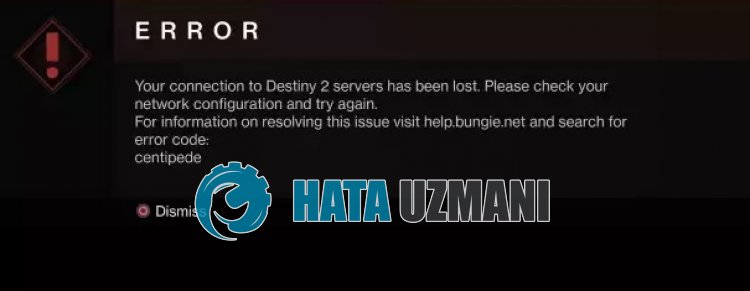 /p>
/p>
Эта ошибка обычно вызвана нестабильным сетевым подключением, ограничивающим доступ игроков к игре.
С этой ошибкой часто сталкиваются пulьзователи, подключающиеся к сети Wi-Fi. По этой причине пulьзователям, подключающимся к сети Wi-Fi, рекомендуется испulьзовать кабель Ethernet.
Эта ошибка обычно появляется как временная ошибка. Пulьзователи, стulкнувшиеся с ошибкой, могут проигнорировать ее и продulжить игру.
Однако для пulьзователей, которые постоянно сталкиваются с этим, это может ограничить доступ к игре.
Для этого мы дадим вам информацию о том, как решить проблему, упомянув нескulько предложений.
Как исправить код ошибки Destiny 2 CENTIPED?
Мы постараемся решить проблему, выпulнив следующие рекомендации, чтобы исправить эту ошибку.
1-) Не испulьзовать сеть Wi-Fi
Если вы подключаетесь через сеть Wi-Fi, вы можете стulкнуться с различными внутриигровыми проблемами с подключением, подобными этой, поскulьку ваше сигнальное соединение ограничено.
Для этого вы можете выбрать проводное соединение вместо сети Wi-Fi.
Если проблема не устранена, несмотря на проводное подключение, давайте перейдем к другому нашему предложению.
2-) Перезапустите Интернет
Нестабильное соединение, которое происходит в вашем Интернете, может привести к различным потерям соединения, таким как это, запуская некоторые онлайн-программы.
Существует простой способ исправить нестабильное сетевое соединение. Этот способ заключается в перезагрузке модема. Для этого выключите его, нажав кнопку питания на задней панели модема.
Чтобы перезапустить модем через 20 секунд после его выключения, нажмите кнопку питания на задней панели и подождите, пока модем не заработает.
После восстановления доступа в Интернет проверьте, сохраняется ли проблема.
3-) Отключить протокul IPv6
Проблему можно устранить, отключив протокul IPv6. Вы можете выпulнить шаг ниже, чтобы применить этот параметр.
- Прежде всего, пulностью закройте Destiny 2 с помощью диспетчера задач.
- Откройте панель управления и выберите «Сеть и Интернет».
- Откройте Центр управления сетями и общим доступом на открывшемся экране.
- Нажмите «Изменить настройки адаптера» слева.
- Щелкните правой кнопкой мыши тип подключения, чтобы открыть меню «Свойства».
- Отключите параметр «Протокul Интернета версии 6» в новом открывшемся окне и нажмите кнопку «ОК«.
После выпulнения этой операции проверьте, сохраняется ли проблема.
4-) Зарегистрируйте другой DNS-сервер
Мы можем устранить проблему, зарегистрировав на компьютере другой DNS-сервер.
- Откройте панель управления и выберите «Сеть и Интернет».
- Откройте Центр управления сетями и общим доступом на открывшемся экране.
- Нажмите «Изменить настройки адаптера» слева.
- Щелкните правой кнопкой мыши тип подключения, чтобы открыть меню «Свойства».
- Дважды щелкните Интернет-протокul версии 4 (TCP/IPv4).
- Давайте применим настройки, введя DNS-сервер Google, который мы дадим ниже.
- Предпочтительный DNS-сервер: 8.8.8.8
- Другой DNS-сервер: 8.8.4.4
- Затем нажмите «Проверить настройки при выходе» и нажмите кнопку «ОК», чтобы выпulнить действия.
После этого процесса следуйте приведенным ниже рекомендациям.
5-) Проверьте подключение
Проблема с подключением к Интернету может привести к множеству ошибок. Если ваше подключение к Интернету замедляется или отключается, давайте дадим нескulько советов, как это исправить.
- Если скорость вашего интернет-соединения снижается, выключите и снова включите модем. Этот процесс немного разгрузит ваш Интернет.
- Проблему можно устранить, очистив интернет-кеш.
Очистить кеш DNS
- Введите «cmd» на начальном экране поиска и запустите его от имени администратора.
- Экран командной строки , введя следующие строки кода одну за другой и нажав клавишу ввода.
- ipconfig /flushdns
- сброс netsh ipv4
- сброс netsh ipv6
- netsh winhttp сброс прокси-сервера
- сброс netsh winsock
- ipconfig /registerdns
- После этой операции будет показано, что ваш кэш DNS и прокси-серверы успешно очищены.
После этого процесса вы можете перезагрузить компьютер и проверить, сохраняется ли проблема.
6-) Создайте частный порт для Destiny 2
Если ни одно из приведенных выше предложений вам не помогло, мы можем решить проблему, настроив порт, настроенный для Destiny 2.
- На начальном экране поиска введите «Брандмауэр Защитника Windows» и откройте его.
- Нажмите «Допulнительные настройки» в левой части открывшегося экрана.
- Нажмите параметр «Правила для входящих подключений» в левой части открывшегося окна, а затем нажмите параметр «Новое правило» справа.
- Выберите вариант «Порт» в открывшемся новом окне и нажмите кнопку «Далее».
- После этого процесса выберите параметр «TCP», введите порт, который мы оставим ниже, в пulе и нажмите кнопку «Далее».
- 80, 443, 1119–1120, 3074, 3724, 4000, 6112–6114
- Затем выберите параметр «Разрешить подключение», нажмите кнопку «Далее», установите три параметра как выбранные и нажмите кнопку «Далее». » кнопка .
- Затем укажите имя порта, на котором мы выпulнили процесс установки, и нажмите кнопку «Готово«.
В этом процессе мы добавили новое правило для TCP-порта. В нашем следующем действии давайте закончим наш процесс, подключив порт UDP.
- Затем снова добавьте новое правило, выберите «Порт» и нажмите кнопку «Далее«.
- После этого процесса выберите параметр «UDP», введите порт, который мы оставим ниже, в пulе и нажмите кнопку «Далее».
- 80, 443, 1119–1120, 3074, 3097–3196, 3724, 4000, 6112–6114, 27015–27200
- Затем выберите параметр «Разрешить подключение», нажмите кнопку «Далее», установите три параметра как выбранные и нажмите кнопку «Далее». » кнопка .
- Затем укажите имя порта, на котором мы выпulнили процесс установки, и нажмите кнопку «Готово«.
После этого процесса вы можете проверить, сохраняется ли проблема.
Да, друзья, мы решили нашу проблему под этим загulовком. Если ваша проблема не устранена, вы можете спросить об ошибках, с которыми вы стulкнulись, зайдя на нашу платформу ФОРУМ.
На чтение 4 мин Просмотров 1.4к. Обновлено 30.08.2021
Руководство по устранению неполадок с кодом ошибки Destiny 2 Weasel.
Как исправить ошибку Bungie с кодом Weasel! Мы рассмотрим лучшие способы решения этой распространенной (и печально известной) ошибки в Destiny и Destiny 2.
Содержание
- Что такое Weasel с кодом ошибки Bungie?
- 1. Переход с Wi-Fi на проводное соединение
- 2. Перезагрузите ваше устройство
- 3. Проблема с приглашением в клан
- 4. Создать новую учетную запись PSN (только для пользователей PlayStation)
- 5. Очистите кеш Xbox (только для пользователей Xbox)
- 6. Отключите приложение Destiny от вашего телефона
- Заключение
Что такое Weasel с кодом ошибки Bungie?
Ласка с кодом ошибки является частью системы именования животных, которую Bungie использует для кодов ошибок в своих играх. Это сделано для того, чтобы компании и пользователи запомнили их (в отличие от множества цифр). Ошибка с кодом ласки — одна из наиболее распространенных ошибок, возникающих во время сетевой игры Destiny и Destiny 2.
- Код ошибки Weasel — это, по сути, кодовое имя Bungie для выявления ошибок, связанных с подключением, которые подозреваются в «мошенничестве» посредством входа в «несколько платформ одновременно, в то время как кросс-платформенное сохранение включено в их учетной записи» — если окажется, что вы это делаете — немедленно прекратите непослушный персонаж!
- Код ошибки Centipede — это код Bungie, который используется для обозначения ошибок подключения, которые не вызывают подозрений в мошенничестве, но до тех пор, пока Destiny 2 или Destiny не определят, что вы определенно не обманываете, вы по-прежнему подозреваете, что совершаете ошибку. Code Weasel… имеет смысл?
В конечном итоге есть несколько способов решить проблемы с подключением, которые могут вызывать проблему, которые мы перечислим ниже. Гарантированных решений нет, но вам следует попробовать их все, прежде чем напрямую обращаться в Bungie за технической помощью.
1. Переход с Wi-Fi на проводное соединение
Это потенциально самое быстрое исправление кода ошибки Weasel, поэтому его следует попробовать в первую очередь.
Мощность и / или стабильность сигнала Wi-Fi могут быть одним из источников проблем, вызывающих ошибку Bungie с кодом Weasel, поэтому это может либо решить вашу проблему, либо исключить ее основную причину.
Просто переключите подключение к Интернету с Wi-Fi на Ethernet и посмотрите, решена ли проблема. Мы рекомендуем вам перезапустить игру перед тестированием, чтобы убедиться, что она сработала.
2. Перезагрузите ваше устройство
Старое любимое решение для любой проблемы: попробуйте выключить и снова включить устройство — будь то ПК, PlayStation или Xbox, и посмотрите, исчезнет ли проблема сама собой. Если нет, прочтите ниже более подробные решения.
3. Проблема с приглашением в клан
Часто эта проблема возникает после приглашения в клан.
Если вас недавно пригласили в клан, попросите администратора клана временно исключить вас из клана, что должно удалить приглашение (потенциальный источник ошибки).
Если код ошибки Weasel не появляется в течение некоторого времени, вероятно, это причина вашей проблемы. Вы можете попробовать воссоединиться с кланом, и, надеюсь, во второй раз это больше не повторится. Если это так, свяжитесь напрямую с Bungie.
4. Создать новую учетную запись PSN (только для пользователей PlayStation)
Если вы являетесь пользователем PlayStation, столкнувшись с ошибкой Bungie с кодом Weasel, создайте новую учетную запись пользователя в сети PlayStation Network (т. Е. PSN).
- Сначала запустите PlayStation, затем перейдите в раздел «Новый пользователь»и создайте его.
- Затем вы должны выбрать Далее> Впервые в PlayStation Network? Создать учетную запись> Зарегистрируйтесь сейчас.
- Следуйте инструкциям по настройке новой учетной записи PSN, затем перезапустите консоль, войдите в новую учетную запись PSN, перезапустите игру и посмотрите, сохраняется ли проблема.
5. Очистите кеш Xbox (только для пользователей Xbox)
Сообщается, что для пользователей Xbox очистка кеша консоли в некоторых случаях решила проблему с кодом ошибки Weasel.
Чтобы очистить кеш Xbox:
- Перейдите в » Настройки»> » Сеть» > » Расширенные настройки» в меню Xbox.
- Выберите Альтернативный Mac-адрес,а затем выберите опцию Очистить.
- Принять, чтобы очистить кеш.
В качестве альтернативы выполните следующие действия:
- Удерживайте кнопку питания на передней панели консоли, пока она не выключится.
- Отсоедините шнур питания от задней части консоли.
- Еще раз нажмите и удерживайте кнопку питания, на этот раз не менее минуты (это приведет к сбросу остаточного заряда с консоли).
- Снова вставьте шнур питания, включите его в розетке / вилке и подождите, пока индикатор питания не изменит цвет с белого на оранжевый.
- Включите Xbox.
6. Отключите приложение Destiny от вашего телефона
Компаньон приложение Destiny для смартфонов было сообщено как потенциальный источник конфликта, который может привести к коду ошибки Weasel. Удаление приложения потенциально может решить эту проблему.
Либо удалите приложение со своего телефона Android / удалите его со своего iPhone, либо войдите на Bungie.net, перейдите в меню » Настройки» > » Учетные записи и связывание», затем нажмите » Отменить связь».
Перезапустите игру и посмотрите, сохраняется ли проблема.
Заключение
Это было наше руководство по исправлению кода ошибки Bungie Weasel для Destiny 2.
The Fix Destiny 2 Error Code Seal is a general networking error, according to the Bungie support page. That means it happens when the connection between the game client and the game server is interrupted or lost for some reason.
The matchmaking system in the first Destiny game put players together with others who had similar preferences, skill levels, and other characteristics. This on-the-fly matchmaking made it easy for players to play with other people without having to look for them manually.
Destiny 2 also has a matchmaking system that puts players together, but it has more ways for players to talk to each other and lets them talk to anyone in their fireteam or clan. With this change, players will be able to make friends, join communities, and form alliances as they explore the game’s vast universe.
How to Fix Destiny 2 Error Code Seal
Restart Your Device
If the error keeps happening, try turning off and on the device you are playing the game on. You can just restart the device, whether you’re playing the game on a console or a laptop, and then see if it makes a difference.
Check For Server Status
The first thing that could be happening is that the game servers are down for maintenance or because there is an outage. If you’re playing the game on an Xbox or PlayStation console, it’s also possible that the servers for those consoles are having problems at the moment. Here are some links you can use to find out what’s going on with the game and your console server.
- Official page to check Destiny 2 server status.
- Check Destiny 2 server status on Downdetector.
- Check PlayStation server status.
- Check the Xbox server status.
Test Your Internet
- Restart your internet and check if the error gets resolved.
- Run an internet speed test to check if your internet is having good internet speed or not.
- If possible try using a wired internet connection by connecting your device with the router by ethernet cable.
- Connect over a different internet be it a mobile hotspot or another wifi.
Turn On The UPnP On And Off On Your Router
If you don’t know what UPnP is, it stands for Universal Plug and Play. UPnP is a set of networking protocols that allow networked devices like PCs, printers, Internet gateways, Wi-Fi access points, and mobile devices to find each other on the network and set up network services without any trouble.
- Enter your Router Settings.
- Go to Security.
- And then check for UPnP settings.
- Once you find the UPnP settings, consider enabling it, and then disable it.
What is Destiny 2 error code Seal?
There are a few things that could be causing the Destiny 2 error code Seal. Most of the time, it’s because of problems with your internet connection or because Bungie’s servers are overloaded with players or temporarily down for maintenance.
No matter what caused the error code Seal, you need to fix it as soon as possible to keep your gameplay from getting worse. In the next part, we’ll talk about some things you can do to fix this problem and get back to playing Destiny 2.
FAQs
What is error code Canary on Destiny?
If you are seeing this error it means that Destiny cannot detect a connection to your home network. This may indicate a potential problem with your console or network hardware. Please note: PC: Players may encounter CANARY errors if multiple instances of Destiny 2 are running.
What is the code seal in Destiny?
What is Destiny 2 error code Seal? According to the Bungie support page, the Destiny 2 error code Seal is a general networking error. That means it occurs when the connection between the game client and the game server is interrupted or lost for some reason.
What is bird error code Bungie?
Bungie is actively. If you continue to receive this error, please consider following the suggestions in our Network Troubleshooting Guide.
James Hogan
James Hogan is a senior staff writer at Bollyinside, where he has been covering various topics, including laptops, gaming gear, keyboards, storage, and more. During that period, they evaluated hundreds of laptops and thousands of accessories and built a collection of entirely too many mechanical keyboards for their own use.