
Обновлен: 3 месяца назад
Номер статьи (ID) 16531
Распространенные проблемы
Ой, что-то сломалось (или аварийно закрылось). Попробуйте перезапустить приложение Battle.net и/или перезагрузить компьютер.
Код ошибки: BLZBNTBNA00000005
Приложение Battle.net не смогло связаться с программой Battle.net Update Agent, работа которой позволяет производить установку, обновление, запуск и удаление игр Blizzard.
Хорошо! Вы можете помочь нам стать еще лучше. Оцените следующие пункты по шкале от 1 до 5:
Нам жаль, что так получилось! Расскажите, что пошло не так. Отметьте все подходящие варианты:
Click to watch this video in a web browser.
Загрузка…
Loading
Речь, само собой, о сообщении «Попытка вывести агент обновления Blizzard из режима сна» (Blizzard Agent went to sleep) и ошибке с длинным кодом BLZBNTBNA00000005 из-за которых в Call of Duty: Warzone вообще не поиграть…
На самом деле, эта самая BLZBNTBNA00000005 означает, что серверы BattleNet, что называется, «лежат». То бишь, временно отключены и там опять что-то чинят или обновляют.
По крайней мере, если по факту появления сообщения о «режиме сна у агента» проверить текущий статус сервиса, к примеру, на Downdetector-е, то, вероятнее всего, окажется, что так оно и есть. Плюс, в твиттере службы поддержки тоже наверняка уже будет соответствующий пост.
Но иногда случается и так, что такую же ошибку клиент BattleNet выдает, когда с серверами всё ОК. Следовательно, причина сбоя — в чем-то другом.
Не пропустите: ПРОБЛЕМЫ CALL OF DUTY — ЧТО БЫВАЕТ, И КАК УСТРАНЯТЬ
Так вот, возвращаясь к вопросу,..
можно ли поиграть в CoD Warzone, когда BLZBNTBNA00000005 и агент Blizzard «спит»?
В общем, причина эта вполне себе стандартная: просто клиенту Battle.Net может не дать нормально работать антивирус (давеча, к слову, как раз за этим делом замечен был AVG Antivirus) и/или брандмауэр Windows.
Поэтому, когда возникает такая проблема, то первым делом смотрим, что показывает Downdetector. И если серверы Battle.Net функционируют нормально, то, похоже, надо всего лишь добавить exe-шник клиента в список исключений антивируса или Защитника Windows.
Как добавить клиент в «белый список» защитника Windows, смотрим ЗДЕСЬ. А чтобы добавить клиент Battle.Net в список исключений AVG, действуем следующим образом:
- открываем приложение AVG Antivirus и заходим в «Настройки«;
- жмем «Полная защита» (в меню слева) и далее — «Улучшенный Firewall«;
- окно настроек функции «Улучшенный Firewall» прокручиваем чуть вниз и жмем кнопку «Правила для пакетов«:
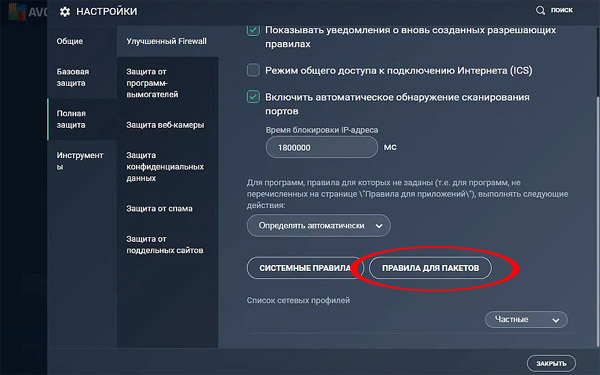
- теперь смотрим, в какой порт открывается агент Battle.net (по умолчанию: C:/ProgramData/Battle.net/Agent/Agent.6700/Logs) и если их несколько, то берем любой, но один;
- в поле «Локальный порт» прописываем номер порта, который указан в строке Agent started on port #… («Агент запущен в порт №…»), независимо от того, какой номер порта;
- в поле «Удаленный порт» прописываем число, которое указано после двоеточия в строке Checking Network Connection status… («Проверка состояния сетевого подключения…»);
- включаем «Разрешить» для Battle.net (добавляем в протокол TCP/UDP и Вход/Выход);
- переставляем новое исключение в самый верх списка и жмем ОК;
- перезапускаем клиент Battle.net.
Пробуем запустить игру. Должно заработать нормально. А если не заработало, то, возможно, надо переустанавливать Battle.net плностью. НО прежде на всякий случай еще раз перепроверяем статус серверов (линк — выше).
[irp]
I’ve been using Lutris to play some Blizzard games on my Ubuntu 18.04 desktop and I kept running into the same two issues over and over again. The issues are easy to fix, but not obvious, so I thought I’d share the fix with you in case you run into the same problems.
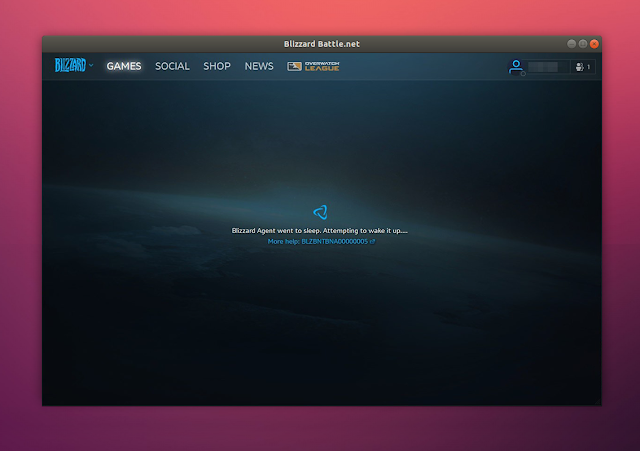
The first issue, and the most frequent one for me, is the Blizzard App Launcher (Battle.net) displaying a message that says «Blizzard agent went to sleep. Attempting to wake it up«, with the BLZBNTBNA00000005 error code. Restarting Battle.net (and even the computer), trying to kill the Agent.exe process or every process related to Battle.net doesn’t get rid of this issue on my system. I’ve been running into this issue quite frequently in the past few months.
The second issue occurs when a game has an update (it might be combined with Battle.net having an update in the same time and updating Battle.net first, but I’m not sure). In some cases, Battle.net gets stuck and refuses to install the update, displaying a «Waiting on another installation or update» message indefinitely, even though there is no other update available for either Battle.net or a game. Clicking the force update button doesn’t solve this.
The fix for both of these issues is to delete the Battle.net folder from the ProgramData directory (after closing the Blizzard Battle.net application, and killing any Blizzard Battle.net and Blizzard Update Agent processes). Do not confuse this with the Battle.net folder from Program Files (x86)!
If you’re a Windows user that stumbled upon this article, the fix is the same and the path to this folder in your case is C:/ProgramData/Battle.net. You will not see the ProgramData folder in C:/ (even though it’s there), but you can manually type the path in Windows Explorer — press Ctrl + L, then type the path.
The path to the ProgramData/Battle.net folder depends on what installation method you’ve used to install the Blizzard Battle.net app. In my case, I set the Games folder from my home directory as the Lutris installation folder. Battle.net was installed when I installed Overwatch from the Lutris website, so in this case, the path is ~/Games/overwatch/drive_c/ProgramData/Battle.net.
If you don’t know how to find the ProgramData folder on your Linux system, you can use locate to find it. Run this in a terminal:
sudo updatedb
locate ProgramData/Battle.net
The command output should display a bunch of lines with the path to the ProgramData/Battle.net folder. Make sure Battle.net is closed, then open a file manager, navigate to this path and delete the Battle.net folder. Now you can start Battle.net and the issue should be gone.
Note that Battle.net may not detect your installed games after you do this. If this happens, you can click the Locate the game link next to the game install button, and select the game folder.
[Edit March 13, 2020] The Blizzard servers are currently having issues, and the instructions in this article won’t help until the servers are fixed. In my case, I had to wait a bit (maybe 30 seconds), and the «Blizzard Agent went to sleep» error message was gone by itself. As an alternative / workaround, you could also run the game manually (look under the folder where it’s located and launch the executable from there), the only downside to this being that you’ll need to enter your email and password manually after launching the game; e.g. to launch Overwatch go to its installation path, e.g. C:Program Files (x86)Overwatch_retail_ in Windows, and launch Overwatch.exe from there.